The Wiert Corner – irregular stream of stuff

Jeroen W. Pluimers on .NET, C#, Delphi, databases, and personal interests

  • My badges

  • Twitter Updates

  • My Flickr Stream

  • Pages

  • All categories

  • Enter your email address to subscribe to this blog and receive notifications of new posts by email.

    Join 1,860 other subscribers

Archive for the ‘Remote Desktop Protocol/MSTSC/Terminal Services’ Category

On my list of tools to check out RustDesk (as replacement for TeamViewer, Remote Desktop and similar)

Posted by jpluimers on 2025/06/05

For non-Windows systems, I have used TeamViewer in the past and when they started being obnoxious reverted mostly to VNC derived alternatives. For Windows, I’d usually combined VPN with Remote Desktop.

Recently, I found out that during my first rectum cancer year (and for others, the first COVID-19 year), the development of RustDesk – which can be self-hosted – started as an open source project on [Wayback/Archive] GitHub – rustdesk/rustdesk: An open-source remote desktop application designed for self-hosting, as an alternative to TeamViewer. with their first commit being [Wayback/Archive] Initial commit · wabarc/wayback@650ea87 · GitHub.

I got pointed to this in [Wayback/Archive] Your Remote Desktop SUCKS!! Try this instead (FREE + Open Source) – YouTube.

One of the main things to figure out is how reliably RustDesk does firewall hole punching*.

Another personal interest is to learn more about Rust and Dart, the main programming languages in which RustDesk is written.

Here are some links:

Read the rest of this entry »

Posted in Development, Power User, Remote Desktop Protocol/MSTSC/Terminal Services, Rust, Screen sharing, Software Development, TeamViewer, VNC/Virtual_Network_Computing, Windows | Tagged: | Leave a Comment »

Remote desktop connection protocol error 0x112F: usually is lack of memory on the server side, try connecting with a lower resolution

Posted by jpluimers on 2024/08/19

Usually I work at high resolution monitors and sometimes I got error 0x112F when doing Remote Desktop.

After a reboot of the target machine, that error always goes away, but I wanted to know the underlying reason.

Read the rest of this entry »

Posted in Power User, Remote Desktop Protocol/MSTSC/Terminal Services, Windows | Leave a Comment »

PowerShell: working around Get-NetFirewallRule not showing all the fields that Set-NetFirewallRule allows you to set

Posted by jpluimers on 2022/10/26

With APIs, you always hope that Get and Set methods mirror each other. More often than not, they don’t.

Take for instance these two:

They are far from symmetric: [Wayback/Archive] Get-NetFirewallRule shows far less than [Wayback/Archive] Set-NetFirewallRule allows you to set (first and foremost the various port related properties). It can be worked around though.

There are a few posts discussing this, of which I think these two are the most important:

Both above posts via [Wayback/Archive] “Get-NetFirewallRule” “LocalPort” – Google Search.

This is what I was after:

PowerShell "Get-NetFirewallRule -Name 'RemoteDesktop-UserMode-In-TCP' | Select-Object Name,DisplayName,Enabled,Direction,@{Name='Protocol';Expression={($PSItem | Get-NetFirewallPortFilter).Protocol}},Action,@{Name='LocalPort';Expression={($PSItem | Get-NetFirewallPortFilter).LocalPort}}"

Or actually:

Read the rest of this entry »

Posted in CommandLine, Development, Power User, PowerShell, PowerShell, Remote Desktop Protocol/MSTSC/Terminal Services, Scripting, Software Development, Windows | Leave a Comment »

Increase audio quality in Remote Desktop Connections – Increase audio quality in Remote Desktop Connections

Posted by jpluimers on 2022/03/25

I wish mstsc.exe had a command-line parameter for this, but you have to either change it server-wide, or for each client using a .rdp file as per [Wayback] Increase audio quality in Remote Desktop Connections – Increase audio quality in Remote Desktop Connections

I really dislike fuzzy/tinny audio. Sometimes RDP connections with RDC clients results in laggy and/or poor quality audio. A two step tip that you can use to try and solve these problem in Windows7:

on the server (the machine you are connecting to)

Using the Group Policy editor, Go to Computer Configuration:Administrative Templates:Windows Components: Remote Desktop Session Host:Device and Resource Redirection. Set “Limit audio playback quality.”  to “Enabled,” and set “Audio Quality” option “to High”.

on the client (the machine you are connecting FROM) save and edit the RDP file for the connection and add  set audioqualitymode:i:2 to the file (you can use Notepad or a similar text editor to do this)

I got there via [Wayback] Remote Desktop software that works with audio (Windows) – Software Recommendations Stack Exchange which also taught me this (thanks [Wayback] Basj):

The last one is backed up by [Wayback] Audio FAQ – RealVNC Help Center

What can and can’t I do with audio?

Audio is available for [Wayback] Professional and Enterprise users, and allows the user to play audio on the Server and hear it on the Viewer. Now, in addition to seeing what is displayed on the Viewer and controlling the remote computer as though you were sitting in front of it, you can also hear what is playing on its speakers.

How do I turn the audio feature on or off?

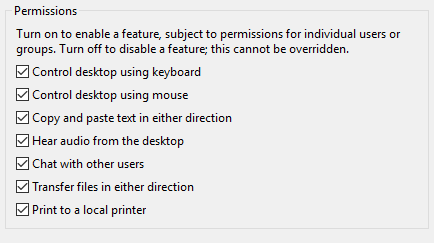
The audio feature can be controlled from both the Server and the Viewer and must be activated on both for sound to work. On the Server, you can allow connected Viewer users to hear audio using “Global Permissions” in Options > Users & Permissions. (You can also set audio on a per-user basis.)
mceclip1.png

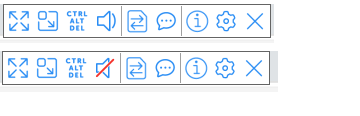
The audio permissions can be controlled per connected user account via the Server options page. On the Viewer, there is a mute/unmute setting to tick.
mceclip0.png

From [Wayback] audio – How can I forward sound over VNC? – Unix & Linux Stack Exchange, I learned that on Linux, PulseAudio might help, but requires SSH access:

You can use PulseAudio to move sound over SSH, though, which may be better than nothing for you.

Check out this post: [Wayback] https://razor.occams.info/blog/2009/02/11/pulseaudio-sound-forwarding-across-a-network/

–jeroen

Posted in Power User, Remote Desktop Protocol/MSTSC/Terminal Services, Windows | Leave a Comment »

Run the latest RDP session in full-screen

Posted by jpluimers on 2021/12/28

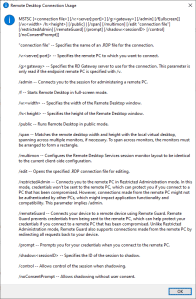
MSTSC.exe helptext

MSTSC.exe helptext

I created this small batch file:

:: start last RDP session (or new one with command-line parameters) full-screen
:: see https://interworks.com/blog/ijahanshahi/2012/01/02/mstsc-commands-and-creating-custom-remote-desktop-shortcut/
mstsc /f %*

It is based on [Wayback] MSTSC Commands and Creating a Custom Remote Desktop Shortcut | InterWorks, which has the helptext for MSTSC.exe (which stands for MicroSoft Terminal Services).

Later I found out a way easier method to get that helptext is to run MSTSC.exe /?, which shows a nice dialog:

[Window Title]
Remote Desktop Connection Usage

[Content]
MSTSC [] [/v:<server[:port]>] [/g:] [/admin] [/f[ullscreen]] [/w: /h:] [/public] | [/span] [/multimon] [/edit "connection file"] [/restrictedAdmin] [/remoteGuard] [/prompt] [/shadow: [/control] [/noConsentPrompt]]

"connection file" -- Specifies the name of an .RDP file for the connection.

/v:<server[:port]> -- Specifies the remote PC to which you want to connect.

/g: -- Specifies the RD Gateway server to use for the connection. This parameter is only read if the endpoint remote PC is specified with /v.

/admin -- Connects you to the session for administering a remote PC.

/f -- Starts Remote Desktop in full-screen mode.

/w: -- Specifies the width of the Remote Desktop window.

/h: -- Specifies the height of the Remote Desktop window.

/public -- Runs Remote Desktop in public mode.

/span -- Matches the remote desktop width and height with the local virtual desktop, spanning across multiple monitors, if necessary. To span across monitors, the monitors must be arranged to form a rectangle.

/multimon -- Configures the Remote Desktop Services session monitor layout to be identical to the current client-side configuration.

/edit -- Opens the specified .RDP connection file for editing.

/restrictedAdmin -- Connects you to the remote PC in Restricted Administration mode. In this mode, credentials won't be sent to the remote PC, which can protect you if you connect to a PC that has been compromised. However, connections made from the remote PC might not be authenticated by other PCs, which might impact application functionality and compatibility. This parameter implies /admin.

/remoteGuard -- Connects your device to a remote device using Remote Guard. Remote Guard prevents credentials from being sent to the remote PC, which can help protect your credentials if you connect to a remote PC that has been compromised. Unlike Restricted Administration mode, Remote Guard also supports connections made from the remote PC by redirecting all requests back to your device.

/prompt -- Prompts you for your credentials when you connect to the remote PC.

/shadow: -- Specifies the ID of the session to shadow.

/control -- Allows control of the session when shadowing.

/noConsentPrompt -- Allows shadowing without user consent.

[OK]

–jeroen

Posted in Batch-Files, Development, Power User, Remote Desktop Protocol/MSTSC/Terminal Services, Scripting, Software Development, Windows | Leave a Comment »

bolkedebruin/rdpgw: Remote Desktop Gateway in Go for deploying on Linux/BSD/Kubernetes

Posted by jpluimers on 2021/12/23

On my list of things to try: an open source golang implementation of the Remote Desktop Gateway protocol: [Wayback/Archive.is] bolkedebruin/rdpgw: Remote Desktop Gateway in Go for deploying on Linux/BSD/Kubernetes.

[Wayback] [MS-TSGU]: Terminal Services Gateway Server Protocol | Microsoft Docs:

Specifies the Terminal Services Gateway Server Protocol, which is a mechanism to transport data-link layer (L2) frames on a Hypertext Transfer

Via: [Wayback] linux – Create RDP gateway in Raspberry Pi or Ubuntu – Super User

–jeroen

Posted in *nix, Development, Go (golang), Power User, Remote Desktop Protocol/MSTSC/Terminal Services, Software Development, Windows | Leave a Comment »

high sierra – Remote Desktop 10.2.3 Database Creation Error; 10.2.1 runs fine; 10.2.2 crashes: how to find actual cause(s)? – Ask Different

Posted by jpluimers on 2020/12/21

From a while back:

What would be good steps to find the cause of the below errors?

I get this error when running Microsoft Remote Desktop 10.2.3 or higher on MacOS High Sierra:

Database Creation Error

"An error occurred during persistent store migration.

[Domain: NSCocoaErrorDomain, Code: 134110]"

[WayBack] high sierra – Remote Desktop 10.2.3 Database Creation Error; 10.2.1 runs fine; 10.2.2 crashes: how to find actual cause(s)? – Ask Different

Related Twitter thread: [WayBackJeroen Pluimers on Twitter: “Help! Stuck at @msremotedesktop 10.2.1 (that cannot add new users) on High Sierra because 10.2.2 keeps crashing, and both 10.2.3 and 10.2.4 cannot migrate: “An error occurred during persistent store migration. [Domain: NSCocoaErrorDomain, Code: 134110]””

Tried beta: 10.2.6 (1529) at [WayBackMicrosoft_Remote_Desktop_Beta.app.zip from [WayBack] Microsoft Remote Desktop for Mac – HockeyApp

--jeroen

Read the rest of this entry »

Posted in Apple, Mac OS X / OS X / MacOS, macOS 10.13 High Sierra, Power User, Remote Desktop Protocol/MSTSC/Terminal Services, Windows | Leave a Comment »

Tools I use for audio/video downloading, media conversion and audio editing

Posted by jpluimers on 2020/07/03

A friend asked me what tools I use for downloading media, converting it to various formats (including audio extraction) and audio editing.

It is a surprisingly short list:

Most of it runs out of the box on Mac OS X/MacOS/OS X, as I’ve moved there form Windows for most of my day to day access to systems (there is a great set of Microsoft Remote Desktop in the app store: [Archive.isMicrosoft Remote Desktop 8.0 on the Mac App Store and [Archive.isMicrosoft Remote Desktop 10 on the Mac App Store; I like the first one better).

Audacity shortcuts

Read the rest of this entry »

Posted in Apple, Audacity, Audio, ffmpeg, iMac, Mac, Mac OS X / OS X / MacOS, MacBook, MacBook Retina, MacBook-Air, MacBook-Pro, MacMini, Media, Power User, Remote Desktop Protocol/MSTSC/Terminal Services, SocialMedia, Windows, YouTube, youtube-dl | Leave a Comment »

xrdp

Posted by jpluimers on 2020/04/06

I totally missed this the last 5 years. Where have I been (:

[WayBack] xrdp: An open source remote desktop protocol(rdp) server.

It runs on top of either Xvnc (which I have used) or X11rdp and should be usable with any RDP client (like the excellent Microsoft RDP for Mac OS X).

Related

Via:

–jeroen

Posted in *nix, *nix-tools, Power User, Remote Desktop Protocol/MSTSC/Terminal Services, VNC/Virtual_Network_Computing, Windows | Leave a Comment »

VNC, Windows and UAC prompts

Posted by jpluimers on 2019/02/15

Since I needed to maintain a Windows PC behind a VPN connection via the console (so not via RDP sessions) including installation of software, I needed a (preferably free or open source) solution supporting elevation through UAC (User Account Control).

For a good description of differences between RDP and VNC, see [WayBack] remote desktop – TightVNC while an RDP session is running – Super User by [WayBackUser Canadian Luke.

Of the many non functional search results, the one suggesting running UltraVNC as a service is the one that really worked: [WayBack] If you install UltraVNC as a service, you can see the UAC notifications and press the buttons… VNC on windows 7 with administrator rights – Super User.

  1. I only needed the “Ultra VNC Server Silent” installation (see screenshot below).
  2. Run the UltraVNC settings (default location for the settings application is C:\Program Files\uvnc bvba\UltraVNC\uvnc_settings.exe)
    1. In the Security tab, be sure to set good passwords for read/write access (VNC Password) and read-settings (View-Only password)
    2. In the  Service tab, ensure the service is installed and if it is stop+start the service
  3. Optionally ensure a TLS or SSH tunnel (as by default ports 5900 and 5800 are unencrypted)
    • I need to research this further, as there seems to be a plugin possibility.

Now I can use Screen Sharing on my Mac to access the machine via a VPN over the VNC protocol. Combined with a Wake On LAN feature in the remote network, this works splendid.

Read the rest of this entry »

Posted in Power User, Remote Desktop Protocol/MSTSC/Terminal Services, Windows | Leave a Comment »