The Wiert Corner – irregular stream of stuff

Jeroen W. Pluimers on .NET, C#, Delphi, databases, and personal interests

  • My badges

  • Twitter Updates

  • My Flickr Stream

  • Pages

  • All categories

  • Enter your email address to subscribe to this blog and receive notifications of new posts by email.

    Join 1,839 other subscribers

Archive for the ‘Windows 10’ Category

automatic logon in Windows 2003

Posted by jpluimers on 2012/01/27

At a client that still runs Windows Server 2003 (despite the fact that it is in the extended support phase now), I needed to enable automatic logon (one of the tools they run sometimes fails when nobody is logged on).

This was a bit more tricky than just reading [WayBack] How to turn on automatic logon in Windows (now at How to turn on automatic logon in Windows) and following these steps:

To use Registry Editor (Regedt32.exe) to turn on automatic logon, follow these steps:

  1. Click Start, and then click Run.
  2. In the Open box, type Regedt32.exe, and then press ENTER.
  3. Locate the following subkey in the registry:
    HKEY_LOCAL_MACHINE\SOFTWARE\Microsoft\Windows NT\CurrentVersion\Winlogon
  4. Double-click the DefaultUserName entry, type your user name, and then click OK.
  5. Double-click the DefaultPassword entry, type your password, and then click OK.NOTE: If the DefaultPassword value does not exist, it must be added. To add the value, follow these steps:
    1. On the Edit menu, click New, and then point to String Value.
    2. Type DefaultPassword, and then press ENTER.
    3. Double-click DefaultPassword.
    4. In the Edit String dialog, type your password and then click OK.

    NOTE: If no DefaultPassword string is specified, Windows automatically changes the value of the AutoAdminLogon key from 1 (true) to 0 (false), disabling the AutoAdminLogon feature.

  6. On the Edit menu, click New, and then point to String Value.
  7. Type AutoAdminLogon, and then press ENTER.
  8. Double-click AutoAdminLogon.
  9. In the Edit String dialog box, type 1 and then click OK.
  10. Quit Registry Editor.
  11. Click Start, click Shutdown, and then type a reason in the Comment text box.
  12. Click OK to turn off your computer.
  13. Restart your computer. You can now log on automatically.

Since this depends on some registry settings, you need to make sure they are actually set.
And logging on as someone else will reset the DefaultUserName registry setting.

The article points to another article on “AutoAdminLogon looses DefaultUserName” to solve this using REGINI (and optionally REGDMP which can provide sample output for REGINI), but there is a much easier solution using RegEdit which – as Rob van der Woude points out – can be used unattended as well (besides: REGDMP cannot be downloaded any more, and REGINI requires an additional download).

This is how to do force the DefaultUserName to be reset after logon using RegEdit:

  1. Open an explorer Window in “%ALLUSERSPROFILE%\Start Menu\Programs\Startup
  2. Create a batch file “run-RegEdit-DefaultUserName.bat” there with this content:
    regedit /s Administrator-DefaultUserName.reg
  3. Create a text file “Administrator-DefaultUserName.reg” in the same directory with content like this:
    Windows Registry Editor Version 5.00
    
    [HKEY_LOCAL_MACHINE\SOFTWARE\Microsoft\Windows NT\CurrentVersion\Winlogon]
    "DefaultUserName"="Administrator"

Replace “Administrator” with the username you are actually using.

–jeroen

Via: How to turn on automatic logon in Windows.

Read the rest of this entry »

Posted in Power User, Windows, Windows 10, Windows 7, Windows 8, Windows 8.1, Windows 9, Windows Server 2003, Windows Server 2003 R2, Windows Server 2008, Windows Server 2008 R2, Windows Server 2012, Windows Server 2012 R2, Windows Server 2016, Windows Vista | 2 Comments »

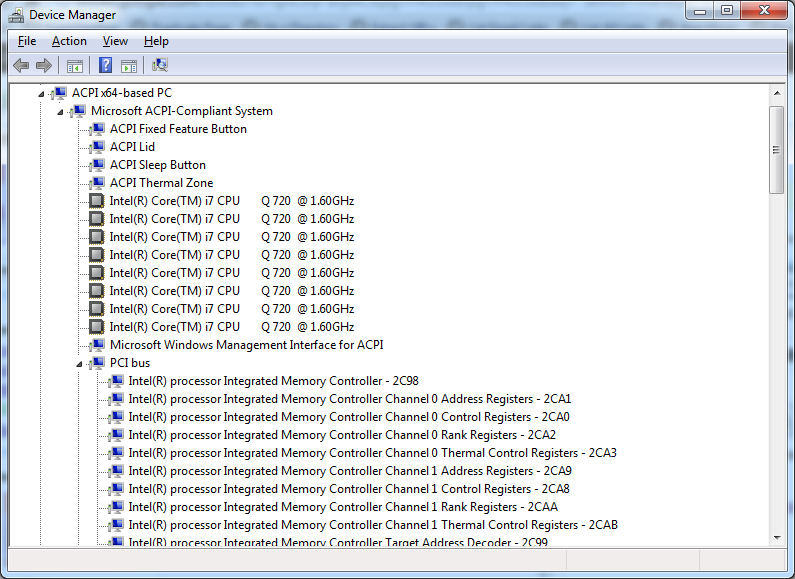
Windows “Device Manager” – expand all nodes

Posted by jpluimers on 2011/09/23


Expanded Windows Device Manager


With the increasing number of devices, it really helps to expand all nodes in the Device Manager’s tree view.

You cannot do this with the mouse, as none of the menu options contain an “Expand All” option.

But since the treeview, is the built-in Windows treeview (used in many places, like Windows explorer), you can use these shortcuts to expand/collapse nodes:

  • Numeric Keypad *: Expands everything under the current selection
  • Numeric Keypad +: Expands the current selection
  • Numeric Keypad -: Collapses the current selection.
  • RIGHT ARROW: Expands the current selection if it is not expanded, otherwise goes to the first child
  • LEFT ARROW: Collapses the current selection if it is expanded, otherwise goes to the parent

This not only works in Microsoft Windows 7: Visual … – Google Books, I think it has been introduced as far back as Windows 95.

–jeroen

Posted in Keyboards and Keyboard Shortcuts, Power User, Windows, Windows 10, Windows 7, Windows 8, Windows 8.1, Windows 9, Windows Server 2003, Windows Server 2003 R2, Windows Server 2008, Windows Server 2008 R2, Windows Server 2012, Windows Server 2012 R2, Windows Vista, Windows XP | 1 Comment »

batch-file trick: Starting Windows Explorer and selecting a file (“explorer” commandline parameters “/n” “/e” “/select” “/root” “/start” site:microsoft.com)

Posted by jpluimers on 2010/09/01

From a batch-file I recently had to start Windows Explorer, at the same time select a specific file or directory.

This turned out pretty easy: use the /select command-line switch from Windows Explorer.

In fact, Windows Explorer has a few command-line switches, and the “explorer” commandline parameters “/n” “/e” “/select” “/root” “/start” site:microsoft.com query will find quite a few topics about it: Read the rest of this entry »

Posted in Power User, Windows, Windows 10, Windows 7, Windows 8, Windows 8.1, Windows 9, Windows 95, Windows 98, Windows ME, Windows NT, Windows Server 2000, Windows Server 2003, Windows Server 2003 R2, Windows Server 2008, Windows Server 2008 R2, Windows Server 2012, Windows Server 2012 R2, Windows Server 2016, Windows Vista, Windows XP | 1 Comment »

Windows 7/Vista: How to access Administrative Shares (C$, IPC$, …) via PaulSpoerry.com

Posted by jpluimers on 2010/05/13

A while after installing a new copy of Vista or Windows 7, I usually want to be able to access the administrative shares (like C$, Admin$, IPC$, etc).

On Windows 7 and Vista, those are by default not enabled.

To enable them, import this enable-windows-7-vista-server-2008-administrative-shares.reg file into the registry:

Windows Registry Editor Version 5.00

[HKEY_LOCAL_MACHINE\SOFTWARE\Microsoft\Windows\CurrentVersion\Policies\System]
"LocalAccountTokenFilterPolicy"=dword:00000001

You need to reboot your system once after this registry change.

Or from a batch file as Administrator:

reg add "HKEY_LOCAL_MACHINE\SOFTWARE\Microsoft\Windows\CurrentVersion\Policies\System" /v "LocalAccountTokenFilterPolicy" /t REG_DWORD /d 0 /f

Later I name the files like this:

enable.windows-vista-and-up.administrative-shares.bat
enable.windows-vista-and-up.administrative-shares.reg

–jeroen

via [WayBack] How to access Administrative Shares on Vista C$ | PaulSpoerry.com

Posted in Power User, Windows, Windows 10, Windows 7, Windows 8, Windows 8.1 | Leave a Comment »

Windows 7 has lots of ‘GodModes’ (exclusive) | Beyond Binary – CNET News

Posted by jpluimers on 2010/01/14

Some more GodModes in Windows 7.
Note that some might work in Vista too, but note that Vista-64 users have problems with the original ‘GodMode.{ED7BA470-8E54-465E-825C-99712043E01C}‘ folder name (in fact any name before the dot will work: ‘Thor.{ED7BA470-8E54-465E-825C-99712043E01C}‘ is fine too.

You can also run ‘explorer shell:::{ED7BA470-8E54-465E-825C-99712043E01C}‘ from the command-line or from a batch file (like thor.bat).

Via:

–jeroen

Posted in GodMode, Pingback, Power User, Windows, Windows 10, Windows 7, Windows 8, Windows 8.1, Windows Vista | Leave a Comment »