Logparser […] powerful, versatile tool that provides universal query access to text-based data such as log files, XML files and CSV files, as well as key data sources on the Windows operating system such as the Event Log, the Registry, the file system, and Active Directory. The results of the input query can be custom-formatted in text based output, or they can be persisted to more specialty targets like SQL, SYSLOG, or a chart.
My conclusion is that various Microsoft updates now require 3 gigabytes of disk space.
This seems to be the case with the .NET Framework 4.5.1 KB 2858725 update, and probably more future updates. I tried installing the KB 2858725 update with slightly less than 3 gigabytes of space (and after the 3 gigabyte reserve.tmp appeared), and I was still getting error 13EC. But with slightly more than 3 gigabyte the update would install.
That is quite difficult when you run loads of VMs on SSDs: they usually don’t have an awful lot of disk space left.
The same issue holds for Microsoft .NET Framework 4.5.2 for Windows 7 x64-based Systems (KB2901983) which got released earlier this week:
Installing drivers on Windows 8.1 x64 turned out to be really easy despite the fact that the Canon site does not offer them: just install the “Windows Vista (64-bit)” drivers from this Canon link: [Wayback] PIXMA mini260 – Canon Europe.
This works as the printer driver model hasn’t changed much since Vista and the Vista drivers do not contain limits on future version numbers (see [Wayback] Getting older Windows drivers to work in Windows 8 for another example).
At a client that still runs Windows Server 2003 (despite the fact that it is in the extended support phase now), I needed to enable automatic logon (one of the tools they run sometimes fails when nobody is logged on).
To use Registry Editor (Regedt32.exe) to turn on automatic logon, follow these steps:
Click Start, and then click Run.
In the Open box, type Regedt32.exe, and then press ENTER.
Locate the following subkey in the registry: HKEY_LOCAL_MACHINE\SOFTWARE\Microsoft\Windows NT\CurrentVersion\Winlogon
Double-click the DefaultUserName entry, type your user name, and then click OK.
Double-click the DefaultPassword entry, type your password, and then click OK.NOTE: If the DefaultPassword value does not exist, it must be added. To add the value, follow these steps:
On the Edit menu, click New, and then point to String Value.
Type DefaultPassword, and then press ENTER.
Double-click DefaultPassword.
In the Edit String dialog, type your password and then click OK.
NOTE: If no DefaultPassword string is specified, Windows automatically changes the value of the AutoAdminLogon key from 1 (true) to 0 (false), disabling the AutoAdminLogon feature.
On the Edit menu, click New, and then point to String Value.
Type AutoAdminLogon, and then press ENTER.
Double-click AutoAdminLogon.
In the Edit String dialog box, type 1 and then click OK.
Quit Registry Editor.
Click Start, click Shutdown, and then type a reason in the Comment text box.
Click OK to turn off your computer.
Restart your computer. You can now log on automatically.
Since this depends on some registry settings, you need to make sure they are actually set.
And logging on as someone else will reset the DefaultUserName registry setting.
The article points to another article on “AutoAdminLogon looses DefaultUserName” to solve this using REGINI (and optionally REGDMP which can provide sample output for REGINI), but there is a much easier solution using RegEdit which – as Rob van der Woude points out – can be used unattended as well (besides: REGDMP cannot be downloaded any more, and REGINI requires an additional download).
This is how to do force the DefaultUserName to be reset after logon using RegEdit:
Open an explorer Window in “%ALLUSERSPROFILE%\Start Menu\Programs\Startup“
Create a batch file “run-RegEdit-DefaultUserName.bat” there with this content: regedit /s Administrator-DefaultUserName.reg
Create a text file “Administrator-DefaultUserName.reg” in the same directory with content like this:
Windows Registry Editor Version 5.00

[HKEY_LOCAL_MACHINE\SOFTWARE\Microsoft\Windows NT\CurrentVersion\Winlogon]
"DefaultUserName"="Administrator"
Replace “Administrator” with the username you are actually using.
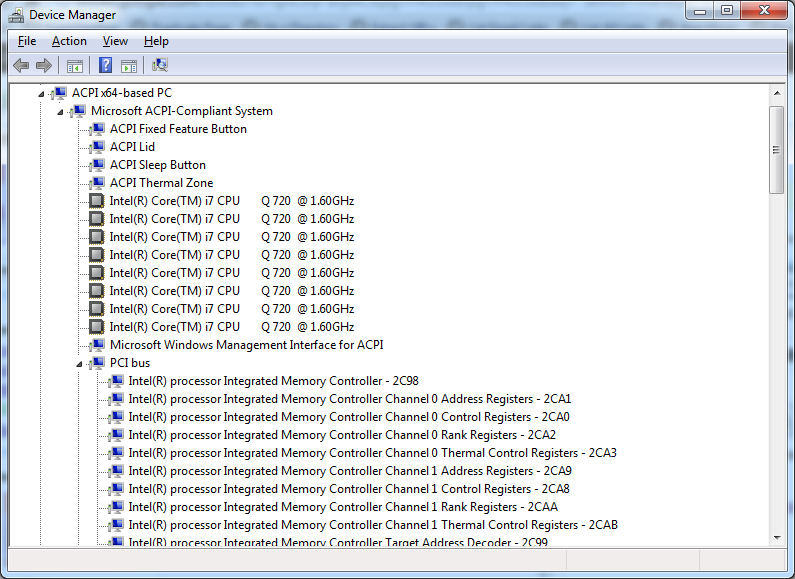
With the increasing number of devices, it really helps to expand all nodes in the Device Manager’s tree view.
You cannot do this with the mouse, as none of the menu options contain an “Expand All” option.
But since the treeview, is the built-in Windows treeview (used in many places, like Windows explorer), you can use these shortcuts to expand/collapse nodes:
Numeric Keypad *: Expands everything under the current selection
Numeric Keypad +: Expands the current selection
Numeric Keypad -: Collapses the current selection.
RIGHT ARROW: Expands the current selection if it is not expanded, otherwise goes to the first child
LEFT ARROW: Collapses the current selection if it is expanded, otherwise goes to the parent



 The Wiert Corner - irregular stream of stuff