Archive for the ‘Windows Server 2012 R2’ Category
Posted by jpluimers on 2015/07/13
Older Windows versions than 8.x will not correctly expand %APPDATA% or %LOCALAPPDATA% in environment variables: User variables are not resolved correctly in Windows..
This even happens when the registry storage of the environment variables are marked as REG_EXPAND_SZ under these keys:
Basically there are four categories of Windows versions:
- For Windows 10.x this is fixed.
- For Windows 8.x and Windows Server 2012 R2, there are updates in KB2919355.
- For Windows 7.x and Windows Server 2008 R2, there is a hotfix.
- For older Windows versions, there is no solution.
–jeroen
via: User variables are not resolved correctly in Windows.
Posted in Development, Power User, Software Development, Windows, Windows 7, Windows 8, Windows 8.1, Windows 9, Windows Server 2008, Windows Server 2008 R2, Windows Server 2012, Windows Server 2012 R2, Windows Vista | Leave a Comment »
Posted by jpluimers on 2015/05/23
About a year and a half ago, I wrote:
My conclusion is that various Microsoft updates now require 3 gigabytes of disk space.
This seems to be the case with the .NET Framework 4.5.1 KB 2858725 update, and probably more future updates. I tried installing the KB 2858725 update with slightly less than 3 gigabytes of space (and after the 3 gigabyte reserve.tmp appeared), and I was still getting error 13EC. But with slightly more than 3 gigabyte the update would install.
That is quite difficult when you run loads of VMs on SSDs: they usually don’t have an awful lot of disk space left.
The same issue holds for Microsoft .NET Framework 4.5.2 for Windows 7 x64-based Systems (KB2901983) which got released earlier this week:
Read the rest of this entry »
Posted in Power User, Windows, Windows 7, Windows 8, Windows 8.1, Windows 9, Windows Server 2008, Windows Server 2008 R2, Windows Server 2012, Windows Server 2012 R2, Windows Vista | 1 Comment »
Posted by jpluimers on 2015/05/15
Call either of these from a batch file or Windows shortcut to end up at the Windows Update screen in the Control Panel:
%windir%\System32\rundll32.exe url.dll,FileProtocolHandler wuapp.exe
%windir%\explorer.exe shell:::{36eef7db-88ad-4e81-ad49-0e313f0c35f8}
Notes:
- I’ve tested this in Windows 7, 8.x and 9 and it works fine in all these.
- Unlike
Control Printers calling Control Updates does not work.
- I suspect there are many more magic GUID values you could use for other functions because the built-in syntax has been there for a long time.
–jeroen
via: Windows Update Shortcut – Create in Windows 7 – Windows 7 Help Forums.
Posted in Power User, Windows, Windows 7, Windows 8, Windows 8.1, Windows Server 2008, Windows Server 2008 R2, Windows Server 2012, Windows Server 2012 R2 | Leave a Comment »
Posted by jpluimers on 2015/05/08
In this case, another tool didn’t obtain the right Proxy settings.
Chrome to the rescue as chrome://net-internals/#proxy shows you the system proxy settings:
When browsers are experiencing network problems, generally the first thing to test is your network proxy settings. Misconfigured settings, or misbehaving settings, can have a profound impact on your network traffic possibly resulting in pages not loading at all.
Main take aways: chrome://net-internals/#proxy
Since then, I created this small batch file:
reg query "HKEY_CURRENT_USER\Software\Microsoft\Windows\CurrentVersion\Internet Settings" | findstr proxy
And this one to edit the settings:
"C:\Windows\system32\rundll32.exe" shell32.dll,Control_RunDLL inetcpl.cpl,,4
It will open the same Window that your Control Panel or Internet Explorer uses to manage connection and proxy settings.
From there click the “LAN Settings” button to edit the proxy configuration.
–jeroen
via: Debugging problems with the network proxy – The Chromium Projects.
Posted in Power User, Windows, Windows 7, Windows 8, Windows 8.1, Windows Server 2003, Windows Server 2003 R2, Windows Server 2008, Windows Server 2008 R2, Windows Server 2012, Windows Server 2012 R2, Windows Vista, Windows XP, Windows-Http-Proxy | Leave a Comment »
Posted by jpluimers on 2014/08/01
When using Windows RDP you have the risk of a Shift key getting stuck.
This happens when press Ctrl and Shift. Make sure you release Shift first, otherwise Shift gets stuck.
Same with Alt and Shift: you have to release the Shift key first.
This is not a problem when using the OS X Remote Desktop application 8.x from Microsoft: only the Windows MSTSC.exe applications included in Windows 7 and higher suffer from this when you connect to Windows 7 and higher (including connecting from Windows to Windows Server and from Windows Server to Windows).
It does not happen with the MSTSC.exe in Windows 2000/XP and Windows Server 2003/2003 R2.
Results
Here are the important results:
- Press Shift and Control (either order) -> Release Shift -> Release Control: Normal state
- Press Shift and Control (either order) -> Release Control -> Release Shift: Problem state
Conclusion
RDP has a bug whereby the shift state incorrectly remains in the “pressed” state if, after pressing Shift+Control, the Control key is released first.
Bug reference
Bug is with Microsoft: https://connect.microsoft.com/WindowsServer/feedback/details/766863/rdp-shift-key-gets-stuck
And the comments there:
I have been using RDP for years without problems, until about 2 or 3 weeks ago when it suddenly starting going wrong.
Too bad the connect issue requires logon: I have no idea if this is ever going to be fixed.
–jeroen
via: davidbond.net: RDP Shift Key Gets Stuck.
Edit: some comments on G+
made in Delphi :)
Happens to me sometimes when connecting from Win7 to XP+.
Posted in Power User, Windows, Windows 7, Windows 8, Windows 8.1, Windows Server 2008, Windows Server 2008 R2, Windows Server 2012, Windows Server 2012 R2 | 2 Comments »
Posted by jpluimers on 2012/01/27
At a client that still runs Windows Server 2003 (despite the fact that it is in the extended support phase now), I needed to enable automatic logon (one of the tools they run sometimes fails when nobody is logged on).
This was a bit more tricky than just reading [WayBack] How to turn on automatic logon in Windows (now at How to turn on automatic logon in Windows) and following these steps:
To use Registry Editor (Regedt32.exe) to turn on automatic logon, follow these steps:
- Click Start, and then click Run.
- In the Open box, type Regedt32.exe, and then press ENTER.
- Locate the following subkey in the registry:
HKEY_LOCAL_MACHINE\SOFTWARE\Microsoft\Windows NT\CurrentVersion\Winlogon
- Double-click the DefaultUserName entry, type your user name, and then click OK.
- Double-click the DefaultPassword entry, type your password, and then click OK.NOTE: If the DefaultPassword value does not exist, it must be added. To add the value, follow these steps:
- On the Edit menu, click New, and then point to String Value.
- Type DefaultPassword, and then press ENTER.
- Double-click DefaultPassword.
- In the Edit String dialog, type your password and then click OK.
NOTE: If no DefaultPassword string is specified, Windows automatically changes the value of the AutoAdminLogon key from 1 (true) to 0 (false), disabling the AutoAdminLogon feature.
- On the Edit menu, click New, and then point to String Value.
- Type AutoAdminLogon, and then press ENTER.
- Double-click AutoAdminLogon.
- In the Edit String dialog box, type 1 and then click OK.
- Quit Registry Editor.
- Click Start, click Shutdown, and then type a reason in the Comment text box.
- Click OK to turn off your computer.
- Restart your computer. You can now log on automatically.
Since this depends on some registry settings, you need to make sure they are actually set.
And logging on as someone else will reset the DefaultUserName registry setting.
The article points to another article on “AutoAdminLogon looses DefaultUserName” to solve this using REGINI (and optionally REGDMP which can provide sample output for REGINI), but there is a much easier solution using RegEdit which – as Rob van der Woude points out – can be used unattended as well (besides: REGDMP cannot be downloaded any more, and REGINI requires an additional download).
This is how to do force the DefaultUserName to be reset after logon using RegEdit:
- Open an explorer Window in “
%ALLUSERSPROFILE%\Start Menu\Programs\Startup“
- Create a batch file “
run-RegEdit-DefaultUserName.bat” there with this content:
regedit /s Administrator-DefaultUserName.reg
- Create a text file “
Administrator-DefaultUserName.reg” in the same directory with content like this:
Windows Registry Editor Version 5.00

[HKEY_LOCAL_MACHINE\SOFTWARE\Microsoft\Windows NT\CurrentVersion\Winlogon]
"DefaultUserName"="Administrator"
Replace “Administrator” with the username you are actually using.
–jeroen
Via: How to turn on automatic logon in Windows.
Read the rest of this entry »
Posted in Power User, Windows, Windows 10, Windows 7, Windows 8, Windows 8.1, Windows 9, Windows Server 2003, Windows Server 2003 R2, Windows Server 2008, Windows Server 2008 R2, Windows Server 2012, Windows Server 2012 R2, Windows Server 2016, Windows Vista | 2 Comments »
Posted by jpluimers on 2011/09/23
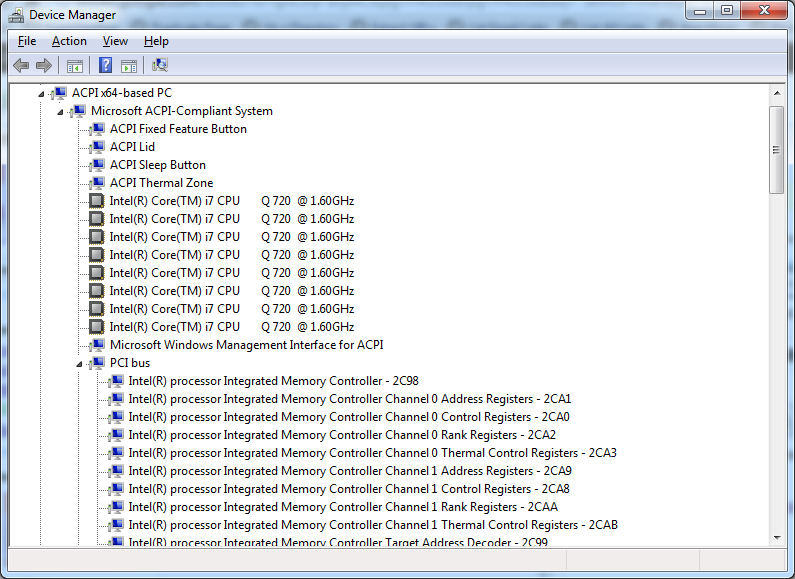
With the increasing number of devices, it really helps to expand all nodes in the Device Manager’s tree view.
You cannot do this with the mouse, as none of the menu options contain an “Expand All” option.
But since the treeview, is the built-in Windows treeview (used in many places, like Windows explorer), you can use these shortcuts to expand/collapse nodes:
- Numeric Keypad *: Expands everything under the current selection
- Numeric Keypad +: Expands the current selection
- Numeric Keypad -: Collapses the current selection.
- RIGHT ARROW: Expands the current selection if it is not expanded, otherwise goes to the first child
- LEFT ARROW: Collapses the current selection if it is expanded, otherwise goes to the parent
This not only works in Microsoft Windows 7: Visual … – Google Books, I think it has been introduced as far back as Windows 95.
–jeroen
Posted in Keyboards and Keyboard Shortcuts, Power User, Windows, Windows 10, Windows 7, Windows 8, Windows 8.1, Windows 9, Windows Server 2003, Windows Server 2003 R2, Windows Server 2008, Windows Server 2008 R2, Windows Server 2012, Windows Server 2012 R2, Windows Vista, Windows XP | 1 Comment »
Posted by jpluimers on 2010/09/01
From a batch-file I recently had to start Windows Explorer, at the same time select a specific file or directory.
This turned out pretty easy: use the /select command-line switch from Windows Explorer.
In fact, Windows Explorer has a few command-line switches, and the “explorer” commandline parameters “/n” “/e” “/select” “/root” “/start” site:microsoft.com query will find quite a few topics about it: Read the rest of this entry »
Posted in Power User, Windows, Windows 10, Windows 7, Windows 8, Windows 8.1, Windows 9, Windows 95, Windows 98, Windows ME, Windows NT, Windows Server 2000, Windows Server 2003, Windows Server 2003 R2, Windows Server 2008, Windows Server 2008 R2, Windows Server 2012, Windows Server 2012 R2, Windows Server 2016, Windows Vista, Windows XP | 1 Comment »


 The Wiert Corner - irregular stream of stuff