The Wiert Corner – irregular stream of stuff

Jeroen W. Pluimers on .NET, C#, Delphi, databases, and personal interests

  • My badges

  • Twitter Updates

  • My Flickr Stream

  • Pages

  • All categories

  • Enter your email address to subscribe to this blog and receive notifications of new posts by email.

    Join 1,860 other subscribers

Archive for the ‘Usability’ Category

7 Practical Tips for Cheating at Design – Refactoring UI – Medium

Posted by jpluimers on 2020/03/30

Improving your designs with tactics instead of talent: weight and colour. But be careful with the variation in meanings of colours for different cultures and mind about colour-blind people. Also ensure information workers can optimise your UI for information density.

Source: [WayBack7 Practical Tips for Cheating at Design – Refactoring UI – Medium

Via: [WayBack] 7 Practical Tips for Cheating at Design #webdev – ThisIsWhyICode – Google+

–jeroen

Posted in Usability, User Experience (ux) | Leave a Comment »

User Experience topics like “Why does Explorer use the term KB instead of KiB”

Posted by jpluimers on 2020/03/24

Designing for a good user experience is hard, especially to programmers. So if you are a programmer, please read, let them sink in, rinse, repeat the below linked articles multiple times. Being ~15 years old, they are still so very relevant:

–jeroen

Posted in Development, Software Development, The Old New Thing, Usability, User Experience (ux), Windows Development | Leave a Comment »

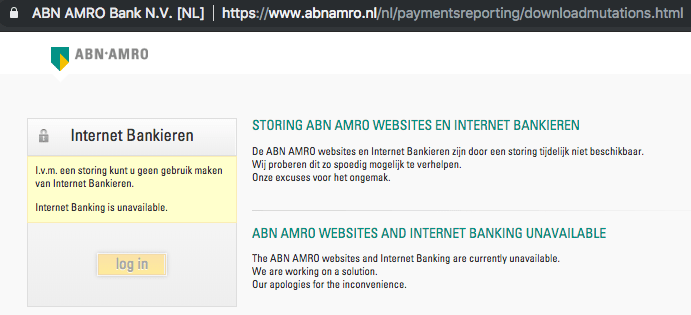
The last thing you need to do when you cause link rot is to list the page as “online banking is down”

Posted by jpluimers on 2020/03/10

Nice example on how not to copy with link rot: as a bank is to indicate “internet banking is unavailable” scares your customers away.

[WayBack] Jeroen Pluimers on Twitter: “dit heet overigens link rot, en gebruiksvriendelijke sites proberen dat te voorkomen; is zeker niet gecompliceerd en eigenlijk ook niet complex: het is een kleine moeite om dat in je ontwerp en onderhoud-proces mee te nemen. 1/2 …

[WayBackJeroen Pluimers on Twitter: “de huidige down-melding zet sowieso je klanten volledig op het verkeerde been, dus daar moet zeker iets aan gebeuren. 2/2 “I.v.m. een storing kunt u geen gebruik maken van Internet Bankieren. Internet Banking is unavailable”…”

–jeroen

ABNAMRO

Posted in Conference Topics, Conferences, Development, Event, LifeHacker, Power User, Software Development, Usability, User Experience (ux), Web Development | Leave a Comment »

Those nice User Experiences: two shortcuts binding to Alt-O on the Dutch Windo…

Posted by jpluimers on 2020/02/03

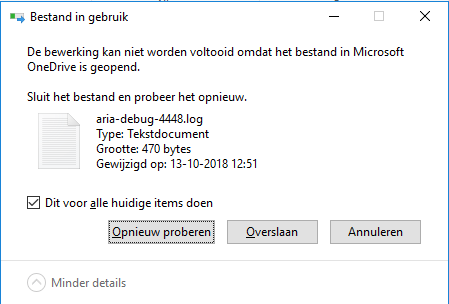
[WayBack] Those nice User Experiences: two shortcuts binding to Alt-O on the Dutch Windows 10 translation… – Jeroen Wiert Pluimers – Google+

I know it is hard to do UX, but at least test your translations.

–jeroen

Posted in Usability, User Experience (ux) | Leave a Comment »

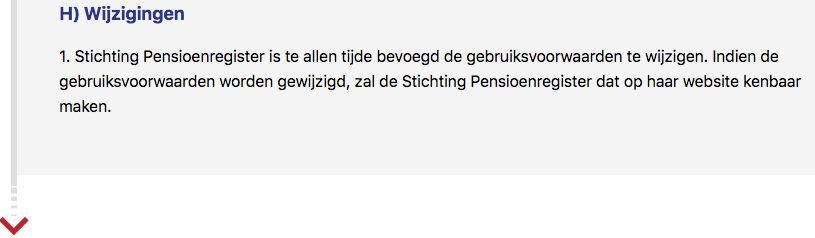
UX design: doe geen pijltje onderaan een pagina als verder scrollen zinloos is

Posted by jpluimers on 2020/01/10

[WayBack] Jeroen Pluimers on Twitter: “Altijd handig zo’n pijltje onderaan de pagina die suggereert dat je nog niet klaar bent met lezen, maar niets blijkt te doen #mijnpensioenoverzicht user experience #fail https://t.co/sx04ndwgM6… https://t.co/GmHJzZhpbO”

–jeroen

Posted in Power User, Usability, User Experience (ux) | Leave a Comment »

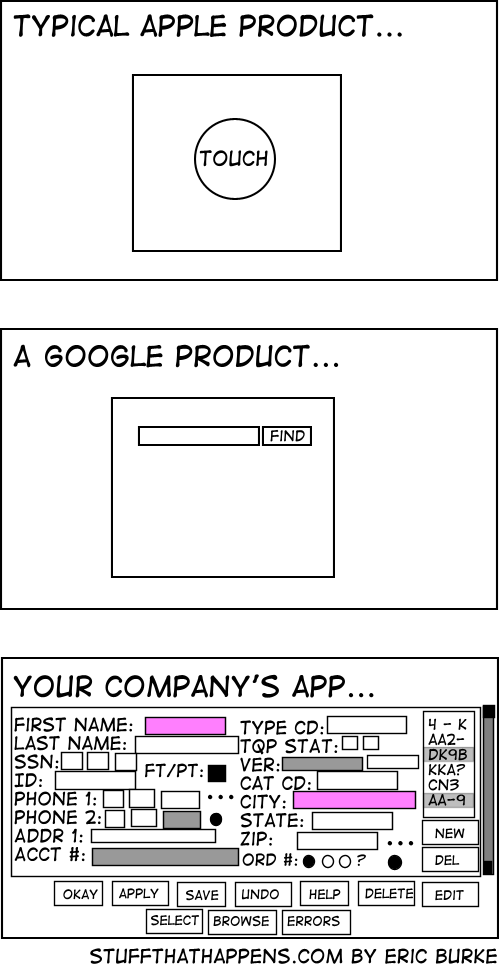
Simplicity • Stuff that Happens: What can we learn about usability…

Posted by jpluimers on 2019/12/31

[WayBack] Simplicity • Stuff that Happens: What can we learn about usability…

With a comment from Uwe:

It is really disappointing that most customers are looking for solutions that don’t fall into the categories: “search” and “switch on/off”.

Developer: “So which of the fields do you actually need in this screen?”
Customer. “All of them!”
Developer: “Well, that will make the screen pretty cluttered information”.
Customer: “And please allow to add more easily whenever we need them.”
Developer: “That would be hard to achieve unless you exchange all your monitors to bigger ones.”
Customer: “OK, then. Can you make it work on my Apple Watch?”

[WayBack]

I very much can relate to this: somehow a lot of business driven applications have cramped user interfaces that are very hard to use because the overwhelming number of UI controls and features per screen.

This holds even for web applications.

Let’s hope this will slowly change for the better over time.

Via:

–jeroen


Posted in Development, Software Development, Usability, User Experience (ux) | Leave a Comment »

Inactive GUI applications: click once or twice to perform an action within the application

Posted by jpluimers on 2019/08/07

When an application is inactive, you have to click it at least once to activate it, but sometimes click twice to actually perform an action.

In the past, there were more applications requiring it, even User Interface or Human Interface guidelines explaining the difference.

Nowadays, most of these guidelines have become hard to find, but luckily some of them have been archived in the WayBack machine.

They all come down to this:

An action in an application can be disruptive, especially when there is no confirmation step for it.

Clicking an application over the area that invokes such a disruptive action, without the user realising it can have adverse consequences.

Some links for further reading:


Enabling Click-Through

An item that provides click-through is one that a user can activate with one click, even though the item is in an inactive window. (To activate an item that does not support click-through, the user must first make the containing window active and then click the item.) Although click-through can make some user tasks easier, it can also confuse users if they click items unintentionally.

Click-through is not a property of a class of controls; any control, including toolbar items, can support click-through. This also means that you can support click-through for any subset of items; you don’t have to choose between supporting click-through for all items in a window or none. Follow the guidelines in this section so that you can support click-through when it’s appropriate.

Avoid providing click-through for an item or action whose result might be dangerous or undesirable. Specifically, avoid enabling click-through for an item that:

  • Performs a potentially harmful action that users can’t cancel (for example, the Delete button in Mail)
  • Performs an action that is difficult or impossible to cancel (such as the Send button in Mail)
  • Dismisses a dialog without telling the user what action was taken (for example, the Save button in a Save dialog that overwrites an existing file and automatically dismisses the dialog)
  • Removes the user from the current context (for example, selecting a new item in a Finder column that changes the target of the Finder window)

Clicking in any one of these situations should cause the window that contains the item to be brought forward, but no other action to be taken.

In general, it’s safe to provide click-through for an item that asks the user for confirmation before executing, even if the command ultimately results in destruction of data. For example, you can provide click-through for a delete button if you also make sure to give users the opportunity to cancel or confirm the action before it proceeds.

Think twice before supporting click-through for items that don’t provide confirmation feedback. Specifically, consider how dangerous the action might be, and determine how difficult it will be for the user to undo the action after it’s performed. For example, the Mail Delete button does not provide click-through because it deletes a message without asking for confirmation, which is a potentially harmful action that can be difficult to undo. On the other hand, click-through for the New button in Mail is fine because its resulting action is not harmful and is easy to undo.

Ensure that items that don’t support click-through appear disabled when their window is inactive. The disabled appearance helps users understand that these controls are unavailable. For example, the Delete and Mark as Junk buttons in the inactive Mail window shown below don’t support click-through.

An inactive window with controls that support click-through

–jeroen

Posted in Apple, Classic Macintosh, Development, Mac, Mac OS X / OS X / MacOS, Power User, Software Development, Usability, User Experience (ux), Windows | Leave a Comment »

Design your own visual maps with data points: Eerste stapjes in LocalFocus

Posted by jpluimers on 2018/11/30

[WayBack] Eerste stapjes in LocalFocus: [WayBackZwemwaterkwaliteit Nederland 20180724

Via: [Archive.isHitte in de stad: code oranje uitgeroepen – Amsterdam – PAROOL

–jeroen

Posted in Power User, Usability, User Experience (ux) | Leave a Comment »

How to automatically choose a label color to contrast with background | TrendCT

Posted by jpluimers on 2018/11/14

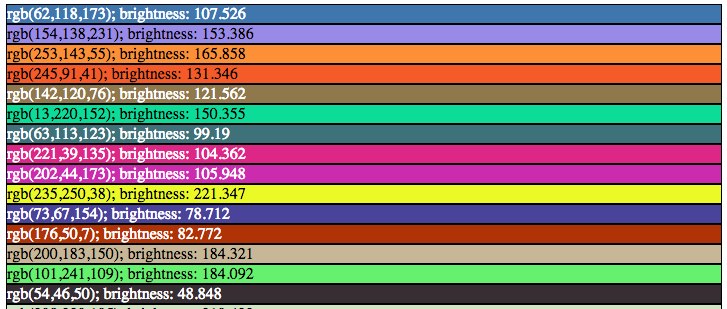
Choosing label colours other than black or white is like making a dynamic mouse cursor that inverts the colours underneath it: it fails horribly in the low contrast regions, and looks very strange on pink-noise backgrounds.

This approach is uses black and white depending on the perceived brightness:

[WayBack] How to automatically choose a label color to contrast with background | TrendCT:

What would data viz be without labels? Just viz, that’s what. This guide aimed at web designers discusses how to choose a label text color with enough contrast.

Via: [WayBack] For all those people incapable of choosing the right color combinations. – Thomas Mueller (dummzeuch) – Google+

–jeroen

Posted in Algorithms, Color (software development), Development, Software Development, Usability, User Experience (ux) | Leave a Comment »

Inspect (Windows) to find Automation properties and control patterns, as well as Microsoft Active Accessibility properties

Posted by jpluimers on 2018/05/24

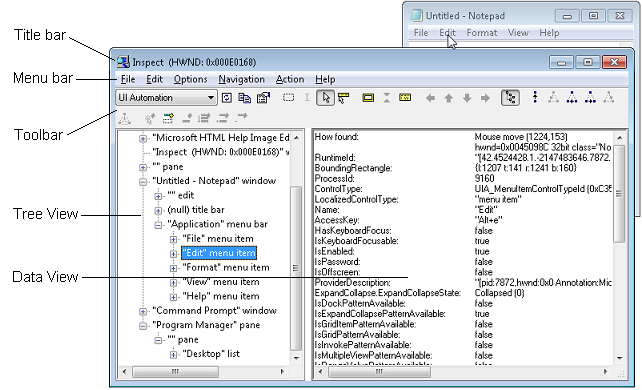
Inspect (Inspect.exe) is a Windows-based tool that enables you select any UI element and view the element’s accessibility data. You can view Microsoft UI Automation properties and control patterns, as well as Microsoft Active Accessibility properties. Inspect also enables you to test the navigational structure of the automation elements in the UI Automation tree, and the accessible objects in the Microsoft Active Accessibility hierarchy.

Inspect is installed with the Windows Software Development Kit (SDK) for Windows 8. (It is also available in previous versions of Windows SDK.) It is located in the \bin\<platform> folder of the SDK installation path (Inspect.exe).

[WayBackInspect (Windows)

via [WayBack] Before i start hooking the windows messages for bds i would like to ask if there is a way to trigger “save all” from outside? – Attila Kovacs – Google+

–jeroen

Posted in Development, Software Development, Usability, User Experience (ux) | Leave a Comment »