


Use the System File Checker tool to repair missing or corrupted system files
Posted by jpluimers on 2021/09/30
[WayBack] Use the System File Checker tool to repair missing or corrupted system files:
- Open an elevated command prompt.
- If you are running Windows 10, Windows 8.1 or Windows 8, first run the inbox Deployment Image Servicing and Management (DISM) tool prior to running the System File Checker. (If you are running Windows 7 or Windows Vista, skip to Step 3.)
Type the following command, and then press Enter. It may take several minutes for the command operation to be completed.
DISM.exe /Online /Cleanup-image /RestorehealthImportant: When you run this command, DISM uses Windows Update to provide the files that are required to fix corruptions. However, if your Windows Update client is already broken, use a running Windows installation as the repair source, or use a Windows side-by-side folder from a network share or from a removable media, such as the Windows DVD, as the source of the files. To do this, run the following command instead:
DISM.exe /Online /Cleanup-Image /RestoreHealth /Source:C:\RepairSource\Windows /LimitAccessNote: Replace the
C:\RepairSource\Windowsplaceholder with the location of your repair source. For more information about using the DISM tool to repair Windows, reference [WayBack] Repair a Windows Image.- At the command prompt, type the following command, and then press ENTER:
sfc /scannow
The
sfc /scannowcommand will scan all protected system files, and replace corrupted files with a cached copy that is located in a compressed folder at%WinDir%\System32\dllcache.
The%WinDir%placeholder represents the Windows operating system folder. For example,C:\Windows.Note Do not close this Command Prompt window until the verification is 100% complete. The scan results will be shown after this process is finished.
After the process is finished, you may receive one of the following messages:
This means that you do not have any missing or corrupted system files.
To resolve this problem, perform the System File Checker scan [WayBack] in safe mode, and make sure that the PendingDeletes and PendingRenames folders exist under
%WinDir%\WinSxS\Temp.To view the detail information about the system file scan and restoration, go to [WayBack] How to view details of the System File Checker process.
To repair the corrupted files manually, [WayBack] view details of the System File Checker process to find the corrupted file, and then [WayBack] manually replace the corrupted file with a known good copy of the file.
These helped be fix the below problems:
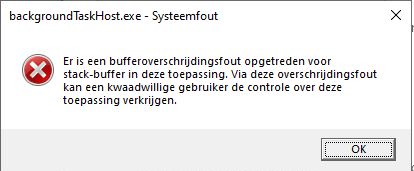
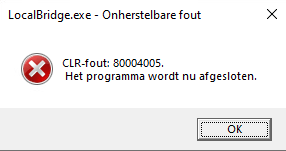
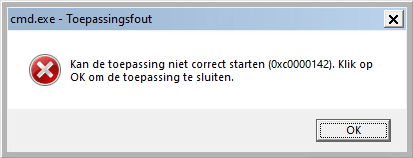
The fix log was this:
C:\bin\bin>repair-Windows-DISM-SFC.bat

C:\bin\bin>DISM.exe /Online /Cleanup-image /Restorehealth

Deployment Image Servicing and Management tool
Version: 10.0.18362.1

Image Version: 10.0.18363.628

[==========================100.0%==========================] The restore operation completed successfully.
The operation completed successfully.

C:\bin\bin>sfc /scannow

Beginning system scan.  This process will take some time.

Beginning verification phase of system scan.
Verification 100% complete.

Windows Resource Protection found corrupt files and successfully repaired them.
For online repairs, details are included in the CBS log file located at
windir\Logs\CBS\CBS.log. For example C:\Windows\Logs\CBS\CBS.log. For offline
repairs, details are included in the log file provided by the /OFFLOGFILE flag.
Most of the issues were small things like this:
2020-01-30 21:40:31, Info                  CSI    000001ec Warning: Overlap: Directory \??\C:\Program Files (x86)\ is owned twice or has its security set twice

Original owner: Microsoft-Windows-shell32, version 10.0.18362.628, arch Host= amd64 Guest= x86, nonSxS, pkt {l:8 b:31bf3856ad364e35}

New owner: Microsoft-Windows-shell32, version 10.0.18362.628, arch Host= amd64 Guest= x86, nonSxS, pkt {l:8 b:31bf3856ad364e35}

2020-01-30 21:40:31, Info                  CSI    000001ed Warning: Overlap: Directory \??\C:\ProgramData\Microsoft\Windows\Start Menu\ is owned twice or has its security set twice

Original owner: Microsoft-Windows-shell32, version 10.0.18362.628, arch Host= amd64 Guest= x86, nonSxS, pkt {l:8 b:31bf3856ad364e35}

New owner: Microsoft-Windows-shell32, version 10.0.18362.628, arch Host= amd64 Guest= x86, nonSxS, pkt {l:8 b:31bf3856ad364e35}

2020-01-30 21:40:31, Info                  CSI    000001ee Warning: Overlap: Directory \??\C:\ProgramData\Microsoft\Windows\Start Menu\Programs\ is owned twice or has its security set twice

Original owner: Microsoft-Windows-shell32, version 10.0.18362.628, arch Host= amd64 Guest= x86, nonSxS, pkt {l:8 b:31bf3856ad364e35}

New owner: Microsoft-Windows-shell32, version 10.0.18362.628, arch Host= amd64 Guest= x86, nonSxS, pkt {l:8 b:31bf3856ad364e35}

2020-01-30 21:40:31, Info                  CSI    000001ef Warning: Overlap: Directory \??\C:\ProgramData\Microsoft\Windows\Start Menu\Programs\Startup\ is owned twice or has its security set twice

Original owner: Microsoft-Windows-shell32, version 10.0.18362.628, arch Host= amd64 Guest= x86, nonSxS, pkt {l:8 b:31bf3856ad364e35}

New owner: Microsoft-Windows-shell32, version 10.0.18362.628, arch Host= amd64 Guest= x86, nonSxS, pkt {l:8 b:31bf3856ad364e35}
After this, I rebooted.
–jeroen

 The Wiert Corner - irregular stream of stuff
Leave a comment