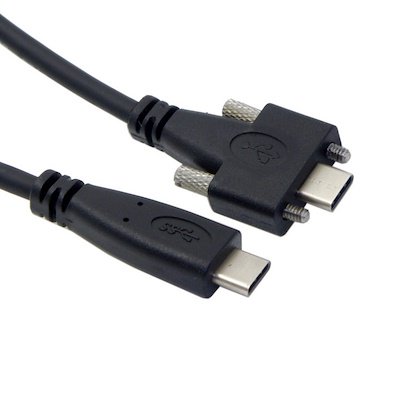
Lot’s of confusing pictures from [WayBack] foone on Twitter: “whenever I get bored and think my life is going too well, I google “industrial USB-C” and now everything is back to shit…”
Archive for the ‘Hardware Interfacing’ Category
foone on Twitter: I google “industrial USB-C” and now everything is back to shit…
Posted by jpluimers on 2022/06/06
Posted in Development, Fun, Hardware, Hardware Interfacing, Power User, USB, USB, USB-C | 1 Comment »
DroidCam – Webcam for PC – Apps on Google Play
Posted by jpluimers on 2021/12/21
Since most phones still have better cameras than most laptops, this is on my list of things to try:
Android app: [Wayback/Archive] DroidCam – Webcam for PC – Apps on Google Play (there is also an iOS app, but I don’t use iOS devices)
Client software for Windows and Linux: [Wayback/Archive] Dev47Apps
DroidCam turns your phone/tablet into a webcam for your PC.
Use it with chat programs like Zoom, MS Teams, and Skype.Main Features:
– Chat using “DroidCam Webcam” on your computer, including Sound and Picture.
– Connect over WiFi or USB cable.
– Unlimited free usage at standard definition.
– Keep using your phone with DroidCam in background (Android).
– Simple, safe, efficient, and trusted by millions of people worldwide.DroidCamX Pro Features:
– Switch to HD Mode for 720p/1080p high definition video.
– Camera controls: toggle light, enable continuous auto focus, zoom in/out.
– Rotate, Flip & Mirror the video to better match your setup.
– Adjust brightness, contrast, add video delay and adjust audio volume (Windows).
– USB-Only mode for extra privacy and security.
– Option to auto-mute phone calls.
– No Ads.
I am really curious how they did this on the software side: developing and signing drivers; low-latency communications protocol, etc.
Via: [Wayback/Archive] Apple deelt workaround die scherm verkleint voor MacBook Pro-notch-problemen – Computer – Nieuws – Tweakers
–jeroen
Posted in Development, Hardware Interfacing, Power User, USB, WebCam | Leave a Comment »
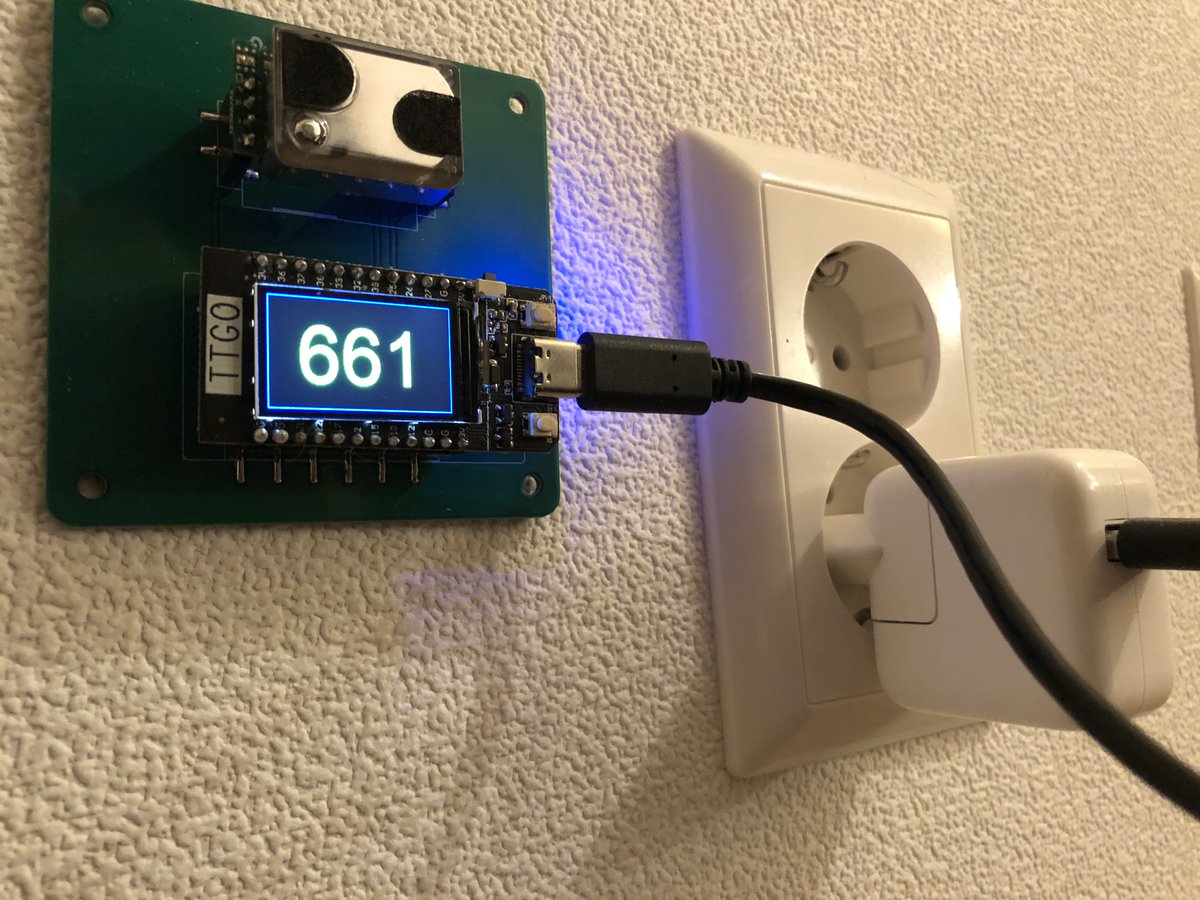
Operame: Dutch open source CO2 sensor device for indoor usage: shows green/yellow/red for good/okay/bad CO2 ppm levels
Posted by jpluimers on 2021/12/15
Since all information is in Dutch, I keep only the title and this short explanation in English.
[Archive.is] Sebastian Oort on Twitter: “Gaat jouw school binnenkort weer open? Wil je jouw klas veiliger maken? Hang een CO2 sensor op. Ze zijn weer op voorraad bij OperameNL ! We hebben nog ruim 100 stuks op voorraad en maandag komen de volgende 250 binnen! @OperameNL van @revspacenl… “
Posted in Development, ESP32, Hardware Development, Hardware Interfacing, IKEA hacks, LifeHacker, Power User, Software Development | Leave a Comment »
GitHub – JanDerogee/TeleJukebox: A project based on the concepts of the Wonderfoon and Arduinofoon
Posted by jpluimers on 2021/11/18
[Wayback/Archive.is] GitHub – JanDerogee/TeleJukebox: A project based on the concepts of the Wonderfoon and Arduinofoon which simplfies the design of the Wonderfoon keeping the most important music playback feature down to
a simple PCB in a small case where you plug the phone in
…
The completed project works very simple:
- Pick up the phone, you hear the “dial tone” MP3, Dial a number, you hear the MP3 0..9 playing (depending on the dialed number), When the song is over, you hear the “disconnected” MP3, You can dial another number and hear another song or hang up the phone.
- Some phones also have a button on the front. When you press this button, the phone randomly playes one of the songe 0..9 and when that song is over, it automatically plays a new song, randomly. This will allow the person on the phone to continuously listen to the music. This may be of help to those who can’t figure out how it works but love to hear the songs over and over again.
- You can configure the music folder from which the MP3s are played, you can use up to 10 different folders
- You can configure the volume of the device
- Configurations are done through the phone itself (dial 738 OR hold the button while picking up the handpiece), you hear a voice that guides you through a menu and all you need to do is dial in your settings value.
You can power this design through a USB port cable. This way the device can be fed using a simple mobilephone charger OR be connected to the PC. When connected to a PC, the TeleJukebox identifies itself like a USB-stick and you can easily modify the file without removing the card from the system. Meaning that you do no even need to open the case in order to change the collection of MP3 files. Keep in mind that when the device is in USB-stick mode, it cannot playback MP3 files meaning that in this mode it will not act like a TeleJukebox.
Music rights
Especially when using this in a professional environment. be sure the music that plays is rights free (there are music therapists for treating people with Alzheimer’s and dementia that can help you with that).
Steps, reasoning, and building instructions
A less in depth Dutch article (with 13 minute explaining video below) explaining most of the steps and all the reasoning is this multi-part one:
- [Wayback] .Build – Bouw een Wonderfoon – Bouw een Wonderfoon voor iemand anders – Achtergrond – Tweakers
It works with these and younger phones as long as they can do pulse-dialing:
- [Wayback] .Build – Bouw een Wonderfoon – Wat is een Wonderfoon? – Achtergrond – Tweakers
The small regular and debug boxes under the PTT/KPN phone connector box:
:strip_exif()/i/2003591190.jpeg?f=imagenormal)
- [Wayback] .Build – Bouw een Wonderfoon – Een goedkopere variant – Achtergrond – Tweakers
- [Wayback] .Build – Bouw een Wonderfoon – Slopen is zonde – Achtergrond – Tweakers
Both boards with electronics soldered:
:strip_exif()/i/2003591198.jpeg?f=imagenormal)
The non-debug board with components to be soldered:
:strip_exif()/i/2003591196.jpeg?f=imagenormal)
- [Wayback] .Build – Bouw een Wonderfoon – T65 bewerken – Achtergrond – Tweakers
The small cleanup and modification steps (shorting the microphone) for the T65 phone:
:strip_exif()/i/2003591182.jpeg?f=imagegallery)
- [Wayback] .Build – Bouw een Wonderfoon – Solderen maar! – Achtergrond – Tweakers
Schematics:
:strip_exif()/i/2003591186.jpeg?f=imagenormal)
Shopping list:
– 1x Pcb of perf board (€ 1,01)
– 1x Arduino Pro Micro (€ 7,95)
– 1x DFPlayer mp3-speler(€ 0,73)
– 1x TIL111 optocoupler (€ 0,41)
– 2x Weerstand 4K7 Ohm (€ 0,16)
– 7x Weerstand 2K7 Ohm (€ 0,56)
– 1x Weerstand 560 Ohm (€ 0,08)
– 1x Elco 1000 µF 6.3 V (€ 0,23)
– 1x Condensator 330nF (€ 0,13)
– 1x Condensator 100nF (€ 0,05)
– 2x Led (€ 0,06)
– 1x USB, type B, pcb (€ 0,67)
– 1x Tactile switch (€ 0,09)
– 1x Pinheader, male, 6 breed (€ 0,03)
– 4x Jumper kabel, female (€ 1,95)
– 1x Micro sd-kaart (€ 2,50)
– 1x PTT-wandcontactdoos (€ 2,99)
– 1x Behuizing (€ 1,22)
Totaal € 20,82Voor de compacte pcb kun je de switch, een led, een weerstand van 2k7 Ohm en de twee weerstanden van 4k7 Ohm weglaten.
- [Wayback] .Build – Bouw een Wonderfoon – Voor wie gaat hij worden? – Achtergrond – Tweakers
The inside of the non-debug box:
:strip_exif()/i/2003591204.jpeg?f=imagenormal)
Wonderfoon got more versatile
Note that the most recent Wonderfoon products got more versatile allowing more songs, warnings for taking pills, and ring-reminders based on morse code.
. De Wonderfoon-Centrale
–jeroen
Posted in Arduino, Arduino, Development, ESP32, ESP8266, ESP8266X, Hardware, Hardware Development, Hardware Interfacing, Raspberry Pi, Software Development | Leave a Comment »
Raspberry Pi Turn Tv On/Off CEC – Tim Leland
Posted by jpluimers on 2021/10/13
[WayBack] Raspberry Pi Turn Tv On/Off CEC – Tim Leland (with some quote fixes) via [Archive.is] Brad Fitzpatrick on Twitter: “lol tear (from )… “:
Install
cec-utilsOnce everything is installed you should be able to control the tv using the command below:
- Turn tv on:
echo 'on 0' | cec-client -s -d 1- Turn tv off:
echo 'standby 0' | cec-client -s -d 1- Set active source:
echo 'as' | cec-client -s -d 1- Tv status:
echo 'pow 0' | cec-client -s -d 1Troubleshooting Tips:
- Make sure your tv supports cec and that it is enabled. Tv manufactures call CEC by different names so you may have to do some research depending on your brand.
- Make sure you are using a new hdmi cable that is at least HDMI 1.2a
Different names for HDMI CEC
- Samsung – Anynet+
- Sony – BRAVIA Link or BRAVIA Sync
- Sharp – Aquos Link
- Hitachi – HDMI-CEC
- AOC – E-link
- Pioneer – Kuro Link
- Toshiba – Regza Link or CE-Link
- Onkyo – RIHD (Remote Interactive over HDMI)
- LG – SimpLink
- Panasonic – VIERA Link or HDAVI Control or EZ-Sync
- Philips – EasyLink
- Mitsubishi – NetCommand for HDMI
- Runco International – RuncoLink
Credits: http://raspberrypi.stackexchange.com/questions/7054/cec-wake-up-command
Related:
- [WayBack] boot – CEC wake up command – Raspberry Pi Stack Exchange
- [WayBack] HDMI-CEC standard: How to find out if your device is HDMI CEC capable?
- [WayBack] HDMI-CEC standard: What is a HDMI CEC standard?
–jeroen
Posted in *nix, *nix-tools, Development, Hardware Development, Hardware Interfacing, HDMI, Power User, Raspberry Pi, Software Development | Leave a Comment »
New version Smart Citizen Kit available | Waag
Posted by jpluimers on 2021/07/05
By now it should be able to order them normally, as this link is from early 2019: [WayBack] New version Smart Citizen Kit available | Waag
An improved 2.1 version of the Smart Citizen Kit is now ready for pre-ordering.
…
What does the 2.1 version measure?
The Smart Citizen Kit focuses on the weather, sound, light and air quality. The following overview shows the different sensors in version 2.1:
- Temperature (°C) – Sensirion SHT31
- Relative humidity (% rh) – Sensirion SHT31
- Noise level (dBA) – Invensense ICS4342
- Ambient light (lx) – Rohm BH1721FVC
- Air pressure (barometer, kPa) – NXP MPL3115A2
- Equivalent carbon dioxide (CO2 in ppm) – AMS CCS811
- Volatile organic compounds (ppb) – AMS CCS811
- Particulate matter (PM1/2,5/10 in μg/m3) – Plantower PMS 5003
…
Our findings in 2014 showed that the housing can be an important factor by influencing the sensors; there must be sufficient air flow, but also a watertight environment. And the placement is important (not in full sun for example).
Some relevant links and information:
- [WayBack] New version Smart Citizen Kit available | Waag
- [Archive.is] Open Thursday Fablab Amsterdam | Waag
Fablab Amsterdam is open to the public on Thursday afternoon (12:00-17:00 hrs).
- 2014 measurement project: [WayBack] Smart Citizen Kit | Waag
- 2015-2017 measurement project: [WayBack] Making Sense | Waag
- [WayBack] Making Sense:Making Sense empowers citizens through personal digital manufacturing, co-designing and deploying of environmental sensors.
- [WayBack] Making Sense EU · GitHub
- [WayBack] Waag · GitHub
- [Archive.is] Open Thursday Fablab Amsterdam | Waag
- [WayBack] seeedstudio.com: smartcitizen
- USD 99 [WayBack] Smart Citizen Kit – Seeed Studio
- USD 119 [WayBack] Smart Citizen Starter Kit – Seeed Studio
- USD 99 [WayBack] Smart Citizen Kit – Seeed Studio
- [WayBack] Smart Citizen Docs
- [WayBack] GitHub – fablabbcn/smartcitizen-kit-20: Smart Citizen Kit 2.X hardware and firmware
- [WayBack] SmartCitizen API Reference
- Enclosures:
- [WayBack] Smart Citizen Kit – Smart Citizen Docs
- 1.0:
- 1.1:
- 1.5:
- [WayBack] Smart Citizen Forums
Via:
- [WayBack] SchipholWatch on Twitter: “Iemand ervaring met dit apparaat voor het meten van geluid? @nsg @AppExplane De smart citizen op www.seeedstudio.com/smartcitizen”
- [WayBack] Continu meten met Explane: heeft u interesse? | SchipholWatch
–jeroen
Posted in Development, Hardware Interfacing, Power User, Software Development | Leave a Comment »
Build your own Infrared reader head for electriciti smart meters for around USD 6: haus-automatisierung.com [4K] – YouTube
Posted by jpluimers on 2021/03/24
In German, but very interesting IR-Lesekopf für SmartMeter selber bauen | haus-automatisierung.com [4K] – YouTube:
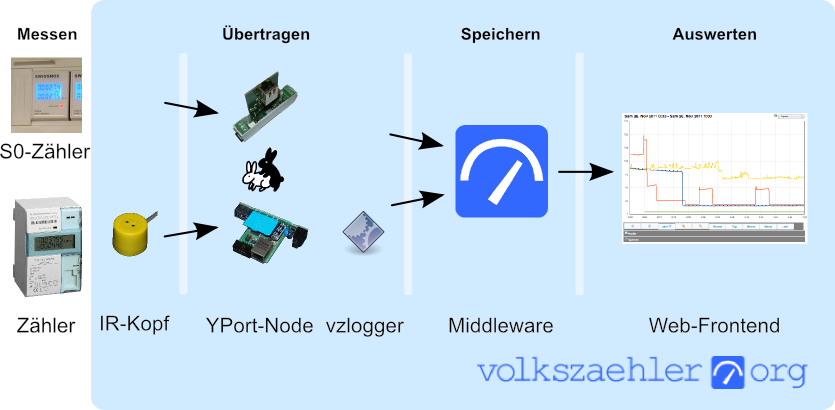
- Manual steps (Genaue Anleitung) [WayBack] hardware:controllers:ir-schreib-lesekopf-ttl-ausgang [wiki.volkszaehler.org]
- Case (Gehäuse) [WayBack] IR Lesekopf für SmartMeter by klein0r – Thingiverse
- Ringmagnet – [Archive.is] Neodym Ringmagnet 27 x 5 mm mit 16 mm Bohrung, Grade N42, vernickelt, Supermagnet: AmazonSmile: Baumarkt
I could not find the promised follow-up video at haus-automatisierung.com – YouTube, but the manual steps and the site below have enough information for me.
Too bad the site is way to big to fully archive in the WayBack machine. I only saved the top pages:
- [WayBack] start [wiki.volkszaehler.org]
- [WayBack] basics [wiki.volkszaehler.org]
- [WayBack] volkszaehler [wiki.volkszaehler.org]
- [WayBack] overview [wiki.volkszaehler.org]
- [WayBack] howto:getstarted [wiki.volkszaehler.org]
- [WayBack] howto [wiki.volkszaehler.org]
- [WayBack] howto:debug [wiki.volkszaehler.org]
- [WayBack] contact [wiki.volkszaehler.org]
- [WayBack] faq [wiki.volkszaehler.org]
- [WayBack] development [wiki.volkszaehler.org]
- [WayBack] hardware [wiki.volkszaehler.org]
- [WayBack] software [wiki.volkszaehler.org]
- [WayBack] Übersicht [wiki.volkszaehler.org] (sitemap)
Related: [WayBack] MQTT-Grundlagen-Kurs – haus-automatisierung.com
–jeroen
Posted in Development, Hardware Development, Hardware Interfacing, IoT Internet of Things, Raspberry Pi, Software Development | Leave a Comment »
ESP32-CAM Surveillance Camera (Home Assistant Compatible) – YouTube
Posted by jpluimers on 2021/03/18
Cool little camera.
Absolutely not HD, but comes in very handy for instance when monitoring things from a remote location.
More at [WayBack] ESP32-CAM Video Streaming Web Server (works with Home Assistant) | Random Nerd Tutorials
Build an IP Surveillance Camera with the ESP32-CAM board. The ESP32 Camera hosts a video streaming web server that integrates with Home Assistant or in any browser.
–jeroen
Posted in Development, ESP32, Hardware Development, Hardware Interfacing | Leave a Comment »
Electronics-Salon DIN Rail Mount +/-20Amp AC/DC Current Sensor Module, based on ACS712: Amazon.com: Industrial & Scientific
Posted by jpluimers on 2020/12/24
For my link archive (this DIN rail device allow sensing current used by a circuit; models for 5A/20A/30A).
- DE [Archive.is/WayBack] Electronics-Salon DIN-Schienen +/-20amp AC/DC Current Sensor-Modul, basierend auf ACS712: Amazon.de: Gewerbe, Industrie & Wissenschaft
- COM [Archive.is/WayBack] Electronics-Salon DIN Rail Mount +/-20Amp AC/DC Current Sensor Module, based on ACS712: Amazon.com: Industrial & Scientific
Thanks Matthijs ter Woord for pointing me to this.
Schematics show it uses an LM317 linear voltage regulator (to get 5V out of a 8V-35V range) next to the ACS712 current sensor (based on the [WayBack] Hall effect) available in 5A, 20A and 30A varieties.
Documentation:
- [WayBack] ACS712 datasheet 0712.pdf
- [WayBack] ACS712 Current Sensor User Guide | Henry’s Bench
- [WayBack] LM317 slvs044x.pdf
- LM317 – Wikipedia
Schematics:
Posted in Development, Hardware, Hardware Development, Hardware Interfacing | Leave a Comment »
Good tips for powering any kind of LED strips from the Adafruit NeoPixel Überguide | Adafruit Learning System
Posted by jpluimers on 2020/10/22
Read these tips before playing with any kind of LED strips: [WayBack] Powering NeoPixels | Adafruit NeoPixel Überguide | Adafruit Learning System.
There are more, but these are the most important:
- When connecting NeoPixels to any live power source or microcontroller, ALWAYS CONNECT GROUND (–) BEFORE ANYTHING ELSE. Conversely, disconnect ground last when separating.
- Adding a 300 to 500 Ohm resistor between your microcontroller’s data pin and the data input on the first NeoPixel can help prevent voltage spikes that might otherwise damage your first pixel. Please add one between your micro and NeoPixel.
- Before connecting a NeoPixel strip to ANY source of power, we very strongly recommend adding a large capacitor (1000 µF, 6.3V or higher) across the + and – terminals. This prevents the initial onrush of current from damaging the pixels.
- Be extremely cautious with bench power supplies. Some — even reputable, well-regarded brands — can produce a large voltage spike when initially switched on, instantly destroying your NeoPixels!
If you use a bench supply, do not connect NeoPixels directly. Turn on the power supply first, let the voltage stabilize, then connect the pixels (GND first).
Via: [WayBack] Bouw je eigen ledtafel – Tot slot – Achtergrond – Tweakers
–jeroen
Posted in Arduino, Development, Hardware Development, Hardware Interfacing, Raspberry Pi | Leave a Comment »


:strip_exif()/i/2003591010.jpeg?f=imagenormal)
:strip_exif()/i/2003591184.jpeg?f=imagemedium)
:strip_exif()/i/2003591182.jpeg?f=imagemedium)