Archive for the ‘.NET’ Category
Posted by jpluimers on 2020/10/22
Always interesting to see what others put on their Windows development systems, for instance: [WayBack] My toolkit – Roald’s blog
Everytime I (re)install my development computer I need to think about all the tools I need and use on a regular basis. For that reason, and maybe to inspire others, here’s my list of essentia…
–jeroen
Posted in .NET, Delphi, Development, Software Development, Windows Development | Leave a Comment »
Posted by jpluimers on 2020/10/21
[WayBack] Top 45 Best Automation Testing Tools Ultimate List • Test Automation Made Easy: Tools, Tips & Training Awesomeness A few notes, partially related to Enable your device for development – UWP app developer | Microsoft Docs.
One research project I had a while ago, was to see how it was possible to use a generic testing tool like Katalon Studio (that can test many platforms), for testing Windows applications.
Katalon uses a Selenium interface that normally is used for web applications through the [WayBack] WebDriver protocol (formerly [WayBack] JsonWireProtocol) that continues to be updated: [WayBack] draft upcoming WebDriver protocol, which is more generic than just web applications:
Read the rest of this entry »
Posted in .NET, Conference Topics, Conferences, Delphi, Development, Event, Software Development, Windows Development, WinForms, WPF | Leave a Comment »
Posted by jpluimers on 2020/10/14
The idea is to have a stack of things that can be later put into multiple micro-service pillars.
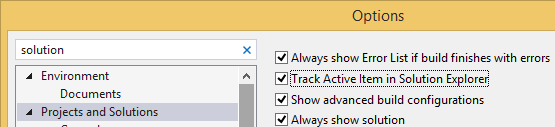
Helpful: enable “Track Active Item in Solution Explorer”:
- Start with an empty repository; add an
origin
- Add .gitignore / .gitattributes appropriate for C#, for instance from github.com/Microsoft/vswhere,
git commit it, and push it withgit push -u origin master.
- Add a blank solution using Creating a blank Visual Studio solution without a directory, and sln Format Version numbers and EmptyVisualStudioSolution
- Open the solution
- Add an “ASP.NET Core Web Application”
- Choose “API” in the list of ASP.NET templates, without Authentication or Docker support (let’s keep the balance bit simple enough for now)
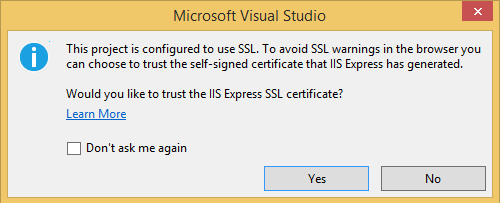
- Run with Ctrl-F5, then confirm the SSL development certificate, and install it:
---------------------------
Security Warning
---------------------------
You are about to install a certificate from a certification authority (CA) claiming to represent:

localhost

Windows cannot validate that the certificate is actually from "localhost". You should confirm its origin by contacting "localhost". The following number will assist you in this process:

Thumbprint (sha1): 09EA054F 14D5D4CE 6B22C5F1 3E7EBDB5 F7583116

Warning:

If you install this root certificate, Windows will automatically trust any certificate issued by this CA. Installing a certificate with an unconfirmed thumbprint is a security risk. If you click "Yes" you acknowledge this risk.

Do you want to install this certificate?


---------------------------
Yes   No
---------------------------
- Your browser now opens at a port for debugging:
https://localhost:<port>/api/values, then tries to download the result as values.json.
This is configured in Properties\launchSettings.json under "launchUrl": "api/values" (for the browser URL) and Controllers\ValuesController.cs under // GET api/values for the actual implementation.
- a
a
a
IHostedService
Have any service related stuff implement IHostedService, so it is easy to deploy it in all kinds of processes:
- console to test
- windows service
- ASP.NET Core service
- Linux host application
Background information at .NET: IHostedService « The Wiert Corner – irregular stream of stuff.
–jeroen
Related:
Posted in .NET, .NET Core, Development, Software Development | Leave a Comment »
Posted by jpluimers on 2020/09/28
 Windows 10 comes with a broken Camera viewer and before that, Windows 7 killed the one in Windows XP.
On a Mac you have the open source Quick Camera (which named QCamera before, seeViewing an USB camera on Mac OS X without mirroring and Capturing from a Magewell XI100USB on a Mac using OS X) at [WayBack] GitHub – simonguest/quick-camera.
For Windows 7, a long search initially revealed a lot of bloat-ware, but finally ended to these two both from the same author:
It is not open source (yet?), but since it is .NET, it is reasonable easy to see the innards.
Like QCamera, it does not require installation: just unzip and run. Enjoy!
Yes, I know there are Windows 10 workaround steps via Microsoft.CameraApp.App.ctor, but if you look at [WayBack] Win10 Home N – Camera App fails: System.IO.FileNotFoundException – Microsoft Community you will understand I did not apply them.
Similarly, when you install Skype from the app store, then sign-in, it will tell you that Skype is out of date.

–jeroen
via:
Posted in .NET, Apple, Development, Mac OS X / OS X / MacOS, Power User, Software Development, Windows | Leave a Comment »
Posted by jpluimers on 2020/08/12
This and built-in markdown support made the switch to Visual Studio code from Atom.io so much easier: [WayBack] PlantUML – Visual Studio Marketplace.
Atom.io was already on my list of tools to say good bye to: though a good project to show the versatility of the Electron Framework, over time – like Google Chrome – it had become a memory and CPU hog and a drag to use and update.
Integrating debuggers and other parts of the development life cycle involved too much fuzz, for which Visual Studio code (also known as vscode) was much easier from the start.
Probably Visual Studio code did not suffer from what the Dutch call Law of the handicap of a head start: it is much more responsive and versatile than Atom.io. Also the plugins – despite having come to the market later – feel way more mature in Visual Studio code than Atom.io.
Finally, the PlantUML support extension for vscode is so much nicer than in Atom.io, it for instance supports live updating and in addition to local rendering, rendering through a PlantUML server (see [WayBack] GitHub – plantuml/plantuml-server: PlantUML Online Server).
Source code is at [WayBack] GitHub – qjebbs/vscode-plantuml: Rich PlantUML support for Visual Studio Code.
Read the rest of this entry »
Posted in .NET, atom editor, Development, Diagram, PlantUML, Power User, Software Development, Text Editors, UML, Visual Studio and tools, vscode Visual Studio Code | Leave a Comment »
Posted by jpluimers on 2020/07/30
For running Visual Studio Code from the terminal, you need to do a few extra steps as from Running Visual Studio Code on macOS: Get Visual Studio Code up and running on Mac (macOS):
Launching from the Command Line
You can also run VS Code from the terminal by typing ‘code’ after adding it to the path:
- Launch VS Code.
- Open the Command Palette (⇧⌘P) and type ‘shell command’ to find the Shell Command: Install ‘code’ command in PATH command.

- Restart the terminal for the new
$PATH value to take effect. You’ll be able to type ‘code .’ in any folder to start editing files in that folder.
Note: If you still have the old code alias in your .bash_profile (or equivalent) from an early VS Code version, remove it and replace it by executing the Shell Command: Install ‘code’ command in PATH command.
To manually add VS Code to your path:
cat << EOF >> ~/.bash_profile
export PATH="\$PATH:/Applications/Visual Studio Code.app/Contents/Resources/app/bin"
EOF
This is what the code command is and does:
$ which code
/usr/local/bin/code
$ ls -alh `which code`
lrwxr-xr-x  1 jeroenp  admin    68B Apr 16 13:24 /usr/local/bin/code -> /Applications/Visual Studio Code.app/Contents/Resources/app/bin/code
$ cat `which code`
#!/usr/bin/env bash
#
# Copyright (c) Microsoft Corporation. All rights reserved.
# Licensed under the MIT License. See License.txt in the project root for license information.

function realpath() { /usr/bin/python -c "import os,sys; print(os.path.realpath(sys.argv[1]))" "$0"; }
CONTENTS="$(dirname "$(dirname "$(dirname "$(dirname "$(realpath "$0")")")")")"
ELECTRON="$CONTENTS/MacOS/Electron"
CLI="$CONTENTS/Resources/app/out/cli.js"
ELECTRON_RUN_AS_NODE=1 "$ELECTRON" "$CLI" "$@"
exit $?
–jeroen
Posted in Development, Software Development, Visual Studio and tools | Leave a Comment »
Posted by jpluimers on 2020/07/14
 Interesting:
How does WCF, a 13-year-old mega-abstraction framework hold up against the modern, lean, ASP.NET Core? You’d be surprised.
Source: [WayBack] Is WCF faster than ASP.NET Core? Of course not! Or is it?
Via: [WayBack] Interesting read! – Ondrej Kelle – Google+
–jeroen
Posted in .NET, Development, Software Development | Leave a Comment »




 The Wiert Corner - irregular stream of stuff