Archive for the ‘Mac’ Category
Posted by jpluimers on 2022/01/21
Since dd on Apple does not support progress parameters via [Wayback] macos dd progress – Google Search:
- [Wayback] Quick: dd with progress indication on macOS
A nice way I found to get progress indication whilst still being able to benefit from the huge speed increase in using /dev/rdiskX is to install a tool called pv, also known as [WayBack] Pipe Viewer.
Example:
sudo dd if=/dev/rdiskX bs=1m | pv -s 64G | sudo dd of=/dev/rdiskY bs=1m
Another way to achieve something similar would be to use brew to install coreutils, which will come with a newer version of dd that supports the status option.
Example:
gdd if=/dev/diskX of=/dev/diskY bs=1m status=progress
- [Wayback] el capitan – How can I track progress of dd – Ask Different
You just need to enter a controlT character from the keyboard while the dd command is executing.
By pressing the controlT character, you are sending the same SIGINFO signal to the dd command that the command pkill -INFO -x dd sends.
dd itself doesn’t provide a progress bar. You may estimate the progress of the dd copy process by adding a pkill -INFO command though.
Example:
dd if=/dev/zero of=/dev/null bs=64m count=1000 & while pkill -INFO -x dd; do sleep 1; done
- [Wayback] dd progress indicator on OSX
signal siginfo is coupled to key-combination CTRL-T. No need to use kill, you can just type CTRL-T in the terminal window where dd is running.
–jeroen
Posted in *nix, *nix-tools, Apple, iMac, Mac, Mac OS X / OS X / MacOS, MacBook, MacBook Retina, MacBook-Air, MacBook-Pro, MacMini, Power User | Leave a Comment »
Posted by jpluimers on 2022/01/18
Almost two years ago, GitHub – facebook/osquery: SQL powered operating system instrumentation, monitoring, and analytics published from the automatic blog queue.
It was in the midst of my rectum cancer treatment, so I was glad the blog queue back then was still about 18 months deep.
This meant I looked into osquery in 2018, which I remember because I needed it on MacOS as I did not want to remember the syntax for MacOS specific commands on getting system information. It also coincides with how much my repository fork was behind: [Wayback: jpluimers/osquery commits/Archive: jpluimers/osquery commits].
Fast forward to now, the breath of systems I’m involved with has widened, so I was glad to see that Kristian Köhntopp mentioned it:
So time to try it again (:
The links he mentioned:
- [Wayback/Archive] Welcome to osquery – osquery
osquery is an operating system instrumentation framework for Windows, OS X (macOS), Linux, and FreeBSD. The tools make low-level operating system analytics and monitoring both performant and intuitive.
- [Wayback/Archive] Welcome to osquery – osquery: High Level Features
The high-performance and low-footprint distributed host monitoring daemon, osqueryd, allows you to schedule queries to be executed across your entire infrastructure. The daemon takes care of aggregating the query results over time and generates logs which indicate state changes in your infrastructure. You can use this to maintain insight into the security, performance, configuration, and state of your entire infrastructure. osqueryd‘s logging can integrate into your internal log aggregation pipeline, regardless of your technology stack, via a robust plugin architecture.
The interactive query console, osqueryi, gives you a SQL interface to try out new queries and explore your operating system. With the power of a complete SQL language and dozens of useful tables built-in, osqueryi is an invaluable tool when performing incident response, diagnosing a systems operations problem, troubleshooting a performance issue, etc.
- [Wayback/Archive] osqueryd (daemon) – osquery
- [Wayback/Archive] osqueryi (shell) – osquery
- [Wayback/Archive] Aggregating Logs – osquery
- [Wayback/Archive] AWS Logging – osquery
Main site: [Wayback/Archive] osquery | Easily ask questions about your Linux, Windows, and macOS infrastructure
Repository: [Wayback/Archive] osquery/osquery: SQL powered operating system instrumentation, monitoring, and analytics.
–jeroen
Posted in *nix, *nix-tools, Apple, Development, DevOps, Facebook, Infrastructure, Mac, Mac OS X / OS X / MacOS, Power User, SocialMedia, Software Development, Windows | Leave a Comment »
Posted by jpluimers on 2021/12/13
The below answer works on my Linux and OS X systems (each having multiple network adapters configured):
[WayBack] bash – How to get the primary IP address of the local machine on Linux and OS X? – Stack Overflow
ip route get 1 | awk '{print $NF;exit}'
For Linux, I have this bash function:
# note the ";exit" lists the first default route interface, as there can be multiple
function nmap-fingerprint_network_of_default_interface() {
        default_if=$(ip route list | awk '/^default/ {print $5;exit}')
        default_if_cidr=$(ip -o -f inet addr show $default_if | awk '{print $4}')
        nmap -sP $default_if_cidr
}
And for OS X this one:
# requires ipcalc
function nmap-fingerprint_network_of_default_interface() {
        default_if=$(route -q -n get default | awk '/interface:/ {print $2;exit}')
        default_if_address=$(ifconfig $default_if | awk '/inet / {print $2;exit}')
        default_if_netmask_hex=$(ifconfig $default_if | awk '/inet / {print $4;exit}')
        default_if_network_bit_count=$(ipcalc --nocolor --class $default_if_address $default_if_netmask_hex)
        default_if_cidr=$(echo "$default_if_address/$default_if_network_bit_count")
        nmap -sP $default_if_cidr
}
These are the variables used:
default_if: network interface of the default routedefault_if_cidr: IPv4 CIDR of the network interface of the default route (see Classless Inter-Domain Routing: CIDR notation – Wikipedia)default_if_address: IPv4 address of network interface of the default routedefault_if_netmask_hex: hexadecimal IPv4 network mask of network interface of the default routedefault_if_network_bit_count: number of set bits in the IPv4 network mask of the network interface of the default route
Links used to get the above functions:
I might have gotten away with a pure bash solution (see [WayBack] Bash script for calculating network and broadcast addresses from ip and netmask or CIDR Notation · GitHub or my post Getting your local IPv4 addresses, netmasks and CIDRs), but the above works and is way shorter, and easier to maintain.
In stead of ipcalc, subnetcalc can do the same calculations and also supports IPv6, so that is something for a future try:
–jeroen
Posted in *nix, *nix-tools, Apple, bash, Color (software development), Development, Mac, Mac OS X / OS X / MacOS, Power User, Scripting, Software Development | Leave a Comment »
Posted by jpluimers on 2021/05/21
Based on [WayBack] Command-Tab Not working….. – Apple Community
If you go to Activity monitor and search for dock, doubleclick on it, choose Force quit.
It will restart the Dock app and now it should work.
I wrote this alias which restarts Dock (including Dashboard and Spaces as they are served by the same process).
alias restart-dock-dashboard-spaces='killall -KILL Dock'
Related: my 2013 post Mac: Restarting the Mac OS X Dock, Finder, Spaces or Menubar | Stefan Ernst.
–jeroen
Posted in Apple, iMac, Mac, Mac OS X / OS X / MacOS, MacBook, MacBook Retina, MacBook-Air, MacBook-Pro, MacMini, macOS 10.12 Sierra, macOS 10.13 High Sierra, OS X 10.10 Yosemite, Power User | Leave a Comment »
Posted by jpluimers on 2020/12/14
The Finder pure keyboard way of file copy+paste is using Command–C at the source position followed by Ctrl–Command–V in the destination position (in the destination position, Command–V will do only a cut+paste) as the paste/copy decision is determined in the final stage.
This is unlike Windows, where Ctrl–C means copy, Ctrl–X means cut, and Ctrl–V finishes the initial action to copy+paste or cut+paste.
If you combine mouse dragging, on the Mac it becomes Option–drag, whereas on Windows it still is Ctrl–drag.
I think the Windows ones are more consistent, especially when looking at them in table form:
| Action |
Windows |
Mac |
| Keyboard-Only |
Mouse-drag |
Keyboard-Only |
Mouse-drag |
copy+paste |
Ctrl–C; Ctrl–V |
Ctrl–drag |
Command–C; Ctrl+Command–V |
Option–drag |
cut+paste (or move) |
Ctrl–X; Ctrl–V |
drag |
Command–C; Command–V |
drag |
(table with help of HTML Table generator – TablesGenerator.com)
Mac shortcuts via:
–jeroen
Posted in Apple, Mac, Mac OS X / OS X / MacOS, Power User, Windows | Leave a Comment »
Posted by jpluimers on 2020/10/19
Short answer based on WayBack macos – Bring OS X Error Message window to the front – Super User
The GUI way
- Press
Command+Space to start Spotlight Search
- Search for
/System/Library/CoreServices/Problem Reporter.app and wait for the result to show up
(a search for just Problem Reporter.app will not reveal it!)

- Press
Enter
- Now the System Reporter windows is in the front and has focus
The Terminal way
- Open a Terminal window or tab
- Run
open -a /System/Library/CoreServices/Problem\ Reporter.app
- Now the “Problem Reporter” windows is in the front and has focus
–jeroen
Posted in Apple, Mac, Mac OS X / OS X / MacOS, macOS 10.13 High Sierra, Power User | Leave a Comment »
Posted by jpluimers on 2020/10/19
I was not aware that brew install, brew cask install, brew update and brew upgrade would keep all the older versions on disk, so I was a bit amazed that OmniDiskSweeper and GrandPerspective found over 20 gigabytes of cruft in /usr/local/Cellar and a bit in /Library/Caches/Homebrew.
Based on [WayBack] How to remove all old and outdated brew packages on MacOS – nixCraft and [WayBack] homebrew – brew: how to delete outdated version of package – Ask Different (which have more info) I changed the order a bit:
alias brew-cleanup-update-ugprade='brew cleanup && brew update && brew upgrade'
You can use brew pin to keep specific versions (and brew unpin to release them so you get the most recent one).
The main reason people do not bump into brew cleanup is that it is not advertised as a command:
# brew --help
Example usage:
  brew search [TEXT|/REGEX/]
  brew info [FORMULA...]
  brew install FORMULA...
  brew update
  brew upgrade [FORMULA...]
  brew uninstall FORMULA...
  brew list [FORMULA...]

Troubleshooting:
  brew config
  brew doctor
  brew install --verbose --debug FORMULA

Contributing:
  brew create [URL [--no-fetch]]
  brew edit [FORMULA...]

Further help:
  brew commands
  brew help [COMMAND]
  man brew
  https://docs.brew.sh
But it is there and has help as well:
# brew cleanup --help
brew cleanup [--prune=days] [--dry-run] [-s] [formulae|casks]:
    Remove stale lock files and outdated downloads for formulae and casks,
    and remove old versions of installed formulae. If arguments are specified,
    only do this for the specified formulae and casks.

    If --prune=days is specified, remove all cache files older than days.

    If --dry-run or -n is passed, show what would be removed, but do not
    actually remove anything.

    If -s is passed, scrub the cache, including downloads for even the latest
    versions. Note downloads for any installed formula or cask will still not
    be deleted. If you want to delete those too: rm -rf "$(brew --cache)"
On pin and unpin:
# brew pin --help
Usage: brew pin formulae

Pin the specified formulae, preventing them from being upgraded when
issuing the brew upgrade formulae command. See also unpin.

    -d, --debug                      Display any debugging information.
    -h, --help                       Show this message.
# brew unpin --help
Usage: brew unpin formulae

Unpin formulae, allowing them to be upgraded by brew upgrade formulae.
See also pin.

    -v, --verbose                    Make some output more verbose.
    -d, --debug                      Display any debugging information.
    -h, --help                       Show this message.
–jeroen
Posted in Apple, Mac, Mac OS X / OS X / MacOS, Power User | Leave a Comment »
Posted by jpluimers on 2020/09/04
Somehow, every now and then, a 2015 Retina MacBook Pro will eject the SD Card during sleep.
I’m not sure about the cause, just about the message that a drive got unmounted in an unexpected way.
This fails to rescan for the drive on Mac OS Sierra:
sudo kextunload -b com.apple.driver.AppleSDXC

sudo kextload -b com.apple.driver.AppleSDXC
As per [WayBack] external disk – Problem with kextunload SD card remount – Ask Different, I tried the kextstat below, however, before the unload/load statements, kextstat | grep -e SDXC returns nothing.
After them, it returns something like
156 0 0xffffff7f841f3000 0x12000 0x12000 com.apple.driver.AppleSDXC (1.7.6) 0F6F5025-A1C4-3E77-9ECD-4D4410E684C5 <16 15 12 5 4 3 1>
When it happens again, I will likely need to read these:
It might be that somewhere along the line, SDSX is not started by default any more or not applicable to MicroSD to SDXC card converters. These screenshots at least show that this disk is connected via a USB path:
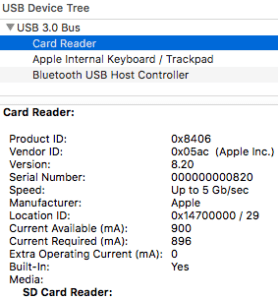
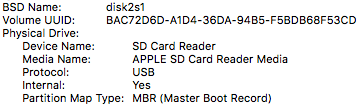
The screenshots are from the stock “System Information.app” tool, and I really wish it showed the kext drivers used for each device. That would make debugging these issues a lot easier!
A solution then could be as easy as this:
Unmount all USB connected devices (for instance with a command like diskutil eject disk1);
sudo kextunload -b com.apple.driver.AppleUSBCardReader

sudo kextload -b com.apple.driver.AppleUSBCardReader
However my first try got me an error similar to the one result [WayBack] External USB disk sometimes requires a reboot to be recognized after eject – Ars Technica OpenForum I found after searching for “class com_apple_driver_AppleUSBCardReaderDriverNub has” “instances.”:
7/28/16 10:05:54.000 AM kernel[0]: Can't unload kext com.apple.driver.AppleUSBCardReader; classes have instances:

7/28/16 10:05:54.000 AM kernel[0]: Kext com.apple.driver.AppleUSBCardReader class com_apple_driver_AppleUSBCardReaderDriverNub has 2 instances.
–jeroen
Posted in Apple, Mac, MacBook, MacBook Retina, Power User | Leave a Comment »
Posted by jpluimers on 2020/07/03
A friend asked me what tools I use for downloading media, converting it to various formats (including audio extraction) and audio editing.
It is a surprisingly short list:
Most of it runs out of the box on Mac OS X/MacOS/OS X, as I’ve moved there form Windows for most of my day to day access to systems (there is a great set of Microsoft Remote Desktop in the app store: [Archive.is] Microsoft Remote Desktop 8.0 on the Mac App Store and [Archive.is] Microsoft Remote Desktop 10 on the Mac App Store; I like the first one better).
Audacity shortcuts
Read the rest of this entry »
Posted in Apple, Audacity, Audio, ffmpeg, iMac, Mac, Mac OS X / OS X / MacOS, MacBook, MacBook Retina, MacBook-Air, MacBook-Pro, MacMini, Media, Power User, Remote Desktop Protocol/MSTSC/Terminal Services, SocialMedia, Windows, YouTube, youtube-dl | Leave a Comment »




 The Wiert Corner - irregular stream of stuff