The Wiert Corner – irregular stream of stuff

Jeroen W. Pluimers on .NET, C#, Delphi, databases, and personal interests

  • My badges

  • Twitter Updates

  • Pages

  • All categories

  • Enter your email address to subscribe to this blog and receive notifications of new posts by email.

    Join 1,839 other subscribers

Archive for the ‘Apple’ Category

How to Update All Your Ruby Gems At Once | Life, the Universe, and Everything

Posted by jpluimers on 2019/08/26

This looks smart

gem update `gem list | cut -d ' ' -f 1`

From: [WayBack] How to Update All Your Ruby Gems At Once | Life, the Universe, and Everything

Though on the bash prompt, it works fine on Mac OS X / OS X / macOS / …, it does not work nice as an alias.

You can get it to work with difficult escaping (or nesting).

But it is easier to escape this:

gem update $(gem list | cut -d ' ' -f 1)

Escaped, it comes down to:

alias "gem-update-all=gem update \$(gem list | cut -d ' ' -f 1)"

Based on:

–jeroen

Posted in Apple, bash, bash, Development, Mac OS X / OS X / MacOS, Power User, Scripting, Software Development | Leave a Comment »

Signal messaging downloads

Posted by jpluimers on 2019/08/23

I forgot about the announcement that Signal had also become available on the Desktop, but it is via [WayBack] https://signal.org/download/:

  • Mac
  • Windows
  • Debian based x64 Linux:

$ curl -s https://updates.signal.org/desktop/apt/keys.asc | sudo apt-key add -
$ echo "deb [arch=amd64] https://updates.signal.org/desktop/apt xenial main" | sudo tee -a /etc/apt/sources.list.d/signal-xenial.list
$ sudo apt update && sudo apt install signal-desktop

I like the mix of echo and tee to update the [WayBack] /etc/apt/sources.list.d folder with the signal-xenial.list file.

These links will always give you the latest download filename:

The files you get there will be relative to the path https://updates.signal.org/desktop/ so will be similar to:

You can get the sources at https://github.com/WhisperSystems/Signal-Desktop/releases

Via:

–jeroen

Posted in *nix, Android Devices, Apple, Debian, iMac, iOS, iPhone, Linux, Mac, Mac OS X / OS X / MacOS, MacBook, MacBook Retina, MacBook-Air, MacBook-Pro, MacMini, macOS 10.12 Sierra, Power User, Windows | Leave a Comment »

Inactive GUI applications: click once or twice to perform an action within the application

Posted by jpluimers on 2019/08/07

When an application is inactive, you have to click it at least once to activate it, but sometimes click twice to actually perform an action.

In the past, there were more applications requiring it, even User Interface or Human Interface guidelines explaining the difference.

Nowadays, most of these guidelines have become hard to find, but luckily some of them have been archived in the WayBack machine.

They all come down to this:

An action in an application can be disruptive, especially when there is no confirmation step for it.

Clicking an application over the area that invokes such a disruptive action, without the user realising it can have adverse consequences.

Some links for further reading:


Enabling Click-Through

An item that provides click-through is one that a user can activate with one click, even though the item is in an inactive window. (To activate an item that does not support click-through, the user must first make the containing window active and then click the item.) Although click-through can make some user tasks easier, it can also confuse users if they click items unintentionally.

Click-through is not a property of a class of controls; any control, including toolbar items, can support click-through. This also means that you can support click-through for any subset of items; you don’t have to choose between supporting click-through for all items in a window or none. Follow the guidelines in this section so that you can support click-through when it’s appropriate.

Avoid providing click-through for an item or action whose result might be dangerous or undesirable. Specifically, avoid enabling click-through for an item that:

  • Performs a potentially harmful action that users can’t cancel (for example, the Delete button in Mail)
  • Performs an action that is difficult or impossible to cancel (such as the Send button in Mail)
  • Dismisses a dialog without telling the user what action was taken (for example, the Save button in a Save dialog that overwrites an existing file and automatically dismisses the dialog)
  • Removes the user from the current context (for example, selecting a new item in a Finder column that changes the target of the Finder window)

Clicking in any one of these situations should cause the window that contains the item to be brought forward, but no other action to be taken.

In general, it’s safe to provide click-through for an item that asks the user for confirmation before executing, even if the command ultimately results in destruction of data. For example, you can provide click-through for a delete button if you also make sure to give users the opportunity to cancel or confirm the action before it proceeds.

Think twice before supporting click-through for items that don’t provide confirmation feedback. Specifically, consider how dangerous the action might be, and determine how difficult it will be for the user to undo the action after it’s performed. For example, the Mail Delete button does not provide click-through because it deletes a message without asking for confirmation, which is a potentially harmful action that can be difficult to undo. On the other hand, click-through for the New button in Mail is fine because its resulting action is not harmful and is easy to undo.

Ensure that items that don’t support click-through appear disabled when their window is inactive. The disabled appearance helps users understand that these controls are unavailable. For example, the Delete and Mark as Junk buttons in the inactive Mail window shown below don’t support click-through.

An inactive window with controls that support click-through

–jeroen

Posted in Apple, Classic Macintosh, Development, Mac, Mac OS X / OS X / MacOS, Power User, Software Development, Usability, User Experience (ux), Windows | Leave a Comment »

logging – Where is “/var/log/messages” on mac-osx? – Server Fault

Posted by jpluimers on 2019/07/29

logging – Where is “/var/log/messages” on mac-osx? – Server Fault

TL;DR: because most of it is in /var/log/system.log which is configured in /etc/asl.conf, but the documentation example about syslog.conf never got updated.

Long read

The example in syslog.conf is wrong at WayBack: Mac OS X Manual Page For syslog.conf(5) and man syslog.conf:

EXAMPLES
     A configuration file might appear as follows:
...
     # Log anything (except mail) of level info or higher.
     # Don't log private authentication messages!
     *.info;mail.none;authpriv.none          /var/log/messages
...
FILES
     /etc/syslog.conf  The syslogd(8) configuration file.

It still is when writing this [WayBack]syslog.conf(5) Mac OS X Manual Page, so you have to look at /etc/syslog.conf on a live system:

# Note that flat file logs are now configured in /etc/asl.conf

install.*                       @127.0.0.1:32376

which means the actual configuration is in /etc/asl.conf:

# Rules for /var/log/system.log
> system.log mode=0640 format=bsd rotate=seq compress file_max=5M all_max=50M
? [= Sender kernel] file system.log
? [<= Level notice] file system.log
? [= Facility auth] [<= Level info] file system.log
? [= Facility authpriv] [<= Level info] file system.log

Documentation at [WayBack] asl.conf(5) Mac OS X Manual Page indicates this:

NAME
     asl.conf -- configuration file for syslogd(8) and aslmanager(8)

DESCRIPTION
     The syslogd(8) server reads the /etc/asl.conf file at startup, and re-reads the file when it receives a HUP signal.  The aslmanager(8) daemon reads the file when it starts.  See the
     ASLMANAGER PARAMETER SETTINGS section for details on aslmanager-specific parameters.

Source

Based on [WayBacklogging – Where is “/var/log/messages” on mac-osx? – Server Fault:

Q:

When you read the man pages on Mac OS X, there are references to /var/log/messages, but if you look for the file, it doesn’t exist:

$ ls -l /var/log/messages
ls: /var/log/messages: No such file or directory

A:

2009 era: If you look at the actual /etc/syslog.conf instead of the man page, you see *.notice;authpriv,remoteauth,ftp,install.none;kern.debug;mai‌​l.crit /var/log/system.log

–jeroen

Posted in Apple, Mac OS X / OS X / MacOS, Mac OS X 10.4 Tiger, Mac OS X 10.5 Leopard, Mac OS X 10.6 Snow Leopard, Mac OS X 10.7 Lion, macOS 10.12 Sierra, OS X 10.10 Yosemite, OS X 10.11 El Capitan, OS X 10.8 Mountain Lion, OS X 10.9 Mavericks, Power User | Leave a Comment »

Reminder to self: MacOS prints to HP printers using IPP on port 631

Posted by jpluimers on 2019/07/12

At a site, something in the network filtering changed, so printing from a Mac failed.

In the end this was about port 631, which is for the IPP protocol a Mac uses.

jeroen

Posted in Apple, Mac, Power User | Leave a Comment »

Applesauce – Make exact images of copy-protected Apple II floppy disks | Hacker News

Posted by jpluimers on 2019/07/08

I might want to try and buy one of these: [WayBack] Applesauce – Make exact images of copy-protected Apple II floppy disks | Hacker News.

A truckload of information is at [WayBack] Applesauce – The ReActiveMicro Apple II Wiki

It is still being updated: [WayBack] applesauce – Apple II Floppy Drive Controller

Via [WayBack] This week, in 6502-related hardware, the Applesauce: a Disk II imaging kit for your Apple II disks. Thanks to the minimal nature of Woz’ disk interface,… – mos6502 – Google+

Related: [WayBack] Confessions of a Disk Cracker: The Secrets of 4am | Hacker News

Videos below the fold…

–jeroen

Read the rest of this entry »

Posted in //e, 6502, Apple, History, Power User | Leave a Comment »

ms office – Keyboard shortcut to select all text in a cell in Excel – Ask Different

Posted by jpluimers on 2019/06/10

Via [WayBack] ms office – Keyboard shortcut to select all text in a cell in Excel – Ask Different a few keyboard tips.

Lets start with the shortest one:

  1. Put the focus on the cell (click, use arrow keys, etc)
  2. Press space
  3. Press CommandZ or ControlZ to undo the change

This probably is unintended, but works great: all text is now selected, so you can copy/cut with Command-C/CommandX.

Now the “official” way:

  1. Put the focus on the cell (click, use arrow keys, etc)
  2. Press ControlU or F2 to edit the cell (the cursor is now at the end)
  3. Press ShiftAltHome or ShiftControlHome (to select all text)
    note: Home can also be FnLeft.

Other selections you can make while the cell is in edit mode:

  • Press ShiftAltEnd or ShiftControlEnd (to select to the end of the cell)
    note: End can also be FnRight.
  • Press ShiftAltRight or ShiftControlRight (to select one word to the right)
  • Press ShiftAltLeft or ShiftControlLeft (to select one word to the left)
  • Press ShiftAltDown or ShiftControlDown (to select to the same position on the line below)
  • Press ShiftAltUp or ShiftControlUp (to select to the same position on the line up)

Keyboard symbols (more at [WayBackCommand, Option, & Shift Symbols in Unicode):

  • Shift
  • ^Control
  •  – Alt which is the same as Option
  •  – Command
  • Fn – Function

–jeroen

Posted in Apple, Excel, Mac, Mac OS X / OS X / MacOS, MacBook, MacBook Retina, MacBook-Air, MacBook-Pro, MacMini, macOS 10.12 Sierra, Office, Office 2011 for Mac, Power User | Leave a Comment »

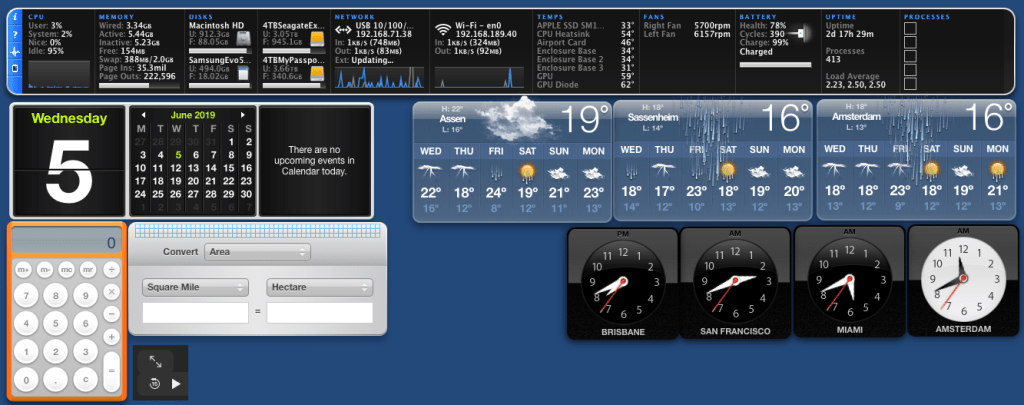
Did Apple remove dashboard in MacOS Catalina? – Appleosophy

Posted by jpluimers on 2019/06/10

It was fun while it lasted: [WayBack] Did Apple remove dashboard in MacOS Catalina? – Appleosophy

I especially like the iStat Pro (though unsupported) widget, and that you can have a dashboard without the need to go on-line.

Related: [WayBack] Dashboard (macOS) – Wikipedia

Via: [WayBack] Apple verwijdert dashboard met widgets uit macOS Catalina – Computer – Nieuws – Tweakers

If might be that Übersicht can help me, but I am not sure yet if there is a good iStat Pro equivalent for it.

Future links to investigate:

–jeroen

Posted in Apple, Mac OS X / OS X / MacOS, Power User | Leave a Comment »

macos – User account no longer in ‘admin’, how to recover? – Ask Different

Posted by jpluimers on 2019/06/07

For my link archive:

–jeroen

Posted in Apple, iMac, Mac, Mac OS X / OS X / MacOS, MacBook, MacBook Retina, MacBook-Air, MacBook-Pro, MacMini, macOS 10.12 Sierra, macOS 10.13 High Sierra, OS X 10.11 El Capitan, Power User | Leave a Comment »

keyboard – How to add a line break in a cell in Excel for Mac – Ask Different

Posted by jpluimers on 2019/06/03

What key combination do I have to press to create a line break in a cell in Excel for Mac 2011? The Windows combination of Alt+Enter does not work on the Mac.

Source: [WayBackkeyboard – How to add a line break in a cell in Excel for Mac – Ask Different

The answer depends on the Excel for Mac OS X version you are using.

Excel 2015 is simple (thanks esham): use Option+Enter.

In older Excel <= 2011 (thanks nwinkler), use Command+Option+Enter or Control+Option+Enter.

Some users report the also need the Fn key in addition to the above modifiers.

–jeroen

PS: Later I found out that [WayBack] Beckism.com: Use a linebreak in Excel on Mac also shows the Excel <= 2011 solution Control+Option+Return (note that Return is the same key as Enter).

Posted in Apple, Excel, Mac, Mac OS X / OS X / MacOS, MacBook, MacBook Retina, MacBook-Air, MacBook-Pro, macOS 10.12 Sierra, Office, Office 2011 for Mac, Power User | Leave a Comment »