For quite some time now, Chrome (think years) refuses to prompt for saving passwords whereas Firefox and Safari do prompt and save them, even for site types that it used to save passwords for in the past.
It has been annoying enough for too long now that I tried to do better than the Google searches I used back when I saw this happen first.
If use the Chrome web browser, it’s fairly likely you will find Chrome autofill suggestions recommending things for various forms and text entry points. Sometimes those autofill suggestions c…
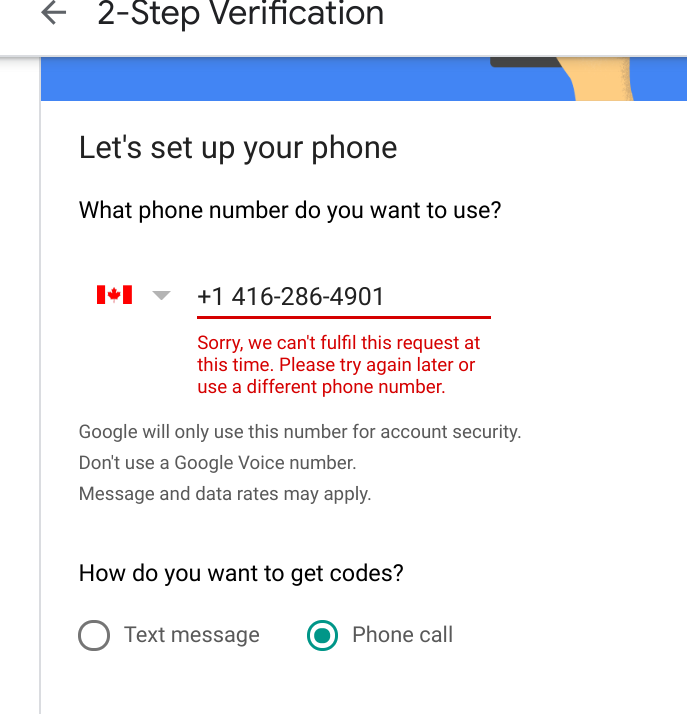
A while ago while first securing a bunch of accounts with a phone number, then later replacing them with 2FA hardware, I got this error message:
Sorry, we can’t fulfill this request at this time. Please try again later or use a different phone number.
This seems to have to do with the fact that if have gotten about 10 2FA messages a day, then it cannot be used to add a new phone number to an account. The phone number still can be used to verify existing accounts where the phone number was already registered.
TL;DR: recurrence in Google Calendar can be tough.
Adding a yearly repeating event on a last weekday (where weekday is any day of the week: sunday, monday, etc) of a month in Google Calendar was a lot less obvious than I hoped for.
Create an event on September 3rd. Choose custom recurrence. Repeat every 12 months monthly on the first Monday. I just tested that out on the browser version of Google calendar
The trick is to first select a normally repeating monthly event on the last#th/first weekday day of a month.
If you actually want a day on the 5th week of every month (versus the last week), the Google Calendar UI does not support this, but you can do it by importing an .ics file
Below is an example while writing this: adding a yearly recurring event on the last Sunday of May (which in 2021 was Sunday the 30th of May).
This option in Chrome has moved around a bit, so here is how it was in Version 89.0.4389.90 (Official Build) (64-bit) when I documented it.
Browse to chrome://discards/
Don’t be intimidated by the many rows and columns; only the rightmost 8 (at the time of writing) are interesting:
Search for the URL (in my chase https://web.whatsapp.com/ , so I searched for whatsapp which you see as orange in the screenshots below) for which you want to ensure it will never sleep/hibernate (Chrome calls this “discardable”)
Click Toggle under the checkmark ✔ so it changes into a cross ✘️ (so the URL will never be discarded, hence always stays awake)
Do this only for tabs that are not CPU/memory/traffic intensive
Chrome has built-in memory management that causes inactive tabs to “sleep” as RAM is filled. When you click the tab again, it has to reload the page. It’s annoying.
Some sites manage to disable various printing options (including layout, so you cannot choose between landscape and portrait any more, or force landscape when portrait works better or vice versa).
2. Go into the Stylus extension and click on “Write new style”.
3. Put the following code in:
@page {
size: auto;
}
4. Give it a name (I called mine “Fix Orientation”) and save it.
5. Reload the page you’re trying to print and the print dialogue should now have the “Layout” option and you should always get it for any page you print from now on.
Redesign the web with Stylus, a user styles manager. Stylus allows you to easily install themes and skins for many popular sites.
I reconfigured the OHRA Mijn Zorg site to force re-enabling of layout by adding @page { size: auto !important; } for https://mijn.ohrazv.nl/ (click the Save button to save this change permanently):
” 99 second hand smartphones are transported in a handcart to generate virtual traffic jam in Google Maps.Through this activity, it is possible to turn a green street red which has an impact in the physical world by navigating cars on another route to avoid being stuck in traffic. ” #googlemapshacks
If you do not access Cloud Shell for 120 days, we will delete your home disk. You will receive an email notification before we do so and simply starting a session will prevent its removal.
This only applies to the home directory of your Cloud Shell instance (you may want to store it on Cloud Storage anyway if you want to keep it). Any other Google services you use will be unaffected.
I hardly use the cloud shell, as it is a last resort to shell out from overly protected networks. Fewer and fewer environments restrict so much, so I’ve bumped into the home directory deletion a few times now.
I might use it more in the future, as I recently discovered there is a URL trick so you can start a cloud shell with parameters like an initial git repository: [WayBack] Open in Cloud Shell | Google Cloud
The Open in Cloud Shell feature allows you to publish a link that opens the Cloud Console and either automatically clones a Git repository into Cloud Shell or starts Cloud Shell with a custom image. It also allows for instructions to be printed to the terminal to help users interact with the content.
The Open in Cloud Shell feature helps developers experiment with code samples and APIs without having to worry about downloading Cloud SDK, installing required dependencies, or searching for relevant source files. This page explains how to add this feature to your Git repository.
Currently, only GitHub and Bitbucket repositories are whitelisted. If you would like to add a different repository, send feedback with the repository type you’d like to use with Open in Cloud Shell.
Setting up the home directory with my scripts can be a curse, so I have contemplated on these kinds of solutions:
store scripts in Google Drive, and mount part of Google Drive into the Cloud Shell
store scripts in Google Cloud Storage
script the setup of the home directory via a bash script in a gist
Cloud Shell inactivity: If you do not access Cloud Shell for 120 days, your home disk will be deleted. You will receive an email notification before its deletion and simply starting a session will prevent its removal. Please consider a different solution on Google Cloud storage for sensitive data you wish to store long term.
Non-interactive usage: Cloud Shell is intended for interactive use only. Non-interactive sessions will be ended automatically after a warning. Note that Cloud Shell sessions are capped at 12 hours, after which sessions are automatically terminated. You can use a new session immediately after.
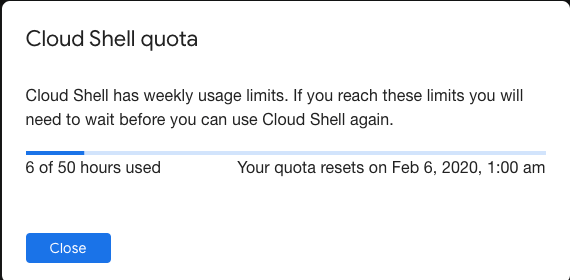
Weekly usage: Cloud Shell also has weekly usage limits. If you reach your usage limit, you’ll need to wait until the specified time (listed under Usage Quota, found under the three dots menu icon) before you can use Cloud Shell again.
Restoring a session after a service limit violation: If your session is terminated or cannot be established because you exceeded a service limit, Cloud Shell will display an error with a link to a form that allows you to appeal the limit violation. Click the feedback link and submit the form with more information about the tasks you were performing before your session was terminated.




 This option in Chrome has moved around a bit, so here is how it was in Version 89.0.4389.90 (Official Build) (64-bit) when I documented it.





 [
[
 The Wiert Corner - irregular stream of stuff