The Wiert Corner – irregular stream of stuff

Jeroen W. Pluimers on .NET, C#, Delphi, databases, and personal interests

  • My badges

  • Twitter Updates

  • My Flickr Stream

  • Pages

  • All categories

  • Enter your email address to subscribe to this blog and receive notifications of new posts by email.

    Join 1,862 other subscribers

Archive for the ‘Keyboards and Keyboard Shortcuts’ Category

#WordPress Editor #keyboard #shortcuts

Posted by jpluimers on 2012/03/05

Both the WordPress Visual editor and HTML editor accept keyboard shortcuts. The built in WordPress Visual editor is based on TinyMCE where some of the shortcuts come from.

Since I’m a keyboard guy, I collected some information on keyboard shortcuts over time, and below is a table with what I collected for both editors.

That, combined with distraction free writing really gives WordPress a boost.

Most of the shortcut keys use the modifier keys ALT plus SHIFT.

Note that on a Mac, you will have to use the “command” key in stead of the “CTRL” key.

Visual Editor

You can see what these shortcuts do in the WordPress Visual Editor support page.

Function Shortcut Keys Alternative Shortcut Keys
Undo CTRL + z
Redo CTRL + y
Headers (H1, H2, H3, …, H6) CTRL + 1 … 6
Paragraph CTRL + 7
Format CTRL + 8 (doesn’t work on a Mac)
Address CTRL + 9
Bold ALT + SHIFT + b CTRL + b
Italic ALT + SHIFT + i CTRL + i
Underline CTRL + u
Strike through with red (delete) ALT + SHIFT + d
Align left ALT + SHIFT + l
Align center ALT + SHIFT + c
Align right ALT + SHIFT + r
Blockquote ALT + SHIFT + q
Unquote/outdent ALT + SHITF + w (doesn’t work on a Mac)
Code ALT + SHIFT + c (doesn’t work, is “align center”)
Unordered List (ul) ALT + SHIFT + u
Ordered List (ol) ALT + SHIFT + o
List item (li) ALT + SHIFT + l (doesn’t work, is “align left”)
A Hyperlink (a) ALT + SHIFT + a
Line break SHIFT + Enter
Read more ALT + SHIFT + t
Next page ALT + SHIFT + p
Media insert (image/video/…) ALT + SHIFT + m (on a Mac, it also inserts a Ã)
ins ALT + SHIFT + s (doesn’t work on a Mac)
del ALT + SHIFT + d (doesn’t work on a Mac)
Distraction free writing ALT + SHIFT + g
Enable “Kitchen Sink” Toolbar ALT + SHIFT + z
View HTML code ALT + SHIFT + e (doesn’t work on a Mac)
Advanced Editor ALT + SHIFT + v (doesn’t work)
Spell check ALT + SHIFT + n
Rich Editor Help ALT + SHIFT + h
  • Unused ALT + SHIFT + letter combinations: f, y, j, k, x.

HTML editor (don’t work on a Mac)

Though the sources I used (see bullets below) indicate the below table should work, they don’t.

So: no HTML shortcuts on Mac or PC, which is a shame.

The only reason I use the HTML editor once in a while are these:

Function Shortcut Keys Alternative Shortcut Keys
Bold ALT + SHIFT + b
Italic ALT + SHIFT + i
Strikethrough ALT + SHIFT + d
Blockquote ALT + SHIFT + q
Code ALT + SHIFT + c
Unordered List ALT + SHIFT + u
Ordered List ALT + SHIFT + o
A Hyperlink ALT + SHIFT + a
Read more ALT + SHIFT + t
View HTML code ALT + SHIFT + e
Headers (H1, H2, H3, …) Ctrl + corresponding number
Insert date/time ALT + SHIFT + s
Insert IMG URL ALT + SHIFT + m
List Item (li) Alt + SHIFT + l
Publish the Post Alt + SHIFT + p
Redo CTRL + y
Undo CTRL+z

–jeroen

via:

Posted in Keyboards and Keyboard Shortcuts, Power User, SocialMedia, WordPress | 1 Comment »

When writing applications, include Keyboard Shortcuts for both the CUA and Windows/Apple shortcuts

Posted by jpluimers on 2011/12/06

When you write applications, it is important to include both the CUA and the Windows/Apple keyboard shortcuts, and get the tab order of keyboard accessible user elements right.

Many modern applications seem to put less and less emphasis on the most efficient user input device: the keyboard.

You should: it makes your application much more pleasant to use.

I wrote about CUA before, but the Windows and Mac shortcuts are just as important.

A small table (please post a comment if you know additions):

Keyboard Shortcuts for the most common tasks.
Function CUA Windows Mac
Copy Ctrl + Insert Ctrl + C Command + C
Cut Shift + Delete Ctrl + X Command + X
Paste Shift + Insert Ctrl + V Command + V
Delete before cursor Backspace Delete
Delete after cursor Delete Fn + Delete
Undo Alt + Backspace Ctrl + Z Command + Z
Redo Ctrl + Y Command + Y
Confirm the current task Enter Return
Cancel the current task Escape Escape
Next field Tab Tab
Previous field Shift + Tab Shift + Tab
Next pane Ctrl + F6
Previous pane Alt + F6
Next window F6  Cmd + `
Previous window Shift + F6
Application menu Alt + Space
Windows menu
Local menu Shift + F10 Local Menu

Note that many Linux programs follow both the CUA and Windows settings.

References:

–jeroen

Posted in .NET, Delphi, Development, Keyboards and Keyboard Shortcuts, Power User, Software Development, xCode/Mac/iPad/iPhone/iOS/cocoa | Leave a Comment »

Mac OS X keyboard shortcuts

Posted by jpluimers on 2011/11/18

I’ve had RSI in the 90s before it was even called RSI, I quickly found out it was because of using a computer mouse.

So I quickly learned all the keyboard shortcuts of the things I use everyday.

Most of the CUA and Windows keyboard shortcuts stored in my spline, and having done quite a bit of Mac development lately, it took a while for Mac keyboard shortcuts to end there as well.

Here are a few nice overviews of handy Mac keyboard shortcuts:

Have fun with them!

–jeroen

Via: mac os x keyboard shortcuts – Google Search.

Posted in Apple, Keyboards and Keyboard Shortcuts, Power User | Leave a Comment »

Running OS X Lion 10.7 on VMware Workstation 7.1.4 and 8.0 (via: How to Install Retail OS X 10.6 under VMware Workstation or Player – InsanelyMac Forum)

Posted by jpluimers on 2011/10/14

This might not be strictly legal, but it is supposed to be possible to run the retail OS X Lion 10.7 under VMware Workstation 8 (or VMware Fusion 4) and VMware Workstation 7.1.4 (or VMware Player 3.1.4) on a regular PC (if that PC Supports VT) running Windows 7 x64.

Since Apple MacBook still don’t come with a TrackPoint (and having suffered from RSI, that is about the only pointing device I can use) there are only two options for me:

  1. Go the route described above
  2. Use an external USB TrackPoint keyboard with a Mac
    (traveling with a huge external USB keyboard, I’d look like my long time friend Mark Miller from DevExpress, who also suffered from RSI)
    (boy I wish there was a wireless ThinkPad TrackPoint keyboard)

–jeroen

Via: How to Install Retail OS X 10.6 under VMware Workstation or Player – InsanelyMac Forum and 
How to Install Retail OS X 10.6 “Snow” and OS X 10.7 “Lion” under VMware Workstation 8 and Fusion 4, A simple set of instructions – InsanelyMac Forum

Posted in Apple, Keyboards and Keyboard Shortcuts, Power User, RSI, UltraNav keyboards, VMware, Windows, Windows 7 | 1 Comment »

Mac practical joke: How to Invert Colors on a Mac – wikiHow

Posted by jpluimers on 2011/10/10

Press CtrlOptionCommand8 in your colleagues keyboard and watch them getting their inverted colours back :)

It is like the 3-finger salute on Windows, but much much nicer, as the inversion is all done on the GPU hardware :)

–jeroen

Via: How to Invert Colors on a Mac – wikiHow.

Posted in Apple, Fun, Keyboards and Keyboard Shortcuts, LifeHacker, Mac, Mac OS X / OS X / MacOS, Mac OS X 10.5 Leopard, Mac OS X 10.6 Snow Leopard, Mac OS X 10.7 Lion, MacBook, MacBook Retina, MacBook-Air, MacBook-Pro, Power User | Leave a Comment »

MacBook (or -Pro; -Air): Disable the default “fn key” behaviour and enable the normal Function-keys by default

Posted by jpluimers on 2011/10/03

In their infinite wisdom Apple has chosen to cripple the Apple keyboards on the MacBook (and -Pro and -Air) to default the top-row keys to not behave as function keys.

Apparently they expect people to use those keys more often for changing screen brightness, multi media playing, sound volume, than as function keys.

Maybe it is their 1 Infinite Loop address, but out there in the real world, people appreciate the function keys by default to behave, well like they are meant for: Function Keys and not having to press the fn key to use them.

Actually, some people at Apple were smart enough to make this configurable, but it is well hidden behind the phrase “Use F1-F12 keys to control software features” as the MacRumors Forums 2007 post titled “View Single Post – How To F Lock?” points out.

In the mean time however, the Mac OS X System Preferences to reorganized quite a bit, and “Keyboard & Mouse” are now to separate entries. So the steps are now these:

  1. Press Command-Space to start the Spotlight Window
    (yes, the Command Key still is marked as ⌘ for consistency, but for how long?)
  2. Type “Keyboard” (without double quotes ;-)
  3. Choose the “Keyboard” entry under “System Preferences”
  4. Put a checkmark in front of the “Use all F1, F2, etc. jeys as standard function keys”
    When this option is selected, press the Fn key to us ethe special features printed on each key”
    (note that on a MacBook Air, the key is not “Fn”, but “fn”: so far for consistency again)
  5. Done.

There even seem to be some answers on the Apple discussion forums seem to hint on this, but – at the time of writing – they all conveniently show up as “We’ll be back soon” for some time now, thereby redefining the term “shortly” in the same pass:

We will be back soon.

Being in this mode, it would be soooooo nice if actually they marked the option key with the same character as they refer to it from the menus: ⌥.
They used to on older versions of the option key (even on old MacBook Pro machines). Now that would be consistent user experience…

Now people have to find the right Apple documentation on keyboard shortcuts to find out what the symbols mean.

But – though often famed for consistency –  I don’t think it is one of Apple strengths.

–jeroen

via: MacRumors Forums – View Single Post – How To F Lock?.

Posted in Apple, Keyboards and Keyboard Shortcuts, Mac, MacBook, MacBook-Air, MacBook-Pro, Power User | 2 Comments »

Windows “Device Manager” – expand all nodes

Posted by jpluimers on 2011/09/23


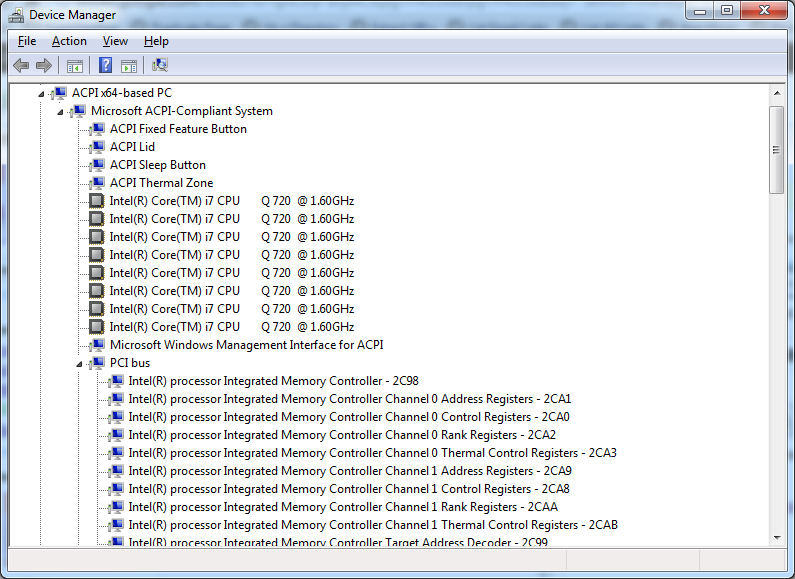
Expanded Windows Device Manager


With the increasing number of devices, it really helps to expand all nodes in the Device Manager’s tree view.

You cannot do this with the mouse, as none of the menu options contain an “Expand All” option.

But since the treeview, is the built-in Windows treeview (used in many places, like Windows explorer), you can use these shortcuts to expand/collapse nodes:

  • Numeric Keypad *: Expands everything under the current selection
  • Numeric Keypad +: Expands the current selection
  • Numeric Keypad -: Collapses the current selection.
  • RIGHT ARROW: Expands the current selection if it is not expanded, otherwise goes to the first child
  • LEFT ARROW: Collapses the current selection if it is expanded, otherwise goes to the parent

This not only works in Microsoft Windows 7: Visual … – Google Books, I think it has been introduced as far back as Windows 95.

–jeroen

Posted in Keyboards and Keyboard Shortcuts, Power User, Windows, Windows 10, Windows 7, Windows 8, Windows 8.1, Windows 9, Windows Server 2003, Windows Server 2003 R2, Windows Server 2008, Windows Server 2008 R2, Windows Server 2012, Windows Server 2012 R2, Windows Vista, Windows XP | 1 Comment »

I love my keyboard; why did they hide “Underline keyboard shortcuts and access keys” in Windows 7 so far away?

Posted by jpluimers on 2011/03/18

This is how you view the underline character for Alt and other keyboard shortcuts in Windows 7 (the link shows you how to do this with the mouse, but we are keyboard lovers, are’t we?):

  1. Press the WINDOWS-U combination to open the “Ease of Access Center”
  2. Under Explore all settings, select “Make the keyboard easier to use” by pressing TAB a couple of times, then press ENTER to select it.
  3. Press ALT-N to select and check “Underline keyboard shortcuts and access keys” under “Make it easier to use keyboard shortcuts”
  4. Press ALT-O to fire the OK button action.
  5. Press ALT-F4 to close the “Ease of Access Center”

Done!

So far for accessibility (:

–jeroen

via: Underline keyboard shortcuts and access keys.

Posted in Keyboards and Keyboard Shortcuts, Power User, Windows, Windows 7 | 3 Comments »

SwitchResX helped me switch my Mac machine to 1360×768 and 1888×1062

Posted by jpluimers on 2010/12/24

A while ago, I got involved in Mac programming again after more than a decade of absence.
It felt like a warm reunion.

A Mac Mini Server serves as a development machine: it is about the same price as a regular Mac Mini, but packs 2 HDDs which for me is more useful than one HDD and a DVD player.

However, living in the Windows world for a long time long, and having had RSI in the DOS era almost two decades ago, I had a few wishes for using it.

The first was keyboard wise. The second is custom resolutions. Read the rest of this entry »

Posted in Apple, Development, Keyboards and Keyboard Shortcuts, Power User, RSI, Software Development, UltraNav keyboards, xCode/Mac/iPad/iPhone/iOS/cocoa | 10 Comments »

VMware ESXi 4.0 / ESXi 4.1: enable SSH login for non-root users (and only them)

Posted by jpluimers on 2010/09/28

VMware ESXi has SSH disabled by default.

In ESX / ESXi 3 and 3.5, it took a while for people to recognize the ‘unsupported’ trick and enable SSH.
In ESXi 4.0, /sbin/services.sh was fixed, so SSH was easier to enable (note: only delete the # in front of the first ssh).
Since ESXi version 4.1, SSH is called “Remote Tech Support (SSH)”, and it very easy to enable from the console.
Thomas Maurer described how easy it is to activate SSH in ESXi 4.1. He provides clear screen shots, whereas the VMware knowledge base article just lists the textual steps.

But contrary to ESX/ESXi 3.5 and lower, and *nix habits, enabling SSH on ESXi 4.x will enable this for the root user.
This has to do with the switch between ESX/ESXi 3.5 and 4.0 from to the dropbear ssh daemon (in the /sbin/dropbearmulti binary).
Dropbear is a very lightweight implementation of the SSH 2 protocol; ideal for ESXi which – as a hypervisor – needs to have a really low footprint.

In addition to the dropbear change, SSH is disabled for non-root users (which has nothing to do with dropbear, see below).

This post is about how to fix not only the SSH (as above) but also how to allow specific users to use SSH. Read the rest of this entry »

Posted in ESXi4, Keyboards and Keyboard Shortcuts, Power User, VMware | 9 Comments »