The Wiert Corner – irregular stream of stuff

Jeroen W. Pluimers on .NET, C#, Delphi, databases, and personal interests

  • My badges

  • Twitter Updates

  • My Flickr Stream

  • Pages

  • All categories

  • Enter your email address to subscribe to this blog and receive notifications of new posts by email.

    Join 1,861 other subscribers

Archive for the ‘ESXi6.5’ Category

VMware ESXi console: viewing all VMs, suspending and waking them up: part 4

Posted by jpluimers on 2021/04/29

Yesterday we ended with an overview of available and unavailable vim-cmd vmsvc commands and the promise to try running the various power commands on all relevant VMs.

Let’s start with a summary of the commands, so it will be easier to make a list of scripts to run them on relevant VMs.

Available commands

  • vim-cmd vmsvc/power.getstate vmid
  • vim-cmd vmsvc/power.hibernate vmid
  • vim-cmd vmsvc/power.off vmid
  • vim-cmd vmsvc/power.on vmid
  • vim-cmd vmsvc/power.reboot vmid
  • vim-cmd vmsvc/power.reset vmid
  • vim-cmd vmsvc/power.shutdown vmid
  • vim-cmd vmsvc/power.suspend vmid
  • vim-cmd vmsvc/power.suspendResume vmid

Unavailable commands

  • vim-cmd vmsvc/power.startup vmid
  • vim-cmd vmsvc/power.resume vmid
  • vim-cmd vmsvc/power.wakeup vmid

List the vmid values, power status and name of all VMs

Getting the vmid

Yesterday I showed a small statement that gives the list of vmid values on an ESXi system:

vim-cmd vmsvc/getallvms | sed -n -E -e "s/^([[:digit:]]+)s+((S.+S)?)s+([S+])s+(.+.vmx)s+(S+)s+(vmx-[[:digit:]]+)s*?((S.+)?)$/1/p"

What I ideally want is not just the vmid and name for each VM from vim-cmd vmsvc/getallvms, but also get the power state information from vim-cmd vmsvc/power.getstate vmid.

For that, we need to parse the output of vim-cmd vmsvc/power.getstate vmid, which can be three outputs:

  • Retrieved runtime info
    Powered off
  • Retrieved runtime info
    Powered on
  • Retrieved runtime info
    Suspended

So basically it involves deleting the first line which was covered in part 2 of this installment, for example on my system:

# vim-cmd vmsvc/power.getstate 10 | sed '1d'
Powered on

Getting VM name

Extracting both vmid and name from vim-cmd vmsvc/getallvms at the same time is not easy, heck even impossible, so I decided to go the vim-cmd vmsvc/get.config vmid way.

Getting multiple values out of some output is already very hard in bash, where usually the less difficult way is to use arrays. Since Busybox has an ash shell (see Busybox sh (actually ash derivative dash): checking exit codes), and ash does not do arrays, that route is gone.

To give you an idea how hard this is in bash and how to sort of workaround the lack of array support in ash:

This partial vim-cmd vmsvc/get.config vmid sample output on one of my VMs that shows how to use head -n 31 to get just the first 31 lines of output:

# vim-cmd vmsvc/get.config 10 | head -n 31
Configuration:

(vim.vm.ConfigInfo) {
   changeVersion = "2021-04-07T22:08:30.548274Z", 
   modified = "1970-01-01T00:00:00Z", 
   name = "X9SRI-3F-W10P-EN-MEDIA", 
   guestFullName = "Microsoft Windows 10 (64-bit)", 
   version = "vmx-14", 
   uuid = "564d51ac-f6cf-e40b-b686-2f53a28a4bea", 
   createDate = "2019-05-17T21:37:11.408173Z", 
   instanceUuid = "52403d0e-7ccd-48da-bb21-7e966defccf7", 
   npivNodeWorldWideName = , 
   npivPortWorldWideName = , 
   npivWorldWideNameType = , 
   npivDesiredNodeWwns = , 
   npivDesiredPortWwns = , 
   npivTemporaryDisabled = true, 
   npivOnNonRdmDisks = , 
   locationId = "564d6b18-ecd1-2261-0127-146b3f3bc636", 
   template = false, 
   guestId = "windows9_64Guest", 
   alternateGuestName = "", 
   annotation = "", 
   files = (vim.vm.FileInfo) {
      vmPathName = "[EVO860_500GB] VM/X9SRI-3F-W10P-EN-MEDIA/X9SRI-3F-W10P-EN-MEDIA.vmx", 
      snapshotDirectory = "[EVO860_500GB] VM/X9SRI-3F-W10P-EN-MEDIA", 
      suspendDirectory = "[EVO860_500GB] VM/X9SRI-3F-W10P-EN-MEDIA", 
      logDirectory = "[EVO860_500GB] VM/X9SRI-3F-W10P-EN-MEDIA", 
      ftMetadataDirectory = 
   }, 
   tools = (vim.vm.ToolsConfigInfo) {

The reason to go the vim-cmd vmsvc/get.config vmid way is that it contains all the configuration info in a kind of JSON format (except the first two lines) and should be relatively easy to parse. Or so at least I hoped.

Basically I am interested in the value of name = "X9SRI-3F-W10P-EN-MEDIA", however, there are multiple name fields in the total configuration:

# vim-cmd vmsvc/get.config 10 | sed -n -E '/name =/p'
   name = "X9SRI-3F-W10P-EN-MEDIA", 
         name = "EVO860_500GB",

So what I really want is the value of name = "X9SRI-3F-W10P-EN-MEDIA", in between the (vim.vm.ConfigInfo) { and files = (vim.vm.FileInfo) { parts.

This can be done using sed as it allows to specify a range using a start and end value using addresses:

  • [Wayback] sed: Addresses in sed

    An address is either a decimal number that counts input lines cumulatively across files, a '$' character that addresses the last line of input, or a context address (which consists of a BRE, as described in Regular Expressions in sed , preceded and followed by a delimiter, usually a slash).

    An editing command with no addresses shall select every pattern space.

    An editing command with one address shall select each pattern space that matches the address.

    An editing command with two addresses shall select the inclusive range from the first pattern space that matches the first address through the next pattern space that matches the second. (If the second address is a number less than or equal to the line number first selected, only one line shall be selected.) Starting at the first line following the selected range, sed shall look again for the first address. Thereafter, the process shall be repeated. Omitting either or both of the address components in the following form produces undefined results:

    [address[,address]]
  • Range Addresses (sed, a stream editor)[Wayback] Range Addresses (sed, a stream editor)

    An address range can be specified by specifying two addresses separated by a comma (,). An address range matches lines starting from where the first address matches, and continues until the second address matches (inclusively):

    $ seq 10 | sed -n '4,6p'
    4
    5
    6
    

    If the second address is a regexp, then checking for the ending match will start with the line following the line which matched the first address: a range will always span at least two lines (except of course if the input stream ends).

  • [Wayback] Regexp Addresses (sed, a stream editor)

For example (with some characters escaped because of [Wayback] ERE syntax (sed, a stream editor)):

# vim-cmd vmsvc/get.config 10 | sed -n -E -e '/\(vim.vm.ConfigInfo\) \{/,/files = \(vim.vm.FileInfo\) \{/p'
(vim.vm.ConfigInfo) {
   changeVersion = "2021-04-07T22:08:30.548274Z", 
   modified = "1970-01-01T00:00:00Z", 
   name = "X9SRI-3F-W10P-EN-MEDIA", 
   guestFullName = "Microsoft Windows 10 (64-bit)", 
   version = "vmx-14", 
   uuid = "564d51ac-f6cf-e40b-b686-2f53a28a4bea", 
   createDate = "2019-05-17T21:37:11.408173Z", 
   instanceUuid = "52403d0e-7ccd-48da-bb21-7e966defccf7", 
   npivNodeWorldWideName = , 
   npivPortWorldWideName = , 
   npivWorldWideNameType = , 
   npivDesiredNodeWwns = , 
   npivDesiredPortWwns = , 
   npivTemporaryDisabled = true, 
   npivOnNonRdmDisks = , 
   locationId = "564d6b18-ecd1-2261-0127-146b3f3bc636", 
   template = false, 
   guestId = "windows9_64Guest", 
   alternateGuestName = "", 
   annotation = "", 
   files = (vim.vm.FileInfo) { 

With [Wayback] BRE syntax (sed, a stream editor) the filter part would be easier: vim-cmd vmsvc/get.config 10 | sed -n -e '/(vim.vm.ConfigInfo) {/,/files = (vim.vm.FileInfo) {/p', but the print part would be more difficult:

  • # vim-cmd vmsvc/get.config 10 | sed -n -E -e '/\(vim.vm.ConfigInfo\) \{/,/files = \(vim.vm.FileInfo\) \{/ s/^ +name = "(.*)",.*?/1/p'
    X9SRI-3F-W10P-EN-MEDIA
    
  • # vim-cmd vmsvc/get.config 10 | sed -n -e '/(vim.vm.ConfigInfo) {/,/files = (vim.vm.FileInfo) {/ s/^ +name = "(.*)",.*?/1/p'
    X9SRI-3F-W10P-EN-MEDIA

Since I am used to extended regular expressions (ERE) over basica regular expressions (BRE), I prefer the first solution.

So getting the name in a variable now becomes this:

# name=`vim-cmd vmsvc/get.config 10 | sed -n -e '/(vim.vm.ConfigInfo) {/,/files = (vim.vm.FileInfo) {/ s/^ +name = "(.*)",.*?/1/p'`
# echo ${name}
X9SRI-3F-W10P-EN-MEDIA

List the vmid values, power status and name of all VMs

Back to the listing script vim-cmd-list-all-VMs.sh:

#!/bin/sh
# https://wiert.me/2021/04/29/vmware-esxi-console-viewing-all-vms-suspending-and-waking-them-up-part-4/
vmids=`vim-cmd vmsvc/getallvms | sed -n -E -e "s/^([[:digit:]]+)\s+((\S.+\S)?)\s+(\[\S+\])\s+(.+\.vmx)\s+(\S+)\s+(vmx-[[:digit:]]+)\s*?((\S.+)?)$/\1/p"`
for vmid in ${vmids} ; do
    powerState=`vim-cmd vmsvc/power.getstate ${vmid} | sed '1d'`
    name=`vim-cmd vmsvc/get.config ${vmid} | sed -n -E -e '/\(vim.vm.ConfigInfo\) \{/,/files = \(vim.vm.FileInfo\) \{/ s/^ +name = "(.*)",.*?/\1/p'`
    vmPathName=`vim-cmd vmsvc/get.config ${vmid} | sed -n -E -e '/files = \(vim.vm.FileInfo\) \{/,/tools = \(vim.vm.ToolsConfigInfo\) \{/ s/^ +vmPathName = "(.*)",.*?/\1/p'`
    echo "VM with id ${vmid} has power state ${powerState} (name = ${name}; vmPathName = ${vmPathName})."
done

As a bonus, next to powerState, the script also figures out vmPathName in a similar way to name.

–jeroen

Posted in *nix, *nix-tools, ash/dash, ash/dash development, Development, ESXi6, ESXi6.5, ESXi6.7, ESXi7, head, Power User, Scripting, sed, sed script, Software Development, tee, Virtualization, VMware, VMware ESXi | Leave a Comment »

VMware ESXi console: viewing all VMs, suspending and waking them up: part 3

Posted by jpluimers on 2021/04/28

Yesterday’s installment ended with a list of power related vim-cmd vmsvc commands:

Usage: power.getstate vmid
Usage: power.hibernate vmid
Usage: power.off vmid
Usage: power.on vmid
Usage: power.reboot vmid
Usage: power.reset vmid
Usage: power.shutdown vmid
Usage: power.suspend vmid
Usage: power.suspendResume vmid

Getting vmid values

These all have a vmid parameter, so let’s create a small statement that gives the list of vmid on an ESXi system:

vim-cmd vmsvc/getallvms | sed -n -E -e "s/^([[:digit:]]+)\s+((\S.+\S)?)\s+(\[\S+\])\s+(.+\.vmx)\s+(\S+)\s+(vmx-[[:digit:]]+)\s*?((\S.+)?)$/\1/p"

On my system the relevant VMs it returns are these:

10
5

The various power commands

The outcome of the various power commands are not as simple as one might think as they often do not just depend on the current power state of the VM, but also on either VMware Tools or open-vm-tools to be running.

Basically these tools do the same, but their origin is different: open-vm-tools is often included as part of Linux distributions; VMware Tools is often installed separately, see:

I have made a table for this hoping it makes reading easier, the explanations are by empirical usage, as the documentation in the help dump (see [Wayback] delimited vim-cmd help for each vmsvc command.txt) does not seem to match behaviour.

Command Explanation
vim-cmd vmsvc/power.getstate vmid Gets the power state of the VM, returning a line Retrieved runtime info followed by lines indicating the power state:

  • Powered off
  • Powered on
  • Suspended
vim-cmd vmsvc/power.hibernate vmid When neither VMware Tools or open-vm-tools to be running, you get an error:

(vim.fault.ToolsUnavailable) {
   faultCause = (vmodl.MethodFault) null, 
   faultMessage = 
   msg = "Received SOAP response fault from []: standbyGuest
Cannot complete operation because VMware Tools is not running in this virtual machine."
}

When a hibernate/suspend task is already running, you get an error:

(vim.fault.TaskInProgress) {
   faultCause = (vmodl.MethodFault) null, 
   faultMessage = , 
   task = 'vim.Task:haTask-12-vim.VirtualMachine.suspend-1006072588'
   msg = "Received SOAP response fault from []: standbyGuest
Another task is already in progress."
}

Otherwise, depends on the power state of the VM if vmware tools:

  • Powered off: keeps the power state of the VM as Powered off and shows an error
    (vim.fault.InvalidPowerState) {
       faultCause = (vmodl.MethodFault) null, 
       faultMessage = , 
       requestedState = "poweredOn", 
       existingState = "poweredOff"
       msg = "Received SOAP response fault from []: standbyGuest
    The attempted operation cannot be performed in the current state (Powered off)."
    }
  • Powered on: sets the power state of the VM to Suspended and shows no output, unless neither VMware Tools, nor open-vm-tools can be communicated with, then you get this error:
    (vmodl.fault.SystemError) {
       faultCause = (vmodl.MethodFault) null, 
       faultMessage = , 
       reason = "Invalid fault"
       msg = "Received SOAP response fault from []: standbyGuest
    vim.fault.GenericVmConfigFault"
    }
  • Suspended: keeps the power state of the VM as Suspended and shows an error
    (vim.fault.InvalidPowerState) {
       faultCause = (vmodl.MethodFault) null, 
       faultMessage = , 
       requestedState = "poweredOn", 
       existingState = "suspended"
       msg = "Received SOAP response fault from []: standbyGuest
    The attempted operation cannot be performed in the current state (Suspended)."
    }
vim-cmd vmsvc/power.off vmid Depends on the power state of the VM and either VMware Tools or open-vm-tools to be running:

  • Powered off: keeps the power state of the VM as Powered off and shows two lines
    Powering off VM:
    Power off failed
  • Powered on: powers off the VM (bypasses any VMware Tools or open-vm-tools) and sets power state of the VM to Powered off showing one line
    Powering off VM:
  • Suspended: Hardware powers off the VM (bypasses any VMware Tools or open-vm-tools) and sets power state of the VM to Powered off showing one line
    Powering off VM:
vim-cmd vmsvc/power.on vmid Depends on the power state of the VM:

  • Powered on: keeps power state of the VM as Powered off showing two lines
    Powering on VM:
    Power on failed
  • Powered off: keeps the power state of the VM as Powered off and shows one line
    Powering ofn VM:
  • Suspended: keeps the power state of the VM as Suspended showing two lines
    Powering on VM:
    Power on failed

This also undoes a vim-cmd vmsvc/power.hibernate vmid, vim-cmd vmsvc/power.shutdown vmid or vim-cmd vmsvc/power.suspend vmid.

vim-cmd vmsvc/power.reboot vmid Depends on the power state of the VM and either VMware Tools or open-vm-tools to be running:

  • Powered off: keeps the power state of the VM as Powered off and shows the error
    (vim.fault.InvalidPowerState) {
       faultCause = (vmodl.MethodFault) null, 
       faultMessage = , 
       requestedState = "poweredOn", 
       existingState = "poweredOff"
       msg = "Received SOAP response fault from []: rebootGuest
    The attempted operation cannot be performed in the current state (Powered off)."
    }
  • Powered on and either VMware Tools or open-vm-tools are running: uses VMware Tools or open-vm-tools to reboot the VM: keeps the power state of the VM as Powered on.
  • Powered on, but neither VMware Tools nor open-vm-tools are running: keeps the power state of the VM as Powered on and shows the error
    (vim.fault.ToolsUnavailable) {
       faultCause = (vmodl.MethodFault) null, 
       faultMessage = 
       msg = "Received SOAP response fault from []: rebootGuest
    Cannot complete operation because VMware Tools is not running in this virtual machine."
    }
  • Suspended: keeps the power state of the VM as Suspended and shows the error
    (vim.fault.InvalidPowerState) {
       faultCause = (vmodl.MethodFault) null, 
       faultMessage = , 
       requestedState = "poweredOn", 
       existingState = "suspended"
       msg = "Received SOAP response fault from []: rebootGuest
    The attempted operation cannot be performed in the current state (Suspended)."
    }
vim-cmd vmsvc/power.reset vmid Depends on the power state of the VM:

  • Powered off: keeps the power state of the VM as Powered off and shows two lines
    Reset VM:
    Reset failed
  • Powered on: keeps the power state of the VM as Powered on, bypasses running VMware Tools or open-vm-tools (basically like a hardware reset button) and shows one line
    Reset VM:
  • Suspended: keeps the power state of the VM as Suspended and shows two lines
    Reset VM:
    Reset failed
vim-cmd vmsvc/power.shutdown vmid Depends on the power state of the VM and either VMware Tools or open-vm-tools to be running:

  • Powered off: keeps the power state of the VM as Powered off and shows the error
    (vim.fault.InvalidPowerState) {
       faultCause = (vmodl.MethodFault) null, 
       faultMessage = , 
       requestedState = "poweredOn", 
       existingState = "poweredOff"
       msg = "Received SOAP response fault from []: shutdownGuest
    The attempted operation cannot be performed in the current state (Powered off)."
    }
  • Powered on and either VMware Tools or open-vm-tools are running: uses VMware Tools or open-vm-tools to shutdown the VM and sets the power state of the VM to Powered off without showing any output.
  • Powered on, but neither VMware Tools nor open-vm-tools are running: keeps the power state of the VM as Powered on and shows the error
    (vim.fault.ToolsUnavailable) {
       faultCause = (vmodl.MethodFault) null, 
       faultMessage = 
       msg = "Received SOAP response fault from []: shutdownGuest
    Cannot complete operation because VMware Tools is not running in this virtual machine."
    }
  • Suspended: keeps the power state of the VM as Suspended and shows the error
    (vim.fault.InvalidPowerState) {
       faultCause = (vmodl.MethodFault) null, 
       faultMessage = , 
       requestedState = "poweredOn", 
       existingState = "suspended"
       msg = "Received SOAP response fault from []: shutdownGuest
    The attempted operation cannot be performed in the current state (Suspended)."
    }
vim-cmd vmsvc/power.suspend vmid When neither VMware Tools or open-vm-tools to be running, you get an error:

(vim.fault.ToolsUnavailable) {
   faultCause = (vmodl.MethodFault) null, 
   faultMessage = 
   msg = "Received SOAP response fault from []: standbyGuest
Cannot complete operation because VMware Tools is not running in this virtual machine."
}

When a hibernate/suspend task is already running, you get an error:

(vim.fault.TaskInProgress) {
   faultCause = (vmodl.MethodFault) null, 
   faultMessage = , 
   task = 'vim.Task:haTask-12-vim.VirtualMachine.suspend-1006072588'
   msg = "Received SOAP response fault from []: standbyGuest
Another task is already in progress."
}

Otherwise, depends on the power state of the VM:

  • Powered off: keeps the power state of the VM as Powered off and shows two lines
    Suspending VM:
    Suspend failed
  • Powered on: keeps the power state of the VM as Powered on, and shows one line
    Suspending VM:

    unless neither VMware Tools, nor open-vm-tools can be communicated with, then you get this error:

    (vmodl.fault.SystemError) {
       faultCause = (vmodl.MethodFault) null, 
       faultMessage = , 
       reason = "Invalid fault"
       msg = "Received SOAP response fault from []: standbyGuest
    vim.fault.GenericVmConfigFault"
    }
  • Suspended: keeps the power state of the VM as Suspended and shows two lines
    Suspending VM:
    Suspend failed
vim-cmd vmsvc/power.suspendResume vmid Depends on the power state of the VM:

  • Powered off: keeps the power state of the VM as Powered off and shows two lines
    Suspend/Resuming the VM:
    Suspend/Resume failed
  • Powered on: keeps the power state of the VM as Powered on, and shows one line
    Suspend/Resuming the VM:
  • Suspended: keeps the power state of the VM as Suspended and shows two lines
    Suspend/Resuming the VM:
    Suspend/Resume failed

Note that in the VMware web console, this is shown as “Invoke FSR” which is a Fast Suspend Resume, which I think has to do with vMotion.

Notes:

  • there is no command vim-cmd vmsvc/power.startup vmid (to undo vim-cmd vmsvc/power.shutdown vmid), use vim-cmd vmsvc/power.on vmid in stead.
  • there is no command vim-cmd vmsvc/power.resume vmid (to undo vim-cmd vmsvc/power.suspend vmid), use vim-cmd vmsvc/power.on vmid in stead.
  • there is no command vim-cmd vmsvc/power.wakeup vmid (to undo vim-cmd vmsvc/power.hibernate vmid), use vim-cmd vmsvc/power.on vmid in stead.

Running the various power commands on all relevant VMs

This will be the topic for the next installment.

–jeroen

Posted in *nix, *nix-tools, ash/dash, ash/dash development, Development, ESXi6, ESXi6.5, ESXi6.7, ESXi7, Power User, Scripting, sed, sed script, Software Development, Virtualization, VMware, VMware ESXi | 1 Comment »

VMware ESXi console: viewing all VMs, suspending and waking them up: part 2

Posted by jpluimers on 2021/04/27

Last week ended up to be a kind of VMware ESXi heavey, and this week will be similar. So it is time for following up on VMware ESXi console: viewing all VMs, suspending and waking them up: part 1.

That one ended with

Then we get this to print some of the capture groups:

vim-cmd vmsvc/getallvms | sed -n -E -e "s/^([[:digit:]]+)\s+((\S.+\S)?)\s+(\[\S+\])\s+(.+\.vmx)\s+(\S+)\s+(vmx-[[:digit:]]+)\s*?((\S.+)?)$/Vmid:\1 Guest:\6 Version:\7 Name:\3 Datastore:\4 File:\5 Annotation:\8/p"

With this output:

Vmid:10 Guest:windows9_64Guest Version:vmx-14 Name:X9SRI-3F-W10P-EN-MEDIA Datastore:[EVO860_500GB] File:VM/X9SRI-3F-W10P-EN-MEDIA/X9SRI-3F-W10P-EN-MEDIA.vmx Annotation:
Vmid:5 Guest:centos64Guest Version:vmx-11 Name:PPB Local_Virtual Machine_v4.0 Datastore:[EVO860_500GB] File:VM/PPB-Local_Virtual-Machine_v4.0/PPB Local_Virtual Machine_v4.0.vmx Annotation:PowerPanel Business software(Local) provides the service which communicates

Figuring out power state for each VM

This will be in the next installment, as by now this already has become a big blog-post (:

I basically went the vim-cmd vmsvc way instead of the esxcli vm way. My motivation was the easier to understand ID values. They are the basis of virtually all vim-cmd vmsvc based commands:

# vim-cmd vmsvc --help
Commands available under vmsvc/:
acquiremksticket                 get.snapshotinfo                 
acquireticket                    get.spaceNeededForConsolidation  
createdummyvm                    get.summary                      
destroy                          get.tasklist                     
device.connection                getallvms                        
device.connusbdev                gethostconstraints               
device.ctlradd                   message                          
device.ctlrremove                power.getstate                   
device.disconnusbdev             power.hibernate                  
device.diskadd                   power.off                        
device.diskaddexisting           power.on                         
device.diskextend                power.reboot                     
device.diskremove                power.reset                      
device.getdevices                power.shutdown                   
device.nvdimmadd                 power.suspend                    
device.nvdimmremove              power.suspendResume              
device.toolsSyncSet              queryftcompat                    
devices.createnic                reload                           
get.capability                   setscreenres                     
get.config                       snapshot.create                  
get.config.cpuidmask             snapshot.dumpoption              
get.configoption                 snapshot.get                     
get.datastores                   snapshot.remove                  
get.disabledmethods              snapshot.removeall               
get.environment                  snapshot.revert                  
get.filelayout                   snapshot.setoption               
get.filelayoutex                 tools.cancelinstall              
get.guest                        tools.install                    
get.guestheartbeatStatus         tools.upgrade                    
get.managedentitystatus          unregister                       
get.networks                     upgrade                          
get.runtime                      

My “goto” for getting information is [Wayback] “vim-cmd vmsvc” site:vmware.com – Google Search, and a few sample pages are here:

  1. [Wayback] Performing common virtual machine-related tasks with command-line utilities (2012964) (showing that there are many tasks only vim-cmd vmsvc can do, but esxcli vm cannot)
  2. [Wayback] Powering on a virtual machine from the command line when the host cannot be managed using vSphere Client (1038043) (showing how to combine vim-cmd vmsvc/getallvms, vim-cmd vmsvc/power.getstate and vim-cmd vmsvc/power.on)
  3. [Wayback] Determine the power status of a virtual machine on an ESX or ESXi host (1003737) (showing vim-cmd vmsvc/getallvms, vim-cmd vmsvc/power.getstate and ps –auxwww | grep –i VM_NAME)
  4. [Wayback] Collecting information about tasks in VMware ESXi/ESX (1013003) (showing the relation between VMs and tasks using  vim-cmd vimsvc/task_list, vim-cmd vmsvc/getallvms and vim-cmd vimsvc/task_info)
  5. [Wayback] Unable to Power off a Virtual Machine in an ESXi host (1014165) (focussing on vim-cmd vmsvc/getallvms, vim-cmd vmsvc/power.getstate, vim-cmd vmsvc/power.shutdown and vim-cmd vmsvc/power.off)
  6. [Wayback] Reloading a vmx file without removing the virtual machine from inventory (1026043) (showing vim-cmd vmsvc/getallvms and vim-cmd vmsvc/reload)
  7. [Wayback] Investigating virtual machine file locks on ESXi hosts (10051) (trying to show how to combine vim-cmd vmsvc/getallvms, grep, awk, find and xargs to find vmdk files, but fails because of parsing errors)

The pattern above is that most of the vim-cmd vmsvc examples are for power state and tasks. Not fully sure why, but my guess is it is what most people use it for. That kind of use what this series of posts also focuses on too, but certainly not the only use. Read the first numbered entry above to get a full grasp of what is possible. I hope to find time in the future to show some more examples outside the power and task realms.

Basically the only time you need to check out esxcli with VMs is when you cannot shut down a VM in a normal way. These links explain what to do in that case:

So let’s go back to basics, and start with getting info on all vim-cmd vmsvc commands.

Help on all vim-cmd vmsvc commands

Executing vim-cmd help vmsvc (preferred) or vim-cmd help vmsvc --help gives you all commands prepended with the line Commands available under vmsvc/:.

Executing vim-cmd help vmsvc/command prints the help for a single command (but vim-cmd help vmsvc/command -help first prints an error, then the help).

Here are the steps how I got the help help for all commands.

First I needed a list of all commands. This is already a multi-stage process, so below the full command I will explain the bits.

vim-cmd help vmsvc | sed '1d' | xargs -n 1 -r echo | sort
  1. vim-cmd help vmsvc gives all the commands (two per line!) prepended by the line Commands available under vmsvc/:.
  2. sed '1d' stripts that line.
  3. xargs -n 1 -r echo does a lot of things:
    1. It parses the sed '1d' input line by line, splits each line into parts, combines all the parts, then executes echo with the combined parts
    2. The -n 1 ensures each invocation of echo takes only a single one of the combined parts
    3. -r is just a protection: if there is no input, then echo is never executed, resulting in empty output
  4. sort will sort all the combined output of all the echo invocations to undo the horizontal combination of parts that xargs did

Now getting the help is doing more of the above, with some more bits to explain:

vim-cmd help vmsvc | sed '1d' | xargs -n 1 -r echo | sort | xargs -n 1 -r -I {} vim-cmd help vmsvc/{}
  1. Normally, xargs will execute each command by appending the parameter inserting a space in front of each parameter
  2. -I {} will force xargs to put each argument just as is in the place where {} is used in the argument
  3. This executes vim-cmd help vmsvc/command in stead of vim-cmd help vmsvc/ command

The result is a long blob of text that is very hard to read as there are no separators between the commands. I saved it as a [Wayback] vim-cmd help for each vmsvc command.txt gist.

With a sh -c shell trick, you can add some more information and separation to the output by embedding :

vim-cmd help vmsvc | sed '1d' | xargs -n 1 -r echo | sort | xargs -n 1 -r -I {} sh -c 'echo "-----" ; echo "help for vim-cmd help vmsvc/{}" ; echo ; vim-cmd help vmsvc/{}'

I have added the output to the [Wayback] delimited vim-cmd help for each vmsvc command.txt gist.

Commands taking a vmid parameter

Now that we know how to output all help, we can filter on it.

An interesting one is to filder only commands taking a vmid parameter:

vim-cmd help vmsvc | sed '1d' | xargs -n 1 -r echo | sort | xargs -n 1 -r -I {} vim-cmd help vmsvc/{} | grep -iw vmid

On VMware ESXi 6.7, this gets you the list:

Usage: acquiremksticket vmid
Usage: acquireticket vmid ticketType
Usage: destroy vmid
Usage: device.connection vmid deviceKey connect
Usage: device.connusbdev vmid usbid
Usage: device.ctlradd vmid ctlr_type bus_number
Usage: device.ctlrremove vmid ctlr_type bus_number
Usage: device.disconnusbdev vmid usbid
Usage: device.diskadd vmid size controller_numer unit_number datastore [ctlr_type]
Usage: device.diskaddexisting vmid disk_file controller_number unit_number [ctlr_type]
Usage: device.diskextend vmid new_size controller_numer unit_number [ctlr_type]
Usage: device.diskremove vmid controller_number unit_number delete_file [controller_type]
Usage: device.getdevices vmid
Usage: device.nvdimmadd vmid size
Usage: device.nvdimmremove vmid deviceKey
Usage: device.toolsSyncSet vmid new state
Usage: devices.createnic vmid adapter-type network-id [network-type]
Usage: get.capability vmid
Usage: get.config vmid
Usage: get.config.cpuidmask vmid
Usage: get.configoption vmid
Usage: get.datastores vmid
Usage: get.disabledmethods vmid
Usage: get.environment vmid
Usage: get.filelayout vmid
Usage: get.filelayoutex vmid
Usage: get.guest vmid
Usage: get.guestheartbeatStatus vmid
Usage: get.managedentitystatus vmid
Usage: get.networks vmid
Usage: get.runtime vmid
Usage: get.snapshotinfo vmid
Usage: get.spaceNeededForConsolidation vmid
Usage: get.summary vmid
Usage: get.tasklist vmid
Usage: message vmid [messageId] [messageChoice]
Usage: power.getstate vmid
Usage: power.hibernate vmid
Usage: power.off vmid
Usage: power.on vmid
Usage: power.reboot vmid
Usage: power.reset vmid
Usage: power.shutdown vmid
Usage: power.suspend vmid
Usage: power.suspendResume vmid
Usage: queryftcompat vmid [faultToleranceType]
Usage: reload vmid
Usage: setscreenres vmid width height
Usage: snapshot.create vmid [snapshotName] [snapshotDescription] [includeMemory] [quiesced]
Usage: snapshot.get vmid
Usage: snapshot.remove vmid snapshotId [removeChildren]
Usage: snapshot.removeall vmid
Usage: snapshot.revert vmid snapshotId suppressPowerOn
Usage: snapshot.setoption [OPTIONS] vmid
Usage: tools.cancelinstall vmid
Usage: tools.install vmid
Usage: tools.upgrade vmid [args]
Usage: unregister vmid
Usage: upgrade vmid [vm_hwversion]

In the above list, the bold entries have to do with power, that is what this series is supposed to center around, so more on that tomorrow.

–jeroen

Posted in *nix, *nix-tools, ash/dash, ash/dash development, Awk, Development, ESXi6, ESXi6.5, ESXi6.7, ESXi7, fgrep, Power User, Scripting, sed, sed script, sh, Sh Shell, Software Development, sort, Virtualization, VMware, VMware ESXi, xargs | Leave a Comment »

VMware ESXi console: viewing all VMs, suspending and waking them up: part 1

Posted by jpluimers on 2021/04/22

I think the easiest way to list all VMs is the vim-cmd vmsvc/getallvms command, but it has a big downside: the output is a mess.

The reason is that the output:

  • has a lot of columns (Vmid, Name, Datastore, File, Guest OS, Version, Annotation),
  • more than 500 characters per line (eat that 1080p monitor!),
  • and potentially more than one line per VM as the Annotation is a free-text field that can have newlines.

Example output on one of my machines:


Vmid Name File Guest OS Version Annotation
10 X9SRI-3F-W10P-EN-MEDIA [EVO860_500GB] VM/X9SRI-3F-W10P-EN-MEDIA/X9SRI-3F-W10P-EN-MEDIA.vmx windows9_64Guest vmx-14
5 PPB Local_Virtual Machine_v4.0 [EVO860_500GB] VM/PPB-Local_Virtual-Machine_v4.0/PPB Local_Virtual Machine_v4.0.vmx centos64Guest vmx-11 PowerPanel Business software(Local) provides the service which communicates
with the UPS through USB or Serial cable and relays the UPS state to each Remote on other computers
via a network.
It also monitors and logs the UPS status. The computer which has been installed the Local provides
graceful,
unattended shutdown in the event of the power outage to protect the hosted computer.

As an alternative, you could use esxcli vm process list, but that gives IDs that are way harder to remember:


PPB Local_Virtual Machine_v4.0
World ID: 2099719
Process ID: 0
VMX Cartel ID: 2099713
UUID: 56 4d 74 f8 c8 22 41 27-a3 88 49 df 8b dc d6 63
Display Name: PPB Local_Virtual Machine_v4.0
Config File: /vmfs/volumes/5d35e7d8-e8df636f-46b9-0025907d9d5c/VM/PPB-Local_Virtual-Machine_v4.0/PPB Local_Virtual Machine_v4.0.vmx
X9SRI-3F-W10P-EN-MEDIA
World ID: 2099728
Process ID: 0
VMX Cartel ID: 2099717
UUID: 56 4d 51 ac f6 cf e4 0b-b6 86 2f 53 a2 8a 4b ea
Display Name: X9SRI-3F-W10P-EN-MEDIA
Config File: /vmfs/volumes/5d35e7d8-e8df636f-46b9-0025907d9d5c/VM/X9SRI-3F-W10P-EN-MEDIA/X9SRI-3F-W10P-EN-MEDIA.vmx

I got both of the above commands from [Wayback] VMware Knowledge Base: Performing common virtual machine-related tasks with command-line utilities (2012964).

Back to the columns that vim-cmd vmsvc/getallvms returns:

  • Vmid is an unsigned integer
  • Name can have spaces
  • Datastore has square brackets [ and ] around it
  • File can contain spaces
  • Guest OS is an identifier without spaces (it is a value from [Wayback] the vSphere API VcVirtualMachineGuestOsIdentifier
  • Version looks like vmx-# where # is an unsigned integer
  • Annotation is multi-line free-form so potentially can have lines starting like being Vmid, but the chance that a line looks exactly like a non-annotated one is very low

So let’s find a grep or  sed filter to get just the lines without annotation continuations. Though in general I try to avoid regular expressions as they are hard to both write and read, but with Busybox there is no much choice.

I choose sed, just in case I wanted to do some manipulation in addition to matching.

Busybox sed

Though the source code [Wayback] sed.c\editors – busybox – BusyBox: The Swiss Army Knife of Embedded Linux indicates sed.c - very minimalist version of sed, the implementation actually is reasonably feature rich, just not feature complete. That’s OK given the aim of Busybox to be small.

Luckily, deep in the busybox sed code, it indicates that extended regular expressions are supported (support is in [Wayback] /uClibc/plain/libc/misc/regex/regcomp.c (look for regcomp, do not get confused by xregcomp on call sites as that is [Wayback] just a tiny wrapper to call regcomp).

The support has become better over time, like [Wayback] gnu – sed Command on BusyBox expects different syntax? – Super User shows.

This means far less escaping than basic regular expressions, capture groups are supported as well as character classes (so [[:digit:]] is more readable than [0-9]), and the + is supported to match once or more (so [0-9]+ means one or more digits, as does [[:digit:]]+, but [d]+ or \d+ don’t ). Unfortunately named capture groups are not supported (so documenting parts of the regular expression like (?<Vmid>^[[:digit:]]+) is not possible, it will give you an error [Wayback] Invalid preceding regular expression).

But first a few of the sed commandline options and their order:

vim-cmd vmsvc/getallvms | sed -n -E -e '/(^[[:digit:]]+)/p'
  1. -n outputs only matching lines that have a p print command.
  2. -E allows extended regular expressions (you can also use -r for that)
  3. -e adds a (in this case extended) regular expression
  4. '/(^[[:digit:]]+)/p' is the extended regular expression embedded in quotes
    1. / at the start indicates that sed should match the regular expression on each line it parses
    2. /p at the end indicates the matching line should be printed
    3. Parentheses ( and ) surround a capture group
    4. ^[[:digit:]]+ matches 1 or more digits at the start of the line

The grep command is indeed much shorter, but does not allow post-editing:

vim-cmd vmsvc/getallvms | grep -E '(^[[:digit:]]+)'

Building a sed filter

I came up with the below sed regular expression to filter out lines:

  1. starting with a Vmid unsigned integer
  2. having a [Datastore] before the File
  3. have a Guest OS identifier after File
  4. have a Version matching vmx-# after File where # is an unsigned integer
  5. optionally has an Annotation after Version
vim-cmd vmsvc/getallvms | sed -n -E -e  "/^([[:digit:]]+)(\s+)((\S.+\S)?)(\s+)(\[\S+\])(\s+)(.+\.vmx)(\s+)(\S+)(\s+)(vmx-[[:digit:]]
+)(\s*?)((\S.+)?)$/p"

A longer expression that I used to fiddle around with is at regex101.com/r/A7MfKu and contains named capture groups. I had to nest a few groups and use the ? non-greedy (or lazy) operator a few times to ensure the fields would not include the spaces between the columns.

Others use different expressions as for instance explained in [Wayback] Get all VMs with “vmware-vim-cmd vmsvc/getallvms” – VMware Technology Network VMTN:

Output from “vim-cmd vmsvc/getallvms” is really challenging to process. Our normal approaches such as awk column indexes, character index, and regular expression are all error prone here. The character index of each column varies depending on maximum field length of, for example, VM name. And the presence of spaces in VM names throws off processing as awk columns. And VM name could contain almost any character, foiling regex’s.

Printing capture groups

The cool thing is that it is straightforward to modify the expression to print any of the capture groups in the order you wish: you convert the match expression (/match/p) into a replacement expression (s/match/replace/p) and print the required capture groups in the replace part. A short example is at [Wayback] regex – How to output only captured groups with sed? – Stack Overflow.

There is one gotcha though: Busybox sed only allows single-digit capture group numbers, and we have far more than 9 capture groups. This fails and prints 0 after the output of capture group 1 instead of printing capture group 10, similar for 2 after group 1 instead of printing group 12:

vim-cmd vmsvc/getallvms | sed -n -E -e  "s/^([[:digit:]]+)(\s+)((\S.+\S)?)(\s+)(\[\S+\])(\s+)(.+\.vmx)(\s+)(\S+)(\s+)(vmx-[[:digit:]]+)(\s*?)((\S.+)?)$/Vmid:\1 Guest:\10 Version:\12 Name:\3 Datastore:\7 File:\8/p"

So we need to cut down on capture groups first by removing all capture groups around the \s white-space matching:

vim-cmd vmsvc/getallvms | sed -n -E -e  "/^([[:digit:]]+)\s+((\S.+\S)?)\s+(\[\S+\])\s+(.+\.vmx)\s+(\S+)\s+(vmx-[[:digit:]]+)\s*?((\S.+)?)$/p"

Then we get this to print some of the capture groups:

vim-cmd vmsvc/getallvms | sed -n -E -e "s/^([[:digit:]]+)\s+((\S.+\S)?)\s+(\[\S+\])\s+(.+\.vmx)\s+(\S+)\s+(vmx-[[:digit:]]+)\s*?((\S.+)?)$/Vmid:\1 Guest:\6 Version:\7 Name:\3 Datastore:\4 File:\5 Annotation:\8/p"

With this output:

Vmid:10 Guest:windows9_64Guest Version:vmx-14 Name:X9SRI-3F-W10P-EN-MEDIA Datastore:[EVO860_500GB] File:VM/X9SRI-3F-W10P-EN-MEDIA/X9SRI-3F-W10P-EN-MEDIA.vmx Annotation:
Vmid:5 Guest:centos64Guest Version:vmx-11 Name:PPB Local_Virtual Machine_v4.0 Datastore:[EVO860_500GB] File:VM/PPB-Local_Virtual-Machine_v4.0/PPB Local_Virtual Machine_v4.0.vmx Annotation:PowerPanel Business software(Local) provides the service which communicates

Figuring out power state for each VM

This will be in the next installment, as by now this already has become a big blog-post (:

–jeroen

Posted in *nix, *nix-tools, ash/dash, ash/dash development, Development, ESXi6, ESXi6.5, ESXi6.7, ESXi7, Power User, RegEx, Scripting, Software Development, Virtualization, VMware, VMware ESXi | Leave a Comment »

VMware ESXi 6 and 7: checking and setting/clearing maintenance mode from the console

Posted by jpluimers on 2021/04/21

Every now and then it is useful to be able to do maintenance work from the ESXi console addition to the ESXi web-user interface.

I know there are many sites having this information, but many of them forgot to format the statements with code markup, so parameters with two dashes -- (each a Wayback Unicode Character ‘HYPHEN-MINUS’ (U+002D)) now have become an [Wayback] Unicode Character ‘EN DASH’ (U+2013) which is incompatible with most console programs, especially the ESXi ones (as they are Busybox based to minimise footprint).

Note you can use this small site (which runs in-browser, so does not phone home) to get the unicode code points for any string: [Wayback] What Unicode character is this ?.

Links like below (most on the vmware.com domain) have this EN DASH and make me document things on my blog instead of trying code directly from blogs or forum posts:

So below are three commands I use that have to do with the maintenance mode (the mode that for instance you can use to update an ESXi host to the latest patch level).

    1. Check the maintenance mode (which returns Enabled or Disabled):
      esxcli system maintenanceMode get
    2. Enable maintenance mode (which returns nothing when succeeded, and Maintenance mode is already enabled. when failed):
      esxcli system maintenanceMode set --enable true
    3. Disable maintenance mode (which returns nothing when succeeded, and Maintenance mode is already disabled. when failed):
      esxcli system maintenanceMode get

Some examples, especially an the various output possibilities (commands in bold, output in italic):

# esxcli system maintenanceMode get
Disabled
# esxcli system maintenanceMode set --enable false
Maintenance mode is already disabled.
# esxcli system maintenanceMode set --enable true 
# esxcli system maintenanceMode get
Enabled
# esxcli system maintenanceMode set --enable true
Maintenance mode is already enabled.
# esxcli system maintenanceMode set --enable false
# esxcli system maintenanceMode get
Disabled

I made these scripts for this:

  • esxcli-maintenanceMode-show.sh:
    #!/bin/sh
    esxcli system maintenanceMode get
  • esxcli-maintenanceMode-enter.sh:
    #!/bin/sh
    esxcli system maintenanceMode set --enable true
  • esxcli-maintenanceMode-exit.sh:
    #!/bin/sh
    esxcli system maintenanceMode set --enable false

Note I have not checked the exit codes for these esxcli commands yet, but did blog about how to do that: Busybox sh (actually ash derivative dash): checking exit codes.

–jeroen

Posted in BusyBox, Development, Encoding, ESXi6, ESXi6.5, ESXi6.7, ESXi7, Power User, Software Development, Unicode, Virtualization, VMware, VMware ESXi | Leave a Comment »

Need to do some reading on local domains on the internal network

Posted by jpluimers on 2021/04/09

A long time I wondered why I saw ESXi systems on my local network have two entries in their /etc/hosts file:

[root@ESXi-X10SRH-CF:~] cat /etc/hosts
# Do not remove the following line, or various programs
# that require network functionality will fail.
127.0.0.1   localhost.localdomain localhost
::1     localhost.localdomain localhost
192.168.71.91   ESXi-X10SRH-CF ESXi-X10SRH-CF

Then I bumped into someone who had a different setup:

[root@ESXi-X10SRH-CF:~] cat /etc/hosts
# Do not remove the following line, or various programs
# that require network functionality will fail.
127.0.0.1   localhost.localdomain localhost
::1     localhost.localdomain localhost
192.168.0.23    esxi.dynamic.ziggo.nl esxi

So now I knew that the first entry can have a domain resolving it (it still makes be wonder why ziggo is using a top-level domain to resolve local stuff; but searching for  dynamic.ziggo.nl did not get me further on that).

So I installed a quick ESXi machine on that local network, and got the same.

When back home the machine still thought it was esxi.dynamic.ziggo.nl, though clearly I was outside a Ziggo network

I wanted to get rid of it, but that was hard.

Since I forgot to take screenshots beforehand, I can only provide the ones without a search domain bellow.

Reminder to self: visit someone within the Ziggo network, then retry.

Normally you can edit things like these in the default TCP/IP stack. There are two places to change this:

Neither of these allowed me to change it to a situation like this, but luckily the console did.

In the below files, I had to remove the bold parts, then restart the management network (I did keep a text dump, lucky me):

[root@esxi:/etc] grep -inr ziggo .
./vmware/esx.conf:116:/adv/Misc/HostName = "esxi.dynamic.ziggo.nl"
./resolv.conf:2:search dynamic.ziggo.nl 
./hosts:5:192.168.71.194    esxi.dynamic.ziggo.nl esxi
[root@esxi:/etc] cat /etc/resolv.conf 
nameserver 192.168.71.3
search dynamic.ziggo.nl 
[root@esxi:/etc] cat /etc/hosts
# Do not remove the following line, or various programs
# that require network functionality will fail.
127.0.0.1   localhost.localdomain localhost
::1     localhost.localdomain localhost
192.168.71.194  esxi.dynamic.ziggo.nl esxi

Future steps

  1. Read more on local domains, search domains and related topics
  2. Configure a local domain on my local network, so DHCP hands it out, and DHCP handed out host names are put in the local DNS
  3. Test if all services on all machines still work properly

Reading list

Read the rest of this entry »

Posted in DNS, ESXi6.5, ESXi6.7, Hardware, Internet, Mainboards, Network-and-equipment, Power User, SuperMicro, Virtualization, VMware, VMware ESXi, X10SRH-CF, X9SRi-3F | Leave a Comment »

Supermicro Single CPU Board for ESXi Home lab – Upgrading LSI 3008 HBA on the X10SRH-CLN4F | ESX Virtualization

Posted by jpluimers on 2021/04/09

This LSI 3008 HBA update to TI firmware is still on my wish list, but I could not find it when I bought the board in 2018.

[WayBack] Supermicro Single CPU Board for ESXi Home lab – Upgrading LSI 3008 HBA on the X10SRH-CLN4F | ESX Virtualization:

As you know my lab got an addition this year with Supermicro’s Single CPU board, the X10SRH-CLN4F. In this post we will be upgrading LSI 3008 HBA on the X10SRH-CLN4F.

I have learned a new way to patch via UEFI. In fact, it’s same (or easier) than through DOS-based bootable USB. The IT firmware can be reverted back to IR firmware as in the ZIP package there are both versions there. So in case you need a server with hardware RAID, you can use the IR version. I was actually wondering what it means the IT and IR and here is what I have found at LSI (Avago) website:

“IT” firmware maximizes the connectivity and performance aspects of the HBA. “IR” firmware offers RAID functionality via RAID 0, 1, and 10 capabilities.

Via:

SR-IOV?

The step afterwards is to enable SR-IOV for this LSI 3008 HBA.

These links should help with that:


–jeroen

Posted in ESXi6.5, ESXi6.7, Hardware, Mainboards, Power User, SuperMicro, Virtualization, VMware, VMware ESXi, X10SRH-CF | Leave a Comment »

The tale of [SSH into ESXi 6.7 box resulting in “debug1: expecting SSH2_MSG_KEXDH_REPLY”, delay and after entering password “Permission denied, please try again.”]

Posted by jpluimers on 2021/04/02

A similar ESXi 6.5 box worked well to ssh into, but on ESXi 6.7 it failed:

SSH into ESXi 6.7 box resulting in “debug1: expecting SSH2_MSG_KEXDH_REPLY“, delay and after entering password “Permission denied, please try again.

I had a hard time figuring out why: Login with the same user+password on the web user interface, DCUI and console shell work fine (see [WayBack] Enable SSH on VMware ESXi 6.x – VirtuBytes).

Searches that led me to EBCAK:

Read the rest of this entry »

Posted in ESXi6.5, ESXi6.7, Hardware, IPMI, Mainboards, Power User, PowerCLI, SuperMicro, Virtualization, VMware, VMware ESXi | Leave a Comment »

Disable ESXi Password Complexity – Perfect Cloud

Posted by jpluimers on 2021/03/29

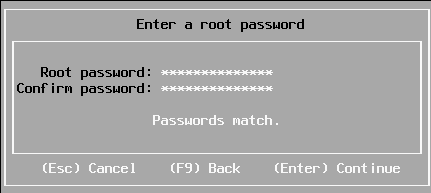
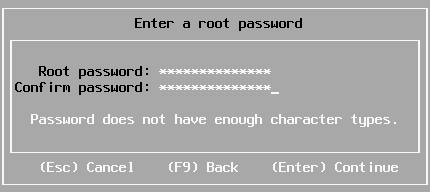
Sometimes you have a long enough password, that matches with the confirmation, but pressing “Enter” to continue gives “Password does not have enough character types”:

From [WayBack] Disable ESXi Password Complexity – Perfect Cloud:

A part of my job as a VMware Certified Instructor is to update our lab systems whenever new vSphere versions come out.   After upgrading from 5.5 to 6.0 I decided we should change passwords, h…

This is the workflow:

  1. Make a backup of /etc/pam.d/passwd.
  2. Use vi to edit /etc/pam.d/passwd, and:
    1. Put a # in front of the lines starting with password requisite
    2. Remove the use_authtok bit of the line starting with password sufficient
    3. Put a # in front of the line starting with password required
    4. Quit vi while saving (press Esc, then enter :wq on the prompt)
  3. Change the password to a less secure one
  4. Restore the original /etc/pam.d/passwd.

Via: esxi 6 force short password – Google Search

Working around this on during ESXi installation fails

I tried this:

  1. Press Alt-F1 to go from the installation screen to the console screen
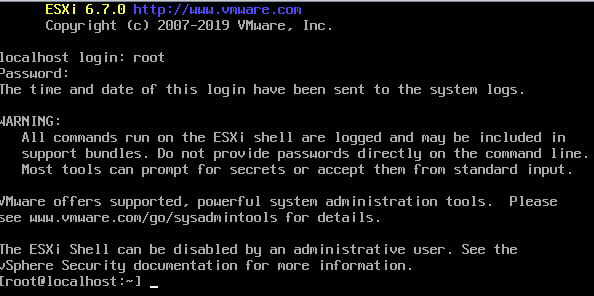
  2. Logon as root, with no password at all to get to the command-prompt:

  3. Perform the /etc/pam.d/passwd editing steps above
  4. Press Alt-F2 to go back to the install screen
  5. Enter root password

The password requirements stayed.

(more screenshots at [WayBack] ESXi 6.7 installation Guide – Let We-i Go)

Related

On my ESXI 6.5 system where the italic bit is removed, besides the two lines being commented out:

  1. original /etc/pam.d/passwd:
    #%PAM-1.0
    
    # Change only through host advanced option "Security.PasswordQualityControl".
    password   requisite    /lib/security/$ISA/pam_passwdqc.so retry=3 min=disabled,disabled,disabled,7,7
    password   sufficient   /lib/security/$ISA/pam_unix.so use_authtok nullok shadow sha512
    password   required     /lib/security/$ISA/pam_deny.so
    
  2. modified /etc/pam.d/passwd:
    #%PAM-1.0
    
    # Change only through host advanced option "Security.PasswordQualityControl".
    #password   requisite    /lib/security/$ISA/pam_passwdqc.so retry=3 min=disabled,disabled,disabled,7,7
    password   sufficient   /lib/security/$ISA/pam_unix.so nullok shadow sha512
    #password   required     /lib/security/$ISA/pam_deny.so
    

On my ESXI 6.7 system (which adds the bold lines below):

  1. original /etc/pam.d/passwd:
    #%PAM-1.0
    
    # Change only through host advanced option "Security.PasswordQualityControl".
    password   requisite    /lib/security/$ISA/pam_passwdqc.so retry=3 min=disabled,disabled,disabled,7,7
    
    # Change only through host advanced option "Security.PasswordHistory"
    password   requisite    /lib/security/$ISA/pam_pwhistory.so use_authtok enforce_for_root retry=2 remember=0
    
    password   sufficient   /lib/security/$ISA/pam_unix.so use_authtok nullok shadow sha512
    password   required     /lib/security/$ISA/pam_deny.so
    
  2. modified /etc/pam.d/passwd:
    #%PAM-1.0
    
    # Change only through host advanced option "Security.PasswordQualityControl".
    #password   requisite    /lib/security/$ISA/pam_passwdqc.so retry=3 min=disabled,disabled,disabled,7,7
    
    # Change only through host advanced option "Security.PasswordHistory"
    #password   requisite    /lib/security/$ISA/pam_pwhistory.so use_authtok enforce_for_root retry=2 remember=0
    
    password   sufficient   /lib/security/$ISA/pam_unix.so nullok shadow sha512
    #password   required     /lib/security/$ISA/pam_deny.so
    

–jeroen

Posted in *nix, ESXi6, ESXi6.5, ESXi6.7, Power User, Virtualization, VMware, VMware ESXi | Leave a Comment »

OSX 10.13 with vSphere 6.7 – Virtual Odyssey

Posted by jpluimers on 2020/11/16

Interesting: I never realised that getting MacOS installed on ESXi was relatively easy!

[WayBack] OSX 10.13 with vSphere 6.7 – Virtual Odyssey:

vCenter 6.7a/ESXi 6.7a Installing OSX 10.13 seemed pretty straight forward on 6.7. Essentially, you mount the ISO as per usual, and the only thing I had to do before starting the installation was to format the disk via terminal. Once…

So no need for all this:

–jeroen


Posted in ESXi6.5, ESXi6.7, Power User, Virtualization, VMware, VMware ESXi | Leave a Comment »