One of the places explaining a more and more frequent error on Windows 7 installations is [Wayback/Archive.is] “You must provide a value expression on the right-hand side of the ‘-‘ operator.” · Issue #29 · shiftkey/chocolatey-beyondcompare:
Archive for the ‘Windows 10’ Category
Chocolatey on Windows 7: “You must provide a value expression on the right-hand side of the ‘-‘ operator.”
Posted by jpluimers on 2022/06/08
Posted in Chocolatey, CommandLine, Development, Microsoft Surface on Windows 7, Power User, PowerShell, PowerShell, Scripting, Software Development, Windows, Windows 10, Windows 7, Windows 8, Windows 8.1, Windows Server 2003, Windows Server 2003 R2, Windows Server 2008, Windows Server 2008 R2 | Leave a Comment »
PDF24 Creator – Wikipedia
Posted by jpluimers on 2022/05/30
Just in case I ever need more features than the built-in PDF creator in Windows: PDF24 Creator – Wikipedia
PDF24 is free for commercial use and offers these features that the Windows built-in PDF support lacks:
- Merge multiple PDF into one file
- Rotating, extracting, inserting pages
- Integrated preview for PDF editing
- PDF encryption, decryption and signing
- Change PDF information (author, title, etc.)
- Compress and shrink PDF files
- Add a watermark or stamp a PDF file
- Combine pages with a digital paper
- Convert to and from PDF
- Multiple PDF printers for different purposes since 7.7.0
- Full featured and lightweight PDF reader since version 8.7.0
- Tesseract OCR engine since version 8.8.0
- Blackening of PDF files since version 10.0.0
Via [Wayback/Archive.is] Software-update: doPDF 10.8.127 – Computer – Downloads – Tweakers (which mentions it does not need GhostScript)
–jeroen
Posted in PDF, Power User, Windows, Windows 10 | Leave a Comment »
Windows: shutdown or reboot while preserving most of the running apps has been possible since…
Posted by jpluimers on 2022/05/26
Vista!
Shutting down or rebooting Windows allowing existing applications to reopen
Windows Vista introduced the /g switch in shutdown.exe and was unchanged in Windows 7:
/g Shutdown and restart the computer. After the system is rebooted, restart any registered applications.
I never noticed it until Windows 10 which began actively use it when applying system updates: then suddenly many of the previously running applications would reopen during startup.
Posted in Power User, Windows, Windows 10, Windows 7, Windows 8, Windows 8.1, Windows Server 2008, Windows Server 2008 R2, Windows Server 2012, Windows Server 2012 R2, Windows Server 2016, Windows Vista, Windows XP | Leave a Comment »
Windows 8.1: default Windows Explorer to open “This PC” instead of “Libraries” without duplicating the taskbar icon
Posted by jpluimers on 2022/05/20
Every now and then you revisit old Windows versions. It seems a fact of life.
If course those lack more recent features, one of which is the default View with which Windows Explorer starts.
In Windows 10 you can switch it between “This PC” and “Quick Access”. Not so with Windows 8.1.
Posted in Power User, Windows, Windows 10, Windows 8.1 | Leave a Comment »
Cleaning up Google Drive (for instance when a rogue supplier decides to fill your Windows Documents folder) and preventing TomTom HOME to use too much information
Posted by jpluimers on 2022/04/12
The below links helped me clean the Google Drive of a friend that grew way too large because TomTom HOME decided to put 100 gigabyte of data in the Documents folder instead of the local AppData folder (yup, this is a follow-up of Windows applications: storing your data in the correct place (Roaming, Local, LocalLow, not Documents)).
- [Wayback] support.google.com/drive/answer/6374270
- one.google.com/storage shows an overview on the storage used by email, drive and photos.
- drive.google.com/drive/quota allows sorting ALL files in your Google drive by descending size so you can delete them
- one.google.com/storage/management allows to deleted/spam emails, or large files, emails or photos/videos in your Google account
- drive.google.com/drive/trash allows you to empty the trash, as these files still consume storage space
The trick with extensions to exclude is you have to add exclusions before syncing. Which is a kind of catch-22 or chicken and egg problem.
In case of the friend I helped we made a backup of the TomTom HOME data, then applied the exclusions and restored the data.
For TomTom HOME in order not to fill your Google Drive, but still allow backing up your Documents folder, these are extensions you might want to exclude (roughly in descending order of space) where you have to mind not storing any of these extensions in other subfolders of your Documents folder.:
.zip.cab.toc.tmp.meta.sat.tlv.ttd.dat.vif.chk.bin.rex.lde.gpr.dbl.so.ov2
The problem with this? Google Backup and Sync does not allow that many exclusion extensions.
–jeroen
Posted in Google, GoogleBackupAndSync, GoogleDrive, Power User, Windows, Windows 10 | Leave a Comment »
Wow, the Windows 3.x winfile.exe File Manager still lives on!
Posted by jpluimers on 2022/04/01
By sheer luck, Jen Gentleman pointed out that winfile.exe still lives on:
- [Archive.is] Jen Gentleman 🌺 on Twitter: “All set up to share my desktop in meetings today 😁… “
- [Archive.is] Jen Gentleman 🌺 on Twitter: “Yes – you can install the old Windows 3 File Manager on Windows 10. You’re welcome :P https://t.co/dubn5ABNaJ”
The source is at [Wayback/Archive.is] microsoft/winfile: Original Windows File Manager (winfile) with enhancements, and it looks exactly like the Windows 3.x through Windows NT 4.0 days.
Posted in Apri1st, Fun, Power User, Windows, Windows 10, Windows 3.11, Windows 7, Windows 8, Windows 8.1, Windows NT | Leave a Comment »
Some links on making a Windows 10 image backup to a network share and restoring from it
Posted by jpluimers on 2022/03/24
Earlier this month, I posted How to make a full backup of your Windows 10 PC | Windows Central.
That solution describes how to backup to and restore from a (different) local drive using the Windows 7/8.x tools ([Wayback] “Create a system image”) that still ship with Windows 10.
Soon, I need to be able to store a backup on a network location (and restore from it), so here are some links that hopefully solve this with the same tools (all via [Wayback] windows 10 restore image from network folder – Google Search):
- [Wayback] Win 10 Image Restore from Network Location – Microsoft Community has a lot of tips, including using IPv4 addresses instead of machine names, and restoring from the console with commands like these:
- startnet
- ipconfig
- net use
- wbadmin
- [Wayback/Archive.is] Reddit: Help Restoring a Win10 Image from a Shared Network Drive! : windows hints mainly to use
SERVERNAME\usernameto authenticate to the network share as opposed to just ausernameand avoiding bitlocker. Reminder to self: figure out how to do this with bitlocker. - [Wayback] How to Back Up and Restore an Image File of Windows 10 | PCMag
–jeroen
Posted in Power User, Windows, Windows 10 | Leave a Comment »
Driver Store-File Repository using huge disk space. How can I reduce – Microsoft Community
Posted by jpluimers on 2022/03/18
[WayBack] Driver Store-File Repository using huge disk space. How can I reduce – Microsoft Community
Try deleting the unneeded drivers by following the steps below:
- On the search bar, type command prompt, right-click on it from the list then run it as Administrator.
- Type the command
pnputil.exe /e > c:\drivers.txtthen click Enter.- This command will create a file
drivers.txtonC:drive with the list of driver packages that are stored in the File Repository folder.- Delete all unnecessary drivers with the help of command
pnputil.exe /d oemNN.inf(NN— is a number of drivers file package fromdrivers.txt, as exampleoem07.inf). In case the driver is in use, you will see an error while trying delete it.
This can happen if you swapped a lot of hardware around. Especially graphics drivers tend to be bloatware.
Note this only deletes uninstalled drivers. The problem: some driver software, especially video drivers, keeps parts installed, even during uninstall, and even when running in Safe Mode.
Examples for AMD:
Booting in Safe Mode
One of the nagging Windows 10 things is that out of the box it is hard to boot in safe mode: you have to reset and fail the boot your Windows system multiple times, or you have to hold a shift key (which some BIOS versions do not allow).
Luckily, you can reset the “press F8 during boot” behaviour of older Windows versions:
- Start an administrative command prompt (confirm UAC elevation if needed)
- Run this command (the bold changes the setting; the others keep track of the changes and show the difference):
bcdedit /enum > %temp%\bcdedit.original.txt bcdedit /set {bootmgr} DisplayBootMenu true bcdedit /enum > %temp%\bcdedit.F8-enabled.txt fc %temp%\bcdedit.original.txt %temp%\bcdedit.F8-enabled.txt(many sites you also need to run something like
bcdedit /set {default} bootmenupolicy legacyorbcdedit /set {current} bootmenupolicy legacyor replace the “default” and “current” with the boot option of your choice, but that is not needed) - Reboot
- Press
F8once (not multiple times!) as soon as the boot screen appears
Do not press
F8twice, as it usually runs the mode with early loading of anti-virus software disabled. - Press
F4for “Safe Mode”
This works way better than holding the shift key during rebooting: often that does not work on the machines I tried it on (despite [WayBack] How to boot Windows 10 in Safe Mode – CCleaner.com claiming it should work).
Notes
The DisplayBootMenu for bootmgr (which I found via [WayBack] Boot menu policy – set text or graphical style boot menu Windows 8) seems only documented for Azure site:docs.microsoft.com “bcdedit” “DisplayBootMenu” “bootmgr” – Google Search:
Disregard the official documentation and other links indicating about bootmenupolicy as they require you to set it for each boot configuration, while setting DisplayBootMenu for bootmgr sets it for all configurations at once:
- [WayBack] BCDEdit /set – Windows drivers | Microsoft Docs
The BCDEdit /set command sets a boot entry option value in the Windows boot configuration data store (BCD) for Windows 7, Windows Server 2008, Windows 8, Windows 8.1,Windows 10, Windows Server 2012, and Windows Server 2012 R2.
- [WayBack] How to enable the F8 key to start Safe Mode in Windows 8
- [WayBack] Enable or Disable F8 Advanced Boot Options in Windows 10 | Tutorials
- [WayBack] boot – How do you start Windows 10 in safe mode? – Super User
Without bcdedit, be prepared for lengthy steps:
- [WayBack] 8 ways to boot into Windows 10 Safe Mode | Digital Citizen
- [WayBack] Restart your Windows 10 PC quickly and easily- and whatever happened to Safe Mode? | BT
Boot menu options enabled
These options will be enabled when you have a boot menu (the numbers are the number keys or function keys to press in order to activate the option) via [Archive.is] Windows Startup Settings (including safe mode) – Windows Help:
- Enable Safe Mode with Networking
- Enable Safe Mode with Command Prompt
[WayBack] Image via [WayBack] Image Search from [WayBack] How to Fix a Computer That Won’t Start in Safe Mode:
Uninstall display drivers
The most effective way to fully get rid of a video driver is to run DDU (Display Driver Uninstaller) in Safe Mode.
I found it via [WayBack] Windows downgrade my Radeon Software down to 15.11 | Community.
- [WayBack] GitHub – Wagnard/display-drivers-uninstaller: Display Driver Uninstaller (DDU) a driver removal utility / cleaner utility
- [WayBack] [Guru3D.com]-DDU.zip
- [WayBack] Display Driver Uninstaller Download version 18.0.1.3
–jeroen
Posted in Power User, Windows, Windows 10 | Leave a Comment »
Fixed Windows Update errors 0x80070643 and 0x80073712 in one go
Posted by jpluimers on 2022/03/15
The below image is Dutch, but it presents Windows Update errors [Wayback] 0x80070643 and [Wayback] 0x80073712. The first happened when any update was installed after the second occurred.
My hunch was that both were related, so fixing the second should fix the first.
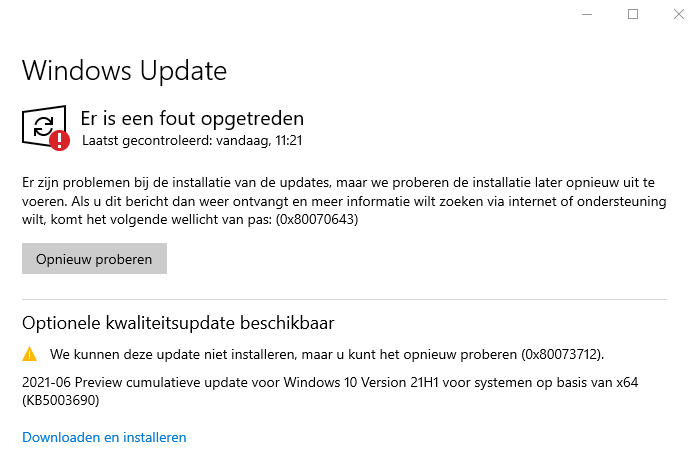
Windows update errors 0x80070643 and 0x80073712
Try 0: reboot
The first step in any odd error is trying to reboot.
Try 1: cleanup
With most Windows Update errors, after rebooting, I usually check disk space (since quite a few of my Windows installs are VMs, so I need to keep VM disk sizes low enough to be able to store all these VMs): there was a comfortable 13 gigabytes free.
Running cleanmgr.exe showed some 5 gigabytes was taken by Windows Update files and almost 1.5 gigabyte by Windows Delivery Optimisation. Cleaning that up brought the free space to almost 20 gigabytes and clear any potential download corruptions: they happen, despite TLS.
Oh Delivery Optimization is just a distributed peer-to-peer cache of Windows related updates, see List of Microsoft Windows components: Services – Wikipedia and [Wayback] Delivery Optimization for Windows 10 updates – Windows Deployment | Microsoft Docs.
Try 2: run the console version of the the Windows Update troubleshooter
After cleanup did not resolve the issue, so the next step is to either run the [Wayback] GUI version of the Windows Update Troubleshooter or from the console equivalent using the below DISM statements.
The below steps are from [Wayback] Windows Update error 0x80073712, but many other sources describe the same steps:
Start a Command Prompt as elevated Administrator
In the Administrator: Command Prompt window, type the following commands. Press the Enter key after each command:
DISM.exe /Online /Cleanup-image /Scanhealth
DISM.exe /Online /Cleanup-image /Restorehealth- When finished, re-run the updates
Note that DISM can take a very long time, even on a recently installed Windows machine: the first took 5 minutes, the second also 5 minutes on a VM that was backed with fast SSD storage and had plenty of CPU and memory. These are my results show no corruption, but did repair the problem:
C:\temp>DISM.exe /Online /Cleanup-image /Scanhealth Deployment Image Servicing and Management tool Version: 10.0.19041.844 Image Version: 10.0.19043.1052 [==========================100.0%==========================] No component store corruption detected. The operation completed successfully. C:\bin\bin>DISM.exe /Online /Cleanup-image /Restorehealth Deployment Image Servicing and Management tool Version: 10.0.19041.844 Image Version: 10.0.19043.1052 [==========================100.0%==========================] The restore operation completed successfully. The operation completed successfully. C:\temp>
Success
Despite DISM not showing any issues, it did repair the problem.
A retry of the updates (without even rebooting) showed a successful update requiring a reboot:
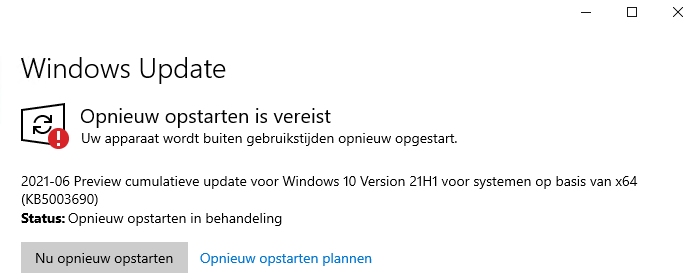
Success: updates were installed and Windows wanted to reboot
More to try
If the above fail, there are two more things to try: reset the whole update mechanism, or verify/repair the .NET framework integrity.
Repairing the .NET framework (specifically for 0x80070643)
Via [Wayback] Windows Update – error 0x80070643 – Microsoft Community.
From [Wayback] Download Microsoft .NET Framework Repair Tool from Official Microsoft Download Center, download NetFxRepairTool.exe (the actual download is via the [Wayback] Download Microsoft .NET Framework Repair Tool from Official Microsoft Download Center:confirmation at [Wayback] download.microsoft.com/download/2/B/D/2BDE5459-2225-48B8-830C-AE19CAF038F1/NetFxRepairTool.exe) and run it.
Resetting the Windows Update mechanism
This is a two part exercise of which the second part is not always needed.
First part: start with a fresh %windir%\SoftwareDistribution
Suggested by for instance
Run these commands in an Administrator elevated command prompt:
net stop wuauserv rename %windir%\SoftwareDistribution SoftwareDistribution.old net start wuauserv
If after this, Windows updates work again, then recursively delete the %windir%\SoftwareDistribution folder.
Second part: start with a fresh %windir%\System32\catroot2
Order slightly corrected from [Wayback] Can’t rename Catroot2 and SoftwareDistribution folder in Windows – Microsoft Community because of service dependencies:
net stop bits net stop wuauserv net stop cryptsvc rename %windir%\System32\catroot2 catroot2 .old net start bits net start wuauserv net start cryptsvc
Note that some sources
- indicate you need to stop and start
msiservertoo, but that does not seem necessary any more. - fail to indicate you need to stop and start
cryptsvc, but that is indeed needed.
Third: fully reset the Windows Update mechanism
This is hardly needed, but [Wayback] Windows Update – Additional resources – Windows Deployment | Microsoft Docs has even more steps to fully reset the Windows Update components on your system.
–jeroen
Posted in Power User, Windows, Windows 10 | Leave a Comment »
Boomer screenshots: wondering why Windows still has no keyboard shortcut for saving a screenshot or screen snippet to disk
Posted by jpluimers on 2022/03/14
With the disappearing PrtScn buttons on modern keyboards, boomer screenshots are about the only way to easily persist a screenshot, as these are the only available Windows screenshot shortcuts:
PrtScn: copies full screenshot to the clipboard; multiple invocations overwrite the clipboardWindows+PrtScn: saves full screenshot to a file; multiple invocations saves to new filesWindows+Shift+S: copies full screen or part of the screen to the clipboard, and allows manual action to start snippet tool to save the clipboard contents; often looses the image when on remote desktop connections or when copying something else to the clipboard; multiple invocations overwrite the clipboard
Now look at macOS what a choices, and how less messy than on Windows:
macOS has various shortcuts to save (partial) screenshots to clipboard or file
For macOS 10.14 Mojave and newer, you can even set the folder (default: Desktop) to save the screenshots to:
- For the settings, see [Wayback] Take a screenshot on your Mac – Apple Support,
- Back then also
Command+Shift+5was added to start the Screenshot app where you can apply these settings: [Wayback] Take screenshots or screen recordings on Mac – Apple Support.
I want this ease in Windows as well, and maybe I can in part without installing external tools and modifying existing shortcuts to make things easier:
- [Archive.is] iä iä Alex ftagn 🕹👾 on Twitter: “if you install PowerToys you can. it’s available from microsoft’s github. here’s a how-to (with links): … “
- [Wayback] How to Remap Any Key or Shortcut on Windows 10
Would you like to use a different keyboard key to perform a certain task in Windows 10? Thanks to PowerToys, it’s easy to remap any key to another key or even a shortcut combination on your keyboard. Here’s how to set it up.
Written after bumping into [Archive.is] Jeff Atwood on Twitter: “Someone just called a smartphone pic of their monitor a “boomer screenshot” and I literally LOLed 🤣… “
–jeroen
Posted in Apple, LifeHacker, Mac OS X / OS X / MacOS, Power User, PowerToys, Windows, Windows 10 | Leave a Comment »


:max_bytes(150000):strip_icc()/startup-settings-windows-8-56a6f90f3df78cf7729134e1.png)


