The Wiert Corner – irregular stream of stuff

Jeroen W. Pluimers on .NET, C#, Delphi, databases, and personal interests

  • My badges

  • Twitter Updates

  • My Flickr Stream

  • Pages

  • All categories

  • Enter your email address to subscribe to this blog and receive notifications of new posts by email.

    Join 1,862 other subscribers

Archive for the ‘Windows 8’ Category

Debt in IT and Software Development (via: Coding Horror: Paying Down Your Technical Debt)

Posted by jpluimers on 2012/04/04

Debt and flood insurance

Thanks to Randy Glasbergen for the debt image

I love this quote from Jeff Attwood on technical debt in 2009:

periodically pay down your technical debt

and the Computer Weekely article about half a year ago:

Short-term speed may come at the price of long-term delays and cost.

Lately, I find that I need to explain Debt in relation to IT and Software Development more and more often.

We now all know what happens with the financial system when we let debt get out of control.

The same holds for your IT and Software Development.

Debts get introduced by not “playing by the rules”. The quotes are there because you can not always play nicely, and the rules are not always clear or known.

Lets give a few examples of rules that – from experience at clients – are more often than not neglected. The examples are based on Windows, but could just as easily be Mac OS X, Unix, OS/400 or anything else.

  • Make sure you use a recent Windows version
    I often see companies lagging more than one version behind (i.e. still use Windows XP or SQL Server 2000). That’s too far.
  • Don’t run your users with too many privileges (and certainly not as Administrators)
    Especially running as Administrator will get you in trouble with User Account Control (UAC) in Windows Vista and up.
  • Using directories like C:\TEMP is a no-no.
    This should be a no-brainer, but truckloads of in-company software still thinks it can write everywhere.
    I know C:\TEMP used to be the Temporary Folder some 20 years ago.
    But that was then, and this is now: Use the %TEMP% environment variable or GetTempPath function (even better: the GetTempFileName function or the .NET Path.GetTempFileName function).
    More in general for known folders, use CSIDL or KNOWNFOLDERID whenever possible. Your favourite development tool usually has a library functions for that, for instance the .NET System.Environment.GetFolderPath function.

These few were examples ranged from technically very broad to specific. There are more, but these will give you a rough idea how wide the field of debt can be. Even debt outside the realm of Technical Debt can turn out to be really expensive.

Every time you  postpone or skip a Windows version, you collect some debt in the hope (often wrongfully called expectation) that you earn more on the money/resource you just didn’t invest and putting that money/resource to use otherwise. The same holds for any other kind of debt.

The main problem with debt is not the total of the debt, it is the interest rate that makes the accrued debt grows faster than most people and organizations realize.

This is actually one of the main causes of the current world wide financial crisis, the same holds for many IT debts.

And for all kinds of debts, you often don’t know how high the interest rate will be, so the accrued value can be way beyond what you expect.

I’ve regularly seen projects collecting so much debt, that migration costs raised to thousands of hours because of it, resulting into management taking another very bad decision: rewriting the stuff from scratch. Don’t do that: Joel on Software excellently describes what happens when you do that.

What to do about it?

You might say “don’t collect debt”, but you can’t always avoid debt.

So you need to build periods where you pay off accrued debt. And you need to do that regularly, in order to avoid the interest pitfall.

This does not limit itself to software development (though that’s what I normally focus at). It covers a wide range of IT topics.

Sometimes, you can even pay your debt in advance. For instance, I was among the first to switch from Windows XP to the x64 of Windows Vista. I knew it would cause pain, but it immediately payed back by being able to use much more memory, and run more Virtual Machines at the same time. That made me more flexible and productive.

–jeroen

via: Coding Horror: Paying Down Your Technical Debt.

Posted in *nix, .NET, Delphi, Development, Opinions, Power User, Software Development, Technical Debt, Windows, Windows 7, Windows 8, Windows Vista, Windows XP | 9 Comments »

Windows 8 Consumer Preview ISO formats: Microsoft, please do this the same for Visual Studio 11 (#VS11 #W8)

Posted by jpluimers on 2012/03/02

Hopefully they will add Visual Studio 2011 ISOs (no, not the current ones that still download the prerequisites in the background) like they did with the Windows 8 Consumer Preview ISOs:

English

64-bit (x64) Download (3.3 GB) Sha 1 hash — 1288519C5035BCAC83CBFA23A33038CCF5522749
32-bit (x86) Download (2.5 GB) Sha 1 hash — E91ED665B01A46F4344C36D9D88C8BF78E9A1B39
Product Key DNJXJ-7XBW8-2378T-X22TX-BKG7J

–jeroen

via: Windows 8 Consumer Preview ISO formats.

Posted in .NET, Development, Power User, Software Development, Visual Studio 11, Visual Studio and tools, Windows, Windows 8 | 2 Comments »

version v3.3.4.14431 of Beyond Compare released by Scooter Software

Posted by jpluimers on 2012/03/02

About a week ago, version v3.3.4.14431 of Beyond Compare was release by Scooter Software.

For me, this is the ultimate comparison tool as it runs on Windows and Linux natively or under WINE on Mac OS.

It has a massive change list:

-----------------------------------
v3.3.4.14431      February 24, 2012
-----------------------------------

- Notable Changes
  - Fixed context menus on newer versions of Konqueror, Thunar, and Nautilus.
  - FILE-REPORT (and TEXT-REPORT, etc.) commands will now accept a saved file
    compare session name instead of a pair of files.  E.g., "file-report
    layout:side-by-side output-to:printer MySession".

- Archives
  - Fixed extracting files where a single deflate block contains more than 1MB
    of data.
  - Fixed zips showing non-existent files if a zip contained another zip and
    the outer one had additional data after the archive comment.
  - Attempting to extract a file from a zip using an unsupported compression
    algorithm now shows that as an error.
  - Split up zip error messages for "Error during extraction" and "Unsupported
    compression algorithm".

- Data Compare
  - Fixed "Extract HTML table(s)" handling of UTF-16 files.

- File Formats
  - OpenOffice default character encoding is now UTF-8.
  - Fixed "COBOL Source" format to include "Identifier" definition.
  - "Picture Files" format added CUT, GED, MSK, PFR, and TUB to mask, removed
    PAL.

- File Views
  - Fixed saving files with paths between 247-259 characters long.
  - Fixed foreground selection coloring when using white on blue system colors.
  - Added key accelerators to "Save changes" dialog.

- Folder Compare
  - Long file operations will now keep Windows from going to sleep due to
    inactivity.
  - Using "Compare to" to open a file view and then using "Next/Previous
    Difference Files" now closes the file view.

- FTP
  - Fixed support for FTP listings with filenames containing Chinese
    month/year characters.
  - Fixed parsing Comau C5G FTP listings.

- Home View
  - When editing a session, dropped files/folders are ignored unless they're
    on a path edit.
  - Expand All and Collapse All commands now affect the shared and auto-saved
    sessions nodes.
  - Fixed behavior when using "Collapse All" hides the currently selected
    session.

- Linux
  - Fixed context menus on newer versions of Konqueror, Thunar, and Nautilus.
  - Fixed Folder Compare crash when performing rules-based comparisons.
  - Fixed clicking the "Next Difference Files" link on the message panel when
    using "Next Difference" at the end of a comparison.
  - Fixed various comboboxes incorrectly allowing editing.

- Misc
  - Fixed menu checkboxes not showing on Vista and Windows 7 when using the
    Classic Theme.
  - Dropping files/folders onto a path edit no longer changes the edit if the
    drop results in a new view.
  - Added "RE Examples" buttons to Grammar Item dialog.
  - Improved Open/Save dialog handling of file type options.

- Options
  - "Customize Commands" dialog's "Default" command now checks to see if
    shortcut is already in use.

- Picture Compare
  - "Difference Offset", "Flip", and "Rotate" are now persistent session
    settings.
  - Fixed handling of DIB, MSK, and RLE bitmap files.

- Registry Compare
  - Fixed loading .reg files with a '\' before hex data.
  - Fixed loading .reg files with a ']' in a key name.

- Scripting
  - FILE-REPORT (and TEXT-REPORT, etc.) commands will now accept a saved file
    compare session name instead of a pair of files.  E.g., "file-report
    layout:side-by-side output-to:printer MySession".
  - LOG command will now create the target folder if it doesn't exist.
  - Fixed support for STRIKEOUT-RIGHT-ORPHANS in TEXT-REPORT command.

–jeroen

via: Beyond Compare ChangeLog

Posted in *nix, Power User, Windows, Windows 7, Windows 8, Windows Server 2003, Windows Server 2008, Windows Vista, Windows XP | Leave a Comment »

automatic logon in Windows 2003

Posted by jpluimers on 2012/01/27

At a client that still runs Windows Server 2003 (despite the fact that it is in the extended support phase now), I needed to enable automatic logon (one of the tools they run sometimes fails when nobody is logged on).

This was a bit more tricky than just reading [WayBack] How to turn on automatic logon in Windows (now at How to turn on automatic logon in Windows) and following these steps:

To use Registry Editor (Regedt32.exe) to turn on automatic logon, follow these steps:

  1. Click Start, and then click Run.
  2. In the Open box, type Regedt32.exe, and then press ENTER.
  3. Locate the following subkey in the registry:
    HKEY_LOCAL_MACHINE\SOFTWARE\Microsoft\Windows NT\CurrentVersion\Winlogon
  4. Double-click the DefaultUserName entry, type your user name, and then click OK.
  5. Double-click the DefaultPassword entry, type your password, and then click OK.NOTE: If the DefaultPassword value does not exist, it must be added. To add the value, follow these steps:
    1. On the Edit menu, click New, and then point to String Value.
    2. Type DefaultPassword, and then press ENTER.
    3. Double-click DefaultPassword.
    4. In the Edit String dialog, type your password and then click OK.

    NOTE: If no DefaultPassword string is specified, Windows automatically changes the value of the AutoAdminLogon key from 1 (true) to 0 (false), disabling the AutoAdminLogon feature.

  6. On the Edit menu, click New, and then point to String Value.
  7. Type AutoAdminLogon, and then press ENTER.
  8. Double-click AutoAdminLogon.
  9. In the Edit String dialog box, type 1 and then click OK.
  10. Quit Registry Editor.
  11. Click Start, click Shutdown, and then type a reason in the Comment text box.
  12. Click OK to turn off your computer.
  13. Restart your computer. You can now log on automatically.

Since this depends on some registry settings, you need to make sure they are actually set.
And logging on as someone else will reset the DefaultUserName registry setting.

The article points to another article on “AutoAdminLogon looses DefaultUserName” to solve this using REGINI (and optionally REGDMP which can provide sample output for REGINI), but there is a much easier solution using RegEdit which – as Rob van der Woude points out – can be used unattended as well (besides: REGDMP cannot be downloaded any more, and REGINI requires an additional download).

This is how to do force the DefaultUserName to be reset after logon using RegEdit:

  1. Open an explorer Window in “%ALLUSERSPROFILE%\Start Menu\Programs\Startup
  2. Create a batch file “run-RegEdit-DefaultUserName.bat” there with this content:
    regedit /s Administrator-DefaultUserName.reg
  3. Create a text file “Administrator-DefaultUserName.reg” in the same directory with content like this:
    Windows Registry Editor Version 5.00
    
    [HKEY_LOCAL_MACHINE\SOFTWARE\Microsoft\Windows NT\CurrentVersion\Winlogon]
    "DefaultUserName"="Administrator"

Replace “Administrator” with the username you are actually using.

–jeroen

Via: How to turn on automatic logon in Windows.

Read the rest of this entry »

Posted in Power User, Windows, Windows 10, Windows 7, Windows 8, Windows 8.1, Windows 9, Windows Server 2003, Windows Server 2003 R2, Windows Server 2008, Windows Server 2008 R2, Windows Server 2012, Windows Server 2012 R2, Windows Server 2016, Windows Vista | 2 Comments »

Alternate (offline) Google Chrome installer (Windows) – Google Help

Posted by jpluimers on 2012/01/06

Currently most software installers have a small bootstrap and during the actuall install will download only the files that are actually needed.

Often that is not convenient: slow or no network connection, repeated installs in a test environment, etc.

Luckily, a lot of software does have an offline installer (a.k.a. standalone installer).

Being no exception Google Chrome has two offline installers: one single user install, and one for all users on the same Windows machine.

It ends up at one of these download pages, each with a download link for the current version (which changes for every new version):

–jeroen

via: Alternate (offline) Google Chrome installer (Windows) – Google Help.

Posted in LifeHacker, Power User, Windows, Windows 7, Windows 8, Windows Vista, Windows XP | 1 Comment »

VMware KB: Sharing a folder from your Mac to a virtual machine

Posted by jpluimers on 2011/12/23

Note that Sharing a Mac folder through VMware Fusion to a Windows VM works, but is:

  1. not fast
  2. eats a lot of Mac resources
    (it would get the fan of my MacBook Air running like mad when copying about 1Gigabyte of files – about 20-thousand files total; a robocopy /mir sync when nothing is changes takes a whopping 5 minutes)

This is how you do it:

To configure a shared folder in a Windows virtual machine:

  1. Launch VMware Fusion.
  2. Power on the virtual machine.
  3. Click Virtual Machine > Settings.
  4. Click Sharing.
  5. Select Share folders on your Mac.
  6. Click the + button.
  7. Browse to the folder on the Mac that will be shared with the virtual machine and click Add.

Shared folders can be accessed via the VMware Shared Folders shortcut on the Windows desktop or the mapped network drive Z:.

–jeroen

via VMware KB: Sharing a folder from your Mac to a virtual machine.

Posted in Fusion, Mac OS X 10.5 Leopard, Mac OS X 10.6 Snow Leopard, Mac OS X 10.7 Lion, MacBook, Power User, VMware, Windows, Windows 7, Windows 8, Windows Vista, Windows XP | Leave a Comment »

Why can’t I move the Program Files directory via the unattend file? – via: The Old New Thing – Site Home – MSDN Blogs

Posted by jpluimers on 2011/10/07

You cannot move the C:\Program Files directory to another volume without installing Windows on that volume.

A small abstract from the explanation by Raymond Chen: The symbiotic relation between C:\Windows\WinSxS and C:\Program Files through NTFS hard links prevents you to move C:\Program Files (nor WinSxS) to a different disk volume. Both directories need to be on the same volume because of the NTFS hard link limitation.

NTFS hardlinks do save a ton of diskspace, even though WinSxS will keep growing over time, which means you need to do some careful disk volume planning, especially on SSD drives.

–jeroen

via: Why can’t I move the Program Files directory via the unattend file? – The Old New Thing – Site Home – MSDN Blogs.

Posted in Microsoft Surface on Windows 7, Power User, Windows, Windows 7, Windows 8, Windows Server 2000, Windows Server 2003, Windows Server 2003 R2, Windows Server 2008, Windows Server 2008 R2, Windows Vista, Windows XP | Leave a Comment »

C#/Windows: why LastWriteTime can be earlier than CreationTime

Posted by jpluimers on 2011/10/05

I was wondering about file times like these:

CreationTime....: 5-10-2011 10:00:13
LastAccessTime..: 5-10-2011 12:05:58
LastWriteTime...: 5-10-2011 10:00:10

I found the answer on stackoverflow.

If a file is copied to another file, the new file retains the LastWriteTime of the source but the CreationTime will be the time of the copy.

And indeed: the file had been copied from a local directory to a central network location.

–jeroen

via c# – Windows: How to determine if a file has been modified since a given date – Stack Overflow.

Posted in .NET, C#, Development, Power User, Software Development, Windows, Windows 7, Windows 8, Windows Vista, Windows XP | Leave a Comment »

Download: Microsoft Remote Desktop Connection Client for Mac 2.1.1 (via Microsoft Office for Mac Downloads and Updates | Office For Mac)

Posted by jpluimers on 2011/09/30

If you use Mac and Windows machines, then – despite the Mac keyboards – it sometimes is handy to use Mac to remote login to a Windows machine.

For that, the Microsoft Remote Desktop Connection Client for Mac 2.1.1 (especially the download <g>) comes in handy.

–jeroen

via: Microsoft Office for Mac Downloads and Updates | Office For Mac.

Posted in Apple, LifeHacker, Mac OS X 10.5 Leopard, Mac OS X 10.6 Snow Leopard, Mac OS X 10.7 Lion, Power User, Usability, Windows, Windows 7, Windows 8, Windows Vista, Windows XP | Leave a Comment »

Windows “Device Manager” – expand all nodes

Posted by jpluimers on 2011/09/23


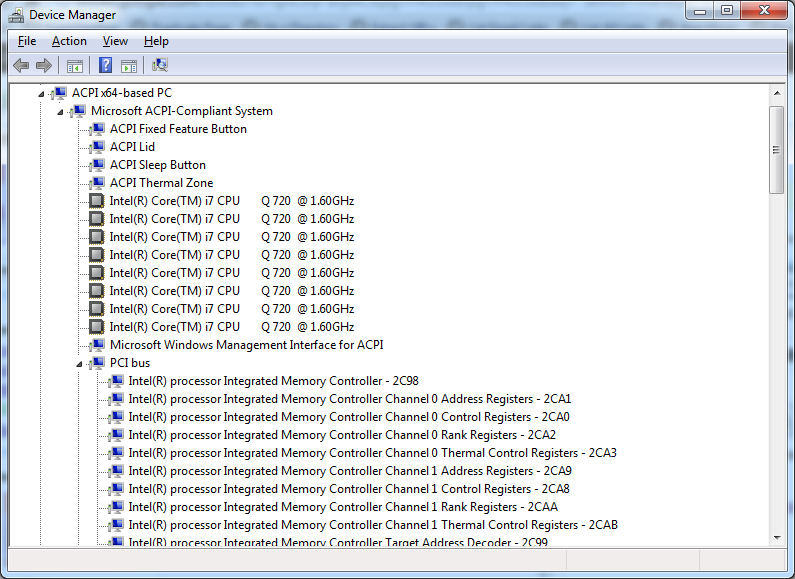
Expanded Windows Device Manager


With the increasing number of devices, it really helps to expand all nodes in the Device Manager’s tree view.

You cannot do this with the mouse, as none of the menu options contain an “Expand All” option.

But since the treeview, is the built-in Windows treeview (used in many places, like Windows explorer), you can use these shortcuts to expand/collapse nodes:

  • Numeric Keypad *: Expands everything under the current selection
  • Numeric Keypad +: Expands the current selection
  • Numeric Keypad -: Collapses the current selection.
  • RIGHT ARROW: Expands the current selection if it is not expanded, otherwise goes to the first child
  • LEFT ARROW: Collapses the current selection if it is expanded, otherwise goes to the parent

This not only works in Microsoft Windows 7: Visual … – Google Books, I think it has been introduced as far back as Windows 95.

–jeroen

Posted in Keyboards and Keyboard Shortcuts, Power User, Windows, Windows 10, Windows 7, Windows 8, Windows 8.1, Windows 9, Windows Server 2003, Windows Server 2003 R2, Windows Server 2008, Windows Server 2008 R2, Windows Server 2012, Windows Server 2012 R2, Windows Vista, Windows XP | 1 Comment »