The Wiert Corner – irregular stream of stuff

Jeroen W. Pluimers on .NET, C#, Delphi, databases, and personal interests

  • My badges

  • Twitter Updates

  • My Flickr Stream

  • Pages

  • All categories

  • Enter your email address to subscribe to this blog and receive notifications of new posts by email.

    Join 1,860 other subscribers

Archive for the ‘winget’ Category

Figuring out what domains/IPs to whitelist for installing/updating winget sources and packages

Posted by jpluimers on 2024/07/25

A few years ago I asked for some help figuring out what to whitelist so that winget can update its sources and install packages.

This is how I found out.

The queste started with [Wayback/Archive] Need help trying to figure out what domains/IPs to whitelist for installing packages · Discussion #2304 · microsoft/winget-cli

Read the rest of this entry »

Posted in Batch-Files, Development, Firewall, Fritz!, Fritz!Box, Hardware, Network-and-equipment, Power User, Scripting, Software Development, Windows, Windows 10, Windows 11, winget | Leave a Comment »

Installing WhatsApp Desktop from the Console

Posted by jpluimers on 2024/07/09

Related to WhatsApp Desktop for Mac or PC cannot only chat but also voice and video call: installing WhatsApp from the command-line.

That was easy to do via winget:

c:\temp>winget install -e --id WhatsApp.WhatsApp
Found WhatsApp [WhatsApp.WhatsApp] Version 2.2222.12
This application is licensed to you by its owner.
Microsoft is not responsible for, nor does it grant any licenses to, third-party packages.
Downloading https://web.whatsapp.com/desktop/windows/release/x64/WhatsAppSetup.exe
  ██████████████████████████████   145 MB /  145 MB
Successfully verified installer hash
Starting package install...
Successfully installed

This was a while ago, so the version number by now is dated, but it is about the command winget install -e --id WhatsApp.WhatsApp

Via:

–jeroen

Posted in Batch-Files, Development, Power User, Scripting, Software Development, Windows, Windows 10, Windows 11, winget | Leave a Comment »

Troubleshooting Errors with winget… | FileWave KB

Posted by jpluimers on 2024/01/14

Need to figure out what is the cause here for [Wayback/Archive] Troubleshooting Errors… | FileWave KB

General Errors

Hex Decimal Symbol Description
0x8A15003B -1978335173 APPINSTALLER_CLI_ERROR_RESTAPI_INTERNAL_ERROR Rest API internal error

I got the error following the install steps at [Wayback/Archive] Download and install Google Chrome with winget

winget install -e --id Google.Chrome

Usually I don’t install through winget because it is often slow and during upgrades often fails to be silent (causing all kinds of popup Windows to appear), but Chocolatey had a history of hashing problems when installing [Wayback/Archive] Chocolatey Software | Google Chrome 130.0.6723.92.

This package always installs the latest version of Google Chrome, regardless of the version specified in the package. Google does not officially offer older versions of Chrome for download. Because of this you may get checksum mismatch between the time Google releases a new installer, and the package is automatically updated.

Yup the page contains the above warning, but often this happens a week at a time: not something I want to spend on installing a web-browser.

Error

Read the rest of this entry »

Posted in Chocolatey, Development, Scripting, Software Development, Windows, Windows Development, winget | Leave a Comment »

Installing the Microsoft To Do app from the Microsoft Store on Windows via the CLI was impossible at first, and requires GUI configuration

Posted by jpluimers on 2023/09/07

I prefer installing applications through the CLI (command-line interface). This way, things can be scripted and installation parameters be stored under version control.

A few months back I published Different ways for installing Windows features on the command line – Peter Hahndorf which wrote way earlier and amended with a few highlights I learned from unsuccessfully trying to Microsoft To Do. Of course that is possible from the GUI by following these links:

  1. [Wayback/Archive] To Do List and Task Management App | Microsoft To Do
  2. [Wayback/Archive] Get Microsoft To Do: Lists, Tasks & Reminders – Microsoft Store

But I don’t want GUI, I want CLI as that is way easier to automate than GUI. I knew this should theoretically be possible from my the above winget post.

Putting this to practice however at first failed. Later I found a GUI-based workaround. So this was not possible purely on the CLI.

This post is both a summary of the most important bits and a reminder for myself to check if installing Microsoft Store via [Wayback/Archive] Winget without a Microsoft Store account is still impossible (as when downloading via the GUI from the Microsoft Store site an account is not needed).

winget

First however on how I ended up at winget for anyway were these posts:

Read the rest of this entry »

Posted in Chocolatey, Microsoft Store, Power User, Windows, Windows 10, Windows 11, winget | Leave a Comment »

Install apps with the WinAppDeployCmd.exe tool – UWP applications | Microsoft Docs

Posted by jpluimers on 2023/05/29

Since winget is only available as of Windows 10 version 2004, [Wayback/Archive] Install apps with the WinAppDeployCmd.exe tool – UWP applications | Microsoft Docs as an alternative.

Related:

–jeroen

Posted in Power User, Windows, Windows 10, Windows 11, Windows 8.1, winget | Leave a Comment »

Installing the Microsoft Store version of Windows Terminal via the winget command-line

Posted by jpluimers on 2023/05/26

In the continuing series of Chocolatey/Scoop/winget related posts, this one is about Windows Terminal.

There are basically two ultimate sources you can install it from:

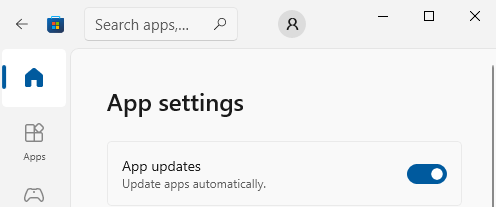
You can configure the Microsoft Store to automatically install updates as per [Wayback/Archive] Turn on automatic app updates (on my system this was the default):

Microsoft Store - Auto-Updates is turned on by default

Microsoft Store – Auto-Updates is turned on by default

  1. Select the Start ⊞ screen, then select Microsoft Store.
  2. In Microsoft Store at the upper right, select the account menu (the three dots) and then select Settings.
  3. Under App updates, set Update apps automatically to On.

As a backgrounder, here some articles on Windows Terminal, ConPTY and the Windows Console from the [Wayback/Archive] DevBlogs – Microsoft Developer Blogs:

  1. [Wayback/Archive] Windows Command-Line: Backgrounder | Windows Command Line Tools For Developers
  2. [Wayback/Archive] Windows Command-Line: The Evolution of the Windows Command-Line | Windows Command Line
  3. [Wayback/Archive] Windows Command-Line: Inside the Windows Console | Windows Command Line
  4. [Wayback/Archive] Windows Command-Line: Introducing the Windows Pseudo Console (ConPTY) | Windows Command Line
  5. [Wayback/Archive] Windows Command-Line: Unicode and UTF-8 Output Text Buffer | Windows Command Line

More on (pseudo)terminals in general containing [Wayback/Archive] “ConPTY” – Search results – Wikipedia:

More on using the Windows Terminal:

My related blog posts:

–jeroen

Posted in Chocolatey, ConPTY, Microsoft Store, Power User, Scoop, Windows, Windows Terminal, winget | Leave a Comment »

Windows 10 and 11: installing WSL2 does not require winget, Chocolatey or Scoop

Posted by jpluimers on 2023/05/18

After using Chocolatey for a long time and writing about it, I have written a few articles on other Windows package managers like winget and Scoop.

Part of the reason was that I wanted to install new systems in a semi-automatic way including WSL2 (Windows Subsystem for Linux 2).

As I have spent quite some time getting treated against metastasised rectum cancer, I missed part of the evolvement of WSL into WSL2 and of the winget evolvement.

The good news is that this simplified the scripted installation of WSL2 a lot, as over time, this got very easy, as confirmed in these posts/messages I found via [Wayback/Archive] winget wsl2 – Google Search:

I even found back this was announced when I was still in hospital: during the Build 2020 conference. A summary is at [Wayback/Archive] The Windows Subsystem for Linux BUILD 2020 Summary – Windows Command Line describing the introduction of wsl.exe --install and that it defaults to install WSL 2 as back-then already most Windows Insider build users using WSL had switched from WSL 1 to WSL 2.

Back to installing

Yesterday, in  Windows “equivalents” for bash backticks in cmd and PowerShell, I showed how to get the wsl.exe information:

C:\temp>PowerShell -Command "SigCheck "$((Get-Command -CommandType Application wsl).Path)""

Sigcheck v2.82 - File version and signature viewer
Copyright (C) 2004-2021 Mark Russinovich
Sysinternals - www.sysinternals.com

c:\windows\system32\wsl.exe:
        Verified:       Signed
        Signing date:   09:24 15/10/2021
        Publisher:      Microsoft Windows
        Company:        Microsoft Corporation
        Description:    Microsoft Windows Subsystem for Linux Launcher
        Product:        Microsoft« Windows« Operating System
        Prod version:   10.0.19041.1320
        File version:   10.0.19041.1320 (WinBuild.160101.0800)
        MachineType:    64-bit

This was on one of my Windows 10 systems with version 21H2.

The installation progress was as follows and took ome 3 minutes on a 50 Mibit/s fiber connection:

C:\temp>wsl.exe --install
Installing: Virtual Machine Platform
Virtual Machine Platform has been installed.
Installing: Windows Subsystem for Linux
Windows Subsystem for Linux has been installed.
Downloading: WSL Kernel
Installing: WSL Kernel
WSL Kernel has been installed.
Downloading: Ubuntu
The requested operation is successful. Changes will not be effective until the system is rebooted.

Time to play around (:

–jeroen

Posted in Batch-Files, Chocolatey, Development, Power User, Scoop, Scripting, Software Development, Windows, Windows Development, winget, WSL Windows Subsystem for Linux | Leave a Comment »

I dug into scoop a tiny bit: some thoughts and links

Posted by jpluimers on 2023/05/09

Last month, I wrote Need to take a look a Scoop (as a long time Chocolatey user).

So I did, and started with a list of my Chocolatey installs grouped by functionality in order to expand the table towards winget and [Wayback/ArchiveGitHub – ScoopInstaller/Scoop: A command-line installer for Windows.

This was a good way to start learning, and by already doing this, got learned this:

  • Whereas Chocolaty has a global searchable community package index at [Wayback/Archive] Chocolatey Software | Packages  which is moderated too.
  • Scoops works differently. There are many buckets you can get your applications from, and there is no Scoop maintained index of them.

Let’s focus on the latter for a bit:

From the above, I got a feeling that Scoop is way more like the Linux Package Managers than WinGet and Chocolatey are.

–jeroen

Read the rest of this entry »

Posted in Chocolatey, Development, Power User, Scoop, Software Development, Windows, Windows Development, winget | Leave a Comment »

Need to rethink which Windows package managers to use

Posted by jpluimers on 2023/04/24

Triggered by last week’s post Need to take a look a Scoop (as a long time Chocolatey user), I need to re-think which Windows package managers to use and in what order.

Basically there are two challenges:

  • User level (scoop) versus system level (winget and chocolatey) installations
  • Availability of packages in each package manager

Since I hardly used winget, I need to get started at Windows Package Manager – Wikipedia.

A good example of unavailability is at [Wayback/Archive] Scott’s Ultimate Tools via Winget – DVLUP (which has the ID values for winget or chocolatey of [Wayback/Archive] Scott Hanselman’s 2021 Ultimate Developer and Power Users Tool List for Windows – Scott Hanselman’s Blog)

–jeroen

Posted in Chocolatey, Power User, Scoop, Windows, winget | Leave a Comment »

Need to take a look a Scoop (as a long time Chocolatey user)

Posted by jpluimers on 2023/04/06

Based on

So:

Related blog posts:

–jeroen

Posted in Chocolatey, Power User, Scoop, Windows, winget | Leave a Comment »