A few years back I put all my conferences material in a GitHub repository https://github.com/jpluimers/Conferences/. There were a lot directories and files so I didn’t pay much attention to the initial check-in list. The files had been part of copy.com syncing between Windows and Mac machines.
I choose a Mac because it is closer to a Linux machine than Widows so I expected no encoding trouble (as git has a Linux origin: it “was created by Linus Torvalds in 2005 for development of the Linux kernel“).
Boy I was wrong:
Recently I cloned the repository in a different place and found out a few strange things:
This file contains hidden or bidirectional Unicode text that may be interpreted or compiled differently than what appears below. To review, open the file in an editor that reveals hidden Unicode characters. Learn more about bidirectional Unicode characters
Being able to import from a non-exportable repository would allow me to keep issue # references in sync which would make it a lot easier for relating commit history with issues.
The trick comes down to enabling the PreferExternalManifest registry setting and then create a manual manifest for the application that forces the application to use “bitmap scaling” by basically telling it does not support “XP style DPI scaling”.
You name manifest file named after the exe and stored it in the same directory as the exe.
After that, you also have to rename the exe to a temporary name and then back in order to refresh the cache.
A quote from the trick:
In Windows Vista, you had two possible ways of scaling applications: with the first one (the default) applications were instructed to scale their objects using the scaling factor imposed by the operating system. The results, depending on the quality of the application and the Windows version, could vary a lot. Some scaled correctly, some other look very similar to what we are seeing in SSMS, with some weird-looking GUIs. In Vista, this option was called “XP style DPI scaling”.
The second option, which you could activate by unchecking the “XP style” checkbox, involved drawing the graphical components of the GUI to an off-screen buffer and then drawing them back to the display, scaling the whole thing up to the screen resolution. This option is called “bitmap scaling” and the result is a perfectly laid out GUI.
In order to enable this option in Windows 10, you need to merge this key to your registry:
Windows Registry Editor Version 5.00

[HKEY_LOCAL_MACHINE\SOFTWARE\Microsoft\Windows\CurrentVersion\SideBySide]
"PreferExternalManifest"=dword:00000001
Then, the application has to be decorated with a manifest file that instructs Windows to disable DPI scaling and enable bitmap scaling, by declaring the application as DPI unaware. The manifest file has to be saved in the same folder as the executable (ssms.exe) and its name must be ssms.exe.manifest. In this case, for SSMS 2014, the file path is “C:\Program Files (x86)\Microsoft SQL Server\120\Tools\Binn\ManagementStudio\Ssms.exe.manifest”.
Paste this text inside the manifest file and save it in UTF8 encoding:
This file contains hidden or bidirectional Unicode text that may be interpreted or compiled differently than what appears below. To review, open the file in an editor that reveals hidden Unicode characters. Learn more about bidirectional Unicode characters
This “Vista style” bitmap scaling is very similar to what Apple is doing on his Retina displays, except that Apple uses a different font rendering algorithm that looks better when scaled up. If you use this technique in Windows, ClearType rendering is performed on the off-screen buffer before upscaling, so the final result might look a bit blurry.The amount of blurriness you will see depends on the scale factor you set in the control panel or in the settings app in Windows 10. Needless to say that exact pixel scaling looks better, so prefer 200% over 225% or 250% scale factors, because there is no such thing as “half pixel”.
Of course there are also [WayBack] DelphiFeeds (which seems unmaintained, but a truckload of people have it in their RSS reader) and [WayBack] BeginEnd.net (slowly but steadily growing).
I wish there was an RSS reader that could filter out duplicate posts so I can just follow all three without reading duplicates.
Building libssh2 for Windows (Win32/Win64) is a lot harder than I hoped for.
There were no instructions on their website, there was the occasional “use CMake” at #IRC and that was about it.
Of course running just CMake doesn’t work and getting it working involves a lot of non-descriptive error messages, cursing and fruitless searches for them just bumping into “me too” threads not really providing the solution.
I tried building OpenSSL but after building, no `lib` directory appears so I cannot satisfy the dependencies. Not sure what OpenSSL would bring as I could not find any documentation about it either, so I’ll leave it at that.
Might be that `make test` for OpenSSL doesn’t succeed because some vague non-explained error which is odd when doing this on an almost prestine VS 2015 Community Edition VM.
But I’ll take that up with the OpenSSL people one day.
Oh the joy of Open Source…
Below are the steps (below the –more– mark a gist with the most recent version).
The core are these:
you need git, Visual Studio and CMake
use CMake to generate project files, msbuild to build (CBuild cannot build any more)
After a Win64 build you have to reset the platform to create a Win32 build
These links helped a lot some in the positive, others in the negative sense:
Since neither the matrix nor the PDF contains links to the products, here is a small list of what I could source last year and is compatible with both the CCR1009 routeres and CRS226 switches:
DAC allowing for two-way traffic compatible with both SFP and SFP+:


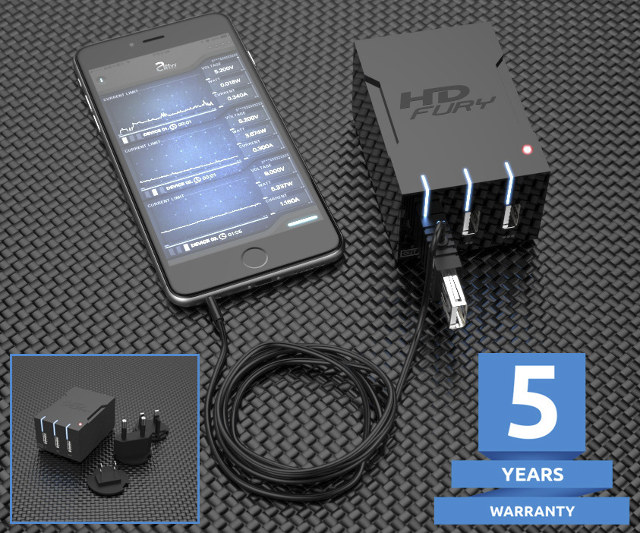 Interesting device [WayBack]: $59 HDFury Universal PSU Doctor Supports Power Monitoring via iOS or Android which has a lot more details.

 The Wiert Corner - irregular stream of stuff
