Archive for the ‘.NET’ Category
Posted by jpluimers on 2016/06/28
The below batch file finds and runs the latest vsvars32.bat on a system.
vsvars32.bat initializes the path and other environment variables to run Visual Studio and command-line tools (like csc.exe, xsd.exe, editbin.exe).
The batch file employs a few tricks from:
  :: Run the most recent vsvars32.bat

  :: test these environment variables that have 110 or 120 in them (future enhancements: support more Visual Studio versions):
  :: Visual Studio .NET 2002: VS70COMNTOOLS=C:\Program Files (x86)\Microsoft Visual Studio .NET\Common7\Tools\
  :: Visual Studio .NET 2003: VS71COMNTOOLS=C:\Program Files (x86)\Microsoft Visual Studio .NET 2003\Common7\Tools\
  :: Visual Studio 2005: VS80COMNTOOLS=C:\Program Files (x86)\Microsoft Visual Studio 8\Common7\Tools\
  :: Visual Studio 2008: VS90COMNTOOLS=C:\Program Files (x86)\Microsoft Visual Studio 9.0\Common7\Tools\
  :: Visual Studio 2010: VS100COMNTOOLS=C:\Program Files (x86)\Microsoft Visual Studio 10.0\Common7\Tools\
  :: Visual Studio 2012: VS110COMNTOOLS=C:\Program Files (x86)\Microsoft Visual Studio 11.0\Common7\Tools\
  :: Visual Studio 2013: VS120COMNTOOLS=C:\Program Files (x86)\Microsoft Visual Studio 12.0\Common7\Tools\
  :: VS130COMNTOOLS was skipped: http://www.neowin.net/forum/topic/1215607-visual-studio-13-to-be-skipped-vnext-to-be-v14/
  :: Visual Studio 2015: VS130COMNTOOLS=C:\Program Files (x86)\Microsoft Visual Studio 14.0\Common7\Tools\
  :: They contain `vsvars32.bat` which will update the `PATH` so it includes where `xsd.exe`, `csc.exe`, `editbin.exe` and others reside
  :: Different examples: https://github.com/noop-dev/c-cgdk/blob/master/compile-vscpp.bat
  :: and https://code.google.com/p/xvid4psp/source/browse/trunk/bin/4Gb+patcher.bat
  :: or give it a go for any version: http://chess.eecs.berkeley.edu/ptexternal/src/ptII/ptolemy/actor/lib/fmi/fmus/template/sources/build_fmu.bat
  setlocal enabledelayedexpansion
  :: delayed expansion allows for the exclamation marks
  :: see http://ss64.com/nt/delayedexpansion.html
  :: see http://stackoverflow.com/questions/22857407/windows-batch-how-to-assign-variable-with-dynamic-name
  for %%v in (70 71 80 90 100 110 120 130) do if not [!VS%%vCOMNTOOLS!]==[] set VSCOMNTOOLS=!VS%%vCOMNTOOLS!
  :: http://stackoverflow.com/questions/28682268/assign-variables-past-endlocal-in-a-loop
  endlocal & call :do call "%VSCOMNTOOLS%vsvars32.bat"
  goto :eof

:do
  echo %*
  %*
  goto :eof
–jeroen
via: Finding the path of xsd.exe from your Visual Studio Build Events « The Wiert Corner – irregular stream of stuff.
Posted in .NET, .NET 1.x, .NET 2.0, .NET 3.0, .NET 3.5, .NET 4.0, .NET 4.5, Development, Software Development, Visual Studio 11, Visual Studio 2002, Visual Studio 2003, Visual Studio 2005, Visual Studio 2008, Visual Studio 2010, Visual Studio 2012, Visual Studio 2013, Visual Studio 2014, Visual Studio 2015, Visual Studio and tools | Leave a Comment »
Posted by jpluimers on 2016/06/21
I’m using these Chrome Extensions for most of the http / https call mockups, and after that put them in SoapUI (which despite the name also does REST and has come a long way sinceSource: SoupUI – as sometimes that is the only thing that works):
You can get both Postman versions through GetPostman.com as well.
–jeroen
Posted in .NET, .NET 2.0, .NET 3.0, .NET 3.5, .NET 4.0, .NET 4.5, ASP.NET, C#, C# 3.0, C# 4.0, C# 5.0, Chrome, Communications Development, Development, Google, HTTP, Internet protocol suite, Power User, REST, Software Development, TCP | 1 Comment »
Posted by jpluimers on 2016/06/20
Boy, don’t you dislike how hard it is to find direct download links…
Well, thanks to kenorb and jjlin (slightly edited):
Check: IE6, IE7, IE8, IE9, IE10, IE11 Offline Installers Download Links – kenorb Mar 20 ’15 at 13:39 – http://www.itechtics.com/download-internet-explorer-all-versions/ – note this does not provide hashes.
jjlin:
Try these Microsoft offline installer links:
These may refuse to work if you already have IE 11 installed, though. If it is refused, try this: http://stackoverflow.com/questions/20043971/how-to-downgrade-from-internet-explorer-11-to-internet-explorer-10
And in case these links ever stop working and you must obtain a copy from a non-Microsoft source, here are the SHA-512 hashes for posterity:
- 32-bit: d89ba3f9978be428ac05b182481198ab0f7b0c0651e4716e63cd0cf907d739cbc30f44ec9c444da683869473a548cd99e5c396467b2898f7c382b6345b3e70d2
- 64-bit: f1752bb6517fe15071e5f7a4fee4b8680da1bdad1df7054ab22bab78fe0f46aee177787f60ea2cfc86a2db2b08429e2cba3cfdd20ba6a2ab69e091c7784dfdae
Source: internet explorer 10 – Does Microsoft still have a link to download IE10 for Windows 7? – Super User
–jeroen
Posted in .NET, Development, Internet Explorer, Power User, Software Development, Visual Studio 2015, Visual Studio and tools, Web Browsers, Windows, Windows 7 | Leave a Comment »
Posted by jpluimers on 2016/06/16

HTTP Error 404.0 – Not Found
Had this on a fresh Bonobo Git Server on a relatively fresh Windows 7 installation:
HTTP Error 404.0 – Not Found
At first I thought it was missing ASP because of the “StaticFile” in the error information, so I enabled it:

ASP is not enabled by default

Enable ASP
That didn’t help, so I searched for “MapRequestHandler” “HTTP Error 404.0 – Not Found” and found:
- HTTP Error 404.0 – Not Found (MapRequestHandler / StaticFile) when deploying WCF Web API on IIS 7.x | Alexander Zeitler
- aspnet_regiis.exe -i is still a solution : Fixing HTTP Error 404.0 – Not Found (MapRequestHandler / StaticFile) when deploying an application in IIS 7.x | Michael Hidalgo
Though ASP.NET was clearly enabled according to the Windows features, this was apparently for an old ASP.NET version so I manually re-registered ASP.NET (but now for Version 4: I had 4.6.1 installed):
C:\Windows\System32>%windir%\Microsoft.NET\Framework\v4.0.30319\aspnet_regiis.exe -ir
Microsoft (R) ASP.NET RegIIS version 4.0.30319.0
Administration utility to install and uninstall ASP.NET on the local machine.
Copyright (C) Microsoft Corporation. All rights reserved.
Start installing ASP.NET (4.0.30319.0) without changing existing web applications to use this version of ASP.Net.
.....
Finished installing ASP.NET (4.0.30319.0) without changing existing web applications to use this version of ASP.Net.
Windows 7 is .NET 2.0 all over the place…
Then it still didn’t work, but the second tip above also mentioned the application pool. And since Bonobo insists installing in wwwwroot, it’s using the default application which on Windows 7 – surprise! – is ASP.NET 2.0:

Default Windows 7 application pool for wwwroot uses ASP.NET 2.0

ASP.NET 4.0 needs to be the default.
Changing that to ASP.NET 4.0 made it all work.
Read the prerequisites
Too bad that ASP.NET registration part is only prominently visible in the readme.md on github, but not in the installation instructions of the web-site with a tiny link (overwhelmed by the screenshots) to prerequisites.
Same for the default credentials:
- username admin
- password admin
–jeroen
Posted in .NET, ASP.NET, Development, DVCS - Distributed Version Control, git, Software Development, Source Code Management | Leave a Comment »
Posted by jpluimers on 2016/06/15
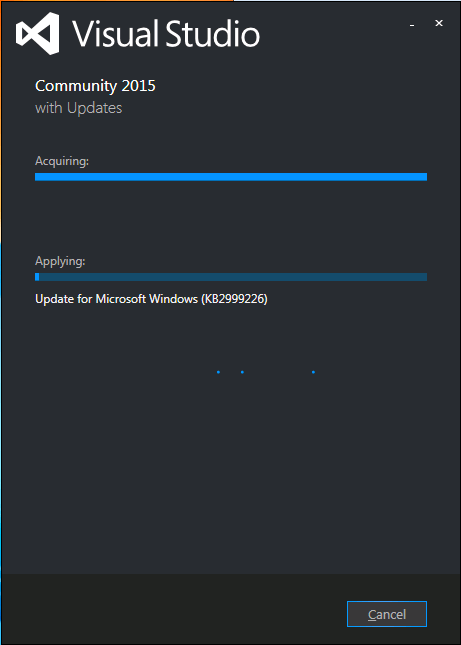
Visual Studio 2015 install stuck on “acquiring” KB2999226
I had exactly the same when installing Visual Studio 2015 on a Windows 7 x64 system: stuck on “Acquiring” the “Update for Microsoft Windows (KB2999226)”.
So as mentioned in the StackOverflow answers for the below question, I manually downloaded “Update for Windows 7 for x64-based Systems (KB2999226)” which you can get directly at https://download.microsoft.com/download/1/1/5/11565A9A-EA09-4F0A-A57E-520D5D138140/Windows6.1-KB2999226-x64.msu.
Be sure to quit both the Visual Studio 2015 installation as well as any (“automagically interfering” background Windows Updates), as otherwise you get this error:
If you still get that error, then
- try to stop/start the
wuauserv service: usually it gets rid of the error.
- When it still occurs, try a clean boot, then re-apply the KB.
Applying the KB can take a long while, even on fast hardware.
–jeroen
Source: Stuck while installing Visual Studio 2015 (Update for Microsoft Windows (KB2999226)) – Stack Overflow
Posted in .NET, Development, Software Development, Visual Studio 2015, Visual Studio and tools | Leave a Comment »
Posted by jpluimers on 2016/06/08
Boy I wish I had known this earlier. Like years ago…
In the Solution Explorer:
- Right Click Project
- Project Build Oder.
- Use the dialog to change the build order
It is next to the “Project Dependencies” in this image from Sara Ford:

Sara Ford: change “Project Build Order”
In the resulting dialog, you can change the build order within your solution.
This can be very useful when – for various reasons – you cannot have Project Level dependencies for an assembly, but have to have Assembly Reference dependencies for individual assemblies.
At a client I bumped into this, and this dialog was a life saver for us.
Others have used it because some Visual Studio versions miscalculate the dependencies.
–jeroen
Did you know… How to change the build order for your solution? – #333 – Sara Ford’s Weblog – Site Home – MSDN Blogs.
Posted in .NET, C#, C# 2.0, C# 3.0, C# 4.0, C# 5.0, C# 6 (Roslyn), Development, Software Development, Visual Studio 11, Visual Studio 2008, Visual Studio 2010, Visual Studio 2012, Visual Studio 2013, Visual Studio and tools | Leave a Comment »
Posted by jpluimers on 2016/06/03
Do NOT delete the folder "C:\ProgramData\Package Cache".
But you can move it to another storage and link to it so when you change/update/remove Visual Studio 2012, you still have access to it.
More details at windows – Can I delete the the folder C:\ProgramData\Package Cache\? – Super User.
–jeroen
Posted in .NET, Development, Software Development, Visual Studio 2012, Visual Studio and tools | Leave a Comment »
Posted by jpluimers on 2016/06/02
Since they’re hard to find on-line, and sometimes I need them when not having access to my collective browser or email history:
Notes:
- The AQTimeDemo.exe is the same as the latest AQTime###.exe (functionality depends in license).
- The installation from Windows Explorer sometimes fails with the below message. Installation from the command-prompt works, but you need to run it from an Administrator command-prompt:
---------------------------

E:\TEMP\AQtime824.exe

---------------------------

Windows cannot access the specified device, path, or file. You may not have the appropriate permissions to access the item.

---------------------------

OK

---------------------------
To get going for my special case, I watched some sample videos (which I did get to work in Internet Explorer but not in Chrome forty-something):
I needed it to do some profiling comparisons of services running under different configurations.
Read the rest of this entry »
Posted in .NET, Debugging, Delphi, Development, MAP Symbol Information, Profiling-Performance-Measurement, Software Development, TD32/TDS Symbol information, Visual Studio and tools | Leave a Comment »


 The Wiert Corner - irregular stream of stuff