[Wayback/Archive] Jeroen Wiert Pluimers on Twitter: “Too bad @googledrive downloads cannot work without 3rd party cookies. These cookie settings (and JavaScript) need to be enabled in order for them to work correctly:(see also support.google.com/drive/answer/2423534 )” / Twitter
Archive for the ‘GoogleDrive’ Category
Too bad @googledrive downloads cannot work without 3rd party cookies. These cookie settings (and JavaScript) need to be enabled in order for them to work correctly
Posted by jpluimers on 2025/06/09
Posted in Google, GoogleDrive, LifeHacker, Power User | Leave a Comment »
How to check the country that Google associates with your account, and how to change it – gHacks Tech News
Posted by jpluimers on 2024/08/02
I used the tips in [Wayback/Archive] How to check the country that Google associates with your account, and how to change it – gHacks Tech News to check out why I would get errors on invited family members that they were not in my country. Somehow my better half could join, but my brother and others could not.
Well, bummer as for all accounts:
Posted in Google, GoogleDrive, Power User | Leave a Comment »
Link to downgrade or cancel Google one membership : GoogleOne
Posted by jpluimers on 2024/07/29
Posted in Google, GoogleDrive, LifeHacker, Power User | Leave a Comment »
Some notes on synching Google Drive data that other accounts shared with you
Posted by jpluimers on 2024/05/17
In the past (pre-2020) syncing shared Google Drive content was easy: Google Backup & Sync was still there and the web-UI of Google Drive was straightforward.
Syncing is important for me as it allows off-line working. Not all places have 24/7 internet access and not all cloud services are up 24/7.
So in 2020, with the mandatory (and often failing!) migration of Google Backup and Sync to Google Drive File Syncing and the new web-UI, things became a lot harder: Workaround to add a Shared With Me folder to your Google Drive (Google made this a lot harder in 2020).
Further into 2022 I discovered that way had become impossible for:
- new shares
- old shares that you had not set up syncing for
Old shares that you had set up syncing for kept working, and I hope they will for a long time, but I doubt they will.
Note this is not about free vs paid Google Drive data: the new situation fails for both cases.
For new shares or old shares you have not set up syncing for there basically seem to be two solutions, neither of them which is nice:
Posted in Google, GoogleAccount, GoogleDrive, Power User | Leave a Comment »
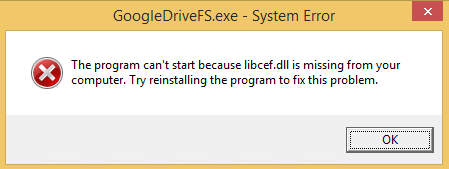
GoogleDriveFS.exe – System Error; The program can’t start because libcef.dll is missing from your computer. (it wasn’t missing)
Posted by jpluimers on 2022/10/17

GoogleDriveFS – cannot find libcef.dll
Don’t you love errors after things try to audo-update themselves without testing preerquisites:
--------------------------- GoogleDriveFS.exe - System Error --------------------------- The program can't start because libcef.dll is missing from your computer. Try reinstalling the program to fix this problem. --------------------------- OK ---------------------------
The message was from the csrss.exe Client/Server Runtime Subsystem – Wikipedia process:
Posted in Google, GoogleDrive, Power User, Windows, Windows 8 | Leave a Comment »
Cleaning up Google Drive (for instance when a rogue supplier decides to fill your Windows Documents folder) and preventing TomTom HOME to use too much information
Posted by jpluimers on 2022/04/12
The below links helped me clean the Google Drive of a friend that grew way too large because TomTom HOME decided to put 100 gigabyte of data in the Documents folder instead of the local AppData folder (yup, this is a follow-up of Windows applications: storing your data in the correct place (Roaming, Local, LocalLow, not Documents)).
- [Wayback] support.google.com/drive/answer/6374270
- one.google.com/storage shows an overview on the storage used by email, drive and photos.
- drive.google.com/drive/quota allows sorting ALL files in your Google drive by descending size so you can delete them
- one.google.com/storage/management allows to deleted/spam emails, or large files, emails or photos/videos in your Google account
- drive.google.com/drive/trash allows you to empty the trash, as these files still consume storage space
The trick with extensions to exclude is you have to add exclusions before syncing. Which is a kind of catch-22 or chicken and egg problem.
In case of the friend I helped we made a backup of the TomTom HOME data, then applied the exclusions and restored the data.
For TomTom HOME in order not to fill your Google Drive, but still allow backing up your Documents folder, these are extensions you might want to exclude (roughly in descending order of space) where you have to mind not storing any of these extensions in other subfolders of your Documents folder.:
.zip.cab.toc.tmp.meta.sat.tlv.ttd.dat.vif.chk.bin.rex.lde.gpr.dbl.so.ov2
The problem with this? Google Backup and Sync does not allow that many exclusion extensions.
–jeroen
Posted in Google, GoogleBackupAndSync, GoogleDrive, Power User, Windows, Windows 10 | Leave a Comment »
Speed up Upload and Download Speeds in Google Backup and Sync (formerly Google Drive)
Posted by jpluimers on 2022/03/31
[Wayback] Speed up Upload and Download Speeds in Google Drive is still relevant, despite the name change of Google Drive to Google Backup and Sync.
In my experience (fiber 100 mebibit symmetric with less than 5 milliseconds latency to the Amsterdam Internet Exchange) the only option that really matters is to set the Proxy Settings from “auto-detect” to “direct connection”. This saves as much as 25% on latency, which plays a big role when syncing many small files.
These are the steps in pictures:
Posted in Google, GoogleBackupAndSync, GoogleDrive, Power User | Leave a Comment »
Workaround to add a Shared With Me folder to your Google Drive (Google made this a lot harder in 2020)
Posted by jpluimers on 2022/02/21
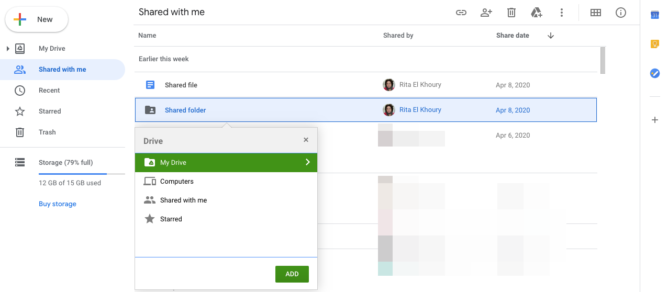
It took a few tries to Google how to sync folders that were shared after roughly fall 2020 (folders shared with me before that were totally fine), but [Wayback] drive google shared with me – Google Search got me the below answer.
From [Wayback/Archive.is] Google completely ruined shared folders in Drive (Update: Workaround, Google shares longterm plan):
you can still move shared files and folders to your Drive, even on the web (no need for the Android app), but the option is hidden behind a keyboard shortcut. Go to your Shared with me section, highlight the shared files or folders you want to move, and type Shift+Z on your keyboard. You’ll see the old move menu and can choose where to put those folders. On your PC, they’ll sync and behave like they used to, no shortcut mess. More info can be found here, and you can always type ? in Drive to bring up the list of keyboard shortcuts if you forget this one.
Finally, Remy revealed that the Drive team will “keep this behavior [Shift+Z] around for folders until we have a solid solution to sync shared folders.” I think that helps appease our collective fears about the change.
From the page linked at [Wayback] Find files & folders with Google Drive shortcuts – Computer – Google Drive Help:
Shortcuts can sync across your devices, including computers and smartphones. But when you use Backup and Sync to connect with a computer, there are some differences. The shortcuts you made to individual files will sync up with the file as normal. But the shortcuts you made to shared folders will just link to the folder on the Google Drive website.
Try these alternatives:
- Instead of a shortcut, add the folder to an additional location. On the Google Drive website, select the folder and press Shift + Z.
- Add shortcuts to individual files within the shared folder (and not to the shared folder itself).
- If you’re a Google Workspace user, learn more about Drive File Stream.
–jeroen
Posted in Google, GoogleDrive, Power User | Leave a Comment »
Google Cloud Shell: connecting to cloud storage buckets
Posted by jpluimers on 2021/09/28
One of the drawbacks of Google Cloud Shell is that it will delete the home directory after 120 days of not using it: [WayBack] Deletion notice for my Google Cloud Shell home directory – Stack Overflow
This is documented [WayBack] here:
If you do not access Cloud Shell for 120 days, we will delete your home disk. You will receive an email notification before we do so and simply starting a session will prevent its removal.
This only applies to the home directory of your Cloud Shell instance (you may want to store it on Cloud Storage anyway if you want to keep it). Any other Google services you use will be unaffected.
I hardly use the cloud shell, as it is a last resort to shell out from overly protected networks. Fewer and fewer environments restrict so much, so I’ve bumped into the home directory deletion a few times now.
I might use it more in the future, as I recently discovered there is a URL trick so you can start a cloud shell with parameters like an initial git repository: [WayBack] Open in Cloud Shell | Google Cloud
The Open in Cloud Shell feature allows you to publish a link that opens the Cloud Console and either automatically clones a Git repository into Cloud Shell or starts Cloud Shell with a custom image. It also allows for instructions to be printed to the terminal to help users interact with the content.
The Open in Cloud Shell feature helps developers experiment with code samples and APIs without having to worry about downloading Cloud SDK, installing required dependencies, or searching for relevant source files. This page explains how to add this feature to your Git repository.
Currently, only GitHub and Bitbucket repositories are whitelisted. If you would like to add a different repository, send feedback with the repository type you’d like to use with Open in Cloud Shell.
Setting up the home directory with my scripts can be a curse, so I have contemplated on these kinds of solutions:
- store scripts in Google Drive, and mount part of Google Drive into the Cloud Shell
- store scripts in Google Cloud Storage
- script the setup of the home directory via a bash script in a gist
Some links that will hopefully help me with that:
- [WayBack] Use the Google Cloud Shell to Upload files to Google Drive : DataHoarder
- [WayBack] Open Your Repository In Google Cloud Shell – Daisuke Maki – Medium
- [WayBack] gsutil – Google cloud storage – Download file from web – Stack Overflow
mount the bucket in your Cloud Shell using gcsfuse:
Create a directory in your Cloud Shell user home
mkdir ~/mybucketNow mount your bucket in that directory using gcsfuse:
gcsfuse bucket_name ~/mybucketChange the current directory to mount point directory:
cd mybucket(if you want to have some fun run “df -h .” to see how much space you got in that mount point)
…
seems to work for all file sizes:
curl http://speedtest.tele2.net/10GB.zip | gsutil cp - gs://YOUR_BUCKET_NAME/10GB.zipBasically curl “streams” the data directly to the bucket.
[WayBack] Limitations and restrictions | Cloud Shell | Google Cloud
Usage limits
Cloud Shell inactivity: If you do not access Cloud Shell for 120 days, your home disk will be deleted. You will receive an email notification before its deletion and simply starting a session will prevent its removal. Please consider a different solution on Google Cloud storage for sensitive data you wish to store long term.
Non-interactive usage: Cloud Shell is intended for interactive use only. Non-interactive sessions will be ended automatically after a warning. Note that Cloud Shell sessions are capped at 12 hours, after which sessions are automatically terminated. You can use a new session immediately after.
Weekly usage: Cloud Shell also has weekly usage limits. If you reach your usage limit, you’ll need to wait until the specified time (listed under Usage Quota, found under the three dots menu icon) before you can use Cloud Shell again.
Restoring a session after a service limit violation: If your session is terminated or cannot be established because you exceeded a service limit, Cloud Shell will display an error with a link to a form that allows you to appeal the limit violation. Click the feedback link and submit the form with more information about the tasks you were performing before your session was terminated.
–jeroen
Posted in bash, Development, Google, GoogleCloudShell, GoogleDrive, Internet, Power User, Scripting, Software Development, SpeedTest | Leave a Comment »