Archive for the ‘Fusion’ Category
Posted by jpluimers on 2024/01/02
I keep forgetting this, but ESXi likes the text .vmdk file with a binary -flat.vmdk, where Fusion/ Workstation/Player like binary .vmdk file.
Most sites that mention how to solve it love the cryptic parameters like -i (software developers: when inventing command-line parameters, please use a more descriptive letter for a command) in stead of --clonevirtualdisk), so for instance Migrate VMware Workstation / Fusion VM to ESXi | Ming’s Blog comes up with
[root...] mv Windows-10-64-Enterprise-disk1.vmdk Windows-10-64-Enterprise-disk1.vmdk.fusion
[root...] vmkfstools -i Windows-10-64-Enterprise-disk1.vmdk.fusion Windows-10-64-Enterprise-disk1.vmdk
Destination disk format: VMFS zeroedthick
Cloning disk 'Windows-10-64-Enterprise-disk1.vmdk.fusion'...
Clone: 100% done.
is more readable as
[root...] vmkfstools --clonevirtualdisk Windows-10-64-Enterprise-disk1.vmdk.fusion Windows-10-64-Enterprise-disk1.vmdk
And yes, I wrote about this before, but keep forgetting it applies :
–jeroen
Posted in ESXi6, ESXi6.5, ESXi6.7, Fusion, Power User, Virtualization, VMware, VMware ESXi, VMware Workstation | Leave a Comment »
Posted by jpluimers on 2023/04/26
A less clickbaity title than most articles today as the below only applies to the VMware hypervisors running on MacOS and Windows.
The last Pwn2Own Zero Day Initiative revealed two major issues that allow a virtual machine to either execute code or read hypervisor memory on the VMware Workstation/Player/Fusion host:
- [Wayback/Archive] NVD – CVE-2023-20869
VMware Workstation (17.x) and VMware Fusion (13.x) contain a stack-based buffer-overflow vulnerability that exists in the functionality for sharing host Bluetooth devices with the virtual machine.
- [Wayback/Archive] NVD – CVE-2023-20870
VMware Workstation and Fusion contain an out-of-bounds read vulnerability that exists in the functionality for sharing host Bluetooth devices with the virtual machine.
Both issues have been fixed now, so be sure to deploy the fixes or, if you can’t, apply the workarounds.
Read the rest of this entry »
Posted in Fusion, Power User, Security, Virtualization, VMware, VMware Player, VMware Workstation | Leave a Comment »
Posted by jpluimers on 2022/03/22
In 2015, I posted P2V of an existing XP machine to Hyper-V to have an emergency fallback when retiring old XP physical machines and did a short edit on 20210727 promising about a future article on trying to fix the [Wayback] stop 0x0000007B blue screen.

This stop can that can happen during boot when the converted Windows XP requires different disk drivers than the physical Windows XP. Windows Vista and up are smarter to figure out the required changes, but Windows XP wasn’t.
The above screenshot is actually from the same physical Windows XP machine after doing the conversion, I wanted to try and run the virtual machine on physical hardware close to the original before moving it to the actual VMware host (yup, the Windows XP machine had been used as a VMware host before, so it had both VMware Workstation 6.5 and VMware Converter 4.01 installed).
The reason I wanted to move my last Windows XP machine to a virtual machine was that it was the only computer that could still print to my old, but nice, Olympus P-400 color dye sublimation printer. I mentioned this in 2015 when Installing the PIXMA mini260 – Canon Europe drivers under Windows 8.1 x64 – trying to say goodbye to Windows XP
I need to find a way to get my [Wayback/Archive.is] Olympus Camedia P-400 Digital Color Photo Printer. That is a lot harder: the latest Windows [Wayback] P-400 Printer > Software Downloads are for Windows XP.
At the end, of the blog post are a few links on the stop 0x0000007B and the Universal Boot CD for Windows workaround.
Read the rest of this entry »
Posted in Fusion, Hyper-V, Power User, View, Virtualization, VMware, VMware Converter, VMware ESXi, VMware Workstation, Windows, Windows XP | Leave a Comment »
Posted by jpluimers on 2020/04/03
With virtual disks, at least these three levels are involved:
- partition or volume (often called drive) size
- virtual disk size
- virtual disk backing store size
When talking about shrinking disks, they usually explain about below steps, assuming there is a 1:1:1 mapping of the above and backing store of the disk is dynamically growing:
- defragment the files on a partition/volume
- zero-fill the non-used space
- shrink the virtual disk assuming it is a dynamically growing one
For various reasons, virtualisation environments can have pre-allocated virtual disks ensuring the space on the backing store is firmly reserved.
One such occasion can be in VMware (often required for instance with vSphere/ESXi/ESX based infrastructure, but can also be used in Workstation/Fusion/Player) or Virtual Box in fixed disk mode (default there is dynamic).
Here are some links that should me help shrink in those situations:
More on conversion:
–jeroen
PS: a useful tip by Joe C. Hecht on shrinking:
Oh… On shrinking VM Disks, I make a new growable disk, then use a utility to “smart copy” the partions to the new disk (then replace the disk files in the VM). The “smart copy” just copies the file system – IE what is used (I use an old copy of Paragon Hard Drive Manager). It works out a lot better than writing “zeros”. I then make a compressed image of the whole VM using rar5 compression with a 1GB dictionary size. I then have batch files that can unrar the VM’s on a moments notice (from a collection of over 300).
Posted in Fusion, Power User, VirtualBox, Virtualization, VMware, VMware ESXi, VMware Workstation | Leave a Comment »
Posted by jpluimers on 2020/01/20
Rephrased from [WayBack] Jeroen Wiert Pluimers – Google+:
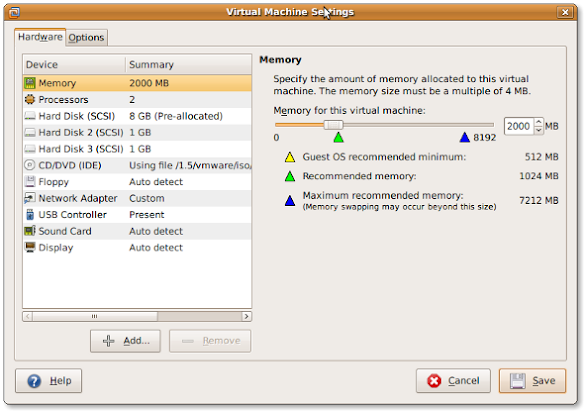
If you install a virtual machine, ensure the disk controller and disks are SCSI based.
This has many advantages, including:
- speed (usually the SCSI drivers can be paravirtualised)
- hot addition of new disks
It holds for virtually any virtualization platform including all non-ancient (less than ~10 year old) versions of:
- VMware (Workstation, Viewer, but I expect this also to work on vSphere, ESXI, Fusion)
- Hyper-V
- KVM (and therefore Proxmox)
- VirtualBox
Based on my notes in the above link and the links below:
Note this isn’t just for Linux guests/hosts: Most guests (including Windows) can do a SCSI bus re-scan and detect new SCSI devices.
The trick here is that the guest must already have a virtual SCSI controller (adding that will require a reboot of the guest).
Then adding a new SCSI disk on that controller from any host (Windows, Mac, ESXi, vSphere) should work fine.
–jeroen
Posted in ESXi4, ESXi5, ESXi5.1, ESXi5.5, ESXi6, ESXi6.5, Fusion, Hyper-V, KVM Kernel-based Virtual Machine, Power User, Proxmox, View, VirtualBox, Virtualization, VMware, VMware ESXi, VMware Workstation | Leave a Comment »
Posted by jpluimers on 2019/05/10
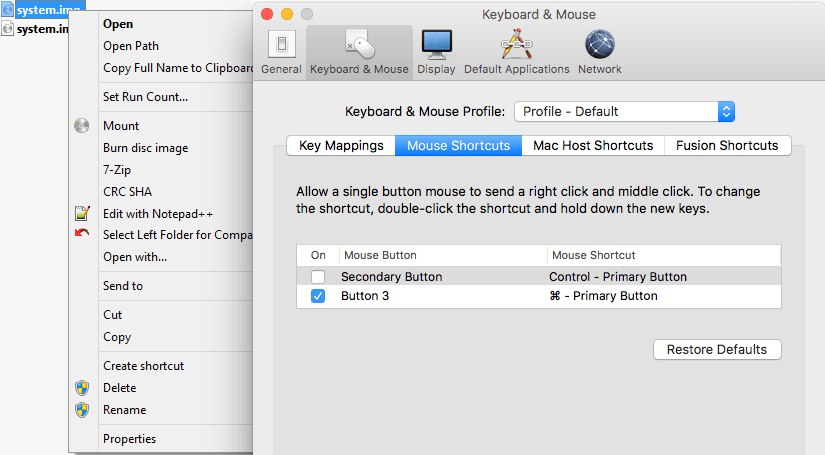
A while ago, I was surprised that in a Windows VM running under VMware Fusion, the Ctrl-Click performed a right click, despite me having changed the configuration:
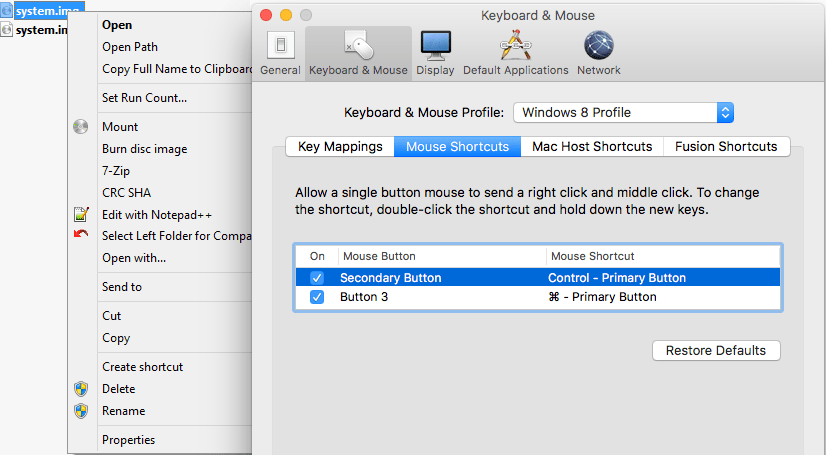
I was wrong, as I had forgotten I assigned the “Windows 8 Profile” tot hat VM (as it was running Windows 8.1), which had the Secondary Button still mapped to the Control+Primary Button:
Related:
–jeroen
Posted in Fusion, Power User, Virtualization, VMware, Windows | Leave a Comment »
Posted by jpluimers on 2019/05/10
Basically the boot delay during startup is so short that usually you cannot even choose the boot device.
Solution: edit the .vmx configuration file for the Virtual Machine, then change this value:
bios.bootDelay = "15000"
Source:
–jeroen
Posted in Fusion, Power User, Virtualization, VMware | Leave a Comment »
Posted by jpluimers on 2018/10/30
Cool repository, but contact your cloud provider before trying…: [WayBack] airbus-seclab/crashos.
via:
–jeroen
Posted in Fusion, Hyper-V, KVM Kernel-based Virtual Machine, Power User, Proxmox, View, VirtualBox, Virtualization, VMware, VMware ESXi, VMware Workstation | Leave a Comment »
Posted by jpluimers on 2018/10/08
Posted in *nix, *nix-tools, Fusion, Hyper-V, KVM Kernel-based Virtual Machine, Power User, Proxmox, View, VirtualBox, Virtualization, VMware, VMware ESXi, VMware Workstation | Leave a Comment »
Posted by jpluimers on 2018/08/03
Somewhere after Yosemite, braindead Mac OS X forcibly maps “Ctrl+Click” to right-click. In past versions, you could disable but those days have gone.
This means that inside Windows on VMware Fusion, you cannot add/remove items to/from a selection any more (for instance in the Windows Explorer).
Various workarounds turned up in my Google Search, but only this one works:
Holding down CTRL + OPTION together and LEFT CLICKING will do this.
Source: [WayBack] vmware fusion – How to use the control key in VM Ware? – Super User
–jeroen
via:
Posted in Apple, Fusion, Mac, Mac OS X / OS X / MacOS, MacBook, MacBook Retina, MacBook-Air, MacBook-Pro, MacMini, macOS 10.12 Sierra, OS X 10.10 Yosemite, OS X 10.11 El Capitan, OS X 10.9 Mavericks, Power User, Virtualization, VMware | Leave a Comment »


 The Wiert Corner - irregular stream of stuff