Archive for the ‘ESXi5’ Category
Posted by jpluimers on 2021/06/25
[Archive.is] esxi what is my ip – Google Search:
esxcli network Commands
| Command |
Description |
| network ip dns server remove |
Remove a DNS server from the list of DNS servers to use for this ESXi host. |
| network ip get |
Get global IP settings |
| network ip interface add |
Add a new VMkernel network interface. |
| network ip interface ipv4 get |
Get IPv4 settings for VMkernel network interfaces. |
60 more rows
More columns and rows of that table in
[WayBack] vSphere Documentation Center: vSphere 5 Command Line Documentation > vSphere Command-Line Interface Documentation > vSphere Command-Line Interface Reference: esxcli network Commands
Not much has changed since, so this still works:
[root@ESXi-X9SRI-3F:/] esxcli network ip interface ipv4 get
Name  IPv4 Address   IPv4 Netmask   IPv4 Broadcast  Address Type  Gateway       DHCP DNS
----  -------------  -------------  --------------  ------------  ------------  --------
vmk0  192.168.71.94  255.255.255.0  192.168.71.255  DHCP          192.168.71.1      true
[root@ESXi-X9SRI-3F:/] network ip interface ipv6 get
Name  IPv6 Enabled  DHCPv6 Enabled  Router Adv Enabled  DHCP DNS  Gateway
----  ------------  --------------  ------------------  --------  -------
vmk0          true           false                true     false  ::
If the box has IPv6 configured, the last command would have shown the IPv6 vmdk information as well.
–jeroen
Posted in ESXi5, ESXi5.1, ESXi5.5, ESXi6, ESXi6.5, ESXi6.7, Power User, Virtualization, VMware, VMware ESXi | Leave a Comment »
Posted by jpluimers on 2021/05/05
A while ago I wrote about Helping the WayBack ArchiveTeam team: running their Warrior virtual appliance on ESXi.
Since it was scheduled before my cancer treatment started and got posted when still recovering from it, I missed that version 3.2 of the [Wayback] ArchiveTeam Warrior appliance appeared in the [Wayback] Releases · ArchiveTeam/Ubuntu-Warrior at [Wayback] Release v3.2 · ArchiveTeam/Ubuntu-Warrior. You can download it form these places:
These two sites have not yet been updated, so they contain the older versions:
The source code now has been moved three times:
Read the rest of this entry »
Posted in *nix, *nix-tools, ArchiveTeamWarrior, Cloud, Containers, diff, Docker, ESXi5, ESXi5.1, ESXi5.5, ESXi6, ESXi6.5, ESXi6.7, ESXi7, Infrastructure, Internet, InternetArchive, Kubernetes (k8n), KVM Kernel-based Virtual Machine, patch, Power User, VirtualBox, Virtualization, VMware, VMware ESXi, VMware Workstation, WayBack machine | Leave a Comment »
Posted by jpluimers on 2020/01/20
Rephrased from [WayBack] Jeroen Wiert Pluimers – Google+:
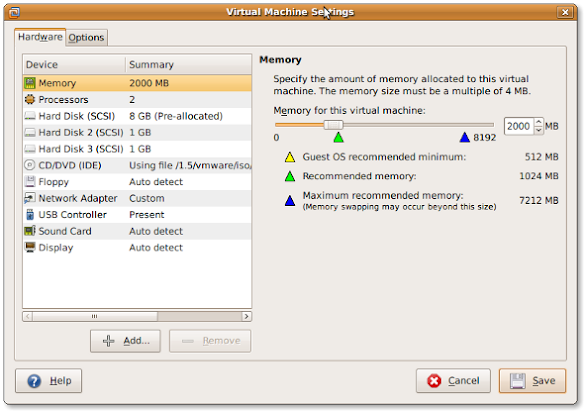
If you install a virtual machine, ensure the disk controller and disks are SCSI based.
This has many advantages, including:
- speed (usually the SCSI drivers can be paravirtualised)
- hot addition of new disks
It holds for virtually any virtualization platform including all non-ancient (less than ~10 year old) versions of:
- VMware (Workstation, Viewer, but I expect this also to work on vSphere, ESXI, Fusion)
- Hyper-V
- KVM (and therefore Proxmox)
- VirtualBox
Based on my notes in the above link and the links below:
Note this isn’t just for Linux guests/hosts: Most guests (including Windows) can do a SCSI bus re-scan and detect new SCSI devices.
The trick here is that the guest must already have a virtual SCSI controller (adding that will require a reboot of the guest).
Then adding a new SCSI disk on that controller from any host (Windows, Mac, ESXi, vSphere) should work fine.
–jeroen
Posted in ESXi4, ESXi5, ESXi5.1, ESXi5.5, ESXi6, ESXi6.5, Fusion, Hyper-V, KVM Kernel-based Virtual Machine, Power User, Proxmox, View, VirtualBox, Virtualization, VMware, VMware ESXi, VMware Workstation | Leave a Comment »
Posted by jpluimers on 2019/05/24
Some wizardry: [WayBack] vmkfstools | virtualhobbit.
This includes:
- finding which VMFS partitions are there the hard way
- initialising partitions from known good data
vmkfstools -V (yes, capital V is for VMFS rescan, as lowercase v is for verbose)
Found after reading [WayBack] Datastore not mounted after reboot of ESXi5.5 |VMware Communities
Then found this: [Wayback] VMware Knowledge Base: Performing a rescan of the storage on an ESXi host (1003988); Using the ESXi Command Line Interface
…
- To search for new VMFS datastores, run this command:
vmkfstools -V
Note: This command does not generate any output.
That solved my problem!
# vmkfstools -V
# esxcfg-volume --list
Scanning for VMFS-3/VMFS-5 host activity (512 bytes/HB, 2048 HBs).
VMFS UUID/label: 532cd010-6e8c01d1-45be-001f29022aed/Raid6SSD
Can mount: Yes
Can resignature: Yes
Extent name: naa.600605b00aa054a0ff000021022683ae:1 range: 0 - 1830143 (MB)
# esxcfg-volume --mount 532cd010-6e8c01d1-45be-001f29022aed
Mounting volume volume 532cd010-6e8c01d1-45be-001f29022aed
And there it was:
# df -h
Filesystem   Size   Used Available Use% Mounted on
...
VMFS-5       1.7T   1.6T    169.6G  91% /vmfs/volumes/Raid6SSD
...
Note you can mount non-persistent (--mount) or persistent (--persistent-mount) by both UUID and label, so there are four choices for mounting:
esxcfg-volume --mount UUID
esxcfg-volume --mount label
esxcfg-volume --persistent-mount UUID
esxcfg-volume --persistent-mount label
–jeroen
Posted in ESXi5, ESXi5.1, ESXi5.5, ESXi6, ESXi6.5, Power User, Virtualization, VMware, VMware ESXi | Leave a Comment »
Posted by jpluimers on 2019/05/09
For my own ference:
disk space under VMFS-3 is organized according to four resource types. They are : blocks, sub-blocks, pointer blocks, and file descriptors. Resources are grouped into clusters, which form cluster groups. Every resource type is administered by one or a number of system files. Lets have a look at what those abbreviated file names stand for:
- fbb.sf = file block bitmap.sf
- fdc.sf = file descriptor cluster.sf
- pbc.sf = pointer block cluster.sf
- sbc.sf = sub-block cluster.sf
- vh.sf = volume header.sfs
- dd.sf = scsi device description.sf
The VMFS-5 uses one more system file:
- pb2.sf = pointer block 2.sf
Source: [Archive.is] VMFS metadata files
Posted in ESXi4, ESXi5, ESXi5.1, ESXi5.5, ESXi6, ESXi6.5, Power User, Virtualization, VMware, VMware ESXi | Leave a Comment »
Posted by jpluimers on 2019/05/07
Two posts with interesting commands to help digging through your hba/disk/datastore configurations from the console:
One day I will write a script that – per datastore – lists all the devices related to it including their HBA and LUN.
For that, I will likely need these references:
For now this works:
- Get the list of data stores (note the
Device Name column has the NAA_ID you need below):
esxcli storage vmfs extent list
- Get the path information to find
HBA, Channel, Target and LUN:
esxcli storage core path list --device NAA_ID
- Get the list of HBAs:
esxcli storage core adapter list
- Get device details (including
Model and Revision):
esxcli storage core device list --device NAA_ID
The example below (with most important output bolded) shows a drive connected to a SAS3008 based controller which storcli cannot access (nor MegaCli), but MegaRAID Storage Manager (MSM) can.
MSM allowed me to find the serial number of the drive by the Target Transport Details value 4433221106000000 as being on Slot number 6 (which seems to indicate Target numbers are 1-based whereas LUN is 0-based).
# esxcli storage vmfs extent list
Volume Name                     VMFS UUID                            Extent Number  Device Name                                                                 Partition
------------------------------  -----------------------------------  -------------  --------------------------------------------------------------------------  ---------
...
ST6000VX0001-1SH                59a33f7b-66df7c00-11b0-0cc47aaa9742              0  naa.5000c50087762d1b                                                                1
# esxcli storage core path list -d naa.5000c50087762d1b
sas.500304801ce1d700-sas.4433221106000000-naa.5000c50087762d1b
   UID: sas.500304801ce1d700-sas.4433221106000000-naa.5000c50087762d1b
   Runtime Name: vmhba0:C0:T7:L0
   Device: naa.5000c50087762d1b
   Device Display Name: Local ATA Disk (naa.5000c50087762d1b)
   Adapter: vmhba0
   Channel: 0
   Target: 7
   LUN: 0
   Plugin: NMP
   State: active
   Transport: sas
   Adapter Identifier: sas.500304801ce1d700
   Target Identifier: sas.4433221106000000
   Adapter Transport Details: 500304801ce1d700
   Target Transport Details: 4433221106000000
   Maximum IO Size: 4194304
# esxcli storage core adapter list
HBA Name  Driver        Link State  UID                   Capabilities  Description
--------  ------------  ----------  --------------------  ------------  ----------------------------------------------------------------------
vmhba0    lsi_msgpt3    link-n/a    sas.500304801ce1d700                (0000:01:00.0) Avago (LSI Logic) Fusion-MPT 12GSAS SAS3008 PCI-Express
...
vmhba32   vmkusb        link-n/a    usb.vmhba32                         () USB
# esxcli storage core device list --device naa.5000c50087762d1b
naa.5000c50087762d1b
   Display Name: Local ATA Disk (naa.5000c50087762d1b)
   Has Settable Display Name: true
   Size: 5723166
   Device Type: Direct-Access
   Multipath Plugin: NMP
   Devfs Path: /vmfs/devices/disks/naa.5000c50087762d1b
   Vendor: ATA
   Model: ST6000VX0001-1SH
   Revision: VN02
   SCSI Level: 6
   Is Pseudo: false
   Status: on
   Is RDM Capable: true
   Is Local: true
   Is Removable: false
   Is SSD: false
   Is VVOL PE: false
   Is Offline: false
   Is Perennially Reserved: false
   Queue Full Sample Size: 0
   Queue Full Threshold: 0
   Thin Provisioning Status: unknown
   Attached Filters:
   VAAI Status: unsupported
   Other UIDs: vml.02000000005000c50087762d1b535436303030
   Is Shared Clusterwide: false
   Is Local SAS Device: true
   Is SAS: true
   Is USB: false
   Is Boot USB Device: false
   Is Boot Device: false
   Device Max Queue Depth: 32
   No of outstanding IOs with competing worlds: 32
   Drive Type: physical
   RAID Level: NA
   Number of Physical Drives: 1
   Protection Enabled: false
   PI Activated: false
   PI Type: 0
   PI Protection Mask: NO PROTECTION
   Supported Guard Types: NO GUARD SUPPORT
   DIX Enabled: false
   DIX Guard Type: NO GUARD SUPPORT
   Emulated DIX/DIF Enabled: false
–jeroen
Posted in ESXi5, ESXi5.1, ESXi5.5, ESXi6, ESXi6.5, Power User, Virtualization, VMware, VMware ESXi | Leave a Comment »
Posted by jpluimers on 2019/04/30
On my research list: [WayBack] bash – aliasing cd to pushd – is it a good idea? – Unix & Linux Stack Exchange
It has a nice discussion on complements to pushd/popd/cd/dirs including a very nice set of navd scripts that eases the navigation of the directory stack.
I found it because the ESXi busybox does not have pushd and popd and a cd won’t work from inside a shell script: [WayBack] linux – Why doesn’t “cd” work in a bash shell script? – Stack Overflow
It also made me find out that the ESXi busybox does support cd - to go to the previous directory. More info on that cd syntax is at [WayBack] bash – Difference between “cd -” and “cd ~-” – Unix & Linux Stack Exchange
–jeroen
Posted in *nix, bash, Development, ESXi5, ESXi5.1, ESXi5.5, ESXi6, ESXi6.5, Power User, Scripting, Software Development, Virtualization, VMware, VMware ESXi | Leave a Comment »
Posted by jpluimers on 2019/04/29
I found out that I had some very old draft notes below, but since then the source has moved to github: lamw/ghettoVCB: ghettoVCB.
Since I find VIB easier to use than the Offline Bundle (for differences see [WayBack] VIB vs. Offline Bundle and [WayBack] VMware Front Experience: ESXi Community Packaging Tools) these are the VIB steps to get it installed:
- Download https://github.com/lamw/ghettoVCB/raw/master/vghetto-ghettoVCB.vib
- Put it in the
/tmp directory on your ESXi box (using for instance FileZilla, WinSCP, SCP or other tools)
- Install it using
esxcli software vib install -v /tmp/vghetto-ghettoVCB.vib -f
Then use it to make backups or restores as described at:
Note that contrary to the documentation, the config file has moved to /etc/ghettovcb/ghettoVCB.conf.
Because of Keeping your root visorfs clean: point the path to your own binaries stored on a vmfs volume I’m using a copy of that stored in my local-bin directory (which is backed-up by rsync to another disk) and a small ghettoVcb.sh bootstrap script referencing that config-file, so the backup command for one command now is this:
ghettoVcb.sh -m diaspore.opensuse-Tumbleweed-x64
or this for all VMs (about 2 hours from NVME SSD to HDD; will probably make this a 2 stage thing):
ghettoVcb.sh -a
VMs are backed-up under the directory specified in VM_BACKUP_VOLUME(below that’s ./) in a schema like this:
./diaspore.opensuse-Tumbleweed-x64

./diaspore.opensuse-Tumbleweed-x64/diaspore.opensuse-Tumbleweed-x64-2017-09-24_16-07-08

./diaspore.opensuse-Tumbleweed-x64/diaspore.opensuse-Tumbleweed-x64-2017-09-24_16-07-08/diaspore.opensuse-Tumbleweed-x64.vmx

./diaspore.opensuse-Tumbleweed-x64/diaspore.opensuse-Tumbleweed-x64-2017-09-24_16-07-08/diaspore.opensuse-Tumbleweed-x64-flat.vmdk

./diaspore.opensuse-Tumbleweed-x64/diaspore.opensuse-Tumbleweed-x64-2017-09-24_16-07-08/diaspore.opensuse-Tumbleweed-x64.vmdk

./diaspore.opensuse-Tumbleweed-x64/diaspore.opensuse-Tumbleweed-x64-2017-09-24_16-07-08/STATUS.ok
In the future, I might move to an NFS based back-up based on these links:
–jeroen
Very old notes:
–jeroen
Posted in ESXi4, ESXi5, ESXi5.1, ESXi5.5, ESXi6, ESXi6.5, Power User, Virtualization, VMware, VMware ESXi | Leave a Comment »
Posted by jpluimers on 2019/04/26
Some interesting commands derived from [WayBack] ESXi/ESX error: No free space left on device (1007638) | VMware KB:
- finding large files:
find / -path "/vmfs" -prune -o -type f -size +50000k -exec ls -lh '{}' \;
- finding space on the root file system (which is not listed in
df -h):
stat -f /
This was in the process of trying to keep my local binaries out of [WayBack] VisorFS: A Special-purpose File System for Efficient Handling of System Images – VMware Labs as it is inherently small in size (both total size and number of inodes) as it is a RAM disk based file system.
Based on that, at [WayBack] Trouble shooting – esx.problem.visorfs.ramdisk.full – DefinIT I found this even more useful statement vdf -h | grep "%\|Ramdisk" which shows the exact usage of what’s in this filesystem. Example output on one of my systems:
# vdf -h | grep "%\|Ramdisk"
Ramdisk                   Size      Used Available Use% Mounted on
root                       32M        1M       30M   6% --
etc                        28M      184K       27M   0% --
opt                        32M        0B       32M   0% --
var                        48M      352K       47M   0% --
tmp                       256M        4K      255M   0% --
iofilters                  32M        0B       32M   0% --
hostdstats                678M        4M      673M   0% --
The easiest is not to store them in the root file system at all, but then you need to alter the default path:
# echo $PATH
/bin:/sbin
Since my local binaries are at /vmfs/volumes/Samsung512NVME/local-bin/, I wanted to persist this path change:
export PATH=$PATH:/vmfs/volumes/Samsung512NVME/local-bin/
Basically you can do this with any current directory on your system: export PATH=$PATH:`pwd`
The easiest way to persist that path is to ensure you can shoehorn the effect in a file that gets started during bootup.
The standard – but unsupported – way to do that is shown for instance by:
Final solution
So, edit vi /etc/rc.local.d/local.sh, then shutdown all your VMs and reboot the system to verify the effects. However inserting that export isn’t enough. This is the line you need to add before the exit 0:
sed -i -e 's!PATH=/bin:/sbin!PATH=/bin:/sbin:/vmfs/volumes/Samsung512NVME/local-bin/!' /etc/profile
Related
- [WayBack] ESXi: Aliases definieren › /dev/blog/ID10T
- [Archive.is] Solved: How to keep a .profile in / of ESXi? |VMware Communities
ESXi does not remove that file on boot-up, it simply does not save it. ESXi runs from memory. So if you created some file (i.e. /.profile) it is only in “memory-disk”, not in disk-image which is loaded again at the next boot-up.
Either create custom vib and install it as every other, or use rc.local which is persistent (any changes you make to this file survive boot-up). You can create & save that file somewhere else and use rc.local to copy it to /, or use rc.local with shell commands to create .profile at every boot-up.
Wait a minute, you are using ESXi 6.0, right? I’m not sure if there is /etc/rc.local, but it used to be in 5.0/5.5…
…
I edited /etc/rc.local.d/local.sh to copy the file that I keep on one of my datastores. After reboot, it worked fine. (So, yes, this does work in 6.0.) Thanks!
…
I’m glad it worked for you. BTW you are right: instead of single file /etc/rc.local (as in 5.0) there is now the whole sub-dir /etc/rc.local.d/ but functionality is the same…
–jeroen
Posted in ESXi5, ESXi5.1, ESXi5.5, ESXi6, ESXi6.5, Power User, Virtualization, VMware, VMware ESXi | Leave a Comment »
Posted by jpluimers on 2019/03/13
Reminder to self when checking “new” disks to see what partitions they contain before formatting them as VMFS.
There is a truckload information at [WayBack] Using the partedUtil command line utility on ESXi and ESX (1036609) | VMware KB.
A few tips; example output is further below:
- Disks are listed under
/vmfs/devices/disks/ where there are two entries per device: a path leading to the device, and a link to that path which starts with vml. which I filter out with grep.
- If a disk under under
/vmfs/devices/disks/ ends with :# where # is a number, then it is a partition
- Just skip
partedUtil get as partedUtil getptblwill give you exactly the same information,
- plus an extra initial line indicating what kind of partition table it is. KB 1036609 has a longer list, but these are the ones you usually see:
unknown: the disk has no partition table yet (usually), or the type of partition table cannot be determined (hardly)gpt: there is a GUID Partition Tablemsdos: there is a Master Boot Record partition table
- on ESXi 6.x two extra columns listing the partition GUID and partition type description
- The output of
partedUtil is unformatted, which means it is easy to parse, but hard to read for humans. You can pipe through sed 's/ /\t/g' (as there is no tr on the ESXi busybox)
Some more background reading
On scripting:
- The shell is
sh (always been there)
- There is
Python (ESXi 5.1 has Python 2.7.8; ESXi 6.5 has Python 3.5.3; it has likely been available in earlier versions too).
On device names:
On errors:
-
~ # find /vmfs/devices/disks/ | grep T1500LM0032D9YH148

/vmfs/devices/disks/t10.ATA_____ST1500LM0032D9YH148__________________________________Z110C4Q0a

~ # partedUtil getptbl /vmfs/devices/disks/t10.ATA_____ST1500LM0032D9YH148__________________________________Z110C4Q0

unknown

182401 255 63 2930277168

~ #
I know of three VMFS types:
- VMFS-3: Supported in ESXi 3.X, 4.X, 5.x & 6.x; deprecated as of 6.0 (cannot be created as of 6.0), has quite some limitations.
- VMFS-4: got never released.
- VMFS-5: Can be converted from VMFS-3
- VMFS-6: Cannot be converted from other VMFS types
Some interesting links about the various VMFS types:
Busybox has been updated over time:
Examples and output
Example outputs on one of my systems, of which I stripped most of the disks as they’re not really relevant here.
[root@ESXi-X10SRH-CF:~] ls -1 /vmfs/devices/disks/ | grep -v '^vml\.'
naa.5000c50087762d1b
...
naa.600605b00aa054a0ff000021022683ae
naa.600605b00aa054a0ff000021022683ae:1
...
t10.ATA_____ST1500LM0032D9YH148__________________________________Z110C4Q0
t10.ATA_____Samsung_SSD_850_PRO_2TB_________________S2KMNCAGB04321L_____
t10.ATA_____Samsung_SSD_850_PRO_2TB_________________S2KMNCAGB04321L_____:1
...
t10.SanDisk00Ultra_Fit000000000000004C530001240406103372
t10.SanDisk00Ultra_Fit000000000000004C530001240406103372:1
t10.SanDisk00Ultra_Fit000000000000004C530001240406103372:5
t10.SanDisk00Ultra_Fit000000000000004C530001240406103372:6
t10.SanDisk00Ultra_Fit000000000000004C530001240406103372:7
t10.SanDisk00Ultra_Fit000000000000004C530001240406103372:8
t10.SanDisk00Ultra_Fit000000000000004C530001240406103372:9
[root@ESXi-X10SRH-CF:~] partedUtil getptbl /vmfs/devices/disks/t10.ATA_____ST1500LM0032D9YH148__________________________________Z110C4Q0
unknown
182401 255 63 2930277168
[root@ESXi-X10SRH-CF:~] partedUtil get /vmfs/devices/disks/t10.ATA_____ST1500LM0032D9YH148__________________________________Z110C4Q0
182401 255 63 2930277168
[root@ESXi-X10SRH-CF:~] partedUtil get /vmfs/devices/disks/t10.ATA_____SAMSUNG_MZHPV512HDGL2D00000______________S1X1NYAGB09589______
62260 255 63 1000215216
1 2048 1000214527 0 0
[root@ESXi-X10SRH-CF:~] partedUtil getptbl /vmfs/devices/disks/t10.ATA_____SAMSUNG_MZHPV512HDGL2D00000______________S1X1NYAGB09589______
gpt
62260 255 63 1000215216
1 2048 1000214527 AA31E02A400F11DB9590000C2911D1B8 vmfs 0
[root@ESXi-X10SRH-CF:~] partedUtil getptbl /vmfs/devices/disks/t10.SanDisk00Ultra_Fit000000000000004C530001240406103372
gpt
3738 255 63 60062500
1 64 8191 C12A7328F81F11D2BA4B00A0C93EC93B systemPartition 128
5 8224 520191 EBD0A0A2B9E5443387C068B6B72699C7 linuxNative 0
6 520224 1032191 EBD0A0A2B9E5443387C068B6B72699C7 linuxNative 0
7 1032224 1257471 9D27538040AD11DBBF97000C2911D1B8 vmkDiagnostic 0
8 1257504 1843199 EBD0A0A2B9E5443387C068B6B72699C7 linuxNative 0
9 1843200 7086079 9D27538040AD11DBBF97000C2911D1B8 vmkDiagnostic 0
[root@ESXi-X10SRH-CF:~] partedUtil get /vmfs/devices/disks/t10.SanDisk00Ultra_Fit000000000000004C530001240406103372
3738 255 63 60062500
1 64 8191 0 128
5 8224 520191 0 0
6 520224 1032191 0 0
7 1032224 1257471 0 0
8 1257504 1843199 0 0
9 1843200 7086079 0 0
[root@ESXi-X10SRH-CF:~] partedUtil getptbl /vmfs/devices/disks/t10.SanDisk00Ultra_Fit000000000000004C530001240406103372 | sed 's/ /\t/g'
gpt
3738    255 63  60062500
1   64  8191    C12A7328F81F11D2BA4B00A0C93EC93B    systemPartition 128
5   8224    520191  EBD0A0A2B9E5443387C068B6B72699C7    linuxNative 0
6   520224  1032191 EBD0A0A2B9E5443387C068B6B72699C7    linuxNative 0
7   1032224 1257471 9D27538040AD11DBBF97000C2911D1B8    vmkDiagnostic   0
8   1257504 1843199 EBD0A0A2B9E5443387C068B6B72699C7    linuxNative 0
9   1843200 7086079 9D27538040AD11DBBF97000C2911D1B8    vmkDiagnostic   0
[root@ESXi-X10SRH-CF:~] partedUtil get /vmfs/devices/disks/t10.SanDisk00Ultra_Fit000000000000004C530001240406103372 | sed 's/ /\t/g'
3738    255 63  60062500
1   64  8191    0   128
5   8224    520191  0   0
6   520224  1032191 0   0
7   1032224 1257471 0   0
8   1257504 1843199 0   0
9   1843200 7086079 0   0
[root@ESXi-X10SRH-CF:~] partedUtil --help
Usage:
 Get Partitions : get
 Set Partitions : set  ["partNum startSector endSector type attr"]*
 Delete Partition : delete
 Resize Partition : resize
 Get Partitions : getptbl
 Set Partitions : setptbl   ["partNum startSector endSector type/guid attr"]*
 Fix Partition Table : fix
 Create New Label (all existing data will be lost): mklabel
 Show commonly used partition type guids : showGuids
 Get usable first and last sectors : getUsableSectors
 Fix GPT Table interactively : fixGpt

[root@ESXi-X10SRH-CF:~] partedUtil showGuids
 Partition Type       GUID
 vmfs                 AA31E02A400F11DB9590000C2911D1B8
 vmkDiagnostic        9D27538040AD11DBBF97000C2911D1B8
 vsan                 381CFCCC728811E092EE000C2911D0B2
 virsto               77719A0CA4A011E3A47E000C29745A24
 VMware Reserved      9198EFFC31C011DB8F78000C2911D1B8
 Basic Data           EBD0A0A2B9E5443387C068B6B72699C7
 Linux Swap           0657FD6DA4AB43C484E50933C84B4F4F
 Linux Lvm            E6D6D379F50744C2A23C238F2A3DF928
 Linux Raid           A19D880F05FC4D3BA006743F0F84911E
 Efi System           C12A7328F81F11D2BA4B00A0C93EC93B
 Microsoft Reserved   E3C9E3160B5C4DB8817DF92DF00215AE
 Unused Entry         00000000000000000000000000000000
[root@ESXi-X10SRH-CF:~] cat /local/bin/what-is-my-shell.sh
if test -n "$ZSH_VERSION"; then
  PROFILE_SHELL=zsh
elif test -n "$BASH_VERSION"; then
  PROFILE_SHELL=bash
elif test -n "$KSH_VERSION"; then
  PROFILE_SHELL=ksh
elif test -n "$FCEDIT"; then
  PROFILE_SHELL=ksh
elif test -n "$PS3"; then
  PROFILE_SHELL=unknown
else
  PROFILE_SHELL=sh
fi
echo $PROFILE_SHELL
echo $SHELL
[root@ESXi-X10SRH-CF:~] /local/bin/what-is-my-shell.sh
sh
/bin/sh
[root@ESXi-X10SRH-CF:~] python --version
Python 3.5.3
[root@ESXi-X10SRH-CF:~]
–jeroen
Posted in Development, ESXi4, ESXi5, ESXi5.1, ESXi5.5, ESXi6, ESXi6.5, Power User, Software Development, Virtualization, VMware, VMware ESXi | Leave a Comment »


 The Wiert Corner - irregular stream of stuff