Archive for the ‘Windows’ Category
Posted by jpluimers on 2021/05/06
A while ago I found out that choco upgrade will install a package when it is not installed, and that choco upgrade all will upgrade all installed packages.
So I looked up the documentation of both choco install and choco upgrade (and choco update which will be deprecated) where I bolded parts of the upgrade command:
Given that upgrade can do both an upgrade and an install, I have switched all my install scripts to use upgrade in steaf of install.
Not all of the above commands accept the same set of [Wayback] Chocolatey Software Docs | Commands: Default Options and Switches
-?, --help, -h
     Prints out the help menu.

 -d, --debug
     Debug - Show debug messaging.

 -v, --verbose
     Verbose - Show verbose messaging. Very verbose messaging, avoid using
       under normal circumstances.

     --trace
     Trace - Show trace messaging. Very, very verbose trace messaging. Avoid
       except when needing super low-level .NET Framework debugging. Available
       in 0.10.4+.

     --nocolor, --no-color
     No Color - Do not show colorization in logging output. This overrides
       the feature 'logWithoutColor', set to 'False'. Available in 0.10.9+.

     --acceptlicense, --accept-license
     AcceptLicense - Accept license dialogs automatically. Reserved for
       future use.

 -y, --yes, --confirm
     Confirm all prompts - Chooses affirmative answer instead of prompting.
       Implies --accept-license

 -f, --force
     Force - force the behavior. Do not use force during normal operation -
       it subverts some of the smart behavior for commands.

     --noop, --whatif, --what-if
     NoOp / WhatIf - Don't actually do anything.

 -r, --limitoutput, --limit-output
     LimitOutput - Limit the output to essential information

     --timeout, --execution-timeout=VALUE
     CommandExecutionTimeout (in seconds) - The time to allow a command to
       finish before timing out. Overrides the default execution timeout in the
       configuration of 2700 seconds. '0' for infinite starting in 0.10.4.

 -c, --cache, --cachelocation, --cache-location=VALUE
     CacheLocation - Location for download cache, defaults to %TEMP% or value
       in chocolatey.config file.

     --allowunofficial, --allow-unofficial, --allowunofficialbuild, --allow-unofficial-build
     AllowUnofficialBuild - When not using the official build you must set
       this flag for choco to continue.

     --failstderr, --failonstderr, --fail-on-stderr, --fail-on-standard-error, --fail-on-error-output
     FailOnStandardError - Fail on standard error output (stderr), typically
       received when running external commands during install providers. This
       overrides the feature failOnStandardError.

     --use-system-powershell
     UseSystemPowerShell - Execute PowerShell using an external process
       instead of the built-in PowerShell host. Should only be used when
       internal host is failing. Available in 0.9.10+.

     --no-progress
     Do Not Show Progress - Do not show download progress percentages.
       Available in 0.10.4+.

     --proxy=VALUE
     Proxy Location - Explicit proxy location. Overrides the default proxy
       location of ''. Available for config settings in 0.9.9.9+, this CLI
       option available in 0.10.4+.

     --proxy-user=VALUE
     Proxy User Name - Explicit proxy user (optional). Requires explicit
       proxy (`--proxy` or config setting). Overrides the default proxy user of
       ''. Available for config settings in 0.9.9.9+, this CLI option available
       in 0.10.4+.

     --proxy-password=VALUE
     Proxy Password - Explicit proxy password (optional) to be used with
       username. Requires explicit proxy (`--proxy` or config setting) and
       user name.  Overrides the default proxy password (encrypted in settings
       if set). Available for config settings in 0.9.9.9+, this CLI option
       available in 0.10.4+.

     --proxy-bypass-list=VALUE
     ProxyBypassList - Comma separated list of regex locations to bypass on
       proxy. Requires explicit proxy (`--proxy` or config setting). Overrides
       the default proxy bypass list of ''. Available in 0.10.4+.

     --proxy-bypass-on-local
     Proxy Bypass On Local - Bypass proxy for local connections. Requires
       explicit proxy (`--proxy` or config setting). Overrides the default
       proxy bypass on local setting of 'True'. Available in 0.10.4+.

     --log-file=VALUE
     Log File to output to in addition to regular loggers. Available in 0.1-
       0.8+.
–jeroen
Posted in Batch-Files, Chocolatey, Development, Power User, Scripting, Software Development, Windows | Leave a Comment »
Posted by jpluimers on 2021/05/03
It is debatable if these tricks are vulnerabilities or not: [WayBack] authentication – Bypassing Windows 10 password with Utilman.exe trick – fixed? – Information Security Stack Exchange.
There are arguments that leaving a system open to physical access or allow operating system manipulation, it means it is busted.
On the other hand, making systems more resilient to modification, helps alleviate these problems.
So it pays for developers to harden operating systems against modification.
From the question:
Of the sethc.exe, Utilman.exe, and osk.exe ones in Windows, Utilman.exe seems to have been fixed.
Related:
–jeroen
Posted in Power User, Windows, Windows 10, Windows 7, Windows 8, Windows 8.1 | Leave a Comment »
Posted by jpluimers on 2021/05/03
Somehow, many Windows 10 systems, when I try on an Administrative command prompt wmic path SoftwareLicensingService get OA3xOriginalProductKey, the result is empty:
Microsoft Windows [Version 10.0.17763.475]
(c) 2018 Microsoft Corporation. All rights reserved.

C:\WINDOWS\system32>wmic path SoftwareLicensingService get OA3xOriginalProductKey
OA3xOriginalProductKey


C:\WINDOWS\system32>
On those systems, [Wayback] NirSoft ProduKey always works.
Having a product key at hand is a great help when re-installing Windows 10: often it does not automatically obtain a digital license on the same hardware.
Most of those systems have been upgrades from previous Windows versions, but not all of them: even some new systems have this behaviour.
Related:
–jeroen
Read the rest of this entry »
Posted in Power User, Windows, Windows 10 | Leave a Comment »
Posted by jpluimers on 2021/04/28
I wondered how to update (ore actually choco upgrade as choco update will command will eventually be deprecated) Chocolatey itself.
It appeared my stock upgrade batch file choco upgrade all --exit-when-reboot-detected --yes was already doing it as the magic all will upgrade all packages.
To upgrade just [Wayback] chocolatey itself, remember it is a package, so choco upgrade chocolatey --exit-when-reboot-detected --yes will work fine.
–jeroen
Posted in Chocolatey, Power User, Windows | Leave a Comment »
Posted by jpluimers on 2021/04/23
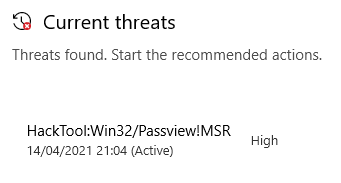
I had a curious error despite the build not having any failures on VirusTotal:
You have nirlauncher v1.23.42 installed. Version 1.23.43 is available based on your source(s).
nirlauncher not upgraded. An error occurred during installation:
 Operation did not complete successfully because the file contains a virus or potentially unwanted software.

nirlauncher package files upgrade completed. Performing other installation steps.
The upgrade of nirlauncher was NOT successful.
nirlauncher not upgraded. An error occurred during installation:
 Operation did not complete successfully because the file contains a virus or potentially unwanted software.

choco upgrade throwing virus error during nirsoft 1.23.43 update
When upgrading, this briefly is visible in the Windows Security view “Virus & thread protection”:
So I need to figure out a few things before I can upgrade Nirsoft:
- Where choco upgrade downloads temporary files
- Where these temporary files store their intermediate and final files during installation
- How to temporarily exclude the locations of 1. and 2 in Microsoft Defender.
–jeroen
Posted in Chocolatey, Power User, Windows, Windows 10 | Leave a Comment »
Posted by jpluimers on 2021/04/05
A while ago, I wrote about Installing Windows software with Chocolatey: a few notes and A choco install list, mentioned choco-cleaner in both (see first quote below) but forgot to show where this excels.
This is what I wrote:
since there is no choco cleanup yet [WayBack] you need to either:
…
If you want to clean cruft:
choco install --yes choco-cleaner
It helps a lot for situations where chocolatey updates a package, but you still have the old software running. In that case, the old version will be in %ProgramData%\chocolatey\lib-bkp, potentially taking up a lot of disk space.
This happed to me for instance when still having Process Explorer open while upgrading.
This is what happened:
 ShimGen has successfully created a shim for ZoomIt.exe
This is try 1/3. Retrying after 300 milliseconds.
 Error converted to warning:
 Toegang tot het pad procexp.exe is geweigerd.
This is try 2/3. Retrying after 400 milliseconds.
 Error converted to warning:
 Toegang tot het pad procexp.exe is geweigerd.
Maximum tries of 3 reached. Throwing error.
Attempted to remove 'C:\ProgramData\chocolatey\lib-bkp\sysinternals' but had an error::
 Toegang tot het pad procexp.exe is geweigerd.
 The upgrade of sysinternals was successful.
  Software installed to 'C:\ProgramData\chocolatey\lib\sysinternals\tools'

Chocolatey upgraded 1/21 packages.
 See the log for details (C:\ProgramData\chocolatey\logs\chocolatey.log).

Upgraded:
 - sysinternals v2019.3.18

C:\>C:\ProgramData\chocolatey\lib\choco-cleaner\tools\choco-cleaner-manual.bat
Choco-Cleaner.ps1 v0.0.5.2 (01/09/2019) - deletes unnecessary residual Chocolatey files to free up disk space
Copyleft 2017-2019 Bill Curran (bcurran3@yahoo.com) - free for personal and commercial use
Choco-Cleaner Summary:
  **  Deleting unnecessary Chocolatey _processed.txt (WTF?) file...
  **  Deleting unnecessary Chocolatey .ignore files...
  **  Deleting unnecessary Chocolatey .old files...
  **  Deleting unnecessary Chocolatey cache files...
  **  Deleting unnecessary Chocolatey config backup files...
  **  Deleting unnecessary Chocolatey lib-bad package files...
  **  Deleting unnecessary Chocolatey lib-bkp package files...
  **  Deleting unnecessary Chocolatey extracted file logs...
  **  Deleting unnecessary Chocolatey log files...
  **  Deleting unnecessary Chocolatey package embedded archive files in toolsDir...
  **  Deleting unnecessary Chocolatey package embedded archives and executables in .nupkg files...
  **  Deleting unnecessary Chocolatey package embedded license files...
  **  Deleting unnecessary Chocolatey package embedded Microsoft installers...
  **  Deleting unnecessary Chocolatey package embedded various read me files...
  **  Deleting unnecessary Nuget cache files...
Choco-Cleaner finished deleting unnecessary Chocolatey files and saved you 85.008 KB!
Found Choco-Cleaner.ps1 useful?
Buy me a beer at https://www.paypal.me/bcurran3donations
Become a patron at https://www.patreon.com/bcurran3
–jeroen
Posted in Chocolatey, Power User, Windows | Leave a Comment »
Posted by jpluimers on 2021/03/26
I needed Forticlient on a machine one day, so this is how to install the most recent Forticlient 6 using chocolatey:
choco install --yes forticlient --source https://www.myget.org/F/public-choco/api/v2
This ensures you can automatically update from Chocolatey instead of manually from the Forticlient GUI.
The update command is slightly different as a choco update will complain it cannot find the source for forticlient; you need this in stead:
choco update forticlient --source https://www.myget.org/F/public-choco/api/v2
Based on [WayBack] public-choco – forticlient 6.0.4.0182 | MyGet.
–jeroen
Posted in Chocolatey, Power User, Windows | Leave a Comment »
Posted by jpluimers on 2021/03/15
Sometimes it makes sense to have a user never expire the password.
On a non-home editions of Windows, this is easy: just run lusrmgr.msc, then in the UI change the property for the user.
On home editions of Windows, you cannot do this in a GUI: those bits are either disabled or completely unavailable.
I did this on a demo VM system on an elevated command-prompt:
C:\>wmic UserAccount where Name='developer' set PasswordExpires=False
Updating property(s) of '\\DEMO-VM\ROOT\CIMV2:Win32_UserAccount.Domain="DEMO-VM",Name="developer"'
Property(s) update successful.
To show the current state (before I changed it):
C:\>wmic UserAccount where Name='developer'
AccountType  Caption           Description  Disabled  Domain      FullName  InstallDate  LocalAccount  Lockout  Name       PasswordChangeable  PasswordExpires  PasswordRequired  SID                                            SIDType  Status
512          DEMO-VM\developer              FALSE     DEMO-VM                            TRUE          FALSE    developer  TRUE                TRUE             TRUE              S-1-5-21-2478057260-1439466941-978077079-1002  1        OK
Via: [WayBack] Cocosenor: 4 ways to disable or enable Windows 10 password expiration notification
–jeroen
Posted in Power User, Windows, Windows 10 | Leave a Comment »
Posted by jpluimers on 2021/03/15
Having seen logon failures from user Window Manager\DWM-3 while on a public WiFi network, I did a quick search on [WayBack] “Window Manager\DWM-3” – Google Search.
It appeared somebody trying a dictionary attack on the RDP port of my Windows VM which was on the host Bridged Network (see [Archive.is] Help – VMware Fusion 6 Documentation Center).
This is a virtual user that is part of a series of users that the Desktop Window Manager started using from Windows 8 and up.
The first user always exist, DWM-2 and up are created for new dwm.exe processes (by winlogon.exe) when users start logging on through RDP connections to a Windows machine:
Window Manager\DWM-1Window Manager\DWM-2Window Manager\DWM-3Window Manager\DWM-4
In addition to logging on as a new user, as of Windows 8, these also are created when shutting down and starting up (which Windows fools you by actually doing a kind of hibernate): [Wayback] windows 8 – What is winlogon.exe -SpecialSession? – Super User
Related:
–jeroen
Posted in Power User, Windows, Windows 10, Windows 8, Windows 8.1 | Leave a Comment »




 The Wiert Corner - irregular stream of stuff