The Wiert Corner – irregular stream of stuff

Jeroen W. Pluimers on .NET, C#, Delphi, databases, and personal interests

  • My badges

  • Twitter Updates

  • My Flickr Stream

  • Pages

  • All categories

  • Enter your email address to subscribe to this blog and receive notifications of new posts by email.

    Join 1,839 other subscribers

Archive for the ‘Windows’ Category

Authssh from Windows

Posted by jpluimers on 2020/05/22

Running autossh from Windows is still on my list, so here are a few links:

–jeroen

Posted in Communications Development, Development, Internet protocol suite, Power User, SSH, TCP, Windows | Leave a Comment »

“cushion treemap” delphi – Google Search

Posted by jpluimers on 2020/05/06

For my link archive below a few links from “cushion treemap” delphi – Google Search.

The reason: I like Sequoiaview a lot, but it has a few issues (of which I wrote in SequoiaView Homepage) and lacks a few things too.

WinDirStat is nice, but could be a lot cleaner. Both lack one feature I’d love to have: light-weight automatic updating on NTFS volumes.

Everything does the latter, but does not do graphical output as it is focused on being a blindingly fast indexing and searching tool (I like it a lot so there is even a category on my blog for it: Everything by VoidTools).

It would be cool if both could be hooked together, which would require a cushion treemap in Delphi and an API to access the Everything database.

So here are links that might help with the first:

–jeroen


Posted in Delphi, Development, Everything by VoidTools, Power User, Software Development, Windows | Leave a Comment »

Cool hacking stuff…

Posted by jpluimers on 2020/05/06

Boy, it is indeed a game of walls and ladders:

–jeroen

Posted in CommandLine, Development, Power User, PowerShell, PowerShell, Scripting, Software Development, Windows | Leave a Comment »

Finding back license keys on Windows

Posted by jpluimers on 2020/05/01

Every now and then, I tend to misplace software license keys so they are only on the system I’ve installed it on.

Too bad, virus scanners (including the built in Windows one) tend to get more picky on which of the below tools get automatically deleted, so I’ve listed quite a few of them, including some posts with more links:

Note some of the PowerShell scripts fail on some of the installations I tried. Not sure why yet.

–jeroen

Posted in Power User, Windows | Leave a Comment »

How to pin either a Shortcut or a Batch file to the new Windows 7, 8 and 10 Taskbar and start menu? – Super User

Posted by jpluimers on 2020/04/29

This nailed it: way easier than all the alternatives involving VB scripts, registry keys and Group Policy Editors.

  1. Create a shortcut to your batch file.
  2. Get into shortcut property and change target to something like: cmd.exe /C "path-to-your-batch".
  3. Simply drag your new shortcut to the taskbar

Source: [WayBackHow to pin either a Shortcut or a Batch file to the new Windows 7, 8 and 10 Taskbar and start menu? – Super User

The trick is step 2. After that you can modify back your shortcut to just the batch file.

–jeroen

Posted in Batch-Files, Development, Power User, Scripting, Software Development, Windows, Windows 7 | Leave a Comment »

KiTTY auto-reconnect ssh tunnel so you can RDP from remote machine into local one

Posted by jpluimers on 2020/04/27

I needed this equivalent in KiTTY while also keeping the connection alive:

ssh -o "ExitOnForwardFailure yes" -R :3389:127.0.0.1:3389 

Here, (via [WayBack] SSH options, Port Forwarding over SSH, Keepalives – zwilnik), -R Specifies that the given port on the remote (server) host is to be forwarded to the given host and port on the local side. This works by allocating a socket to listen to port on the remote side, and whenever a connection is made to this port, the connection is forwarded over the secure channel, and a connection is made to host port hostport from the local machine.

This is unlike most port forwarding examples which shows you how to forward a local port to a remote one (for instance [WayBack] Portforwarding with SSH (Putty)).


I wanted this on Windows, but auto connect, and not depend on OpenSSH. So I used the portable edition of [WayBack] Download KiTTY., which is a PuTTY derivative with more features.

With OpenSSH it is easier, but requires either Windows 10 (having it pre-installed) or an OpenSSH installation. How simple? This simple: [WayBack] openssh – How do I keep SSH connection alive on Windows 10? – Stack Overflow

The portable version of KiTTYensures all configuration is in configuration files (not the registry like the regular edition: [WayBack] KiTTY Session Configuration Location – Chase’s Notes)

I bumped into KiTTY because in another situation, I needed to execute a remote command and found [WayBack] ssh – How to run a remote command in PuTTY after login & keep the shell running? – Super User

Later I found other references as it can also auto-logon:

Kitty has a URL based update checker; for instance [WayBackwww.9bis.net/kitty/check_update.php?version=0.70.0.6 checks if a newer version than 0.70.0.6 is available. If you do not trust it, you can run that URL over TLS as well.

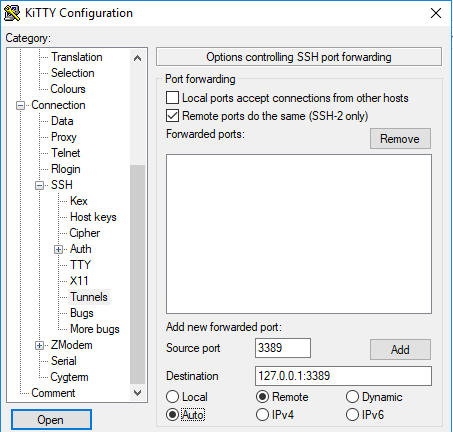
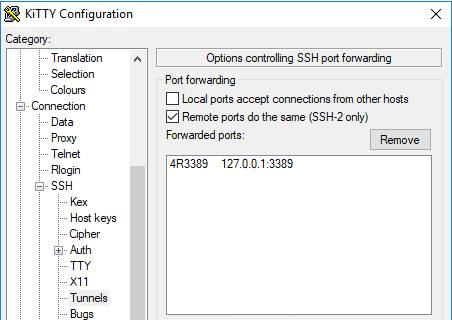
These screenshots seem to do just get the above configuration:

  1. Under “SSH”, in “Tunnels”
    • tick “Remote ports do the same (SSH-2 only)”
    • fill in a source port (that’s the remote port and will become the :3389: bit above)
    • fill in destination 127.0.0.1:3389 (that’s the local RDP port on your Windows machine)
    • tick “Remote”
    • tick “Auto”
    • click “Add” to get to the second screenshot

  2. Under connection:
    • Ensure “Seconds between keepalives” is larger than zero (I took 1)
    • Tick “Disable Nagle’s algorithm”
    • Tick “Enable TCP keepalives”
    • Tick “Attempt to reconnect on system wakup”
    • Tick “Attempt to reconnect on connection failure”
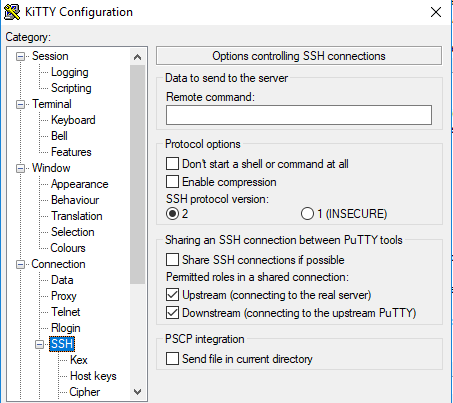
  3. On the “SSH” tab:
    • Do not enter a “Remote command” (seems unneeded on my system)

So for now, I can do without things like:

–jeroen

Posted in *nix, *nix-tools, Power User, ssh/sshd, Windows | Leave a Comment »

OSK: How to turn off auto start On-Screen Keyboard on Windows 7 64 bit? – Super User

Posted by jpluimers on 2020/04/27

Steps based on [WayBackHow to turn off auto start on-screen-keyboard on Windows 7 64 bit? – Super User.

  1. Turn down the volume of your PC
  2. Run “Control Panel”
  3. Choose “Ease of Access”, then “Ease of Access Center”
  4. Click “Use the computer without a mouse or keyboard”
    • If you forgot the sound settings, and they are at max: the narrative voice will probably deafen you
  5. Uncheck the “use on-screen keyboard” box
  6. Press “Apply” or “OK
  7. Close the “Control Panel”

I got in this situation when I selected the “On-Screen Keyboard” (often abbreviated to OSK; it is serviced by OSK.exe) on the logon screen in the “Ease of Access Center”. After that it would launch after each logon, even after I disabled it on the logon screen.

Back then I needed it because the VM ran on a Mac under Virtual Box which by default not only takes the left Command key, but also messes with some of the other left modifier keys.

The password for a new user I had to logon with needed the modifier keys, so it appears that the logon screen settings during the very first logon get copied to the user profile.

Turning them off on the logon screen does not copy them to the profile again:

Read the rest of this entry »

Posted in Power User, Windows, Windows 7 | Leave a Comment »

xrdp

Posted by jpluimers on 2020/04/06

I totally missed this the last 5 years. Where have I been (:

[WayBack] xrdp: An open source remote desktop protocol(rdp) server.

It runs on top of either Xvnc (which I have used) or X11rdp and should be usable with any RDP client (like the excellent Microsoft RDP for Mac OS X).

Related

Via:

–jeroen

Posted in *nix, *nix-tools, Power User, Remote Desktop Protocol/MSTSC/Terminal Services, VNC/Virtual_Network_Computing, Windows | Leave a Comment »

ODCB settings in the Windows registry on 32 and 64 bit windows

Posted by jpluimers on 2020/03/27

  • While 32-bit applications can run on 64-bit machines, they cannot use 64-bit ODBC drivers. A 64-bit application must use a 64-bit ODBC driver, and a 32-bit application must use a 32-bit ODBC driver.
  • ODBC.INI registry paths for the various permutations:
    • User DSNs for for 64-bit and 32-bit applications
      • HKEY_CURRENT_USER\Software\ODBC\ODBC.INI
    • System DSNs for 64-bit applications on 64-bit Windows and 32-bit applications on 32-bit Windows
      • HKEY_LOCAL_MACHINE\SOFTWARE\ODBC\ODBC.INI 
    • System DSNs for 32-bit applications on 64-bit Windows
      • HKEY_LOCAL_MACHINE\SOFTWARE\WOW6432Node\ODBC\ODBC.INI

Via: [WayBack] Windows registry on 32 and 64 bit windows, which also explains ODBCINST.INI to define drivers.

–jeroen

Posted in Database Development, Development, ODBC, Power User, Windows | Leave a Comment »

Chocolatey and TLS since early 2020

Posted by jpluimers on 2020/03/19

I was upgrading a few older systems that had been off-line for quite a while.

When installing Chocolatey, I bumped into this error:

C:\bin>"%SystemRoot%\System32\WindowsPowerShell\v1.0\powershell.exe" -NoProfile -InputFormat None -ExecutionPolicy Bypass -Command "iex ((New-Object System.Net.WebClient).DownloadString('https://chocolatey.org/install.ps1'))" && SET "PATH=%PATH%;%ALLUSERSPROFILE%\chocolatey\bin"
Exception calling "DownloadString" with "1" argument(s): "The request was aborted: Could not create SSL/TLS secure channel."
At line:1 char:1
+ iex ((New-Object System.Net.WebClient).DownloadString('https://chocol ...
+ ~~~~~~~~~~~~~~~~~~~~~~~~~~~~~~~~~~~~~~~~~~~~~~~~~~~~~~~~~~~~~~~~~~~~~
    + CategoryInfo          : NotSpecified: (:) [], MethodInvocationException
    + FullyQualifiedErrorId : WebException

So I tried [WayBack] chocolatey “The request was aborted: Could not create SSL/TLS secure channel.” – Google Search

Results indicated TLS 1.1 support was removed early February 2020 from Chocolatey because of security reasons, which impacts the installation on older systems:

Note [WayBack] Chocolatey install Error: The request was aborted: Could not create SSL/TLS secure channel – Stack Overflow with a temporary workaround for Microsoft Windows Server 2016:

Looks like the security protocol changed:

Set-ExecutionPolicy Bypass -Scope Process -Force; [System.Net.ServicePointManager]::SecurityProtocol = [System.Net.ServicePointManager]::SecurityProtocol -bor 3072; iex ((New-Object System.Net.WebClient).DownloadString('https://chocolatey.org/install.ps1'))

–jeroen

Posted in Chocolatey, Power User, Windows, Windows 10, Windows 7, Windows 8, Windows 8.1, Windows Server 2016 | Leave a Comment »