The Wiert Corner – irregular stream of stuff

Jeroen W. Pluimers on .NET, C#, Delphi, databases, and personal interests

  • My badges

  • Twitter Updates

  • My Flickr Stream

  • Pages

  • All categories

  • Enter your email address to subscribe to this blog and receive notifications of new posts by email.

    Join 1,862 other subscribers

Archive for the ‘Windows 7’ Category

On Windows 7, Visual Studio 2015 wanted Internet Explorer 10… here are the direct links to download it

Posted by jpluimers on 2016/06/20

Boy, don’t you dislike how hard it is to find direct download links

Well, thanks to kenorb and jjlin (slightly edited):

Check: IE6, IE7, IE8, IE9, IE10, IE11 Offline Installers Download Links – kenorb Mar 20 ’15 at 13:39 – http://www.itechtics.com/download-internet-explorer-all-versions/ – note this does not provide hashes.

jjlin:

Try these Microsoft offline installer links:

These may refuse to work if you already have IE 11 installed, though. If it is refused, try this: http://stackoverflow.com/questions/20043971/how-to-downgrade-from-internet-explorer-11-to-internet-explorer-10

And in case these links ever stop working and you must obtain a copy from a non-Microsoft source, here are the SHA-512 hashes for posterity:

  • 32-bit: d89ba3f9978be428ac05b182481198ab0f7b0c0651e4716e63cd0cf907d739cbc30f44ec9c444da683869473a548cd99e5c396467b2898f7c382b6345b3e70d2
  • 64-bit: f1752bb6517fe15071e5f7a4fee4b8680da1bdad1df7054ab22bab78fe0f46aee177787f60ea2cfc86a2db2b08429e2cba3cfdd20ba6a2ab69e091c7784dfdae

Source: internet explorer 10 – Does Microsoft still have a link to download IE10 for Windows 7? – Super User

–jeroen

Posted in .NET, Development, Internet Explorer, Power User, Software Development, Visual Studio 2015, Visual Studio and tools, Web Browsers, Windows, Windows 7 | Leave a Comment »

HP Color LaserJet 9500HDN and stock Windows 8.1 x64 drivers: PCL XL error Warning: IllegalMediaSource – via: Server Fault

Posted by jpluimers on 2016/06/20

HP Printers, PCL6 and drivers are always a fight to get right.

In this case the Microsoft stock Windows 8.1 x64 drivers always result in my HP LaserJet 9500 HDN printing a page like this from the same tray the last print job ran:

PCL XL error

        Warning: IllegalMediaSource

I’ve seen similar results with other Windows, printer and driver combinations (not limited to Microsoft drivers, but always PCL related), but never knew the solution.

Reading the answer, I totally recognise it: always some form of PCL6 driver was involved, and switching to PostScript solved it.

Note that there are three varieties of the HP Universal Print Driver for Windows:

  • PCL5
  • PCL6
  • PostScript

So now I know to always install the first and the last (:

–jeroen

via: windows xp – PCL XL error Warning: IllegalMediaSource – Server Fault.

Posted in HP Printer Drivers, Power User, Printer drivers, Windows, Windows 7, Windows 8, Windows 8.1, Windows Vista, Windows XP | Leave a Comment »

(Roaming) Profile and Folder Redirection

Posted by jpluimers on 2016/06/17

The article I quote from is about Windows Server 2003 and Windows XP, but still holds for modern Windows Server and Client versions:

After you enable roaming profiles for a couple of users, the first thing that you will probably notice is that logins and log offs become extremely slow for those users. […]

The solution to obscenely long logons and log offs is to use folder redirection. Folder redirection allows you to save portions of the user’s profile in a different location on the network. […]

You can’t redirect every folder in a user’s profile.[…] The folders that you can redirect are:

  • Application Data,
  • Desktop,
  • My Documents, and
  • Start Menu.

[…] I recommend creating a share point on the server to which you can redirect these folders.  […]

To redirect a folder, open the Group Policy Editor and navigate to User Settings | Windows Settings | Folder Redirection. The group policy requires you to redirect each of the four folders separately, but the procedure for doing so is the same for each folder:

  1. Set the folder’s Setting option to “Basic – Redirect Everyone’s Folder To The Same Location”.
  2. Next, select the Create A Folder For Each User Under The Root Path option from the Target Folder Location drop down list.
  3. Finally, enter your root path in the place provided.

–jeroen

via: Profile and Folder Redirection In Windows Server 2003 :: Windows 2003 :: Articles & Tutorials :: WindowsNetworking.com.

Posted in Power User, Windows, Windows 7, Windows 8, Windows 8.1, Windows 9, Windows Server 2003, Windows Server 2003 R2, Windows Server 2008, Windows Server 2008 R2, Windows Server 2012, Windows Server 2012 R2, Windows Vista, Windows XP | Leave a Comment »

Links for when I get `Not enough storage is available to process command` again

Posted by jpluimers on 2016/06/13

No, it’s not the Delphi Global Atom issue. I think it was having ran AQtime for too long.

–jeroen

Posted in Power User, Windows, Windows 7 | Leave a Comment »

ThinkPad X201: fixing the “black screen” (without mouse pointer) after upgrading to Windows 10

Posted by jpluimers on 2016/06/10

After this Windows 10 boot screen the display goes blank without a mouse cursor.

After this Windows 10 boot screen the display goes blank without a mouse cursor.

So you upgraded your X201 from Windows 7 to Windows 10 even though it’s not in the listed on the Lenovo supported models page.

Now it gets through the boot screen, flashes the CapsLock/NumLock LEDS, blanks the screen (no mouse cursor) and continues booting without any visual feedback apart from the HDD LED flashing until it is finished booting

Since Windows 10 by default does not enable the F8 option any more, you need some more severe measures.

BIOS update

The first was to get the BIOS up to date. At the time of writing that was 1.40-1.15 from BIOS Update Bootable CD for Windows 8 (32-bit, 64-bit), 7 (32-bit, 64-bit), Vista (32-bit, 64-bit), XP – ThinkPad – Lenovo Support (US):

Then I had to burn the ISO. Which was a bit picky because most of my infrastructure is VM based and none of the physical machines had a DVD or CD-drive any more. Luckily I found a LiteOn SLW 831SX which Windows detects as Slimtype DVDRW SLW-831S USB Device. ImgBurn worked with that (elevated to Administrative mode that is: it requires that both for burning and grabbing an ISO image).

Upgrading the BIOS went fine, but the symptoms stayed.

Removing/re-inserting battery

Removing the battery for a while, then reinserting was suggested at one of the sites.  It didn’t help.

Force into Repair Mode

Then I read this:

If the system can’t load the necessary configuration more than two times, the system will  direct the display to Windows RE(Recovery environment).

Source: Windows 10 – How to enter Safe Mode if I can’t boot the system successfully?

They also have: Windows 10 – If I can’t enter the system, how can I restore the Windows 10 laptop or PC to default settings?

This very easy to do:

Prepairing Automatic Repair

Prepairing Automatic Repair

  1. Keep the power button down to power off the machine
  2. Power up the machine
  3. Wait for the boot screen to appear, then
    1. Keep the power button down to power off the machine
  4. Power up the machine
  5. Wait for the boot screen to appear, then
    1. Keep the power button down to power off the machine
  6. Wait for the “Prepairing Automatic Repair” to finish
  7. Wait for the “Diagnosing your PC” to finish
  8. Wait for the “Automatic Repair” to appear, then
    1. Wiggle with the mouse to get a mouse cursor
  9. Press the “Advanced Options” button
  10. Choose “Troubleshoot”
  11. Choose “Advanced Options”
  12. Choose “Startup Settings”
  13. Choose “Restart”
  14. Wait for the reboot and “Startup Settings” to appear (note: no mouse cursor)
  15. Hit F5 for “Enable Safe Mode with Networking”
  16. Wait for it to reboot twice.

This didn’t work as well as I hoped as now I was at the failure point as well.

But now at least I had a starting point to trip Windows into booting any way I wanted. I now only had to find which function key would get me into a state where I could see what was going on.

And the good things: The “Diagnosing your PC” only required one ‘manual power down” to appear.

  • F9 – Disable automatic restart after failure
  • F8 – Disable early launch anti-malware protection
  • F7 – Disable driver signature enforcement
  • F6 – Enable Safe Mode with Command Prompt
  • F5 – Enable Safe Mode with Networking
  • F4 – Enable Safe Mode
  • F3 – Enable low-resolution video
  • F2 – Enable boot logging
  • F1 – Enable debugging

F3 finally got me to the VIDEO_DRIVER_INIT_FAILURE (BSOD STOP 0x000000B4) which indicated the machine was so hosed that I had to to a clean install.

–jeroen
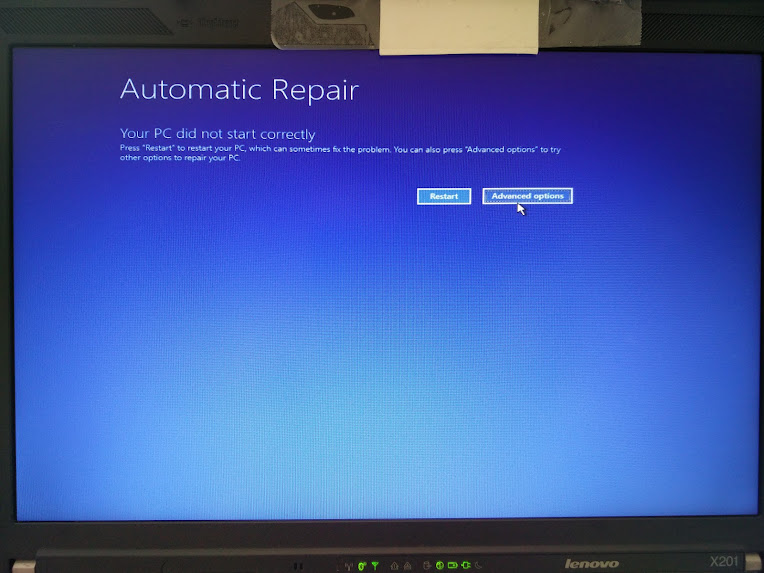
Automatic Repair - wiggle with the mouse and you have a cursor too!

Automatic Repair – wiggle with the mouse and you have a cursor too!

–jeroen

Images via:

Posted in BIOS, Boot, Power User, ThinkPad, UEFI, Windows, Windows 10, Windows 7, X201 | Leave a Comment »

GWX Control Panel – get rid of Windows 10 forced update – Ultimate Outsider – Software Downloads

Posted by jpluimers on 2016/06/06

GWX Control Panel
This is a free tool that can remove and disable the ‘Get Windows 10’ notification area icon on Windows 7 and Windows 8. Recent versions can also disable ‘Upgrade to Windows 10’ behavior in the Windows Update control panel and do much more. See the user guide at the Ultimate Outsider blog. You can still download GWX Control Panel as a standalone executable if you don’t like installers. Please see the “GWX Control Panel Release Notes and Version History” post at the blog for MD5 and SHA-1 checksums of all official releases.

Source: Ultimate Outsider – Software Downloads

Via: Now, that’s going to make them a lot of friends. Good thing I removed the bloody GWX program today from two more PCs. – Thomas Mueller (dummzeuch) – Google+

–jeroen

Posted in Power User, Windows, Windows 10, Windows 7, Windows 8.1 | Leave a Comment »

repair windows 7 recovery partition boot configuration – Google Search

Posted by jpluimers on 2016/06/06

If I ever need to repair windows 7 recovery partition boot configuration – Google Search:

Some commands:

bootrec /fixmbr

bootrec /fixboot


–jeroen

Posted in Power User, Windows, Windows 7, Windows 8, Windows 8.1, Windows 9 | Leave a Comment »

Burn Image context menu item missing in Windows 7 and up – via Super User

Posted by jpluimers on 2016/06/03

Windows 7 and up come with a built-in ISO file burner called Disc burner however, some times %windir%\System32\isoburn.exe is not associated with .iso files any more, so you have to re-associate it.

Source: Burn Image context menu item missing in Windows 7 – Super User

Still it doesn’t always recognise burn hardware so I usually revert to installing the latest ImgBurn (given my audio experience with it and that it is a nice tool to create ISO images from and burn them to DVD / CD media; just be sure to uncheck the “optional” software that comes with it).

–jeroen

Posted in Power User, Windows, Windows 10, Windows 7, Windows 8, Windows 8.1 | Leave a Comment »

Setting your DTAP environments apart: Push a solid colored background to a Windows Server 2012 or later | Tidbits of Information from Virot

Posted by jpluimers on 2016/05/17

This post summarises it nicely: [Wayback/Archive.is] Push a solid colored background to a Windows Server 2012 or later | Tidbits of Information from Virot.

I already knew about the one below, but the post above gives a more complete picture with:

  • Background color
  • Wallpaper
  • tells how to set the menu and

These I already knew:

–jeroen


Posted in Agile, Color (software development), Development, Power User, Software Development, Windows, Windows 7, Windows 8, Windows 8.1, Windows 9, Windows Server 2003, Windows Server 2003 R2, Windows Server 2008, Windows Server 2008 R2, Windows Server 2012, Windows Server 2012 R2, Windows Vista, Windows XP | Leave a Comment »

Cool Windows tool of the day: RegJump by SysInternals

Posted by jpluimers on 2016/05/13

RegJump.exe is really cool, and has already there for more than a year (:

This little command-line applet takes a registry path and makes Regedit open to that path. It accepts root keys in standard (e.g. HKEY_LOCAL_MACHINE) and abbreviated form (e.g. HKLM).

usage: regjump <<path>|-c>
-c Copy path from clipboard.
e.g.: regjump HKLM\Software\Microsoft\Windows

–jeroen

via: RegJump.

Posted in Power User, Windows, Windows 7, Windows 8, Windows 8.1, Windows 9, Windows Server 2000, Windows Server 2003, Windows Server 2003 R2, Windows Server 2008, Windows Server 2008 R2, Windows Server 2012, Windows Server 2012 R2, Windows Vista, Windows XP | Leave a Comment »