Archive for the ‘Windows 8.1’ Category
Posted by jpluimers on 2018/02/05
I often wonder why do they make changing the network location more difficult in each Windows version.
Anyway: for Windows 10, the secpol.msc way still works even though by default you now need to use a command prompt or the Windows-R key-combo to start it as typing it in the “Ask me Anything” search often gets you to bing (the search is too slow to figure out it is available locally even if you’re running a machine with SSD).
So from [WayBack] Top 10: Windows Firewall Netsh Commands (via: Windows Server content from Windows IT Pro), this still works in Windows 10:
a secpol.msc way that is easy:
- Press Win+R, then type
secpol.msc
- Click on “Network List Manager Policies”
- Double-click on your network
- Optionally give your network another name
- Click on “Tab Network Location”
- Set “Location Type” to “Private”
Go back to Network and Sharing Center to check the result.
In Windows 10 there are half a dozen other ways: [WayBack] Network Location – Set to Private or Public in Windows 10 – Windows 10 Tutorials
- Option One: To Change a Network Location in Settings app
- Option Two: To Change a Network Location in Registry Editor
- Option Three: To Change a Network Location Local Security Policy
- Option Four: To Change a Network Location in PowerShell
- Option Five: To Change Network Location of Current Network Connection in PowerShell
- Option Six: To Change Network Location of Current Network Connection using a VBS file
I like this PowerShell script too via [WayBack] networking – How do I force Windows 10 to see a network as private? – Super User:
## Change NetWorkConnection Category to Private
#Requires -RunasAdministrator

Get-NetConnectionProfile |
  Where{ $_.NetWorkCategory -ne 'Private'} |
  ForEach {
    $_
    $_|Set-NetConnectionProfile -NetWorkCategory Private -Confirm
  }
–jeroen
Posted in Power User, Windows, Windows 10, Windows 7, Windows 8, Windows 8.1 | Leave a Comment »
Posted by jpluimers on 2018/02/02
Here’s how you can find out when your domain password will expire.
net user %USERNAME% /domain
It figures this out for the current logon domain (so it doesn’t work cross-domain) but it is a great help, especially when filtering out just the password information:
net user %USERNAME% /domain | findstr "Password"
This can be done in a more complex way with dsquery or adinfo that are tools to query
Read the rest of this entry »
Posted in Power User, Windows, Windows 10, Windows 7, Windows 8, Windows 8.1, Windows 9, Windows Server 2000, Windows Server 2003, Windows Server 2003 R2, Windows Server 2008, Windows Server 2008 R2, Windows Server 2012, Windows Server 2012 R2, Windows Server 2016, Windows Vista, Windows XP | Leave a Comment »
Posted by jpluimers on 2017/12/29
For shrinking VM disk images, it’s important to consolidate NTFS free space towards the end of the this.
I’ve tried many tools, starting with defrag C: /X (which tries, but doesn’t give good results) and found out these steps give the best results:
- Perform an Ultradefrag full optimisation,
- Perform a MyDefrag
Consolidate free space script on the drive.
If shrinking still fails then:
- Try the Ultradefrag at boot time
- Note you have to install the normal version, as you cannot enable boot time defragmentation from the portable version:
- Verify what kind of file(s) prevent shrinking: they show up in red after the MyDefrag session:
- Zoom in them (they can initially as small as 1 red pixel) by clicking on or near them, repeating the zoom long enough so you can hover over with the mouse and the lower part of the screen shows a filename like

 where you cannot find much information about “$badclus:$bad:$data” but appear to be clusters marked as
 bad on NTFS level using something like chkdsk /B.
- If it was a bad sector like above, then try to resolve it with [WayBack]
ntfsfix which ships with GParted live boot:
- boot a [WayBack] GParted — Live CD/USB/PXE/HD drive,
- run GParted to see the drive path (for instance /dev/sda1)
- start a terminal
- run this command:
ntfsfix -b /dev/sda1
which will give output like this:
Mounting volume... OK
Processing of $MFT and $MFTMirr completed successfully.
Checking the alternate boot sector... OK
NTFS volume version is 3.1.
Going to un-mark the bad clusters ($BadClus)... OK
NTFS partition /dev/sda1 was processed successfully.
- boot back into Windows
- on an administrative command prompt run this for the affected drive letter:
chkdsk D: /B
(reboot if needed)
- Shrink the drive using
diskmgmt.msc
If you still cannot shrink, then try [WayBack] http://ftp.raxco.com/pub/download/pd14.0/pd14.0_pro.exe PerfectDisk by Raxco free trial.
Note:
MyDefrag (formerly named JkDefrag) is not maintained any more but the 4.3.1 version in the WayBack machine still works very well as the underlying defragmentation APIs in Windows haven’t changed.
References:
For FAT32:
For GParted / ntfsfix:
PerfectDisk via:
–jeroen
Posted in Power User, Windows, Windows 10, Windows 7, Windows 8, Windows 8.1, Windows Server 2008, Windows Server 2008 R2, Windows Server 2012, Windows Server 2012 R2, Windows Server 2016, Windows Vista | Leave a Comment »
Posted by jpluimers on 2017/12/11
schtasks /End [/S <system> [/U <username> [/P [<password>]]]] /TN taskname
[WayBack] End a Running Task
Every now and then you have those Scheduled Tasks consisting of batch files that – despite trying – still ask for user input.
If – even after a reasonable time out – the Task Scheduler still hasn’t killed them, you can kill them by hand with the above schtasks in a snap.
–jeroen
Posted in Console (command prompt window), Power User, Windows, Windows 10, Windows 7, Windows 8, Windows 8.1, Windows Server 2008, Windows Server 2008 R2, Windows Server 2012, Windows Server 2012 R2, Windows Server 2016 | Leave a Comment »
Posted by jpluimers on 2017/10/02

Remove the “VMware Pointing Device” using “devmgmt.msc”
Somehow I have it happen every now and then on Windows (usually 8.1 x64) VMs running inside a VMware (usually Fusion) that the mouse cursor is stuck.
VMware Tools were already at the latest version and a plain reboot didn’t help.
It doesn’t matter if I was running full screen or Windows and altering these mouse settings did not change the behaviour:
Enable pointer shadowDisplay pointer trails (long or short: does not matter)
I did enable Show location of pointer when I press the CTRL key which then indicated the mouse pointer was static at the screen center.
The only thing to get the mouse respond to mouse movement were these steps:
- Start
Device Manager using devmgmt.msc
- Switch to the
Devices by Connection view from the View menu
- Open these sub-trees:
- Your machine in this case my machine
W81ENTX64VS2015
ACPI x64-based PCMicrosoft ACPI-Compliant SystemPCI BusIntel 82371AB/EB PCI to ISA bridge (ISA mode)
- Now delete the
VMware Pointing Device
- Reboot after
Device Manager ask you to do so
After that my mouse cursor works fine.
Just in case you bump into a similar thing, but the above steps don’t help, here are some links with different steps that might work in your situation:
Read the rest of this entry »
Posted in Fusion, Power User, Virtualization, VMware, Windows, Windows 8.1 | Leave a Comment »
Posted by jpluimers on 2017/09/25
Posted in Power User, Windows, Windows 10, Windows 7, Windows 8, Windows 8.1, Windows 9, Windows Server 2003, Windows Server 2003 R2, Windows Server 2008, Windows Server 2008 R2, Windows Server 2012, Windows Server 2012 R2, Windows Server 2016, Windows Vista, Windows XP | Leave a Comment »
Posted by jpluimers on 2017/09/04
Many applications cannot not do that (Paint.net is one of them), but Paint can at least in Windows XP, 7, 8. and 8.1 (I need to check other Windows versions).:
In any case, here’s what you do:
- Open the image you’d like to print in Paint
- Select: Print -> Page Setup (Vista and 7), or File -> Page Setup (in XP)
- Under Scaling, select Fit to and change the setting to something like “3 by 2 page(s)”
- Click OK
- Print the image from Paint, and make sure to select “All Pages”
Source: How to Easily Print a Large Image to Multiple Pages in Windows | Scottie’s Tech.Info [WayBack]
Note the “3 by 2” has the order “horizontal by vertical”.
–jeroen
Posted in Power User, Windows, Windows 7, Windows 8, Windows 8.1, Windows XP | 2 Comments »
Posted by jpluimers on 2017/06/26
Source: The Most Common VPN Error Codes Explained
- VPN Error 800 “Unable to establish connection”
- VPN Error 619 “A connection to the remote computer could not be established”
- VPN Error 51 “Unable to communicate with the VPN subsystem”
- VPN Error 412 “The remote peer is no longer responding”
- VPN Error 721 “The remote computer did not respond”
- VPN Error 720 “No PPP control protocols configured”
- VPN Error 691 “Access denied because username and/or password is invalid on the domain”
- VPN Errors 812, 732 and 734 “The connection was prevented because of a policy configured on your RAS/VPN server”
- VPN Error 806 “A connection between your computer and the VPN server has been established but the VPN connection cannot be completed.”
–jeroen
via: Could be useful. – Joe C. Hecht – Google+
Posted in Power User, Windows, Windows 10, Windows 7, Windows 8, Windows 8.1, Windows Server 2008, Windows Server 2008 R2, Windows Server 2012, Windows Server 2012 R2, Windows Vista, Windows XP | Leave a Comment »
Posted by jpluimers on 2017/06/05
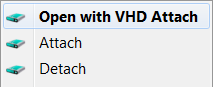 Brilliant:
This is small tool that adds Attach and Detach option to contextual (aka right-click) menu of Virtual disk (vhd) files. That enables those operations to be done without trip to Disk Management console. Detach option is available on hard drive contextual menu also (if selected in options).
Source:
–jeroen
Posted in Power User, Windows, Windows 10, Windows 7, Windows 8, Windows 8.1, Windows Server 2012, Windows Server 2012 R2 | Leave a Comment »


 The Wiert Corner - irregular stream of stuff