Archive for the ‘Windows Server 2003’ Category
Posted by jpluimers on 2012/08/31
On monday, I wrote it was Time to disable Java for a while: Zero-Day Season is Not Over Yet.
Today Oracle released a fix, which you should either install immediately (that is NOW, don’t hesitate!).
For this vulnerability, it is enough to disable Java from your browser – see: How to disable Java in your web browser – but as with any software: if you don’t need it, just disable/uninstall it.
Disabling/uninstalling on a Mac may impose a problem, as Apple hasn’t come with an update for the OS X editions that came with Java pre-installed.
Most other users can either install the version on their current system on-line from Download Free Java Software, or download offline installers for other systems at Java Downloads for All Operating Systems.
I might actually try the Java Unattended Silent Installer and Updater from Ninite – Install or Update Multiple Apps at Once.
–jeroen
via:
Posted in *nix, Apple, LifeHacker, Mac, Mac OS X / OS X / MacOS, Mac OS X 10.4 Tiger, Mac OS X 10.5 Leopard, Mac OS X 10.6 Snow Leopard, Mac OS X 10.7 Lion, MacBook, MacBook-Air, MacBook-Pro, Power User, Windows, Windows 7, Windows 8, Windows Server 2000, Windows Server 2003, Windows Server 2003 R2, Windows Server 2008, Windows Server 2008 R2, Windows Vista, Windows XP | Leave a Comment »
Posted by jpluimers on 2012/08/30
Too often I see quesions like the one below on software that people distribute:
The Program can’t start becuase MSVCR100.dll is missing from your computer. Try reinstalling the program to fix this problem.
I am getting follwing error when i am trying to open Computer management in windows 7,the error is as follows ,
The Program can’t start becuase MSVCR100.dll is missing from your computer. Try reinstalling the program to fix this problem.
Where can i found this dll file, and help me to download and install.
The reason is that many programmers and companies still fail to ship the correct Visual C++ run-time.
Even for a one-off, you should need to get your installation set right. And writing stuff in a version of Visual C++ almost always means you need to ship the run-time for that particular version of Visual C++ with your application (though sometimes you can get away by putting the DLLs in the directory of your application, this is not recommended, as that way you won’t receive security updates).
User Marilyn O was so kind to sum up most of the download locations (I did a bit of post-editing, added all the non-“FamilyID” links, all naming differences are from the MS site):
I would install the Microsoft Visual C++ Redistributable dll that is needed for projects built with Visual Studio 2010.
Download the files below depending on your operating system version. […] Check in Programs and Features, do you show that you have installed Microsoft Visual C++ … Redistributable? If not, download from the links here.
- 2005: msvcr80.dll
- 2008: msvcr90.dll
- 2008 SP1: msvcr90.dll
- 2010: msvcr100.dll
- 2010 SP1: msvcr100.dll
- 2012: msvcr110.dll
–jeroen
via: The Program can’t start becuase MSVCR100.dll is missing from your – Microsoft Answers.
Posted in C++, Development, Power User, Software Development, Visual Studio 2005, Visual Studio 2008, Visual Studio 2010, Visual Studio and tools, Windows, Windows 7, Windows 8, Windows Server 2000, Windows Server 2003, Windows Server 2003 R2, Windows Server 2008, Windows Server 2008 R2, Windows Vista, Windows XP | 3 Comments »
Posted by jpluimers on 2012/07/30
On the research list (wow, Google Translate is very accurate this time!): Tonido
More and more programs allow users to cut the cord of cloud providers like Google and Dropbox. The Tonido software is suitable for example for users who want to make sensitive customer or patient data accessible on multiple devices without outsourcing it to an external server. “Once you have installed Tonido on your PC and create an account, you can in the local network, but also on the move access to a PC or mobile devices on the complete data set”
Original German text from the mid December 2011 issue of c’t Magazin:
Immer mehr Programme ermöglichen es Anwendern, sich von Cloud-Anbietern wie Google oder Dropbox abzunabeln. Die Software Tonido eignet sich beispielsweise für Nutzer, die sensible Kunden- oder Patientendaten auf mehreren Geräten zugänglich machen wollen – ohne sie auf einen externen Server auszulagern. “Sobald man Tonido auf dem eigenen PC installiert und ein Konto angelegt hat, kann man im lokalen Netz, aber auch von unterwegs mit PC oder Mobilgeräten auf den kompletten Datenbestand zugreifen”
Thanks Noud van Kruysbergen for translating the German c’t article into Dutch.
–jeroen
via: Bei sensiblen Daten lieber eigene Cloud-Lösung – c’t – PresseBox.
Posted in *nix, Linux, Mac, Mac OS X / OS X / MacOS, Mac OS X 10.5 Leopard, Mac OS X 10.6 Snow Leopard, Mac OS X 10.7 Lion, Power User, Windows, Windows 7, Windows 8, Windows Server 2003, Windows Server 2008, Windows Vista, Windows XP | Leave a Comment »
Posted by jpluimers on 2012/07/16
I love the long lead time between some proposals in the suggestion box and the actual answer. A lot longer than my blog queue (:
I Commenter Adam S wonders why holding the Ctrl key when selecting New Task from Task Manager will open a command prompt.Its a rogue feature.
I didn’t even know this was possible. It seems one of the fastest ways to start the console!
–jeroen
via: Why does holding the Ctrl key when selecting New Task from Task Manager open a command prompt? – The Old New Thing – Site Home – MSDN Blogs.
Posted in Power User, Windows, Windows 7, Windows 8, Windows Server 2003, Windows Server 2008, Windows Vista, Windows XP | Leave a Comment »
Posted by jpluimers on 2012/03/15
If you have RDP open on one or more of your computers, you should have patched your machines by now:
vulnerabilities in Microsoft’s implementation of the Remote Desktop Protocol (RDP) […] a Critical, remote code execution vulnerability affecting all versions of Windows. This blog post shares additional information with the following goals:
- To strongly encourage you to make a special priority of applying this particular update;
- To give you an option to harden your environment until the update can be applied.
–jeroen
via: CVE-2012-0002: A closer look at MS12-020’s critical issue – Security Research & Defense – Site Home – TechNet Blogs.
Posted in Power User, Windows, Windows 7, Windows Server 2003, Windows Server 2008, Windows Vista, Windows XP | Leave a Comment »
Posted by jpluimers on 2012/03/02
About a week ago, version v3.3.4.14431 of Beyond Compare was release by Scooter Software.
For me, this is the ultimate comparison tool as it runs on Windows and Linux natively or under WINE on Mac OS.
It has a massive change list:
-----------------------------------
v3.3.4.14431      February 24, 2012
-----------------------------------

- Notable Changes
  - Fixed context menus on newer versions of Konqueror, Thunar, and Nautilus.
  - FILE-REPORT (and TEXT-REPORT, etc.) commands will now accept a saved file
    compare session name instead of a pair of files.  E.g., "file-report
    layout:side-by-side output-to:printer MySession".

- Archives
  - Fixed extracting files where a single deflate block contains more than 1MB
    of data.
  - Fixed zips showing non-existent files if a zip contained another zip and
    the outer one had additional data after the archive comment.
  - Attempting to extract a file from a zip using an unsupported compression
    algorithm now shows that as an error.
  - Split up zip error messages for "Error during extraction" and "Unsupported
    compression algorithm".

- Data Compare
  - Fixed "Extract HTML table(s)" handling of UTF-16 files.

- File Formats
  - OpenOffice default character encoding is now UTF-8.
  - Fixed "COBOL Source" format to include "Identifier" definition.
  - "Picture Files" format added CUT, GED, MSK, PFR, and TUB to mask, removed
    PAL.

- File Views
  - Fixed saving files with paths between 247-259 characters long.
  - Fixed foreground selection coloring when using white on blue system colors.
  - Added key accelerators to "Save changes" dialog.

- Folder Compare
  - Long file operations will now keep Windows from going to sleep due to
    inactivity.
  - Using "Compare to" to open a file view and then using "Next/Previous
    Difference Files" now closes the file view.

- FTP
  - Fixed support for FTP listings with filenames containing Chinese
    month/year characters.
  - Fixed parsing Comau C5G FTP listings.

- Home View
  - When editing a session, dropped files/folders are ignored unless they're
    on a path edit.
  - Expand All and Collapse All commands now affect the shared and auto-saved
    sessions nodes.
  - Fixed behavior when using "Collapse All" hides the currently selected
    session.

- Linux
  - Fixed context menus on newer versions of Konqueror, Thunar, and Nautilus.
  - Fixed Folder Compare crash when performing rules-based comparisons.
  - Fixed clicking the "Next Difference Files" link on the message panel when
    using "Next Difference" at the end of a comparison.
  - Fixed various comboboxes incorrectly allowing editing.

- Misc
  - Fixed menu checkboxes not showing on Vista and Windows 7 when using the
    Classic Theme.
  - Dropping files/folders onto a path edit no longer changes the edit if the
    drop results in a new view.
  - Added "RE Examples" buttons to Grammar Item dialog.
  - Improved Open/Save dialog handling of file type options.

- Options
  - "Customize Commands" dialog's "Default" command now checks to see if
    shortcut is already in use.

- Picture Compare
  - "Difference Offset", "Flip", and "Rotate" are now persistent session
    settings.
  - Fixed handling of DIB, MSK, and RLE bitmap files.

- Registry Compare
  - Fixed loading .reg files with a '\' before hex data.
  - Fixed loading .reg files with a ']' in a key name.

- Scripting
  - FILE-REPORT (and TEXT-REPORT, etc.) commands will now accept a saved file
    compare session name instead of a pair of files.  E.g., "file-report
    layout:side-by-side output-to:printer MySession".
  - LOG command will now create the target folder if it doesn't exist.
  - Fixed support for STRIKEOUT-RIGHT-ORPHANS in TEXT-REPORT command.
–jeroen
via: Beyond Compare ChangeLog
Posted in *nix, Power User, Windows, Windows 7, Windows 8, Windows Server 2003, Windows Server 2008, Windows Vista, Windows XP | Leave a Comment »
Posted by jpluimers on 2012/01/27
At a client that still runs Windows Server 2003 (despite the fact that it is in the extended support phase now), I needed to enable automatic logon (one of the tools they run sometimes fails when nobody is logged on).
This was a bit more tricky than just reading [WayBack] How to turn on automatic logon in Windows (now at How to turn on automatic logon in Windows) and following these steps:
To use Registry Editor (Regedt32.exe) to turn on automatic logon, follow these steps:
- Click Start, and then click Run.
- In the Open box, type Regedt32.exe, and then press ENTER.
- Locate the following subkey in the registry:
HKEY_LOCAL_MACHINE\SOFTWARE\Microsoft\Windows NT\CurrentVersion\Winlogon
- Double-click the DefaultUserName entry, type your user name, and then click OK.
- Double-click the DefaultPassword entry, type your password, and then click OK.NOTE: If the DefaultPassword value does not exist, it must be added. To add the value, follow these steps:
- On the Edit menu, click New, and then point to String Value.
- Type DefaultPassword, and then press ENTER.
- Double-click DefaultPassword.
- In the Edit String dialog, type your password and then click OK.
NOTE: If no DefaultPassword string is specified, Windows automatically changes the value of the AutoAdminLogon key from 1 (true) to 0 (false), disabling the AutoAdminLogon feature.
- On the Edit menu, click New, and then point to String Value.
- Type AutoAdminLogon, and then press ENTER.
- Double-click AutoAdminLogon.
- In the Edit String dialog box, type 1 and then click OK.
- Quit Registry Editor.
- Click Start, click Shutdown, and then type a reason in the Comment text box.
- Click OK to turn off your computer.
- Restart your computer. You can now log on automatically.
Since this depends on some registry settings, you need to make sure they are actually set.
And logging on as someone else will reset the DefaultUserName registry setting.
The article points to another article on “AutoAdminLogon looses DefaultUserName” to solve this using REGINI (and optionally REGDMP which can provide sample output for REGINI), but there is a much easier solution using RegEdit which – as Rob van der Woude points out – can be used unattended as well (besides: REGDMP cannot be downloaded any more, and REGINI requires an additional download).
This is how to do force the DefaultUserName to be reset after logon using RegEdit:
- Open an explorer Window in “
%ALLUSERSPROFILE%\Start Menu\Programs\Startup“
- Create a batch file “
run-RegEdit-DefaultUserName.bat” there with this content:
regedit /s Administrator-DefaultUserName.reg
- Create a text file “
Administrator-DefaultUserName.reg” in the same directory with content like this:
Windows Registry Editor Version 5.00

[HKEY_LOCAL_MACHINE\SOFTWARE\Microsoft\Windows NT\CurrentVersion\Winlogon]
"DefaultUserName"="Administrator"
Replace “Administrator” with the username you are actually using.
–jeroen
Via: How to turn on automatic logon in Windows.
Read the rest of this entry »
Posted in Power User, Windows, Windows 10, Windows 7, Windows 8, Windows 8.1, Windows 9, Windows Server 2003, Windows Server 2003 R2, Windows Server 2008, Windows Server 2008 R2, Windows Server 2012, Windows Server 2012 R2, Windows Server 2016, Windows Vista | 2 Comments »
Posted by jpluimers on 2011/10/07
You cannot move the C:\Program Files directory to another volume without installing Windows on that volume.
A small abstract from the explanation by Raymond Chen: The symbiotic relation between C:\Windows\WinSxS and C:\Program Files through NTFS hard links prevents you to move C:\Program Files (nor WinSxS) to a different disk volume. Both directories need to be on the same volume because of the NTFS hard link limitation.
NTFS hardlinks do save a ton of diskspace, even though WinSxS will keep growing over time, which means you need to do some careful disk volume planning, especially on SSD drives.
–jeroen
via: Why can’t I move the Program Files directory via the unattend file? – The Old New Thing – Site Home – MSDN Blogs.
Posted in Microsoft Surface on Windows 7, Power User, Windows, Windows 7, Windows 8, Windows Server 2000, Windows Server 2003, Windows Server 2003 R2, Windows Server 2008, Windows Server 2008 R2, Windows Vista, Windows XP | Leave a Comment »
Posted by jpluimers on 2011/09/23
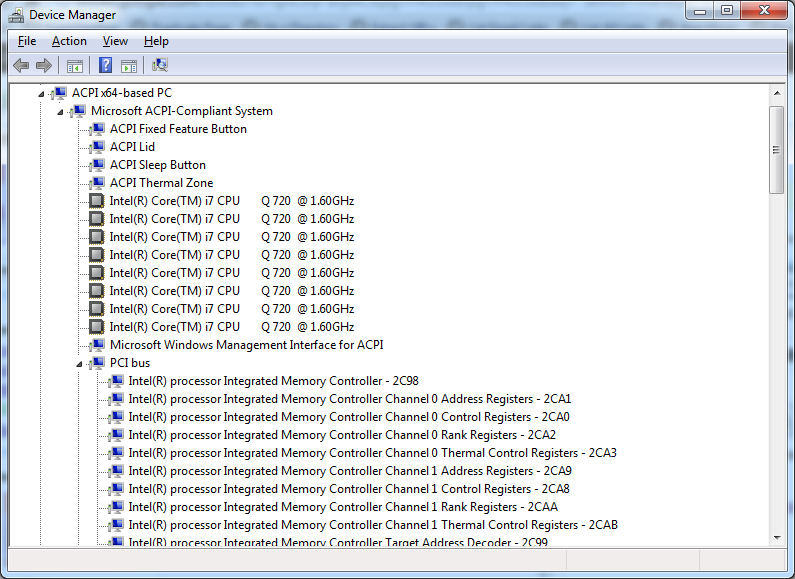
With the increasing number of devices, it really helps to expand all nodes in the Device Manager’s tree view.
You cannot do this with the mouse, as none of the menu options contain an “Expand All” option.
But since the treeview, is the built-in Windows treeview (used in many places, like Windows explorer), you can use these shortcuts to expand/collapse nodes:
- Numeric Keypad *: Expands everything under the current selection
- Numeric Keypad +: Expands the current selection
- Numeric Keypad -: Collapses the current selection.
- RIGHT ARROW: Expands the current selection if it is not expanded, otherwise goes to the first child
- LEFT ARROW: Collapses the current selection if it is expanded, otherwise goes to the parent
This not only works in Microsoft Windows 7: Visual … – Google Books, I think it has been introduced as far back as Windows 95.
–jeroen
Posted in Keyboards and Keyboard Shortcuts, Power User, Windows, Windows 10, Windows 7, Windows 8, Windows 8.1, Windows 9, Windows Server 2003, Windows Server 2003 R2, Windows Server 2008, Windows Server 2008 R2, Windows Server 2012, Windows Server 2012 R2, Windows Vista, Windows XP | 1 Comment »
Posted by jpluimers on 2010/09/01
From a batch-file I recently had to start Windows Explorer, at the same time select a specific file or directory.
This turned out pretty easy: use the /select command-line switch from Windows Explorer.
In fact, Windows Explorer has a few command-line switches, and the “explorer” commandline parameters “/n” “/e” “/select” “/root” “/start” site:microsoft.com query will find quite a few topics about it: Read the rest of this entry »
Posted in Power User, Windows, Windows 10, Windows 7, Windows 8, Windows 8.1, Windows 9, Windows 95, Windows 98, Windows ME, Windows NT, Windows Server 2000, Windows Server 2003, Windows Server 2003 R2, Windows Server 2008, Windows Server 2008 R2, Windows Server 2012, Windows Server 2012 R2, Windows Server 2016, Windows Vista, Windows XP | 1 Comment »


 The Wiert Corner - irregular stream of stuff