The Wiert Corner – irregular stream of stuff

Jeroen W. Pluimers on .NET, C#, Delphi, databases, and personal interests

  • My badges

  • Twitter Updates

  • My Flickr Stream

  • Pages

  • All categories

  • Enter your email address to subscribe to this blog and receive notifications of new posts by email.

    Join 1,854 other subscribers

Digital accessibility is hard; Wayback archival of: Formulieren – CIZ

Posted by jpluimers on 2022/03/17

I know that digital accessibility does not come for free, but it is mandatory in Europe for at least documents and web-sites provided by government and semi-government as per [Wayback] EN 301 549 – Wikipedia

EN 301 549 is a European standard for digital accessibility. It specifies requirements for information and communications technology to be accessible for people with disabilities.

I bumped into numerous tab-order issues when filling out CIZ forms. This makes it way harder for my, as now I require a mouse despite having RSI symptoms for some 30+ years.

So, for my link archive so I can document that all these forms have severe tab-order issues (some fields are not even accessible by keyboard, are being emptied when you leave the field, or not even accessible by mouse): [Wayback] Formulieren – CIZ

Doet u een aanvraag bij het CIZ? Op deze pagina vindt u een overzicht van onze formulieren, zoals een machtigingsformulier en het Wlz-aanvraagformulier.

Hopefully by now the forms have been fixed.

Via:

Read the rest of this entry »

Posted in About, InternetArchive, LifeHacker, Personal, Power User, WayBack machine | Leave a Comment »

Installing Wireshark on MacOS is not as simple as `brew install wireshark`

Posted by jpluimers on 2022/03/16

I wish that MacOS Homebrew would warn in advance of any caveates instead of after installing.

Only after brew install wireshark [Wayback] it is told that:

==> wireshark cask is installed, skipping link.
==> Caveats
This formula only installs the command-line utilities by default.

Install Wireshark.app with Homebrew Cask:
  brew install --cask wireshark

If your list of available capture interfaces is empty
(default macOS behavior), install ChmodBPF:
  brew install --cask wireshark-chmodbpf

Now what? Do I need to uninstall Wireshark first, or does the cask stuff just work when it is installed?

These two do not make me happy:

Related:

–jeroen

Posted in Apple, Home brew / homebrew, Mac OS X / OS X / MacOS, Power User | Leave a Comment »

Last year, a classic Mojibake was introduced when Waterschap Amstel, Gooi en Vecht redesigned their IT systems

Posted by jpluimers on 2022/03/16

Last year, Waterschap Amstel, Gooi en Vecht sent me a paper letter notifying the yearly water bill was going to be late as they were redesigning their IT systems.

Their letter introduced a classic Mojibake that had not been present in all their older paper letter communication.

  • Street name on a letter via the old IT systems is "Pyreneeën":

    Pyreneeën goed geprint.

  • Street name on a letter via the new IT systems is "Pyreneeën":

    Pyreneeën geprint met Mojibake vervormingen.

Read the rest of this entry »

Posted in Development, Encoding, ftfy, Mojibake, Python, Software Development, Unicode, UTF-8, UTF8 | Leave a Comment »

Jilles posted a small script to show offline/online status based on ping

Posted by jpluimers on 2022/03/16

Jilles posted a small script to show offline/online status based on ping in [Archive.is] Jilles on Twitter: “#!/bin/bash HOST={1ST HOP HERE} while true;do p=$(ping -c1 $HOST) if [ $? -ne 0 ];then s=offline else s=online\ fi echo $(date +%F\ %T) $s – $(echo $p | sed -e ‘s/^PING.*— 1/1/g’) sleep 10 done”

#!/bin/bash
HOST={1ST HOP HERE}
while true;do
  p=$(ping -c1 $HOST)
  if [ $? -ne 0 ];then
    s=offline
  else
    s=online\ 
  fi
  echo $(date +%F\ %T) $s - $(echo $p | sed -e 's/^PING.*--- 1/1/g')
  sleep 10
done

The reason was that his ISP had connection problems for the block of homes where Jilles lives.

–jeroen

Read the rest of this entry »

Posted in *nix, *nix-tools, bash, bash, Development, grep, Power User, Scripting, sed, Software Development | Leave a Comment »

Fixed Windows Update errors 0x80070643 and 0x80073712 in one go

Posted by jpluimers on 2022/03/15

The below image is Dutch, but it presents Windows Update errors [Wayback] 0x80070643 and [Wayback] 0x80073712. The first happened when any update was installed after the second occurred.

My hunch was that both were related, so fixing the second should fix the first.
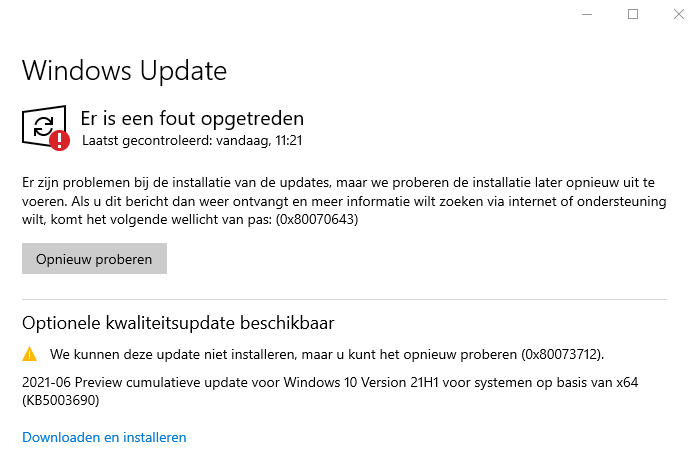
Windows update errors 0x80070643 and 0x80073712

Windows update errors 0x80070643 and 0x80073712

Try 0: reboot

The first step in any odd error is trying to reboot.

Try 1: cleanup

With most Windows Update errors, after rebooting, I usually check disk space (since quite a few of my Windows installs are VMs, so I need to keep VM disk sizes low enough to be able to store all these VMs): there was a comfortable 13 gigabytes free.

Running cleanmgr.exe showed some 5 gigabytes was taken by Windows Update files and almost 1.5 gigabyte by Windows Delivery Optimisation. Cleaning that up brought the free space to almost 20 gigabytes and clear any potential download corruptions: they happen, despite TLS.

Oh Delivery Optimization is just a distributed peer-to-peer cache of Windows related updates, see List of Microsoft Windows components: Services – Wikipedia and [Wayback] Delivery Optimization for Windows 10 updates – Windows Deployment | Microsoft Docs.

Try 2: run the console version of the the Windows Update troubleshooter

After cleanup did not resolve the issue, so the next step is to either run the [Wayback] GUI version of the Windows Update Troubleshooter or from the console equivalent using the below DISM statements.

The below steps are from [Wayback] Windows Update error 0x80073712, but many other sources describe the same steps:

  1. Start a Command Prompt as elevated Administrator

  2. In the Administrator: Command Prompt window, type the following commands. Press the Enter key after each command:

    DISM.exe /Online /Cleanup-image /Scanhealth

    DISM.exe /Online /Cleanup-image /Restorehealth

  3. When finished, re-run the updates

Note that DISM can take a very long time, even on a recently installed Windows machine: the first took 5 minutes, the second also 5 minutes on a VM that was backed with fast SSD storage and had plenty of CPU and memory. These are my results show no corruption, but did repair the problem:

C:\temp>DISM.exe /Online /Cleanup-image /Scanhealth

Deployment Image Servicing and Management tool
Version: 10.0.19041.844

Image Version: 10.0.19043.1052

[==========================100.0%==========================] No component store corruption detected.
The operation completed successfully.

C:\bin\bin>DISM.exe /Online /Cleanup-image /Restorehealth

Deployment Image Servicing and Management tool
Version: 10.0.19041.844

Image Version: 10.0.19043.1052

[==========================100.0%==========================] The restore operation completed successfully.
The operation completed successfully.

C:\temp>

Success

Despite DISM not showing any issues, it did repair the problem.

A retry of the updates (without even rebooting) showed a successful update requiring a reboot:
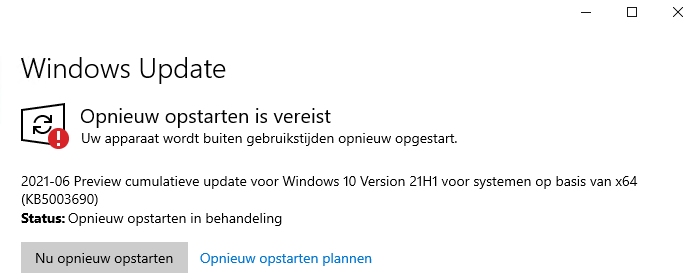
Success: updates were installed and Windows wanted to reboot

Success: updates were installed and Windows wanted to reboot

More to try

If the above fail, there are two more things to try: reset the whole update mechanism, or verify/repair the .NET framework integrity.

Repairing the .NET framework (specifically for 0x80070643)

Via [Wayback] Windows Update – error 0x80070643 – Microsoft Community.

From [Wayback] Download Microsoft .NET Framework Repair Tool from Official Microsoft Download Center, download NetFxRepairTool.exe (the actual download is via the [Wayback] Download Microsoft .NET Framework Repair Tool from Official Microsoft Download Center:confirmation at [Wayback] download.microsoft.com/download/2/B/D/2BDE5459-2225-48B8-830C-AE19CAF038F1/NetFxRepairTool.exe) and run it.

Resetting the Windows Update mechanism

This is a two part exercise of which the second part is not always needed.

First part: start with a fresh %windir%\SoftwareDistribution

Suggested by for instance

Run these commands in an Administrator elevated command prompt:

net stop wuauserv
rename %windir%\SoftwareDistribution SoftwareDistribution.old
net start wuauserv

If after this, Windows updates work again, then recursively delete the %windir%\SoftwareDistribution folder.

Second part: start with a fresh %windir%\System32\catroot2

Order slightly corrected from [Wayback] Can’t rename Catroot2 and SoftwareDistribution folder in Windows – Microsoft Community because of service dependencies:

net stop bits
net stop wuauserv
net stop cryptsvc
rename %windir%\System32\catroot2 catroot2 .old
net start bits
net start wuauserv
net start cryptsvc

Note that some sources

  • indicate you need to stop and start msiserver too, but that does not seem necessary any more.
  • fail to indicate you need to stop and start cryptsvc, but that is indeed needed.

Third: fully reset the Windows Update mechanism

This is hardly needed, but [Wayback] Windows Update – Additional resources – Windows Deployment | Microsoft Docs has even more steps to fully reset the Windows Update components on your system.

–jeroen


Posted in Power User, Windows, Windows 10 | Leave a Comment »

How to access Archive.org’s Google+ communities archive? : googleplus

Posted by jpluimers on 2022/03/15

On my research list: [Wayback/Archive.is] How to access Archive.org’s Google+ communities archive? : googleplus, as there are so many interesting programming related posts there.

The main takeaway is that in order to access an archived Google+ post, you need to know or be able to reconstruct the canonical URL with language specifier to the Google+ post, see the comment in the first related link below.

It looks that for my archived profile links Wayback – Google+: Jeroen Wiert Pluimers (UUID) / Wayback – Google+: Jeroen Wiert Pluimers (user name) only some 30 links were archived directly through the WayBack save-as feature based on my UUID and some 250 based on my username profile:

. Hopefully more

Some related links:

  1. [Wayback/Archive.is] dredmorbius comments on How to access Archive.org’s Google+ communities archive?

    dredmorbius Author of the article you’ve linked.

    Unfortunately, no, there’s not a really good way of finding content on the Internet Archive’s WBM, unless you already know the URL(s) you’re looking for.

    Keep in mind that:

    • Not everything got captured. I’ve been having a discussion with another G+ user over this, and spot-checking multiple URLs finds no archive of many.

    • There are several variants of G+ post URLs. You want the one with the 20-digit numeric UUID, and NOT the “vanity url” +FirstnameLastname format.

    • Also strip out any instances of /u/[0-9]+/ within the URL. E.g., if you see “https://plus.google.com/u/0/<UUID>”, change that to “https://plus.google.com/<UUID>” (where UUID is the numeric user string).

    • User profile homepages are frequently archived, but the visible posts cannot themselves be opened. This is … unfortunate.

    • Similarly: only the first page of an infinite scroll of User, Brand, Collection, Community, etc., pages is captured. Unless there are multiple captures over time, you’re not going to get a full user history there.

    Generally, your best bet is to have some link to G+ content that you can convert to the appropriate format as Internet Archive might have saved, and check to see if it’s stored. Again, this is tedious, though at least in many cases, useful.

    There’s a list of some of the more notable G+ users and Communities at PlexodusWiki which may also be helpful in tracking down specific references.

    Also: it turns out that slight variations in URL format can mean you do or don’t find a page.

    I just ran into this trying to track down a post and discovered that the URL arguments — here a language specifier — are critical in returning the intended post.

    Discussion: https://mastodon.cloud/@dredmorbius/103592826938741244

    The fully qualified G+ URL is found: https://web.archive.org/web/20190325032955/https://plus.google.com/104092656004159577193/posts/4REjF1smHpE?hl=en

    But stripping off ?hl=en, even when wildcarded, is not:

    https://web.archive.org/web/2019*/https://plus.google.com/104092656004159577193/posts/4REjF1smHpE

    Unfortunately, the IA’s WBM requires JS to return content, which means that simple means of testing with common shell tools in scripts (allowing a large number of candidate URIs to be checked quickly) isn’t possible.

  2. [Wayback] Doc Edward Morbius ❌​: “@woozle@toot.cat You might also try appending “?h…” – mastodon.cloud
  3. [Wayback] G+ Notable Communities Database – PlexodusWiki
  4. [Wayback] Google+ tracker – #googleminus – Donate at https://archive.org/donate/ for hosting the archives Dashboard
  5. [Wayback/Archive.is] Saving of public Google+ content at the Internet Archive’s Wayback Machine by the Archive Team has begun : plexodus
  6. GitHub – ArchiveTeam/googleplus-grab: Archiving Google+.
  7. [Wayback/Archive.is] Plexodus: The Google+ Exodus subreddit : plexodus
  8. [Wayback/Archive.is] Internet Data Is Rotting | Hacker News

–jeroen

Posted in G+: GooglePlus, Google, Power User, SocialMedia | Leave a Comment »

Cryptosense Discovery

Posted by jpluimers on 2022/03/15

This is cool: [Wayback] Cryptosense Discovery:

Free tool that discovers security configuration errors in SSH and TLS servers and explains how to fix them. Supports STARTTLS and can also scan HTTPS, POP3, IMAP and SMTP servers.

It gives you a list of servers a target domain uses (for purposes like web, email, etc) that can have external encryption enabled, then allows you to test these.

The list by default has only servers within that target domain enabled, but you can optionally include other servers (for instance if a domain uses a third party for their SMTP handling).

Basically it is the web-counterpart of a tool like testssl.sh (which I have written about before).

Found while checking out how to test the MX security of a domain using [Wayback] testssl.sh as I forgot the syntax, which in retrospect is dead easy as per [Wayback] tls – How to use testssl.sh on an SMTP server? – Information Security Stack Exchange (thanks [Wayback] Z.T.!):

testssl.sh --mx <domain name>

works fine.

testssl.sh -t smtp <ip>:25

and

testssl.sh -t smtp <ip>:587

also work fine.

Note that not specifying the port assumes port 443, despite specifying protocol smtp. That doesn’t work.

Also, you might try discovery.cryptosense.com which does the same thing only better

That website is made by the cool people at [Wayback] Cryptosense.

Both are a lot easier than the alternatives described in [Wayback] Blog · How to test SMTP servers using the command-line · Halon MTA: using nslookup and dig for determining the affected hosts, using nc or telnet for testing basic connectivity, using [Wayback/Archive.is] openssl s_client to test TLS, and [Wayback/Archive.is] smtpping for measuring throughput.

In addition to the above tools mentioned in the blog, I’ve also used sendEmail (note case sensitivity), ehlo-size, and swaks.

This is what I tested:

–jeroen

Posted in *nix, *nix-tools, Awk, bash, bash, Communications Development, Development, DNS, Encryption, grep, HTTPS/TLS security, Internet, Internet protocol suite, Power User, Scripting, Security, SMTP, Software Development, SSH, ssh/sshd, TCP, testssl.sh, TLS | Leave a Comment »

Boomer screenshots: wondering why Windows still has no keyboard shortcut for saving a screenshot or screen snippet to disk

Posted by jpluimers on 2022/03/14

With the disappearing PrtScn buttons on modern keyboards, boomer screenshots are about the only way to easily persist a screenshot, as these are the only available Windows screenshot shortcuts:

  • PrtScn: copies full screenshot to the clipboard; multiple invocations overwrite the clipboard
  • Windows + PrtScn: saves full screenshot to a file; multiple invocations saves to new files
  • Windows + Shift + S: copies full screen or part of the screen to the clipboard, and allows manual action to start snippet tool to save the clipboard contents; often looses the image when on remote desktop connections or when copying something else to the clipboard; multiple invocations overwrite the clipboard

Now look at macOS what a choices, and how less messy than on Windows:

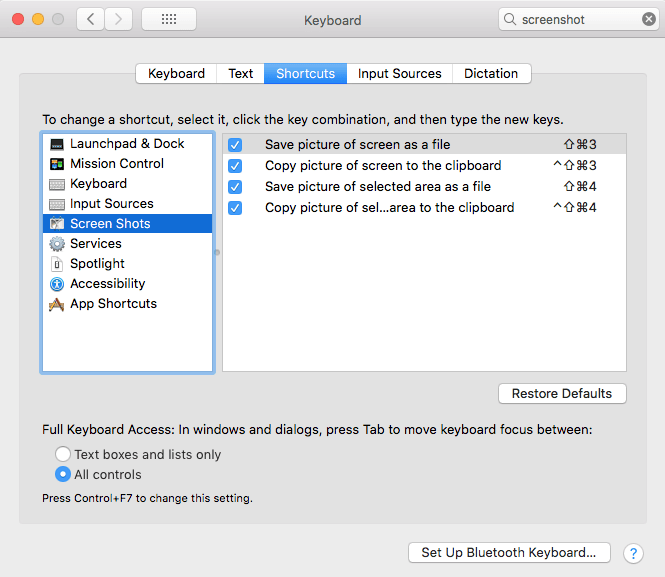
macOS has various shortcuts to save (partial) screenshots to clipboard or file

macOS has various shortcuts to save (partial) screenshots to clipboard or file

For macOS 10.14 Mojave and newer, you can even set the folder (default: Desktop) to save the screenshots to:

I want this ease in Windows as well, and maybe I can in part without installing external tools and modifying existing shortcuts to make things easier:

Written after bumping into [Archive.is] Jeff Atwood on Twitter: “Someone just called a smartphone pic of their monitor a “boomer screenshot” and I literally LOLed 🤣… “

–jeroen

Posted in Apple, LifeHacker, Mac OS X / OS X / MacOS, Power User, PowerToys, Windows, Windows 10 | Leave a Comment »

Doe de couscous geen geweld aan – De keukenwijsheid van Nadia Zerouali: Gebruik wat je voorhanden hebt, maar respecteer het gerecht | De Volkskrant

Posted by jpluimers on 2022/03/14

Over hoe je je couscous gerechten geen geweld aan doet: [Archive.is] De keukenwijsheid van Nadia Zerouali: Gebruik wat je voorhanden hebt, maar respecteer het gerecht | De Volkskrant

Via: [Archive.is] Ionica Smeets on Twitter: “Al die jaren heb ik de couscous zinloos geweld.… “

Al die jaren heb ik de couscous zinloos geweld.

ba dum tss

–jeroen

Read the rest of this entry »

Posted in LifeHacker, Power User | Leave a Comment »

Cleaning the cooling fans of a 15-inch Retina MacBook Pro 2015 model

Posted by jpluimers on 2022/03/14

After years of use, the cooling fans of my 15-inch Retina MacBook Pro 2015 model got quite a bit dirty, causing them to run louder and louder.

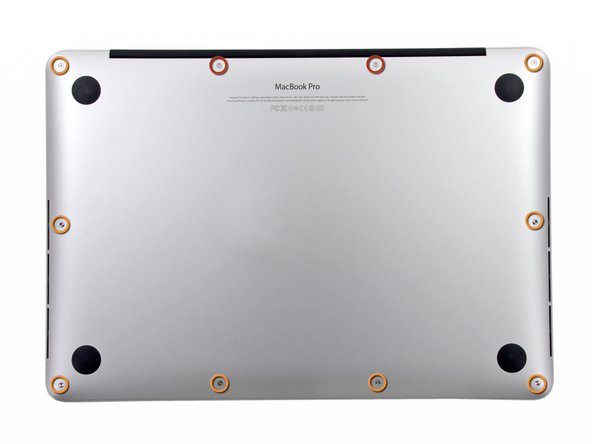
The video below the fold shows how to clean them: 11 screws, some isopropyl alcohol, (dry!) compressed, and caution for the connector-clips connecting the bottom plate.

It helps having a:

  • pentalobe P5 screwdriver
  • plastic spudger so separate the bottom plate (especially be careful with the connector-clips)
  • magnet to stick the screws to, as they are really tiny and it is easy to loose them

I got the pentalobe screwdriver with some spare screws from the German Amazon: [Archive.is] Kricson Ersatzschrauben MacBook Pro – 4 Pack Gummi: Amazon.de: Computer & Zubehör

You can get a similar one from the USA Amazon site: [Archive.is] Amazon.com: 8 Pack Rubber Case Feet + Set of 20pcs Repair Replacement Screw + 1pcs 5 Point Pentalobe Screwdriver for Unibody MacBook Pro Retina A1425 A1502 A1398 13″ 15″ Bottom Case(Retina): Computers & Accessories

Two important tips:

  • After using isopropyl alcohol, let the parts dry
  • Hold the fans when spraying compressed air (to prevent the fan-motors to create over-voltage, and to prevent the fans spinning faster than they are rated for)

The iFixit pictures for replacing the SSD help greatly to see how to remove and re-attach the back-cover, and where the various parts are inside the machines.

Note the screws differ between the 13-inch and 15-inch models!

–jeroen

Read the rest of this entry »

Posted in Apple, Mac, MacBook, MacBook Retina, MacBook-Air, MacBook-Pro, Power User | Leave a Comment »