Posted by jpluimers on 2021/03/30
Well known in the software development bubble: Adapter pattern – Wikipedia.
If you ever are going to apply the below ones at the hardware level, please warn me in advance when and where you are going to.
~0.5 Ampère over an almost zero sized contact surface is for sure going to result in some burns eventually.
DO NOT EVER DO THIS
Juha is an irresponsible father of two, Nikita reckless, and it’s not just Julien’s tweets that have a life expectancy.
Read the rest of this entry »
Posted in Development, LifeHacker, Power User, Software Development | Leave a Comment »
Posted by jpluimers on 2021/03/30
For my link archive: [WayBack] How to Convert a Mercurial Repository to Git on Windows.
Let’s see how this maps to MacOS or Linux…
It is based on hg-git:
Other solutions are based on [WayBack]fast-export or [WayBack] gitifyhg.
If I am going to do this beyond a one-off conversion, I need to figure out their differences.
Related:
–jeroen
Posted in Development, DVCS - Distributed Version Control, git, Mercurial/Hg, Software Development, Source Code Management | Leave a Comment »
Posted by jpluimers on 2021/03/29
Sometimes you have a long enough password, that matches with the confirmation, but pressing “Enter” to continue gives “Password does not have enough character types”:
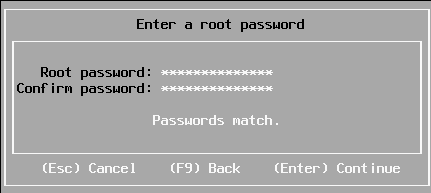
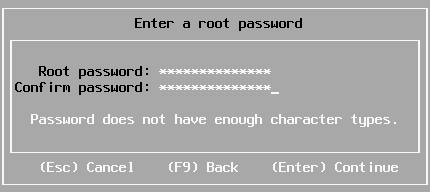
From [WayBack] Disable ESXi Password Complexity – Perfect Cloud:
A part of my job as a VMware Certified Instructor is to update our lab systems whenever new vSphere versions come out. After upgrading from 5.5 to 6.0 I decided we should change passwords, h…
This is the workflow:
- Make a backup of
/etc/pam.d/passwd.
- Use
vi to edit /etc/pam.d/passwd, and:
- Put a
# in front of the lines starting with password requisite
- Remove the
use_authtok bit of the line starting with password sufficient
- Put a
# in front of the line starting with password required
- Quit
vi while saving (press Esc, then enter :wq on the prompt)
- Change the password to a less secure one
- Restore the original
/etc/pam.d/passwd.
Via: esxi 6 force short password – Google Search
Working around this on during ESXi installation fails
I tried this:
- Press Alt-F1 to go from the installation screen to the console screen
- Logon as root, with no password at all to get to the command-prompt:
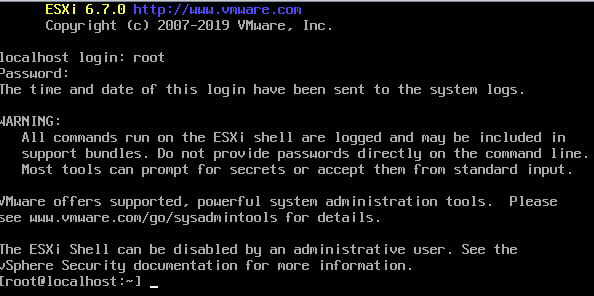
- Perform the
/etc/pam.d/passwd editing steps above
- Press Alt-F2 to go back to the install screen
- Enter root password
The password requirements stayed.
(more screenshots at [WayBack] ESXi 6.7 installation Guide – Let We-i Go)
Related
- [WayBack] passwdqc – password/passphrase strength checking and policy enforcement toolset for your servers and software
- [WayBack] installing ESXi 6.7, stuck on root password with this message :password must be at least 7 characters long : vmware
The default required password complexity changed between 6.5 and 6.7.
In addition to needing to be at least seven characters, the password must include at least three of the four character classes:
-
Upper case – exception: the first character being upper case does not count towards the class requirement
-
Lower case
-
Numbers – exception: the last character being a number does not count towards the class requirement
-
Symbols
Also, no dictionary words (whether spelt forwards or backwards).
- [WayBack] ESXi Passwords and Account Lockout
For ESXi hosts, you have to use a password with predefined requirements. You can change the required length and character class requirement or allow pass phrases using the Security.PasswordQualityControl advanced option.
- “Security.PasswordQualityControl” – Google Search
- [WayBack] ESXi 6.x Password Calculator for Security.PasswordQualityControl | Virtually Blogging
- [WayBack] Virtual Maestro: VMware ESXi 6.X password policy
- [WayBack] VMware ESXi6 Password Policy – ivobeerens.nl
- [WayBack] Virtual Maestro: VMware ESXi 6.X password policy
- [Archive.is] vSphere Documentation Center
Example: Editing /etc/pam.d/passwd
password requisite /lib/security/$ISA/pam_passwdqc.so retry=N min=N0,N1,N2,N3,N4
values
password requisite /lib/security/$ISA/pam_passwdqc.so retry=3 min=12,9,8,7,6
With this setting in effect, the password requirements are:
- retry=3: A user is allowed 3 attempts to enter a sufficient password.
- N0=12: Passwords containing characters from one character class must be at least 12 characters long.
- N1=9: Passwords containing characters from two character classes must be at least nine characters long.
- N2=8: Passphrases must contain words that are each at least eight characters long.
- N3=7: Passwords containing characters from three character classes must be at least seven characters long.
- N4=6: Passwords containing characters from all four character classes must be at least six characters long.
- [WayBack] VMware:ESXi Kennwortsicherheit heruntersetzen oder ändern – znilwiki
Passwortklassen sind schlicht
Grossbuchstaben
Kleinbuchstaben
Zahlen
Sonderzeichen
wobei das erste Zeichen nicht zählt. Also gilt
dumpfbacke     : 1 Passwortklasse
Dumpfbacke      : 1 Passwortklasse
DumpfBacke      : 2 Passwortklassen
DumpfBacke1     : 3 Passwortklassen
DumpfBacke1%            : 4 Passwortklassen
Indem man alle Werte auf 0 setzt, also
password requisite /lib/security/$ISA/pam_passwdqc.so retry=3 min=0,0,0,0,0
schaltet man alle Anforderungen aus.
Alternativ geht das auch mit
password requisite /lib/security/$ISA/pam_passwdqc.so retry=3 min=8,8,8,7,6 enforce=none
On my ESXI 6.5 system where the italic bit is removed, besides the two lines being commented out:
- original
/etc/pam.d/passwd:
#%PAM-1.0

# Change only through host advanced option "Security.PasswordQualityControl".
password   requisite    /lib/security/$ISA/pam_passwdqc.so retry=3 min=disabled,disabled,disabled,7,7
password   sufficient   /lib/security/$ISA/pam_unix.so use_authtok nullok shadow sha512
password   required     /lib/security/$ISA/pam_deny.so
- modified
/etc/pam.d/passwd:
#%PAM-1.0

# Change only through host advanced option "Security.PasswordQualityControl".
#password   requisite    /lib/security/$ISA/pam_passwdqc.so retry=3 min=disabled,disabled,disabled,7,7
password   sufficient   /lib/security/$ISA/pam_unix.so nullok shadow sha512
#password   required     /lib/security/$ISA/pam_deny.so
On my ESXI 6.7 system (which adds the bold lines below):
- original
/etc/pam.d/passwd:
#%PAM-1.0

# Change only through host advanced option "Security.PasswordQualityControl".
password   requisite    /lib/security/$ISA/pam_passwdqc.so retry=3 min=disabled,disabled,disabled,7,7

# Change only through host advanced option "Security.PasswordHistory"
password   requisite    /lib/security/$ISA/pam_pwhistory.so use_authtok enforce_for_root retry=2 remember=0

password   sufficient   /lib/security/$ISA/pam_unix.so use_authtok nullok shadow sha512
password   required     /lib/security/$ISA/pam_deny.so
- modified
/etc/pam.d/passwd:
#%PAM-1.0

# Change only through host advanced option "Security.PasswordQualityControl".
#password   requisite    /lib/security/$ISA/pam_passwdqc.so retry=3 min=disabled,disabled,disabled,7,7

# Change only through host advanced option "Security.PasswordHistory"
#password   requisite    /lib/security/$ISA/pam_pwhistory.so use_authtok enforce_for_root retry=2 remember=0

password   sufficient   /lib/security/$ISA/pam_unix.so nullok shadow sha512
#password   required     /lib/security/$ISA/pam_deny.so
–jeroen
Posted in *nix, ESXi6, ESXi6.5, ESXi6.7, Power User, Virtualization, VMware, VMware ESXi | Leave a Comment »
Posted by jpluimers on 2021/03/28
Notes:
Phone tel:+318001533
You get confirmation by SMS and e-mail and you need to bring the following things to the vaccination site:
- A mask
- Your passport, driver’s license or ID
- This appointment confirmation letter
- A completed health statement.
More information: GGD Vaccination Medical Information Line (088 767 40 80).
Related:
Read the rest of this entry »
Posted in About, LifeHacker, Personal, Power User | Leave a Comment »
Posted by jpluimers on 2021/03/26
For my link archive: [WayBack] Encode/Decode Quoted Printable – Webatic.
It did a splendid job at decoding email files in MIME format Quoted-printable.
–jeroen
Posted in *nix, *nix-tools, Communications Development, Development, eMail, Encoding, Internet, Internet protocol suite, Power User, sendmail, SMTP, SocialMedia, Software Development | Leave a Comment »
Posted by jpluimers on 2021/03/26
I needed Forticlient on a machine one day, so this is how to install the most recent Forticlient 6 using chocolatey:
choco install --yes forticlient --source https://www.myget.org/F/public-choco/api/v2
This ensures you can automatically update from Chocolatey instead of manually from the Forticlient GUI.
The update command is slightly different as a choco update will complain it cannot find the source for forticlient; you need this in stead:
choco update forticlient --source https://www.myget.org/F/public-choco/api/v2
Based on [WayBack] public-choco – forticlient 6.0.4.0182 | MyGet.
–jeroen
Posted in Chocolatey, Power User, Windows | Leave a Comment »
Posted by jpluimers on 2021/03/26
Learned about this in the fall of G+: [WayBack] GitHub – webrecorder/webrecorder-user-guide: webrecorder user guide and glossary
Back then, fully automated tools were easier.
So it is on my list of things to try one day for smaller projects.
From the glossary:
Quick Start
- Enter a URL in the box in the center of the screen labeled ‘URL to capture’.
- Press the ‘start’ button (look down and to the right of the box where you entered the URL).
- Interact with the web page that loads so Webrecorder can capture the content displayed on this page. To collect audio or video from a page be sure to press ‘play’ so the file will load into the browser.
- Continue to visit and browse the pages you would like to capture. Each page you view will be included in your capture session. Note: you will be capturing the contents of each page you visit but will not automatically obtain pages that are linked to on the pages you collect (hyperlinks).
- To end your capture session hover over the ‘Capture’ button in the upper left corner of the screen so it changes to read ‘Stop’ then click that button.
- Your capture will then be browsable. Note: the capture will not ‘replay’ like a linear recording but instead be an interactive copy of the pages you have collected.
- If you are a logged-in user, this session will be saved to your account automatically. If you are not logged in an account, you can sign up for an account or log in to your existing account to save the collection after you create it. If you do not log in you can still download your collection for a limited time (approximately 90 minutes from when you stop your recording session).
–jeroen
Posted in Internet, InternetArchive, Power User | Leave a Comment »
Posted by jpluimers on 2021/03/25
A great way for testing REST JSON calls is using the [WayBack] JSONPlaceholder – Fake online REST API for developers:
Fake Online REST API for Testing and Prototyping
Serving ~200M requests per month
Powered by JSON Server [WayBack] + LowDB [WayBack]
It is like [WayBack] Placeholder.com: Placeholder Images Done For You [JPG, GIF & PNG] but for JSON and supports both CORS and JSON-P for cross domain requests.
You can either use that site (which has a predefined set of REST calls) or the basic [WayBack] My JSON Server – Fake online REST server for teams that allows you to respond it to a db.json file from github:
Fake Online REST server for teams
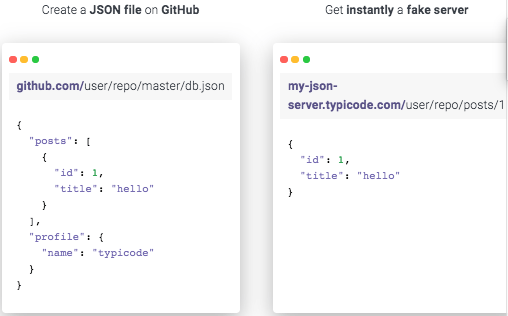
Create a JSON file on GitHub
github.com/user/repo/master/db.json
{
  "posts": [
    {
      "id": 1,
      "title": "hello"
    }
  ],
  "profile": {
    "name": "typicode"
  }
}
Get instantly a fake server
my-json-server.typicode.com/user/repo/posts/1
{
  "id": 1,
  "title": "hello"
}
Related
Documentation
There is basic documentation at the repository [WayBack] GitHub – typicode/jsonplaceholder: A simple online fake REST API server:
Read the rest of this entry »
Posted in Communications Development, Development, HTTP, Internet protocol suite, JavaScript/ECMAScript, JSON, REST, Scripting, Software Development, TCP | Leave a Comment »


 The Wiert Corner - irregular stream of stuff