The Wiert Corner – irregular stream of stuff

Jeroen W. Pluimers on .NET, C#, Delphi, databases, and personal interests

  • My badges

  • Twitter Updates

  • My Flickr Stream

  • Pages

  • All categories

  • Enter your email address to subscribe to this blog and receive notifications of new posts by email.

    Join 1,854 other subscribers

Steps for adjusting a whiteboard photo in Gimp

Posted by jpluimers on 2015/12/28

A long time ago, I wrote about Steps for adjusting a whiteboard photo in Paint.NET.

GIMP does an even better job with these steps:

Once: install the clean-whiteboard-photo script

  1. Visit https://github.com/kyleburton/sandbox/blob/master/gimp/clean-whiteboard-photo.scm
  2. Click “raw”
  3. Hit “Ctrl-S” to save the file as file-type “*.txt” and file-name  “%temp%\clean-whiteboard-photo_scm.txt”
  4. Go to the folder “%temp%”
  5. In there,
    1. select the firle  “clean-whiteboard-photo_scm.txt”,
    2. change it into  “clean-whiteboard-photo.scm”,
    3. copy the file
  6. Go to the folder  “C:\Program Files\GIMP 2\share\gimp\2.0\scripts”
  7. Paste the file (you need to confirm Administrator rights through UAC)

The above steps will add this menu option to GIMP: menu “Filters” -> “Whiteboard” -> “Clean whiteboard photo”

For every picture: make it less ugly

  1. Start GIMP 2
  2. Open the picture
  3. With the “Rectangle Select” Tool (R), select the area of the whiteboard that you want to enhance
    1. If the area is not completely rectangular, make the selection large enough to cover everything needed in the final picture
  4. Only when the selection needs adjustment to make it rectangular:
    1. Choose the “Perspective” Tool (Shift-P)
    2. Drag the incorrect corners until the selection is rectangular
    3. In the “Perspective” tool window, click “Transform” to confirm
    4. The selection now is not rectangular any more, so deselect everything:
      1. In the menu, choose “Select” -> “None” (Shift-Ctrl-A)
  5. With the “Rectangle Select” Tool (R), select the area of the whiteboard that you want to enhance
  6. In the menu, choose “Image” -> “Fit canvas to selection”
  7. In the menu, choose “Filters” -> “Whiteboard” -> “Clean whiteboard photo”
  8. Click next to the selection to confirm the cleanup
  9. In the menu, choose “File” -> “Export”
    1. Save the file under a new name (often a PNG extension will give better compression than JPEG, and has less artifacts as well)

–jeroen

via: Steps for adjusting a whiteboard photo in Paint.NET « The Wiert Corner – irregular stream of stuff.

Posted in Image Editing, Power User | Leave a Comment »

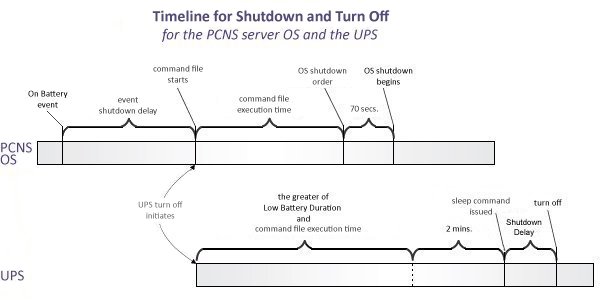
HowTo: Configure Low Battery Duration and PCNS to Shut Down with an APC SmartUPS

Posted by jpluimers on 2015/12/27

Great post: HowTo: Configure Low Battery Duration and PCNS to Shut Down with an APC SmartUPS

It explains how to configure automatic shutdown of machines upon UPS battery low events.

Posted in LifeHacker, Power User | Leave a Comment »

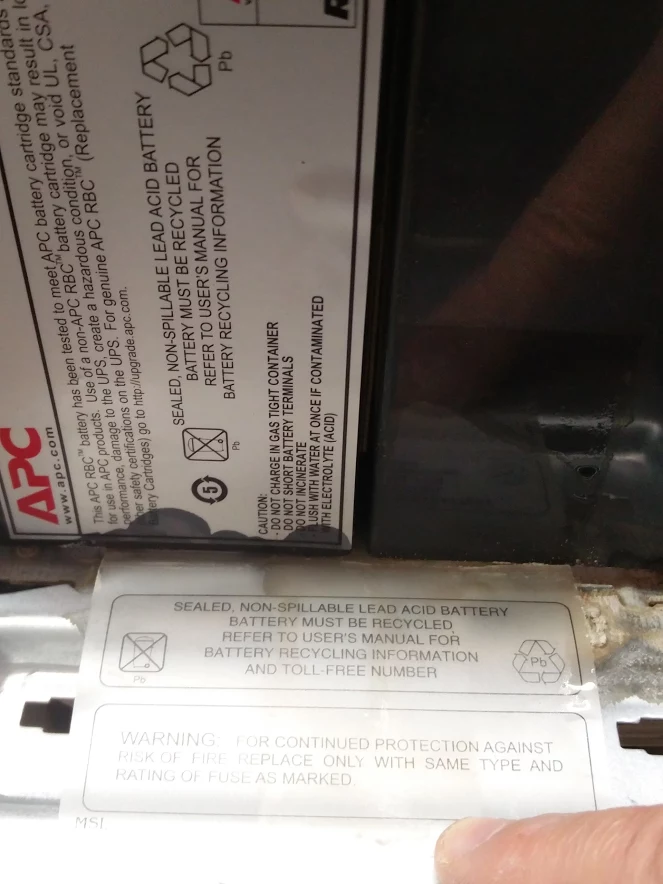
“Sealed, non-spillable”. Yeah right: @APCbySchneider batteries do leak. How to clean lead acid battery leaking residue.

Posted by jpluimers on 2015/12/26

I found out the hard way that the so called APC “Sealed, non-spillable” lead acid batteries inside their UPS systems do leak when used normally.

So I head to clean up before the damage would get bigger.

A few links on how to clean:

This is what you need:

  • Gloves
  • Goggles
  • Baking Soda (Sodium bicarbonate, in Dutch Zuiveringszout*)
  • Water
  • Wrench
  • Wire brush
  • Steel wool
  • Soft cloth(s)
  • Petroleum jelly (or in Dutch: vaseline** that is acid and fragrance-free)

Baking soda paste: 3 parts baking soda and 1 part water.

Baking soda solution: 1 parts baking soda in 10 parts water.

* ZuiveringszoutNatriumwaterstofcarbonaat (natriumbicarbonaat, dubbelkoolzure soda): E-nummer E 500 (ii).

In The Netherlands, you can get it expensively as “bakpoeder” ingredient (baking powder) or cheaply as cleaning agent called Zuiveringszout.

** Vaseline usually is petroleum jelly with extra ingredients, be sure to get the pure white one that is acid and fragrance free.

–jeroen

Source: “Sealed, non-spillable”. Yeah right +ApcbySchneider : How do I clean up this …

Follow-up: The details of one of my UPS-es. There is no such thing as leak free lead acid batteries, despite APC saying so…

Posted in APC Smart-UPS, Power User, UPS | 1 Comment »

Interactive Frequency Chart – Independent Recording Network

Posted by jpluimers on 2015/12/26

Source: Interactive Frequency Chart – Independent Recording Network

via The only eq chart one will ever need?!? and many others:

The only eq chart one will ever need?!? – Svein Idar Hansen – Google+


Posted in Audio, Power User | Leave a Comment »

USB-C charging cables: not always as good as you’d think

Posted by jpluimers on 2015/12/25

Merry X-mas sorting out your cables (:

Some interesting links that all come down to: make sure your USB-C cable is compliant before you start really using it.

you cannot be sure that cables Benson tested good are always good. Trust me, it happened to me. Knowing the ASINs/EANs of good cables, I went into local stores and bought a number of presumably good cables. Know what? They were bad. Might be that vendors recently changed their cables and there are still batches of bad ones out there, still with the same ASIN/EAN codes. So just be careful!

and

Having a weaker than 3A charger is actually a risk factor because the device being charged will always try to charge at 3 and if the older adapter can’t handle 3A, that is when it might be

–jeroen

Posted in Hardware, Power User, USB, USB-C | Leave a Comment »

Computer network technologies and services/VoIP – Wikibooks, open books for an open world

Posted by jpluimers on 2015/12/25

Nice explanation of unicast, multicast, RTP and much more:

Computer network technologies and services/VoIP – Wikibooks, open books for an open world.

–jeroen

Posted in Communications Development, Development, Internet protocol suite, TCP | Leave a Comment »

HUMAX service, HUMAX – Nederland

Posted by jpluimers on 2015/12/24

Dat is toch niet meer van deze tijd: De helpdesk is op werkdagen bereikbaar van 10.00 tot 12.00 uur en van 13.00 tot 16.00 uur.

Source: HUMAX service, HUMAX – Nederland

Posted in Uncategorized | Leave a Comment »

Tijdreis, over 200 jaar topografie

Posted by jpluimers on 2015/12/24

Ons huist staat er nog maar 20 jaar. Sommige andere al veel langer…

Wilt u weten hoe uw omgeving er 50, 100 of zelfs 200 jaar geleden uitzag? Hoe het land om u heen is veranderd door verkaveling en andere ingrepen? Dat kan eenvoudig op topotijdreis.nl, de website van het Kadaster die 200 jaar topografie ontsluit.

Source: Tijdreis, over 200 jaar topografie

via:

Hoe zag Amsterdam er 200 jaar geleden van boven uit? Dat is te zien op een nieuwe website van het Kadaster, waarop topografische kaarten van Nederland door de jaren heen zijn verzameld. Op de website Topotijdreis  kun je inzoomen op stadsniveau en met een slider kaarten uit verschillende jaartallen met elkaar vergelijken.

Source: Bestond jouw wijk al in 1815? Bekijk het op deze oude kaarten van Amsterdam – AMSTERDAM – PAROOL

Posted in History, Personal | Leave a Comment »

robocopy: mirror with security without following junction paths

Posted by jpluimers on 2015/12/24

Command:

ROBOCOPY /MIR /SEC /SECFIX /XJ /W:1 /R:1 source destination

via:

–jeroen

Posted in Power User, RoboCopy, Windows | 2 Comments »

Windows applications: Icons and the Shell; names, sizes, etc.

Posted by jpluimers on 2015/12/23

When adding Icons to your Windows applications a few things matter.

Selecting the icon resource

The icon selected by the Windows Shell (for modern Windows versions usually Windows Explorer), is the one with the lowest ID. When there is no icon with an ID, it selects the icon with the lowest name.

Icons in Windows can have both IDs and names. Even though API calls like LoadIcon have an lpIconName parameter, you can convert the ID to a name using MAKEINTRESOURCE.

There is a difference between the format of an ICO file and the icon resource (technically two things: RT_GROUP_ICON resource directory and an RT_ICON resource for each image) contains a list of icon images.

The selection process is on the RT_GROUP_ICON, and then within the group on the ICON itself.

For the RT_GROUP_ICON process, modern Windows versions still use the algorithm used by Windows 95 (not that by Windows NT):

Windows NT simply chooses the first resource listed in the application’s RC script. On the other hand, Windows 95’s algorithm is to choose the alphabetically first named group icon if one exists. If one such group resource does not exist, Windows chooses the icon with the numerically lowest identifier.

For a Delphi application the icon shown must be named MAINICON, since the below source fragment has been in TApplication.Create(…) like forever:

FIcon.Handle := LoadIcon(MainInstance, 'MAINICON');

Which means that if you want the Windows Shell (usually Explorer) to select that one, all other icon resources in your executable must have names that sort after MAINICON.

Selecting the icon within a resource

For the individual icon, the process is more complex. Even the summary is. To summarise the summary to select an icon for the requested size:

  1. Prefer the image closest in size.
  2. When more images of that size are present, match on the best color depth for the display.
  3. When no color depth matches, prefer the image with the greatest color depth not exceeding the color depth of the display.
  4. When all exceed the color depth, prefer the lowest color depth.

For color depth, treat 8 or more bits per pixel as equal. So there is no advantage of including a 16×16 256-color image and a 16×16 16-color image in the same resource — the system will simply choose the first one it encounters. When the display is in 8-bpp mode, the system will choose a 16-color icon over a 256-color icon, and will display all icons using the system default palette.

I’m not completely confident how 32-bit precisely fits in this scheme. If someone knows, please let me know and I’ll include the information.

I usually take 32-bit color images here which are actually True Color 24-bit + alpha channel RGBA images.

What about requested size?

Actually there are a lot of sizes that Windows can request, and there are many articles about it, some of which contradict each other.

From what I assembled, these are the sizes you need to run on Windows XP / Server 2003 and up:

  • 16×16
  • 20×20
  • 24×24
  • 32×32
  • 40×40
  • 48×48
  • 64×64
  • 96×96
  • 128×128
  • 256×256 (for Windows XP / Server 2003: do not compress this size)

I might be wrong, so here are some links:

–jeroen

via:

Posted in .NET, Delphi, Development, Software Development, The Old New Thing, Windows Development | Leave a Comment »