Archive for the ‘PowerShell’ Category
Posted by jpluimers on 2021/10/13
On nx, I’m used to xargs which allows to convert from a pipe of output into arguments passed to a command. This is useful, as many commands only accept arguments as parameters.
In PowerShell, you can usually avoid an xargs equivalent because commandlet output is a stream of objects that you can post-process using . I for instance used that in PowerShell: recovering from corrupt empty *.nupkg files after a disk was accidentally full during update.
Here are some xargs equivalency examples:
Read the rest of this entry »
Posted in *nix, *nix-tools, bash, CommandLine, Development, Power User, PowerShell, PowerShell, Scripting, Software Development, xargs | Leave a Comment »
Posted by jpluimers on 2021/10/12
After watching an autologon system not logging on automatically over the past years, the pattern seems to be that at least major, and some less minor Windows updates remove autlogon parts of the registry.
I’m not sure where the boundary between “major” and “less minor” lies (though I suspect “cumulative updates” and larger), nor if more than these values are affected:
- key
"HKEY_LOCAL_MACHINE\SOFTWARE\Microsoft\Windows NT\CurrentVersion\Winlogon"
- value name
AutoAdminLogon gets removed or becomes value 0
- value
DefaultUserName gets removed
- value
DefaultPassword gets removed
This means that now after each startup, I need to schedule a task that runs a script setting the values I need depending if a password is needed or not.
The script also needs credentials, so I need to figure out how to properly do that.
I still need to decide between PowerShell or batch file script, as I already have the batch file from How to turn on automatic logon in Windows and automatic logon in Windows 2003.
For my future reference, some more links on things that can get deleted:
Hopefully these links will help me writing the scripts:
–jeroen
Posted in Batch-Files, CommandLine, Development, Power User, PowerShell, PowerShell, Scripting, Software Development, Windows, Windows 10, Windows Development | Leave a Comment »
Posted by jpluimers on 2021/10/08
Preparing for another PowerShell article, I found this blast from the past, as somehow this missed the publishing schedule back in 2014!
Original text
After struggling with [Wayback] PowerShell ISE for a while ([Wayback] it started as a proof of concept and wasn’t meant to be an IDE you know) reading [Wayback] Powershell Studio vs Primal Forms Free CE vs PowerShellPlus Pro (also free) – Spiceworks, I’ve started using the free [Wayback] PowerGUI IDE for PowerShell by Dell.
The [Wayback] free PowerGUI used to be maintained by Quest, and after [Wayback] the acquisition of Quest by Dell in 2012, it is still free and is now at Product Support – PowerGUI Pro.
It is great (even got [Wayback] full support for PowerShell 3.0) and you can get it at the [Wayback] PowerGUI Downloads.
Notes:
–jeroen
Posted in Development, Missed Schedule, PowerShell, Scripting, SocialMedia, Software Development, WordPress | Leave a Comment »
Posted by jpluimers on 2021/09/29
The below one will fail in a script, both both work from the PowerShell prompt:
Success
Get-NetFirewallRule -DisplayGroup "File and Printer Sharing" | ForEach-Object { Write-Host $_.DisplayName ; Get-NetFirewallAddressFilter -AssociatedNetFirewallRule $_ }
Failure
Get-NetFirewallRule –DisplayGroup "File and Printer Sharing" | ForEach-Object { Write-Host $_.DisplayName ; Get-NetFirewallAddressFilter -AssociatedNetFirewallRule $_ }
The error you get this this:
At C:\bin\Show-File-and-Printer-Sharing-firewall-rules.ps1:5 char:52
+ ... -TCP-NoScope" | ForEach-Object { Write-Host $_.DisplayName ; Get-NetF ...
+                 ~~~~~~~~~~~~~~~~~~~~~~~~~~~~~~~~~~~~~~~~~~~~~~~~~~~~~~~~~
The string is missing the terminator: ".
    + CategoryInfo          : ParserError: (:) [], ParentContainsErrorRecordException
    + FullyQualifiedErrorId : TerminatorExpectedAtEndOfString
Via [WayBack] script file ‘The string is missing the terminator: “.’ – Google Search, I quickly found these that stood out:
Cause and solution
Before DisplayGroup, the first line has a minus sign and the second an en-dash. You can see this via [WayBack] What Unicode character is this ?.
Apparently, when using Unicode on the console, it does not matter if you have a minus sign (-), en-dash (–), em-dash (—) or horizontal bar (―) as dash character. You can see this in [WayBack] tokenizer.cs at function [WayBack] NextToken and [WayBack] CharTraits.cs at function [WayBack] IsChar).
When saving to a non-Unicode file, it does matter, even though it does not display as garbage in the error message.
Similarly, PowerShell has support for these special characters:
    internal static class SpecialChars
    {
        // Uncommon whitespace
        internal const char NoBreakSpace = (char)0x00a0;
        internal const char NextLine = (char)0x0085;

        // Special dashes
        internal const char EnDash = (char)0x2013;
        internal const char EmDash = (char)0x2014;
        internal const char HorizontalBar = (char)0x2015;

        // Special quotes
        internal const char QuoteSingleLeft = (char)0x2018; // left single quotation mark
        internal const char QuoteSingleRight = (char)0x2019; // right single quotation mark
        internal const char QuoteSingleBase = (char)0x201a; // single low-9 quotation mark
        internal const char QuoteReversed = (char)0x201b; // single high-reversed-9 quotation mark
        internal const char QuoteDoubleLeft = (char)0x201c; // left double quotation mark
        internal const char QuoteDoubleRight = (char)0x201d; // right double quotation mark
        internal const char QuoteLowDoubleLeft = (char)0x201E; // low double left quote used in german.
    }
The easiest solution is to use minus signs everywhere.
Another solution is to save files as Unicode UTF-8 encoding (preferred) or UTF-16 encoding (which I dislike).
–jeroen
Posted in .NET, CommandLine, Development, Encoding, PowerShell, PowerShell, Scripting, Software Development, Unicode, UTF-16, UTF-8, UTF16, UTF8 | Leave a Comment »
Posted by jpluimers on 2021/09/28
Shortly after UltraVNC mismatching sha256 hash the chocolatey checksum check (Chocolatey: when upgrades or installs keep insisting the hash has changed, and over time the mismatch changes as well), I bumped into another occasion: now (because of a zero sized .nupkg file), I had to force reinstall sysinternals.
The problem however is that sysinternals chocolatey will always install the latest version as per [WayBack] Chocolatey Software | Sysinternals 2019.12.19
Notes
- This package supports only latest version.
- This package by default installs to tools directory which will create shims for all applications. When you install to different directory, shims are not created but directory is added to the PATH.
- This package downloads the nano edition of sysinternals suite when installing it on a nano server.
- To have GUI for the tools, install nirlauncher package and use
/Sysinternals package parameter.
It means that when reinstalling an older version (in the process of fixing a broken chocolatey install), it is OK to ignore the error caused during forced reinstall:
C:\bin\bin>choco install --force --yes sysinternals
Chocolatey v0.10.15
Installing the following packages:
sysinternals
By installing you accept licenses for the packages.
sysinternals v2019.6.29 already installed. Forcing reinstall of version '2019.6.29'.
 Please use upgrade if you meant to upgrade to a new version.
Progress: Downloading sysinternals 2019.6.29... 100%

sysinternals v2019.6.29 (forced) [Approved]
sysinternals package files install completed. Performing other installation steps.
Sysinternals Suite is going to be installed in 'C:\ProgramData\chocolatey\lib\sysinternals\tools'
Downloading sysinternals
  from 'https://download.sysinternals.com/files/SysinternalsSuite.zip'
Progress: 100% - Completed download of C:\Users\jeroenp\AppData\Local\Temp\chocolatey\sysinternals\2019.6.29\SysinternalsSuite.zip (29 MB).
Download of SysinternalsSuite.zip (29 MB) completed.
Error - hashes do not match. Actual value was 'AE0AB906A61234D1ECCB027D04F5A920D78A31494372193EE944DD419842625C'.
ERROR: Checksum for 'C:\Users\jeroenp\AppData\Local\Temp\chocolatey\sysinternals\2019.6.29\SysinternalsSuite.zip' did not meet 'db59efe1739a2262104874347277f9faa0805a1a7a0acd9cc29e9544fb8040c5' for checksum type 'sha256'. Consider passing the actual checksums through with --checksum --checksum64 once you validate the checksums are appropriate. A less secure option is to pass --ignore-checksums if necessary.
The install of sysinternals was NOT successful.
Error while running 'C:\ProgramData\chocolatey\lib\sysinternals\tools\chocolateyInstall.ps1'.
 See log for details.

Chocolatey installed 0/1 packages. 1 packages failed.
 See the log for details (C:\ProgramData\chocolatey\logs\chocolatey.log).

Failures
 - sysinternals (exited -1) - Error while running 'C:\ProgramData\chocolatey\lib\sysinternals\tools\chocolateyInstall.ps1'.
 See log for details.
So in this case, as always the most recent Sysinternals file is used, it is OK to follow the bold guideline above (and quoted below) use the checksum for that file. You might even want to ignore it, as the file is downloaded over https so tampering is virtually impossible:
Consider passing the actual checksums through with --checksum --checksum64 once you validate the checksums are appropriate. A less secure option is to pass --ignore-checksums if necessary.
For this checksum, the forced reinstall becomes choco install --force --yes sysinternals --checksum AE0AB906A61234D1ECCB027D04F5A920D78A31494372193EE944DD419842625C
Alternatively (with a slight chance of yet another checksum) would be choco install --force --yes sysinternals --ignore-checksums
Related:
Read the rest of this entry »
Posted in .NET, Chocolatey, CommandLine, Development, Power User, PowerShell, PowerShell, Scripting, Software Development, SysInternals, Windows | Leave a Comment »
Posted by jpluimers on 2021/09/23
For my future self.
Due to an issue with choco-cleaner versions [WayBack] 0.0.6 and [WayBack] 0.0.7, I needed to ensure it was installed as version [WayBack] 0.0.5.2 and keep it that version.
Not sure if this is the canonical way, but this worked:
choco uninstall --yes choco-cleaner
choco install --yes choco-cleaner --version 0.0.5.2
choco pin add --name=choco-cleaner --version 0.0.5.2
choco pin list
This worked to revert:
choco pin remove --name=choco-cleaner
choco pin list
choco upgrade --yes choco-cleaner
Aftere this upgrade, choco-cleaner version 0.0.7.1 shows a nice error message when the environment variable %ChocolateyToolsLocation% fails to exist.
In that case calling RefreshEnv.cmd will create that environment variable.
Related:
–jeroen
Read the rest of this entry »
Posted in .NET, Chocolatey, CommandLine, Development, Power User, PowerShell, PowerShell, Scripting, Software Development, Windows | Leave a Comment »
Posted by jpluimers on 2021/09/23
I bumped in the error [WayBack] “The input object cannot be bound to any parameters for the command either because the command does not take pipeline input or the input and its properties do not match any of the parameters that take pipeline input.” when using [WayBack] Write-Output where [WayBack] Select-Object worked just fine.
This happened when playing around with detecting empty Chocolatey .nupkg package files.
$LibPath = Join-Path $env:ChocolateyInstall 'lib'
$NupkgFilter = '*.nupkg'

Get-ChildItem -Path $LibPath -Recurse -Filter $NupkgFilter |
    Where-Object {($_.Length -eq 0) -and ($_.BaseName -eq "hg")} |
        Sort-Object LastWriteTime |
            Select-Object BaseName

<#
Get-ChildItem -Path $LibPath -Recurse -Filter $NupkgFilter |
    Where-Object {($_.Length -eq 0) -and ($_.BaseName -eq "hg")} |
        Sort-Object LastWriteTime |
            Write-Output BaseName
## Write-Output : The input object cannot be bound to any parameters for the command either because the command does not take pipeline input or the input and its properties do not match any of the parameters that take pipeline input.
#>

Get-ChildItem -Path $LibPath -Recurse -Filter $NupkgFilter |
    Where-Object {($_.Length -eq 0) -and ($_.BaseName -eq "hg")} |
        Sort-Object LastWriteTime |
            ForEach-Object { Write-Output $_.BaseName }
The output is also slightly different, hinting on the root cause:
BaseName
--------
hg
hg
The above shows that Select-Object selects a list of BaseName properties (italic part), whereas Write-Output shows a single BaseName property content (bold part).
Read the rest of this entry »
Posted in .NET, CommandLine, Development, PowerShell, PowerShell, Scripting, Software Development | Leave a Comment »
Posted by jpluimers on 2021/09/22
Since I switch a lot between languages, I tend to forget what indentation, spacing and termination to use.
So from the Indentation/Length/Spacing/Termination sections in [WayBack] Code Layout and Formatting · PowerShell Practice and Style:
Read the rest of this entry »
Posted in .NET, CommandLine, Development, PowerShell, PowerShell, Scripting, Software Development | Leave a Comment »
Posted by jpluimers on 2021/09/09
When you do a choco upgrade all --yes on a system that – during upgrade – becomes low on disk space, you can end up with a lot of empty .nupkg files.
For those package, Chocolatey will not recognise they are installed any more.
The fix is this:
- increase disk space so at least 5 gigabytes is free
- split the choco upgrade process so it checks before each upgrade that this diskspace is indeed free
- list all choco .nupkg files of length zero ordered from oldest to newest
- for each package, delete the .nupkg file if it exists, then force install it with the
--force parameter before the --yes parameter like in
choco install --force --yes chocolatey
- when all packages have been done, then
choco upgrade --all --yes
I wrote a few PowerShell scripts assisting me in cleaning up the mess.
choco-list-installed.bat
:: https://superuser.com/questions/890251/how-to-list-chocolatey-packages-already-installed-and-newer-version-available-fr
choco list --localonly %*
choco-show-installed-package-names.bat
:: `--limit-output`  does not show Chocolatey version header and count footer.
:: `--id-oonly`      omits the version number, so you only get the package name
choco list --local-only --limit-output --id-only
choco-show-installed-package-names-and-versions.bat
:: `--limit-output`  does not show Chocolatey version header and count footer.
choco list --local-only --limit-output %*
choco-reinstall-empty-nupkg-by-names.ps1
- [WayBack] Powershell – Finding 0-byte Files | Another computer blog
- [WayBack] windows – Where is the Chocolatey installation path? – Stack Overflow:
There is an environment variable set on installation, ChocolateyInstall, which is set to C:\Chocolatey by default in versions of Chocolatey less than 0.9.8.27. After that, this defaults to C:\ProgramData\Chocolatey.
NOTE: By default, the C:\ProgramData folder on Windows is hidden. You will either need to enable hidden files and folders through Folder Options | View or you can navigate directly to the path shown above by copy/pasting directly into the Windows Explorer address bar.
In version 0.9.9 of Chocolatey, it actively moves from the old folder location to the new one.
- [WayBack] string – Powershell concatenate an Environment variable with path – Stack Overflow
A convenient way to obtain the string value rather than the dictionary entry (which is technically what Get-ChildItem is accessing) is to just use the variable syntax: $Env:USERPROFILE rather than Get-ChildItem Env:USERPROFILE.
$localpath = "$env:USERPROFILE\some\path"
…
Also, the Join-Path cmdlet is a good way to combine two parts of a path.
$localpath = Join-Path $env:USERPROFILE 'some\path'
<#
https://learningpcs.blogspot.com/2009/12/powershell-finding-0-byte-files.html

Zero length .nupkg files sorted by oldest first.

These are packages that choco will not show and likekly need a forced reinstall.

Choco does remember the version that was installed (so not all the choco config is hosed).

- https://stackoverflow.com/questions/28235388/where-is-the-chocolatey-installation-path/28239451#28239451
- https://stackoverflow.com/questions/41047123/powershell-concatenate-an-environment-variable-with-path/41047343#41047343

/#>
$LibPath = Join-Path $env:ChocolateyInstall 'lib'
$NuPkgExtension = 'nupkg'
$NupkgFilter = "*.$NuPkgExtension"

## Remove the empty .nupkg files for each argument
$args | ForEach-Object {
    $PackageName = $_
    Write-Output "Deleting any empty $PackageName.$NuPkgExtension under $LibPath :"

    Get-ChildItem -Path $LibPath -Recurse -Filter $NupkgFilter | Where-Object {
        ($_.Length -eq 0) -and ($_.BaseName -eq $PackageName)
    } | Sort-Object LastWriteTime | ForEach-Object {
        $PackageFullName = $_.FullName
        Write-Output "Deleting $PackageFullName"
        Remove-Item $PackageFullName
    }
}

## Force install the chocolatey package for each argument
$args | ForEach-Object {
    $PackageName = $_
    Write-Output "Installing $PackageName with Chocolatey:"
    choco install --force --yes $PackageName
}
Link lists
Some more links that helped me solve this:
Some links on errors I encountered while recovering from this:
- Checksum errors like[WayBack] (sysinternals) checksum error · Issue #756 · chocolatey-community/chocolatey-coreteampackages · GitHub are often caused by the chocolatey package downloading the most recent installer despite the package version. Two solutions:
- Pass
--ignorechecksum to choco --install (see [WayBack] CommandsInstall · chocolatey/choco Wiki · GitHub)
- First uninstall using the
--force parameter
[Archive.is] Chocolatey Software | Sysinternals 2019.6.29
Sysinternals Suite is going to be installed in ‘C:\ProgramData\chocolatey\lib\sysinternals\tools’
File appears to be downloaded already. Verifying with package checksum to determine if it needs to be redownloaded.
Error – hashes do not match. Actual value was ‘A510C31C2CC591A16F342E7CBA5DC8409EAF08C9B56729CF132C95C69E196787’.
Downloading sysinternals
from ‘https://download.sysinternals.com/files/SysinternalsSuite.zip’
Progress: 100% – Completed download of C:\Users\devCrPhoneDebug\AppData\Local\Temp\2\chocolatey\sysinternals\2018.12.27\SysinternalsSuite.zip (23.51 MB).
Download of SysinternalsSuite.zip (23.51 MB) completed.
Error – hashes do not match. Actual value was ‘A510C31C2CC591A16F342E7CBA5DC8409EAF08C9B56729CF132C95C69E196787’.
ERROR: Checksum for ‘C:\Users\devCrPhoneDebug\AppData\Local\Temp\2\chocolatey\sysinternals\2018.12.27\SysinternalsSuite.zip’ did not meet ‘b14466c6bf3be216ea71610a3f455030e791cd5ad1b42a283886194205d176b0’ for checksum type ‘sha256’. Consider passing the actual checksums through with –checksum –checksum64 once you validate the checksums are appropriate. A less secure option is to pass –ignore-checksums if necessary.
The install of sysinternals was NOT successful.
Error while running ‘C:\ProgramData\chocolatey\lib\sysinternals\tools\chocolateyInstall.ps1’.
See log for details.
Chocolatey installed 0/1 packages. 1 packages failed.
See the log for details (C:\ProgramData\chocolatey\logs\chocolatey.log).
- Packages that cannot be found at all:[WayBack] “imagemagick not installed. The package was not found with the source(s) listed” – Google Search
- This means that Chocolatey cannot find a dependency, but will not tell you which one. It also happens during package testing:[WayBack] imagemagick v7.0.9.7 – Failed – Package Tests Results · GitHub
- Solve this by fixing all other empty
.nupkg files first, which will give you an idea on the potential missing dependencies. Retry by forcing reinstall each dependency.
- Dependencies that cannot be found, which can be caused by more empty
.nupkg files. Example: [WayBack] Unable to resolve dependency · Issue #206 · chocolatey/choco · GitHub
- Solve this by each time a dependency is not found, include on the
choco-reinstall-empty-nupkg-by-names.ps1command, then retry.
–jeroen
Posted in Chocolatey, COBOL, Development, Power User, PowerShell, PowerShell, Scripting, Software Development, Windows, Windows 10 | Leave a Comment »
Posted by jpluimers on 2021/09/08
By now, probably newer versions have come out, but this should give a rough indication of the 2019 state of [WayBack] PowerShell OS Support Matrix – mohitgoyal.co:
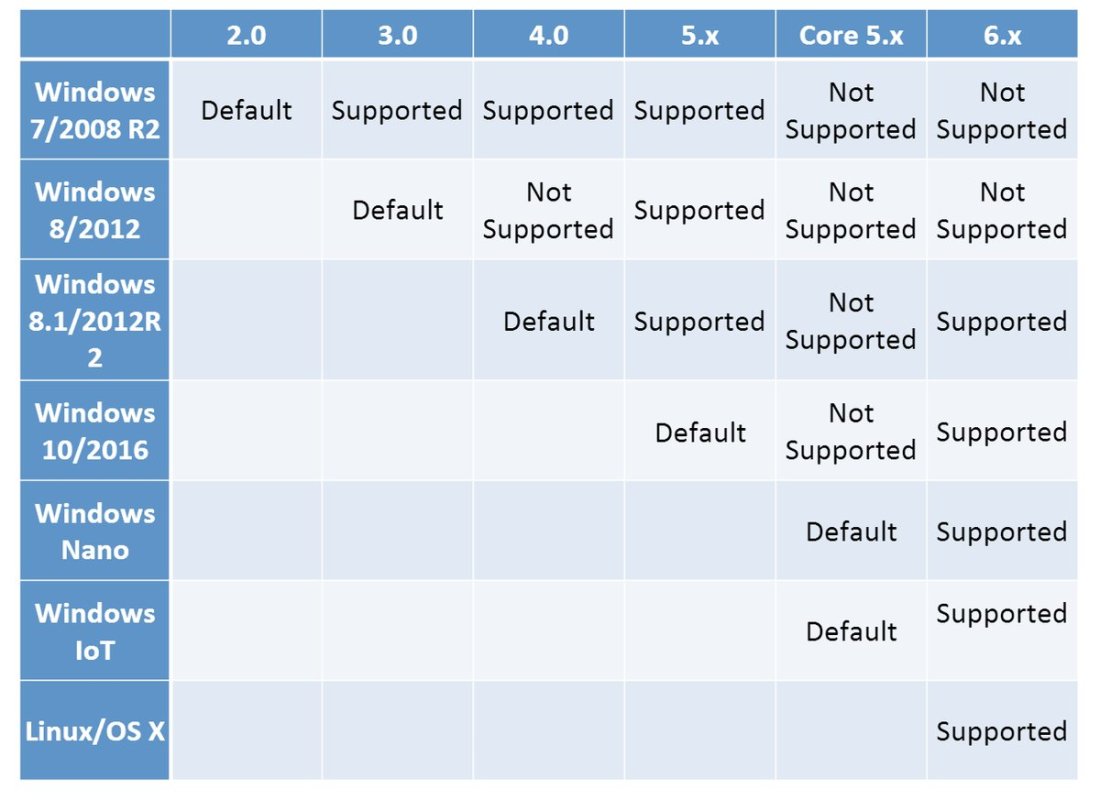
For 5.1 and lower, you can find the prerequisites in [WayBack] Windows PowerShell System Requirements – PowerShell | Microsoft Docs.
–jeroen
Posted in .NET, CommandLine, Development, PowerShell, PowerShell, Scripting, Software Development | Leave a Comment »


 The Wiert Corner - irregular stream of stuff