The Wiert Corner – irregular stream of stuff

Jeroen W. Pluimers on .NET, C#, Delphi, databases, and personal interests

  • My badges

  • Twitter Updates

  • My Flickr Stream

  • Pages

  • All categories

  • Enter your email address to subscribe to this blog and receive notifications of new posts by email.

    Join 1,860 other subscribers

Archive for the ‘HP XW6600’ Category

HP xw6600 Workstation – The Computer Setup F10 Utility: enabling Intel VT so you can run VMware ESXi or vSphere on it

Posted by jpluimers on 2013/10/25

On a HP XW6600, you can run ESXi 4 or run ESXi 5, but in yourder to run x64 guest VMs, you need to enable Intel VT in the BIOS first.

So, in the HP XW6600 BIOS, the choose the menu “Security”, then the submenu “OS Security” to get at these two options:

  • Intel Virtualization Technology (VTx)—Enables or disables Intel Virtualization Technology to increase workstation performance.
  • Intel IO Virtualization—Enables or disables Virtualization Technology to increase workstation I/O performance.

When you enable both VT options, then VMware ESX/ESXi/vSphere can run x64 guests with full VT support (otherwise you will get a friendly warning message when you try to setup or run such a guest VM). Read the rest of this entry »

Posted in BIOS, Boot, ESXi4, ESXi5, ESXi5.1, Hardware, HP XW6600, Power User, Virtualization, VMware, VMware ESXi | 3 Comments »

More ESXi5 installation steps

Posted by jpluimers on 2013/06/10

(note: part of this post is unfinished, but I wanted to make sure all the links are publicly accessible, so I posted earlier and incomplete)

I already did a few ESXi5 postings (they apply to 5.1 as well) of which the most important are:

Time to finish up some additional installation steps (with a big thanks to Matthijs ter Woord):

Read the rest of this entry »

Posted in BIOS, Boot, ESXi5, ESXi5.1, Hardware, HP XW6600, Keyboards and Keyboard Shortcuts, Power User, PowerCLI, Virtualization, VMware, VMware ESXi, Wake-on-LAN (WoL), Windows, Windows 7, Windows 8, Windows Server 2000, Windows Server 2003, Windows Server 2003 R2, Windows Server 2008, Windows Server 2008 R2, Windows Vista, Windows XP | Leave a Comment »

Screenshots: Creating vSphere 5 ESXi embedded USB Stick with MBR partition table

Posted by jpluimers on 2013/05/03

A long time ago, I promised steps how to install VMware 5 ESXi using the MBR boot format.

The steps with screenshots are below, but first some background information.

As of VMware ESXi 5, GPT (short for GUID partition table) is the default partition table used by VMware ESXi.

Disks smaller than 2 TB can boot with MBR, but GPT It is a requirement for disks bigger than 2 TB. GPT also needs a UEFI compatible  BIOS.

Some older BIOSes (like those of my HP XW6600 machines: still running strong after many years of fine service) do not support GPT.

Luckily, weasel (the open source Operating System Installer that VMware ESXi uses) can be forced to use MBR using runweasel formatwithmbr.

Forcing MBR is a 2-step process.

  1. Get to the boot prompt: press Shift+O when the progress bar appears
  2. Running weasel with the MBR option: after the “runweasel”, type a space, then formatwithmbr

Below are the screenshots of a VMware ESXi 5.0.0 installation I did this way.

But it works equally well in ESXi 5.1.x

After writing this post, I found out about ESXi 5 Won’t Boot From USB which solves this exact problem for an HP XW8600 configuration (those are slightly larger machines than the XW6600 I have, but the architecture is the same).

Screenshots

Click on the image or link for larger screenshots, or view the series here at Flickr. Read the rest of this entry »

Posted in BIOS, Boot, ESXi5, ESXi5.1, Hardware, HP XW6600, Power User, UEFI, Virtualization, VMware, VMware ESXi | 1 Comment »

USB drive/stick as DataStore is possible, but not recommended (via: VMware Communities)

Posted by jpluimers on 2013/02/08

A long while ago I blogged about Creating vSphere 5 ESXi embedded USB Stick so I could boot ESXi from USB.

Since then, I changed USB sticks to be larger (and faster) ones and thought it might be possible to put a small datastore on it for a small maintenance VM.

The VMware Communities: External USB hard drive detected as… thread on the VMware Communities site shows you can do it for a USB disk, but only from the console or SSH (not from the regular maintenance tools).

The results vary, and don’t sound very stable to me, so it is definitely not recommended.

So I have refrained from going that way.

–jeroen

via: VMware Communities: External USB hard drive detected as….

Posted in ESXi5, Hardware, HP XW6600, Power User, Virtualization, VMware, VMware ESXi | Leave a Comment »

Creating vSphere 5 ESXi embedded USB Stick (failed at first in HP XW6600, but with MBR partition table it works)

Posted by jpluimers on 2012/07/30

Installing and booting ESXi 5 from USB allows you to keep your storage exclusively for VMs and separately make backup of your boot configuration and data configuration (note you cannot put the DataStore on your USB stick).

A small stick (minimum 1 gigabyte) will suffice, and works on many systems, but at first not on my HP XW6600, despite the latest BIOS version 1.36a. You get a nice “Non-System disk or disk error” message.

Both methods I tried failed at first. I thought they failed because the BIOS on the HP has limited USB boot support. It did boot from single partition USB sticks, but seemed not to boot from multi-partition ones, no matter if they are removable or HDD (with the removable bit flipped).

The ESXi5 installer is a single partition one. The final ESXi5 installed image is a multi-partition one. That’s what got me thinking into the multi-partiton direction.

Since the problem is similar to the impossibility of booting VMware workstation VMs from USB stick, (this fails even from the BIOS), I tried Plop since Plop works for VMware Workstation. The Plop USB boot manager failed too. My final thought was to install Plop on a FAT formatted USB stick(which does boot) and continue from there to the ESXi5 one: that failed too.

Boy I was wrong: the failure was not caused by the multi-partition setup, but because of my “Google blindness”: I searched in the wrong direction with the wrong keywords, therefore not getting the right links as search results.

A VMware Communities forum threads on “No bootable device” after successful ESXI5 installation on Intel DG35EC desktop motherboard” and No boot after clean install  finally got me in the right direction:

As of ESXi5, the default partition table type is GPT (GUID Partition Table), not MBR (Master Boot Record) any more (thats why an ESXi4 install will work fine).

Booting from GPT is in the EFI standards (now in its second generation UEFI or United Extensible Firmware), allowing – among others – to boot from disks bigger than 2 terrabyte. You need a BIOS that is compatible with GPT to do so, and the HP XW6600 BIOS clearly isn’t compatible with GPT.

Not all is lost, as while installing ESXi5, you have an option – though well hidden – to force it to use MBR boot. That worked, and I will blog on the steps later.

The good news: it now works on my HP XW6600 workstations (that support both VT-x and VT-d, which means I can do PCI pass through).

How to create an ESXi5 install on a USB stick

First things first though: creating the USB stick in the first place. Read the rest of this entry »

Posted in BIOS, Boot, ESXi4, ESXi5, Hardware, HP XW6600, Power User, UEFI, Virtualization, VMware, VMware ESXi | 4 Comments »

x64 support in ESXi4.1 requires VT, I know that! but why warn so late?

Posted by jpluimers on 2010/08/16

I know that ESXi 4.1 requires VT (the Intel support for hardware assisted virtualization) to be enabled to run x64 VMs.
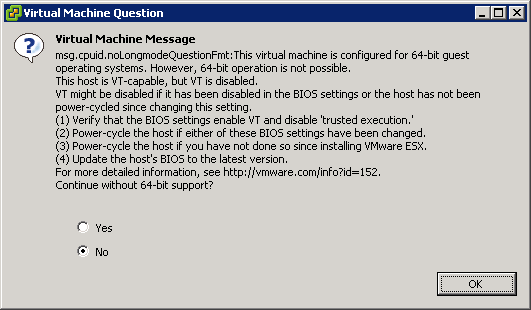
This is the warning that you get when starting an x64 VM, and you don’t have VT enabled:

[Window Title]
Virtual Machine Message
[Main Instruction]
Virtual Machine Message
msg.cpuid.noLongmodeQuestionFmt: This virtual machine is configured for 64-bit guest
operating systems. However, 64-bit operation is not possible.
This host is VT-capable, but VT is disabled.
VT might be disabled if it has been disabled in the BIOS settings or the host has not been
power-cycled since changing this setting.
(1) Verify that the BIOS settings enable VT and disable ‘trusted execution.’
(2) Power-cycle the host if either of these BIOS settings have been changed.
(3) Power-cycle the host if you have not done so since installing VMware ESX.
(4) Update the hosts’s BIOS to the latest version.
For more detailed information, see http://vmware.com/info?id=152
Continue without 64-bit support?
[Yes] [No] [OK]

Read the rest of this entry »

Posted in BIOS, Boot, ESXi4, Hardware, HP XW6600, Power User, Virtualization, VMware, VMware ESXi | 3 Comments »