The Wiert Corner – irregular stream of stuff

Jeroen W. Pluimers on .NET, C#, Delphi, databases, and personal interests

  • My badges

  • Twitter Updates

  • My Flickr Stream

  • Pages

  • All categories

  • Enter your email address to subscribe to this blog and receive notifications of new posts by email.

    Join 1,860 other subscribers

Archive for the ‘Hardware’ Category

OCR on documents with Adobe Acrobat XI Standard

Posted by jpluimers on 2021/08/16

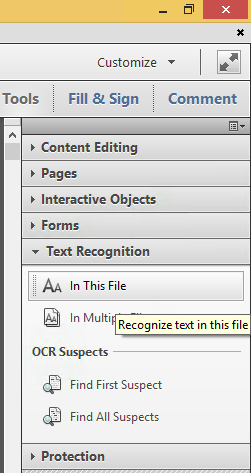
Steps to convert PDF to OCR on all pages in Acrobat XI Standard (STD) via [WayBack] PDF to text, how to convert a PDF to text | Adobe Acrobat DC:

  1. Open a PDF file containing a scanned image in Acrobat.
  2. Click on the Edit PDF tool in the right pane. Acrobat automatically applies optical character recognition (OCR) to your document and converts it to a fully editable copy of your PDF.
  3. Choose File > Save As and type a new name for your editable document.

Screenshots:

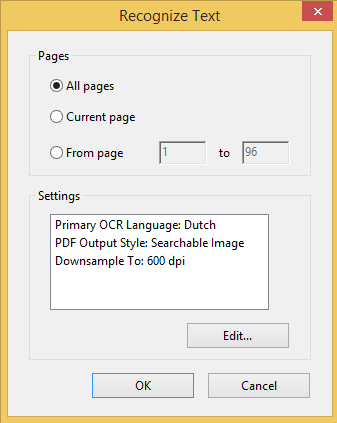
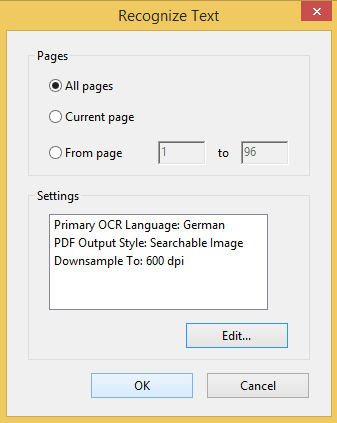
You can select from many OCR languages:

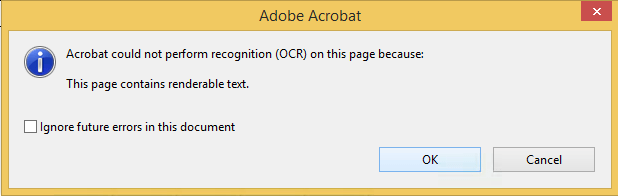
On pages without bitmap content, you see this message:

Only in Acrobat XI or older

Note that Acrobat XI was the last version where this was possible in the Standard edition.

More recent versions of Acrobat, need the Pro version for OCR:

Read the rest of this entry »

Posted in Adobe, Adobe Acrobat, Fujitsu ScanSnap, Hardware, ix100, Power User, Scanners | Leave a Comment »

IPMI will not grab IP even with DHCP turned on : homelab

Posted by jpluimers on 2021/08/13

TL;DR

  1. ensure the IPMI network cable is connected before connecting the power cable
  2. ensure the IPMI LAN is using the dedicated interface
  3. ensure the IPMI LAN interface is connected to a “non green” port of your network switch
  4. ensure the DHCP server has been cold rebooted
  5. ensure the IPMI VLAN configuration matches your network
  6. ensure the IPMI firewall configuration matches the network you try to reach IPMI from
  7. ensure the motherboard does not have a short-circuit anywhere

Otherwise SuperMicro devices might not get a DHCP address on the IPMI (BMC) interface, despite the tooling like [WayBack] ipmicfg indicating getting DHCP was succesful.

This especially holds for X9 boards, likely for newer boards as well.

Personally I never had the 4. and up above, but I bumped into 1. and 2. with SuperMicro boards and 3. with other devices.

Based on

Read the rest of this entry »

Posted in Hardware, Mainboards, Power User, SuperMicro, X9SRi-3F, X9SRi-F | Leave a Comment »

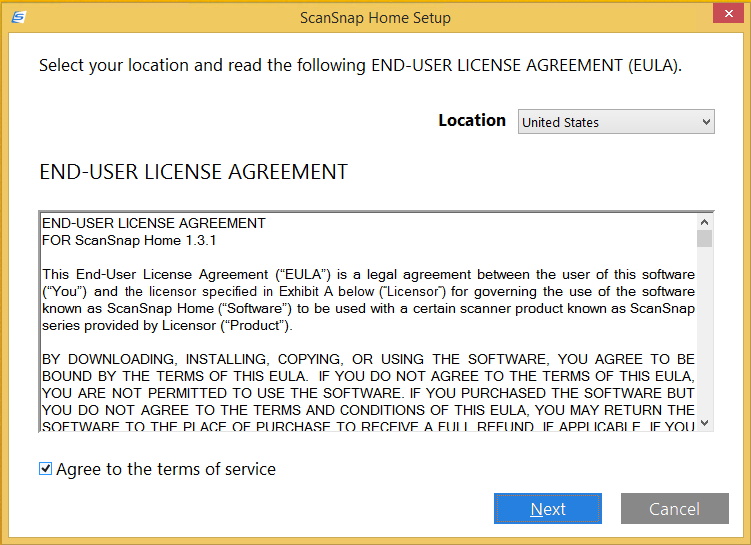
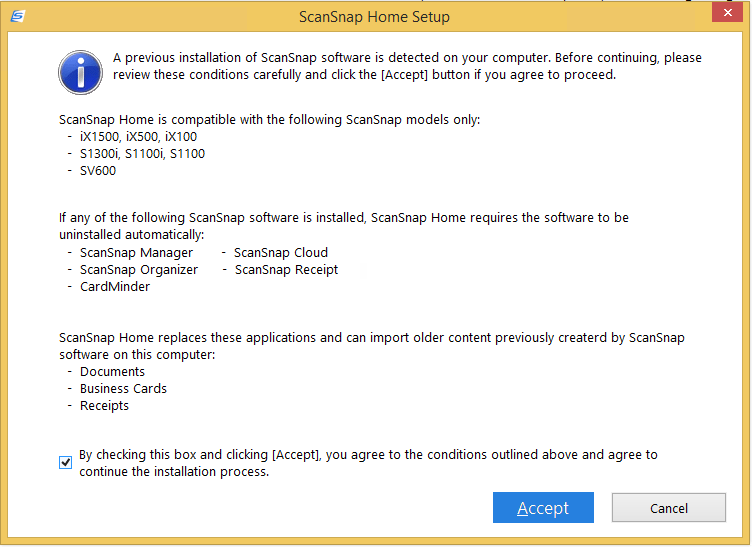
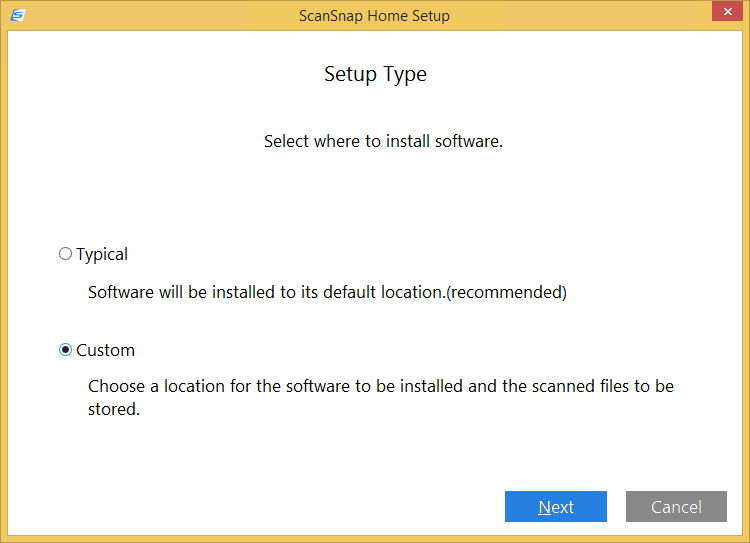
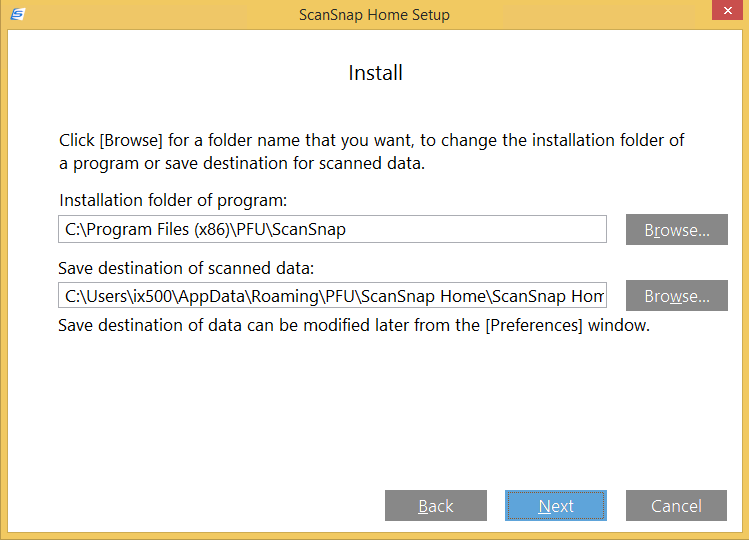
Installing a Fujitsu PFU ScanSnap ix1500: ScanSnap Home upgrade screenshots

Posted by jpluimers on 2021/08/13

For my screenshot archive:

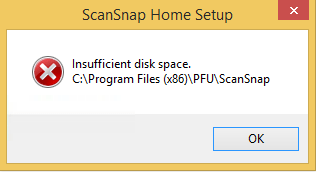
A retry with about 5 gigabyte of free space went further:

Read the rest of this entry »

Posted in Fujitsu ScanSnap, Hardware, ix1500, Power User, Scanners, Windows, Windows 8.1 | Leave a Comment »

ScanSnap Advanced Operation Guide (Mac OS) Creating Searchable PDF Files

Posted by jpluimers on 2021/08/13

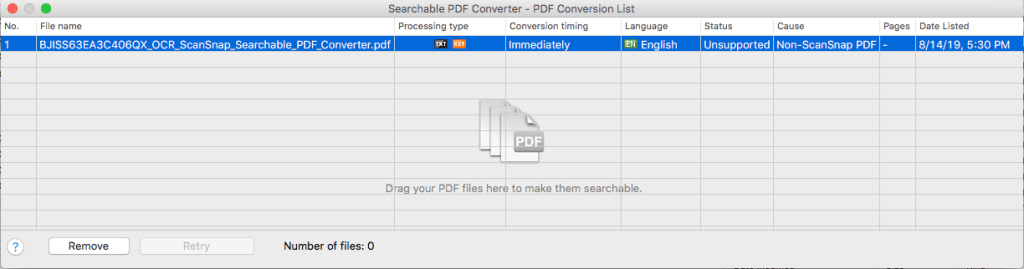
This works only for PDF files originally created by ScanSnap (otherwise “Unsuccessful” with “Non-ScanSnap PDF”: [WayBack] ScanSnap Advanced Operation Guide (Mac OS) Creating Searchable PDF Files

ATTENTION

  • Vertical text can be searched with Adobe Acrobat, but not with Spotlight or Preview.

HINT

The [Searchable PDF Converter] icon Searchable PDF Converter Icon appears in the status menu of the menu bar while Searchable PDF Converter is running. For details, refer to the ScanSnap Manager Help.

  1. Click the [Searchable PDF Converter] icon Searchable PDF Converter in the Quick Menu.
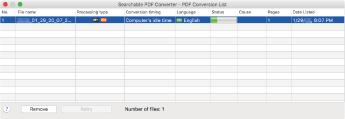
    • The [Searchable PDF Converter – PDF Conversion List] window appears, and conversion starts.
      Searchable PDF Converter

    HINT

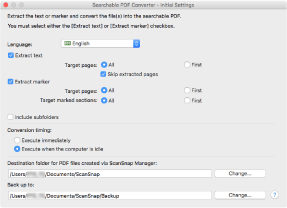
    On a window that appears when [Searchable PDF Converter] is started for the first time, click the [OK] button to open the [Searchable PDF Converter – Initial Settings] window. In the [Searchable PDF Converter – Initial Settings] window, specify the processes that are to be performed, the conversion timing, and the folder to which the converted files are saved while conversion into searchable PDF files is being performed.

    Searchable PDF Converter - Initial Settings

When using different kinds of PDFs, you get this error:

I have not figured out yet how it recognises ScanSnap generated PDF files.

–jeroen

Posted in Fujitsu ScanSnap, Hardware, ix500, Power User, Scanners | Leave a Comment »

The continued Windows PrintNightmare saga: no more printer Plug&Play for end-users on Windows

Posted by jpluimers on 2021/08/12

It was fun while it lasted, and puts other operating systems at an advantage.

[Wayback] Jeroen Wiert Pluimers on Twitter: “Bye bye printer Plug & Play on Windows for end-users: … Though MacOS has its share of printer driving issues (like only printing monochrome to colour printers), this is a serious step back on Windows compared to MacOS.”

More on the MacOS printer woes in a later blog post.

Web related:

Twitter related:

–jeroen

Read the rest of this entry »

Posted in Hardware, Power User, Printer drivers, Printers, Windows, Windows 10, Windows 7, Windows 8, Windows 8.1 | Leave a Comment »

It looks like a volunteer has been found to maintain the openvpn chocolatey

Posted by jpluimers on 2021/08/09

The chocolatey package for OpenVPN has not been updated for quite a while. It looks like it has to do with the current dependency to verify the OpenVPN signature.

The current [Wayback] Chocolatey Software | OpenVPN 2.4.7 version is both outdated on the major version number ([Wayback/Archive.is] Release OpenVPN v2.5.3 release · OpenVPN/openvpn) and minor version ([Wayback/Archive.is] Release OpenVPN v2.4.11 release · OpenVPN/openvpn). The version 2.4 Windows installers are now called “Legacy Windows Installers”.

Luckily less than a day after the start of the [Wayback/Archive.is] RFM – openvpn · Issue #1024 · chocolatey-community/chocolatey-package-requests, a volunteer stepped forward.

Hopefully by now the package is being maintained again.

–jeroen

Posted in Network-and-equipment, OpenVPN, Power User, VPN | Leave a Comment »

Fujitsu PFU ScanSnap Home: “OnLine Update” to update ABBY FineReader or install OCR Packs does not work

Posted by jpluimers on 2021/08/06

According to [WayBack] Software for the ScanSnap:

ABBYY FineReader for ScanSnap

This application can perform text recognition on the scanned images using OCR (Optical Character Recognition) to convert the image data into Word, Excel, or PowerPoint files that can be edited.

Install ABBYY FineReader for ScanSnap from ScanSnap Online Update after ScanSnap Home is installed.

Display the [WayBack] Main Window of ScanSnap Home and select [Help]  [Online update (check for updates)] in the menu to run ScanSnap Online Update.

The piece above is untrue if you updated, as instructed by [WayBack] ScanSnap iX1500 Before you buy 03 – Fujitsu Global

Read the rest of this entry »

Posted in Fujitsu ScanSnap, Hardware, ix1500, Power User, Scanners | Leave a Comment »

Adding a Fujitsu PFU ScanSnap ix1500 scanner to a Windows machine that already had a ix500 scanner workflow was cumbersome

Posted by jpluimers on 2021/08/06

I was hoping for a quick install of the ScanSnap ix1500 on a machine that had a fully working ix500 workflow, just biting the bullet after contemplating about [WayBack] Thoughts on ix500; should I get an ix1500? for a while.

That didn’t work as expected: the Windows machine would not recognise the ix1500 when connected over USB or WiFi:

Missing driver

One problem here is that with the Ix500 installed, only the ix500 driver is known to Windows (on my machine it was in C:\Windows\Inf\oem12.inf which is identical to C:\Windows\SSDriver\SSMini\SSiX500-x64.inf) and the ScanSnap Installer software did not copy all drivers to C:\Windows\SSDriver\SSMini:

fi5110e-x64.cab
fi5110e-x64.cat
fi5110e-x64.inf
S1100-x64.cab
s1100-x64.cat
S1100-x64.inf
S1300-x64.cab
s1300-x64.cat
S1300-x64.inf
S1300i-x64.cab
s1300i-x64.cat
S1300i-x64.inf
S1500-x64.cab
S1500-x64.cat
S1500-x64.inf
S300-x64.cab
s300-x64.cat
S300-x64.inf
S500-x64.cab
s500-x64.cat
S500-x64.inf
SSiX100-x64.cab
ssix100-x64.cat
SSiX100-x64.inf
SSiX500-x64.cab
ssix500-x64.cat
SSiX500-x64.inf
SV600-x64.cab
sv600-x64.cat
SV600-x64.inf

Incompatible software

I later found out that the ix1500 is incompatible with the ScanSnap Manager: [WayBack] ScanSnap iX1500 Before you buy 03 – Fujitsu Global

Read the rest of this entry »
Posted in Fujitsu ScanSnap, Hardware, ix1500, ix500, Power User, Scanners | Leave a Comment »

Factory reset a MikroTik hEX PoE RB960PGS using the reset button

Posted by jpluimers on 2021/08/02

[WayBack] Manual:Reset – MikroTik Wiki:

 unplug the device from power

2) press and hold the button right after applying power

Note: hold the button for 5 seconds (USER LED will start flashing)

3) release the button to clear configuration.

Icon-note.png Note: If you wait until LED stops flashing, and only then release the button – this will instead launch Netinstall mode, to reinstall RouterOS.

Initial configuration

(see also [WayBack] Manual:First time startup – MikroTik Wiki)

  1. Connect your machine to port 1 on the Mikrotik hEX PoE RB960PGS (after the reset, this port will have IPv4 address 192.168.88.2 with netmask 255.255.255.0)
  2. Ensure your local machine to IPv4 address 192.168.88.2 with netmask 255.255.255.0 (otherwise WinBox might not see the router, not even in discovery mode):

  3. Have WinBox auto discover it:

  4. Connect with user admin and no password:


  5. Configure your Mikrotik hEX PoE RB960PGS as router or switch

For switch, I prefer a setting like this (the bold portions are different from the default configuration):

/interface bridge
add admin-mac=64:D1:54:13:98:E6 auto-mac=no comment=defconf name=bridgeLocal
/interface wireless security-profiles
set [ find default=yes ] supplicant-identity=MikroTik
/ip hotspot profile
set [ find default=yes ] html-directory=flash/hotspot
/interface bridge port
add bridge=bridgeLocal comment=defconf interface=ether1
add bridge=bridgeLocal comment=defconf interface=ether2
add bridge=bridgeLocal comment=defconf interface=ether3
add bridge=bridgeLocal comment=defconf interface=ether4
add bridge=bridgeLocal comment=defconf interface=ether5
add bridge=bridgeLocal comment=defconf interface=sfp1
/ip dhcp-client
add comment=defconf dhcp-options=hostname,clientid disabled=no interface=bridgeLocal
/ip dns static
add address=192.168.88.1 name=router.lan
/system clock
set time-zone-name=Europe/Amsterdam
/system identity
set name="RB960PGS <<location-name>>"
/system ntp client
set enabled=yes server-dns-names=0.pool.ntp.org,1.pool.ntp.org,2.pool.ntp.org,3.pool.ntp.org

–jeroen

Posted in Internet, MikroTik, Power User, routers | Leave a Comment »

Updating a Unifi Controller (either a Cloud Key, or a local installation like a VM)

Posted by jpluimers on 2021/07/27

Note that by now, Unifi Controller is usually named Unifi Network Management Controller (somewhere in between it was called Unify Network Controller).

You can either run a local installation on a Linux box (usually Ubuntu), for instance the CloudKey ESXi Appliance, or from a Cloud Key (if you do, do not get a version 1 Cloud Key; too much SD card and other hardware trouble)

Steps to update both the Unifi Controller Firmware (Cloud Key only) and the Unifi Controller software (both Cloud Key and local installation) are below.

I am assuming that 192.168.71.50 is the IP address of your Cloud Key, and for brevity, I included few screenshots, but opted for URLs.

Devices steps

  1. Logon to your Cloud Key at https://192.168.71.50:8443/manage
  2. Go to the devices page https://192.168.71.50:8443/manage/site/default/devices/1/50/uap
  3. Ensure the filter is “APs” (either through the dropdown when your tab is narrow, or the button when the tab is wide)
  4. Press the “Start rolling update” button.
  5. Confirm the rolling update
  6. Wait for the rolling update to finish

Screenshots for selecting “APs” with narrow and wide tab widths:


Read the rest of this entry »

Posted in Cloud Key, Network-and-equipment, Power User, Unifi-Ubiquiti | Leave a Comment »