The Wiert Corner – irregular stream of stuff

Jeroen W. Pluimers on .NET, C#, Delphi, databases, and personal interests

  • My badges

  • Twitter Updates

  • My Flickr Stream

  • Pages

  • All categories

  • Enter your email address to subscribe to this blog and receive notifications of new posts by email.

    Join 1,839 other subscribers

Archive for the ‘Internet’ Category

Creating a blank Visual Studio solution without a directory, and sln Format Version numbers

Posted by jpluimers on 2012/09/06

A while ago, I blew quite a few Visual Studio Solution and Project builds because I was experimenting in a suite of solutions with the Configuration Manager adding other Solution Configurations than Release and Debug, and mixing x86/AnyCPU platforms to facilitate Debug & Continue.

Lesson learned: don’t do that!

Keep it simple:

  1. Keep your Solution Configurations at Release and Debug,
  2. Perform conditional defines in your automated build server,
  3. Limit the mixing your platforms to a minimum.

We noted the anomalies a little late in the process (in retrospect, when taking over the solution suite, we should have started with setting up and Build Automation right at the beginning, then fix all the solutions that came from Visual Source Shredder, but alas: you are never too old to learn from your mistakes).

The anomalies were spurious (and hard to reproduce) build failures at developer workstations, wrong builds of assemblies ending up on the final build directories and more. And best of all: Visual Studio not failing, warning or hinting upon most issues.

Fixing projects and solutions from wrong Solution Configurations

The history in the version control system was not helpful enough to assist in fixing it, so the fix was this:

  1. Manually edit the .csproj files, and remove the PropertyGroup elements other than “Debug|AnyCPU” and “Release”AnyCPU”.
    This is easy to do inside Visual Studio and with automatic checkout from TFS of the project files:

    1. In the Solution Explorer, select all the projects
    2. Right click on a project
    3. Choose “Unload Project”
      (because you selected all the projects, it is the second menu item from the bottom, and way easier to find when you do this per project)
    4. For each project
      1. Right click the project
      2. Choose “Edit ….”
      3. Remove the PropertyGroup elemts you don’t need
      4. Save and close the file
      5. Right click the project
      6. Choose “Reload Project”
  2. Fix the solution files

The last step is a lot more complex, because of a couple of reasons:

My workaround was as follows:

  1. Start with an empty solution in the same directory as the original solution
  2. Add all the Solution Folders, Solution Items, and projects to it that  were in the original solution
    (having two copies of Visual Studio next to each other on a dual monitor setup is of great help)
  3. Compare the .sln files to each other
  4. Check out the original .sln file
  5. Merge any changes into the original .sln file
  6. Build it
  7. Check in
  8. Run a build on the CruiseControl.net automated build server
  9. Fix build errors
  10. Delete the temporary local .sln file

Creating an empty solution in a directory

Finally, I get to the title of this blog entry: Visual Studio will always generate a directory when creating a Blank Solution, and does not support creating an Empty Solution in a directory.

There are many posts describing how to workaround this, but the actual downloads are usually gone because of link rot (Jakob Nielsen’s alert from 1998 still is totally right about it). Thanks to they webarchive.org WayBackMachine though for keeping some of them alive.

So I went with Peter Provost’s solution, and amended it from Visual Studio 2005 to all Visual Studio versions that support .NET that I have used or still use: 2002, 2003, 2005, 2008, 2010 and 2012 a.k.a. VS11.

All files are in Change set 89386 on BeSharp.CodePlex.com.

His solution uses the ShellNew command for .sln file extensions that is stored in the registry:

  1. Create an empty solution file for the Visual Studio version you are using
  2. Copy that as a template file to %Windir%\ShellNew
    (you need to be administrator for that)
  3. Import a small .reg file binding that template file to the ShellNew command for .sln files

ShellNew is versatile, so you can also embed the fresh solution file into the .reg file, see this ShellNew article for a few nice examples.

Note that generating a new ShellNew verb for .sln is something other than loading a .sln (loading a .sln is done through VisualStudioLauncher).

Back to the .sln file: this one is different for any version of Visual Studio. Historically, the basic format is the same though (and I think this – in combination with VisualStudioLauncher – is the main reason it is not XML).

An empty solution file looks like this (note the empty line at the beginning), as described in Hack the Project and Solution Files:


Microsoft Visual Studio Solution File, Format Version 12.00
# Visual Studio 11
Global
	GlobalSection(SolutionProperties) = preSolution
		HideSolutionNode = FALSE
	EndGlobalSection
EndGlobal

The accompanying .reg file like this:

Windows Registry Editor Version 5.00

[HKEY_CLASSES_ROOT\.sln\ShellNew]
"FileName"="Visual Studio Solution - VS11.sln"

When you look at the Format Version inside the .sln version, you see that it (12) is one bigger than the internal Visual Studio Version (11).

That is because Microsoft stepped up the internal version from Visual Studio .NET (2002) and Visual Studio 2003 from 7.0 to 7.1, but the solution file format version from 7.00 to 8.00 as the table below shows.

Note that the .NET 1.x versions of Visual Studio (2002 for .NET 1.0, 2003 for .NET 1.1) don’t have the GlobalSection/HideSolutionNode/EndGlobalSection part and the # Visual Studio xx line.

With a little bit of querying, I got at this table:

Visual Studio version Internal version Solution file format version
Visual Studio .NET (2002) 7.0 Microsoft Visual Studio Solution File, Format Version 7.00
Visual Studio 2003 7.1 Microsoft Visual Studio Solution File, Format Version 8.00
Visual Studio 2005 8.0 Microsoft Visual Studio Solution File, Format Version 9.00
Visual Studio 2008 9.0 Microsoft Visual Studio Solution File, Format Version 10.00
Visual Studio 2010 10.0 Microsoft Visual Studio Solution File, Format Version 11.00
Visual Studio 2012 (a.k.a. VS11) 11.0 Microsoft Visual Studio Solution File, Format Version 12.00

All files to get you going are in Change set 89386 on BeSharp.CodePlex.com.

It was a bit hard to get all those version numbers, so here are the sources I used:

–jeroen

Posted in .NET, C#, C# 1.0, C# 2.0, C# 3.0, C# 4.0, C# 5.0, Development, Internet, link rot, Power User, Software Development, Visual Studio 11, Visual Studio 2002, Visual Studio 2003, Visual Studio 2005, Visual Studio 2008, Visual Studio 2010, Visual Studio and tools, WWW - the World Wide Web of information | Leave a Comment »

SSH tricks

Posted by jpluimers on 2012/08/24

SSH tricks

SSH tricks

Recommended reading:  SSH tricks

Quote:

SSH is a protocol for authenticating and encrypting remote shell sessions.

But, using SSH for just remote shell sessions ignores 90% of what it can do.

$ ssh home -L 80:reddit.com:80

This article covers less common SSH use cases, such as:

  • using passwordless, key-based login;
  • setting up local per-host configurations;
  • exporting a local service through a firewall;
  • accessing a remote service through a firewall;
  • executing commands remotely from scripts;
  • transfering files to/from remote machines;
  • mounting a filesystem through SSH; and
  • triggering admin scripts from a phone.

–jeroen

via: SSH tricks.

Posted in *nix, Apple, Cygwin, Endian, Internet, Mac OS X 10.5 Leopard, Mac OS X 10.6 Snow Leopard, Mac OS X 10.7 Lion, MacBook, MacBook-Air, MacBook-Pro, Power User | Leave a Comment »

Solving the “Some projects have been bound to server locations that may be incorrect.” in Visual Studio 2010 when using Team Foundation System 2010 #VS2010 #TFS2010

Posted by jpluimers on 2012/08/23

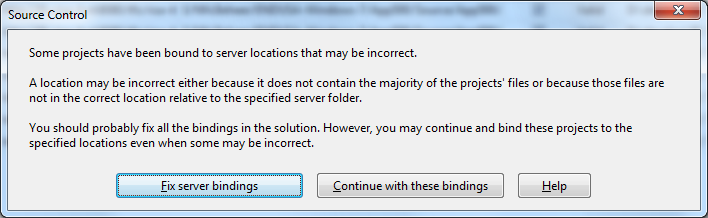
A while ago, I inherited a bunch of C# and VB.NET projects. One of them always generated the below error when including it in Team Foundation System (yes, the original projects were salvaged from Visual Source Shredder version 6.0c):

[Source Control]
Some projects have been bound to server locations that may be incorrect.
A location may be incorrect either because it does not contain the majority of the projects' files or because those files are not in the correct location relative to the specified server folder.
You should probably fix all the bindings in the solution. However, you may continue and bind these projects to the specified locations even when some may be incorrect.
[Fix server bindings] [Continue with these bindings] [Help]

First I tried the Help button: it links to a Help page on MSDN explaining the error can be cause with some statistics on projects not being in the source control system. Since all projects were, there, I looked for more information.

I tried finding a “Fix Server Bindings” or a 2010 “Some projects have been bound to server locations that may be incorrect” link that fitted my use case (getting projects from VSS into TFS), but the solutions I tried eventually all led to the same issue.

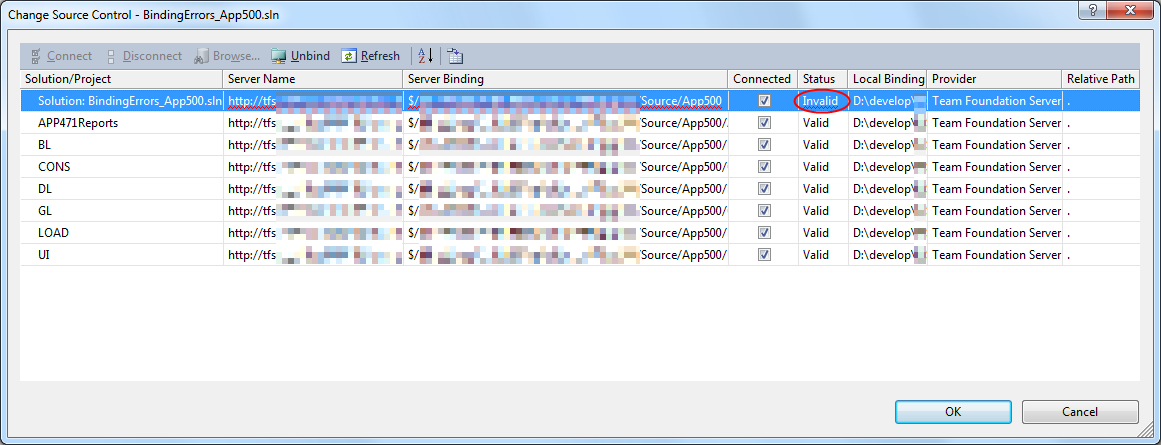
Fixing the server bindings would always fail: the solution (which itself is also a project) would get the status Invalid.

The next steps were these:

  1. add an empty solution in the same directory as the original one,
  2. add that solution to TFS
  3. add the projects from the original solution to this solution one by one
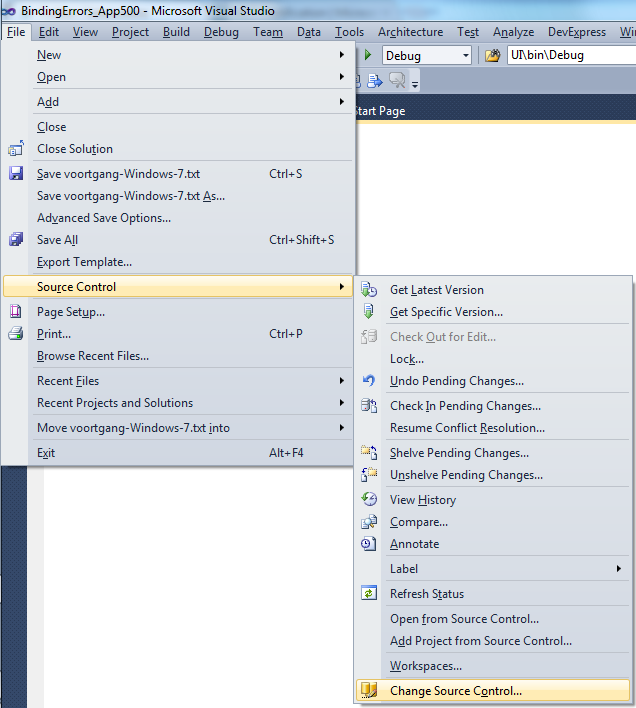
  4. check after each addition of the bindings were still OK using the “File”, “Source Control”, “Change Source Control” sequence on the right.
    (note that you don’t always see “Change Source Control”, if you don’t select the solution in the Solution Explorer before going to the File menu).
  5. text compare both .SLN solution files
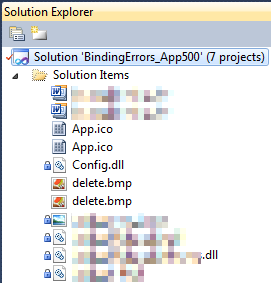
  6. observe that “Solution Items” actually is a project just like the others:
    Project("{2150E333-8FDC-42A3-9474-1A3956D46DE8}") = "Solution Items", "Solution Items", "{8D9964D4-6129-4B8F-9238-F9161A02B968}"
    ProjectSection(SolutionItems) = preProject
    ...
    Framework\Config.dll = Framework\Config.dll
    ...
    EndProjectSection
    EndProject
  7. add the existing solution item from the original solution to this solution one by one, check
  8. check after each addition of the bindings were still OK using the “File”, “Source Control”, “Change Source Control” sequence on the right.
    (note that you don’t always see “Change Source Control”, if you don’t select the solution in the Solution Explorer before going to the File menu).
  9. copy the non-existing solution items to the solution one by one using the text compare tool (yes, a lot of the projects are dirty and contain references to files that are not in the version control system)
    save after every copy, then reload the project in Visual Studio
  10. check after each addition of the bindings were still OK using the “File”, “Source Control”, “Change Source Control” sequence on the right.
    (note that you don’t always see “Change Source Control”, if you don’t select the solution in the Solution Explorer before going to the File menu).
  11. after a few files, suddenly the “Invalid” appeared, so the issue has to do with missing files.

Reading the Help more carefully, with in the back of my mind keeping “Solution Items” all as projects, I finally got the cause:

When some percentage of Solution Items cannot be found locally, and are not in the version control system, Visual Studio marks the solution binding to the version control system as “Invalid”.

The temporary solution is to ignore the error, until I have found all the missing files (they are scattered around some network shares), or made sure they are not needed at all.
There are many of those (you recognize them from the missing padlock icon in the Solution Explorer).

Version control rot is just like link rot, that’s why one of the high priority action items is to introduce for build automation at this client, then deploy those as clean builds into the Develop and Test stages of the DTAP, then verify if the solutions still work).

–jeroen

Posted in .NET, C#, C# 1.0, C# 2.0, C# 3.0, C# 4.0, C# 5.0, Development, Internet, link rot, Power User, Software Development, Source Code Management, TFS (Team Foundation System), VB.NET, Visual Studio 2010, Visual Studio and tools, WWW - the World Wide Web of information | Leave a Comment »

Afscheid van UUCP | XS4ALL Weblog

Posted by jpluimers on 2012/08/20

No more UUCP at xs4all: Afscheid van UUCP | XS4ALL Weblog.

Boy, the first time I got UUCP working was a hell of a job (:

Back then it was the best way to copy files (including email) in a kind of system independent way.

The end of a remarkable time frame (:

–jeroen

Posted in *nix, Internet, Linux, Power User | Leave a Comment »

ISO-8601: What’s the Current Week Number?

Posted by jpluimers on 2012/08/16

Quick way to get the current ISO-8601 based week number: What’s the Current Week Number?.

–jeroen

Posted in Internet, ISO 8601, Power User | 5 Comments »

Pricetracker/-watch/-drop alters/-history charts for Newegg.com, Amazon.com, Best Buy, BackCountry.com, Zzounds.com

Posted by jpluimers on 2012/08/06

Cool: sites that allow you to do track prices, get history charts, get alerts for price drops, etc. Got there through SSD prices in steady, substantial decline – The Tech Report.

Your account works at all of our price tracking sites:

And your account will work at any new sites we launch!

The SSD price drop together with the HDD Prices Not Expected to Decline Until 2014 makes me think: if/when I should finally ditch my RAID 5 storage server and build an ZFS server with server hybrid storage (which is totally different from desktop hybrid storage).

Many of the great references at Understanding how to use SSD as Hybrid Storage Pools for ZFS point to the old sun.com site, and suffer from link rot. A few I found back: Read the rest of this entry »

Posted in Hardware, Internet, LifeHacker, Power User, SSD | Leave a Comment »

Asus RT N66U: steps to get “Tomato Backup Settings & Log to USB Drive Script – TomatoUSB” working on an Asus RT N66U @AustinStAubin

Posted by jpluimers on 2012/07/27

Below are some steps to get the  Tomato Backup Settings & Log to USB Drive Script – TomatoUSB by Austin Saint Aubin working on an Asus RT N66U router.

I presume you are using a Windows system (hence the FAT/FAT32 formatting of the USB stick) for doing the edits and copying of files to an USB stick. Read the rest of this entry »

Posted in *nix, ASUS RT-N66U, Internet, Network-and-equipment, Power User, TomatoUSB | Leave a Comment »

Addendum to Guide to “Install Tomato firmware on Asus RT-N66U / RT-N16 / RT-N12 B1 / RT-N12 C1 / RT-N10U router 韌體教學 | Moonlight Knight”

Posted by jpluimers on 2012/07/23

I had a bit different experience getting the Tomato Shibby firmware loaded on one of my Asus RT-N66U routers than the description from Guide to Install Tomato firmware on Asus RT-N66U nor this Video of the Asus Routers Rescue Mode Tutorial.

Somehow, the Asus Firmware Restoration Utility kept indicating “The wireless router is not in rescue mode”, no matter what I did.

This might be due to that I run VMware Workstation with some virtual LAN adapters on most of my machines.

Or not: the web-interface on the Asus RT N66U would not get into the firmware restoration mode either.

This worked though:

  1. pull the power plug on the RT N66U
  2. press and hold the reset button
  3. insert the power plug on the RT N66U
  4. wait for the power led to slowly blink
  5. release the reset button
  6. wait a few minutes for the modem to become stable
  7. in the mean time set your PC to these IPv4 settings: – host = 192.168.1.100 – mask = 255.255.255.0
  8. start your web-browser
  9. point your web-browser to http://192.168.1.1 (it will time out, don’t worry)
  10. press the power button to turn off the router
  11. wait a few seconds
  12. press the power button to turn on the router now your router gets into rescue mode
  13. refresh your browser so it goes to http://192.168.1.1 again
  14. upload your Tomato firmware

–jeroen

via: Guide to Install Tomato firmware on Asus RT-N66U / RT-N16 / RT-N12 B1 / RT-N12 C1 / RT-N10U router 韌體教學 | Moonlight Knight.

Posted in *nix, ASUS RT-N66U, Internet, Network-and-equipment, Power User, TomatoUSB | 2 Comments »

WiFi/WLAN security: for personal/PSK mode, choose WPA2 with AES and a strong password and SSID name. Don’t use TKIP or WPS PIN

Posted by jpluimers on 2012/07/20

To make WPA2 as secure as possible in PSK mode aka personal mode, make sure you don’t trap into the major WPA2 weaknesses:

So this is what I did on my TomatoUSB flashed Asus RT N66U router:

  • strong and different passwords for 2.4 Ghz and 5Ghz WiFi
  • unique SSIDs for both the WiFi bands
  • AES encryption
  • no WPS PIN

Easy to setup: follow the WiKi here, using the basic link from the link list.

–jeroen

via:

Posted in *nix, Internet, Power User, TomatoUSB | Leave a Comment »

Fonts in Microsoft products; Lucida; Microsoft Typography; fonts on other platforms

Posted by jpluimers on 2012/06/25

19941123 - Polyvroom - Failissement

19941123 – Polyvroom – Failissement

Historically I have an interest in digital typography: in the early 90s, I used to freelance for Polyvroom in Lisse (that went belly up on 19941123, the remains bought by Trip Productions) that digitized (together with the still existing Visualogik) many of the TrueType and PDF fonts for Mecanorma and Monotype (now acquired by Agfa and – after Agfa acquired ITC as well –  renamed into Monotype Imaging).

I even have the whole set of Lucida Fonts that beta testers got for testing a Windows version (I think it is Windows 95, but it might be earlier as TrueType was introduced in Windows 3.1). (sidenote: most of the Lucida fonts got designed by Kris Holmes, the rest by Charles Bigelow, so now you know where Bigelow and Holmes stems from; they don’t run their own site any more).

There are many good articles on screen fonts, but that’s not the point of this post, maybe in a future post.

Historically, I kept an eye on the Microsoft Typography website (I have backups from early this century) because of the information quality and cross platform information.

Back in the default.asp era, they had a few pages with fonts for certain platforms:

http://www.microsoft.com/typography/fonts/atm.htm Adobe Type Manager
http://www.microsoft.com/typography/fonts/mac.htm Mac OS 
http://www.microsoft.com/typography/fonts/unix.htm Unix/XFree and GhostScript
http://www.microsoft.com/typography/fonts/win2000.htm Windows 2000
http://www.microsoft.com/typography/fonts/winxp.htm Windows XP

Since then, they redesigned the site, and now their http://www.microsoft.com/typography/fonts fonts page is aspx based, and contains lists with links for:

  • virtually all Microsoft products showing which fonts ship with that product
    (alphabetically from Age of Empire till Windows XP)
  • fonts from families indicating in which product ships which version of the font
    (an odd thing: Office 2010 ships with older versions of mosts fonts than Office 2007)

All individual fonts referred on those links (like Vladimir Script) have a sample as well.

The fonts page also contains a few bonus links:

http://www.microsoft.com/typography/fonts/web.aspx Core Fonts for the Web
http://www.microsoft.com/typography/fonts/cleartype.aspx ClearType Font Collection
http://www.microsoft.com/typography/fonts/windows7.aspx New Fonts in Windows 7
http://www.microsoft.com/typography/fonts/popular.aspx Most Popular Fonts in Microsoft Products
http://www.microsoft.com/typography/fonts/cs4.aspx Adobe Creative Suite 4
http://www.microsoft.com/typography/fonts/unix.aspx UNIX / XFree and GhostScript
http://www.microsoft.com/typography/fonts/macosx.aspx Mac OS X 10.5

The really cool thing is that they kept the old links, thereby preventing link rot. Well done!

Another cool thing is that the vast majority of Ubuntu users have the mscorefonts installed. I learned something new there too!

Now they should include some more information on the Metro design language, that is heavily based on the use of typography.

One of the fonts that has Metro like look and is available in many Microsoft products is Century Gothic. I love the geometric design of it!

–jeroen

Posted in Font, Internet, link rot, Power User, Typography, WWW - the World Wide Web of information | 1 Comment »