Archive for the ‘ESXi6’ Category
Posted by jpluimers on 2021/03/29
Sometimes you have a long enough password, that matches with the confirmation, but pressing “Enter” to continue gives “Password does not have enough character types”:
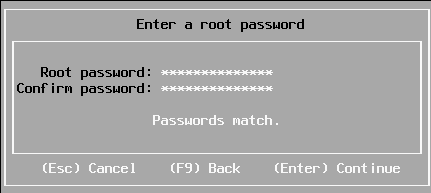
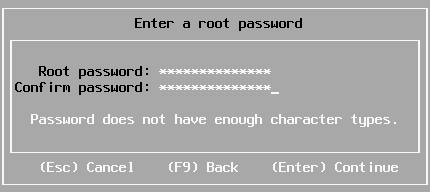
From [WayBack] Disable ESXi Password Complexity – Perfect Cloud:
A part of my job as a VMware Certified Instructor is to update our lab systems whenever new vSphere versions come out. After upgrading from 5.5 to 6.0 I decided we should change passwords, h…
This is the workflow:
- Make a backup of
/etc/pam.d/passwd.
- Use
vi to edit /etc/pam.d/passwd, and:
- Put a
# in front of the lines starting with password requisite
- Remove the
use_authtok bit of the line starting with password sufficient
- Put a
# in front of the line starting with password required
- Quit
vi while saving (press Esc, then enter :wq on the prompt)
- Change the password to a less secure one
- Restore the original
/etc/pam.d/passwd.
Via: esxi 6 force short password – Google Search
Working around this on during ESXi installation fails
I tried this:
- Press Alt-F1 to go from the installation screen to the console screen
- Logon as root, with no password at all to get to the command-prompt:
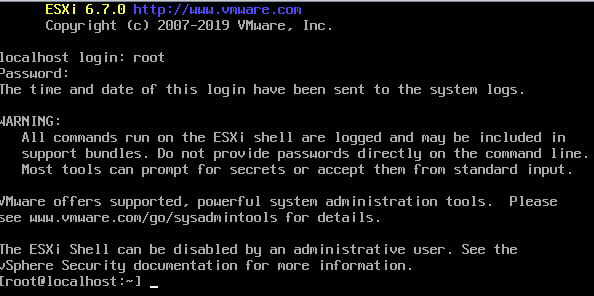
- Perform the
/etc/pam.d/passwd editing steps above
- Press Alt-F2 to go back to the install screen
- Enter root password
The password requirements stayed.
(more screenshots at [WayBack] ESXi 6.7 installation Guide – Let We-i Go)
Related
- [WayBack] passwdqc – password/passphrase strength checking and policy enforcement toolset for your servers and software
- [WayBack] installing ESXi 6.7, stuck on root password with this message :password must be at least 7 characters long : vmware
The default required password complexity changed between 6.5 and 6.7.
In addition to needing to be at least seven characters, the password must include at least three of the four character classes:
-
Upper case – exception: the first character being upper case does not count towards the class requirement
-
Lower case
-
Numbers – exception: the last character being a number does not count towards the class requirement
-
Symbols
Also, no dictionary words (whether spelt forwards or backwards).
- [WayBack] ESXi Passwords and Account Lockout
For ESXi hosts, you have to use a password with predefined requirements. You can change the required length and character class requirement or allow pass phrases using the Security.PasswordQualityControl advanced option.
- “Security.PasswordQualityControl” – Google Search
- [WayBack] ESXi 6.x Password Calculator for Security.PasswordQualityControl | Virtually Blogging
- [WayBack] Virtual Maestro: VMware ESXi 6.X password policy
- [WayBack] VMware ESXi6 Password Policy – ivobeerens.nl
- [WayBack] Virtual Maestro: VMware ESXi 6.X password policy
- [Archive.is] vSphere Documentation Center
Example: Editing /etc/pam.d/passwd
password requisite /lib/security/$ISA/pam_passwdqc.so retry=N min=N0,N1,N2,N3,N4
values
password requisite /lib/security/$ISA/pam_passwdqc.so retry=3 min=12,9,8,7,6
With this setting in effect, the password requirements are:
- retry=3: A user is allowed 3 attempts to enter a sufficient password.
- N0=12: Passwords containing characters from one character class must be at least 12 characters long.
- N1=9: Passwords containing characters from two character classes must be at least nine characters long.
- N2=8: Passphrases must contain words that are each at least eight characters long.
- N3=7: Passwords containing characters from three character classes must be at least seven characters long.
- N4=6: Passwords containing characters from all four character classes must be at least six characters long.
- [WayBack] VMware:ESXi Kennwortsicherheit heruntersetzen oder ändern – znilwiki
Passwortklassen sind schlicht
Grossbuchstaben
Kleinbuchstaben
Zahlen
Sonderzeichen
wobei das erste Zeichen nicht zählt. Also gilt
dumpfbacke     : 1 Passwortklasse
Dumpfbacke      : 1 Passwortklasse
DumpfBacke      : 2 Passwortklassen
DumpfBacke1     : 3 Passwortklassen
DumpfBacke1%            : 4 Passwortklassen
Indem man alle Werte auf 0 setzt, also
password requisite /lib/security/$ISA/pam_passwdqc.so retry=3 min=0,0,0,0,0
schaltet man alle Anforderungen aus.
Alternativ geht das auch mit
password requisite /lib/security/$ISA/pam_passwdqc.so retry=3 min=8,8,8,7,6 enforce=none
On my ESXI 6.5 system where the italic bit is removed, besides the two lines being commented out:
- original
/etc/pam.d/passwd:
#%PAM-1.0

# Change only through host advanced option "Security.PasswordQualityControl".
password   requisite    /lib/security/$ISA/pam_passwdqc.so retry=3 min=disabled,disabled,disabled,7,7
password   sufficient   /lib/security/$ISA/pam_unix.so use_authtok nullok shadow sha512
password   required     /lib/security/$ISA/pam_deny.so
- modified
/etc/pam.d/passwd:
#%PAM-1.0

# Change only through host advanced option "Security.PasswordQualityControl".
#password   requisite    /lib/security/$ISA/pam_passwdqc.so retry=3 min=disabled,disabled,disabled,7,7
password   sufficient   /lib/security/$ISA/pam_unix.so nullok shadow sha512
#password   required     /lib/security/$ISA/pam_deny.so
On my ESXI 6.7 system (which adds the bold lines below):
- original
/etc/pam.d/passwd:
#%PAM-1.0

# Change only through host advanced option "Security.PasswordQualityControl".
password   requisite    /lib/security/$ISA/pam_passwdqc.so retry=3 min=disabled,disabled,disabled,7,7

# Change only through host advanced option "Security.PasswordHistory"
password   requisite    /lib/security/$ISA/pam_pwhistory.so use_authtok enforce_for_root retry=2 remember=0

password   sufficient   /lib/security/$ISA/pam_unix.so use_authtok nullok shadow sha512
password   required     /lib/security/$ISA/pam_deny.so
- modified
/etc/pam.d/passwd:
#%PAM-1.0

# Change only through host advanced option "Security.PasswordQualityControl".
#password   requisite    /lib/security/$ISA/pam_passwdqc.so retry=3 min=disabled,disabled,disabled,7,7

# Change only through host advanced option "Security.PasswordHistory"
#password   requisite    /lib/security/$ISA/pam_pwhistory.so use_authtok enforce_for_root retry=2 remember=0

password   sufficient   /lib/security/$ISA/pam_unix.so nullok shadow sha512
#password   required     /lib/security/$ISA/pam_deny.so
–jeroen
Posted in *nix, ESXi6, ESXi6.5, ESXi6.7, Power User, Virtualization, VMware, VMware ESXi | Leave a Comment »
Posted by jpluimers on 2020/08/03
The short answer is: you can’t use telnet. But you can use alternatives, obviously. For instance, to troubleshoot some iSCSI connectivity problems, you would be used to doing something as this. ~ # telnet 10.0.2.3 3260 -ash: telnet: not found Instead, you can use netcat to test the connectivity. ~ # nc -z 10.0.2.3 3260 […]
Source: [Archive.is/WayBack] Using telnet from the VMware 5.x ESXi shell
The VMware knowledgebase mentions a few other alternatives as well (of which telnet obviously does not work):
–jeroen
Posted in ESXi5.1, ESXi5.5, ESXi6, ESXi6.5, Power User, Virtualization, VMware, VMware ESXi | Leave a Comment »
Posted by jpluimers on 2020/01/20
Rephrased from [WayBack] Jeroen Wiert Pluimers – Google+:
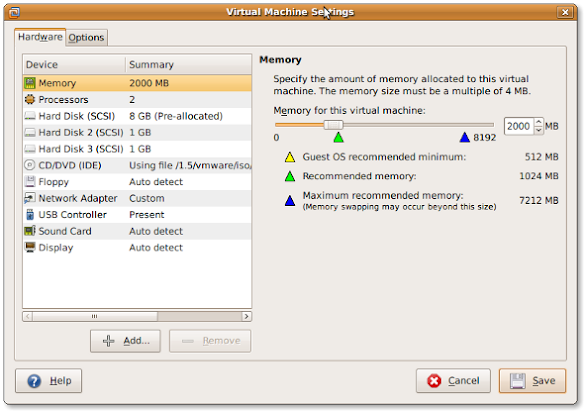
If you install a virtual machine, ensure the disk controller and disks are SCSI based.
This has many advantages, including:
- speed (usually the SCSI drivers can be paravirtualised)
- hot addition of new disks
It holds for virtually any virtualization platform including all non-ancient (less than ~10 year old) versions of:
- VMware (Workstation, Viewer, but I expect this also to work on vSphere, ESXI, Fusion)
- Hyper-V
- KVM (and therefore Proxmox)
- VirtualBox
Based on my notes in the above link and the links below:
Note this isn’t just for Linux guests/hosts: Most guests (including Windows) can do a SCSI bus re-scan and detect new SCSI devices.
The trick here is that the guest must already have a virtual SCSI controller (adding that will require a reboot of the guest).
Then adding a new SCSI disk on that controller from any host (Windows, Mac, ESXi, vSphere) should work fine.
–jeroen
Posted in ESXi4, ESXi5, ESXi5.1, ESXi5.5, ESXi6, ESXi6.5, Fusion, Hyper-V, KVM Kernel-based Virtual Machine, Power User, Proxmox, View, VirtualBox, Virtualization, VMware, VMware ESXi, VMware Workstation | Leave a Comment »
Posted by jpluimers on 2019/05/24
Some wizardry: [WayBack] vmkfstools | virtualhobbit.
This includes:
- finding which VMFS partitions are there the hard way
- initialising partitions from known good data
vmkfstools -V (yes, capital V is for VMFS rescan, as lowercase v is for verbose)
Found after reading [WayBack] Datastore not mounted after reboot of ESXi5.5 |VMware Communities
Then found this: [Wayback] VMware Knowledge Base: Performing a rescan of the storage on an ESXi host (1003988); Using the ESXi Command Line Interface
…
- To search for new VMFS datastores, run this command:
vmkfstools -V
Note: This command does not generate any output.
That solved my problem!
# vmkfstools -V
# esxcfg-volume --list
Scanning for VMFS-3/VMFS-5 host activity (512 bytes/HB, 2048 HBs).
VMFS UUID/label: 532cd010-6e8c01d1-45be-001f29022aed/Raid6SSD
Can mount: Yes
Can resignature: Yes
Extent name: naa.600605b00aa054a0ff000021022683ae:1 range: 0 - 1830143 (MB)
# esxcfg-volume --mount 532cd010-6e8c01d1-45be-001f29022aed
Mounting volume volume 532cd010-6e8c01d1-45be-001f29022aed
And there it was:
# df -h
Filesystem   Size   Used Available Use% Mounted on
...
VMFS-5       1.7T   1.6T    169.6G  91% /vmfs/volumes/Raid6SSD
...
Note you can mount non-persistent (--mount) or persistent (--persistent-mount) by both UUID and label, so there are four choices for mounting:
esxcfg-volume --mount UUID
esxcfg-volume --mount label
esxcfg-volume --persistent-mount UUID
esxcfg-volume --persistent-mount label
–jeroen
Posted in ESXi5, ESXi5.1, ESXi5.5, ESXi6, ESXi6.5, Power User, Virtualization, VMware, VMware ESXi | Leave a Comment »
Posted by jpluimers on 2019/05/09
For my own ference:
disk space under VMFS-3 is organized according to four resource types. They are : blocks, sub-blocks, pointer blocks, and file descriptors. Resources are grouped into clusters, which form cluster groups. Every resource type is administered by one or a number of system files. Lets have a look at what those abbreviated file names stand for:
- fbb.sf = file block bitmap.sf
- fdc.sf = file descriptor cluster.sf
- pbc.sf = pointer block cluster.sf
- sbc.sf = sub-block cluster.sf
- vh.sf = volume header.sfs
- dd.sf = scsi device description.sf
The VMFS-5 uses one more system file:
- pb2.sf = pointer block 2.sf
Source: [Archive.is] VMFS metadata files
Posted in ESXi4, ESXi5, ESXi5.1, ESXi5.5, ESXi6, ESXi6.5, Power User, Virtualization, VMware, VMware ESXi | Leave a Comment »
Posted by jpluimers on 2019/05/07
Two posts with interesting commands to help digging through your hba/disk/datastore configurations from the console:
One day I will write a script that – per datastore – lists all the devices related to it including their HBA and LUN.
For that, I will likely need these references:
For now this works:
- Get the list of data stores (note the
Device Name column has the NAA_ID you need below):
esxcli storage vmfs extent list
- Get the path information to find
HBA, Channel, Target and LUN:
esxcli storage core path list --device NAA_ID
- Get the list of HBAs:
esxcli storage core adapter list
- Get device details (including
Model and Revision):
esxcli storage core device list --device NAA_ID
The example below (with most important output bolded) shows a drive connected to a SAS3008 based controller which storcli cannot access (nor MegaCli), but MegaRAID Storage Manager (MSM) can.
MSM allowed me to find the serial number of the drive by the Target Transport Details value 4433221106000000 as being on Slot number 6 (which seems to indicate Target numbers are 1-based whereas LUN is 0-based).
# esxcli storage vmfs extent list
Volume Name                     VMFS UUID                            Extent Number  Device Name                                                                 Partition
------------------------------  -----------------------------------  -------------  --------------------------------------------------------------------------  ---------
...
ST6000VX0001-1SH                59a33f7b-66df7c00-11b0-0cc47aaa9742              0  naa.5000c50087762d1b                                                                1
# esxcli storage core path list -d naa.5000c50087762d1b
sas.500304801ce1d700-sas.4433221106000000-naa.5000c50087762d1b
   UID: sas.500304801ce1d700-sas.4433221106000000-naa.5000c50087762d1b
   Runtime Name: vmhba0:C0:T7:L0
   Device: naa.5000c50087762d1b
   Device Display Name: Local ATA Disk (naa.5000c50087762d1b)
   Adapter: vmhba0
   Channel: 0
   Target: 7
   LUN: 0
   Plugin: NMP
   State: active
   Transport: sas
   Adapter Identifier: sas.500304801ce1d700
   Target Identifier: sas.4433221106000000
   Adapter Transport Details: 500304801ce1d700
   Target Transport Details: 4433221106000000
   Maximum IO Size: 4194304
# esxcli storage core adapter list
HBA Name  Driver        Link State  UID                   Capabilities  Description
--------  ------------  ----------  --------------------  ------------  ----------------------------------------------------------------------
vmhba0    lsi_msgpt3    link-n/a    sas.500304801ce1d700                (0000:01:00.0) Avago (LSI Logic) Fusion-MPT 12GSAS SAS3008 PCI-Express
...
vmhba32   vmkusb        link-n/a    usb.vmhba32                         () USB
# esxcli storage core device list --device naa.5000c50087762d1b
naa.5000c50087762d1b
   Display Name: Local ATA Disk (naa.5000c50087762d1b)
   Has Settable Display Name: true
   Size: 5723166
   Device Type: Direct-Access
   Multipath Plugin: NMP
   Devfs Path: /vmfs/devices/disks/naa.5000c50087762d1b
   Vendor: ATA
   Model: ST6000VX0001-1SH
   Revision: VN02
   SCSI Level: 6
   Is Pseudo: false
   Status: on
   Is RDM Capable: true
   Is Local: true
   Is Removable: false
   Is SSD: false
   Is VVOL PE: false
   Is Offline: false
   Is Perennially Reserved: false
   Queue Full Sample Size: 0
   Queue Full Threshold: 0
   Thin Provisioning Status: unknown
   Attached Filters:
   VAAI Status: unsupported
   Other UIDs: vml.02000000005000c50087762d1b535436303030
   Is Shared Clusterwide: false
   Is Local SAS Device: true
   Is SAS: true
   Is USB: false
   Is Boot USB Device: false
   Is Boot Device: false
   Device Max Queue Depth: 32
   No of outstanding IOs with competing worlds: 32
   Drive Type: physical
   RAID Level: NA
   Number of Physical Drives: 1
   Protection Enabled: false
   PI Activated: false
   PI Type: 0
   PI Protection Mask: NO PROTECTION
   Supported Guard Types: NO GUARD SUPPORT
   DIX Enabled: false
   DIX Guard Type: NO GUARD SUPPORT
   Emulated DIX/DIF Enabled: false
–jeroen
Posted in ESXi5, ESXi5.1, ESXi5.5, ESXi6, ESXi6.5, Power User, Virtualization, VMware, VMware ESXi | Leave a Comment »
Posted by jpluimers on 2019/04/30
On my research list: [WayBack] bash – aliasing cd to pushd – is it a good idea? – Unix & Linux Stack Exchange
It has a nice discussion on complements to pushd/popd/cd/dirs including a very nice set of navd scripts that eases the navigation of the directory stack.
I found it because the ESXi busybox does not have pushd and popd and a cd won’t work from inside a shell script: [WayBack] linux – Why doesn’t “cd” work in a bash shell script? – Stack Overflow
It also made me find out that the ESXi busybox does support cd - to go to the previous directory. More info on that cd syntax is at [WayBack] bash – Difference between “cd -” and “cd ~-” – Unix & Linux Stack Exchange
–jeroen
Posted in *nix, bash, Development, ESXi5, ESXi5.1, ESXi5.5, ESXi6, ESXi6.5, Power User, Scripting, Software Development, Virtualization, VMware, VMware ESXi | Leave a Comment »
Posted by jpluimers on 2019/04/29
I found out that I had some very old draft notes below, but since then the source has moved to github: lamw/ghettoVCB: ghettoVCB.
Since I find VIB easier to use than the Offline Bundle (for differences see [WayBack] VIB vs. Offline Bundle and [WayBack] VMware Front Experience: ESXi Community Packaging Tools) these are the VIB steps to get it installed:
- Download https://github.com/lamw/ghettoVCB/raw/master/vghetto-ghettoVCB.vib
- Put it in the
/tmp directory on your ESXi box (using for instance FileZilla, WinSCP, SCP or other tools)
- Install it using
esxcli software vib install -v /tmp/vghetto-ghettoVCB.vib -f
Then use it to make backups or restores as described at:
Note that contrary to the documentation, the config file has moved to /etc/ghettovcb/ghettoVCB.conf.
Because of Keeping your root visorfs clean: point the path to your own binaries stored on a vmfs volume I’m using a copy of that stored in my local-bin directory (which is backed-up by rsync to another disk) and a small ghettoVcb.sh bootstrap script referencing that config-file, so the backup command for one command now is this:
ghettoVcb.sh -m diaspore.opensuse-Tumbleweed-x64
or this for all VMs (about 2 hours from NVME SSD to HDD; will probably make this a 2 stage thing):
ghettoVcb.sh -a
VMs are backed-up under the directory specified in VM_BACKUP_VOLUME(below that’s ./) in a schema like this:
./diaspore.opensuse-Tumbleweed-x64

./diaspore.opensuse-Tumbleweed-x64/diaspore.opensuse-Tumbleweed-x64-2017-09-24_16-07-08

./diaspore.opensuse-Tumbleweed-x64/diaspore.opensuse-Tumbleweed-x64-2017-09-24_16-07-08/diaspore.opensuse-Tumbleweed-x64.vmx

./diaspore.opensuse-Tumbleweed-x64/diaspore.opensuse-Tumbleweed-x64-2017-09-24_16-07-08/diaspore.opensuse-Tumbleweed-x64-flat.vmdk

./diaspore.opensuse-Tumbleweed-x64/diaspore.opensuse-Tumbleweed-x64-2017-09-24_16-07-08/diaspore.opensuse-Tumbleweed-x64.vmdk

./diaspore.opensuse-Tumbleweed-x64/diaspore.opensuse-Tumbleweed-x64-2017-09-24_16-07-08/STATUS.ok
In the future, I might move to an NFS based back-up based on these links:
–jeroen
Very old notes:
–jeroen
Posted in ESXi4, ESXi5, ESXi5.1, ESXi5.5, ESXi6, ESXi6.5, Power User, Virtualization, VMware, VMware ESXi | Leave a Comment »
Posted by jpluimers on 2019/04/26
Some interesting commands derived from [WayBack] ESXi/ESX error: No free space left on device (1007638) | VMware KB:
- finding large files:
find / -path "/vmfs" -prune -o -type f -size +50000k -exec ls -lh '{}' \;
- finding space on the root file system (which is not listed in
df -h):
stat -f /
This was in the process of trying to keep my local binaries out of [WayBack] VisorFS: A Special-purpose File System for Efficient Handling of System Images – VMware Labs as it is inherently small in size (both total size and number of inodes) as it is a RAM disk based file system.
Based on that, at [WayBack] Trouble shooting – esx.problem.visorfs.ramdisk.full – DefinIT I found this even more useful statement vdf -h | grep "%\|Ramdisk" which shows the exact usage of what’s in this filesystem. Example output on one of my systems:
# vdf -h | grep "%\|Ramdisk"
Ramdisk                   Size      Used Available Use% Mounted on
root                       32M        1M       30M   6% --
etc                        28M      184K       27M   0% --
opt                        32M        0B       32M   0% --
var                        48M      352K       47M   0% --
tmp                       256M        4K      255M   0% --
iofilters                  32M        0B       32M   0% --
hostdstats                678M        4M      673M   0% --
The easiest is not to store them in the root file system at all, but then you need to alter the default path:
# echo $PATH
/bin:/sbin
Since my local binaries are at /vmfs/volumes/Samsung512NVME/local-bin/, I wanted to persist this path change:
export PATH=$PATH:/vmfs/volumes/Samsung512NVME/local-bin/
Basically you can do this with any current directory on your system: export PATH=$PATH:`pwd`
The easiest way to persist that path is to ensure you can shoehorn the effect in a file that gets started during bootup.
The standard – but unsupported – way to do that is shown for instance by:
Final solution
So, edit vi /etc/rc.local.d/local.sh, then shutdown all your VMs and reboot the system to verify the effects. However inserting that export isn’t enough. This is the line you need to add before the exit 0:
sed -i -e 's!PATH=/bin:/sbin!PATH=/bin:/sbin:/vmfs/volumes/Samsung512NVME/local-bin/!' /etc/profile
Related
- [WayBack] ESXi: Aliases definieren › /dev/blog/ID10T
- [Archive.is] Solved: How to keep a .profile in / of ESXi? |VMware Communities
ESXi does not remove that file on boot-up, it simply does not save it. ESXi runs from memory. So if you created some file (i.e. /.profile) it is only in “memory-disk”, not in disk-image which is loaded again at the next boot-up.
Either create custom vib and install it as every other, or use rc.local which is persistent (any changes you make to this file survive boot-up). You can create & save that file somewhere else and use rc.local to copy it to /, or use rc.local with shell commands to create .profile at every boot-up.
Wait a minute, you are using ESXi 6.0, right? I’m not sure if there is /etc/rc.local, but it used to be in 5.0/5.5…
…
I edited /etc/rc.local.d/local.sh to copy the file that I keep on one of my datastores. After reboot, it worked fine. (So, yes, this does work in 6.0.) Thanks!
…
I’m glad it worked for you. BTW you are right: instead of single file /etc/rc.local (as in 5.0) there is now the whole sub-dir /etc/rc.local.d/ but functionality is the same…
–jeroen
Posted in ESXi5, ESXi5.1, ESXi5.5, ESXi6, ESXi6.5, Power User, Virtualization, VMware, VMware ESXi | Leave a Comment »
Posted by jpluimers on 2019/03/29
When connecting from my Mac to my ESXi rig, some commands (especially less) show this output:
WARNING: terminal is not fully functional
So I created this alias to connect from my Mac to the internal address of my ESXi rig:
alias ssh-esxi-X10SRH-CF-internal='TERM=xterm ssh -p 22 root@192.168.71.91'
The trick is the bold part: TERM=xterm (which you can also replace by export TERM=xterm; if you want future ssh sessions to use the same [wayback] TERM setting).
The reason is that the Mac defines the TERM variable as containing xterm-256 which is defined on the Mac itself, but ESXi has a hard time coping with it.
Some Mac OS and Xcode combinations had a problem with xterm-256 not being present ([WayBack] macos – Terminal strangeness after installing Xcode on Lion – Super User), but this isn’t the case on my system:
$ ls -alh `find /usr/share/terminfo | grep 'xterm-256color'`

-rw-r--r-- 1 root wheel 3.2K Jul 30 2016 /usr/share/terminfo/78/xterm-256color
On the Mac you really want to use xterm-256color as it looks way better than xterm-color or xterm: [WayBack] linux – What is the difference between xterm-color & xterm-256color? – Stack Overflow (thanks [WayBack] Chris Page!)
It seems I already did something similar on ESXi itself to get esxtop working: ESXi: when esxtop shows garbage. That was on the ESXi side and works as well for this problem too.
However, it is a bit harder to have a script run during ESXi boot time that sets this, so it is easier to fix this on the Mac side.
It works for all OS X and ESXi versions I’ve tested so far.
–jeroen
Posted in *nix, Apple, ESXi5.1, ESXi5.5, ESXi6, ESXi6.5, iMac, Mac, Mac OS X / OS X / MacOS, Mac OS X 10.4 Tiger, Mac OS X 10.5 Leopard, Mac OS X 10.6 Snow Leopard, Mac OS X 10.7 Lion, MacBook, MacBook Retina, MacBook-Air, MacBook-Pro, MacMini, macOS 10.12 Sierra, OS X 10.10 Yosemite, OS X 10.11 El Capitan, OS X 10.8 Mountain Lion, OS X 10.9 Mavericks, Power User, Virtualization, VMware, VMware ESXi | Leave a Comment »


 The Wiert Corner - irregular stream of stuff