Archive for the ‘VMware ESXi’ Category
Posted by jpluimers on 2019/04/29
I found out that I had some very old draft notes below, but since then the source has moved to github: lamw/ghettoVCB: ghettoVCB.
Since I find VIB easier to use than the Offline Bundle (for differences see [WayBack] VIB vs. Offline Bundle and [WayBack] VMware Front Experience: ESXi Community Packaging Tools) these are the VIB steps to get it installed:
- Download https://github.com/lamw/ghettoVCB/raw/master/vghetto-ghettoVCB.vib
- Put it in the
/tmp directory on your ESXi box (using for instance FileZilla, WinSCP, SCP or other tools)
- Install it using
esxcli software vib install -v /tmp/vghetto-ghettoVCB.vib -f
Then use it to make backups or restores as described at:
Note that contrary to the documentation, the config file has moved to /etc/ghettovcb/ghettoVCB.conf.
Because of Keeping your root visorfs clean: point the path to your own binaries stored on a vmfs volume I’m using a copy of that stored in my local-bin directory (which is backed-up by rsync to another disk) and a small ghettoVcb.sh bootstrap script referencing that config-file, so the backup command for one command now is this:
ghettoVcb.sh -m diaspore.opensuse-Tumbleweed-x64
or this for all VMs (about 2 hours from NVME SSD to HDD; will probably make this a 2 stage thing):
ghettoVcb.sh -a
VMs are backed-up under the directory specified in VM_BACKUP_VOLUME(below that’s ./) in a schema like this:
./diaspore.opensuse-Tumbleweed-x64

./diaspore.opensuse-Tumbleweed-x64/diaspore.opensuse-Tumbleweed-x64-2017-09-24_16-07-08

./diaspore.opensuse-Tumbleweed-x64/diaspore.opensuse-Tumbleweed-x64-2017-09-24_16-07-08/diaspore.opensuse-Tumbleweed-x64.vmx

./diaspore.opensuse-Tumbleweed-x64/diaspore.opensuse-Tumbleweed-x64-2017-09-24_16-07-08/diaspore.opensuse-Tumbleweed-x64-flat.vmdk

./diaspore.opensuse-Tumbleweed-x64/diaspore.opensuse-Tumbleweed-x64-2017-09-24_16-07-08/diaspore.opensuse-Tumbleweed-x64.vmdk

./diaspore.opensuse-Tumbleweed-x64/diaspore.opensuse-Tumbleweed-x64-2017-09-24_16-07-08/STATUS.ok
In the future, I might move to an NFS based back-up based on these links:
–jeroen
Very old notes:
–jeroen
Posted in ESXi4, ESXi5, ESXi5.1, ESXi5.5, ESXi6, ESXi6.5, Power User, Virtualization, VMware, VMware ESXi | Leave a Comment »
Posted by jpluimers on 2019/04/26
Some interesting commands derived from [WayBack] ESXi/ESX error: No free space left on device (1007638) | VMware KB:
- finding large files:
find / -path "/vmfs" -prune -o -type f -size +50000k -exec ls -lh '{}' \;
- finding space on the root file system (which is not listed in
df -h):
stat -f /
This was in the process of trying to keep my local binaries out of [WayBack] VisorFS: A Special-purpose File System for Efficient Handling of System Images – VMware Labs as it is inherently small in size (both total size and number of inodes) as it is a RAM disk based file system.
Based on that, at [WayBack] Trouble shooting – esx.problem.visorfs.ramdisk.full – DefinIT I found this even more useful statement vdf -h | grep "%\|Ramdisk" which shows the exact usage of what’s in this filesystem. Example output on one of my systems:
# vdf -h | grep "%\|Ramdisk"
Ramdisk                   Size      Used Available Use% Mounted on
root                       32M        1M       30M   6% --
etc                        28M      184K       27M   0% --
opt                        32M        0B       32M   0% --
var                        48M      352K       47M   0% --
tmp                       256M        4K      255M   0% --
iofilters                  32M        0B       32M   0% --
hostdstats                678M        4M      673M   0% --
The easiest is not to store them in the root file system at all, but then you need to alter the default path:
# echo $PATH
/bin:/sbin
Since my local binaries are at /vmfs/volumes/Samsung512NVME/local-bin/, I wanted to persist this path change:
export PATH=$PATH:/vmfs/volumes/Samsung512NVME/local-bin/
Basically you can do this with any current directory on your system: export PATH=$PATH:`pwd`
The easiest way to persist that path is to ensure you can shoehorn the effect in a file that gets started during bootup.
The standard – but unsupported – way to do that is shown for instance by:
Final solution
So, edit vi /etc/rc.local.d/local.sh, then shutdown all your VMs and reboot the system to verify the effects. However inserting that export isn’t enough. This is the line you need to add before the exit 0:
sed -i -e 's!PATH=/bin:/sbin!PATH=/bin:/sbin:/vmfs/volumes/Samsung512NVME/local-bin/!' /etc/profile
Related
- [WayBack] ESXi: Aliases definieren › /dev/blog/ID10T
- [Archive.is] Solved: How to keep a .profile in / of ESXi? |VMware Communities
ESXi does not remove that file on boot-up, it simply does not save it. ESXi runs from memory. So if you created some file (i.e. /.profile) it is only in “memory-disk”, not in disk-image which is loaded again at the next boot-up.
Either create custom vib and install it as every other, or use rc.local which is persistent (any changes you make to this file survive boot-up). You can create & save that file somewhere else and use rc.local to copy it to /, or use rc.local with shell commands to create .profile at every boot-up.
Wait a minute, you are using ESXi 6.0, right? I’m not sure if there is /etc/rc.local, but it used to be in 5.0/5.5…
…
I edited /etc/rc.local.d/local.sh to copy the file that I keep on one of my datastores. After reboot, it worked fine. (So, yes, this does work in 6.0.) Thanks!
…
I’m glad it worked for you. BTW you are right: instead of single file /etc/rc.local (as in 5.0) there is now the whole sub-dir /etc/rc.local.d/ but functionality is the same…
–jeroen
Posted in ESXi5, ESXi5.1, ESXi5.5, ESXi6, ESXi6.5, Power User, Virtualization, VMware, VMware ESXi | Leave a Comment »
Posted by jpluimers on 2019/04/19
This got me zero good hits in the top 10: “ESXi 6.5” “vSphere Web Client” “VMware Tools” – Google Search
Since how to install/upgrade moved, here is a screenshot how to install or upgrade the VMware Tools using the “new” vSphere Web Client that standard in ESXi 6.5 and up:

It would be much more intuitive if the blue bar just linked to that action.
–jeroen
Posted in ESXi6.5, Power User, Virtualization, VMware, VMware ESXi | Leave a Comment »
Posted by jpluimers on 2019/03/29
I had a 1.5 TB SATA disk with VMFS5 created on ESXi 5.1 that would not want to mount on ESXi 6.5 automatically, not even after a rescan, or fresh boot, so I did this:
[root@ESXi-X10SRH-CF:~] esxcfg-volume --help
esxcfg-volume
-l|--list                                List all volumes which have been
                                         detected as snapshots/replicas.
-m|--mount              Mount a snapshot/replica volume, if
                                         its original copy is not online.
-u|--umount             Umount a snapshot/replica volume.
-r|--resignature        Resignature a snapshot/replica volume.
-M|--persistent-mount   Mount a snapshot/replica volume
                                         persistently, if its original copy is
                                         not online.
-U|--upgrade            Upgrade a VMFS3 volume to VMFS5.
-h|--help                                Show this message.
[root@ESXi-X10SRH-CF:~] esxcfg-volume --list
Scanning for VMFS-3/VMFS-5 host activity (512 bytes/HB, 2048 HBs).
VMFS UUID/label: 59a5306c-a8793061-4a23-001f29022aed/ST1500LM0032D9YH148-backup
Can mount: Yes
Can resignature: Yes
Extent name: naa.5000c5002dba6642:1 range: 0 - 1430527 (MB)

Scanning for VMFS-3/VMFS-5 host activity (512 bytes/HB, 2048 HBs).
VMFS UUID/label: 532cd010-6e8c01d1-45be-001f29022aed/Raid6SATA
Can mount: Yes
Can resignature: Yes
Extent name: naa.600605b00aa054a0ff000021022683ae:1 range: 0 - 1830143 (MB)

[root@ESXi-X10SRH-CF:~] esxcfg-volume -m 532cd010-6e8c01d1-45be-001f29022aed/Raid6SATA
No matching volume 532cd010-6e8c01d1-45be-001f29022aed/Raid6SATA found!
[root@ESXi-X10SRH-CF:~] esxcfg-volume --mount 532cd010-6e8c01d1-45be-001f29022aed
Mounting volume 532cd010-6e8c01d1-45be-001f29022aed
Based on: [WayBack] Mount VMFS Datastore – via GUI or via CLI [Guide] – ESX Virtualization
–jeroen
Posted in ESXi5.1, ESXi6.5, Power User, Virtualization, VMware, VMware ESXi | Leave a Comment »
Posted by jpluimers on 2019/03/29
When connecting from my Mac to my ESXi rig, some commands (especially less) show this output:
WARNING: terminal is not fully functional
So I created this alias to connect from my Mac to the internal address of my ESXi rig:
alias ssh-esxi-X10SRH-CF-internal='TERM=xterm ssh -p 22 root@192.168.71.91'
The trick is the bold part: TERM=xterm (which you can also replace by export TERM=xterm; if you want future ssh sessions to use the same [wayback] TERM setting).
The reason is that the Mac defines the TERM variable as containing xterm-256 which is defined on the Mac itself, but ESXi has a hard time coping with it.
Some Mac OS and Xcode combinations had a problem with xterm-256 not being present ([WayBack] macos – Terminal strangeness after installing Xcode on Lion – Super User), but this isn’t the case on my system:
$ ls -alh `find /usr/share/terminfo | grep 'xterm-256color'`

-rw-r--r-- 1 root wheel 3.2K Jul 30 2016 /usr/share/terminfo/78/xterm-256color
On the Mac you really want to use xterm-256color as it looks way better than xterm-color or xterm: [WayBack] linux – What is the difference between xterm-color & xterm-256color? – Stack Overflow (thanks [WayBack] Chris Page!)
It seems I already did something similar on ESXi itself to get esxtop working: ESXi: when esxtop shows garbage. That was on the ESXi side and works as well for this problem too.
However, it is a bit harder to have a script run during ESXi boot time that sets this, so it is easier to fix this on the Mac side.
It works for all OS X and ESXi versions I’ve tested so far.
–jeroen
Posted in *nix, Apple, ESXi5.1, ESXi5.5, ESXi6, ESXi6.5, iMac, Mac, Mac OS X / OS X / MacOS, Mac OS X 10.4 Tiger, Mac OS X 10.5 Leopard, Mac OS X 10.6 Snow Leopard, Mac OS X 10.7 Lion, MacBook, MacBook Retina, MacBook-Air, MacBook-Pro, MacMini, macOS 10.12 Sierra, OS X 10.10 Yosemite, OS X 10.11 El Capitan, OS X 10.8 Mountain Lion, OS X 10.9 Mavericks, Power User, Virtualization, VMware, VMware ESXi | Leave a Comment »
Posted by jpluimers on 2019/03/25
No Google results for “balloonVMCI loaded successfully”.
I had this when booting from a USB installation of ESXi 6.5.0.a.
It got resolved with ESXi 6.5.0 Update 1. Apparently the first version has issues booting on a SuperMicro-X10SRH-CF from a USB stick.
It’s a bit tricky to get the accompanying VMware-VMvisor-Installer-6.5.0.update01-5969303.x86_64.iso as the my VMware site is a bit broken (even if you have the license, it says you are not entitled), but luckily the ESXi 6.5 update 1 download page [Cache/Archive.is] has the hashes:
MD5SUM: 6d71ca1a8c12d73ca75952f411d16dc7
SHA1SUM: 5a38ae10162e0a1395b12ea31cba6342796f6383
SHA256SUM: f6e5000dff423c275b3ffbdfe08145f369d04b8c4ade5a413f2ef2a029a5e3ef
You also need a good USB stick. If it’s not good enough, you get errors like “Host Local Swap Location has not been enabled” during boot**.
–jeroen
** full log at for instance [WayBack] 2017-02-03T03:00:01Z crond[66604]: crond: USER root pid 87677 cmd /usr/lib/vmwar – Pastebin.com
Posted in ESXi6.5, Mainboards, Power User, SuperMicro, Virtualization, VMware, VMware ESXi, X10SRH-CF | Leave a Comment »
Posted by jpluimers on 2019/03/21
Interesting way to keep your ESXi rug up to date:
[WayBack] Keep track of VMware ESXi patches, subscribe by RSS, Twitter and E-Mail! – Brought to you by @VFrontDe: VMware ESXi 6.5.0 Patch History.
There is an RSS feed: http://feeds.feedburner.com/Esxi650PatchTracker and in depth information at [WayBack] VMware ESXi Patch Tracker – Help.
Clicking on the link next to Imageprofile will popup a screen with instructions how to upgrade your ESXi box to that level, for instance:
# Cut and paste these commands into an ESXi shell to update your host with this Imageprofile

# See the Help page for more instructions

#

esxcli network firewall ruleset set -e true -r httpClient

esxcli software profile update -p ESXi-6.5.0-20170702001-standard \

-d https://hostupdate.vmware.com/software/VUM/PRODUCTION/main/vmw-depot-index.xml

esxcli network firewall ruleset set -e false -r httpClient

#

# Reboot to complete the upgrade
I wish there was a similar thing for [WayBack] ESXi Embedded Host Client as I could not find any of the esxui VIB files mentioned there at esxui site:https://esxi-patches.v-front.de.
By the time you read this I really hope these two esxui things have been fixed:
–jeroen
Posted in ESXi6.5, Power User, Virtualization, VMware, VMware ESXi | Leave a Comment »
Posted by jpluimers on 2019/03/14
One more article about differences between the old C# Windows vSphere Client and “new” vSphere HTML5 Web Client in ESXi 6.5 and up.
This time about changing the startup/shutdown sequence so automatically power on and power off virtual machines.
In the old C# Windows vSphere Client, this was at the host level in the configuration tab under Virtual Machine Startup/Shutdown. There you click on Properties, then adjust the order by moving them up and down (screenshots and more detailed instructions are at ESX(i) AutoStart virtual machines: how to change the VM startup/shutdown settings (via: VMware Communities)).
In the vSphere HTML5 Web Client, there are two bits for this:
On the server you need to enable AutoStart:
From: 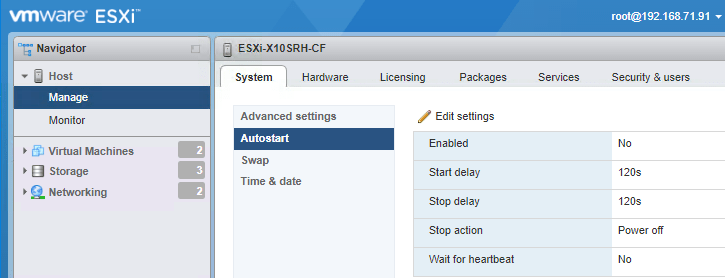
 to:
to: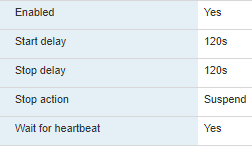

For each VM you have to enable AutoStart, then determine the order
- In the left, select the VM
- In the right, choose
Actions, then Autostart, then Enable:
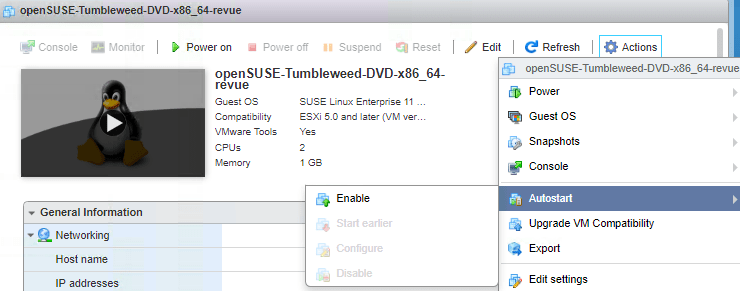

- Enable the columns in the VM overview:
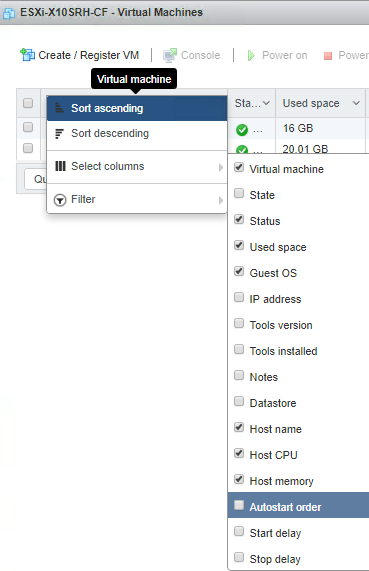

- Order 1 means highest; adjust accordingly for each VM:


If after boot you get a “Failed – The operation is not allowed in the current state.“, then your machine still is in maintenance mode.
–jeroen
Related: ESXi 6.5: change the host name in the “new” vSphere HTML5 Web Client, or using DHCP option 12 « The Wiert Corner – irregular stream of stuff
Posted in ESXi6.5, Power User, Virtualization, VMware, VMware ESXi | Leave a Comment »


 The Wiert Corner - irregular stream of stuff