The Wiert Corner – irregular stream of stuff

Jeroen W. Pluimers on .NET, C#, Delphi, databases, and personal interests

  • My badges

  • Twitter Updates

  • My Flickr Stream

  • Pages

  • All categories

  • Enter your email address to subscribe to this blog and receive notifications of new posts by email.

    Join 1,860 other subscribers

Archive for the ‘Windows 10’ Category

Windows PPTP – How to Create a VPN Server on Your Windows Computer Without Installing Any Software

Posted by jpluimers on 2016/07/18

Windows has the built-in ability to function as VPN server, although this option is hidden. This trick works on both Windows 7 and Windows 8. The server uses the point-to-point tunneling protocol (PPTP.)

Source: How to Create a VPN Server on Your Windows Computer Without Installing Any Software

One day this might come in handy though I need to investigate a bit more on PPTP security issues first: might need to go for L2TP/IPsec instead.

Later: indeed, I should follow Don’t use PPTP, and don’t use IPSEC-PSK either (via: CloudCracker blog)

–jeroen

Posted in IPSec, Network-and-equipment, Power User, PPTP, VPN, Windows, Windows 10, Windows 7, Windows 8, Windows 8.1 | 1 Comment »

ThinkPad X201: fixing the “black screen” (without mouse pointer) after upgrading to Windows 10

Posted by jpluimers on 2016/06/10

After this Windows 10 boot screen the display goes blank without a mouse cursor.

After this Windows 10 boot screen the display goes blank without a mouse cursor.

So you upgraded your X201 from Windows 7 to Windows 10 even though it’s not in the listed on the Lenovo supported models page.

Now it gets through the boot screen, flashes the CapsLock/NumLock LEDS, blanks the screen (no mouse cursor) and continues booting without any visual feedback apart from the HDD LED flashing until it is finished booting

Since Windows 10 by default does not enable the F8 option any more, you need some more severe measures.

BIOS update

The first was to get the BIOS up to date. At the time of writing that was 1.40-1.15 from BIOS Update Bootable CD for Windows 8 (32-bit, 64-bit), 7 (32-bit, 64-bit), Vista (32-bit, 64-bit), XP – ThinkPad – Lenovo Support (US):

Then I had to burn the ISO. Which was a bit picky because most of my infrastructure is VM based and none of the physical machines had a DVD or CD-drive any more. Luckily I found a LiteOn SLW 831SX which Windows detects as Slimtype DVDRW SLW-831S USB Device. ImgBurn worked with that (elevated to Administrative mode that is: it requires that both for burning and grabbing an ISO image).

Upgrading the BIOS went fine, but the symptoms stayed.

Removing/re-inserting battery

Removing the battery for a while, then reinserting was suggested at one of the sites.  It didn’t help.

Force into Repair Mode

Then I read this:

If the system can’t load the necessary configuration more than two times, the system will  direct the display to Windows RE(Recovery environment).

Source: Windows 10 – How to enter Safe Mode if I can’t boot the system successfully?

They also have: Windows 10 – If I can’t enter the system, how can I restore the Windows 10 laptop or PC to default settings?

This very easy to do:

Prepairing Automatic Repair

Prepairing Automatic Repair

  1. Keep the power button down to power off the machine
  2. Power up the machine
  3. Wait for the boot screen to appear, then
    1. Keep the power button down to power off the machine
  4. Power up the machine
  5. Wait for the boot screen to appear, then
    1. Keep the power button down to power off the machine
  6. Wait for the “Prepairing Automatic Repair” to finish
  7. Wait for the “Diagnosing your PC” to finish
  8. Wait for the “Automatic Repair” to appear, then
    1. Wiggle with the mouse to get a mouse cursor
  9. Press the “Advanced Options” button
  10. Choose “Troubleshoot”
  11. Choose “Advanced Options”
  12. Choose “Startup Settings”
  13. Choose “Restart”
  14. Wait for the reboot and “Startup Settings” to appear (note: no mouse cursor)
  15. Hit F5 for “Enable Safe Mode with Networking”
  16. Wait for it to reboot twice.

This didn’t work as well as I hoped as now I was at the failure point as well.

But now at least I had a starting point to trip Windows into booting any way I wanted. I now only had to find which function key would get me into a state where I could see what was going on.

And the good things: The “Diagnosing your PC” only required one ‘manual power down” to appear.

  • F9 – Disable automatic restart after failure
  • F8 – Disable early launch anti-malware protection
  • F7 – Disable driver signature enforcement
  • F6 – Enable Safe Mode with Command Prompt
  • F5 – Enable Safe Mode with Networking
  • F4 – Enable Safe Mode
  • F3 – Enable low-resolution video
  • F2 – Enable boot logging
  • F1 – Enable debugging

F3 finally got me to the VIDEO_DRIVER_INIT_FAILURE (BSOD STOP 0x000000B4) which indicated the machine was so hosed that I had to to a clean install.

–jeroen
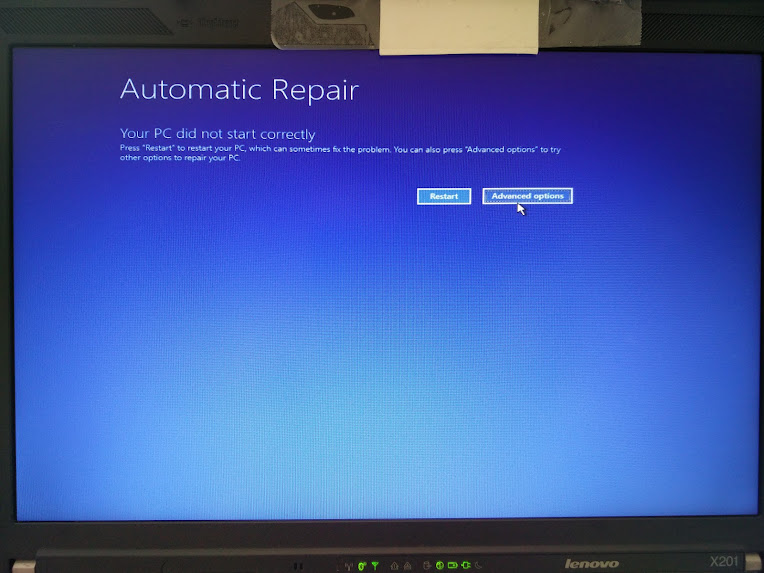
Automatic Repair - wiggle with the mouse and you have a cursor too!

Automatic Repair – wiggle with the mouse and you have a cursor too!

–jeroen

Images via:

Posted in BIOS, Boot, Power User, ThinkPad, UEFI, Windows, Windows 10, Windows 7, X201 | Leave a Comment »

GWX Control Panel – get rid of Windows 10 forced update – Ultimate Outsider – Software Downloads

Posted by jpluimers on 2016/06/06

GWX Control Panel
This is a free tool that can remove and disable the ‘Get Windows 10’ notification area icon on Windows 7 and Windows 8. Recent versions can also disable ‘Upgrade to Windows 10’ behavior in the Windows Update control panel and do much more. See the user guide at the Ultimate Outsider blog. You can still download GWX Control Panel as a standalone executable if you don’t like installers. Please see the “GWX Control Panel Release Notes and Version History” post at the blog for MD5 and SHA-1 checksums of all official releases.

Source: Ultimate Outsider – Software Downloads

Via: Now, that’s going to make them a lot of friends. Good thing I removed the bloody GWX program today from two more PCs. – Thomas Mueller (dummzeuch) – Google+

–jeroen

Posted in Power User, Windows, Windows 10, Windows 7, Windows 8.1 | Leave a Comment »

Burn Image context menu item missing in Windows 7 and up – via Super User

Posted by jpluimers on 2016/06/03

Windows 7 and up come with a built-in ISO file burner called Disc burner however, some times %windir%\System32\isoburn.exe is not associated with .iso files any more, so you have to re-associate it.

Source: Burn Image context menu item missing in Windows 7 – Super User

Still it doesn’t always recognise burn hardware so I usually revert to installing the latest ImgBurn (given my audio experience with it and that it is a nice tool to create ISO images from and burn them to DVD / CD media; just be sure to uncheck the “optional” software that comes with it).

–jeroen

Posted in Power User, Windows, Windows 10, Windows 7, Windows 8, Windows 8.1 | Leave a Comment »

How can I get Win10_1511_1_English_x64.iso or Win10_1511_1_EnglishInternational_x64.iso ?

Posted by jpluimers on 2016/05/24

I now officially hate Microsoft download sites.

I’m trying to fix a friends PC where Windows 10 has screwed up (after he installed, it loads, but the screen turns black without a mouse cursor which indicates the video drivers are likely hosed). There is no F8 boot option in Windows 10 any more so I need media.

https://www.microsoft.com/en-us/software-download/windows10ISO redirects to https://www.microsoft.com/en-us/software-download/windows10 which forces you to download a “Media Creation Tool” that complains I don’t have 8 gigabyte free disk space.

I have. Just not on the C: drive freaking morons!

But https://www.microsoft.com/en-us/software-download/windows10 won’t let me download the ISOs.

Searching around, it looks like I need Win10_1511_1_English_x64.iso or Win10_1511_1_EnglishInternational_x64.iso

Does anyone know how to get them?

–jeroen


Posted in Power User, Windows 10 | 5 Comments »

Windows Update error 80072EE2 – Windows Help

Posted by jpluimers on 2016/05/09

When you roll-out new machines and you get Windows Update 80072EE2 to install updates required by some installations…

If you receive Windows Update error 80072ee2 while checking for updates, the Windows Update servers might be experiencing an unusually high number of requests for updates.

–jeroen

Source: Windows Update error 80072ee2 – Windows Help

Posted in Power User, Windows, Windows 10, Windows 7, Windows 8, Windows 8.1 | Leave a Comment »

Inno Setup: Program Folder not showing up In Start > All Programs. I’ve been…

Posted by jpluimers on 2015/11/15

taskkill /f /im explorer.exe
del %LOCALAPPDATA%\IconCache.db /a
start explorer

Source: Inno Setup: Program Folder not showing up In Start > All Programs. I’ve been… (A Google+ post not archived in the WayBack machine)

It will kill explorer.exe, delete the IconCache.db, then starts explorer which will rebuild IconCache.db.

–jeroen

Posted in Development, InnoSetup, Installer-Development, Power User, Software Development, Windows, Windows 10, Windows 11, Windows 7, Windows 8, Windows 8.1 | Leave a Comment »

automatic logon in Windows 2003

Posted by jpluimers on 2012/01/27

At a client that still runs Windows Server 2003 (despite the fact that it is in the extended support phase now), I needed to enable automatic logon (one of the tools they run sometimes fails when nobody is logged on).

This was a bit more tricky than just reading [WayBack] How to turn on automatic logon in Windows (now at How to turn on automatic logon in Windows) and following these steps:

To use Registry Editor (Regedt32.exe) to turn on automatic logon, follow these steps:

  1. Click Start, and then click Run.
  2. In the Open box, type Regedt32.exe, and then press ENTER.
  3. Locate the following subkey in the registry:
    HKEY_LOCAL_MACHINE\SOFTWARE\Microsoft\Windows NT\CurrentVersion\Winlogon
  4. Double-click the DefaultUserName entry, type your user name, and then click OK.
  5. Double-click the DefaultPassword entry, type your password, and then click OK.NOTE: If the DefaultPassword value does not exist, it must be added. To add the value, follow these steps:
    1. On the Edit menu, click New, and then point to String Value.
    2. Type DefaultPassword, and then press ENTER.
    3. Double-click DefaultPassword.
    4. In the Edit String dialog, type your password and then click OK.

    NOTE: If no DefaultPassword string is specified, Windows automatically changes the value of the AutoAdminLogon key from 1 (true) to 0 (false), disabling the AutoAdminLogon feature.

  6. On the Edit menu, click New, and then point to String Value.
  7. Type AutoAdminLogon, and then press ENTER.
  8. Double-click AutoAdminLogon.
  9. In the Edit String dialog box, type 1 and then click OK.
  10. Quit Registry Editor.
  11. Click Start, click Shutdown, and then type a reason in the Comment text box.
  12. Click OK to turn off your computer.
  13. Restart your computer. You can now log on automatically.

Since this depends on some registry settings, you need to make sure they are actually set.
And logging on as someone else will reset the DefaultUserName registry setting.

The article points to another article on “AutoAdminLogon looses DefaultUserName” to solve this using REGINI (and optionally REGDMP which can provide sample output for REGINI), but there is a much easier solution using RegEdit which – as Rob van der Woude points out – can be used unattended as well (besides: REGDMP cannot be downloaded any more, and REGINI requires an additional download).

This is how to do force the DefaultUserName to be reset after logon using RegEdit:

  1. Open an explorer Window in “%ALLUSERSPROFILE%\Start Menu\Programs\Startup
  2. Create a batch file “run-RegEdit-DefaultUserName.bat” there with this content:
    regedit /s Administrator-DefaultUserName.reg
  3. Create a text file “Administrator-DefaultUserName.reg” in the same directory with content like this:
    Windows Registry Editor Version 5.00
    
    [HKEY_LOCAL_MACHINE\SOFTWARE\Microsoft\Windows NT\CurrentVersion\Winlogon]
    "DefaultUserName"="Administrator"

Replace “Administrator” with the username you are actually using.

–jeroen

Via: How to turn on automatic logon in Windows.

Read the rest of this entry »

Posted in Power User, Windows, Windows 10, Windows 7, Windows 8, Windows 8.1, Windows 9, Windows Server 2003, Windows Server 2003 R2, Windows Server 2008, Windows Server 2008 R2, Windows Server 2012, Windows Server 2012 R2, Windows Server 2016, Windows Vista | 2 Comments »

Windows “Device Manager” – expand all nodes

Posted by jpluimers on 2011/09/23


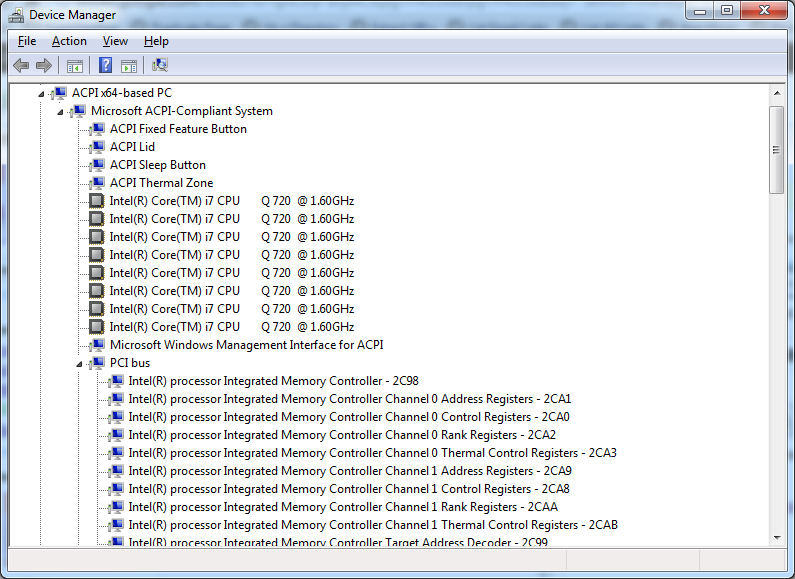
Expanded Windows Device Manager


With the increasing number of devices, it really helps to expand all nodes in the Device Manager’s tree view.

You cannot do this with the mouse, as none of the menu options contain an “Expand All” option.

But since the treeview, is the built-in Windows treeview (used in many places, like Windows explorer), you can use these shortcuts to expand/collapse nodes:

  • Numeric Keypad *: Expands everything under the current selection
  • Numeric Keypad +: Expands the current selection
  • Numeric Keypad -: Collapses the current selection.
  • RIGHT ARROW: Expands the current selection if it is not expanded, otherwise goes to the first child
  • LEFT ARROW: Collapses the current selection if it is expanded, otherwise goes to the parent

This not only works in Microsoft Windows 7: Visual … – Google Books, I think it has been introduced as far back as Windows 95.

–jeroen

Posted in Keyboards and Keyboard Shortcuts, Power User, Windows, Windows 10, Windows 7, Windows 8, Windows 8.1, Windows 9, Windows Server 2003, Windows Server 2003 R2, Windows Server 2008, Windows Server 2008 R2, Windows Server 2012, Windows Server 2012 R2, Windows Vista, Windows XP | 1 Comment »

batch-file trick: Starting Windows Explorer and selecting a file (“explorer” commandline parameters “/n” “/e” “/select” “/root” “/start” site:microsoft.com)

Posted by jpluimers on 2010/09/01

From a batch-file I recently had to start Windows Explorer, at the same time select a specific file or directory.

This turned out pretty easy: use the /select command-line switch from Windows Explorer.

In fact, Windows Explorer has a few command-line switches, and the “explorer” commandline parameters “/n” “/e” “/select” “/root” “/start” site:microsoft.com query will find quite a few topics about it: Read the rest of this entry »

Posted in Power User, Windows, Windows 10, Windows 7, Windows 8, Windows 8.1, Windows 9, Windows 95, Windows 98, Windows ME, Windows NT, Windows Server 2000, Windows Server 2003, Windows Server 2003 R2, Windows Server 2008, Windows Server 2008 R2, Windows Server 2012, Windows Server 2012 R2, Windows Server 2016, Windows Vista, Windows XP | 1 Comment »