The Wiert Corner – irregular stream of stuff

Jeroen W. Pluimers on .NET, C#, Delphi, databases, and personal interests

  • My badges

  • Twitter Updates

  • Pages

  • All categories

  • Enter your email address to subscribe to this blog and receive notifications of new posts by email.

    Join 1,854 other subscribers

2 x Speakers surround replacement – Designed for Apple G4 Cube M7963 | eBay

Posted by jpluimers on 2021/05/24

For my link archive: [Wayback/Archive.is] 2 x Speakers surround replacement – Designed for Apple G4 Cube M7963 | eBay

2 x Speakers surround replacement - Designed for Apple G4 Cube M7963

Via: [Archive.is] Power Macintosh G4 Cube Owners Group : Hi Guys. Just for you to be aware, this is my product, specifically designed and produced by me to repair the Apple G4 Cube speakers | Facebook

–jeroen

Posted in Apple, Mac, Power Mac, Power Mac G4 Cube, Power User | Leave a Comment »

Forgot the ESXi root password? No problems, here are 4 ways to reset it! – VMWARE BLOG

Posted by jpluimers on 2021/05/24

I only needed one of the standalone ways for the many ways in [WayBack] Forgot the ESXi root password? No problems, here are 4 ways to reset it! – VMWARE BLOG

Passwords are the things people tend to forget. Well, ESXi root passwords are not an exception either! Without the root password, you lose control over your hosts, so it’s good to know how to reset it. Well, resetting an ESXi host password is the thing I gonna talk about in this article.

Resetting root password on the standalone ESXi hosts

Now, as we know how to reset the password with vCenter, let’s look at some tough cases. Let’s say, you don’t have vCenter installed on the host. Once again, I do not want to re-install the server OS as VMware says. Seriously, that’s not fun! Let’s look at something more interesting instead. Well, let’s say, what about changing the password right on the node itself?

Before I start, I’d like to mention that you won’t be able to trick ESXi security and change the root password on the node without shutting it down. This means that you, like it or not, do need to shut down each VM from the inside! If you screw things up, you won’t be able to start VMs without ESXi re-installation.

Also, you need the boot the CD image. I used Ubuntu GNOME in this article. Find out how to create a boot CD and download Ubuntu GNOME here. You also need Rufus to write the boot CD image on the flash drive.
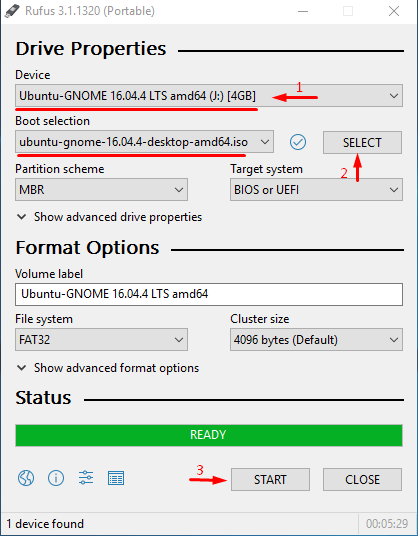
C:\21a983d22b51938355d6c52e7f69741e

So, you need to boot from the flash disk, mount the required ESXi datastore, unpack the archive, and edit the file with passwords. Next, you upload the file back into the initial directory, and, after rebooting the host, you can access the it without the password.

Editing the “shadow” file

What’s “shadow” is?

For safety concerns, ESXi keeps passwords encrypted in some file… whatever, here’s how you still can reset the password. According to some unofficial sources, this file is called “shadow”. You can find it in one of those booting volumes in the /etc directory. Before the host boots, /etc is in the local.tgz archive. Here’s the path: /etc => local.tgz => state.tgz. You can find it in one of those booting volumes in the /etcdirectory. Before the host boots, /etc is in the local.tgz archive. Here’s the path: state.tgz => local.tgz => /etc.

Here’s how the disk is formatted in ESXi 6.0 or higher:

Volume name What it is for? Volume size in my case
/dev/sda1 Starts the system 4 MB
/dev/sda2: /scratch: System volume that is created while installing ESXi on the over-5 GB disk. 4 GB
/dev/sda3: VMFS datastore: Represents all the remaining disk space
/dev/sda5: /bootbank: The ESXi image 250 MB
/dev/sda6: /altrbootbank: The older system version image. You’ll see it as an empty volume if you have never updated the system 250 MB
/dev/sda7: vmkDiagnostic (the first volume) Keeps the core dump 110 MB
/dev/sda8: /store VMware Tools image 286 MB
/dev/sda9: vmkDiagnostic (the second volume) Keeps all the information connected with vSAN diagnostics. You can observe this volume only in over-8 GB datastores 2.5 GB

Among of all those volumes, we need only the /bootbank one as it keeps the ESXi archive. In this way, “shadow” should be somewhere there.

Chasing the “shadow”

So, let’s boot the host from the flash disk first and start the terminal.

Run the following cmdlet to acquire root privileges:

# sudo su

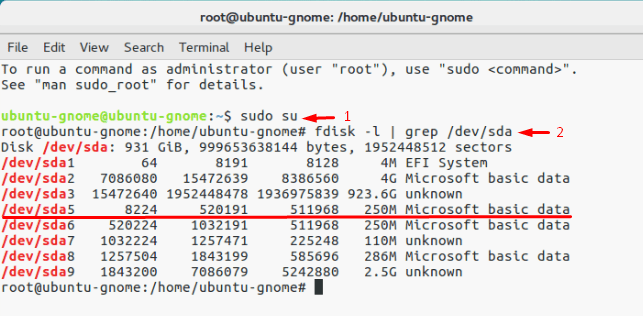
Next, deploy the command below to look through the sda directory.

# fdisk –l | grep /dev/sda*
C:\c7eb70e4332b280e897bc91da2843eb5

Well, it seems that we need that 250 MB /dev/sda5 directory. Create the mnt directory.

# mkdir /mnt/sda5

Create the directory for the temporary files now.

# mkdir /temp

And, mount the /dev/sda5 directory using the cmdlet below.

# mount /dev/sda5 /mnt/sda5

Now, look for that state.tgz archive I was talking above.

# ls -l /mnt/sda5/state.tgz

Extract both state.tgz and local.tgz. Here are the commands you can use for that purpose:

# tar -xf /mnt/sda5/state.tgz –C /temp/

# tar -xf /temp/local.tgz –C /temp/

Once you are done with unpacking, get rid of those old archives with the cmdlet below:

# rm /temp/local.tgz

Now, you are ready to do some magic with “shadow”. Open the file, edit it, and close it. As simple as it! To double-check the changes, open the file one more time.

# vi /temp/etc/shadow

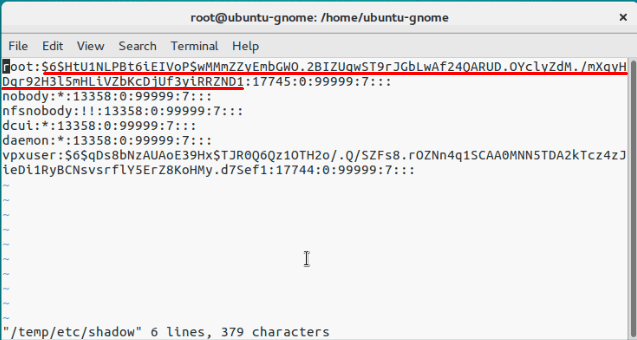
Actually, here’s how “shadow” looks like inside. See, it contains all users’ passwords.
C:\5cfa53db6df27f3419c38304e61a1937

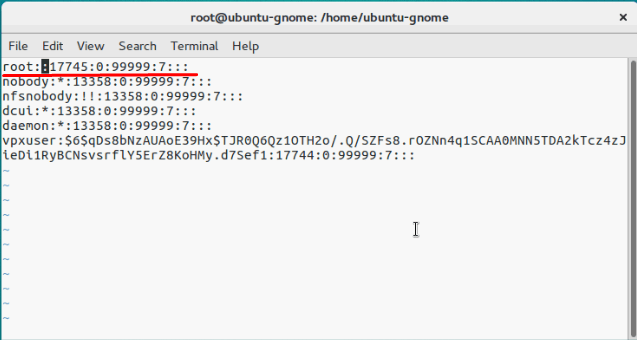
To reset the password, just delete everything between the double colons. Remember, everything is encrypted? That’s why passwords look that weird.
C:\569ce0a0bd6088cfe538f3b76c1872b3

# vi /temp/etc/shadow

Next, go to the work directory.

# cd /temp

Now, add the “shadow” back to the archive.

# tar -czf local.tgz etc

# tar -czf state.tgz local.tgz

Move the new archive to the initial directory.

# mv state.tgz /mnt/sda5/

Unmount the /sda5 disk with the cmdlet below:

# umount /mnt/sda5

And, eventually reboot the host.

# reboot

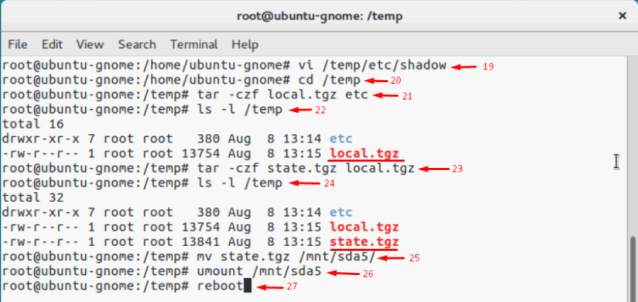
Well, to make the stuff I’ve just written above more reader-friendly, here’re all commands you need to deploy step-by-step.
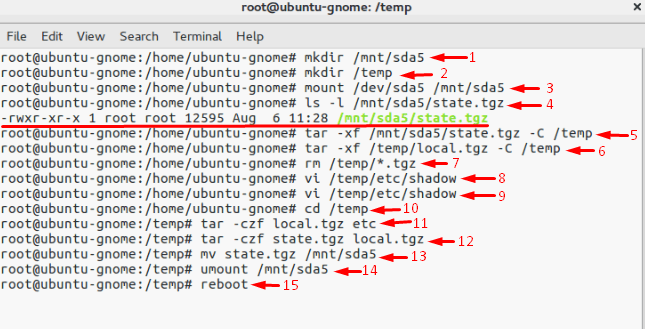
C:\786a70bf9387ec447bd86ea06e01bd12

Well, you are almost there. Reboot the server now, and try accessing the host without any password. Well, check out what I’ve got.
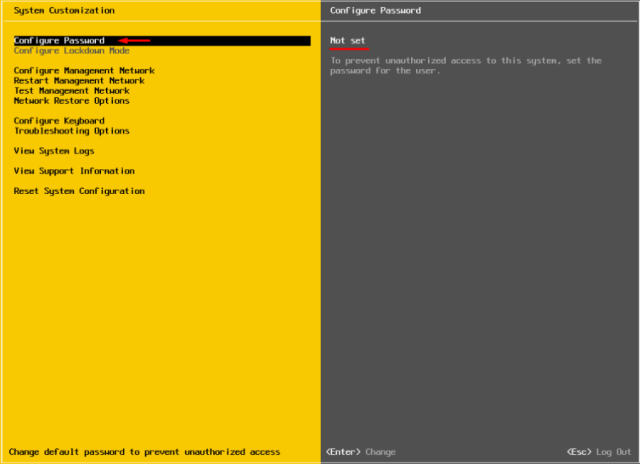
C:\67ddfd5b95a9399d71561e4f7e82fe71

Now, select Configure Password, and type a new password in the self-titled field.
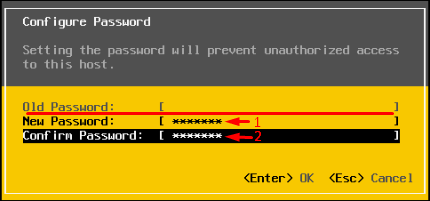
C:\659a2f378848ab4f9e11135e321968d9

Ok, this time, please write the root password, or just try no to forget it!

Replace one “shadow” with another

There’s another way to reset the ESXi root password using “shadow”. Actually, that’s nothing more than a variation of the method I described above.

So, another thing you can do to reset the ESXi password is just using another host “shadow” file! Yes, you can just copy the “shadow” file from another host with the known root password to the one more flask disk. To get the file with passwords from another host, you need WinSCP. The utility is available here. The nice thing is that you can retrieve that file from the host with the unknown ESXi root password without even shutting it down.
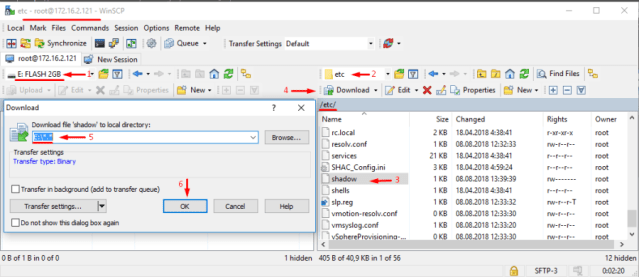
C:\c538c5686ddc4ba551ea1f5237280e1b

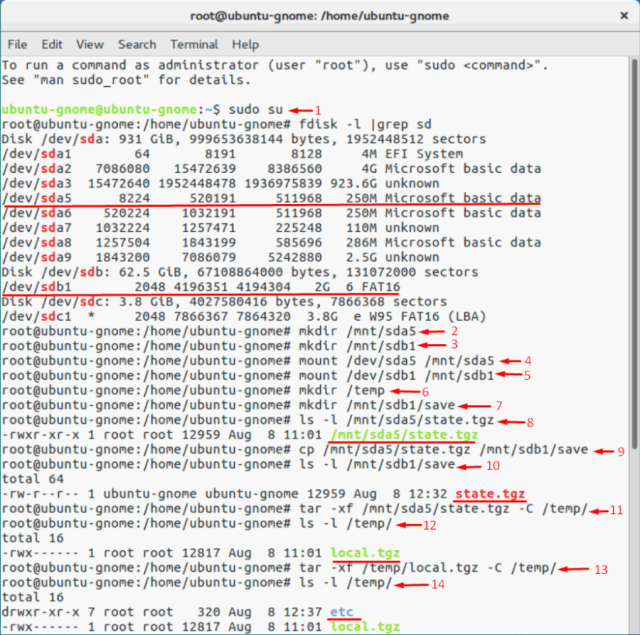
Next, call the terminal with the Ubuntu GNOME and reset the password.

Update user privileges to root first. You can run the following command for that purpose:

# sudo su

Now, let’s see what you have on the disk.

# fdisk –l | grep sd 

Create two temporary volumes afterward.

# mkdir /mnt/sda5

# mkdir /mnt/sdb1

Mount the ESXi disk and flash disk where the “shadow” resides using the following cmdlet.

# mount /dev/sda5 /mnt/sda5

# mount /dev/sdb1 /mnt/sdb1

Now, create the temporary volume for further work with archives.

# mkdir /temp

Create the volume where you are going to keep the state.tgz copy just in case something goes wrong.

# mkdir /mnt/sdb1/save

Find the necessary file in the archive.

# ls -l /mnt/sda5/state.tgz

Copy the archive.

# cp /mnt/sda5/state.tgz /mnt/sdb1/save

Run the following command to double-check whether the file has been copied:

# ls -l /mnt/sdb1/save

Extract state.tgz using the cmdlet below:

# tar -xf /mnt/sda5/state.tgz –C /temp/

Find the temp file.

# ls –l /temp

Extract local.tgz.

# tar -xf /temp/local.tgz –C /temp/

Make sure that you extracted the /etc directory.

# ls –l /temp
C:\8b102fd08f266e9fca099d664a77e2c6

Now, delete the local.tgz volume to ensure that it won’t be included into the new archive by accident.

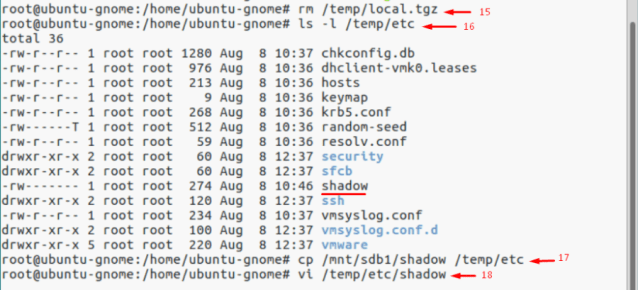
# rm /temp/local.tgz

Find “shadow” in the /etc directory.

# ls -l /temp/etc

Replace the original “shadow” with the one from the host with known root password. Type the following cmdlet:

# cp /mnt/sdb1/shadow /temp/etc
C:\8045c097389c9a0cbc8a78ed1e5805fe

Now, deploy the following command to open the file and look through the saved credentials.

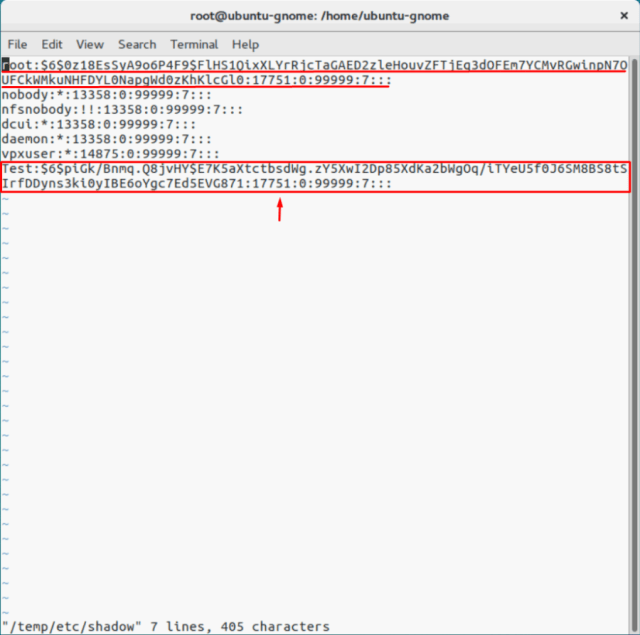
# vi /temp/etc/shadow

If you do not want some users to access the host, go ahead and just remove them from the listing! Here, I removed Test from the users that can access the host. Wait, why did I delete only Test? At this point, I’d like to warn you against deleting any users you are not familiar with. In my case, all users except Test are system ones. If you delete any of those guys, you may destabilize the OS!
C:\91a5a7a5552948a084c9c8bbbd4c4d1c

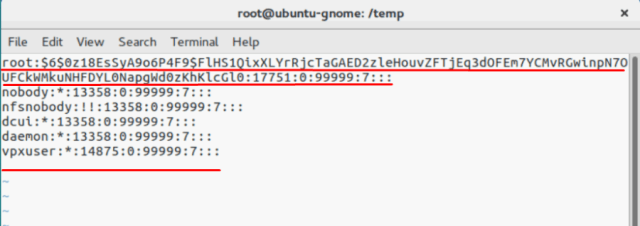
Here’s how the “shadow”: file looks like once the unnecessary user.
C:\601a3512f8477b298365221f92dcfed7

Check whether all changes have been applied.

# vi /temp/etc/shadow

Type the following line to navigate to the /temp directory.

# cd /temp

Archive the /etc directory.

# tar -czf local.tgz etc

Check whether archiving has run smoothly.

# ls -l /temp/

Now, create the state.tgz volume.

# tar -czf state.tgz local.tgz

Again, check whether the volume has been created.

# ls -l /temp/

Move the archive to the working ESXi directory.

# mv state.tgz /mnt/sda5/

Check the result one more time.

# ls -l /mnt/sda5/

Unmount the sda5 directory.

# umount /mnt/sda5

Eventually, reboot the host.

# reboot

Enjoy! If everything is done right, you can access the host with the known password. Well, to make everything more or less convenient here’s the entire set of commands I used for this method.
C:\aa3e81917d7434ea1863f161d7985514

If the host starts acting weird after reboot, there’s still a copy of the initial state.tgz. Well, it should be. You can mount both /sda5 and /sdb1 and retrieve the original state.tgz using the following cmdlet… and try again!

# cp /mnt/sdb1/save/state.tgz /mnt/sda5/

–jeroen

Posted in Power User, Virtualization, VMware, VMware ESXi | Leave a Comment »

SuperMicro iKVM and IPMI: not able to initiate “Virtual Media” -> “Virtual Storage”

Posted by jpluimers on 2021/05/24

I had something odd on one SuperMicro systeem:

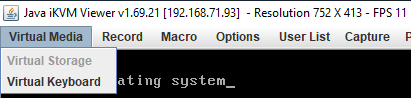
The “Virtual Storage” menu item under “Virtual Media” was marked grey (gray?) as being unavailable.

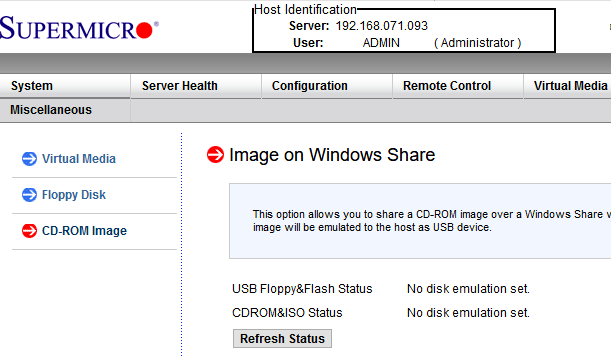
Despite that, no disk image was shown mounted according to the web interface at menu path “Virtual Media” -> “CD-ROM Image“:

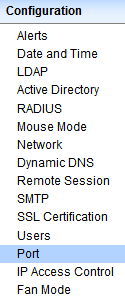
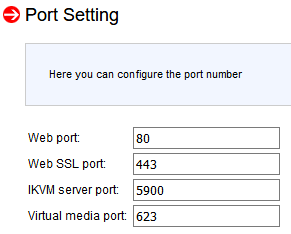
Port settings were good though as seen in menu path “Configuration” -> “Port“:

Even nmap did not show significant differences between the various systems (partial dump here; full dump below)

Discovered open port 443/tcp on 192.168.71.96
Discovered open port 5900/tcp on 192.168.71.96
Discovered open port 80/tcp on 192.168.71.96
Discovered open port 22/tcp on 192.168.71.96
Discovered open port 5985/tcp on 192.168.71.96
Discovered open port 623/tcp on 192.168.71.96

I use alias alias nmap-fingerprint_host_all-ports-even-if-ping-fails='sudo nmap -O -v -A -p- -Pn' here as it usually gives best results for port scans on a single machine.

“Secret” setting

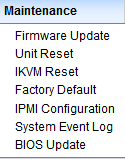
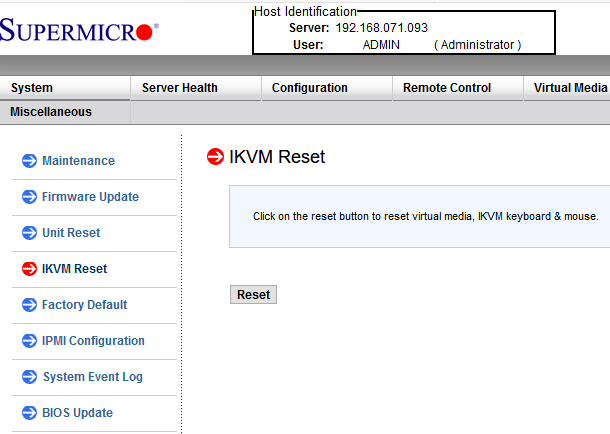
The secret is in a different menu entry under menu path “Maintenance” -> “IKVM reset“:

After pressing the Reset button, then restarting the iKVM client, “Virtual Media” -> “Virtual Storage” is nog grey any more, and just works:

Read the rest of this entry »

Posted in Hardware, IPMI, Mainboards, Power User, SuperMicro, X9SRi-F | Leave a Comment »

MacOS: when “Command-Tab” does not work (no visual response, no application switching) you need to restart the Dock

Posted by jpluimers on 2021/05/21

Based on [WayBack] Command-Tab Not working….. – Apple Community

If you go to Activity monitor and search for dock, doubleclick on it, choose Force quit.
It will restart the Dock app and now it should work.

I wrote this alias which restarts Dock (including Dashboard and Spaces as they are served by the same process).

alias restart-dock-dashboard-spaces='killall -KILL Dock'

Related: my 2013 post Mac: Restarting the Mac OS X Dock, Finder, Spaces or Menubar | Stefan Ernst.

–jeroen

Posted in Apple, iMac, Mac, Mac OS X / OS X / MacOS, MacBook, MacBook Retina, MacBook-Air, MacBook-Pro, MacMini, macOS 10.12 Sierra, macOS 10.13 High Sierra, OS X 10.10 Yosemite, Power User | Leave a Comment »

LGA 2011 – remove and insert a CPU

Posted by jpluimers on 2021/05/21

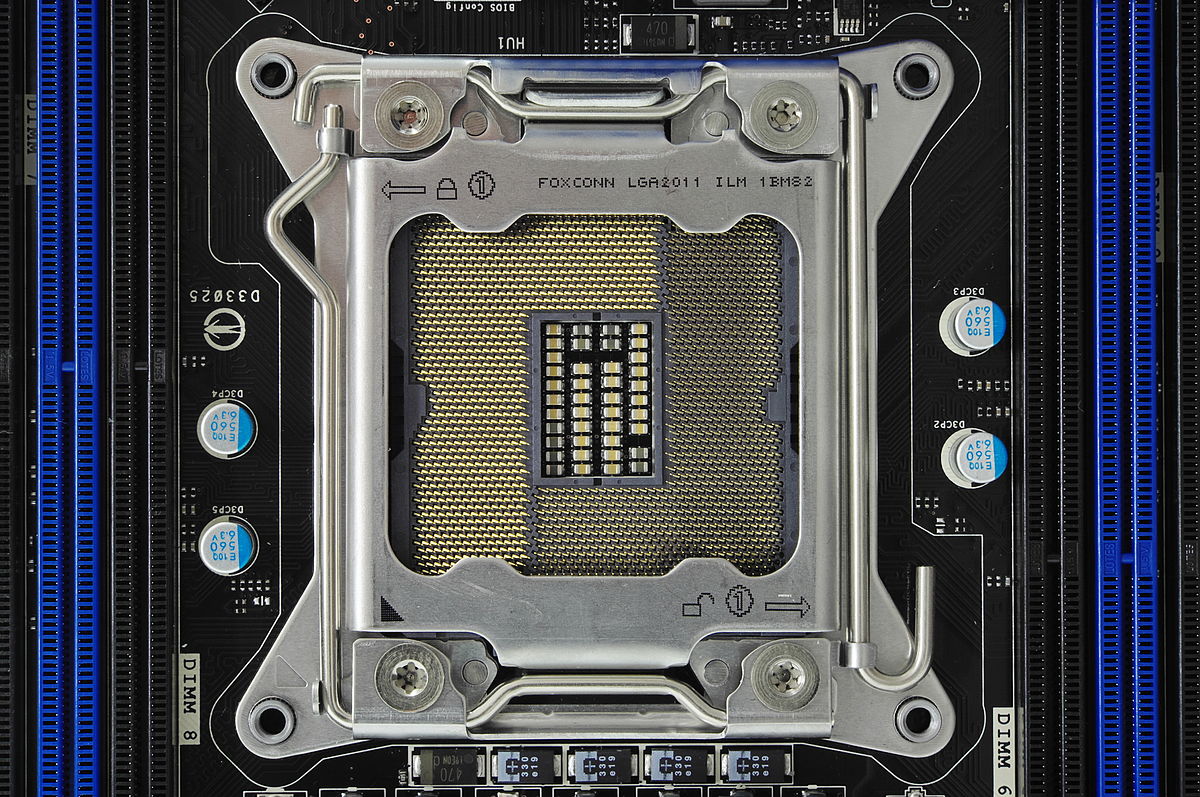
I while ago I needed to upgrade a processor in a LGA 2011  socket

If you know what the icons mean they are simple.

  • The (1) lock on the top left means that lever (with the triangle bend in it) needs to be done first when locking
  • The (1) unlock on the bottom right means that lever (with the rounded end) needs to be done first when unlocking

More details at:

–jeroen

Read the rest of this entry »

Posted in Hardware, Mainboards, Power User | Leave a Comment »

How to Copy files between ESXi hosts using SCP Command

Posted by jpluimers on 2021/05/21

Derived the bits below from [WayBack] How to Copy files between ESXi hosts using SCP Command.

Recursive copy from a remote machine to an existing local directory:

scp -rp root@192.168.71.97://vmfs/volumes/EVO860_500GB/VM1/ /vmfs/volumes/EVO860_250GB/VM2/

After this you need to edit the .vmxf files in the VM2 directory to ensure these are not duplicates.

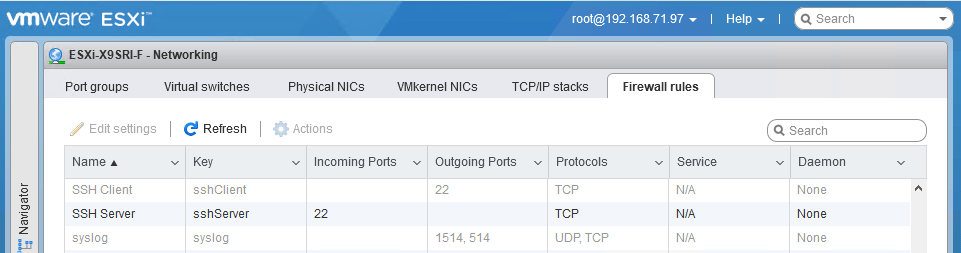
One thing to remember is that you need the current host to allow the SSH client in the firewall, which is disabled by default:

After enabling:

Be really careful with the -3 option to scp; it allows you to transfer from one remote machine to another remote machine, but when using keyboard-interactive, you have a high change to lock-out your accounts: SSH will try to keyboard-interactive to both hosts at the same time.

If you lock-out root, then you have to go through the local DCUI console (use ALT-F2 to go there), then reset the root account failure count using pam_tally2 --user root --reset.

So this can be bad:

scp -3 -rp root@192.168.71.97://vmfs/volumes/EVO860_500GB/VM1/ root@192.168.71.91://vmfs/volumes/EVO860_250GB/VM2/

This works, but assumes the SSH client is enabled from the first host:

scp -rp root@192.168.71.97://vmfs/volumes/EVO860_500GB/VM1/ root@192.168.71.91://vmfs/volumes/EVO860_250GB/VM2/

See these links:


[root@ESXi-X9SRI-F:~] esxcli network firewall get
   Default Action: DROP
   Enabled: true
   Loaded: true
[root@ESXi-X9SRI-F:~] esxcli network firewall ruleset list --ruleset-id sshClient
Name       Enabled
---------  -------
sshClient    false
[root@ESXi-X9SRI-F:~] esxcli network firewall ruleset set --ruleset-id sshClient --enabled true
[root@ESXi-X9SRI-F:~] esxcli network firewall ruleset list --ruleset-id sshClient
Name       Enabled
---------  -------
sshClient     true
[root@ESXi-X9SRI-F:~] esxcli network firewall ruleset set --ruleset-id sshClient --enabled false
[root@ESXi-X9SRI-F:~] esxcli network firewall ruleset list --ruleset-id sshClient
Name       Enabled
---------  -------
sshClient    false

–jeroen

Posted in *nix, *nix-tools, ESXi6, ESXi6.5, ESXi6.7, Power User, ssh/sshd, Virtualization, VMware, VMware ESXi | Leave a Comment »

I wanted to know the loaded DLLs in a process like Process Explorer shows, but from the console: Sysinternals ListDLLs to the rescue

Posted by jpluimers on 2021/05/20

In Windows, historically most people approach investigation GUI first. Having turned 50 a while ago, I am no exception.

My real roots however are on the command-line and scripting: roughly 1980s Apple DOS, CP/M, SunOS (yay sh Bourne shell!), MS-DOS, 4DOS, and VAX/VMS (yay DCL shell!), from the 1990s on, some Solaris, a little bit of AIX, HP-UX and quite a bit of Linux, MacOS (né OS/XMac OS),  and some BSD descendants derivatives (SunOS, AIX and MacOS are based on the Berkeley Software Distribution), and this century a more growing amount of PowerShell).

So I was glad to find out the makers of Process Explorer also made [WayBack] ListDLLs – Windows Sysinternals | Microsoft Docs (via windows get dlls loaded in process – Google Search)

List all the DLLs that are currently loaded, including where they are loaded and their version numbers.

ListDLLs is a utility that reports the DLLs loaded into processes. You can use it to list all DLLs loaded into all processes, into a specific process, or to list the processes that have a particular DLL loaded. ListDLLs can also display full version information for DLLs, including their digital signature, and can be used to scan processes for unsigned DLLs.

Usage

listdlls [-r] [-v | -u] [processname|pid]
listdlls [-r] [-v] [-d dllname]

Parameter Description
processname Dump DLLs loaded by process (partial name accepted).
pid Dump DLLs associated with the specified process id.
dllname Show only processes that have loaded the specified DLL.
-r Flag DLLs that relocated because they are not loaded at their base address.
-u Only list unsigned DLLs.
-v Show DLL version information.

Download: [WayBack] ListDlls.zip.

Now it is much easier to generate a draft deploy list of DLLs (and for Delphi: BPLs) based on a process running on a development machine.

Example output (the -r flags relocation warnings; the first part is the [WayBack] shim that Chocolatey created around the second which is from SysInternals):

Read the rest of this entry »

Posted in Conference Topics, Conferences, Delphi, Development, Event, History, Software Development, Windows Development | Leave a Comment »

Oracle Instant Client – no chocolatey package for automatic install on Windows (yet?)

Posted by jpluimers on 2021/05/20

I tried finding a chocolatey package for the [WayBack] Oracle Instant Client – Free tools and libraries for connecting to Oracle Database.

The [WayBack] Instant Client editions support light-weight installations of the Oracle database client.

I was especially interested in automating the install of the basic or basic basic light varieties:

Instant Client Package

Description

References

Basic

All files required to run OCI, OCCI, and JDBC-OCI applications for Oracle Database

OCI
OCCI
JDBC-OCI

Basic Light

Smaller version of the Basic package, with only English error messages and Unicode, ASCII, and Western European character set support

OCI
OCCI
JDBC-OCI

Having this is a prerequisite of many DAC layers, including ODBC, although for the latter, you also need this one:

Instant Client Package

Description

References

ODBC

Additional libraries providing ODBC

ODBC

Since there is no chocolatey maintained package for any of these, these are the steps to download them:

  1. Ensure you have a Oracle account
  2. Sign in on www.oracle.com/webapps/redirect/signon?nexturl=https://www.oracle.com/technetwork/developer-tools/sql-developer/downloads
  3. Accept cookies if asked for
  4. Click on the “Downloads” button to go to [WayBack] Oracle Instant Client Downloads
  5. Click on either [WayBack] Instant Client for Microsoft Windows (32-bit) (note that [WayBack] Instant Client for Microsoft Windows (x64) is specific for Win64 applications; many are 32-bit only, especially end-user ones, for instance many supporting Microsoft Office (including Outlook addins, or document storage systems)
  6. Click on the “Accept License Agreement” radio button
  7. Select the version you need.
  8. Download and install the required files.
  9. Unzip and add the directories to the PATH

TNSPING

Note that these downloads not include TNSPING; for some reason, Oracle only adds that to the fat client. So you need to use alternatives:

You can also use sqlplus with sscripting, but that is much harder on Windows than on Linux:

Note there are very distinctive differences between tnsping and sqlplus, see How to do tnsping? | Oracle Community  which I will quote large parts of soon.

For sqlplus: it works with TNSNAMES.ORA, but you can also do without it.

For all the other tnsping substitutes: ensure your TNS_ADMIN points to a directory with a correct TNSNAMES.ORA file.

What I usually do is this:

  1. Create directory a directory ORA under %LOCALAPPDATA%
  2. Store TNSNAMES.ORA inside %LOCALAPPDATA%\ORA
  3. Point TNS_ADMIN environment variable to %LOCALAPPDATA%\ORA
  4. Unzip any of the instantclient-basiclite-nt-*.zip into %LOCALAPPDATA%\ORA\InstantClient
  5. Unzip any of the instantclient-sqlplus-nt-*.zip into %LOCALAPPDATA%\ORA\SqlPlus
  6. Add %LOCALAPPDATA%\ORA\InstantClient;%LOCALAPPDATA%\ORA\SqlPlus to the user PATH

Related

My blog post Chocolatey: installing Oracle SQL Developer and updating the chocolatey package (which works without the instantclient).

[WayBack] Install Oracle Instant Client on Linux and Windows | HelloDog:  Install Oracle instantclient basic and instantclient sqlplus on Linux and Windows (and some tnsping examples).

[Archive.is] oracle – How to set tnsnames.ora location for SQL Developer in Windows 10 – Stack Overflow

–jeroen

Posted in Database Development, Development, ODBC, OracleDB, Software Development | Leave a Comment »

ODAC default install paths for Delphi 10.2 Tokyo

Posted by jpluimers on 2021/05/20

A few notes on the ODAC install:

  1. Download of x.x.x is at [WayBack] www.devart.com/odac/odac25.exe via [WayBack] www.devart.com/odac/download.html

    The 25 is DllSuffix minus trailing zero for Delphi 10.2 Tokyo, or the “real” Delphi version; see Delphi version info table.

  2. It requires local administrator access when installing
  3. When installing it installs the Demos using the %USERPROFILE% directory of the local administrator user that installed it: %USERPROFILE%\Documents\Devart\ODAC for RAD Studio 10.2\Demos
    • You can replace this directory at install time; I prefer %PUBLIC%\Documents\Devart\ODAC for RAD Studio 10.2\Demos
  4. The rest of the files are in the global directory %ProgramFiles(x86)%\Devart\ODAC for RAD Studio 10.2
  5. If your Delphi license does not include certain targets (like Linux) they do not get installed at all.

–jeroen


Posted in Delphi, Development, Software Development | Leave a Comment »

PlasticSCM ignore.conf: globally ignoring certain file types, but allowing them recursively in a subdirectory

Posted by jpluimers on 2021/05/19

I needed this for a project there 3rdParty libraries could have .dcu and .obj files (to either speed up building, or because not all source code was supplied), but those files should not be present nowhere else in the repository.

This is an ignore.conf template for that:

*.obj
*.dcu

!/3rdParty/**/*.dcu
!/3rdParty/**/*.obj

The ! exclamation mark undoes the ignore according to the pattern following it.

Note the starting slashes after the !: they indicate the root directory of the repository and are mandatory.

Based on (warning, the JavaScript on these pages are extremely CPU intensive!):

–jeroen

Posted in Development, PlasticSCM, Software Development, Source Code Management | Leave a Comment »