The Wiert Corner – irregular stream of stuff

Jeroen W. Pluimers on .NET, C#, Delphi, databases, and personal interests

  • My badges

  • Twitter Updates

  • My Flickr Stream

  • Pages

  • All categories

  • Enter your email address to subscribe to this blog and receive notifications of new posts by email.

    Join 1,860 other subscribers

When a fresh install of Bonobo Git Server on Windows 7 IIS 7 gives you a “HTTP Error 404.0 – Not Found”

Posted by jpluimers on 2016/06/16

HTTP Error 404.0 - Not Found

HTTP Error 404.0 – Not Found

Had this on a fresh Bonobo Git Server on a relatively fresh Windows 7 installation:

HTTP Error 404.0 – Not Found

At first I thought it was missing ASP because of the “StaticFile” in the error information, so I enabled it:

ASP is not enabled by default

ASP is not enabled by default

Enable ASP

Enable ASP

That didn’t help, so I searched for “MapRequestHandler” “HTTP Error 404.0 – Not Found” and found:

  1. HTTP Error 404.0 – Not Found (MapRequestHandler / StaticFile) when deploying WCF Web API on IIS 7.x | Alexander Zeitler
  2. aspnet_regiis.exe -i is still a solution : Fixing HTTP Error 404.0 – Not Found (MapRequestHandler / StaticFile) when deploying an application in IIS 7.x | Michael Hidalgo

Though ASP.NET was clearly enabled according to the Windows features, this was apparently for an old ASP.NET version so I manually re-registered ASP.NET (but now for Version 4: I had 4.6.1 installed):

C:\Windows\System32>%windir%\Microsoft.NET\Framework\v4.0.30319\aspnet_regiis.exe -ir
Microsoft (R) ASP.NET RegIIS version 4.0.30319.0
Administration utility to install and uninstall ASP.NET on the local machine.
Copyright (C) Microsoft Corporation. All rights reserved.
Start installing ASP.NET (4.0.30319.0) without changing existing web applications to use this version of ASP.Net.
.....
Finished installing ASP.NET (4.0.30319.0) without changing existing web applications to use this version of ASP.Net.

Windows 7 is .NET 2.0 all over the place…

Then it still didn’t work, but the second tip above also mentioned the application pool. And since Bonobo insists installing in wwwwroot, it’s using the default application which on Windows 7 – surprise! – is ASP.NET 2.0:

Default Windows 7 application pool for wwwroot uses ASP.NET 2.0

Default Windows 7 application pool for wwwroot uses ASP.NET 2.0

ASP.NET 4.0 needs to be the default.

ASP.NET 4.0 needs to be the default.

Changing that to ASP.NET 4.0 made it all work.

Read the prerequisites

Too bad that ASP.NET registration part is only prominently visible in the readme.md on github, but not in the installation instructions of the web-site with a tiny link (overwhelmed by the screenshots) to prerequisites.

Same for the default credentials:

  • username admin
  • password admin

–jeroen


Posted in .NET, ASP.NET, Development, DVCS - Distributed Version Control, git, Software Development, Source Code Management | Leave a Comment »

Aliases for tools removed from `net-tools` package – via: openSUSE Build Service

Posted by jpluimers on 2016/06/16

Since quite a few commands that you regularly see mentioned on the web have been removed from OpenSuSE net-tools, I’ve created a few bash aliases in /etc/bash.bashrc.local below.

Note the original commands are not good have been deprecated for years on various distros and therefore removed:

# stuff removed from net-tools
# see https://features.opensuse.org/317197 and https://build.opensuse.org/package/view_file/network:utilities/net-tools/net-tools.changes
## Because of changes on Thu Apr 10 12:33:41 UTC 2014
alias "arp=echo 'use \"ip neigh\" or \"ip -r neight\"' && ip neigh"
alias "ifconfig=echo 'use \"ip a\"' && ip a"
alias "netstat= echo 'use \"ss\" or \"ss -r\"' && ss"
alias "route=echo 'use \"ip r\"' && ip r"
## Because of changes on Sun Mar 29 00:41:21 UTC 2015
alias "ipmaddr=echo 'use \"ip maddr\"' && ip maddr"
alias "iptunnel=echo 'use \"ip tunnel\"' && ip tunnel"

Some bits of the net-tools change-log:

-------------------------------------------------------------------
Sun Mar 29 00:41:21 UTC 2015 - jengelh@inai.de
- ipmaddr and iptunnel are obsolete too, move them to subpackage.
(Superseded by `ip maddr` and `ip tunnel`)
- remove redundant %clean section
-------------------------------------------------------------------
Thu Apr 10 12:33:41 UTC 2014 - mmarek@suse.cz
- Move arp, ifconfig, netstat and route to a -deprecated subpackage
(fate#317196, fate#317197)
- Drop the rarp tool, which has been broken since kernel 2.3

Note that the -lntu parameter seems to be the same for both ss and netstat: [WayBackGet a list of Open Ports in Linux – Super User

–jeroen

via File net-tools.changes of Package net-tools – openSUSE Build Service.

Posted in *nix, *nix-tools, bash, bash, Development, Linux, openSuSE, Power User, Scripting, Software Development, SuSE Linux | Leave a Comment »

How to overcome “Stuck while installing Visual Studio 2015 (Update for Microsoft Windows (KB2999226))” via – Stack Overflow

Posted by jpluimers on 2016/06/15

Visual Studio 2015 install stuck on

Visual Studio 2015 install stuck on “acquiring” KB2999226

I had exactly the same when installing Visual Studio 2015 on a Windows 7 x64 system: stuck on “Acquiring” the “Update for Microsoft Windows (KB2999226)”.

So as mentioned in the StackOverflow answers for the below question, I manually downloaded “Update for Windows 7 for x64-based Systems (KB2999226)” which you can get directly at https://download.microsoft.com/download/1/1/5/11565A9A-EA09-4F0A-A57E-520D5D138140/Windows6.1-KB2999226-x64.msu.

Be sure to quit both the Visual Studio 2015 installation as well as any (“automagically interfering” background Windows Updates), as otherwise you get this error:

--------------------------- Windows Update Standalone Installer --------------------------- Only one instance of wusa.exe is allowed to run. --------------------------- OK ---------------------------

---------------------------
Windows Update Standalone Installer
---------------------------
Only one instance of wusa.exe is allowed to run.
---------------------------
OK
---------------------------

If you still get that error, then

  • try to stop/start the wuauserv service: usually it gets rid of the error.
  • When it still occurs, try a clean boot, then re-apply the KB.

Applying the KB can take a long while, even on fast hardware.

–jeroen

Source: Stuck while installing Visual Studio 2015 (Update for Microsoft Windows (KB2999226)) – Stack Overflow

Posted in .NET, Development, Software Development, Visual Studio 2015, Visual Studio and tools | Leave a Comment »

How to: Set a Thread Name in Native Code

Posted by jpluimers on 2016/06/15

This is what the Delphi [WayBack] System.Classes.TThread.NameThreadForDebugging (introduced in Delphi 2010) is based on:

//
// Usage: SetThreadName (-1, "MainThread");
//
#include <windows.h>
const DWORD MS_VC_EXCEPTION=0x406D1388;

#pragma pack(push,8)
typedef struct tagTHREADNAME_INFO
{
   DWORD dwType; // Must be 0x1000.
   LPCSTR szName; // Pointer to name (in user addr space).
   DWORD dwThreadID; // Thread ID (-1=caller thread).
   DWORD dwFlags; // Reserved for future use, must be zero.
} THREADNAME_INFO;
#pragma pack(pop)

void SetThreadName( DWORD dwThreadID, char* threadName)
{
   THREADNAME_INFO info;
   info.dwType = 0x1000;
   info.szName = threadName;
   info.dwThreadID = dwThreadID;
   info.dwFlags = 0;

   __try
   {
      RaiseException( MS_VC_EXCEPTION, 0, sizeof(info)/sizeof(ULONG_PTR), (ULONG_PTR*)&info );
   }
   __except(EXCEPTION_EXECUTE_HANDLER)
   {
   }
}

Related:

For Delphi 2009 and 2007: It is implemented in the SetThreadName method of the IdGlobal unit.

–jeroen

Posted in C++, Delphi, Development, Software Development | Leave a Comment »

Visual Studio 2015 Update 2 ISO locations

Posted by jpluimers on 2016/06/14

Direct Microsoft download URLs for the various Visual Studio 2015 Update 2 ISO files.

I won’t even try myself finding them through the Microsoft sites any more given the trouble I had: How can I get Win10_1511_1_English_x64.iso or Win10_1511_1_EnglishInternational_x64.iso ? « The Wiert Corner – irregular stream of stuff

Posted in .NET, Development, Software Development, Visual Studio 2015, Visual Studio and tools | Leave a Comment »

Use cURL to test local virtual hosts configuration – via: Stack Overflow

Posted by jpluimers on 2016/06/14

Quoting John Hart‘s brilliant answer:

Using --resolve leverages all of the normal logic that applies, but simply pretends the DNS lookup returned the data in your command-line option. It works just like /etc/hosts should.

Note --resolve takes a port number, so for HTTPS you would use

Https: curl --resolve 'yada.com:443:127.0.0.1' https://yada.com/something

Http: curl --resolve 'yada.com:80:127.0.0.1' http://yada.com/something

It requires curl 7.21.3 or higher (from the end of 2010). Which by now everybody should have.

–jeroen

more via: Set cURL to use local virtual hosts – Stack Overflow.

Posted in *nix, bash, cURL, Development, Power User, Scripting, Software Development | Leave a Comment »

Links for when I get `Not enough storage is available to process command` again

Posted by jpluimers on 2016/06/13

No, it’s not the Delphi Global Atom issue. I think it was having ran AQtime for too long.

–jeroen

Posted in Power User, Windows, Windows 7 | Leave a Comment »

OpenSuSE Tumbleweed notes

Posted by jpluimers on 2016/06/13

After zypper dup (dist-upgrade) or zypper up (update) a zypper ps will list processes using deleted files (i.e. processes that likely need to be restarted).

Some processes that can be restarted without reboot:

To research

  • dhcpcd
  • rs:main
  • agetty
  • lvmetad
  • agetty
  • dmeventd

Some processes that require a reboot:

–jeroen

Posted in *nix, ESXi5, ESXi5.1, ESXi5.5, ESXi6, Linux, openSuSE, Power User, SuSE Linux, Virtualization, VMware, VMware ESXi | Leave a Comment »

mercurial strip – Remove experimental branch – Stack Overflow

Posted by jpluimers on 2016/06/12

I found a working solution here.It works by using hg strip from the mq extension:$ hg strip my_pruned_branchAs mentioned in the comments, this should only be used for unpublished changesets.

Source: mercurial – Remove experimental branch – Stack Overflow

You need mercurial strip for that which ships with Mercurial 2.8 and up but isn’t enabled by default.

Enabling is easy and can be done globally or on a per-repository base which I like better: just edit your .hg/hgrc file inside your repository and add these lines:

[extensions]
strip =

The source StripExtension – Mercurial forgets to mention you can enable this on a repository base.

I used it to delete an experimental branch that I hadn’t yet pushed to the outside world.

–jeroen

Posted in Development, DVCS - Distributed Version Control, Mercurial/Hg, Source Code Management | Leave a Comment »

ThinkPad X201: fixing the “black screen” (without mouse pointer) after upgrading to Windows 10

Posted by jpluimers on 2016/06/10

After this Windows 10 boot screen the display goes blank without a mouse cursor.

After this Windows 10 boot screen the display goes blank without a mouse cursor.

So you upgraded your X201 from Windows 7 to Windows 10 even though it’s not in the listed on the Lenovo supported models page.

Now it gets through the boot screen, flashes the CapsLock/NumLock LEDS, blanks the screen (no mouse cursor) and continues booting without any visual feedback apart from the HDD LED flashing until it is finished booting

Since Windows 10 by default does not enable the F8 option any more, you need some more severe measures.

BIOS update

The first was to get the BIOS up to date. At the time of writing that was 1.40-1.15 from BIOS Update Bootable CD for Windows 8 (32-bit, 64-bit), 7 (32-bit, 64-bit), Vista (32-bit, 64-bit), XP – ThinkPad – Lenovo Support (US):

Then I had to burn the ISO. Which was a bit picky because most of my infrastructure is VM based and none of the physical machines had a DVD or CD-drive any more. Luckily I found a LiteOn SLW 831SX which Windows detects as Slimtype DVDRW SLW-831S USB Device. ImgBurn worked with that (elevated to Administrative mode that is: it requires that both for burning and grabbing an ISO image).

Upgrading the BIOS went fine, but the symptoms stayed.

Removing/re-inserting battery

Removing the battery for a while, then reinserting was suggested at one of the sites.  It didn’t help.

Force into Repair Mode

Then I read this:

If the system can’t load the necessary configuration more than two times, the system will  direct the display to Windows RE(Recovery environment).

Source: Windows 10 – How to enter Safe Mode if I can’t boot the system successfully?

They also have: Windows 10 – If I can’t enter the system, how can I restore the Windows 10 laptop or PC to default settings?

This very easy to do:

Prepairing Automatic Repair

Prepairing Automatic Repair

  1. Keep the power button down to power off the machine
  2. Power up the machine
  3. Wait for the boot screen to appear, then
    1. Keep the power button down to power off the machine
  4. Power up the machine
  5. Wait for the boot screen to appear, then
    1. Keep the power button down to power off the machine
  6. Wait for the “Prepairing Automatic Repair” to finish
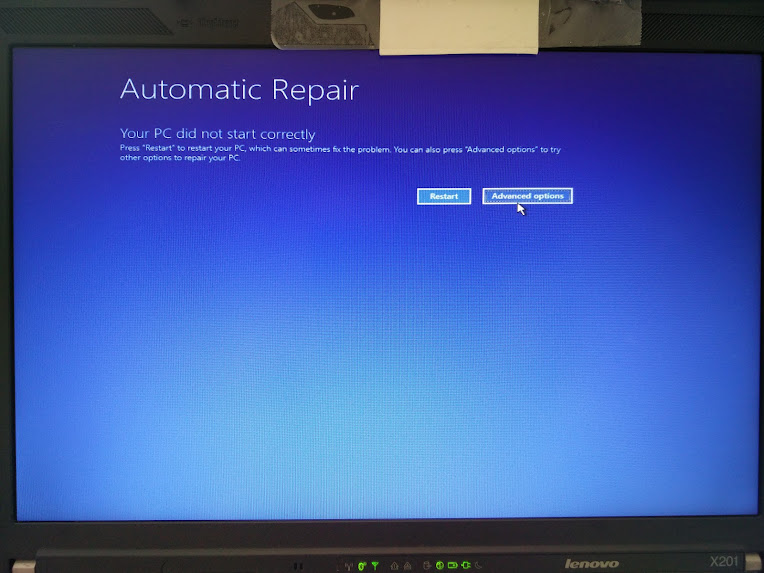
  7. Wait for the “Diagnosing your PC” to finish
  8. Wait for the “Automatic Repair” to appear, then
    1. Wiggle with the mouse to get a mouse cursor
  9. Press the “Advanced Options” button
  10. Choose “Troubleshoot”
  11. Choose “Advanced Options”
  12. Choose “Startup Settings”
  13. Choose “Restart”
  14. Wait for the reboot and “Startup Settings” to appear (note: no mouse cursor)
  15. Hit F5 for “Enable Safe Mode with Networking”
  16. Wait for it to reboot twice.

This didn’t work as well as I hoped as now I was at the failure point as well.

But now at least I had a starting point to trip Windows into booting any way I wanted. I now only had to find which function key would get me into a state where I could see what was going on.

And the good things: The “Diagnosing your PC” only required one ‘manual power down” to appear.

  • F9 – Disable automatic restart after failure
  • F8 – Disable early launch anti-malware protection
  • F7 – Disable driver signature enforcement
  • F6 – Enable Safe Mode with Command Prompt
  • F5 – Enable Safe Mode with Networking
  • F4 – Enable Safe Mode
  • F3 – Enable low-resolution video
  • F2 – Enable boot logging
  • F1 – Enable debugging

F3 finally got me to the VIDEO_DRIVER_INIT_FAILURE (BSOD STOP 0x000000B4) which indicated the machine was so hosed that I had to to a clean install.

–jeroen

Automatic Repair - wiggle with the mouse and you have a cursor too!

Automatic Repair – wiggle with the mouse and you have a cursor too!

–jeroen

Images via:

Posted in BIOS, Boot, Power User, ThinkPad, UEFI, Windows, Windows 10, Windows 7, X201 | Leave a Comment »