The Wiert Corner – irregular stream of stuff

Jeroen W. Pluimers on .NET, C#, Delphi, databases, and personal interests

  • My badges

  • Twitter Updates

  • My Flickr Stream

  • Pages

  • All categories

  • Enter your email address to subscribe to this blog and receive notifications of new posts by email.

    Join 1,860 other subscribers

Archive for March, 2019

Atom, plantuml-preview, homebrew and messages about plantuml being too old

Posted by jpluimers on 2019/03/07

If you get a message like this in Atom when using plantuml-preview:

then you need to change the PlantUML Jar setting from your old version (in my case /usr/local/Cellar/plantuml/1.2017.13/libexec/plantuml.jar:

Then you have to save your .plantuml file so the preview re-renders.

This finds the homebrew installed PlantUML versions:

$ find /usr/local/Cellar/plantuml | grep plantuml.jar
/usr/local/Cellar/plantuml/1.2017.13/libexec/plantuml.jar
/usr/local/Cellar/plantuml/1.2017.14/libexec/plantuml.jar

–jeroen

Posted in Development, Diagram, PlantUML, Software Development, UML | Leave a Comment »

Smart Pointers code that compiles in FPC and Delphi

Posted by jpluimers on 2019/03/06

Delphi and FPC have different language boundaries, so it is always good to read a thread discussing how to get near-the-edge cases work in both.

This case is about Smart Pointers (here called auto pointers, maybe because auto_ptr is what they used to be called in C++): [WayBack] Hi all, I am trying to make a certain piece of code cross compile between Delphi and FPC. On FPC, it compiles fine but on Delphi I get a [dcc32 Error] P… – Ugochukwu Mmaduekwe – Google+

In the end if comes down to that Delphi does not allow forward-declaration of records (it does for interfaces and classes), but that you do not need a __PAutoPtr_T = ^__TAutoPtr_T, because you can use ^__TAutoPtr_T in parameters.

In Spring4D, they are called Shared/IShared/TShared, see my comment:

Note that since these are reference counted, you might want to call them shared_ptr. If you enforce the single-instance behaviour, observe that in C++ they are now called uniqe_ptr.

In Spring4D this rename has already taken place a while ago: https://bitbucket.org/sglienke/spring4d/commits/e252b81fd3788cf5b82588721f68d00c892deb87

–jeroen

Posted in Conference Topics, Conferences, Delphi, Development, Event, Software Development | 2 Comments »

Installing Let’s Encrypt Free SSL/TLS Certificate in 2 Minutes with Certbot, Spending Hours Making it Work with Cloudflare

Posted by jpluimers on 2019/03/06

If I ever need to get LetsEncrypt to work with CloudFlare, then I need to read [WayBackInstalling Let’s Encrypt Free SSL/TLS Certificate in 2 Minutes with Certbot, Spending Hours Making it Work with Cloudflare

The steps there should save me hours.

Via [WayBcack] Free Let’s Encrypt SSL/TLS certificates are even easier to install than self-signed certificates. I could do so in 2 minutes in my +Linode … – Jean-Luc Aufranc – Google+.

–jeroen

Posted in Encryption, Let's Encrypt (letsencrypt/certbot), Power User, Security | Leave a Comment »

ESXi 6.5: change the host name in the “new” vSphere HTML5 Web Client, or using DHCP option 12

Posted by jpluimers on 2019/03/06

With the removal of the C# based Windows vSphere Client in ESXi 6.5, the vSphere HTML5 Web Client is the way to go.

It doesn’t cover all functionality yet, and some functionality is in different places in the UI, so below the steps to change the hostname.

Since I prefer a central location of name and address management, I’ve also documented on how to do this with DHCP option 12.

Oh: I’m not alone in finding the changed place

Before I begin, some background reading on DHCP Options as I plan to do more with that in the future:

Read the rest of this entry »

Posted in Development, ESXi6.5, Power User, RouterOS, Scripting, Software Development, Virtualization, VMware, VMware ESXi | Leave a Comment »

gdbgui – browser based debugger for C, C++, go, rust, Fortran. Modern gdb frontend.

Posted by jpluimers on 2019/03/05

[WayBack] gdbgui – browser based debugger for C, C++, go, rust, Fortran. Modern gdb frontend.: gdbgui (gnu debugger graphical user interface)

Via: [WayBack] Browser-based debugger for C, C++, go, rust, and more – written in Python with Flask. https://github.com/cs01/gdbgui Easy installation via PyPI: pip i… – Joe C. Hecht – Google+

–jeroen

Posted in C, C++, Debugging, Development, Fortran, GDB, Go (golang), Python, Scripting, Software Development | Leave a Comment »

Move the most recent commit(s) to a new branch with Git – Stack Overflow

Posted by jpluimers on 2019/03/05

Below are the git statements I used to solve this ASCII art problem from me (as I work in Git Flow feature branches):

old situation:

commit-1..4  -  commit-5  -  commit-6  -  commit-7  -  commit-8  -  commit-9
                   ^            ^            ^            ^           ^
                   |            |            |            |           |
                master       develop      feature/A                 feature/old

to:

commit-1..4  -  commit-5  -  commit-6  -  commit-7  -  commit-8  -  commit-9
                   ^            ^            ^            ^           ^
                   |            |            |            |           |
                master       develop      feature/A    feature/old  feature/new


git branch
git rev-parse HEAD
git log --pretty=format:'%H' -n 2
git checkout -b feature/new hash-of-commit-8
git branch --set-upstream-to=feature/old
git cherry-pick ..feature/old
git branch --force feature/old hash-of-commit-8

Step by step, this is what happens:

  1. branch lists the current branches
  2. rev-parse HEAD shows the hash of the current commit (commit-9)
  3. log --pretty=format:'%H' -n 1shows the hash of the previous two commits (from top to bottom: commit-9 and commit-8)
  4. checkout creates a new branch based on the past commit-8
  5. branch --set-upstream ensures the new branch tracks the old branch
  6. cherry pick ensures the new branch gets all the commits from the old branch
  7. branch --force ensure the old branch looses the extra commits you wanted to only be in newBranchName

Based on

–jeroen

Posted in Development, DVCS - Distributed Version Control, git, Power User, Software Development, Source Code Management | Leave a Comment »

Creating a bootable USB installer for ESXi and use it to create a bootable ESXi installation

Posted by jpluimers on 2019/03/05

VMware and USB sticks have two aspects:

  1. Creating an installable USB stick
  2. Boot from it and install on another USB stick

Some motherboard and servers offer an internal USB socket to plug in the second stick.

If not, search for “usb 3” motherboard header adapter “usb a”.

Getting the ISO installer on a USB stick to install from

  1. Download Rufus (I’ve used the portable version from)
  2. Run Rufus, select ISO image type
  3. Choose the image (the button on the right of the image type), in my case VMware-VMvisor-Installer-201701001-4887370.x86_64.iso from https://my.vmware.com/group/vmware/evalcenter?p=free-esxi6 which Rufus recognises as ESXI-6.5.0-20170104001-STANDARD:
  4. Confirm the menu file replacement (note they forgot to translate the Ja button to Yes and Nee to No):

    ---------------------------
    Replace menu.c32?
    ---------------------------
    This ISO image seems to use an obsolete version of 'menu.c32'.
    Boot menus may not display properly because of this.
    
    A newer version can be downloaded by Rufus to fix this issue:
    - Choose 'Yes' to connect to the internet and download the file
    - Choose 'No' to leave the existing ISO file unmodified
    If you don't know what to do, you should select 'Yes'.
    
    Note: The new file will be downloaded in the current directory and once a 'menu.c32' exists there, it will be reused automatically.
    ---------------------------
    Ja Nee
    ---------------------------
  5. If you get this, then just choose No in the previous dialog:

    ---------------------------
    File download
    ---------------------------
    Unknown internet error 0x00002F0D
    ---------------------------
    OK
    ---------------------------
  6. Confirm erasure of the USB device data (here the Cancel button is still Dutch Annuleren:

    ---------------------------
    Rufus
    ---------------------------
    WARNING: ALL DATA ON DEVICE 'NO_LABEL (F:) [4.1GB]' WILL BE DESTROYED.
    To continue with this operation, click OK. To quit click CANCEL.
    ---------------------------
    OK Annuleren
    ---------------------------

Installing from the USB based installer onto another target USB stick

Yes, you need a second USB to install onto. Which means that it’s best if the two sticks are different models or different brands so it is easier to set them apart.

  1. Insert both sticks in your machine
  2. Power on the  machine and go into BIOS settings
  3. Boot from the first

Posted in ESXi6, ESXi6.5, Power User, Virtualization, VMware, VMware ESXi | Leave a Comment »

Vloerkleden l Tapijten l IKEA

Posted by jpluimers on 2019/03/04

Read the rest of this entry »

Posted in IKEA hacks, LifeHacker, Power User | Leave a Comment »

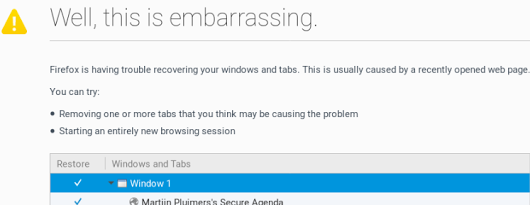
A way to skip the Firefox “Well, this is embarrassing” during a sudden reboot

Posted by jpluimers on 2019/03/04

A while ago, I asked about [WayBack] “Is there a way to skip the Firefox “Well, this is embarrassing” during a sudden reboot and just continue with the loading of the default pages? – Jeroen Wiert Pluimers – Google+

Later I found the workaround at both and [WayBackWell this is embarrassing message | Firefox Support Forum | Mozilla Support with more elaboration at [WayBackDon’t give Chance for Firefox to Show ‘Well, this is embarrassing” message next time again | Techdows:

  1. Open Firefox
  2. Type about:config in the addressbar
  3. Confirm the
    This might void your warranty!
    by clicking
    I accept the risk!
  4. Search for browser.sessionstore.resume_from_crash
  5. Double click it so the value changes from the default value true to the user set value false

Now after a sudden reboot of the machine, a start of Firefox just loads the default page.

–jeroen

Posted in Firefox, Power User, Web Browsers | Leave a Comment »

Windows 10: force to sleep at night, but allow wake up for Windows Updates

Posted by jpluimers on 2019/03/04

I do not like a machine that sleeps after a certain amount of inactivity as I might have a long running job going on.

Usually however, I do like to have a machine off at night, even if I forget to put it asleep.

Exceptions for sleeping are just two:

  • automatic back-up schedule
  • allowing Windows Updates

Luckily you can tell Windows 10 to allow for all cases.

Enabling wake-up during Windows Updates

Note I’m not fully sure which BIOS settings you need to enable – if any- to have this work on all systems. Wake up works on my machine for these [WayBackpsshutdown parameter combinations:

  • psshutdown.exe -h -t 0 (Hibernate)
  • psshutdown.exe -d -t 0 (Suspend)

It fails with these:

  • psshutdown.exe -s -t 0 -f (Shutdown without poweroff)
  • psshutdown.exe -k -t 0 (Poweroff)

The odd thing: Wake-on-LAN can usually wake up the last two.

This is done with the gpedit.msc (via [WayBackHow to prevent Windows 10 waking from sleep when traveling in bag? – Super User, thanks xxxbence)

Follow this path:

  1. Local Computer Policy
  2. Computer Configuration
  3. Administrative Templates
  4. Windows Components
  5. Windows Update

Double click Enabling Windows Update Power Management to automatically wake up the system to install scheduled updatesto show the below dialog.

Enable it:

so it looks like this:

Forcing sleep (in my case hibernate) using the Task Scheduler

In Windows 7..10: disable shutdown/hibernate/sleep/restart from UI I wrote about shutdown /h /f to hibernate a machine. You can force to run this from the taskschd.msc (Windows Task Scheduler):

I wanted history for tasks, so I started taskschd.msc as Administrator, then on the right Actions Pane, I clicked on Enable All Tasks History:

 also explained in [WayBackHow can I enable the Windows Server Task Scheduler History recording? – Stack Overflow and can be verified/set on the console as well:

  • Get as any user: wevtutil get-log Microsoft-Windows-TaskScheduler/Operational
  • Set as Administrator: wevtutil set-log Microsoft-Windows-TaskScheduler/Operational /enabled:true

I named the task __ sleep at 2300 with these settings:

Ensure the Program/script itself is shutdown and the parameters are /h /f:

–jeroen

Posted in Power User, Windows, Windows 10 | Leave a Comment »