Archive for the ‘TLS’ Category
Posted by jpluimers on 2026/01/06
Everytime when installing a pfSense router from scratch, I seem to re-learn a few of the below quirks. So it was finally time to document them (:
Quite a few of my pfSense configurations are just doing routing between various networks, should not provide DHCP leases and do not always need or have a WAN connected (i.e. they are LAN-only).
Read the rest of this entry »
Posted in Communications Development, Conference Topics, Conferences, Cyberchef, Development, DHCP, Encoding, Event, Hardware, HTTP, Internet protocol suite, MikroTik, Network-and-equipment, pfSense, Power User, routers, Software Development, SSH, TCP, TLS, UDP | Tagged: 8846 | Leave a Comment »
Posted by jpluimers on 2026/01/01
Cool, since I switched to Let’s Encrypt a long while ago, I missed that various tools now require TLS expiration be no longer than 398 days away (and preferably even 397 days).
So I also missed the reason for that specific number of days. [Wayback/Archive] ssl – Why was 398 days chosen for TLS expiration? – Stack Overflow (thanks [Wayback/Archive] stevendesu and [Wayback/Archive] user10063)
answers it:
366+31+1 = 398 days
It equals one leap year + one month + “a little room to handle the messiness of dates.”
then posts a lot of quotes from references to the history on how that reason came to be. I have archived and listed the links below.
Most of the discussion was during a very hectic time in life: after a single sided bad accident my mentally retarded brother was in and assisting him during his recovery period, I developed cancer and had extensive treatments against it. All the more reason for missing all this:
Read the rest of this entry »
Posted in Development, Power User, Security, Communications Development, Internet protocol suite, TCP, Encryption, TLS, https, Let's Encrypt (letsencrypt/certbot), HTTPS/TLS security | Tagged: 138, 195 | Leave a Comment »
Posted by jpluimers on 2025/08/07
On my research list [Wayback/Archive] html – What can cause Chrome to give an net::ERR_FAILED on cached content against a server on localhost? – Stack Overflow
The reason what that back then this would fail (but worked in Firefox and Safari, and because I was in a hurry I didn’t research further): [Wayback/Archive] https://www.office.com/
This site can’t be reached
The webpage at https://www.office.com/ might be temporarily down or it may have moved permanently to a new web address.
ERR_FAILED
Thanks [Wayback/Archive] Mason Wheeler and [Wayback/Archive] Joel Davey.
Details:
Read the rest of this entry »
Posted in Chrome, Communications Development, Development, Encryption, HTTP, https, HTTPS/TLS security, Power User, Security, TCP, TLS, Web Browsers, Web Development | Leave a Comment »
Posted by jpluimers on 2024/11/19
I while ago, I bumped into [Wayback/Archive] crt.sh | Certificate Search that allows searching for (the history of) TLS certificates.
One example of what it returns is [Wayback/Archive] crt.sh | wiert.me (for my blog domain and subdomains).
The basic mechanism of crt.sh is to query various Certificate Transparency logs and Certificate revocation list, terms I vaguely knew, but never fully realised the vast usefulness of (including questions like [Wayback/Archive] How does crt.sh becomes aware of certificates that are in no CT logs?).
The cool thing is that most (everything?) of it is open source in the various repositories at [Wayback/Archive] Github: crt.sh.
There is also an advanced search page [Wayback/Archive] crt.sh | Certificate Search (a=1) with many more options (including linting) I really want to try later plus a bunch of background links (including the support forum at) of which some *.crt.sh returned a http 502 while writing this blog post. Will try later to see if they have started working again:
Read the rest of this entry »
Posted in Communications Development, Development, Encryption, HTTPS/TLS security, Internet protocol suite, Power User, Security, TCP, TLS | Leave a Comment »
Posted by jpluimers on 2024/09/24
Quite a while ago [Wayback/Archive] string – Check if MyString[1] is an alphabetical character? – Stack Overflow asked by [Wayback/Archive] User Jeff was answered by [Wayback/Archive] Andreas Rejbrand:
The simplest approach is
function GetAlphaSubstr(const Str: string): string;
const
  ALPHA_CHARS = ['a'..'z', 'A'..'Z'];
var
  ActualLength: integer;
  i: Integer;
begin
  SetLength(result, length(Str));
  ActualLength := 0;
  for i := 1 to length(Str) do
    if Str[i] in ALPHA_CHARS then
    begin
      inc(ActualLength);
      result[ActualLength] := Str[i];
    end;
  SetLength(Result, ActualLength);
end;
but this will only consider English letters as “alphabetical characters”. It will not even consider the extremely important Swedish letters Å, Ä, and Ö as “alphabetical characters”!
Slightly more sophisticated is
function GetAlphaSubstr2(const Str: string): string;
var
  ActualLength: integer;
  i: Integer;
begin
  SetLength(result, length(Str));
  ActualLength := 0;
  for i := 1 to length(Str) do
    if Character.IsLetter(Str[i]) then
    begin
      inc(ActualLength);
      result[ActualLength] := Str[i];
    end;
  SetLength(Result, ActualLength);
end;
Back in 2011 I added a comment that for more than a decade would redirect to the most current documentation on the IsLetter method:
Back then, Delphi X2 was current, so it would redirect
- from http://docwiki.embarcadero.com/VCL/en/Character.TCharacter.IsLetter
- to [Wayback] http://docwiki.embarcadero.com/VCL/XE2/en/Character.TCharacter.IsLetter
- then to [Wayback] http://docwiki.embarcadero.com/VCL/XE2/en/Character.TCharacter.IsLetter
- ending at [Wayback] http://docwiki.embarcadero.com/Libraries/XE2/en/System.Character.TCharacter.IsLetter
After a long outage in 2022 (see The Delphi documentation site docwiki.embarcadero.com has been down/up oscillating for 4 days is now down for almost a day.) only the Alexandria help was restored.
This killed the above redirect.
Luckily [Wayback/Archive] George Birbilis noticed that and commented this:
@JeroenWiertPluimers the correct link now is: docwiki.embarcadero.com/Libraries/Alexandria/en/…
In order to refer to the most recent Delphi version, now you have to use [Wayback] http://docwiki.embarcadero.com/Libraries/en/System.Character.TCharacter.IsLetter.
This redirects:
- via [Wayback] http://docwiki.embarcadero.com/Libraries/Alexandria/en/System.Character.TCharacter.IsLetter to
- to [Wayback] https://docwiki.embarcadero.com/Libraries/Alexandria/en/System.Character.TCharacter.IsLetter
The above breaks the help integration from older Delphi products which is bad. It is also bad because it makes it harder to port legacy Delphi code to more modern Delphi versions.
Hopefully the above gives you a bit insight how the docwiki help system was designed and what is left of that design.
–jeroen
Posted in Communications Development, Conference Topics, Conferences, Delphi, Development, Encryption, Event, HTML, HTTP, https, HTTPS/TLS security, Internet protocol suite, Power User, Security, Software Development, TCP, TLS, Web Development | Leave a Comment »
Posted by jpluimers on 2022/05/05
Last week, I posted about Setting up a GitHub project so it is served over https as a custom github.io subdomain.
Today it’s the equivalent, but on GitLab.
Why GitLab? Two major reasons: unlike GitHub:
- it’s open source
- provides way more granular control over permissions
- allows a hierarchy of repositories on which you can specify that permission control
Already 2. and 3. combined are a huge advantage, though we will see that 3. also makes some of the subcases (hosting as user.gitlab.io from account gitlab.com/user where user is your username) is harder than the similar user.github.io, github.com/user combo.
So here we go, starting with a similar set of links:
The goal is to have
- page projects as or under
wiert.gitlab.io (like wiert.gitlab.io/wiert)
- a
gitlabstatus.wiert.me plain html (or maybe markdown) page project that eventually will show some status information (kind of like status.gitlab.com, but for different things).
The beauty of GitLab is that it supports hierarchies of repositories through groups and subgroups, so I already had these subgroups hoping they would cover both the first and second kind of page projects:
Steps I did
Since there are quite a few links above, here are the steps I took from my gitlab.com/wiert account and gitlab.com/wiert.me group.
- For wiert.gitlab.io/wiert, try A (failed in part, and therefore interesting to understand why):
- Under leaf group gitlab.com/wiert.me/public/web/sites/gitlab.io, created a new GitLab repository
- Chose “Create from template”
- Chose the template “Pages/Plain HTML”
- Named the project “
wiert” (with slug “wiert“) so it would appear at gitlab.com/wiert.me/public/web/sites/gitlab.io/wiert
- From the left sidebar, navigated to your project’s “CI/CD”, then “Pipelines”
- Now I got in a confusing situation as the page indicated “There are currently no pipelines.”, but an enabled blue “Run pipeline” button:
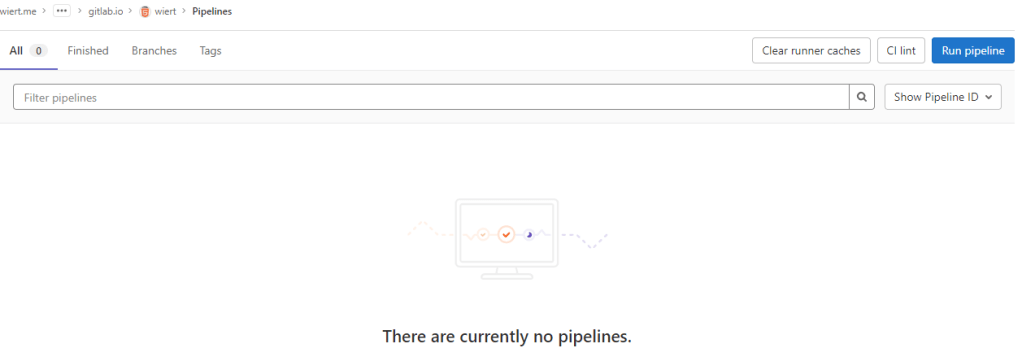
By default there is no CI/CD pipeline, but there is an enabled blue “Run pipeline” button: confusing.
- Clicked the “Run pipeline” button nonetheless, and that created [Wayback/Archive.is] a pipeline asking for parameters (that already had correct default values) and revealed a new blue “Run pipeline” button.
- Clicked that new “Run pipeline button” which created [Wayback/Archive.is] a job and deployed the page.
- From the left sidebar, navigated to “Settings”, then “Pages” to get the links to the pages site: http://wiert.me.gitlab.io/public/web/sites/gitlab.io/wiert/ and https://wiert.me.gitlab.io/public/web/sites/gitlab.io/wiert/

Warning: When using Pages under the general domain of a GitLab instance (gitlab.io), you cannot use HTTPS with sub-subdomains.
The sites do work (see the [Archive.is http version] and [Archive.is https version]), but the HTTPS fails because wiert.me.gitlab.io does not match the SANs (Subject Alternative Names) in the certificate: *.gitlab.io, gitlab.io
- For wiert.gitlab.io/wiert, try B (failed, and therefore interesting to understand why):
- In my my groups gitlab.com/dashboard/groups, added a new group
wiert
- Added subgroups until the leaf
gitlab.com/wiert/public/web/sites/gitlab.io which as URL is gitlab.com/wier1/public/web/sites/gitlab.io because user account wiert already occupies gitlab.com/wiert.
- Under leaf group gitlab.com/wier1/public/web/sites/gitlab.io, created a new GitLab repository
- Chose “Create from template”
- Chose the template “Pages/Plain HTML”
- Named the project “
wiert” (with slug “wiert“) so it would appear at gitlab.com/wiert.me/public/web/sites/gitlab.io/wiert
- From the left sidebar, navigated to your project’s “CI/CD”, then “Pipelines”
- Again there was “There are currently no pipelines.”, but an enabled blue “Run pipeline” button, which I clicked
- That created [Wayback/Archive.is] a pipeline asking for parameters (that already had correct default values) and revealed a new blue “Run pipeline” button.
- Clicked that new “Run pipeline button” which created [Wayback/Archive.is] a job deployed the page.
- From the left sidebar, navigated to “Settings”, then “Pages” to get the links to the pages site: http://wier1.gitlab.io/public/web/sites/gitlab.io/wiert and https://wier1.gitlab.io/public/web/sites/gitlab.io/wiert.
Bummer: again not the wiert.gitlab.io/wiert I hoped for
The sites do work (see the [Archive.is http version] and [Archive.is https version]). The HTTP does not redirect to the HTTP version, as I did not tick the
☐ Force HTTPS (requires valid certificates)
-
If a user wiert exists and occupies gitlab.com/wiert, then a group named wiert cannot occupy gitlab.com/wiert, and therefore a project named wiert within that group won’t be deployed to wiert.gitlab.io/wiert.
Maybe this can be shortened like “if there is a user wiert, then no group named wiert cannot be used to contain a project named wiert to host as wiert.gitlab.io/wiert“.
Let’s find out!
- For wiert.gitlab.io/wiert, try C (success, steps 1, 3, 4, 7 and 8 were the key ones):
- In my user gitlab.com/wiert, created a new GitLab repository
- Chose “Create from template”
- Chose the template “Pages/Plain HTML”
- Named the project “
wiert” (with slug “wiert“) so it would appear at gitlab.com/wiert
- The odd but cool thing is that the actual project now ended up at gitlab.com/wiert/wiert:
- From the left sidebar, navigated to your project’s “CI/CD”, then “Pipelines”
- Again there was “There are currently no pipelines.”, but an enabled blue “Run pipeline” button, which I clicked
- That created [Wayback/Archive.is] a pipeline asking for parameters (that already had correct default values) and revealed a new blue “Run pipeline” button.
- Clicked that new “Run pipeline button” which created [Wayback/Archive.is] a job deployed the page.
- From the left sidebar, navigated to “Settings”, then “Pages” to get the links to the pages site: http://wiert.gitlab.io/wiert/ and https://wiert.gitlab.io/wiert/.
Success: finally the wiert.gitlab.io/wiert I hoped for:
The sites do work fine (see the [Archive.is http version] and [Archive.is https version]). The HTTP does not redirect to the HTTP version, as I did not tick the
☐ Force HTTPS (requires valid certificates)
- For wiert.gitlab.io, try A (failed, and therefore interesting to understand why):
- Under leaf group gitlab.com/wiert.me/public/web/sites/gitlab.io, created a new GitLab repository
- Chose “Create from template”
- Chose the template “Pages/Plain HTML”
- Named the project “
wiert.gitlab.io” (with slug “wiert.gitlab.io“) so it would appear at gitlab.com/wiert.me/public/web/sites/gitlab.io/wiert.gitlab.io
- From the left sidebar, navigated to your project’s “CI/CD”, then “Pipelines”
- Again there was “There are currently no pipelines.”, but an enabled blue “Run pipeline” button, which I clicked
- That created [Wayback/Archive.is] a pipeline asking for parameters (that already had correct default values) and revealed a new blue “Run pipeline” button.
- Clicked that new “Run pipeline button” which created [Wayback/Archive.is] a job deployed the page.
- From the left sidebar, navigated to “Settings”, then “Pages” to get the links to the pages site: http://wiert.me.gitlab.io/public/web/sites/gitlab.io/wiert.gitlab.io and https://wiert.me.gitlab.io/public/web/sites/gitlab.io/wiert.gitlab.io.
Failure: not the wiert.gitlab.io I hoped for.
The sites do work (see the [
Archive.is http version] and [
Archive.is https version]), but the HTTPS fails because
wiert.me.gitlab.io does not match the
SANs (Subject Alternative Names) in the certificate:
*.gitlab.io, gitlab.io. The HTTP does not redirect to the HTTP version, as I did not tick the
☐ Force HTTPS (requires valid certificates)
- For wiert.gitlab.io, try B (failed, and therefore interesting to understand why):
- Under leaf group gitlab.com/wier1/public/web/sites/gitlab.io, created a new GitLab repository
- Chose “Create from template”
- Chose the template “Pages/Plain HTML”
- Named the project “
wiert.gitlab.io” (with slug “wiert.gitlab.io“) so it would appear at gitlab.com/wier1/public/web/sites/gitlab.io/wiert.gitlab.io
- From the left sidebar, navigated to your project’s “CI/CD”, then “Pipelines”
- Again there was “There are currently no pipelines.”, but an enabled blue “Run pipeline” button, which I clicked
- That created [Wayback/Archive.is] a pipeline asking for parameters (that already had correct default values) and revealed a new blue “Run pipeline” button.
- Clicked that new “Run pipeline button” which created [Wayback/Archive.is] a job deployed the page.
- From the left sidebar, navigated to “Settings”, then “Pages” to get the links to the pages site: http://wier1.gitlab.io/public/web/sites/gitlab.io/wiert.gitlab.io and https://wier1.gitlab.io/public/web/sites/gitlab.io/wiert.
Bummer: again not the wiert.gitlab.io I hoped for
The sites do work (see the [Archive.is http version] and [Archive.is https version]). The HTTP does not redirect to the HTTP version, as I did not tick the
☐ Force HTTPS (requires valid certificates)
-
Try A and B were almost identical to
wiert.gitlab.io/wiert try A and B, so let’s see if the solution C for that also works for us:
- For wiert.gitlab.io, try C (success, steps 1, 3, 4, 7 and 9 were the key ones)
- In my user gitlab.com/wiert, created a new GitLab repository
- Chose “Create from template”
- Chose the template “Pages/Plain HTML”
- Named the project “
wiert.gitlab.io” (with slug “wiert.gitlab.io“) so it would appear at gitlab.com/wiert/wiert.gitlab.io.
- From the left sidebar, navigated to your project’s “CI/CD”, then “Pipelines”
- Again there was “There are currently no pipelines.”, but an enabled blue “Run pipeline” button, which I clicked
- That created [Wayback/Archive.is] a pipeline asking for parameters (that already had correct default values) and revealed a new blue “Run pipeline” button.
- Clicked that new “Run pipeline button” which created [Wayback/Archive.is] a job deployed the page.
- From the left sidebar, navigated to “Settings”, then “Pages” to get the links to the pages site: http://wiert.gitlab.io/ and https://wiert.gitlab.io/.
Success: finally the wiert.gitlab.io I hoped for with working sites (see the [Archive.is http version] and [Archive.is https version]).
- Note the HTTP does not redirect to the HTTP version, as I did not tick the
☐ Force HTTPS (requires valid certificates)
Having learned from the GitHub githubstatus.wiert.me procedure (where I had to wait a long time for the default *.wiert.me domain mapping timeout and the githubstatus.wiert.me DNS CNAME record to become effective), I started on the DNS CNAME record side which is documented at [Wayback] Custom domains and SSL/TLS certificates: Section 3. Set up DNS records for Pages: For subdomains | GitLab:
Subdomains (subdomain.example.com) require:
- A DNS
CNAME record pointing your subdomain to the Pages server.
- A DNS
TXT record to verify your domain’s ownership.
| From |
DNS Record |
To |
subdomain.example.com |
CNAME |
namespace.gitlab.io |
_gitlab-pages-verification-code.subdomain.example.com |
TXT |
gitlab-pages-verification-code=00112233445566778899aabbccddeeff |
Note that, whether it’s a user or a project website, the CNAME should point to your Pages domain (namespace.gitlab.io), without any /project-name.

The value for the TXT record is only known after you created the pages project, but the value for the CNAME record is known beforehand:
| From |
DNS Record |
To |
gitlabstatus.wiert.me |
CNAME |
namespace.gitlab.io |
So let’s see if I can do this in one try, with these steps:
- For gitlabstatus.wiert.me, try A (success, steps 1, 3, 4, 7 and 9 were the key ones)
- In my DNS settings of the wiert.me domain, created a
CNAME record from gitlabstatus.wiert.me to namespace.gitlab.io:

gitlabstatus.wiert.me CNAME record pointing to namespace.gitlab.io
- Under leaf group gitlab.com/wiert.me/public/web/sites/wiert.me, created a new GitLab repository
- Chose “Create from template”
- Chose the template “Pages/Plain HTML”
- Named the project “
gitlabstatus.wiert.me” (with slug “gitlabstatus.wiert.me“) so it would appear at gitlab.com/wiert.me/public/web/sites/wiert.me/gitlabstatus.wiert.me
- From the left sidebar, navigated to your project’s “CI/CD”, then “Pipelines”
- Again there was “There are currently no pipelines.”, but an enabled blue “Run pipeline” button, which I clicked
- That created [Wayback/Archive.is] a pipeline asking for parameters (that already had correct default values) and revealed a new blue “Run pipeline” button.
- Clicked that new “Run pipeline button” which created [Wayback/Archive.is] a job deployed the page.
- From the left sidebar, navigated to “Settings”, then “Pages” to get the links to the pages site: http://wiert.me.gitlab.io/public/web/sites/wiert.me/gitlabstatus.wiert.me and https://wiert.me.gitlab.io/public/web/sites/wiert.me/gitlabstatus.wiert.me.
- Now it is time to get the DNS
CNAME record from gitlabstatus.wiert.me to namespace.gitlab.io into operation by clicking the “New Domain” button:
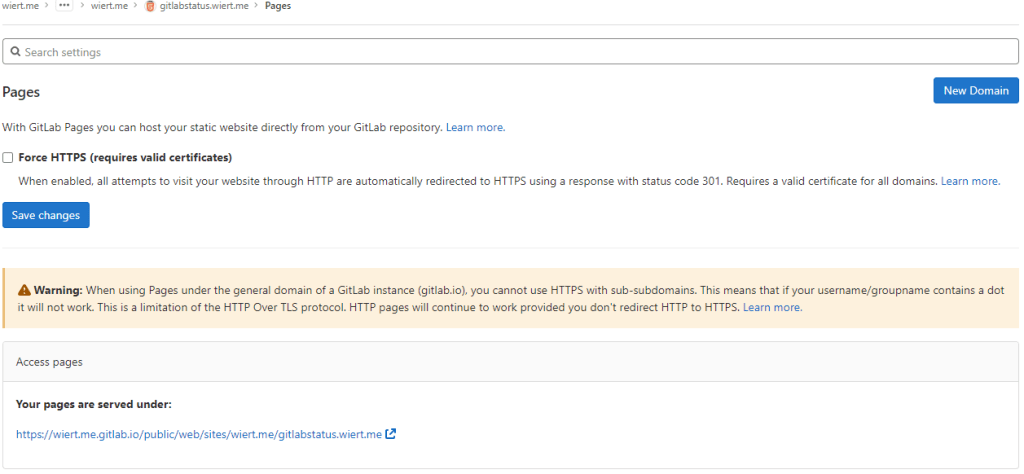
“New Domain” button in the “Pages” settings.
-
There I filled in the correct gitlabstatus.wiert.me domain name, then pressed the “Create New Domain” button:
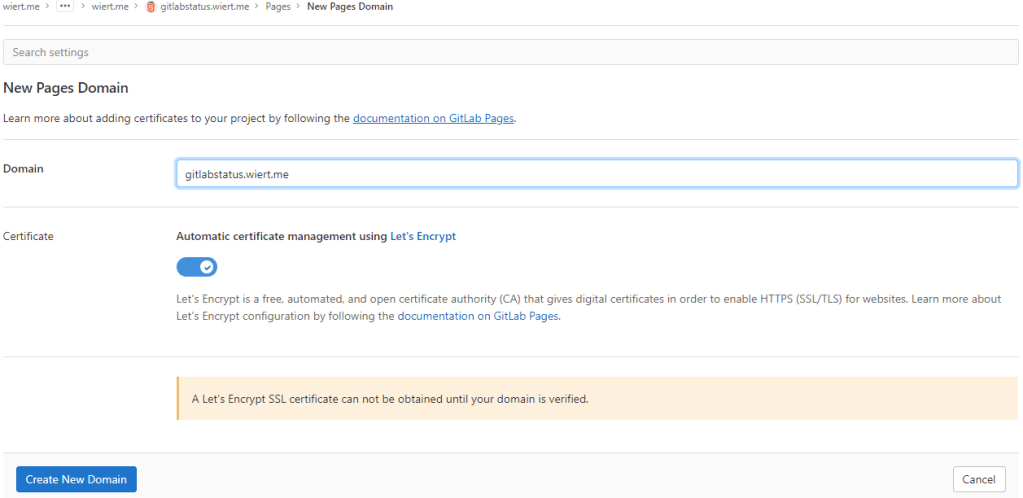
New domain becomes gitlabstatus.wiert.me
- Then a page appeared voiding the DNS
CNAME work I already did: the documentation is clearly wrong as these are the two DNS record entries to be made as shown by gitlab.com/wiert.me/public/web/sites/wiert.me/gitlabstatus.wiert.me/pages/domains/gitlabstatus.wiert.me:
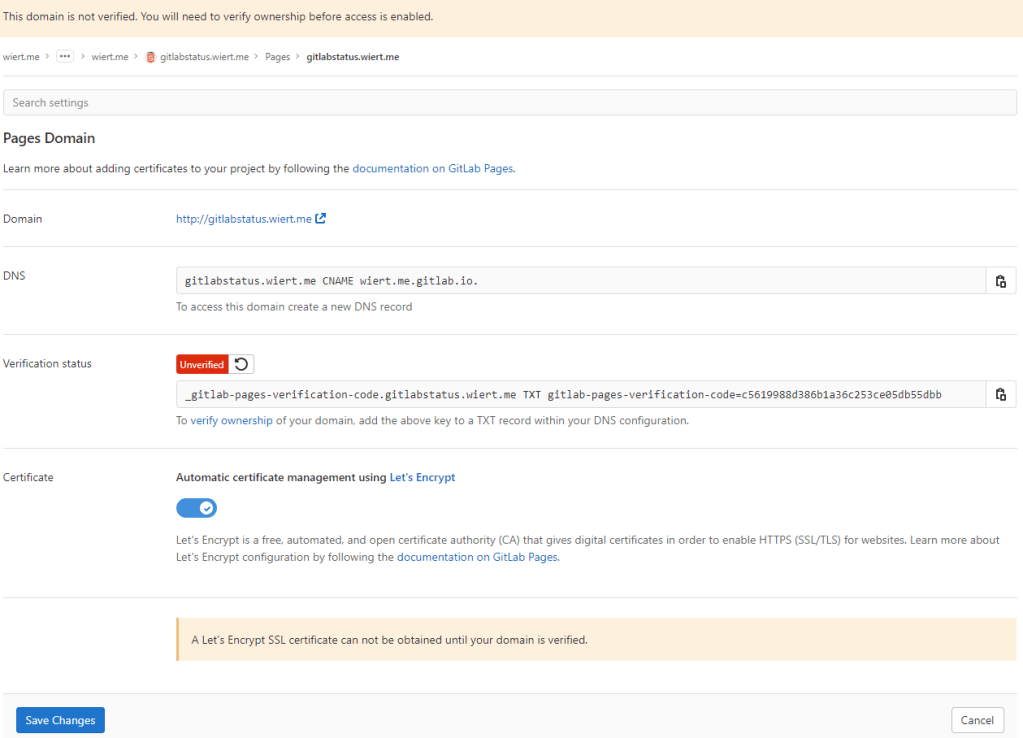
Correct instructions for the DNS records to get gitlabstatus.wiert.me working
Subdomains (gitlabstatus.wiert.me) require:
- A DNS
CNAME record pointing your subdomain to the Pages server.
- A DNS
TXT record to verify your domain’s ownership.
| From |
DNS Record |
To |
gitlabstatus.wiert.me |
CNAME |
wiert.me.gitlab.io. |
_gitlab-pages-verification-code.gitlabstatus.wiert.me |
TXT |
gitlab-pages-verification-code=c5619988d386b1a36c253ce05db55dbb |
Basically the whole namespace.gitlab.io part of the documentation is a placeholder for the actual namespace that belongs to the leaf group the pages project is in (in my case wiert.me).
So this is the new DNS entry, for which I had to wait until the
DNS TTL to time out and effectuate:

New DNS gitlabstatus.wiert.me CNAME record pointing to wiert.me.gitlab.io
Note that this DNS administrative interface from WordPress.com does omit the final period of the CNAME destination (officially this would be wiert.me.gitlab.io.)
- After the
CNAME DNS record, I also made the TXT DNS record:

New DNS TXT record for verification of gitlabstatus.wiert.me
Then I waited a little for the DNS TXT record to be saved and try the verification of the TXT record.
- Even then, verification took some time. I had to click the refresh button a few times before verification succeeded:

The DNS TXT record for gitlabstatus.wiert.me finally got verified
- Now I could press blue “Save Changes” button below and waited for the
CNAME record DNS TTL to expire so I could check the domain and – hopefully – the TLS certificate to be requested by Let’s Encrypt:
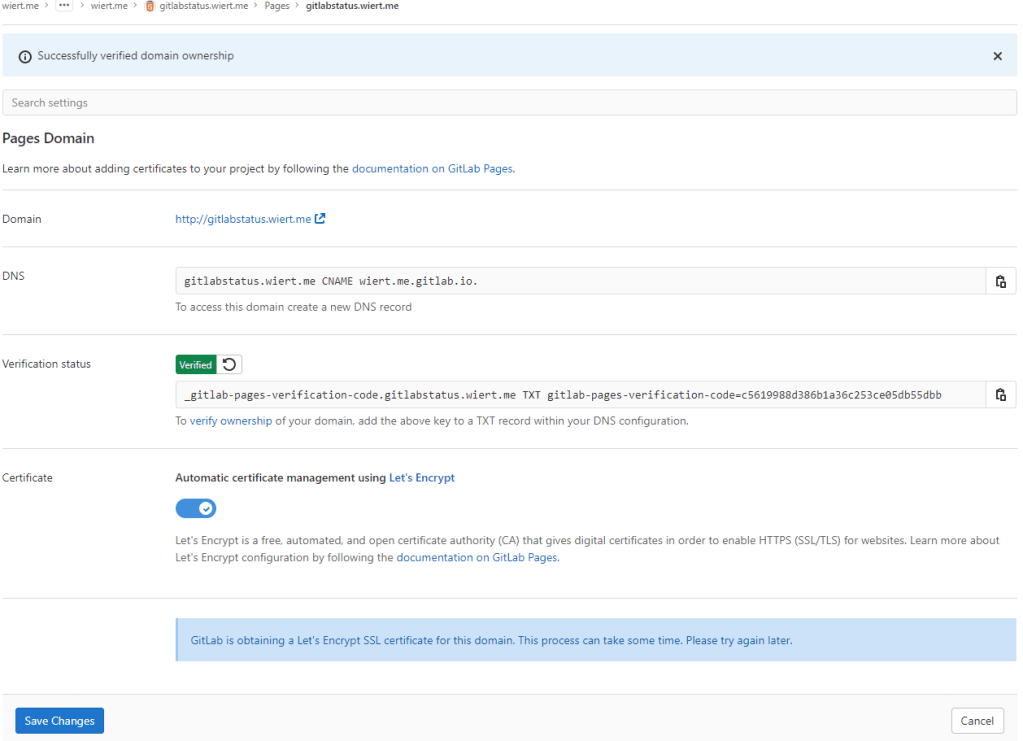
After the gitlabstatus.wiert DNS TXT record got verified, I could save the domain information
- After the old
CNAME record DNS TTL expired and the new CNAME record came into effect, the domain became available as http://gitlabstatus.wiert.me/:
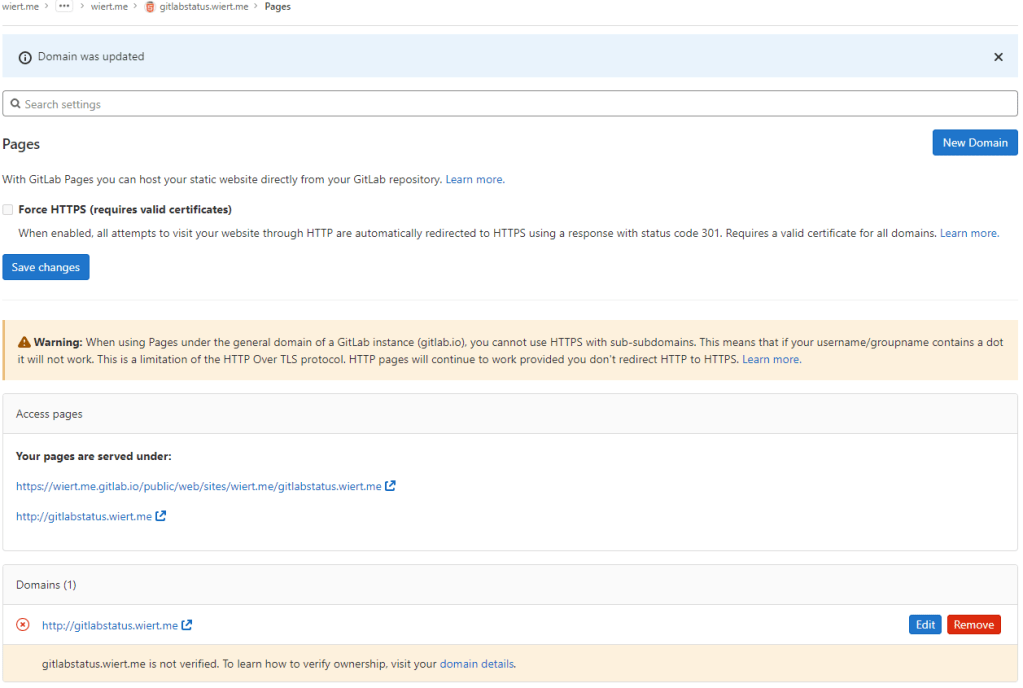
Waiting for gitlabstatus.wiert.me to become active
- After verification, the “Domains (1)” bit changed from this:

Domain gitlabstatus.wiert.me information before verification
to this:

Domain gitlabstatus.wiert.me information after verification
- In the mean time, also the TLS certificate got issued by Let’s Encrypt, so the final sites now both worked: http://gitlabstatus.wiert.me/ and https://gitlabstatus.wiert.me/.
- Success: finally the
gitlabstatus.wiert.me I hoped for with working sites (see the [Archive.is http version] and [Archive.is https version] for the wiert.me domain, and [Archive.is http version] and [Archive.is https version] for the wiert.me domain).
- Note the HTTP does not redirect to the HTTP version, as I did not tick the
☐ Force HTTPS (requires valid certificates)
In retrospect, this could have been shorter when I had done the DNS part later, which is contrary to how to do this with GitHub.
Conclusion
The conclusion seems this:
Gitlab Page repositories to be published as or under wiert.gitlab.io need to reside directly under user wiert. Having them reside under a different group like wiert or wiert.me won’t work.
Or in more generic terms:
When creating pages as user.gitlab.io you have to put your pages projects directly under your user account gitlab.com/user.
Putting them under groups or leaf groups fails, no matter if the (leaf) group is named user or otherwise.
In addition, you can add custom domains to any Gitlab repository (even one that never stated out as a GitLab Pages repository). It will work as soon as the domain DNS mapping is setup through both a CNAME mapping record and TXT verification record.
The steps for this in your GitLab repository are:
- Ensure you have a valid
.gitlab-ci.yml file at the root of your repository; I used the [Wayback/Archive.is] one from [Wayback/Archive] GitLab Pages examples / plain-html · GitLab as my site is purely static
- Ensure you have a valid
index.html file in the public directory of your repository, similar to [Wayback/Archive] GitLab Pages examples / plain-html · GitLab
- When both 1. and 2. are committed in your repository at GitLab, then it will automatically be deployed to a docker container on
gitlab.io, which allows the outside world to visit your GitHub Pages sie, and the Let’s Encrypt Certificate to be generated (and prevents this error: [Wayback/Archive] GitLab Pages integration with Let’s Encrypt | GitLab: “Something went wrong while obtaining the Let’s Encrypt certificate”).
- Under “Settings” -> “Pages”, add a new domain name to the repository: now it automatically becomes a GitLab Pages repository.
- When adding the domain, the settings page will show both a DNS
CNAME record and DNS TXT record; ensure both are applied on your primary DNS name server and replicated to all authoritative DNS name servers.
- Save the new page.
- Check if the page is available on the new domain you added.
- Optionally under “
Settings” -> “Pages” enable the “Force HTTPS (requires valid certificates)” option and save.
TLS information
Note: I saved the TLS information – including certificates here:
More about the Let’s Encrypt certificates at [Wayback] Chain of Trust – Let’s Encrypt:
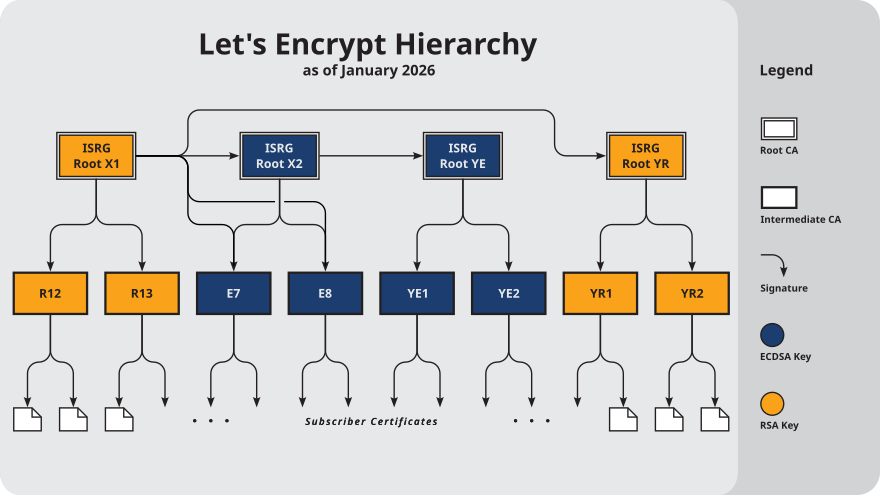
–jeroen
Read the rest of this entry »
Posted in Cloud, Communications Development, Development, DNS, Encryption, GitLab, Hosting, HTML, HTTPS/TLS security, Infrastructure, Internet, Internet protocol suite, Let's Encrypt (letsencrypt/certbot), Power User, Software Development, Source Code Management, TCP, TLS, Web Development | Leave a Comment »
Posted by jpluimers on 2022/05/03
[Wayback/Archive.is] capitaltg/thea: Certificate Checker
Certificate Checker provides an easy-to-use solution to check certificates, certificate chains, and TLS configurations. To run Certificate Checker for publicly-accessible web sites you can go to:
https://certchecker.app and enter in there a URL to check.
Users can easily run Certificate Checker in an internal network to validate or troubleshoot their TLS configuration. To run it on a local network you can run the Docker image as described below. You can also build the application and deploy it on an existing server.
It runs on [Wayback/Archive.is] Certificate Checker.
I used it to check various certificates and chains, including those for my GitHub Pages explained last week in Setting up a GitHub project so it is served over https as a custom subdomain.
–jeroen
Posted in Communications Development, Development, Encryption, HTTPS/TLS security, Internet protocol suite, Let's Encrypt (letsencrypt/certbot), Power User, Security, Software Development, TCP, TLS, Web Development | Leave a Comment »
Posted by jpluimers on 2022/04/27
Some links that helped me getting this working:
Read the rest of this entry »
Posted in Cloud, Cloudflare, Communications Development, Development, Encryption, GitHub, HTML, HTTP, HTTPS/TLS security, Infrastructure, Internet protocol suite, Let's Encrypt (letsencrypt/certbot), Power User, Security, Software Development, Source Code Management, TCP, TLS, Web Development | Leave a Comment »
Posted by jpluimers on 2022/03/15
This is cool: [Wayback] Cryptosense Discovery:
Free tool that discovers security configuration errors in SSH and TLS servers and explains how to fix them. Supports STARTTLS and can also scan HTTPS, POP3, IMAP and SMTP servers.
It gives you a list of servers a target domain uses (for purposes like web, email, etc) that can have external encryption enabled, then allows you to test these.
The list by default has only servers within that target domain enabled, but you can optionally include other servers (for instance if a domain uses a third party for their SMTP handling).
Basically it is the web-counterpart of a tool like testssl.sh (which I have written about before).
Found while checking out how to test the MX security of a domain using [Wayback] testssl.sh as I forgot the syntax, which in retrospect is dead easy as per [Wayback] tls – How to use testssl.sh on an SMTP server? – Information Security Stack Exchange (thanks [Wayback] Z.T.!):
…
testssl.sh --mx <domain name>
works fine.
testssl.sh -t smtp <ip>:25
and
testssl.sh -t smtp <ip>:587
also work fine.
Note that not specifying the port assumes port 443, despite specifying protocol smtp. That doesn’t work.
…
Also, you might try discovery.cryptosense.com which does the same thing only better
That website is made by the cool people at [Wayback] Cryptosense.
Both are a lot easier than the alternatives described in [Wayback] Blog · How to test SMTP servers using the command-line · Halon MTA: using nslookup and dig for determining the affected hosts, using nc or telnet for testing basic connectivity, using [Wayback/Archive.is] openssl s_client to test TLS, and [Wayback/Archive.is] smtpping for measuring throughput.
In addition to the above tools mentioned in the blog, I’ve also used sendEmail (note case sensitivity), ehlo-size, and swaks.
This is what I tested:
- [Wayback] Cryptosense Discovery: clientondersteuningplus.nl
We found these machines for clientondersteuningplus.nl. Select those you would like to scan:
|
clientondersteuningplus.nl |
185.37.70.68 |
|
localhost.clientondersteuningplus.nl |
127.0.0.1 |
|
pop.clientondersteuningplus.nl |
5.157.84.75 |
These machines are also used by clientondersteuningplus.nl. They seem to be managed by a third party:
…
–jeroen
Posted in *nix, *nix-tools, Awk, bash, bash, Communications Development, Development, DNS, Encryption, grep, HTTPS/TLS security, Internet, Internet protocol suite, Power User, Scripting, Security, SMTP, Software Development, SSH, ssh/sshd, TCP, testssl.sh, TLS | Leave a Comment »
Posted by jpluimers on 2022/02/28
Got this on two Dutch Windows machines, not sure why yet:
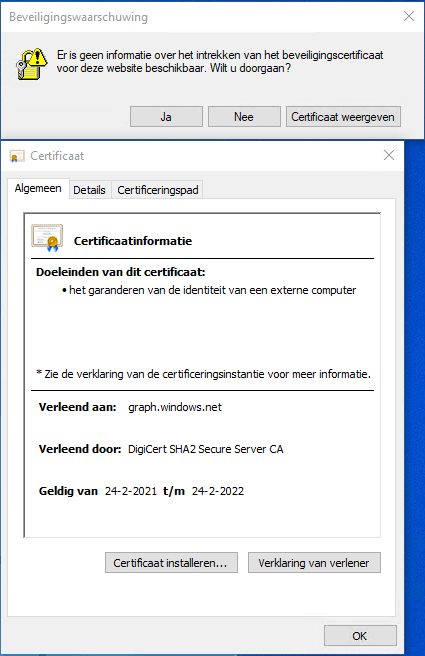
Missing information on security certificate retraction
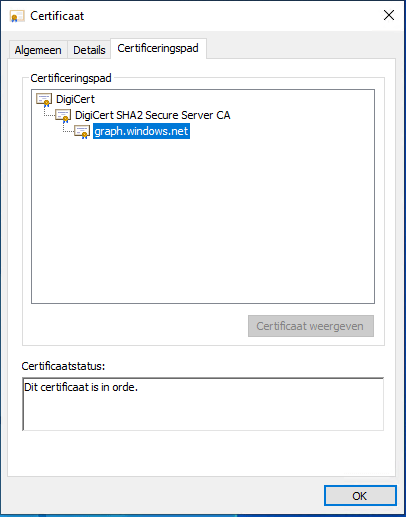
Certificate path is OK
–jeroen
Posted in Communications Development, Development, Encryption, Internet protocol suite, Power User, Security, TCP, TLS | Leave a Comment »




 The Wiert Corner - irregular stream of stuff