


Because of [Archive] PragmaticProgrammers on Twitter: “Helpful Unix trick: use script to log your session. …” / Twitter:
- Linux:
- Windows
–jeroen
Posted by jpluimers on 2023/01/26
Because of [Archive] PragmaticProgrammers on Twitter: “Helpful Unix trick: use script to log your session. …” / Twitter:
–jeroen

Posted in *nix, *nix-tools, ash/dash, bash, bash, Batch-Files, Development, Power User, Scripting, Software Development | Leave a Comment »
Posted by jpluimers on 2022/12/28
Years ago, I wrote Getting your public IP address from the command-line. All methods were http based, so were very easy to execute using cURL.
But then in autumn 2021, Chris Bensen wrote this cool little blog-post [Wayback/Archive] Chris Bensen: How do I find my router’s public IP Address from the command line?:
dig -4 TXT +short o-o.myaddr.l.google.com @ns1.google.com
At first sight, I thought it was uncool, as the command was quite long and there was no explanation of the dig command trick.
But then, knowing that dig is a DNS client, it occurred to me: this perfectly works when http and https are disabled by your firewall, but the DNS protocol works and gives the correct result:
# dig -4 TXT +short o-o.myaddr.l.google.com @ns1.google.com
"80.100.143.119"
This added the below commands and aliases to my tool chest for *nix based environments like Linux and MacOS (not sure yet about Windows yet :), but that still doesn’t explain why it worked. So I did some digging…
dig -4 TXT +short o-o.myaddr.l.google.com @ns1.google.com
dig -4 TXT +short o-o.myaddr.l.google.com @ns1.google.com | xargs
alias "whatismyipv4_dns=dig -4 TXT +short o-o.myaddr.l.google.com @ns1.google.com | xargs"
dig -6 TXT +short o-o.myaddr.l.google.com @ns1.google.com
dig -6 TXT +short o-o.myaddr.l.google.com @ns1.google.com | xargs
alias "whatismyipv6_dns=dig -6 TXT +short o-o.myaddr.l.google.com @ns1.google.com | xargs"
Let’s stick to dig and IPv4 as that not having IPv6 (regrettably still) is the most common situation today:
# dig -4 TXT +short o-o.myaddr.l.google.com @ns1.google.com
"80.100.143.119"
What it does is request the DNS TXT record of o-o.myaddr.l.google.com from the Google DNS server ns1.google.com and returns the WAN IPv4 address used in the DNS request, which is for instance explained in [Wayback/Archive] What is the mechanics behind “dig TXT o-o.myaddr.l.google.com @ns1.google.com” : linuxadmin.
Since these are TXT records, dig will automatically double quote them, which xargs can remove (see below how and why):
# dig -4 TXT +short o-o.myaddr.l.google.com @ns1.google.com | xargs
80.100.143.119
The DNS query will fail when requesting the Google Public DNS servers 8.8.8.8 or 8.8.4.4:
# dig -4 TXT +short o-o.myaddr.l.google.com @8.8.8.8
"2a00:1450:4013:c1a::103"
"edns0-client-subnet 80.101.239.0/24"
Or, with quotes removed (the -L 1 ensures that xargs performs the quote-pair removal action on each line):
# dig -4 TXT +short o-o.myaddr.l.google.com @8.8.8.8 | xargs -L 1
2a00:1450:4013:c1a::103
edns0-client-subnet 80.101.239.0/24
This request is both slower than requesting the ns1.google.com server and wrong.
The reason is that only ns1.google.com understands the special o-o.myaddr.l.google.com hostname which instructs it to return the IP address of the requesting dig DNS client.
That 8.8.8.8 returns a different IP address and an additional edns0-client-subnet with less accurate information is explained in an answer to [Wayback/Archive] linux – Getting the WAN IP: difference between HTTP and DNS – Stack Overflow by [Wayback/Archive] argaz referring to this cool post: [Wayback/Archive] Which CDNs support edns-client-subnet? – CDN Planet.
ns1.google.com: any DNS server serving the google.com domainSince o-o.myaddr.l.google.com is part of the google.com domain, the above works for any DNS server serving the google.com domain (more on that domain: [Wayback/Archive] General DNS overview | Google Cloud).
Getting the list of DNS servers is similar to getting the list of MX servers which I explained in Getting the IP addresses of gmail MX servers, replacing MX record type (main exchange) with the NS record type (name server) and the gmail.com domain with the google.com domain:
# dig @8.8.8.8 +short NS google.com
ns3.google.com.
ns1.google.com.
ns2.google.com.
ns4.google.com.
The ns1.google.com DNS server is a special one of the NS servers: it is the start of authority server, which you can query using the SOA record type that also gives slightly more details for this server:
# dig @8.8.8.8 +short SOA google.com
ns1.google.com. dns-admin.google.com. 410477869 900 900 1800 60
The difference between using NS and SOA records with dig are explained in the [Wayback] dns – How do I find the authoritative name-server for a domain name? – Stack Overflow answer by [Wayback/Archive] bortzmeyer who also explains how to help figuring out SOA and NS discrepancies (note to self: check out the check_soa tool originally by Michael Fuhr (I could not find recent content of him, so he might have passed away) of which source code is now at [Wayback/Archive] Net-DNS/check_soa at master · NLnetLabs/Net-DNS).
So this works splendid as well using ns4.google.com on my test system:
# dig -4 TXT +short o-o.myaddr.l.google.com @ns4.google.com | xargs
80.100.143.119
xargs removes outer quotes removal trick[Wayback/Archive] string – Shell script – remove first and last quote (“) from a variable – Stack Overflow (thanks quite anonymous [Wayback/Archive] user1587520):
> echo '"quoted"' | xargs
quoted
xargsusesechoas the default command if no command is provided and strips quotes from the input.
Some notes are in [Wayback/Archive] How to get public IP address from Linux shell, but note the telnet trick now fails as myip.gelma.net is gone (latest live version was archived in the Wayback Machine in august 2019).
whatismyipv4='curl ipv4.whatismyip.akamai.com && echo' It’s a quite a bit shorter than the dig construct in your post (;”–jeroen
Posted in *nix, *nix-tools, Apple, bash, bash, Batch-Files, Communications Development, Development, DNS, Internet protocol suite, Linux, Mac, Mac OS X / OS X / MacOS, Power User, Scripting, Software Development, TCP | Leave a Comment »
Posted by jpluimers on 2022/06/30
Even with a batch file saved as UTF-8 (with or without BOM), by default it does not show most non-ASCII Unicode characters.
The reason is that the default codepage usually is an ANSI one like codepage 437.
Thanks [Wayback] niutech for answering [Wayback/Archive.is] Unicode symbols in a batch file – Stack Overflow:
You can manually set the codepage to UTF-8 by typing
chcp 65001at the top of your batch file.
Codepage 65001 is Windows speak for the UTF-8 code page. I have some more blog entries mentioning codepage 65001.
An example where I needed this was to show how to address the localghost from a batch file (see The spookback localghost address to resolve 👻). This was the resulting UTF-8 saved batch file:
chcp 65001
ping 👻
ping xn--9q8h
For single-byte non-ASCII characters, you can usually get away with setting the encoding of your batch file to your default code page as mentioned in [Wayback/Archive.is] cmd – Using box-drawing Unicode characters in batch files – Stack Overflow.
–jeroen
Posted in Batch-Files, Development, Encoding, Scripting, Software Development, Unicode, UTF-8, Windows Development | Leave a Comment »
Posted by jpluimers on 2022/06/16
Adapted from [Archive.is] How can you export the Visual Studio Code extension list? – Stack Overflow, presuming that code is on the PATH:
git installed:code --list-extensions | xargs -L 1 echo code --install-extension
git installed:code --list-extensions | % { "code --install-extension $_" }
or, as I think, more clearly (see also [WayBack] syntax – What does “%” (percent) do in PowerShell? – Stack Overflow):
code --list-extensions | foreach { "code --install-extension $_" }
or even more explanatory:
code --list-extensions | ForEach-Object { "code --install-extension $_" }
cmd.exe command:@for /f %l in ('code --list-extensions') do @echo code --install-extension %l
cmd.exe batch file (in a .bat/.cmd script):@for /f %%l in ('code --list-extensions') do @echo code --install-extension %%l
PowerShell -Command "code --list-extensions | % { """""code --install-extension $_""""" }"
Note that here too, the % can be expanded into foreach or ForEach-Object for clarity.
All of the above prepend “code --install-extension ” (note the trailing space) before each installed Visual Studio Code extension.
They all give you a list like this which you can execute on any machine having Visual Studio Code installed and its code on the PATH, and a working internet connection:
code --install-extension DavidAnson.vscode-markdownlint
code --install-extension ms-vscode.powershell
code --install-extension yzhang.markdown-all-in-onex
(This is about the minimum install for me to edit markdown documents and do useful things with PowerShell).
Of course you can pipe these to a text-file script to execute them later on.
The double-quote escaping is based on [Wayback/Archive.is] How to escape PowerShell double quotes from a .bat file – Stack Overflow:
you need to escape the
"on the command line, inside a double quoted string. From my testing, the only thing that seems to work is quadruple double quotes""""inside the quoted parameter:powershell.exe -command "echo '""""X""""'"
Via: [Archive.is] how to save your visual studio code extension list – Google Search
--jeroen
Posted in *nix, *nix-tools, .NET, bash, Batch-Files, CommandLine, Console (command prompt window), Development, Mac OS X / OS X / MacOS, Power User, PowerShell, PowerShell, Software Development, Visual Studio and tools, vscode Visual Studio Code, Windows, Windows 10, Windows 7, Windows 8, Windows 8.1, Windows Development, Windows Server 2008, Windows Server 2008 R2, Windows Server 2012, Windows Server 2012 R2, Windows Server 2016, WSL Windows Subsystem for Linux, xargs | Leave a Comment »
Posted by jpluimers on 2022/03/24
Last week finally there was the stable [Wayback/Archive] Release version 1.0.0 · chocolatey/choco · GitHub.
So I fixed the Wikipedia page
It was a few days after the 11th birthday “Celebration”: [Wayback/Archive] Chocolatey Software Blog | This One Goes To 11! Celebrating 11 Years Of Chocolatey. Not a really festive post, though it does have a really nice overview of 11 years of Chocolatey history and clearly showing the momentum of it has been a few years behind us.
The thing is: hardly anybody noticed the celebration nor the 1.0.0 release. Being at various 0.* versions for like a decade makes people not follow sudden version bumps closely. I only noticed when updating a bunch of testing VMs of which one had a problem, so I inspected the logs and saw the 1.0.0 version.
So these recent tweets did not gain much attention:
Anyway: the release notes indicate a few things scheduled for 2.0.0. Given the sudden 0.12.0 -> 1.0.0 bump, I have no clue far (or near!) in the future that will be.
It is kind of both a saddening and relieved feeling: like for instance Stack Overflow/Stack Exchange (both in the same age cohort as Chocolatey), Chocolatey is just there and mostly works.
–jeroen
Posted in .NET, Batch-Files, C#, Chocolatey, CommandLine, Development, Power User, PowerShell, PowerShell, Scripting, Software Development, Windows | Leave a Comment »
Posted by jpluimers on 2022/01/31
Small cd-to-file.bat tip:
pushd %~dp1
–jeroen
Posted in Batch-Files, Power User, Scripting, Software Development, Windows | Leave a Comment »
Posted by jpluimers on 2021/12/30
Quite a while ago I found [Wayback] windows 7 – How can I eject a CD via the cmd? – Super User, but forgot to document that in the batch-files I created from it.
It shows both this one-liner:
powershell "(new-object -COM Shell.Application).NameSpace(17).ParseName('D:').InvokeVerb('Eject')"
The hardcoded const 17 is for the ssfDRIVES element in the ShellSpecialFolderConstants, which is documented at [Wayback] ShellSpecialFolderConstants (shldisp.h) – Win32 apps | Microsoft Docs.
There is no PowerShell equivalent of that element, hence the hardcoded value 17.
The script invokes the verb Eject, which works on any kind of removable media (not just optical drives). If you want to limit it to only certain drive types, then you would need to compare the Type of the ParseName() result. However, that result has a Type property returns a string for which the possible values are not documented.
Here are some links I tried to find out what is returned:
(new-object -COM Shell.Application))NameSpace(17))FolderItem structures)ParseName('D:'))Verb on the FolterItem)FolderItem supports to be executed via InvokeVerb)FolderItem representing a drive will be the drive type)In addition to the Shell.Application, there also is Scripting.FileSystemObject, which allows enumerating the drives and filter on DriveType. This is the relevant documentation:
Drives collection type where each item is a Drive type.Drive type elementsDrives collectionDrive type indicating the type of drive:Case 0: t = "Unknown" Case 1: t = "Removable" Case 2: t = "Fixed" Case 3: t = "Network" Case 4: t = "CD-ROM" Case 5: t = "RAM Disk"
The second example in the above mentioned answer shows how to use this to filter for optical drives.
It also shows a cool technique to have a hybrid batch-file/JScript script:
@if (@CodeSection == @Batch) @then

@echo off
setlocal

cscript /nologo /e:JScript "%~f0"

goto :EOF

@end // end batch / begin JScript hybrid chimera

// DriveType=4 means CD drive for a WScript FSO object.
// See http://msdn.microsoft.com/en-us/library/ys4ctaz0%28v=vs.84%29.aspx

// NameSpace(17) = ssfDRIVES, or My Computer.
// See http://msdn.microsoft.com/en-us/library/windows/desktop/bb774096%28v=vs.85%29.aspx

var oSH = new ActiveXObject('Shell.Application'),
    FSO = new ActiveXObject('Scripting.FileSystemObject'),
    CDdriveType = 4,
    ssfDRIVES = 17,
    drives = new Enumerator(FSO.Drives);

while (!drives.atEnd()) {
    var x = drives.item();
    if (x.DriveType == CDdriveType) {
        oSH.NameSpace(ssfDRIVES).ParseName(x.DriveLetter + ':').InvokeVerb('Eject');
        while (x.IsReady)
            WSH.Sleep(50);
    }
    drives.moveNext();
}
–jeroen
Posted in Batch-Files, Development, JScript, PowerShell, Scripting, Software Development | Leave a Comment »
Posted by jpluimers on 2021/12/28
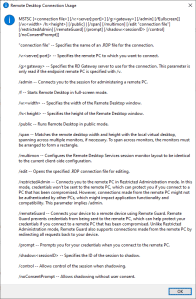
MSTSC.exe helptext
I created this small batch file:
:: start last RDP session (or new one with command-line parameters) full-screen
:: see https://interworks.com/blog/ijahanshahi/2012/01/02/mstsc-commands-and-creating-custom-remote-desktop-shortcut/
mstsc /f %*
It is based on [Wayback] MSTSC Commands and Creating a Custom Remote Desktop Shortcut | InterWorks, which has the helptext for MSTSC.exe (which stands for MicroSoft Terminal Services).
Later I found out a way easier method to get that helptext is to run MSTSC.exe /?, which shows a nice dialog:
[Window Title]
Remote Desktop Connection Usage

[Content]
MSTSC [] [/v:<server[:port]>] [/g:] [/admin] [/f[ullscreen]] [/w: /h:] [/public] | [/span] [/multimon] [/edit "connection file"] [/restrictedAdmin] [/remoteGuard] [/prompt] [/shadow: [/control] [/noConsentPrompt]]

"connection file" -- Specifies the name of an .RDP file for the connection.

/v:<server[:port]> -- Specifies the remote PC to which you want to connect.

/g: -- Specifies the RD Gateway server to use for the connection. This parameter is only read if the endpoint remote PC is specified with /v.

/admin -- Connects you to the session for administering a remote PC.

/f -- Starts Remote Desktop in full-screen mode.

/w: -- Specifies the width of the Remote Desktop window.

/h: -- Specifies the height of the Remote Desktop window.

/public -- Runs Remote Desktop in public mode.

/span -- Matches the remote desktop width and height with the local virtual desktop, spanning across multiple monitors, if necessary. To span across monitors, the monitors must be arranged to form a rectangle.

/multimon -- Configures the Remote Desktop Services session monitor layout to be identical to the current client-side configuration.

/edit -- Opens the specified .RDP connection file for editing.

/restrictedAdmin -- Connects you to the remote PC in Restricted Administration mode. In this mode, credentials won't be sent to the remote PC, which can protect you if you connect to a PC that has been compromised. However, connections made from the remote PC might not be authenticated by other PCs, which might impact application functionality and compatibility. This parameter implies /admin.

/remoteGuard -- Connects your device to a remote device using Remote Guard. Remote Guard prevents credentials from being sent to the remote PC, which can help protect your credentials if you connect to a remote PC that has been compromised. Unlike Restricted Administration mode, Remote Guard also supports connections made from the remote PC by redirecting all requests back to your device.

/prompt -- Prompts you for your credentials when you connect to the remote PC.

/shadow: -- Specifies the ID of the session to shadow.

/control -- Allows control of the session when shadowing.

/noConsentPrompt -- Allows shadowing without user consent.

[OK]
–jeroen

Posted in Batch-Files, Development, Power User, Remote Desktop Protocol/MSTSC/Terminal Services, Scripting, Software Development, Windows | Leave a Comment »
Posted by jpluimers on 2021/12/28
It still seems that WMIC is the quickest way to get CPU information on the console:
T510-PSO C:\bin\rdp> wmic cpu get name,CurrentClockSpeed,MaxClockSpeed
CurrentClockSpeed  MaxClockSpeed  Name
2667               2667           Intel(R) Core(TM) i5 CPU       M 560  @ 2.67GHz

T510-PSO C:\bin\rdp> wmic path win32_Processor get Name,NumberOfCores,NumberOfLogicalProcessors
Name                                             NumberOfCores  NumberOfLogicalProcessors
Intel(R) Core(TM) i5 CPU       M 560  @ 2.67GHz  2              4
Actually, wmic cpu is shorthand for wmic path win32_Processor, so this works fine:
T510-PSO C:\bin\rdp> wmic cpu get name,CurrentClockSpeed,MaxClockSpeed,NumberOfCores,NumberOfLogicalProcessors
CurrentClockSpeed  MaxClockSpeed  Name                                             NumberOfCores  NumberOfLogicalProcessors
2667               2667           Intel(R) Core(TM) i5 CPU       M 560  @ 2.67GHz  2              4
The reason is that cpu is an alias:
T510-PSO C:\bin\rdp> wmic alias cpu list brief
FriendlyName  PWhere              Target
CPU           Where DeviceID='#'  Select * from WIN32_PROCESSOR
Via:
–jeroen
Posted in Batch-Files, Console (command prompt window), Development, Power User, Scripting, Software Development, T510, ThinkPad, Windows | Leave a Comment »
Posted by jpluimers on 2021/10/12
After watching an autologon system not logging on automatically over the past years, the pattern seems to be that at least major, and some less minor Windows updates remove autlogon parts of the registry.
I’m not sure where the boundary between “major” and “less minor” lies (though I suspect “cumulative updates” and larger), nor if more than these values are affected:
"HKEY_LOCAL_MACHINE\SOFTWARE\Microsoft\Windows NT\CurrentVersion\Winlogon"
AutoAdminLogon gets removed or becomes value 0DefaultUserName gets removedDefaultPassword gets removedThis means that now after each startup, I need to schedule a task that runs a script setting the values I need depending if a password is needed or not.
The script also needs credentials, so I need to figure out how to properly do that.
I still need to decide between PowerShell or batch file script, as I already have the batch file from How to turn on automatic logon in Windows and automatic logon in Windows 2003.
For my future reference, some more links on things that can get deleted:
- [WayBack] Windows Update deletes custom registry settings
- [WayBack] Windows 10 update deletes the registry Run command – Super User
- [WayBack] Windows 10 May Delete Your Programs Without Asking
- [WayBack] Don’t break Windows 10 by deleting SID, Microsoft warns – Naked Security
- [WayBack] Windows 10 KB4532693 Update Bug Hides User Data, Loads Wrong Profile
- [WayBack] why has the latest windows update moved all my files into another user – Microsoft Community
Hopefully these links will help me writing the scripts:
For several reasons, mostly security-related, PowerShell scripts aren’t as easily portable and usable as batch scripts can be. However, we can bundle a batch script with our PowerShell scripts to work around these issues. Here, we’ll show you a few of those problem areas, and how to build a batch script to get around them.
–jeroen
Posted in Batch-Files, CommandLine, Development, Power User, PowerShell, PowerShell, Scripting, Software Development, Windows, Windows 10, Windows Development | Leave a Comment »
 The Wiert Corner - irregular stream of stuff