Archive for the ‘Batch-Files’ Category
Posted by jpluimers on 2021/12/30
Quite a while ago I found [Wayback] windows 7 – How can I eject a CD via the cmd? – Super User, but forgot to document that in the batch-files I created from it.
It shows both this one-liner:
powershell "(new-object -COM Shell.Application).NameSpace(17).ParseName('D:').InvokeVerb('Eject')"
The hardcoded const 17 is for the ssfDRIVES element in the ShellSpecialFolderConstants, which is documented at [Wayback] ShellSpecialFolderConstants (shldisp.h) – Win32 apps | Microsoft Docs.
There is no PowerShell equivalent of that element, hence the hardcoded value 17.
The script invokes the verb Eject, which works on any kind of removable media (not just optical drives). If you want to limit it to only certain drive types, then you would need to compare the Type of the ParseName() result. However, that result has a Type property returns a string for which the possible values are not documented.
Here are some links I tried to find out what is returned:
In addition to the Shell.Application, there also is Scripting.FileSystemObject, which allows enumerating the drives and filter on DriveType. This is the relevant documentation:
The second example in the above mentioned answer shows how to use this to filter for optical drives.
It also shows a cool technique to have a hybrid batch-file/JScript script:
@if (@CodeSection == @Batch) @then

@echo off
setlocal

cscript /nologo /e:JScript "%~f0"

goto :EOF

@end // end batch / begin JScript hybrid chimera

// DriveType=4 means CD drive for a WScript FSO object.
// See http://msdn.microsoft.com/en-us/library/ys4ctaz0%28v=vs.84%29.aspx

// NameSpace(17) = ssfDRIVES, or My Computer.
// See http://msdn.microsoft.com/en-us/library/windows/desktop/bb774096%28v=vs.85%29.aspx

var oSH = new ActiveXObject('Shell.Application'),
    FSO = new ActiveXObject('Scripting.FileSystemObject'),
    CDdriveType = 4,
    ssfDRIVES = 17,
    drives = new Enumerator(FSO.Drives);

while (!drives.atEnd()) {
    var x = drives.item();
    if (x.DriveType == CDdriveType) {
        oSH.NameSpace(ssfDRIVES).ParseName(x.DriveLetter + ':').InvokeVerb('Eject');
        while (x.IsReady)
            WSH.Sleep(50);
    }
    drives.moveNext();
}
–jeroen
Posted in Batch-Files, Development, JScript, PowerShell, Scripting, Software Development | Leave a Comment »
Posted by jpluimers on 2021/12/28
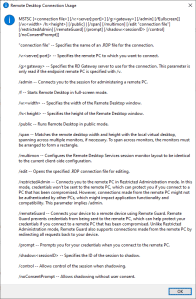
MSTSC.exe helptext
I created this small batch file:
:: start last RDP session (or new one with command-line parameters) full-screen
:: see https://interworks.com/blog/ijahanshahi/2012/01/02/mstsc-commands-and-creating-custom-remote-desktop-shortcut/
mstsc /f %*
It is based on [Wayback] MSTSC Commands and Creating a Custom Remote Desktop Shortcut | InterWorks, which has the helptext for MSTSC.exe (which stands for MicroSoft Terminal Services).
Later I found out a way easier method to get that helptext is to run MSTSC.exe /?, which shows a nice dialog:
[Window Title]
Remote Desktop Connection Usage

[Content]
MSTSC [] [/v:<server[:port]>] [/g:] [/admin] [/f[ullscreen]] [/w: /h:] [/public] | [/span] [/multimon] [/edit "connection file"] [/restrictedAdmin] [/remoteGuard] [/prompt] [/shadow: [/control] [/noConsentPrompt]]

"connection file" -- Specifies the name of an .RDP file for the connection.

/v:<server[:port]> -- Specifies the remote PC to which you want to connect.

/g: -- Specifies the RD Gateway server to use for the connection. This parameter is only read if the endpoint remote PC is specified with /v.

/admin -- Connects you to the session for administering a remote PC.

/f -- Starts Remote Desktop in full-screen mode.

/w: -- Specifies the width of the Remote Desktop window.

/h: -- Specifies the height of the Remote Desktop window.

/public -- Runs Remote Desktop in public mode.

/span -- Matches the remote desktop width and height with the local virtual desktop, spanning across multiple monitors, if necessary. To span across monitors, the monitors must be arranged to form a rectangle.

/multimon -- Configures the Remote Desktop Services session monitor layout to be identical to the current client-side configuration.

/edit -- Opens the specified .RDP connection file for editing.

/restrictedAdmin -- Connects you to the remote PC in Restricted Administration mode. In this mode, credentials won't be sent to the remote PC, which can protect you if you connect to a PC that has been compromised. However, connections made from the remote PC might not be authenticated by other PCs, which might impact application functionality and compatibility. This parameter implies /admin.

/remoteGuard -- Connects your device to a remote device using Remote Guard. Remote Guard prevents credentials from being sent to the remote PC, which can help protect your credentials if you connect to a remote PC that has been compromised. Unlike Restricted Administration mode, Remote Guard also supports connections made from the remote PC by redirecting all requests back to your device.

/prompt -- Prompts you for your credentials when you connect to the remote PC.

/shadow: -- Specifies the ID of the session to shadow.

/control -- Allows control of the session when shadowing.

/noConsentPrompt -- Allows shadowing without user consent.

[OK]
–jeroen
Posted in Batch-Files, Development, Power User, Remote Desktop Protocol/MSTSC/Terminal Services, Scripting, Software Development, Windows | Leave a Comment »
Posted by jpluimers on 2021/12/28
It still seems that WMIC is the quickest way to get CPU information on the console:
T510-PSO C:\bin\rdp> wmic cpu get name,CurrentClockSpeed,MaxClockSpeed
CurrentClockSpeed  MaxClockSpeed  Name
2667               2667           Intel(R) Core(TM) i5 CPU       M 560  @ 2.67GHz

T510-PSO C:\bin\rdp> wmic path win32_Processor get Name,NumberOfCores,NumberOfLogicalProcessors
Name                                             NumberOfCores  NumberOfLogicalProcessors
Intel(R) Core(TM) i5 CPU       M 560  @ 2.67GHz  2              4
Actually, wmic cpu is shorthand for wmic path win32_Processor, so this works fine:
T510-PSO C:\bin\rdp> wmic cpu get name,CurrentClockSpeed,MaxClockSpeed,NumberOfCores,NumberOfLogicalProcessors
CurrentClockSpeed  MaxClockSpeed  Name                                             NumberOfCores  NumberOfLogicalProcessors
2667               2667           Intel(R) Core(TM) i5 CPU       M 560  @ 2.67GHz  2              4
The reason is that cpu is an alias:
T510-PSO C:\bin\rdp> wmic alias cpu list brief
FriendlyName  PWhere              Target
CPU           Where DeviceID='#'  Select * from WIN32_PROCESSOR
Via:
–jeroen
Posted in Batch-Files, Console (command prompt window), Development, Power User, Scripting, Software Development, T510, ThinkPad, Windows | Leave a Comment »
Posted by jpluimers on 2021/10/12
After watching an autologon system not logging on automatically over the past years, the pattern seems to be that at least major, and some less minor Windows updates remove autlogon parts of the registry.
I’m not sure where the boundary between “major” and “less minor” lies (though I suspect “cumulative updates” and larger), nor if more than these values are affected:
- key
"HKEY_LOCAL_MACHINE\SOFTWARE\Microsoft\Windows NT\CurrentVersion\Winlogon"
- value name
AutoAdminLogon gets removed or becomes value 0
- value
DefaultUserName gets removed
- value
DefaultPassword gets removed
This means that now after each startup, I need to schedule a task that runs a script setting the values I need depending if a password is needed or not.
The script also needs credentials, so I need to figure out how to properly do that.
I still need to decide between PowerShell or batch file script, as I already have the batch file from How to turn on automatic logon in Windows and automatic logon in Windows 2003.
For my future reference, some more links on things that can get deleted:
Hopefully these links will help me writing the scripts:
–jeroen
Posted in Batch-Files, CommandLine, Development, Power User, PowerShell, PowerShell, Scripting, Software Development, Windows, Windows 10, Windows Development | Leave a Comment »
Posted by jpluimers on 2021/09/14
Since Chrome changes over time, the batch file below from [WayBack] Run chrome in fullscreen mode on Windows – Stack Overflow also changes:
@echo off
echo Countdown to application launch...
timeout /t 10
"C:\Program Files (x86)\chrome-win32\chrome.exe" --chrome --kiosk http://localhost/xxxx --incognito --disable-pinch --no-user-gesture-required --overscroll-history-navigation=0
exit
On most of my systems. Chrome is at C:\Program Files (x86)\Google\Chrome\Application\chrome.exe, so I need to change the path anyway.
–jeroen
Posted in Batch-Files, Chrome, Development, Google, Power User, Scripting, Software Development, Windows | Leave a Comment »
Posted by jpluimers on 2021/09/09
I knew I could run shell:startup and similar shortcuts from the Explorer address bar or the Windows-R “run” prompt.
First I learned that via [WayBack] tablet – How to set Google Chrome to automatically open up and in full screen – Super User.
Then via [WayBack] “shell:startup” – Google Search, I found [WayBack] Location of the Startup folder in Windows 10.
It took a while before I realised you can also run them from the command-prompt, batch-files or PowerShell scripts prepending them with start:
start shell:startup
That one will open a new explorer window in the user startup folder from either the command-prompt, a batch file or PowerShell script..
The shell: shortcuts can contain spaces. So for instance there is shell:common startup that opens the common startup folder.
Starting it from the command prompt, batch file or PowerShell script is different: because of the spaces you will get the error on the right unless you add double quotes:
start "shell:common statartup"
All shell: commands that you can run in the same way: double quotes work for both the ones requiring spaces and the simple ones nor requiring spaces.
Virtually each new Windows version (even most Windows 10 major builds) gets new shell: commands.
A good source with an up-to-date and historically accurate of shell: commands list is at [WayBack] Shell Commands to Access the Special Folders in Windows 10/8/7/Vista/XP » Winhelponline,
You can get the current list by recursively enumerating the HKEY_LOCAL_MACHINE\SOFTWARE\Microsoft\Windows\CurrentVersion\Explorer\FolderDescriptions registry key, which consists of a list of Explorer folder GUIDs having Name, ParentFolder and RelativePath value names.
–jeroen
Read the rest of this entry »
Posted in Batch-Files, Console (command prompt window), Development, Power User, Scripting, Software Development, Windows | Leave a Comment »
Posted by jpluimers on 2021/08/09
[WayBack] How to turn on automatic logon in Windows
Describes how to turn on the automatic logon feature in Windows by editing the registry.
Most archivals of the above post fail with a 404-error after briefly flashing the content, but this particular one usually succeeds displaying.
It is slightly different from the one referenced in my blog post automatic logon in Windows 2003, and because of the archival issues, I have quoted most of it below.
A few observations, at least in Windows 10 and 8.1:
- Major Windows 10 upgrades will disable the autologon: after each major upgrade, you have to re-apply the registry patches.
- If the user has a blank password, you can remove the DefaultPassword value.
- Empty passwords allow local logon (no network logon or remote desktop logon), no network access and no RunAs, which can actually help improve security. More on that in a later blog post
- For a local machine logon, you do not need the DefaultDomainName value either (despite many posts insisting you need them), but you can technically set it to the computer name using
reg add "HKEY_LOCAL_MACHINE\Software\Microsoft\Windows NT\CurrentVersion\Winlogon" /v DefaultDomainName /t REG_SZ /d %ComputerName% /f
- If another user logs on and off, the values keep preserved, so after a reboot, the correct user automatically logs on
- you need a full reboot cycle for this to take effect
- The AutoLogon tool does not allow blank passwords
I wrote a batch file enable-autologon-for-user-parameter.bat that makes it easier:
if [%1] == [] goto :help

:enable
  reg add "HKEY_LOCAL_MACHINE\SOFTWARE\Microsoft\Windows NT\CurrentVersion\Winlogon" /v AutoAdminLogon /t REG_SZ /d 1 /f
:setUserName
  reg add "HKEY_LOCAL_MACHINE\SOFTWARE\Microsoft\Windows NT\CurrentVersion\Winlogon" /v DefaultUserName /t REG_SZ /d %1 /f
:removePasswordIfItExists
  reg delete "HKEY_LOCAL_MACHINE\SOFTWARE\Microsoft\Windows NT\CurrentVersion\Winlogon" /v DefaultPassword /f
if [%2] == [] goto :eof
:setPassword
  reg add "HKEY_LOCAL_MACHINE\SOFTWARE\Microsoft\Windows NT\CurrentVersion\Winlogon" /v DefaultPassword /t REG_SZ /d %2 /f
  goto :eof

:help
  echo Syntax:
  echo   %0 username password
The article quote:
Read the rest of this entry »
Posted in Batch-Files, Development, Microsoft Surface on Windows 7, Power User, Scripting, Software Development, Windows, Windows 10, Windows 7, Windows 8, Windows 8.1, Windows 9, Windows Server 2003, Windows Server 2003 R2, Windows Server 2008, Windows Server 2008 R2, Windows Server 2012, Windows Server 2012 R2, Windows Server 2016, Windows Vista, Windows XP | Leave a Comment »
Posted by jpluimers on 2021/08/03
When configuring a web-based kiosk for someone with Alzheimer’s disease, I wanted to start Chrome in full-screen kiosk mode.
Chrome full-screen kiosk mode
The secret for full-screen kiosk mode is to pass the -start-fullscreen command-line option. Thanks [WayBack] User ginomay89 – Super User for answering that in [WayBack] tablet – How to set Google Chrome to automatically open up and in full screen – Super User.
Finding chrome
At first I thought about differentiating on the chrome.exe location that you can find in the registry. This turned out to be depending on how you install Chrome:
- locally for the current user by a non-local-administrator user (by default the location is under
%LocalAppData%)
- globally for all users by a local-administratator user (by default is under
%ProgramFiles(x86)%)
Oddly, there is no way (not even by denying UAC elevation!) for a local administrator to install Chrome for only the current user.
This is odd, as when non-local-administrator denies UAC, the installation is locally to the user.
Then I remembered there are two ways for Windows to find an application
- On the
PATH
- Via the start menu (which includes anything on the
PATH)
The cool thing is that the start command does the latter, so I came up with this batch file that starts chrome with the -start-fullscreen parameter that will initiate kiosk mode with the default chrome settings:
start "Chrome Kiosk Mode" chrome --start-fullscreen
In case I want to compare the registry settings
Basically sorting out the registry settings would mean parsing the references to chrome.exe (often with extra parameters) in the below registry key/value-name pairs.
One day I might need to do this for different reasons, but currently the start trick suffices.
Read the rest of this entry »
Posted in Batch-Files, Development, Power User, Scripting, Software Development, Windows | Leave a Comment »
Posted by jpluimers on 2021/07/22
Based on zzz but filters current user, and listener session.
:: https://stackoverflow.com/questions/36715033/how-to-logoff-all-users-on-windows-from-command-line-as-a-domain-administrator
:: The findstr bit filters out the current session (starts with ">") and session 65536 (which is the listener)
for /f "skip=2 tokens=2,3 delims= " %%a in ('query session ^| findstr /v /b ">" ^| findstr /v "65536  Listen"') DO (
    echo %%a|findstr /xr "[1-9][0-9]* 0" >nul && (
      logoff %%a
    )
    echo %%b|findstr /xr "[1-9][0-9]* 0" >nul && (
      logoff %%b
    )
)
goto :eof
–jeroen
Posted in Batch-Files, Development, Scripting, Software Development, Windows Development | Leave a Comment »
Posted by jpluimers on 2021/07/15
[WayBack] How do I get the application exit code from a Windows command line? – Stack Overflow solutions below.
Note they ONLY work when nobody sets the ERRORLEVEL environment variable.
- – [WayBack]
-
something.exe
echo Exit Code is %errorlevel%
– [WayBack] Samuel Renkert
-
start /wait something.exe
echo %errorlevel%
– [WayBack] Gary
-
@echo off
my_nify_exe.exe
if %ERRORLEVEL% EQU 0 (
   echo Success
) else (
   echo Failure Reason Given is %errorlevel%
   exit /b %errorlevel%
)
– [WayBack] Curtis Yallop
- It’s worth noting that .BAT and .CMD files operate differently.Reading https://ss64.com/nt/errorlevel.html it notes the following:
There is a key difference between the way .CMD and .BAT batch files set errorlevels:
An old .BAT batch script running the ‘new’ internal commands: APPEND, ASSOC, PATH, PROMPT, FTYPE and SET will only set ERRORLEVEL if an error occurs. So if you have two commands in the batch script and the first fails, the ERRORLEVEL will remain set even after the second command succeeds.
This can make debugging a problem BAT script more difficult, a CMD batch script is more consistent and will set ERRORLEVEL after every command that you run .
This was causing me no end of grief as I was executing successive commands, but the ERRORLEVEL would remain unchanged even in the event of a failure. – [WayBack] RockDoctor
–jeroen
Posted in Batch-Files, Development, Scripting, Software Development | Leave a Comment »


 The Wiert Corner - irregular stream of stuff