The Wiert Corner – irregular stream of stuff

Jeroen W. Pluimers on .NET, C#, Delphi, databases, and personal interests

  • My badges

  • Twitter Updates

  • My Flickr Stream

  • Pages

  • All categories

  • Enter your email address to subscribe to this blog and receive notifications of new posts by email.

    Join 1,839 other subscribers

Archive for the ‘Hardware’ Category

ESXi 6.5: change the host name in the “new” vSphere HTML5 Web Client, or using DHCP option 12

Posted by jpluimers on 2019/03/06

With the removal of the C# based Windows vSphere Client in ESXi 6.5, the vSphere HTML5 Web Client is the way to go.

It doesn’t cover all functionality yet, and some functionality is in different places in the UI, so below the steps to change the hostname.

Since I prefer a central location of name and address management, I’ve also documented on how to do this with DHCP option 12.

Oh: I’m not alone in finding the changed place

Read the rest of this entry »

Posted in Development, ESXi6.5, Hardware, MikroTik, Network-and-equipment, Power User, RouterOS, routers, Scripting, Software Development, Virtualization, VMware, VMware ESXi, WinBox | Leave a Comment »

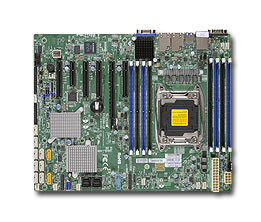
Supermicro | Products | Motherboards | Xeon® Boards | X10SRH-CF

Posted by jpluimers on 2019/03/01

I still like this board: [WayBackSupermicro | Products | Motherboards | Xeon® Boards | X10SRH-CF.

It’s in my main virtualisation workhorse, uses little power, has loads of disk (SAS/SATA) ports, IPMI, two network connections and enough slots for memory and I/O to be extensible.

I use it for most of my software development even when on the road: VPN home over one of the fiber connections and it screams.

Some links, as SuperMicro tends to hide them behind POST requests:

–jeroen

Posted in Development, ESXi6.5, Hardware, Mainboards, Power User, Software Development, SuperMicro, Virtualization, VMware, VMware ESXi, X10SRH-CF | Leave a Comment »

WoL (Wake on LAN) from various routers

Posted by jpluimers on 2019/02/25

Until recently, I hardly used Wake on LAN, so I never noticed that many routers nowadays can send WoL requests themselves.

A few links:

And a few ones from my previous WoL related posts:

–jeroen

Posted in Ethernet, Network-and-equipment, Power User, Wake-on-LAN (WoL) | Leave a Comment »

That duh moment when you cannot read an SD card: it’s SDHC/SDXC in an SD card reader; Secure Digital – Wikipedia

Posted by jpluimers on 2019/02/18

That moment you facepalm yourself because you forgot that particular machine won’t read SD cards because they are too big for the SD card reader in it: SD goes up to 4 gigabyte, anything bigger (nowadays basically everything) requires SDXC or SDHC compatible readers.

Quotes from Wikipedia:

However, older host devices do not recognize SDHC or SDXC memory cards, although some devices can do so through a firmware upgrade.[11] Older Windows operating systems released before Windows 7 require patches or service packs to support access to SDHC cards.[12][13][14]

Older host devices generally do not support newer card formats, and even when they might support the bus interface used by the card,[6]there are several factors that arise:

  • A newer card may offer greater capacity than the host device can handle (over 4 GB for SDHC, over 32 GB for SDXC).
  • A newer card may use a file system the host device cannot navigate (FAT32 for SDHC, exFAT for SDXC)
  • Use of an SDIO card requires the host device be designed for the input/output functions the card provides.
  • The hardware interface of the card was changed starting with the version 2.0 (new high-speed bus clocks, redefinition of storage capacity bits) and SDHC family (Ultra-high speed (UHS) bus)
  • UHS-II has physically more pins but is backwards compatible to UHS-I and non-UHS for both slot and card.[27]
  • Some vendors produced SDSC cards above 1GB before the SDA had standardized a method of doing so.
SD compatibility table
SDSC card SDHC card SDHC UHS card SDXC card SDXC UHS card SDIO card
SDSC slot Yes No No No No No
SDHC slot Yes Yes Yes[a] No No No
SDHC UHS slot Yes[a] Yes[a] Yes[b] No No No
SDXC slot Yes Yes Yes[a] Yes Yes[a] No
SDXC UHS slot Yes[a] Yes[a] Yes[b] Yes[a] Yes[b] No
SDIO slot Varies Varies Varies Varies Varies Yes

–jeroen

Posted in Development, Flash-memory, Hardware Interfacing, Power User, SD/miniSD/microSD/MMC, Storage, USB | Leave a Comment »

Windows 7..10: disable shutdown/hibernate/sleep/restart from UI

Posted by jpluimers on 2019/02/18

I needed this for the Windows 10 machine of my mentally retarded brother: WoL (wake-on LAN) for his machine always works when it is in sleep or deep sleep mode, not every now and then fails when fully powered off.

After it is disabled in the UI, you can still perform it with [WayBackshutdown.exe, so I added these shortcuts first:

Disabling the Shutdown related actions in the UI consists of two steps:

  1. Removing it from the logon screen using the registry
  2. Removing it from the user using gpedit.msc (which is wrapped in mmc.exe)

I will try to get the registry changes for the second using [WayBackRegFromApp – Generate RegEdit .reg file from Registry changes made by application (thanks [WayBack] magicandre1981 for suggesting that at [WayBackwindows – How can I use Process Monitor to detect register changes made by GPEdit modifications? – Super User).
The wrapping mmc.exeis easiest to obtain using Process Explorer, and RegFromApp likely needs to run in elevated mode.

If that fails, I can try Process Monitor as suggested by [WayBack] Tom Wijsman in [WayBackcommand line – Change group policy using windows CMD – Super User.

The reason for the above is that I want to avoid UI based modifications that are hard to script.

Remove Shutdown options from the logon screen

This is just the registry setting below.

It also removes the reboot/hibernate/sleep options from the logon screen, so you need shortcuts for that.

Remove Shutdown for the regular users UI

This can be done using either gpedit.msc (Group Policy Editor) drilling down to the local policies or secpol.msc (the Local Policy Editor):

  1. Drill down to
    1. Local Policies
    2. User Rights Management
  2. Double click Shut down the system
  3. Remove the groups you don’t want the system to shutdown
  4. Press OK to confirm

See the video below how.

I’ve removed the group Users and kept the group Administrators to allow ShutDown.

Administrators now do need to execute the above commands (for instance shutdown.exe /h /f) in with an UAC administrative token enabled!

If you do not want that, add the users that can perform Shutdown commands to a new group, then aadd that group to Shutdown the system.

If you want to perform this system wide for all users, then it’s faster to change the [WayBackWindows Explorer NoClose policy (see also [WayBackGroup Policy Registry Reference).

Read the rest of this entry »

Posted in Ethernet, Network-and-equipment, Power User, Wake-on-LAN (WoL), Windows | Leave a Comment »

Accessing storage (NAS) over the Internet via FTP | FRITZ!Box 7490 | AVM International

Posted by jpluimers on 2019/02/13

Of course you don’t want this. So by the time you read this, the connection has been closed.

For testing some Internet of Shit stuff from a client that cannot do SFTP, I needed a temporary FTP accessible connection.

These links helped:

TL;DR:

  1. Preparing the USB stick:
    1. Ensure the USB disk is FAT/FAT32/NTFS
    2. Create a directory in the root of the USB disk for the FTP user (for now: FtpDirectory)
    3. Insert the USB disk in the Fritz!Box
  2. Logon to the Fritz!Box web UI
    1. Configure a user for FTP:
      1. In the menu, go to System, then FRITZ!Box Users
      2. Click Add user
      3. Name the user (for now: MyFtpUser)
      4. Ensure that user *only* has a checkmark for `Access to NAS contents`
      5. Click the button Add directory
      6. In the popup click Select folder
      7. Choose the FtpDirectory you just made
      8. Click OK
      9. Ensure the read and write checkboxes are enabled
      10. Click OK
    2. Configure the USB stick for FPT access
      1. In the menu, go to Home Network, then USB Devices
      2. Observe if the device is visible and has the correct file system (if not: ask AVM)
      3. In the menu, go to Internet, then Permit Access
      4. Click on the FRITZ!Box Services
      5. Ensure there is a checkmark at Internet access to your storage media via FTP/FTPS enabled
      6. At TCP Port for FTP/FTPS, fill in 21 (many IoT devices cannot use a different port)
      7. Ensure there is *no* checkmark at Allow only secure FTP connections (FTPS)
      8. Make a note of the value after FTP address (something like ftp://example.org:21`)
      9. Click Apply
  3. Test

–jeroen

Posted in Communications Development, Development, Fritz!, Fritz!Box, FTP, Internet protocol suite, IoT Internet of Things, Network-and-equipment, Power User, Software Development, TCP | Leave a Comment »

2018 Hard Drive Reliability Stats by Manufacturer and Model

Posted by jpluimers on 2019/02/11

We look at the hard drive failure rates for the data drive models in operation in our data centers in 2018 (now totaling over 750 petabytes and 100,000 drives). In addition, we’ll see how the new hard drive models we added during the year did, including our 12 TB HGST and 14 TB Toshiba drives.

Full article: [WayBack] 2018 Hard Drive Reliability Stats by Manufacturer and Model

Statistical data at [WayBack] Backblaze Hard Drive Stats:  Hard Drive test data from the Backblaze data center. Backblaze is affordable, easy-to-use cloud storage.

Via [WayBack] 2018 Hard Drive Reliability Stats by Manufacturer and Model https://www.backblaze.com/blog/hard-drive-stats-for-2018/ – DoorToDoorGeek “Stephen McLaughlin” – Google+

–jeroen

Posted in Backup, Hardware, History, LifeHacker, Power User, Storage | Leave a Comment »

Link archive: ASUS MN78 PRO URLs

Posted by jpluimers on 2019/02/08

Since my brother has this motherboard: M4N78 PRO GREEN.

It does WOL, but doesn’t always wake up when powered down.

–jeroen

ASUS Serial 93M0AI195747; Part 90-MIB7C0-G0EAY00Z; M4N78 PRO GREEN; UPC 61083916977; EAN 4719543169773

Posted in Ethernet, Hardware, Mainboards, Network-and-equipment, Power User, Wake-on-LAN (WoL) | Leave a Comment »

ScanSnap ix100 info you don’t find in the Getting Started guide easily

Posted by jpluimers on 2019/01/28

Always fun when Getting Started guide makes it hard to find essential information, but the installation mentions it after installing:

ScanSnap is initially set to turn off automatically after a certain time of non-activity.
The power-off interval can be changed from the [ScanSnap Manager – Preferences] window.

To turn the ScanSnap back on, perform one of the following:

  • Press the [Scan] button
  • Close the ADF paper chute (cover) and open it again

The installer then continues to ask to connect it over USB, though the Getting Started guide mentions you can connect over WiFi.

There the “monkey gets out of the sleeve” as the WiFi installer mentions this:

ScanSnap Wireless Network Setup

To start up the Wireless Setup Tool, perform the following:

  • Turn on ScanSnap
  • Turn on the Wi-Fi switch on the ScanSnap
  • Connect ScanSnap to the computer via the USB cable

(i) If you start up the Wireless Setup Tool via Wi-Fi, some functions are not available.

Too bad it doesn’t explain which functions are not available, not even a web-search or the [WayBack] manuals:

Read the rest of this entry »

Posted in Fujitsu ScanSnap, Hardware, ix100, Power User, Scanners | Leave a Comment »

Philips Brilliance 240B max resolution: 1920 x 1200 pixels at 24 bit

Posted by jpluimers on 2019/01/25

Since the Display on the frontside is labeled as “Philips Brilliance 240B”, finding the actual supported maximum resolution took an additional step resulting in these specs: [WayBack] Specifications of the LCD monitor with Ergo base, USB, Audio 240B1CB/75 | Philips

This is what I needed from it:

Philips Brilliance 240B max resolution: 1920 x 1200 pixels at 24 bit via either of the inputs

  • VGA (Analog )
  • DVI-D (digital, HDCP)

–jeroen

Posted in Displays, Hardware, Power User | Leave a Comment »