3) Save folder trees to disk: tree (I had totally forgotten about this, probably because it leaves out a lot of directories and files)
…
5) Show your Wi-Fi password [WayBack] netsh wlan show profile SSID key=clear (replace SSID with your network name; use nets wlan show profile to view the network names)
…
7) Check your laptop’s battery health: [WayBack] powercfg /batteryreport which will be in ” and hit Enter to generate the report, then %HOMEPATH%\battery-report.html
1) Change the default screenshot type: [WayBack] defaults write com.apple.screencapture type JPG (you can also use JP2 (for JPEG2000), PDF, PNG, TIFF and others)
2) Get your Mac to speak to you: use say
3) Add a message to the login screen: sudo defaults write /Library/Preferences/com.apple.loginwindow LoginwindowText "your new text on the logon window" [WayBack]
4) Play Tetris and other classics: start emacs, then press Esc followed by X, type in tetris, pong, snake or solitaire (to exit emacs, press Ctrl–X followed by Ctrl–C). There are [WayBack] more emacs games.
5) Get a dictionary definition: run curl dict://dict.org/d:word (where word is what you are after) which uses the [WayBack] dict protocol
6) Keep macOS awake: [WayBack] caffeinate optionally followed by a -t## parameter where ## is the number of seconds to not sleep.
7) Show hidden files: defaults write com.apple.finder AppleShowAllFiles -bool TRUE; killall Finder or use this AppleShowAllFiles script which I had forgotten about writing in the first place.
…
10) Add Spaces to the Dock: defaults write com.apple.dock persistent-apps -array-add ‘{”tile-type”=”spacer-tile”;}’; killall Dock running the command as many times as you want spaces. To get rid of a space you’ve added, just drag them to the Trash.
For my archive somewhere between cURL 7.21.0 and 7.34.0 it does not like to be started from an RDP based tsclient share:
C:\Users\jeroen\Downloads>\\tsclient\bin\curl.7.21.0.exe --remote-name https://www.xs4all.nl/index.html
  % Total    % Received % Xferd  Average Speed   Time    Time     Time  Current
                                 Dload  Upload   Total   Spent    Left  Speed
100 86465    0 86465    0     0  60805      0 --:--:--  0:00:01 --:--:-- 70012

C:\Users\jeroen\Downloads>\\tsclient\bin\curl.7.34.0.exe --remote-name https://www.xs4all.nl/index.html
  % Total    % Received % Xferd  Average Speed   Time    Time     Time  Current
                                 Dload  Upload   Total   Spent    Left  Speed
  0     0    0     0    0     0      0      0 --:--:-- --:--:-- --:--:--     0curl: (6) Could not resolve host: web.archive.org

C:\Users\jeroen\Downloads>\\tsclient\bin\curl.7.61.0.exe --remote-name https://www.xs4all.nl/index.html
  % Total    % Received % Xferd  Average Speed   Time    Time     Time  Current
                                 Dload  Upload   Total   Spent    Left  Speed
  0     0    0     0    0     0      0      0 --:--:-- --:--:-- --:--:--     0curl: (6) Could not resolve host: www.xs4all.nl

C:\Users\jeroen\Downloads>copy \\tsclient\bin\curl.7.61.0.exe
        1 file(s) copied.

C:\Users\jeroen\Downloads>curl.7.61.0.exe --remote-name https://www.xs4all.nl/index.html
  % Total    % Received % Xferd  Average Speed   Time    Time     Time  Current
                                 Dload  Upload   Total   Spent    Left  Speed
100    13    0    13    0     0     10      0 --:--:--  0:00:01 --:--:--    10
It fails the same way after net use B: \\tsclient\bin, so that does not matter.
In addition to remote-name, you can also grab the file name from the headers using --remote-header-name, and --remote-time use the remote file time. The --location follows 302-redirects. You can see that in the example below which I build based on
C:\Users\jeroen\Downloads>b:\curl.7.21.0.exe --location --remote-name --remote-time --remote-header-name "https://web.archive.org/web/20180712073755if_/https://www.danielwolf.eu/?wpdmdl=1965"
  % Total    % Received % Xferd  Average Speed   Time    Time     Time  Current
                                 Dload  Upload   Total   Spent    Left  Speed
100 86465    0 86465    0     0  45748      0 --:--:--  0:00:01 --:--:-- 50772
curl: Saved to filename 'pkgWuppdiWP_DX102T_1-1-2.zip'
wget failed big time:
C:\Users\jeroen\Downloads>B:\wget.exe --no-check-certificate -v -v -v --content-disposition --restrict-file-names=windows "https://web.archive.org/web/20180712073755if_/https://www.danielwolf.eu/?wpdmdl=1965"
wget: Cannot read b:/.wgetrc (No such file or directory).
--2018-07-12 09:55:23--  https://web.archive.org/web/20180712073755if_/https://www.danielwolf.eu/?wpdmdl=1965
Resolving web.archive.org... 207.241.225.186
Connecting to web.archive.org|207.241.225.186|:443... failed: Invalid argument.
Retrying.

...

--2018-07-12 09:55:23--  (try:20)  https://web.archive.org/web/20180712073755if_/https://www.danielwolf.eu/?wpdmdl=1965
Connecting to web.archive.org|207.241.225.186|:443... failed: Invalid argument.
Giving up.
This is not caused by the filename (Windows does not like the ? question mark in output file names, so – like & ampersand in file URLs – you have to quote the full URL, but also provide the --restrict-file-names=windows parameter; see [WayBack] wget – I can’t download files with “?” – Super User).
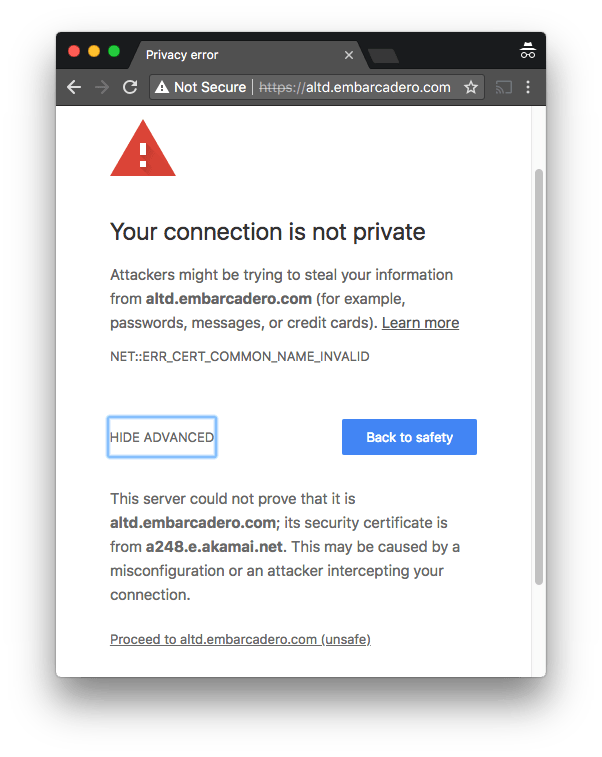
One of the domains not yet monitored at embarcaderomonitoring.wiert.me, was the altd download server for ISOs and installers on http and https level. Ultimately you want https, as most of these are about installers, so you do not want any man-in-the-middle to fiddle with them.
TLS on altd fails
Upitmerobot is not yet smart enough to check validity of TLS certificates on https connections.
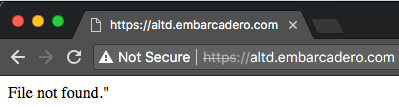
Uptimerobot did not like monitoring the plain http://altd.embarcadero.com/ and https://altd.embarcadero.com/ URLs, because the altd is not browsable, so it tries to hide most of its structure from access. This means they both return an odd response:
Those responses are actually 404 errors (note the - minus sign after curl --trace-ascii: it sends the trace to stdout):
Luckily, a Google search for site:altd.embarcadero.com revealed there is a non-installer file short enough (~72 kibibytes) for Uptime robot to check, so it now verifies it can access these:
I’ve tested it with one of the domains from the Cloudbleed list (a pretty OK indication the site is using cloudflare) and a the example.org site that does not:
I hope I’m not alone on this but I find the cURL documentation hard to follow and short on examples.
My goal was to mimic some HTTP XML posting traffic a server gets from IoT devices. Google Chrome Postman (or Postman REST Client) reproduction is very easy and will send.
TL;DR
ensure you have an empty --header "Content-Type:" header: this ensures that cURL doesn’t add one and does not mess on how the content is being transferred.
use the --data or --data-binary command with an @ to post a file as body.
if you want --write-out then be sure you have a recent cURL version.
This file contains hidden or bidirectional Unicode text that may be interpreted or compiled differently than what appears below. To review, open the file in an editor that reveals hidden Unicode characters. Learn more about bidirectional Unicode characters
This will hang the connection: somehow cURL will never notify the upload is done and the HTTP server keeps waiting. When you put --verbose or --trace-ascii - on the command-line you will see something like this before hanging: * upload completely sent off: 245 out of 245 bytes.
This will automatically add a Content-Length: 245 header and complete the transfer. But it will also add a Content-Type: application/x-www-form-urlencoded header causing the content not being posted as a body.
This will automatically ad a Content-Length: xxx header (way longer than 245) because it converts the request into a Content-Type: multipart/form-data; boundary=------------------------e1c0d47bac806954 one (the hex at the end differs) which is totally unlike what Postman does.
It is also unlike to what the HTTP server accepts.
It turns out that --data-ascii is exactly the same as --data and that --data-binary just skips some new-line conversion when compared to --data or --data-ascii. Contrary to the --data-raw documentation that suggest it is equivalent to --data-binary it seems --data-raw behaves exactly like --data and --data-ascii. Odd.
So these are all stuck with the Content-Type: application/x-www-form-urlencoded and I thought I was running out of options.
It posts exactly the same content as the IoT devices and Postman do.
Phew!
I tried to combine this with the --write-out (a.k.a. -w) option, but for older versions of cURL (I could reproduce with 7.34) that forces cURL back in to Content-Type: application/x-www-form-urlencoded mode so watch your cURL version!
Later I will put more research in chuncked transfer. Links that might help me:
#creates a new file descriptor 3 that redirects to 1 (STDOUT)

exec 3>&1

# Run curl in a separate command, capturing output of -w "%{http_code}" into HTTP_STATUS

# and sending the content to this command's STDOUT with -o >(cat >&3)

HTTP_STATUS=$(curl -w "%{http_code}" -o >(cat >&3) 'http://example.com')
HTTP Prompt is an interactive command-line HTTP client featuring autocomplete and syntax highlighting. Download url -> https://github.com/eliangcs/http-prompt – Joe C. Hecht – Google+
I’ve been using cURL but always had a feeling not to its potential basically because the cURL man page [WayBack] is both massive and lacks concrete useful practical examples.
For instance, I knew about the --header and --verbose options (I always use verbose names even though shorter -H and -v exist) to pass a specific header and get verbose output, but the man page basic examples like this by Tader:


 One of the domains not yet monitored at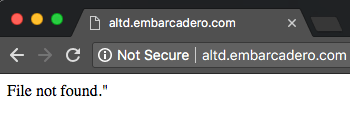


 The Wiert Corner - irregular stream of stuff