The Wiert Corner – irregular stream of stuff

Jeroen W. Pluimers on .NET, C#, Delphi, databases, and personal interests

  • My badges

  • Twitter Updates

  • My Flickr Stream

  • Pages

  • All categories

  • Enter your email address to subscribe to this blog and receive notifications of new posts by email.

    Join 1,854 other subscribers

Archive for the ‘Power User’ Category

Yet again, GitHub violates the Web Content Accessibility Guidelines by stealing a key: not it is the dot (.)

Posted by jpluimers on 2021/08/17

More sites seem to have a tendency of stealing keyboard shortcuts and violating the WCGA (Web Content Accessibility Guidelines), especially the (lowest!) conformance level A in [Wayback] WCAG version 2.1, section Success Criterion 2.1.4 Character Key Shortcuts

If a keyboard shortcut is implemented in content using only letter (including upper- and lower-case letters), punctuation, number, or symbol characters, then at least one of the following is true:

1. Turn off
mechanism is available to turn the shortcut off;
2. Remap
A mechanism is available to remap the shortcut to use one or more non-printable keyboard characters (e.g. Ctrl, Alt, etc);
3. Active only on focus
The keyboard shortcut for a user interface component is only active when that component has focus.

Mind you, I’m a keyboard person, there is even a: Keyboards and Keyboard Shortcuts category, but they always need to be configurable, anything else is a sin.

And GitHub did it again: [Archive.is] GitHub on Twitter: “🤫 New shortcut: Press . on any GitHub repo.… “.

So I’m totally with these:

Now they have started to steal the dot (.) keyboard to (in-place, with a fully new URL and no indication how to easily go back) start Visual Studio Code in the current repository.

Going back, though not documented, actually takes between one and three “back” movements in your web-browser history: utterly ridiculous for a key one can accidentally hit.

This behaviour violates all three above sub-criterions:

  1. it cannot be turned off
  2. there is no way to remap it
  3. it is almost always activated (unless there a text input – like “search” or “goto file” – has focus)

This is a very bad way to cope with accessibility, especially as conformance level A is yet again violated.

[Wayback] WCAG 2.1: section 5.2.1 Conformance Level:

One of the following levels of conformance is met in full.

  • For Level A conformance (the minimum level of conformance), the Web page satisfies all the Level A Success Criteria, or a conforming alternate version is provided.
  • For Level AA conformance, the Web page satisfies all the Level A and Level AA Success Criteria, or a Level AA conforming alternate version is provided.
  • For Level AAA conformance, the Web page satisfies all the Level A, Level AA and Level AAA Success Criteria, or a Level AAA conforming alternate version is provided.

To me another cardinal sin is that they stole Ctrl-F / Command-F (depending if you use non-MacOS or MacOS) from the web browser. So now it does not find it in the full page, but only in the currently selected file. (You guessed it, I’m with [Archive.is] KewlCat on Twitter: “I hate it when they intercept “/” and even [Ctrl]-F… “ too)

More of those conformance violation sins are at [Wayback] Keyboard shortcuts – GitHub Docs.

It isn’t hard to prevent this kind of thinking: it’s a mind set as described by [Archive.is] Patrick Joannisse on Twitter: “I don’t know if you are expecting a real answer but here goes: it starts with the mindset. In my training they had us wear goggles to block our vision and made us use a screen reader for a while. We met people with disabilities and they would show us how they work.… “

If you still like it and want to know how it works

–jeroen

Read the rest of this entry »

Posted in accessibility (a11y), Development, GitHub, Keyboards and Keyboard Shortcuts, Power User, Software Development, Source Code Management | Leave a Comment »

Mikrotik CCR devices based on NAND memory will eventually die

Posted by jpluimers on 2021/08/16

If you own a Mikrotik CCR device based on NAND memory, then be prepared that it will die.

I had this on a (now discontinued [WayBack] MikroTik Routers and Wireless – Products: CCR1009-8G-1S-1S+PC, superseded by the less functional [WayBack] MikroTik Routers and Wireless – Products: CCR1009-7G-1C-1S+PC, which is also NAND based).

Many more people had this or very similar problems:

It also happens due to bad capacitors on the (also discontinued) [WayBack] MikroTik Routers and Wireless – Products: RB1200:

There have been quite a few NAND related changes to the firmware over the years that have to do with handling corruption:

If you are really lucky (I was not), then it is a bad power supply: [WayBack] bootloop on CCR1036-12g-4s (almost 5 years old) [SOLVED] – MikroTik.

Sometimes you can partially recover using the Console port or NetInstall, but eventually you will trip another part of the faulty NAND storage and it will die again, until it has spent all its lives.

Unlike a cat, those are usually far less than 9 lives.

If you do need to recover, the links might help you:

–jeroen

Posted in Internet, MikroTik, Power User, routers | Leave a Comment »

OCR on documents with Adobe Acrobat XI Standard

Posted by jpluimers on 2021/08/16

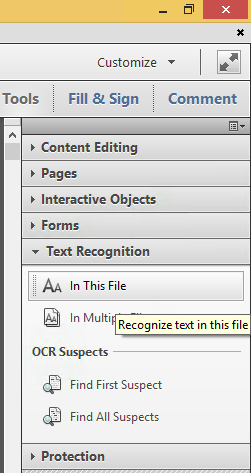
Steps to convert PDF to OCR on all pages in Acrobat XI Standard (STD) via [WayBack] PDF to text, how to convert a PDF to text | Adobe Acrobat DC:

  1. Open a PDF file containing a scanned image in Acrobat.
  2. Click on the Edit PDF tool in the right pane. Acrobat automatically applies optical character recognition (OCR) to your document and converts it to a fully editable copy of your PDF.
  3. Choose File > Save As and type a new name for your editable document.

Screenshots:

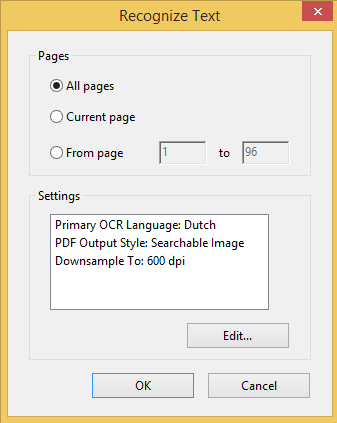
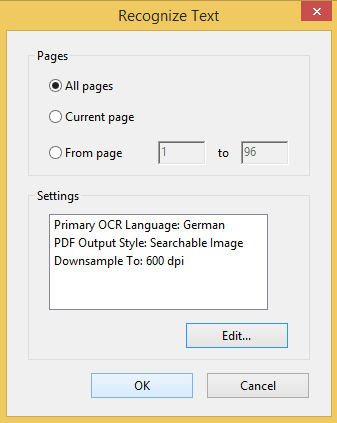
You can select from many OCR languages:

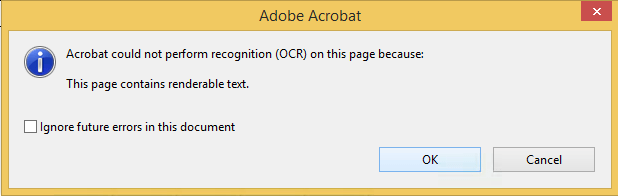
On pages without bitmap content, you see this message:

Only in Acrobat XI or older

Note that Acrobat XI was the last version where this was possible in the Standard edition.

More recent versions of Acrobat, need the Pro version for OCR:

Read the rest of this entry »

Posted in Adobe, Adobe Acrobat, Fujitsu ScanSnap, Hardware, ix100, Power User, Scanners | Leave a Comment »

IPMI will not grab IP even with DHCP turned on : homelab

Posted by jpluimers on 2021/08/13

TL;DR

  1. ensure the IPMI network cable is connected before connecting the power cable
  2. ensure the IPMI LAN is using the dedicated interface
  3. ensure the IPMI LAN interface is connected to a “non green” port of your network switch
  4. ensure the DHCP server has been cold rebooted
  5. ensure the IPMI VLAN configuration matches your network
  6. ensure the IPMI firewall configuration matches the network you try to reach IPMI from
  7. ensure the motherboard does not have a short-circuit anywhere

Otherwise SuperMicro devices might not get a DHCP address on the IPMI (BMC) interface, despite the tooling like [WayBack] ipmicfg indicating getting DHCP was succesful.

This especially holds for X9 boards, likely for newer boards as well.

Personally I never had the 4. and up above, but I bumped into 1. and 2. with SuperMicro boards and 3. with other devices.

Based on

Read the rest of this entry »

Posted in Hardware, Mainboards, Power User, SuperMicro, X9SRi-3F, X9SRi-F | Leave a Comment »

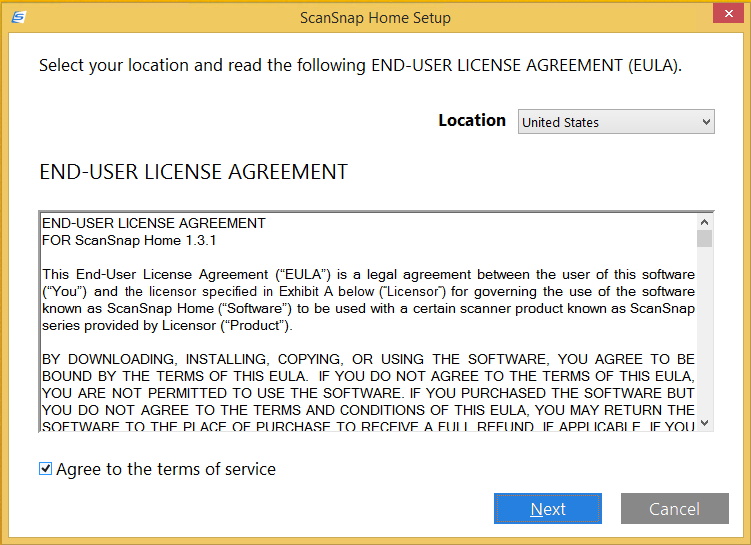
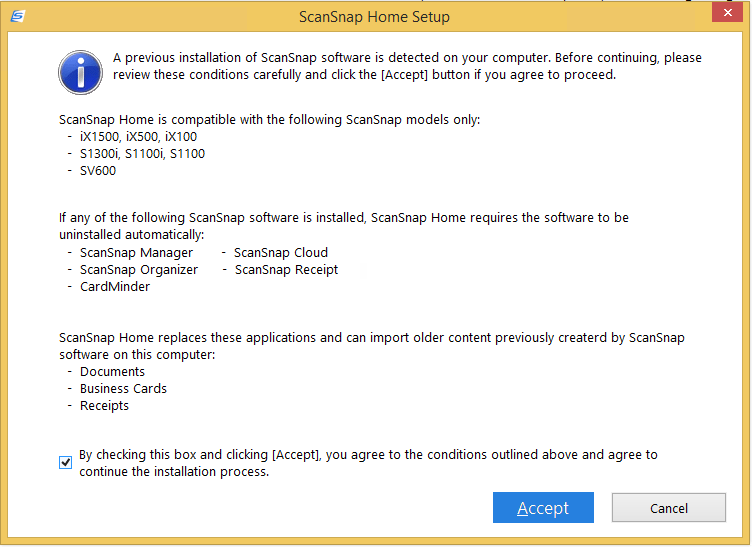
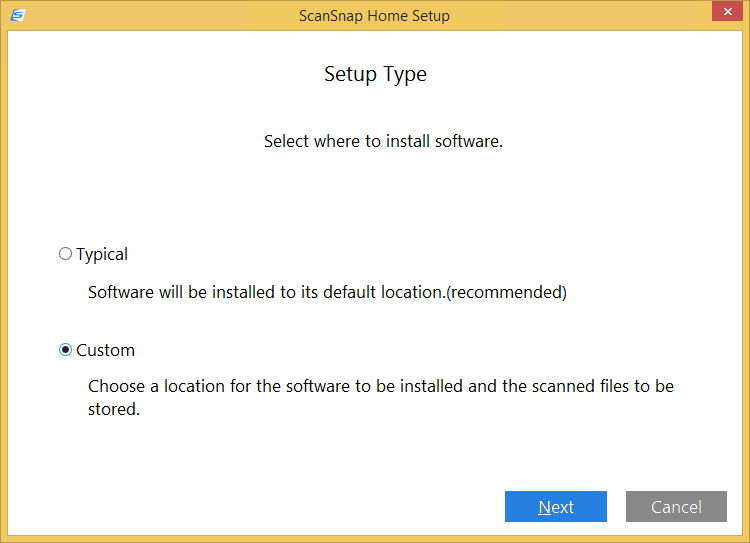
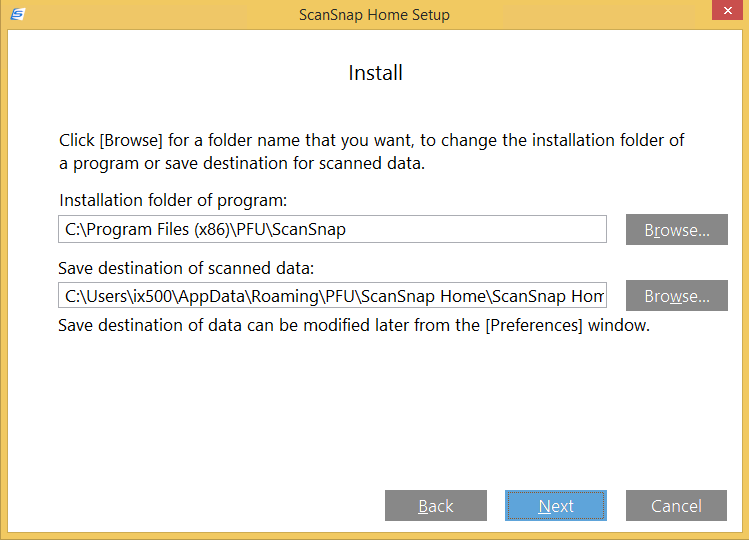
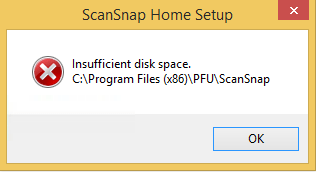
Installing a Fujitsu PFU ScanSnap ix1500: ScanSnap Home upgrade screenshots

Posted by jpluimers on 2021/08/13

For my screenshot archive:

A retry with about 5 gigabyte of free space went further:

Read the rest of this entry »

Posted in Fujitsu ScanSnap, Hardware, ix1500, Power User, Scanners, Windows, Windows 8.1 | Leave a Comment »

ScanSnap Advanced Operation Guide (Mac OS) Creating Searchable PDF Files

Posted by jpluimers on 2021/08/13

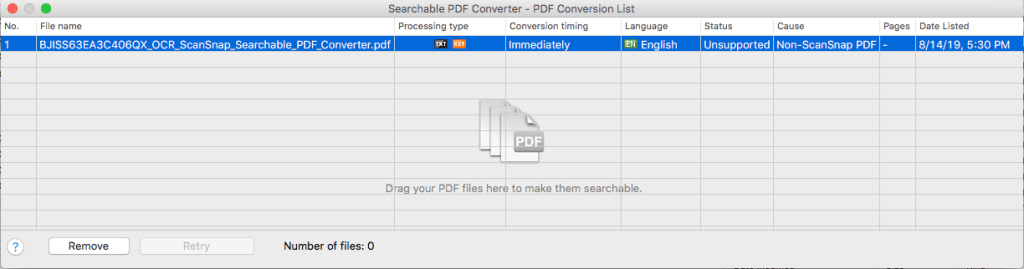
This works only for PDF files originally created by ScanSnap (otherwise “Unsuccessful” with “Non-ScanSnap PDF”: [WayBack] ScanSnap Advanced Operation Guide (Mac OS) Creating Searchable PDF Files

ATTENTION

  • Vertical text can be searched with Adobe Acrobat, but not with Spotlight or Preview.

HINT

The [Searchable PDF Converter] icon Searchable PDF Converter Icon appears in the status menu of the menu bar while Searchable PDF Converter is running. For details, refer to the ScanSnap Manager Help.

  1. Click the [Searchable PDF Converter] icon Searchable PDF Converter in the Quick Menu.
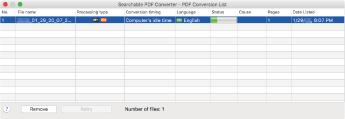
    • The [Searchable PDF Converter – PDF Conversion List] window appears, and conversion starts.
      Searchable PDF Converter

    HINT

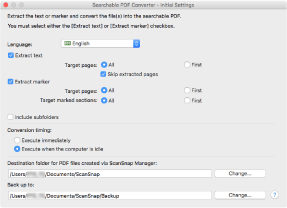
    On a window that appears when [Searchable PDF Converter] is started for the first time, click the [OK] button to open the [Searchable PDF Converter – Initial Settings] window. In the [Searchable PDF Converter – Initial Settings] window, specify the processes that are to be performed, the conversion timing, and the folder to which the converted files are saved while conversion into searchable PDF files is being performed.

    Searchable PDF Converter - Initial Settings

When using different kinds of PDFs, you get this error:

I have not figured out yet how it recognises ScanSnap generated PDF files.

–jeroen

Posted in Fujitsu ScanSnap, Hardware, ix500, Power User, Scanners | Leave a Comment »

The continued Windows PrintNightmare saga: no more printer Plug&Play for end-users on Windows

Posted by jpluimers on 2021/08/12

It was fun while it lasted, and puts other operating systems at an advantage.

[Wayback] Jeroen Wiert Pluimers on Twitter: “Bye bye printer Plug & Play on Windows for end-users: … Though MacOS has its share of printer driving issues (like only printing monochrome to colour printers), this is a serious step back on Windows compared to MacOS.”

More on the MacOS printer woes in a later blog post.

Web related:

Twitter related:

–jeroen

Read the rest of this entry »

Posted in Hardware, Power User, Printer drivers, Printers, Windows, Windows 10, Windows 7, Windows 8, Windows 8.1 | Leave a Comment »

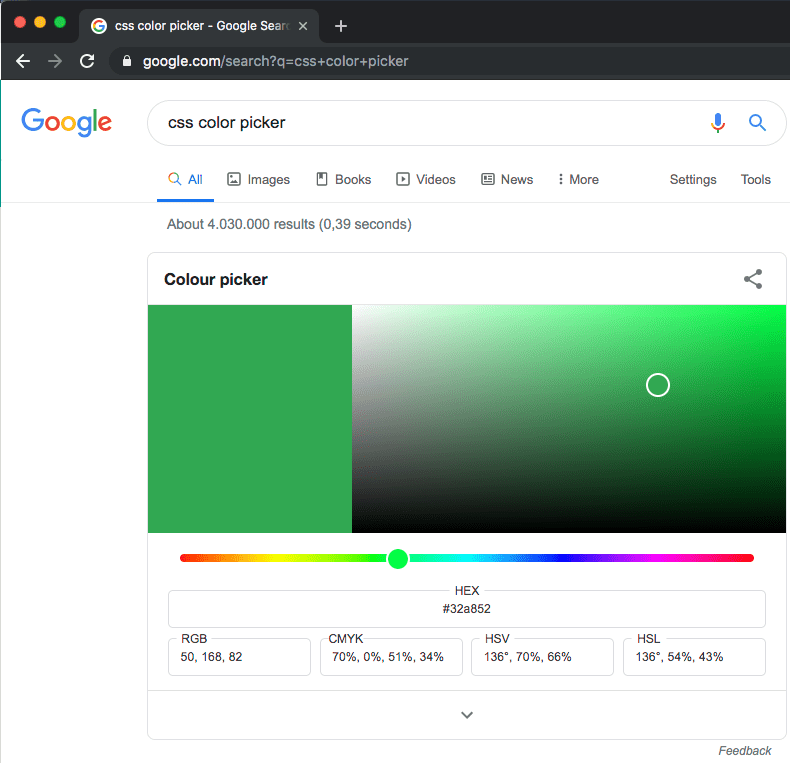
css color picker – Google Search

Posted by jpluimers on 2021/08/12

Probably old, but there is an embedded [WayBack] css color picker – Google Search that on each refresh switches colours:

–jeroen

Posted in Color (software development), CSS, Development, Google, GoogleSearch, HTML, Power User, Software Development, Web Development | Leave a Comment »

Simple iframe clock via Free Clocks for Your Website

Posted by jpluimers on 2021/08/11

Using [WayBack] Free Clocks for Your Website, I created this clock for a 1920×1080 web dashboard which is a web page hosted on [WayBack] raw.githack.com with an iframe hosted at www.timeanddate.com

I know that is a risk, but that is OK for now: that site has existed for a very long time and probably will last a while.

There is a truckload of options you can use, despite the clock being simple. Luckily the [WayBack] FAQ: Free Clocks for Your Website explains these options.

This is the gist of the above “this clock” page:


<!DOCTYPE html>
<html>
<head>
<meta charset="UTF-8">
<meta http-equiv="content-type" content="text/html; charset=UTF-8">
<meta name="robots" content="noindex, nofollow">
<meta name="googlebot" content="noindex, nofollow">
<style type="text/css">
body {
margin: 0; /* override browser setting for body `margin: 8px;` */
overflow: hidden; /* remove scroll bars; does not work for iframes */
}
.box {
float: left;
width: 100vw; /* Firefox/Chrome outside Mac OS X: force viewport-width */
overflow: hidden; /* remove scroll bars; does not work for iframes */
background-color: azure;
}
iframe {
border-width: 0; /* override browser setting for iframe `border-width: 2px; */
height: 100vh;
width: 50vw;
}
.clock_iframe {
float: right;
height: 30vh;
width: 16vw;
}
</style>
<title>Clock in frame</title>
</head>
<body>
<div class="box">
<iframe class="clock_iframe" src="https://freesecure.timeanddate.com/clock/i6xvy9ve/n16/szw300/szh300/hoc000/cf100/hgr0/fiv0/fas34/fdi74/mqv0/mhc000/mhs3/mhl20/mhw1/mhd84/mmv0/hhs1/hms1/hsc000/hss1&quot; frameborder="0" width="300" height="300">
<!– https://www.timeanddate.com/clocks/free.html –>
</iframe>
</div
</body>
</html>

–jeroen

Posted in CSS, Development, HTML, Power User, Software Development, Web Development | Leave a Comment »

On Windows, having an empty password can improve security

Posted by jpluimers on 2021/08/11

From an interesting twitter thread started by SwitftOnSecurity:

Interesting thought that I need to let sink in for a while before trying it.

Great posts by Aaron

Finding out about and fixing Limited User Account bugs:

More to think about:

  • [WayBack] Table of Contents (Aaron Margosis’ Non-Admin WebLog) – Aaron Margosis’ Non-Admin, App-Compat and Sysinternals WebLog
  • [WayBack] Not running as admin… – Aaron Margosis’ Non-Admin, App-Compat and Sysinternals WebLog

    To be more secure, users should log on with a Limited (or “Least-privileged”) User account (LUA), and use elevated privileges only for specific tasks that require them.  Linux/Unix users have understood this for a long time

  • [WayBack] Why you shouldn’t run as admin… – Aaron Margosis’ Non-Admin, App-Compat and Sysinternals WebLog
    • The #1 reason for running as non-admin is to limit your exposure.
    • My #2 reason for running as non-admin applies to developers.  Developing software as User instead of Admin helps ensure that your software will run correctly on end-users’ systems.
    • My #3 reason applies just to Microsoft personnel, particularly those of us in customer-facing roles.  Hey, y’all!  We need to lead by example.
  • [WayBack] The easiest way to run as non-admin – Aaron Margosis’ Non-Admin, App-Compat and Sysinternals WebLog

    Here’s how I set up home computers for friends and relatives:

    • Create a Computer Administrator account called “Admin”.  No password.  (Read on before you flame.)
    • Create a Limited User account for each person who will be using the computer.  No passwords.
    • Enable the Guest account if it is anticipated that visitors may need to go online.

    I instruct all concerned that the Admin account is to be used only for installing software, and to use their individual accounts for all day-to-day use, including web, email, IM, etc.  This has worked quite well for everyone I’ve done this for, and don’t get calls anymore about home pages being hijacked, etc.  Users generally don’t even have to log out.  My 7-year old walks away, the screen saver kicks in, my 3-year old moves the mouse and clicks on his picture (or the frog or whatever it is now) and has his own settings.

    [added 2004.06.22]:  I also like to make the admin desktop noticeably different from normal user desktops, to help prevent accidental use.  For example, use the Windows Classic theme instead of the XP default, set a red background, or a wallpaper that says “For admin use only.  Are you sure you need to be here?”

    OK, I know you’re bursting already:  “No password?!?!  Are you insane?!?!”  Cool down, now.  Starting with Windows XP, a blank password is actually more secure for certain scenarios than a weak password.  By default, an account with a blank password can be used only for logging on at the console.  It cannot be used for network access, and it cannot be used with RunAs.  The user experience of just clicking on your name to log on can’t be beat for simplicity.  If you can trust everyone who has physical access to the computer not to log on as someone else or abuse the admin account, this is a great way to go.  If not, you can always enable passwords.

  • [WayBack] “RunAs” basic (and intermediate) topics – Aaron Margosis’ Non-Admin, App-Compat and Sysinternals WebLog

    The Secondary Logon service was first introduced in Windows 2000, and is in Windows XP and Server 2003.  When you start a new process through RunAs, you provide credentials for the account you want the process to run under – for example, the local Administrator account.  Assuming the credentials are valid, the Secondary Logon service then causes several things to happen:

    • creates a new logon session for the specified account, with a new token;
    • ensures that the new process’ token is granted appropriate access to the current window station and desktop (the specifics change somewhat for XP SP2, but aren’t important here);
    • creates a new job in which the new process and any child processes it starts will run, to ensure that the processes are terminated when the shell’s logon session ends (correcting a problem with the NT4 Resource Kit’s SU utility).
  • [WayBack] RunAs with Explorer – Aaron Margosis’ Non-Admin, App-Compat and Sysinternals WebLog
  • [WayBack] MakeMeAdmin — temporary admin for your Limited User account – Aaron Margosis’ Non-Admin, App-Compat and Sysinternals WebLog

    MakeMeAdmin.cmd invokes RunAs twice, prompting you first for your local admin password, then for your current account password.  The bit that runs as local administrator does the following:

    1. Adds your current account to the local Administrators group (using NET LOCALGROUP, avoiding the problem of needing network credentials to resolve names);
    2. Invokes RunAs to start a new instance of cmd.exe using your current account, which is at this instant a member of Administrators;
    3. Removes your current account from the local Administrators group.

    The result of the second step is a Command Prompt running in a new logon session, with a brand new token representing your current account, but as a member of Administrators.  The third step has no effect on the new cmd.exe’s token, in the same way that adding your account to Administrators does not affect any previously running processes.

  • [WayBack] MakeMeAdmin follow-up – Aaron Margosis’ Non-Admin, App-Compat and Sysinternals WebLog

    In my first MakeMeAdmin post, there’s a section called “Objects created while running with elevated privilege,” the main parts of which I’ll recap here:

    Normally, when a user creates a securable object, such as a file, folder, or registry key, that user becomes the “owner” of the object and by default is granted Full Control over it.  Prior to Windows XP, if the user was a member of the Administrators group, that group, rather than the user, would get ownership and full control….  Windows XP introduced a configurable option whether ownership and control of an object created by an administrator would be granted to the specific user or to the Administrators group.  The default on XP is to grant this to the object creator; the default on Windows Server 2003 is to grant it to the Administrators group….

    If I use MakeMeAdmin to install programs, my normal account will be granted ownership and full control over the installation folder, the program executable files, and any registry keys the installation program creates.  Those access rights will remain even when I am no longer running with administrator privileges.  That’s not what I want at all.  I want to be able to run the app, create and modify my own data files, but not to retain full control over the program files after I have installed it.

    I concluded by saying:

    For this reason, I changed the “default owner” setting on my computer to “Administrators group”.

    Today I would like to go further:  If you are going to use the same account for admin and non-admin activities (e.g., with MakeMeAdmin), I strongly recommend that you change the “Default owner” setting on your computer to “Administrators group”.

  • [WayBack] And so this is Vista… – Aaron Margosis’ Non-Admin, App-Compat and Sysinternals WebLog

    What becomes of all my earlier non-admin tips, tricks and recommendations vis-à-vis RunAsMakeMeAdminPrivBar and their interactions with IE and Explorer? The short answer is that Vista changes just about everything with respect to running with least privilege.

    Windows Vista makes running as a standard user (non-admin) much more pleasant, feasible and secure than it was on XP. I’m not going to drill into all those improvements here. Instead, the focus of this post is to update my earlier posts about running on XP as a standard user (the “Running as Admin Only When Required” posts in the Table of Contents) as they pertain to Windows Vista. To save some space, I’ll assume you’ve spent at least a little time running Vista.

    rwx—rwx

    > On XP/2003, MakeMeAdmin lets you run as a

    > standard user, and temporarily elevate your

    > standard account to run a selected program

    > with administrative privileges.

    Right.  It doesn’t mean temporarily elevating your administrative account to run elevated, it means temporarily elevating your standard account to run a selected program with administrative privileges in the context of your account.

    > Vista gives you the same ability

    It does not.  Here’s what Vista gives:

    > If you are a member of the Administrators

    > group on Vista

    Exactly.  It means temporarily elevating your administrative account to run elevated.  It doesn’t help your standard account at all.

    > “Run as administrator” serves as a superior

    > substitute. With the default settings, a

    > member of Administrators can use it as a

    > MakeMeAdmin replacement

    No, it is not a substitute, it’s different.  A member of Administrators can use it to temporarily switch context to an administrative account and run elevated in the administrative account.  If the administrator does this to install an application for all users then there’s no real problem, the application gets installed for all users just as it did in XP.  But if the administrator wanted to do this to install an application for the standard user, they can’t do it.  The administrator gets to install the application for one user’s account, which is going to be the administrator’s account, it’s not going to be the standard user’s account.  The standard user doesn’t get the benefit that MakeMeAdmin provided.

    Standard users in Vista still need a MakeMeAdmin tool.

  • [WayBack] Ctrl-C doesn’t work in RUNAS or MakeMeAdmin command shells – Aaron Margosis’ Non-Admin, App-Compat and Sysinternals WebLog

    Workaround: 

    Use Ctrl-Break instead.

    [Added, March 9, 2005: While this problem occurs on Windows XP, it does not occur on Server 2003 RTM! ]

  • [WayBack] Follow-up on “Setting color for *all* CMD shells based on admin/elevation status” – Aaron Margosis’ Non-Admin, App-Compat and Sysinternals WebLog
  • [WayBack] Running restricted — What does the “protect my computer” option mean? – Aaron Margosis’ Non-Admin, App-Compat and Sysinternals WebLog

    The bottom line is that the app runs with a “restricted token” that basically has these net effects:

    • Group membership:  If you were logged in as a member of Administrators, Power Users, or certain powerful domain groups, the app runs without the benefit of those group memberships.
    • Registry:  The app has read-only access to the registry, including HKEY_CURRENT_USER and HKEY_LOCAL_MACHINE.  The app has no access to HKCU\Software\Policies.
    • File system (assuming NTFS):  The app cannot access the user’s profile directory at all.  That includes “My Documents”, “Temporary Internet Files”, “Cookies”, etc.
    • Privileges:  The app has no system-wide privileges other than “Bypass traverse checking”.

    IE works fairly well this way, but with some odd and annoying problems:

    • You can’t use SSL (https) at all.
    • If you right-click on a hyperlink and choose “Open in New Window”, nothing happens.
    • If you enter a URL in the address bar without “http://” in front of it (e.g., “www.msn.com”), you get an error message like “C:\Documents and Settings\aaronmar\Desktop is not accessible.  Access is denied.”, before IE goes ahead and loads the site anyway.
    • On XP SP2 and on Server 2003, toolbars do not appear where you configured them, if they appear at all.  E.g., PrivBar always needs to be re-enabled; “Links” appears (on my machine) in the upper left, to the left of the menu bar.  (This wasn’t a problem with XP SP1.)

–jeroen

Posted in Development, Power User, Security, Software Development, Windows, Windows Development | Leave a Comment »