The Wiert Corner – irregular stream of stuff

Jeroen W. Pluimers on .NET, C#, Delphi, databases, and personal interests

  • My badges

  • Twitter Updates

  • Pages

  • All categories

  • Enter your email address to subscribe to this blog and receive notifications of new posts by email.

    Join 1,839 other subscribers

Archive for the ‘Power User’ Category

Move the most recent commit(s) to a new branch with Git – Stack Overflow

Posted by jpluimers on 2019/03/05

Below are the git statements I used to solve this ASCII art problem from me (as I work in Git Flow feature branches):

old situation:

commit-1..4  -  commit-5  -  commit-6  -  commit-7  -  commit-8  -  commit-9
                   ^            ^            ^            ^           ^
                   |            |            |            |           |
                master       develop      feature/A                 feature/old

to:

commit-1..4  -  commit-5  -  commit-6  -  commit-7  -  commit-8  -  commit-9
                   ^            ^            ^            ^           ^
                   |            |            |            |           |
                master       develop      feature/A    feature/old  feature/new


git branch
git rev-parse HEAD
git log --pretty=format:'%H' -n 2
git checkout -b feature/new hash-of-commit-8
git branch --set-upstream-to=feature/old
git cherry-pick ..feature/old
git branch --force feature/old hash-of-commit-8

Step by step, this is what happens:

  1. branch lists the current branches
  2. rev-parse HEAD shows the hash of the current commit (commit-9)
  3. log --pretty=format:'%H' -n 1shows the hash of the previous two commits (from top to bottom: commit-9 and commit-8)
  4. checkout creates a new branch based on the past commit-8
  5. branch --set-upstream ensures the new branch tracks the old branch
  6. cherry pick ensures the new branch gets all the commits from the old branch
  7. branch --force ensure the old branch looses the extra commits you wanted to only be in newBranchName

Based on

–jeroen

Posted in Development, DVCS - Distributed Version Control, git, Power User, Software Development, Source Code Management | Leave a Comment »

Creating a bootable USB installer for ESXi and use it to create a bootable ESXi installation

Posted by jpluimers on 2019/03/05

VMware and USB sticks have two aspects:

  1. Creating an installable USB stick
  2. Boot from it and install on another USB stick

Some motherboard and servers offer an internal USB socket to plug in the second stick.

If not, search for “usb 3” motherboard header adapter “usb a”.

Getting the ISO installer on a USB stick to install from

  1. Download Rufus (I’ve used the portable version from)
  2. Run Rufus, select ISO image type
  3. Choose the image (the button on the right of the image type), in my case VMware-VMvisor-Installer-201701001-4887370.x86_64.iso from https://my.vmware.com/group/vmware/evalcenter?p=free-esxi6 which Rufus recognises as ESXI-6.5.0-20170104001-STANDARD:
  4. Confirm the menu file replacement (note they forgot to translate the Ja button to Yes and Nee to No):

    ---------------------------
    Replace menu.c32?
    ---------------------------
    This ISO image seems to use an obsolete version of 'menu.c32'.
    Boot menus may not display properly because of this.
    
    A newer version can be downloaded by Rufus to fix this issue:
    - Choose 'Yes' to connect to the internet and download the file
    - Choose 'No' to leave the existing ISO file unmodified
    If you don't know what to do, you should select 'Yes'.
    
    Note: The new file will be downloaded in the current directory and once a 'menu.c32' exists there, it will be reused automatically.
    ---------------------------
    Ja Nee
    ---------------------------
  5. If you get this, then just choose No in the previous dialog:

    ---------------------------
    File download
    ---------------------------
    Unknown internet error 0x00002F0D
    ---------------------------
    OK
    ---------------------------
  6. Confirm erasure of the USB device data (here the Cancel button is still Dutch Annuleren:

    ---------------------------
    Rufus
    ---------------------------
    WARNING: ALL DATA ON DEVICE 'NO_LABEL (F:) [4.1GB]' WILL BE DESTROYED.
    To continue with this operation, click OK. To quit click CANCEL.
    ---------------------------
    OK Annuleren
    ---------------------------

Installing from the USB based installer onto another target USB stick

Yes, you need a second USB to install onto. Which means that it’s best if the two sticks are different models or different brands so it is easier to set them apart.

  1. Insert both sticks in your machine
  2. Power on the  machine and go into BIOS settings
  3. Boot from the first

Posted in ESXi6, ESXi6.5, Power User, Virtualization, VMware, VMware ESXi | Leave a Comment »

Vloerkleden l Tapijten l IKEA

Posted by jpluimers on 2019/03/04

Read the rest of this entry »

Posted in IKEA hacks, LifeHacker, Power User | Leave a Comment »

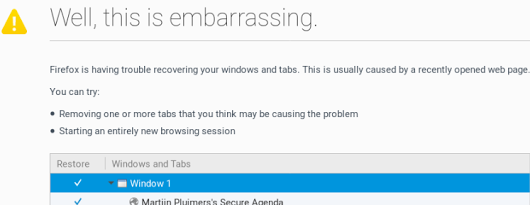
A way to skip the Firefox “Well, this is embarrassing” during a sudden reboot

Posted by jpluimers on 2019/03/04

A while ago, I asked about [WayBack] “Is there a way to skip the Firefox “Well, this is embarrassing” during a sudden reboot and just continue with the loading of the default pages? – Jeroen Wiert Pluimers – Google+

Later I found the workaround at both and [WayBackWell this is embarrassing message | Firefox Support Forum | Mozilla Support with more elaboration at [WayBackDon’t give Chance for Firefox to Show ‘Well, this is embarrassing” message next time again | Techdows:

  1. Open Firefox
  2. Type about:config in the addressbar
  3. Confirm the
    This might void your warranty!
    by clicking
    I accept the risk!
  4. Search for browser.sessionstore.resume_from_crash
  5. Double click it so the value changes from the default value true to the user set value false

Now after a sudden reboot of the machine, a start of Firefox just loads the default page.

–jeroen

Posted in Firefox, Power User, Web Browsers | Leave a Comment »

Windows 10: force to sleep at night, but allow wake up for Windows Updates

Posted by jpluimers on 2019/03/04

I do not like a machine that sleeps after a certain amount of inactivity as I might have a long running job going on.

Usually however, I do like to have a machine off at night, even if I forget to put it asleep.

Exceptions for sleeping are just two:

  • automatic back-up schedule
  • allowing Windows Updates

Luckily you can tell Windows 10 to allow for all cases.

Enabling wake-up during Windows Updates

Note I’m not fully sure which BIOS settings you need to enable – if any- to have this work on all systems. Wake up works on my machine for these [WayBackpsshutdown parameter combinations:

  • psshutdown.exe -h -t 0 (Hibernate)
  • psshutdown.exe -d -t 0 (Suspend)

It fails with these:

  • psshutdown.exe -s -t 0 -f (Shutdown without poweroff)
  • psshutdown.exe -k -t 0 (Poweroff)

The odd thing: Wake-on-LAN can usually wake up the last two.

This is done with the gpedit.msc (via [WayBackHow to prevent Windows 10 waking from sleep when traveling in bag? – Super User, thanks xxxbence)

Follow this path:

  1. Local Computer Policy
  2. Computer Configuration
  3. Administrative Templates
  4. Windows Components
  5. Windows Update

Double click Enabling Windows Update Power Management to automatically wake up the system to install scheduled updatesto show the below dialog.

Enable it:

so it looks like this:

Forcing sleep (in my case hibernate) using the Task Scheduler

In Windows 7..10: disable shutdown/hibernate/sleep/restart from UI I wrote about shutdown /h /f to hibernate a machine. You can force to run this from the taskschd.msc (Windows Task Scheduler):

I wanted history for tasks, so I started taskschd.msc as Administrator, then on the right Actions Pane, I clicked on Enable All Tasks History:

 also explained in [WayBackHow can I enable the Windows Server Task Scheduler History recording? – Stack Overflow and can be verified/set on the console as well:

  • Get as any user: wevtutil get-log Microsoft-Windows-TaskScheduler/Operational
  • Set as Administrator: wevtutil set-log Microsoft-Windows-TaskScheduler/Operational /enabled:true

I named the task __ sleep at 2300 with these settings:

Ensure the Program/script itself is shutdown and the parameters are /h /f:

–jeroen

Posted in Power User, Windows, Windows 10 | Leave a Comment »

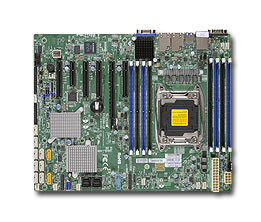
Supermicro | Products | Motherboards | Xeon® Boards | X10SRH-CF

Posted by jpluimers on 2019/03/01

I still like this board: [WayBackSupermicro | Products | Motherboards | Xeon® Boards | X10SRH-CF.

It’s in my main virtualisation workhorse, uses little power, has loads of disk (SAS/SATA) ports, IPMI, two network connections and enough slots for memory and I/O to be extensible.

I use it for most of my software development even when on the road: VPN home over one of the fiber connections and it screams.

Some links, as SuperMicro tends to hide them behind POST requests:

–jeroen

Posted in Development, ESXi6.5, Hardware, Mainboards, Power User, Software Development, SuperMicro, Virtualization, VMware, VMware ESXi, X10SRH-CF | Leave a Comment »

Windows 10: mounting an ISO to a specific drive letter and keeping that drive letter after boot

Posted by jpluimers on 2019/03/01

I tried finding a way with the built-in Windows tools to keep an ISO mounted to a specific drive letter (some software remembers the drive letter it got installed from and disallows changing it).

I couldn’t. Luckily there is WinCDEmu which supports more formats than the built-in Windows tools as well.

[WayBackWinCDEmu – How to keep images mounted

  1. Right click the ISO file
  2. Choose Select drive letter & mount
  3. In the popup dialog, put check marks if you need any of these options:
    • Disable autorun for this time
    • Keep drive after restart

So I can add that to the list of WinCDEmu features I wrote about before (from newer to older):

WinCDEmu is open source; if you want to build it from scratch, you need these repositories:


–jeroen

Posted in Power User, Windows, Windows 10 | Leave a Comment »

Windows 10 Feature Focus: Backup and Recovery – Thurrott.com

Posted by jpluimers on 2019/03/01

I totally forgot that the Windows 7/8/8.1. stuff (that makes a back-up to VHD/VHDX) is still in the Control Panel:

While Windows 10 doesn’t actually add any new backup or recovery tools, it provides great upgrades to the tools it previously offered in Windows 7 and 8.

Source: [WayBackWindows 10 Feature Focus: Backup and Recovery – Thurrott.com

Read the rest of this entry »

Posted in Power User, Windows, Windows 10 | Leave a Comment »

There’s recently been a question about moving G+ Photos to Google Photos. [Th…

Posted by jpluimers on 2019/03/01

[WayBack] There’s recently been a question about moving G+ Photos to Google Photos. [That is, Photos posted to Google+] Just been playing with this. Here’s one… – Julian Bond – Google+

Before I forget:

Here’s one route.

  1. Go to Google Photos settings and set Google Drive –
    Sync photos & videos from Google Drive.
  2. Google Takeout. G+Streams.Photos.
  3. Unzip locally.
  4. Copy the contents of ‘Takeout\Google+ Stream\Photos\Photos from posts‘ to a directory in Google Drive\My Pictures
  5. Fire up “Backup and Sync from Google” to upload
  6. Check the photos are now present in Photos.

And https://get.google.com/albumarchive/

Via: [WayBack] There’s recently been a question about moving G+ Photos to Google Photos. Just been playing with this. Here’s one route. 1. Go to Google Photos setti… – Alan Cox – Google+

–jeroen

Posted in G+: GooglePlus, Google, Google Photos, GoogleDrive, Power User | Leave a Comment »

Bye, Bye, Google · Bogdan Popa

Posted by jpluimers on 2019/02/28

Interesting approach: saying good bye isn’t that hard if you do not share a lot things with other people through it.

[WayBackBye, Bye, Google · Bogdan Popa:

I spent this past weekend de-Google-ifying my life and, despite my expectations, it wasn’t too hard to do. I started by moving all of my websites off of Google App Engine and onto a dedicated box that I had already owned. That was straightforward enough. Next, I removed any Google Analytics snippets from each of them and replaced those with my own analytics server that I had built a while back (it doesn’t store any PII, only aggregate information (and very little of that, too)).

Via:

This might be a viable mail alternative: [WayBack] Reliable Email Provider, Inbox Email & Resource Center | inbox.com

Simplify your online communication with one login to secure email communication, organize conversations, and fine-tune archive searches.

Via: [WayBack] Thank you for following us! It’s been our pleasure to build a community with all of you. In the coming weeks, we’ll be closing this page. Please find us… – Google – Google+

Thank you for following us! It’s been our pleasure to build a community with all of you. In the coming weeks, we’ll be closing this page. Please find us here to stay connected:

www.youtube.com/google
www.twitter.com/google
www.instagram.com/google
www.facebook.com/google

–jeroen

Posted in G+: GooglePlus, Google, LifeHacker, Power User, SocialMedia | Leave a Comment »