The Wiert Corner – irregular stream of stuff

Jeroen W. Pluimers on .NET, C#, Delphi, databases, and personal interests

  • My badges

  • Twitter Updates

  • Pages

  • All categories

  • Enter your email address to subscribe to this blog and receive notifications of new posts by email.

    Join 1,839 other subscribers

Archive for the ‘Web Browsers’ Category

Reminder: check if LUMC Privacy Statement and Gebruiksvoorwaarden are printable or downloadable as PDF.

Posted by jpluimers on 2021/02/26

Reminder to check out the results of this thread: [WayBack] Thread by @jpluimers: “Jammer dat het Privacy Statement op mijnlumc.lumc.nl/mijnlumc/?#/co… als een pop-up zichtbaar is, waardoor je het niet volledig kunt afdrukk […]”.

Related:

Thread:

Jammer dat het Privacy Statement op mijnlumc.lumc.nl/mijnlumc/?#/co… als een pop-up zichtbaar is, waardoor je het niet volledig kunt afdrukken of als PDF opslaan.

Vreemd ook dat de tekst op lumc.nl/12367/ anders is dan in de consent hierboven.

Kan @LUMC_Leiden dat oplossen?

Idem voor de Gebruiksvoorwaarden. Daar is geen alternatieve tekst van.
mentions In onderstaande code gaan de aanpassingen in beide <span>…</span> blokken zitten.

–jeroen

Read the rest of this entry »

Posted in Chrome, Development, LifeHacker, Power User, Software Development, Web Browsers, Web Development | Leave a Comment »

ColumnCopy – Chrome Web Store

Posted by jpluimers on 2021/02/19

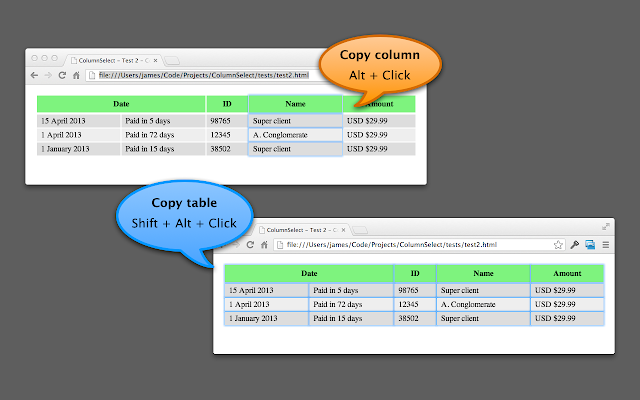
[Archive.is] ColumnCopy – Chrome Web Store: Enables copying columns from tables.

It can read anything on any web page, and it uses modifier keys, so I usually have it disabled until I need it.

You can disable/enable it on this page:

chrome://extensions/?id=lapbbfoohlcmlbdaakldmmallcbcbpjb

Via [WayBack] Select column from a table with Google Chrome – Super User

Sorry to dig up an old thread, but this might help someone in the future. I wrote a Chrome extension called ColumnCopy which accomplishes this task.

–jeroen

Posted in Chrome, LifeHacker, Power User, Web Browsers | Leave a Comment »

Deleting the WebCache database – The IE browser cache | Apttech’s Blog

Posted by jpluimers on 2021/02/15

[WayBack] Deleting the WebCache database – The IE browser cache | Apttech’s Blog quotes from WayBack: C drive space is using up on terminal server after upgrading to IE10 or IE11 – AsiaTech: Microsoft Azure & Development:

With the new cache implementation, the cache files are saved in %LocalAppData%\Microsoft\Windows\WebCache\ folder. And, the cache files will be created when a new user logs on.

Actually, the database is a file named WebCacheV01.dat in the cache folder, and its initial size could be around 20-32MB. The size of this file will keep increasing along with you browse more and more websites.

save the below contents into ClearIECache.cmd file and try to fun this file.

echo OFF
net stop COMSysApp
taskkill /F /IM dllhost.exe
taskkill /F /IM taskhost.exe
taskkill /F /IM taskhostex.exe
del /Q %LocalAppData%\Microsoft\Windows\WebCache\*.*
net start COMSysApp
echo ON

Furthermore, you’d better deploy the batch file to a logoff script of your local GPO, here are the steps.

Related:

–jeroen

Posted in Internet Explorer, Power User, Web Browsers, Windows, Windows 10 | Leave a Comment »

Still looking for base64url decoding tools, both on-line and for MacOS homebrew

Posted by jpluimers on 2021/02/11

Remember the screenshot on the right from yesterdays post Kristian Köhntopp explaining theories?

In the end, I:

  1. saved that tweet
  2. in archive.is
  3. then took the screenshot image from there (see below)
  4. cut out the grey parts, then posted the middle part

I much more would have used the screenshot functionality of Google as described here by Terence Eden:

[WayBack] twitter – How to convert a tweet to image – Stack Overflow

Google has a secret screenshot API

For example, you can use it to get a screenshot of a tweet like this

https://www.googleapis.com/pagespeedonline/v1/runPagespeed?screenshot=true&strategy=mobile&url=https%3a%2f%2ftwitter.com%2fedent%2fstatus%2f661570680253755392

At the bottom of that JSON response, you’ll see

"screenshot": {
     "data": "_9j_4AAQSkZJRgAB.....=",
     "height": 569,
     "mime_type": "image/jpeg",
     "width": 320
 }

You will need to Base64 decode it using the URL and Filename safe alphabet.

That will give you a JPG screenshot of the Tweet.

I was hoping for an on-line way, so I followed [WayBack] Google’s Secret Screenshot API – Terence Eden’s Blog.

The blog post pointed me to a Python based script ([WayBack] Python-Twitter-Hacks/websiteScreenshot.py at master · edent/Python-Twitter-Hacks · GitHub) but had no online way.

So I tried out a few on-line things myself that failed:

Then I found out the script was just a proof of concept with hard coded URL and filename.

So I forked the repository, and fixed the script basing it on Python 3.

More on that next week.

Related:

  • [WayBack] RFC 4648 – The Base16, Base32, and Base64 Data Encodings: Base 64 Encoding with URL and Filename Safe Alphabet:
       The Base 64 encoding with an URL and filename safe alphabet has been
       used in [12].
    ...
       An alternative alphabet has been suggested that would use "~" as the
       63rd character.  Since the "~" character has special meaning in some
       file system environments, the encoding described in this section is
       recommended instead.
    ...
       This encoding may be referred to as "base64url".  This encoding
       should not be regarded as the same as the "base64" encoding and
       should not be referred to as only "base64". 
    ...
       This encoding is technically identical to the previous one, except
       for the 62:nd and 63:rd alphabet character, as indicated in Table 2.
    ...
             Table 2: The "URL and Filename safe" Base 64 Alphabet
    
         Value Encoding  Value Encoding  Value Encoding  Value Encoding
             0 A            17 R            34 i            51 z
             1 B            18 S            35 j            52 0
             2 C            19 T            36 k            53 1
             3 D            20 U            37 l            54 2
             4 E            21 V            38 m            55 3
             5 F            22 W            39 n            56 4
             6 G            23 X            40 o            57 5
             7 H            24 Y            41 p            58 6
             8 I            25 Z            42 q            59 7
             9 J            26 a            43 r            60 8
            10 K            27 b            44 s            61 9
            11 L            28 c            45 t            62 - (minus)
            12 M            29 d            46 u            63 _
            13 N            30 e            47 v           (underline)
            14 O            31 f            48 w
            15 P            32 g            49 x
            16 Q            33 h            50 y         (pad) =
    

–jeroen

Read the rest of this entry »

Posted in Apple, Development, Encoding, Home brew / homebrew, Mac OS X / OS X / MacOS, Power User, Software Development, Web Browsers | Leave a Comment »

A choco install list

Posted by jpluimers on 2021/02/03

Sometimes I forget the choco install mnemonics for various tools, so here is a small list below.

Of course you have to start with an administrative command prompt, and have a basic Chocolatey Installation in place.

If you want to clean cruft:

choco install --yes choco-cleaner

Basic install:

choco install --yes 7zip
choco install --yes everything
choco install --yes notepadplusplus
choco install --yes beyondcompare
choco install --yes git.install --params "/GitAndUnixToolsOnPath /NoGitLfs /SChannel /NoAutoCrlf /WindowsTerminal"
choco install --yes hg
choco install --yes sourcetree
choco install --yes sysinternals

For VMs (pic one):

choco install --yes vmware-tools
choco install --yes virtio-drivers

For browsing (not sure yet about Chrome as that one has a non-admin installer as well):

choco install --yes firefox

For file transfer (though be aware that some versions of Filezilla contained adware):

choco install --yes filezilla
choco install --yes winscp

For coding:

choco install --yes vscode
choco install --yes atom

For SQL server:

choco install --yes sql-server-management-studio

For web development / power user:

choco install --yes fiddler

For SOAP and REST:

choco install --yes soapui

If you don’t like manually downloading SequoiaView at gist.github.com/jpluimers/b0df9c2dba49010454ca6df406bc5f3d (e8efd031d667de8a1808d6ea73548d77949e7864.zip):

choco install --yes windirstat

For drawing, image manipulation (paint.net last, as it needs a UI action):

choco install --yes gimp
choco install --yes imagemagick
choco install --yes paint.net

For ISO image mounting in pre Windows 10:

choco install --yes wincdemu

For hard disk management:

choco install --yes hdtune
choco install --yes seatools
choco install --yes speedfan

For Fujitsu ScanSnap scanners (not sure yet this includes PDF support):

choco install --yes scansnapmanager

–jeroen

Posted in 7zip, atom editor, Beyond Compare, Chocolatey, Compression, Database Development, Development, DVCS - Distributed Version Control, Everything by VoidTools, Fiddler, Firefox, Fujitsu ScanSnap, git, Hardware, Mercurial/Hg, Power User, Scanners, SOAP/WebServices, Software Development, Source Code Management, SQL Server, SSMS SQL Server Management Studio, SysInternals, Text Editors, Versioning, Virtualization, VMware, VMware ESXi, vscode Visual Studio Code, Web Browsers, Web Development, Windows | Leave a Comment »

PassProtect – Chrome Web Store

Posted by jpluimers on 2021/01/25

[Archive.is] PassProtect – Chrome Web Store:

Stop using bad passwords. PassProtect alerts you about breached credentials. Powered by “Have I Been Pwned?”.

Interesting plugin. Will try this soon.

Via:

–jeroen


Posted in Authentication, Chrome, Firefox, LifeHacker, Power User, Security, Web Browsers | Leave a Comment »

Aaron Tay on Twitter: “trying experimental Wayback Machine Chrome ext from @internetarchive . There’s usual find latest/earliest archived versions and “context”, which just checks whois, annotations from https://t.co/qlqDUJNkIa, tweets etc but “find cited books and papers” is only on wikipedia pages… https://t.co/QqFSQ2HJ3e”

Posted by jpluimers on 2020/11/27

On my list of things to try:

Source: Aaron Tay on Twitter: “trying experimental Wayback Machine Chrome ext from @internetarchive . There’s usual find latest/earliest archived versions and “context”, which just checks whois, annotations from Hypothes.is, tweets etc but “find cited books and papers” is only on wikipedia pages”

–jeroen

Read the rest of this entry »

Posted in Chrome, Chrome, Development, Google, Power User, Software Development, Web Browsers | Leave a Comment »

Chrome not asking to save or saving passwords? – Google Product Forums

Posted by jpluimers on 2020/11/13

From [Archive.is] Chrome not asking to save or saving passwords? – Google Product Forums

Hemanth M said:

After a lot of playing around, I’ve arrived at an elegant solution. Here are the steps:Steps to make Google Chrome offer to save (prompt) password for a particular site (for e.g abcd.com) and Auto-login the site with the credentials thus saved.

  1. Go to the given URL ‘abcd.com
  2. Right-click Page Info and disable ‘JavaScript’
  3. Reload the page.
  4. Enter the credentials (uid,pwd)
  5. A prompt appears to save password.
  6. Click on Save password.
  7. Auto-Login Extension bubble appears on this page.

At this point it is important because the extension ‘Auto-Login’ (like many other extensions) require JavaScript to be enabled.

  1. Re-enable the JavaScript for this page and reload the page.
  2. Now Click on the ‘Auto-Login’ bubble for remembering automatically logging into the site hereafter!

In my case, this was for ESXi credentials. Do not go the cheap way or revealing them inside javascript like these guys:

–jeroen

Posted in Chrome, Chrome, Google, Power User, Web Browsers | Leave a Comment »

Dimensions – Chrome Web Store

Posted by jpluimers on 2020/10/13

[WayBack/Archive.isDimensions – Chrome Web Store: A tool for designers to measure screen dimensions

This extension measures the dimensions from your mouse pointer up/down and left/right until it hits a border. So if you want to measure distances between elements on a website this is perfect. It doesn’t really work with images because there the colors change a lot pixel to pixel.

# Images & HTML Elements

Measure between the following elements: images, input-fields, buttons, videos, gifs, text, icons. You can measure everything you see in the browser.

# Mockups

Your designer handed you mockups as PNGs or JPEGs? Just drop them into Chrome, activate Dimensions and start measuring.

# Keyboard Shortcut

You can start and stop dimensions with the ALT + D shortcut.

# Area Boundaries

Wanna get the radius of a circle? Is text standing in your way? Press Alt to measure the dimensions of a connected area.

–jeroen

Via:

Posted in Chrome, Chrome, Development, Google, HTML, Power User, Software Development, Web Browsers, Web Development | Leave a Comment »

EditThisCookie – Chrome Web Store

Posted by jpluimers on 2020/09/14

Interesting, not just from a GDPR perspective:

EditThisCookie is a cookie manager. You can add, delete, edit, search, protect and block cookies!

[WayBack] EditThisCookie – Chrome Web Store

Via [WayBackError 400 on Google sites (YouTube, Maps, Search etc) · Issue #537 · deanoemcke/thegreatsuspender · GitHub

–jeroen

Posted in Chrome, Chrome, Google, LifeHacker, Power User, Web Browsers | Leave a Comment »