The Wiert Corner – irregular stream of stuff

Jeroen W. Pluimers on .NET, C#, Delphi, databases, and personal interests

  • My badges

  • Twitter Updates

  • My Flickr Stream

  • Pages

  • All categories

  • Enter your email address to subscribe to this blog and receive notifications of new posts by email.

    Join 1,860 other subscribers

Archive for the ‘Windows’ Category

Stop 0x0000007B after converting an existing XP machine to a Virtual Machine (ESXi, Hyper-V, or other)

Posted by jpluimers on 2022/03/22

In 2015, I posted P2V of an existing XP machine to Hyper-V to have an emergency fallback when retiring old XP physical machines and did a short edit on 20210727 promising about a future article on trying to fix the [Waybackstop 0x0000007B blue screen.

This stop can that can happen during boot when the converted Windows XP requires different disk drivers than the physical Windows XP. Windows Vista and up are smarter to figure out the required changes, but Windows XP wasn’t.

The above screenshot is actually from the same physical Windows XP machine after doing the conversion, I wanted to try and run the virtual machine on physical hardware close to the original before moving it to the actual VMware host (yup, the Windows XP machine had been used as a VMware host before, so it had both VMware Workstation 6.5 and VMware Converter 4.01 installed).

The reason I wanted to move my last Windows XP machine to a virtual machine was that it was the only computer that could still print to my old, but nice, Olympus P-400 color dye sublimation printer. I mentioned this in 2015 when Installing the PIXMA mini260 – Canon Europe drivers under Windows 8.1 x64 – trying to say goodbye to Windows XP

I need to find a way to get my [Wayback/Archive.is] Olympus Camedia P-400 Digital Color Photo Printer. That is a lot harder: the latest Windows [Wayback] P-400 Printer > Software Downloads are for Windows XP.

At the end, of the blog post are a few links on the stop 0x0000007B and the Universal Boot CD for Windows workaround.

Read the rest of this entry »

Posted in Fusion, Hyper-V, Power User, View, Virtualization, VMware, VMware Converter, VMware ESXi, VMware Workstation, Windows, Windows XP | Leave a Comment »

Driver Store-File Repository using huge disk space. How can I reduce – Microsoft Community

Posted by jpluimers on 2022/03/18

[WayBack] Driver Store-File Repository using huge disk space. How can I reduce – Microsoft Community

Try deleting the unneeded drivers by following the steps below:

  1. On the search bar, type command prompt, right-click on it from the list then run it as Administrator.
  2. Type the command pnputil.exe /e > c:\drivers.txt then click Enter.
  3. This command will create a file drivers.txt on C: drive with the list of driver packages that are stored in the File Repository folder.
  4. Delete all unnecessary drivers with the help of command pnputil.exe /d oemNN.inf (NN — is a number of drivers file package from drivers.txt, as example oem07.inf). In case the driver is in use, you will see an error while trying delete it.

This can happen if you swapped a lot of hardware around. Especially graphics drivers tend to be bloatware.

Note this only deletes uninstalled drivers. The problem: some driver software, especially video drivers, keeps parts installed, even during uninstall, and even when running in Safe Mode.

Examples for AMD:

Booting in Safe Mode

One of the nagging Windows 10 things is that out of the box it is hard to boot in safe mode: you have to reset and fail the boot your Windows system multiple times, or you have to hold a shift key (which some BIOS versions do not allow).

Luckily, you can reset the “press F8 during boot” behaviour of older Windows versions:

  1. Start an administrative command prompt (confirm UAC elevation if needed)
  2. Run this command (the bold changes the setting; the others keep track of the changes and show the difference):
    bcdedit /enum > %temp%\bcdedit.original.txt
    bcdedit /set {bootmgr} DisplayBootMenu true
    bcdedit /enum > %temp%\bcdedit.F8-enabled.txt
    fc %temp%\bcdedit.original.txt %temp%\bcdedit.F8-enabled.txt

    (many sites you also need to run something like bcdedit /set {default} bootmenupolicy legacy or bcdedit /set {current} bootmenupolicy legacy or replace the “default” and “current” with the boot option of your choice, but that is not needed)

  3. Reboot
  4. Press F8 once (not multiple times!) as soon as the boot screen appears

    Do not press F8 twice, as it usually runs the mode with early loading of anti-virus software disabled.

  5. Press F4 for “Safe Mode”

This works way better than holding the shift key during rebooting: often that does not work on the machines I tried it on (despite [WayBack] How to boot Windows 10 in Safe Mode – CCleaner.com claiming it should work).

Notes

The DisplayBootMenu for bootmgr (which I found via [WayBack] Boot menu policy – set text or graphical style boot menu Windows 8) seems only documented for Azure site:docs.microsoft.com “bcdedit” “DisplayBootMenu” “bootmgr” – Google Search:

[WayBack] Azure Serial Console for Windows | Microsoft Docs

Disregard the official documentation and other links indicating about bootmenupolicy as they require you to set it for each boot configuration, while setting DisplayBootMenu for bootmgr sets it for all configurations at once:

Without bcdedit, be prepared for lengthy steps:

Boot menu options enabled

These options will be enabled when you have a boot menu (the numbers are the number keys or function keys to press in order to activate the option) via [Archive.is] Windows Startup Settings (including safe mode) – Windows Help:

  1. Enable debugging
  2. Enable boot logging
  3. Enable low-resolution video (640×480)
  4. Enable Safe Mode
  5. Enable Safe Mode with Networking
  6. Enable Safe Mode with Command Prompt
  7. Disable driver signature enforcement
  8. Disable early launch anti-malware protection
  9. Disable automatic restart after failure

[WayBack] Image via [WayBack] Image Search from [WayBack] How to Fix a Computer That Won’t Start in Safe Mode:

Uninstall display drivers

The most effective way to fully get rid of a video driver is to run DDU (Display Driver Uninstaller) in Safe Mode.

I found it via [WayBack] Windows downgrade my Radeon Software down to 15.11 | Community.

–jeroen

Read the rest of this entry »

Posted in Power User, Windows, Windows 10 | Leave a Comment »

Fixed Windows Update errors 0x80070643 and 0x80073712 in one go

Posted by jpluimers on 2022/03/15

The below image is Dutch, but it presents Windows Update errors [Wayback] 0x80070643 and [Wayback] 0x80073712. The first happened when any update was installed after the second occurred.

My hunch was that both were related, so fixing the second should fix the first.
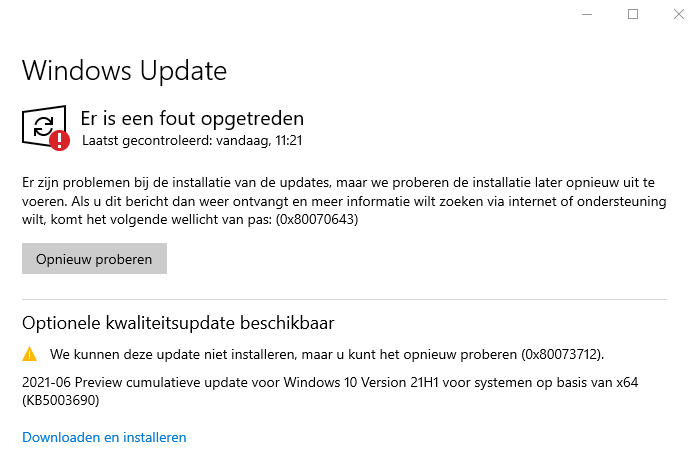
Windows update errors 0x80070643 and 0x80073712

Windows update errors 0x80070643 and 0x80073712

Try 0: reboot

The first step in any odd error is trying to reboot.

Try 1: cleanup

With most Windows Update errors, after rebooting, I usually check disk space (since quite a few of my Windows installs are VMs, so I need to keep VM disk sizes low enough to be able to store all these VMs): there was a comfortable 13 gigabytes free.

Running cleanmgr.exe showed some 5 gigabytes was taken by Windows Update files and almost 1.5 gigabyte by Windows Delivery Optimisation. Cleaning that up brought the free space to almost 20 gigabytes and clear any potential download corruptions: they happen, despite TLS.

Oh Delivery Optimization is just a distributed peer-to-peer cache of Windows related updates, see List of Microsoft Windows components: Services – Wikipedia and [Wayback] Delivery Optimization for Windows 10 updates – Windows Deployment | Microsoft Docs.

Try 2: run the console version of the the Windows Update troubleshooter

After cleanup did not resolve the issue, so the next step is to either run the [Wayback] GUI version of the Windows Update Troubleshooter or from the console equivalent using the below DISM statements.

The below steps are from [Wayback] Windows Update error 0x80073712, but many other sources describe the same steps:

  1. Start a Command Prompt as elevated Administrator

  2. In the Administrator: Command Prompt window, type the following commands. Press the Enter key after each command:

    DISM.exe /Online /Cleanup-image /Scanhealth

    DISM.exe /Online /Cleanup-image /Restorehealth

  3. When finished, re-run the updates

Note that DISM can take a very long time, even on a recently installed Windows machine: the first took 5 minutes, the second also 5 minutes on a VM that was backed with fast SSD storage and had plenty of CPU and memory. These are my results show no corruption, but did repair the problem:

C:\temp>DISM.exe /Online /Cleanup-image /Scanhealth

Deployment Image Servicing and Management tool
Version: 10.0.19041.844

Image Version: 10.0.19043.1052

[==========================100.0%==========================] No component store corruption detected.
The operation completed successfully.

C:\bin\bin>DISM.exe /Online /Cleanup-image /Restorehealth

Deployment Image Servicing and Management tool
Version: 10.0.19041.844

Image Version: 10.0.19043.1052

[==========================100.0%==========================] The restore operation completed successfully.
The operation completed successfully.

C:\temp>

Success

Despite DISM not showing any issues, it did repair the problem.

A retry of the updates (without even rebooting) showed a successful update requiring a reboot:
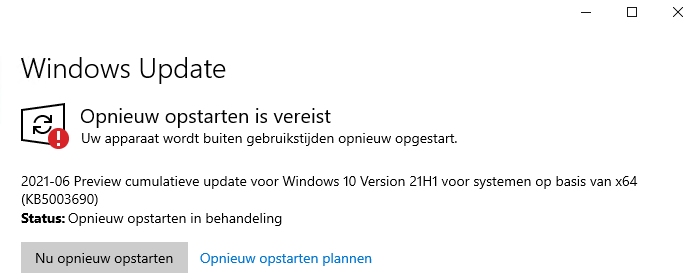
Success: updates were installed and Windows wanted to reboot

Success: updates were installed and Windows wanted to reboot

More to try

If the above fail, there are two more things to try: reset the whole update mechanism, or verify/repair the .NET framework integrity.

Repairing the .NET framework (specifically for 0x80070643)

Via [Wayback] Windows Update – error 0x80070643 – Microsoft Community.

From [Wayback] Download Microsoft .NET Framework Repair Tool from Official Microsoft Download Center, download NetFxRepairTool.exe (the actual download is via the [Wayback] Download Microsoft .NET Framework Repair Tool from Official Microsoft Download Center:confirmation at [Wayback] download.microsoft.com/download/2/B/D/2BDE5459-2225-48B8-830C-AE19CAF038F1/NetFxRepairTool.exe) and run it.

Resetting the Windows Update mechanism

This is a two part exercise of which the second part is not always needed.

First part: start with a fresh %windir%\SoftwareDistribution

Suggested by for instance

Run these commands in an Administrator elevated command prompt:

net stop wuauserv
rename %windir%\SoftwareDistribution SoftwareDistribution.old
net start wuauserv

If after this, Windows updates work again, then recursively delete the %windir%\SoftwareDistribution folder.

Second part: start with a fresh %windir%\System32\catroot2

Order slightly corrected from [Wayback] Can’t rename Catroot2 and SoftwareDistribution folder in Windows – Microsoft Community because of service dependencies:

net stop bits
net stop wuauserv
net stop cryptsvc
rename %windir%\System32\catroot2 catroot2 .old
net start bits
net start wuauserv
net start cryptsvc

Note that some sources

  • indicate you need to stop and start msiserver too, but that does not seem necessary any more.
  • fail to indicate you need to stop and start cryptsvc, but that is indeed needed.

Third: fully reset the Windows Update mechanism

This is hardly needed, but [Wayback] Windows Update – Additional resources – Windows Deployment | Microsoft Docs has even more steps to fully reset the Windows Update components on your system.

–jeroen


Posted in Power User, Windows, Windows 10 | Leave a Comment »

Boomer screenshots: wondering why Windows still has no keyboard shortcut for saving a screenshot or screen snippet to disk

Posted by jpluimers on 2022/03/14

With the disappearing PrtScn buttons on modern keyboards, boomer screenshots are about the only way to easily persist a screenshot, as these are the only available Windows screenshot shortcuts:

  • PrtScn: copies full screenshot to the clipboard; multiple invocations overwrite the clipboard
  • Windows + PrtScn: saves full screenshot to a file; multiple invocations saves to new files
  • Windows + Shift + S: copies full screen or part of the screen to the clipboard, and allows manual action to start snippet tool to save the clipboard contents; often looses the image when on remote desktop connections or when copying something else to the clipboard; multiple invocations overwrite the clipboard

Now look at macOS what a choices, and how less messy than on Windows:

macOS has various shortcuts to save (partial) screenshots to clipboard or file

macOS has various shortcuts to save (partial) screenshots to clipboard or file

For macOS 10.14 Mojave and newer, you can even set the folder (default: Desktop) to save the screenshots to:

I want this ease in Windows as well, and maybe I can in part without installing external tools and modifying existing shortcuts to make things easier:

Written after bumping into [Archive.is] Jeff Atwood on Twitter: “Someone just called a smartphone pic of their monitor a “boomer screenshot” and I literally LOLed 🤣… “

–jeroen

Posted in Apple, LifeHacker, Mac OS X / OS X / MacOS, Power User, PowerToys, Windows, Windows 10 | Leave a Comment »

I could not get this to work: Use a second laptop as an extended monitor with Windows 10 wireless displays – Scott Hanselman’s Blog

Posted by jpluimers on 2022/03/10

I had a vague recollection of this was possible, so I was glad to find it back after having recovered from all cancer treatments at [Wayback] Use a second laptop as an extended monitor with Windows 10 wireless displays – Scott Hanselman’s Blog.

The feature is called “Miracast” and has a built-in Windows 10 implementation for both sending and receiving not just over WiFi, but also over the local fixed ethernet network: [Wayback] Miracast on existing wireless network or LAN – Surface Hub | Microsoft Docs.

With such support, I’d expected an “it works out of the box” experience. It is far from that, so let me show what I bumped into and how I finally did not get it working.

TL;DR

  1. Windows will tell you when it doesn’t work
  2. Windows won’t tell you why it doesn’t work
  3. The tooling to try to find out why it doesn’t work is not sufficient: documentation is scarce and far from complete

When out of luck

I tried two machines with Intel processors having built-in graphics engines.

Thinkpad T510

Read the rest of this entry »

Posted in Power User, T510, ThinkPad, Windows, Windows 10 | Leave a Comment »

How To Fix Missing Hibernation Option On Windows 10

Posted by jpluimers on 2022/03/10

Windows 10 on desktops still defaults to the Sleep option to be available in any Power action while the Hibernation option is unavailable.

This is odd now that most systems have fast and sizable SSD options: from a power loss perspective, Hibernate is much safer than Sleep on desktop machines.

[Wayback] How To Fix Missing Hibernation Option On Windows 10 explains how to restore the Hibernate option.

It is a three step process, partial on the Administrator elevated command-line, part in the UI. I wish all could be done on the commandline

  1. Enable an hibernation file: powercfg.exe /hibernate on
  2. Start the “Power Options” control panel applet: powercfg.cpl
  3. In the UI, under “Choose what the power buttons do”, disable “Sleep” and enable “Hibernate” (you might need to “Change settings that are currently unavailable” first), then press “Save changes”

I have not tried yet, but these Registry Values under [Wayback]HKEY_LOCAL_MACHINE\SOFTWARE\Microsoft\Windows\CurrentVersion\Explorer\FlyoutMenuSettings might just cut it, but I am not sure it is complete:

  • ShowHibernateOption with values 0 and 1
  • ShowSleepOption with values 0 and 1

There is also a value ShowLockOption that defaults to 1.

Two git places where these registry values are mentioned:

–jeroen

Posted in Power User, Windows, Windows 10 | Leave a Comment »

How to make a full backup of your Windows 10 PC | Windows Central

Posted by jpluimers on 2022/03/03

Quite an OK guide on how to backup and restore on Windows 10 (since so much has changed since Windows 7, and some Windows 7 stuff is still there but has moved)

[Wayback] How to make a full backup of your Windows 10 PC | Windows Central

In this guide, we’ll show you the steps to create a full backup of your computer, which includes everything from settings, apps, to files using the System Image Backup tool on Windows 10.

–jeroen

Posted in Power User, Windows, Windows 10, Windows 7 | Leave a Comment »

Some links on repairing the Windows Recovery partition after cloning a Windows 10 disk

Posted by jpluimers on 2022/03/01

Somehow after cloning a Windows 10 disk to SSD, the regular partition worked fine, but the recovery partition (sometimes called WinRE: short for Windows Recovery Environment or Windows RE) didn’t.

In short, I only had to perform two actions to get this fixed, both from the Administrator elevated command prompt:

  • Set the partition ID of the Recovery partition from 7 to 27 (this is for an MBR disk; for GPT disks, these values are different, see the first link below). I did this using diskpart.
  • Re-enabling the Recovery partition by executing reagentc /info to check if it was disabled, then reagentc /enable (if it wasn’t disabled first, I had to precede it with reagentc /enable).

    Before this, bcdedit /enum would only return the Windows Boot Loader entry for the C: drive, but had no recoverysequence and now it had.

Since there are cases where much more action is needed, here are some links for just when I run into more complicated situations:

Read the rest of this entry »

Posted in Power User, Windows, Windows 10 | Leave a Comment »

Booting Windows 10 to the recovery console command prompt

Posted by jpluimers on 2022/03/01

I bumped into an old draft on notes on NTFS boot issues.

A while ago, I wanted to boot in the Windows 10 “Safe Mode” console, but the F8 option during the boot process was gone.

So I wondered how to get there. There seem to be a few ways, of which almost all require a functioning Windows installation. When you have one, it is relatively easy, as these options will work as summarised from [Wayback] How to open the Windows 10 recovery console:

  • Hold the physical Shift key when choosing “Reboot” in the user interface. There are various ways to get to the “Power” button:
    • in the lower right corner at the logon-screen
    • in the lower right corner at the lock-screen
    • in the lower right corner after pressing CtrlAltDel
    • in the lower left corner of the “Start” menu
  • In the Settings app, there used to be an “Advanced Startup” feature, but I could not find that any more in Windows 10 version 21H1 any more
  • From a console Window, run either of these commands (the second waits zero seconds before rebooting, the first 30)
    • shutdown.exe /r /o
    • shutdown.exe /r /o /t 0

There is also a possibility to restore the F8 functionality, but you need installation media for it. [Wayback] 3 ways to boot into Safe Mode on Windows 10 version 21H1 explains how to.

Some “notes on NTFS boot issues” links for my archive

(Note that for some of the links, only the [Wayback] ones work: link-rot of the links I saved 6 years ago)

–jeroen

Read the rest of this entry »

Posted in Internet, link rot, Power User, Windows, Windows 10, Windows 7, Windows 8, Windows 8.1, WWW - the World Wide Web of information | Leave a Comment »

Force downloading Windows 10 ISOs instead of Media Creation Tool

Posted by jpluimers on 2022/02/25

When downloading Windows 10 builds, I usually want them as ISO files because I test them out as Virtual Machines before running on real hardware.

Downloading can be done from [WayBack] www.microsoft.com/en-us/software-download/windows10, however what you get depends on what machine you start browsing.

The above WayBack link, because it got archived from a non-Windows machine redirects from https://web.archive.org/web/20210321163339/https://www.microsoft.com/en-us/software-download/windows10 to https://web.archive.org/web/20210321143203/https://www.microsoft.com/en-us/software-download/windows10ISO.

On Windows systems the redirect goes from https://web.archive.org/web/20210321143203/https://www.microsoft.com/en-us/software-download/windows10ISO to https://web.archive.org/web/20210321163339/https://www.microsoft.com/en-us/software-download/windows10

By default, when you are on a Windows machine, the download link only provides the Media Creation tool. This forces an extra step into getting the ISO file on the virtual machine host.

When downloading from a non-Windows machine, you get a possibility to download the ISO file directly after selecting which kind of build and language you need. This provides you with a time limited https link to download the ISO (in practice this seems to last at least an hour).

I didn’t dig into this before, but luckily others did, and the difference is as easy as changing the User-Agent in your browser, as these posts describe:

Luckily, since ESXi 6.7, VMware ESXi added https as protocol to wget, so now you can download the https link you get via the above trick without hassle.

Oh, this answers my question from a few years back too: How can I get Win10_1511_1_English_x64.iso or Win10_1511_1_EnglishInternational_x64.iso ?

jeroen

Posted in Chrome, ESXi6.7, Power User, Virtualization, VMware, VMware ESXi, Web Browsers, Windows, Windows 10 | Leave a Comment »