Archive for the ‘Windows’ Category
Posted by jpluimers on 2021/11/04
After doing Windows upgrades to Windows 10, every now and then I bump into applications that do not fully uninstall themselves and get stuck on the uninstall list (that you get when running appwiz.cpl or browse to the Control Pannel installed programs list).
[WayBack] How to Manually Remove Programs from the Add/Remove Programs List mentions to inspect registry key HKEY_LOCAL_MACHINE\Software\Microsoft\Windows\CurrentVersion\Uninstall, but that didn’t include some of the applications.
Then I found [WayBack] Remove entry from Windows 10 Apps & Features – Super User, where the answers mentions two other keys (thanks users [WayBack] Kreiggott and [WayBack] NutCracker):
HKEY_LOCAL_MACHINE\SOFTWARE\WOW6432Node\Microsoft\Windows\CurrentVersion\UninstallHKEY_CURRENT_USER\Software\Microsoft\Windows\CurrentVersion\Uninstall
Neat!
So I made the below PowerShell script to dump installed programs.
It grabs the list of registry keys containing installed software and their registry values, then empirically filters out most values that are also now shown in AppWiz.cpl.
Like database work, the values can have properties having a value or being null. So it’s SQL like expression galore to do the filtering.
This post is slightly related to Still unsolved since 2015 NetBeans: Bug 251538 – Your Installer is Creating Invalid Data for the NoModify DWORD Key which crashes enumeration of the Uninstall Key in at least PowerShell, where I already did (without documenting) some Uninstall spelunking.
## The collection of registry keys gives Name and Property of each registry key; where Property is compound containing all registry values of that key.
## Get-ItemProperty will get you all the values on which you can filter, including a few special PS* values that allow you to browse back to the registry key.

# x86 installs on x64 hardware: http://stackoverflow.com/questions/12199372/get-itemproperty-not-returning-all-properties/12200100#12200100
$nonUninstallableSoftwareRegistryKeys = (@
(Get-Item HKCU:\Software\Microsoft\Windows\CurrentVersion\Uninstall\*)) +
(Get-Item HKLM:\Software\Microsoft\Windows\CurrentVersion\Uninstall\*) +
(Get-Item HKLM:\Software\Wow6432Node\Microsoft\Windows\CurrentVersion\Uninstall\*)

#$nonUninstallableSoftwareRegistryKeys.GetType().FullName
#$nonUninstallableSoftwareRegistryKeys | Get-Member
#$nonUninstallableSoftwareRegistryKeys | Out-GridView
#$nonUninstallableSoftwareRegistryKeys | Get-ItemProperty | Get-Member
#$nonUninstallableSoftwareRegistryKeys | Get-ItemProperty | Out-GridView
#Return

$nonUninstallableSoftwareRegistryNameValues = $nonUninstallableSoftwareRegistryKeys |
    Get-ItemProperty |
    Where-Object {
        $_.SystemComponent -ne 1 -and $_.NoRemove -ne 1 -and
        $_.UninstallString -ne "" -and $_.UninstallString -ne $null
    }
# Filters out most things that AppWiz.cpl will leave out as well.
# Might need more fine tuning, but is good enough for now.

# PSPath shows the path to the underlying registry key of each value
$nonUninstallableSoftwareRegistryNameValues |
    Select-Object SystemComponent, NoRemove, DisplayName, DisplayVersion, UninstallString, PSChildName <#, PSPath #> |
    Sort-Object DisplayName |
    Out-GridView
# Need to find a good way to output this in a really wide Format-Table text format.
–jeroen
Posted in CommandLine, Development, Power User, PowerShell, PowerShell, Scripting, Software Development, Windows, Windows 10 | Leave a Comment »
Posted by jpluimers on 2021/11/03
I have the same problem mentioned in the answer to [WayBack] Terminating a script in PowerShell – Stack Overflow: confused by most answers, and keeping to forget what each method means (there is Exit, Return, Break and (if you love exception handling to do simple flow control), Throw.
So here is the full quote of what [WayBack] User New Guy answered:
Read the rest of this entry »
Posted in *nix, CommandLine, Development, Power User, PowerShell, PowerShell, Scripting, Software Development, Windows | Leave a Comment »
Posted by jpluimers on 2021/11/01
Interesting:
Some corporate networks are behind HTTP proxy servers that use NTLM authentication. Dropbox currently doesn’t support this kind of proxy authentication. However, some users have reported some success using an intermediate proxy, such as [WayBack] NTLMAPS or [WayBack] cntlm, to get Dropbox running on their network.
This article explains steps on various systems to install proxies that support NTLM authentication: [WayBack] Allow Dropbox to Authenticate With a NTLM Proxy Server – The Unofficial Dropbox Wiki.
Need to try these. Maybe they work for Copy.com too (:
Some other links around HTTP Fiddler that might be relevant: Read the rest of this entry »
Posted in Cntlm, Copy.com, DropBox, NTLM, Power User, SocialMedia, Windows, Windows-Http-Proxy | Leave a Comment »
Posted by jpluimers on 2021/10/29
If you enable File and Printer sharing on Windows, by default the firewall only enables it on private networks for the local subnet as remote address (for domain networks, it allows “Any”) as seen on the picture below.
When your network consists of multiple subnets, for instance when it is large, or multiple sites are connected via site-to-site VPN (often called LAN-to-LAN VPN) solutions, then these subnets cannot access each others files or printers.
Realising these default blocks, they are easy to resolve as explained in for instance [WayBack] Windows firewall blocking network shares through VPN server – Server Fault by [WayBack] Brian:
I realize this is almost three years late, but I just spent today fighting with the same problem. I did get it working, so I figured I’d share. Note that I’m using a Windows 7 PC as the file server; other versions might need slightly different configuration.
In the “Windows Firewall with Advance Security”, there are several “File and Printer Sharing” rules:
- File and Printer Sharing (NB-Datagram-In)
- File and Printer Sharing (NB-Name-In)
- File and Printer Sharing (NB-Session-In)
- File and Printer Sharing (SMB-In)
(There are additional rules, but I didn’t care about printer sharing. The same changes would apply if you want those.)
File and Printer Sharing appears to default to “Local subnet” only. You’ll need to add the subnet of your VPN clients.
Modify each of those rules as follows:
- Open the Properties dialog for the rule.
- Navigate to the Scope tab.
- In the Remote IP address section, the “These IP addresses” radio button should be selected.
- Click “Add…” next to the list of addresses. By default, only “Local subnet” is in the list.
- In the “This IP address or subnet:” field, enter the subnet assigned to your VPN clients (this is probably 192.168.1.0/24 in the OP, but if not, it’s the subnet assigned to the VPN adapter on the client side), then click OK.
- If you’re also using IPv6, add the VPN client IPv6 subnet as well.
That was enough for me to access file shares over the VPN.
(If you want to do it manually, you need to open TCP ports 139 and 445, and UDP ports 137 and 138, in the file server’s firewall.)
Hopefully I will find some time in the future to automate this using PowerShell, as netsh names are localised do hard to make universal.
These links might help me with that:
Read the rest of this entry »
Posted in Communications Development, Development, Internet protocol suite, Power User, SMB, TCP, Windows | Leave a Comment »
Posted by jpluimers on 2021/10/12
After watching an autologon system not logging on automatically over the past years, the pattern seems to be that at least major, and some less minor Windows updates remove autlogon parts of the registry.
I’m not sure where the boundary between “major” and “less minor” lies (though I suspect “cumulative updates” and larger), nor if more than these values are affected:
- key
"HKEY_LOCAL_MACHINE\SOFTWARE\Microsoft\Windows NT\CurrentVersion\Winlogon"
- value name
AutoAdminLogon gets removed or becomes value 0
- value
DefaultUserName gets removed
- value
DefaultPassword gets removed
This means that now after each startup, I need to schedule a task that runs a script setting the values I need depending if a password is needed or not.
The script also needs credentials, so I need to figure out how to properly do that.
I still need to decide between PowerShell or batch file script, as I already have the batch file from How to turn on automatic logon in Windows and automatic logon in Windows 2003.
For my future reference, some more links on things that can get deleted:
Hopefully these links will help me writing the scripts:
–jeroen
Posted in Batch-Files, CommandLine, Development, Power User, PowerShell, PowerShell, Scripting, Software Development, Windows, Windows 10, Windows Development | Leave a Comment »
Posted by jpluimers on 2021/10/07
TL;DR: Empty files are indeed of size zero, but there is some disk space involved for their meta-data (like name, permission, timestamps)
Some links (via [WayBack] create zero sized file – Google Search):
- [WayBack] Zero-byte file – Wikipedia
- [WayBack] filesystems – How can a file size be zero? – Super User (thanks [WayBack] phuclv):
Filesystems store a lot of information about a file such as file name, file size, creation time, access time, modified time, created user, user and group permissions, fragments, pointer to clusters that store the file, hard/soft links, attributes… Those are called file metadata. Why do you count those metadata into file size when users do not (need to) care about them and don’t know about them? They only really care about the file content
Moreover each filesystem stores different types of metadata which take different amounts of space on disk. For example POSIX permissions are very different from NTFS permission, and there are also inode numbers in POSIX which do not exist on Windows. Even POSIX filesystems vary a lot, like ext3 with 32-bit block address, ext4 with 48-bit, Btrfs with 64-bit and ZFS with 128-bit address. So how will you count those metadata into file size?
Take another example with a 100-byte file whose metadata consumes 56 bytes on the current filesystem. We copy the file to another filesystem and now it takes 128 bytes of metadata. However the file contents are exactly the same, the number of bytes in the files are also the same. So displaying file size as 156 bytes on a system but 228 bytes on another is very confusing and counter-intuitive.
- [WayBack] What is the concept of creating a file with zero bytes in Linux? – Unix & Linux Stack Exchange:
touch will create an inode, and ls -i or stat will show info about the inode:
$ touch test
$ ls -i test
28971114 test
$ stat test
  File: ‘test’
  Size: 0           Blocks: 0          IO Block: 4096   regular empty file
Device: fc01h/64513d    Inode: 28971114    Links: 1
Access: (0664/-rw-rw-r--)  Uid: ( 1000/1000)   Gid: ( 1000/1000)
Access: 2017-03-28 17:38:07.221131925 +0200
Modify: 2017-03-28 17:38:07.221131925 +0200
Change: 2017-03-28 17:38:07.221131925 +0200
 Birth: -
Notice that test uses 0 blocks. To store the data displayed, the inode uses some bytes. Those bytes are stored in the inode table. Look at the ext2 page for an example of an inode structure [WayBack].
Oh and a nice NTFS thing (thanks [WayBack] Paweł Bulwan):
Related: my really old post command line – create empty text file from a batch file (via: Stack Overflow)
–jeroen
Posted in *nix, btrfs, Development, File-Systems, NTFS, Power User, Software Development, Windows | Leave a Comment »
Posted by jpluimers on 2021/10/04
From a while back: [Archive.is] Jeroen Wiert Pluimers on Twitter: ‘Answering Yes to “You have an older version of PackageManagement known to cause issues with the PowerShell extension. Would you like to update PackageManagement (You will need to restart the PowerShell extension after)?” hung my Visual Studio Code.… ‘

After clicking “Yes”, the the only thing visible was this notification that had an ever running “progress bar”:
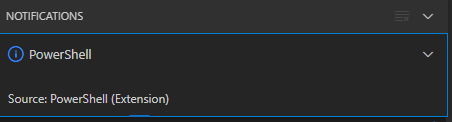
Notifications – Powershell – Source: Powershell (Extension)
The first part of the solution was relatively simple: restart Visual Studio code, then the original notification showed, and after clicking “Yes”, the “Panel” (you can toggle it with Ctrl+J) showed the “Terminal” output (yes, I was working on [Wayback/Archive.is] PowerShell script for sending Wake-on-LAN magic packets to given machine hardware MAC address, more about that later):
Read the rest of this entry »
Posted in .NET, Communications Development, Development, Encryption, HTTP, HTTPS/TLS security, Internet protocol suite, Power User, Security, Software Development, TCP, Visual Studio and tools, vscode Visual Studio Code, Windows, Windows 10 | Leave a Comment »
Posted by jpluimers on 2021/09/29
The Windows Sandbox can be useful, but since it was never there in the first decades of my Windows usage, I forgot it was added.
I wonder how it is implemented, as it is really useful to test out new stuff, but I wonder what it protects against.
A few years back, I bumped into this because the [WayBack] Desktop Goose by samperson got viral (it can be downloaded from [WayBack/Archive.is] Desktop Goose v0.2.zip)
via [Archive.is] Samperson on Twitter: “I made a goose that destroys your computer Download it free here: samperson.itch.io/desktop-goose” / Twitter
So here are some links (you need at least build 1903 ([WayBack] Windows 10 May 2019 or 19H1) or Insider Preview Build 18305):
- [Archive.is] Jen Gentleman 🌺 on Twitter: “Thank you, Windows Sandbox, for enabling me to play with this ridiculous desktop destroying goose in an isolated container 😂 https://t.co/EPqM1FROg3” / Twitter
- [WayBack] Jen Gentleman 🌺 on Twitter: “If you’re not familiar with Windows Sandbox, it’s something we shipped with Windows 10 version 1903 😊👉 …” / Twitter
- [WayBack] Windows Sandbox – Microsoft Tech Community – 301849
- Sandbox in [WayBack] Announcing Windows 10 Insider Preview Build 18305 | Windows Experience Blog
Windows Sandbox has the following properties:
- Part of Windows – everything required for this feature ships with Windows 10 Pro and Enterprise. No need to download a VHD!
- Pristine – every time Windows Sandbox runs, it’s as clean as a brand-new installation of Windows
- Disposable – nothing persists on the device; everything is discarded after you close the application
- Secure – uses hardware-based virtualization for kernel isolation, which relies on the Microsoft Hypervisor to run a separate kernel which isolates Windows Sandbox from the host
- Efficient – uses integrated kernel scheduler, smart memory management, and virtual GPU
To install Windows Sandbox, go to Settings > Apps > Apps & Features > Programs and Features > Turn Windows Features on or off, and then select Enable Windows Sandbox.
To start Windows Sandbox, open the Start menu, enter Windows Sandbox and then select it.
You can install it even if your Windows machine itself is a VM. For a physical machine, hardware virtualisation needs to be enabled (usually in the BIOS); for a VM, nested virtualisation enabled (check that in your virtualisation environment: Hyper-V, ESXi and others vary slightly on how to enable this).
Installation inside the Windows machine can be done via PowerShell (or the UI):
- [WayBack] Enable Windows 10 Sandbox with PowerShell and Dism
-
To Enable Windows 10 Sandbox with PowerShell,
- Open PowerShell as Administrator.Tip: You can add “Open PowerShell As Administrator” context menu.
- Type or copy-paste the following command:
Enable-WindowsOptionalFeature -FeatureName "Containers-DisposableClientVM" -All -Online
- When prompted to restart the computer, type Y, and press Enter.
- The change can be undone with the following command:
Disable-WindowsOptionalFeature -FeatureName "Containers-DisposableClientVM" -Online
You are done.
-
Enable Windows 10 Sandbox with DISM
- Open an elevated command prompt.
- Type or copy-paste the following command:
dism /online /Enable-Feature /FeatureName:"Containers-DisposableClientVM" -All
- Restart the computer when prompted.
- To disable the Sandbox feature, use this command:
dism /online /Disable-Feature /FeatureName:"Containers-DisposableClientVM"
That’s it.
- These two also discussies WSB configuration files (which can passed as first parameter to
C:\WINDOWS\System32\WindowsSandbox.exe "%1"):
Note that starting the SandBox from an x86 process might require you to run a different WindowsSandBox.exe; see [WayBack] Launching Wsb (Windows Sandbox Config file) gives error – Total Commander:
you can use C:\WINDOWS\Sysnative\WindowsSandbox.exe in stead of C:\WINDOWS\System32\WindowsSandbox.exe in TC 32bit.
Also see:
[WayBack] On 64-bit Windows versions, some files and folders shown by Windows Explorer are not shown by Total Commander!
[WayBack] Windows x64: Explorer vs TC: Content of System32 different
–jeroen
Read the rest of this entry »
Posted in Development, Power User, Software Development, Windows, Windows Development | Leave a Comment »
Posted by jpluimers on 2021/09/28
Shortly after UltraVNC mismatching sha256 hash the chocolatey checksum check (Chocolatey: when upgrades or installs keep insisting the hash has changed, and over time the mismatch changes as well), I bumped into another occasion: now (because of a zero sized .nupkg file), I had to force reinstall sysinternals.
The problem however is that sysinternals chocolatey will always install the latest version as per [WayBack] Chocolatey Software | Sysinternals 2019.12.19
Notes
- This package supports only latest version.
- This package by default installs to tools directory which will create shims for all applications. When you install to different directory, shims are not created but directory is added to the PATH.
- This package downloads the nano edition of sysinternals suite when installing it on a nano server.
- To have GUI for the tools, install nirlauncher package and use
/Sysinternals package parameter.
It means that when reinstalling an older version (in the process of fixing a broken chocolatey install), it is OK to ignore the error caused during forced reinstall:
C:\bin\bin>choco install --force --yes sysinternals
Chocolatey v0.10.15
Installing the following packages:
sysinternals
By installing you accept licenses for the packages.
sysinternals v2019.6.29 already installed. Forcing reinstall of version '2019.6.29'.
 Please use upgrade if you meant to upgrade to a new version.
Progress: Downloading sysinternals 2019.6.29... 100%

sysinternals v2019.6.29 (forced) [Approved]
sysinternals package files install completed. Performing other installation steps.
Sysinternals Suite is going to be installed in 'C:\ProgramData\chocolatey\lib\sysinternals\tools'
Downloading sysinternals
  from 'https://download.sysinternals.com/files/SysinternalsSuite.zip'
Progress: 100% - Completed download of C:\Users\jeroenp\AppData\Local\Temp\chocolatey\sysinternals\2019.6.29\SysinternalsSuite.zip (29 MB).
Download of SysinternalsSuite.zip (29 MB) completed.
Error - hashes do not match. Actual value was 'AE0AB906A61234D1ECCB027D04F5A920D78A31494372193EE944DD419842625C'.
ERROR: Checksum for 'C:\Users\jeroenp\AppData\Local\Temp\chocolatey\sysinternals\2019.6.29\SysinternalsSuite.zip' did not meet 'db59efe1739a2262104874347277f9faa0805a1a7a0acd9cc29e9544fb8040c5' for checksum type 'sha256'. Consider passing the actual checksums through with --checksum --checksum64 once you validate the checksums are appropriate. A less secure option is to pass --ignore-checksums if necessary.
The install of sysinternals was NOT successful.
Error while running 'C:\ProgramData\chocolatey\lib\sysinternals\tools\chocolateyInstall.ps1'.
 See log for details.

Chocolatey installed 0/1 packages. 1 packages failed.
 See the log for details (C:\ProgramData\chocolatey\logs\chocolatey.log).

Failures
 - sysinternals (exited -1) - Error while running 'C:\ProgramData\chocolatey\lib\sysinternals\tools\chocolateyInstall.ps1'.
 See log for details.
So in this case, as always the most recent Sysinternals file is used, it is OK to follow the bold guideline above (and quoted below) use the checksum for that file. You might even want to ignore it, as the file is downloaded over https so tampering is virtually impossible:
Consider passing the actual checksums through with --checksum --checksum64 once you validate the checksums are appropriate. A less secure option is to pass --ignore-checksums if necessary.
For this checksum, the forced reinstall becomes choco install --force --yes sysinternals --checksum AE0AB906A61234D1ECCB027D04F5A920D78A31494372193EE944DD419842625C
Alternatively (with a slight chance of yet another checksum) would be choco install --force --yes sysinternals --ignore-checksums
Related:
Read the rest of this entry »
Posted in .NET, Chocolatey, CommandLine, Development, Power User, PowerShell, PowerShell, Scripting, Software Development, SysInternals, Windows | Leave a Comment »


 The Wiert Corner - irregular stream of stuff