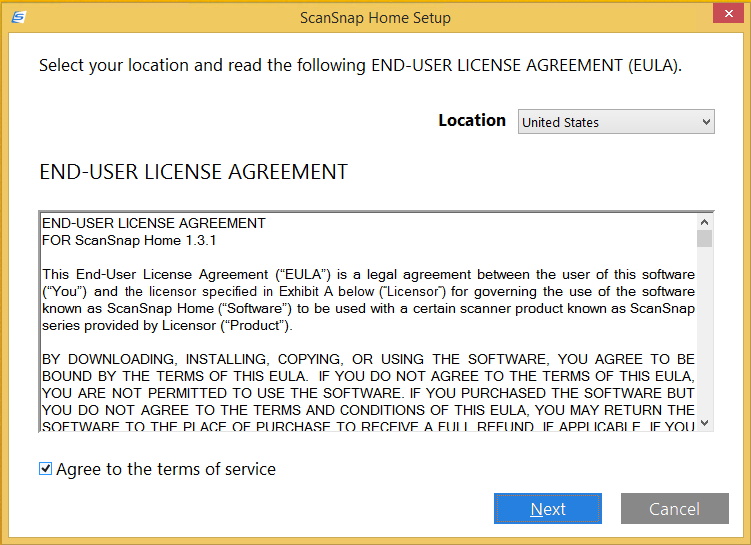
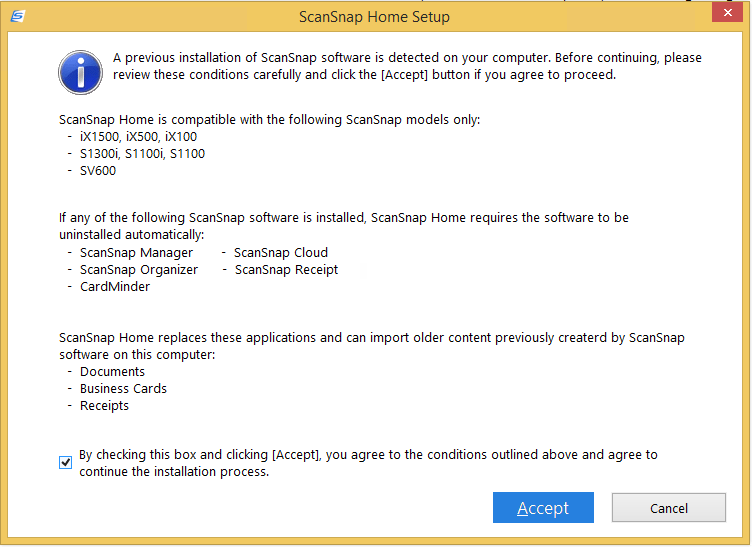
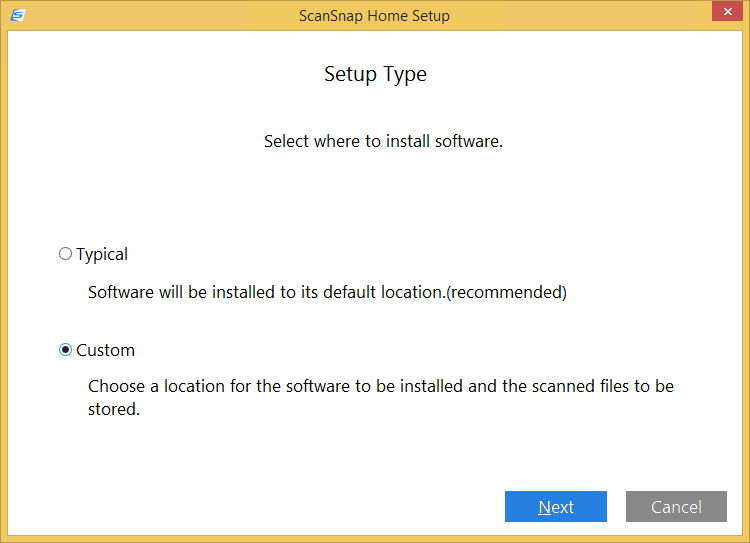
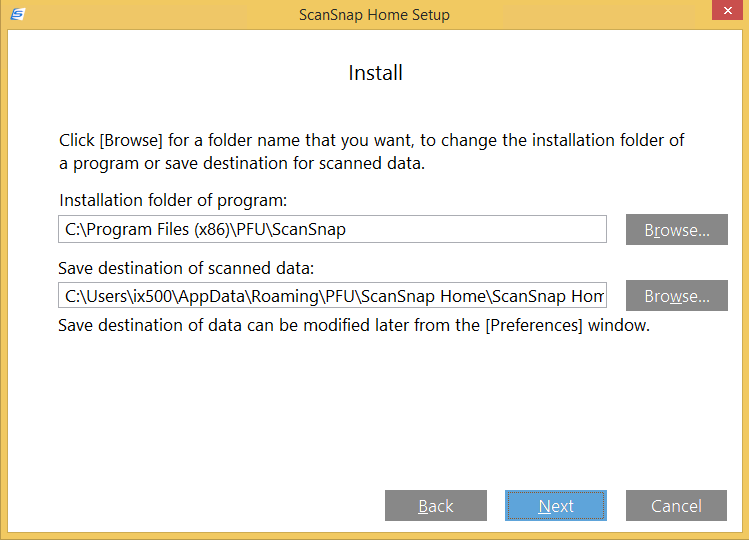
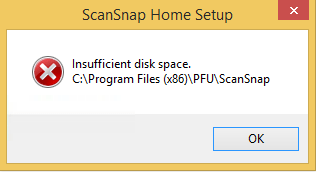
For my screenshot archive:
A retry with about 5 gigabyte of free space went further:
Posted by jpluimers on 2021/08/13
For my screenshot archive:
A retry with about 5 gigabyte of free space went further:
Posted in Fujitsu ScanSnap, Hardware, ix1500, Power User, Scanners, Windows, Windows 8.1 | Leave a Comment »
Posted by jpluimers on 2021/08/12
It was fun while it lasted, and puts other operating systems at an advantage.
[Wayback] Jeroen Wiert Pluimers on Twitter: “Bye bye printer Plug & Play on Windows for end-users: … Though MacOS has its share of printer driving issues (like only printing monochrome to colour printers), this is a serious step back on Windows compared to MacOS.”
More on the MacOS printer woes in a later blog post.
Web related:
Have they forgotten SysAdmin Appreciation Day so soon?
Today, we are addressing this risk by changing the default Point and Print driver installation and update behavior to require administrator privileges. The installation of this update with default settings will mitigate the publicly documented vulnerabilities in the Windows Print Spooler service. This change will take effect with the installation of the security updates released on August 10, 2021 for all supported versions of Windows, and is documented as CVE-2021-34481.
Twitter related:
–jeroen
Posted in Hardware, Power User, Printer drivers, Printers, Windows, Windows 10, Windows 7, Windows 8, Windows 8.1 | Leave a Comment »
Posted by jpluimers on 2021/08/11
From an interesting twitter thread started by SwitftOnSecurity:
Interesting thought that I need to let sink in for a while before trying it.
Finding out about and fixing Limited User Account bugs:
More to think about:
To be more secure, users should log on with a Limited (or “Least-privileged”) User account (LUA), and use elevated privileges only for specific tasks that require them. Linux/Unix users have understood this for a long time
- The #1 reason for running as non-admin is to limit your exposure.
- My #2 reason for running as non-admin applies to developers. Developing software as User instead of Admin helps ensure that your software will run correctly on end-users’ systems.
- My #3 reason applies just to Microsoft personnel, particularly those of us in customer-facing roles. Hey, y’all! We need to lead by example.
Here’s how I set up home computers for friends and relatives:
- Create a Computer Administrator account called “Admin”. No password. (Read on before you flame.)
- Create a Limited User account for each person who will be using the computer. No passwords.
- Enable the Guest account if it is anticipated that visitors may need to go online.
I instruct all concerned that the Admin account is to be used only for installing software, and to use their individual accounts for all day-to-day use, including web, email, IM, etc. This has worked quite well for everyone I’ve done this for, and don’t get calls anymore about home pages being hijacked, etc. Users generally don’t even have to log out. My 7-year old walks away, the screen saver kicks in, my 3-year old moves the mouse and clicks on his picture (or the frog or whatever it is now) and has his own settings.
[added 2004.06.22]: I also like to make the admin desktop noticeably different from normal user desktops, to help prevent accidental use. For example, use the Windows Classic theme instead of the XP default, set a red background, or a wallpaper that says “For admin use only. Are you sure you need to be here?”
OK, I know you’re bursting already: “No password?!?! Are you insane?!?!” Cool down, now. Starting with Windows XP, a blank password is actually more secure for certain scenarios than a weak password. By default, an account with a blank password can be used only for logging on at the console. It cannot be used for network access, and it cannot be used with RunAs. The user experience of just clicking on your name to log on can’t be beat for simplicity. If you can trust everyone who has physical access to the computer not to log on as someone else or abuse the admin account, this is a great way to go. If not, you can always enable passwords.
The Secondary Logon service was first introduced in Windows 2000, and is in Windows XP and Server 2003. When you start a new process through RunAs, you provide credentials for the account you want the process to run under – for example, the local Administrator account. Assuming the credentials are valid, the Secondary Logon service then causes several things to happen:
- creates a new logon session for the specified account, with a new token;
- ensures that the new process’ token is granted appropriate access to the current window station and desktop (the specifics change somewhat for XP SP2, but aren’t important here);
- creates a new job in which the new process and any child processes it starts will run, to ensure that the processes are terminated when the shell’s logon session ends (correcting a problem with the NT4 Resource Kit’s SU utility).
MakeMeAdmin.cmd invokes RunAs twice, prompting you first for your local admin password, then for your current account password. The bit that runs as local administrator does the following:
- Adds your current account to the local Administrators group (using NET LOCALGROUP, avoiding the problem of needing network credentials to resolve names);
- Invokes RunAs to start a new instance of cmd.exe using your current account, which is at this instant a member of Administrators;
- Removes your current account from the local Administrators group.
The result of the second step is a Command Prompt running in a new logon session, with a brand new token representing your current account, but as a member of Administrators. The third step has no effect on the new cmd.exe’s token, in the same way that adding your account to Administrators does not affect any previously running processes.
In my first MakeMeAdmin post, there’s a section called “Objects created while running with elevated privilege,” the main parts of which I’ll recap here:
Normally, when a user creates a securable object, such as a file, folder, or registry key, that user becomes the “owner” of the object and by default is granted Full Control over it. Prior to Windows XP, if the user was a member of the Administrators group, that group, rather than the user, would get ownership and full control…. Windows XP introduced a configurable option whether ownership and control of an object created by an administrator would be granted to the specific user or to the Administrators group. The default on XP is to grant this to the object creator; the default on Windows Server 2003 is to grant it to the Administrators group….
If I use MakeMeAdmin to install programs, my normal account will be granted ownership and full control over the installation folder, the program executable files, and any registry keys the installation program creates. Those access rights will remain even when I am no longer running with administrator privileges. That’s not what I want at all. I want to be able to run the app, create and modify my own data files, but not to retain full control over the program files after I have installed it.
I concluded by saying:
For this reason, I changed the “default owner” setting on my computer to “Administrators group”.
Today I would like to go further: If you are going to use the same account for admin and non-admin activities (e.g., with MakeMeAdmin), I strongly recommend that you change the “Default owner” setting on your computer to “Administrators group”.
What becomes of all my earlier non-admin tips, tricks and recommendations vis-à-vis RunAs, MakeMeAdmin, PrivBar and their interactions with IE and Explorer? The short answer is that Vista changes just about everything with respect to running with least privilege.
Windows Vista makes running as a standard user (non-admin) much more pleasant, feasible and secure than it was on XP. I’m not going to drill into all those improvements here. Instead, the focus of this post is to update my earlier posts about running on XP as a standard user (the “Running as Admin Only When Required” posts in the Table of Contents) as they pertain to Windows Vista. To save some space, I’ll assume you’ve spent at least a little time running Vista.
…
> On XP/2003, MakeMeAdmin lets you run as a
> standard user, and temporarily elevate your
> standard account to run a selected program
> with administrative privileges.
Right. It doesn’t mean temporarily elevating your administrative account to run elevated, it means temporarily elevating your standard account to run a selected program with administrative privileges in the context of your account.
> Vista gives you the same ability
It does not. Here’s what Vista gives:
> If you are a member of the Administrators
> group on Vista
Exactly. It means temporarily elevating your administrative account to run elevated. It doesn’t help your standard account at all.
> “Run as administrator” serves as a superior
> substitute. With the default settings, a
> member of Administrators can use it as a
> MakeMeAdmin replacement
No, it is not a substitute, it’s different. A member of Administrators can use it to temporarily switch context to an administrative account and run elevated in the administrative account. If the administrator does this to install an application for all users then there’s no real problem, the application gets installed for all users just as it did in XP. But if the administrator wanted to do this to install an application for the standard user, they can’t do it. The administrator gets to install the application for one user’s account, which is going to be the administrator’s account, it’s not going to be the standard user’s account. The standard user doesn’t get the benefit that MakeMeAdmin provided.
Standard users in Vista still need a MakeMeAdmin tool.
Workaround:
Use Ctrl-Break instead.
[Added, March 9, 2005: While this problem occurs on Windows XP, it does not occur on Server 2003 RTM! ]
The bottom line is that the app runs with a “restricted token” that basically has these net effects:
- Group membership: If you were logged in as a member of Administrators, Power Users, or certain powerful domain groups, the app runs without the benefit of those group memberships.
- Registry: The app has read-only access to the registry, including HKEY_CURRENT_USER and HKEY_LOCAL_MACHINE. The app has no access to HKCU\Software\Policies.
- File system (assuming NTFS): The app cannot access the user’s profile directory at all. That includes “My Documents”, “Temporary Internet Files”, “Cookies”, etc.
- Privileges: The app has no system-wide privileges other than “Bypass traverse checking”.
IE works fairly well this way, but with some odd and annoying problems:
- You can’t use SSL (https) at all.
- If you right-click on a hyperlink and choose “Open in New Window”, nothing happens.
- If you enter a URL in the address bar without “http://” in front of it (e.g., “www.msn.com”), you get an error message like “C:\Documents and Settings\aaronmar\Desktop is not accessible. Access is denied.”, before IE goes ahead and loads the site anyway.
- On XP SP2 and on Server 2003, toolbars do not appear where you configured them, if they appear at all. E.g., PrivBar always needs to be re-enabled; “Links” appears (on my machine) in the upper left, to the left of the menu bar. (This wasn’t a problem with XP SP1.)
–jeroen
Posted in Development, Power User, Security, Software Development, Windows, Windows Development | Leave a Comment »
Posted by jpluimers on 2021/08/09
[WayBack] How to turn on automatic logon in Windows
Describes how to turn on the automatic logon feature in Windows by editing the registry.
Most archivals of the above post fail with a 404-error after briefly flashing the content, but this particular one usually succeeds displaying.
It is slightly different from the one referenced in my blog post automatic logon in Windows 2003, and because of the archival issues, I have quoted most of it below.
A few observations, at least in Windows 10 and 8.1:
reg add "HKEY_LOCAL_MACHINE\Software\Microsoft\Windows NT\CurrentVersion\Winlogon" /v DefaultDomainName /t REG_SZ /d %ComputerName% /fI wrote a batch file enable-autologon-for-user-parameter.bat that makes it easier:
if [%1] == [] goto :help :enable reg add "HKEY_LOCAL_MACHINE\SOFTWARE\Microsoft\Windows NT\CurrentVersion\Winlogon" /v AutoAdminLogon /t REG_SZ /d 1 /f :setUserName reg add "HKEY_LOCAL_MACHINE\SOFTWARE\Microsoft\Windows NT\CurrentVersion\Winlogon" /v DefaultUserName /t REG_SZ /d %1 /f :removePasswordIfItExists reg delete "HKEY_LOCAL_MACHINE\SOFTWARE\Microsoft\Windows NT\CurrentVersion\Winlogon" /v DefaultPassword /f if [%2] == [] goto :eof :setPassword reg add "HKEY_LOCAL_MACHINE\SOFTWARE\Microsoft\Windows NT\CurrentVersion\Winlogon" /v DefaultPassword /t REG_SZ /d %2 /f goto :eof :help echo Syntax: echo %0 username password
The article quote:
Posted in Batch-Files, Development, Microsoft Surface on Windows 7, Power User, Scripting, Software Development, Windows, Windows 10, Windows 7, Windows 8, Windows 8.1, Windows 9, Windows Server 2003, Windows Server 2003 R2, Windows Server 2008, Windows Server 2008 R2, Windows Server 2012, Windows Server 2012 R2, Windows Server 2016, Windows Vista, Windows XP | Leave a Comment »
Posted by jpluimers on 2021/08/09
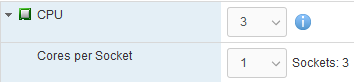
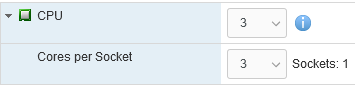
After finding out that Windows 8.1 only uses 2 of of 3 CPU cores, I found [WayBack] How many physical processors does Windows 8 Support? – Super User.
This especially matters when doing virtualisation: here you can choose over how many CPU sockets the cores are divided.
So this limits Windows 8.x to 2 CPU cores, because they 3 cores are spread over 3 sockets:
And this allows Windows 8.x to use 3 CPU cores as it is in one socket:
Note this still applies to more recent non-Server Microsoft products ([Wayback] Windows 10 Home/Pro: 1/2 CPU sockets 64/128 cores; [Wayback] SQL Server Express/Standard: lesser of 1/4 CPU sockets, 4/24 cores) as well. Not sure why the OS would be limited so much, as for development purposes it can make sense to have a 2+ CPU socket machine running a non-server OS.
–jeroen
Posted in Power User, Windows, Windows 8, Windows 8.1 | Leave a Comment »
Posted by jpluimers on 2021/08/03
When configuring a web-based kiosk for someone with Alzheimer’s disease, I wanted to start Chrome in full-screen kiosk mode.
The secret for full-screen kiosk mode is to pass the -start-fullscreen command-line option. Thanks [WayBack] User ginomay89 – Super User for answering that in [WayBack] tablet – How to set Google Chrome to automatically open up and in full screen – Super User.
At first I thought about differentiating on the chrome.exe location that you can find in the registry. This turned out to be depending on how you install Chrome:
%LocalAppData%)%ProgramFiles(x86)%)Oddly, there is no way (not even by denying UAC elevation!) for a local administrator to install Chrome for only the current user.
This is odd, as when non-local-administrator denies UAC, the installation is locally to the user.
Then I remembered there are two ways for Windows to find an application
PATHPATH)
AppUserModelId” values under HKEY_CLASSES_ROOT; one day I will further research this through [WayBack] Application User Model IDs (AppUserModelIDs) – Windows applications | Microsoft Docs.The cool thing is that the start command does the latter, so I came up with this batch file that starts chrome with the -start-fullscreen parameter that will initiate kiosk mode with the default chrome settings:
start "Chrome Kiosk Mode" chrome --start-fullscreen
Basically sorting out the registry settings would mean parsing the references to chrome.exe (often with extra parameters) in the below registry key/value-name pairs.
One day I might need to do this for different reasons, but currently the start trick suffices.
Posted in Batch-Files, Development, Power User, Scripting, Software Development, Windows | Leave a Comment »
Posted by jpluimers on 2021/07/30
One day I will need this: How to auto start virtual machines in Windows 10 Hyper V – YouTube.
Via [WayBack] windows 10 automatically start a vm – Google Search.
Requires Hyper-V to be installed, so these should be useful:
Enable-WindowsOptionalFeature -Online -FeatureName Microsoft-Hyper-V -AllDISM /Online /Enable-Feature /All /FeatureName:Microsoft-Hyper-VEnable-WindowsOptionalFeature -Online -FeatureName Microsoft-Hyper-V-Management-PowerShell
Enable-WindowsOptionalFeature -Online -FeatureName Microsoft-Hyper-V-Tools-All
Enable-WindowsOptionalFeature -Online -FeatureName Microsoft-Hyper-V-All
–jeroen
Posted in Hyper-V, Power User, Virtualization, Windows, Windows 10 | Leave a Comment »
Posted by jpluimers on 2021/07/26
I wrote a tiny post about Boxstarter a long time ago, so maybe it is time to look at it again.
By now, there are way more scripts, so here are some links:
Click link to run Description Full Desktop App Windows Desktop App Development (Visual Studio, Windows SDK, C++, UWP, .NET (WPF and Winforms)) UWP Desktop App Windows Desktop App Development (Visual Studio, Windows SDK, UWP) .NET Desktop App Windows Desktop App Development (Visual Studio, Windows SDK, .NET (WPF and Winforms)) C++ Desktop App Windows Desktop App Development (Visual Studio, Windows SDK, C++) Web Web (VS Code, WSL, Multiple Browsers) Web NodeJS Web Dev with NodeJS (Web + NodeJS LTS)¹ Machine Learning Windows Machine Learning with only Windows native tools Machine Learning Linux Machine Learning with Linux tools running on WSL DevOps Azure Client setup for DevOps with Azure
…
Disable-BingSearch
Disables the Bing Internet Search when searching from the search field in the Taskbar or Start Menu.
Enable-RemoteDesktop
Allows Remote Desktop access to machine and enables Remote Desktop firewall rule.
Enable-MicrosoftUpdate
Turns on the Windows Update option to include updates for other Microsoft products installed on the system.
Enable-UAC
Enables UAC.
Install-WindowsUpdate
Finds, downloads and installs all Windows Updates. By default, only critical updates will be searched. However the command takes a
-Criteriaargument allowing one to pass a custom Windows Update query.For details about the
Install-WindowsUpdatecommand, run:Help Install-WindowsUpdate -FullMove-LibraryDirectory
Libraries are special folders that map to a specific location on disk. These are usually found somewhere under $env:userprofile. This function can be used to redirect the library folder to a new location on disk. If the new location does not already exist, the directory will be created. Any content in the former library directory will be moved to the new location unless the DoNotMoveOldContent switch is used. Use Get-LibraryNames to discover the names of different libraries and their current physical directories.
Move-LibraryDirectory "Personal" "$env:UserProfile\skydrive\documents"This moves the Personal library (aka Documents) to the documents folder off of the default SkyDrive directory.
Set-StartScreenOptions
Sets options for the Start Screen in Windows 8/8.1
Set-StartScreenOptions -EnableBootToDesktop -EnableDesktopBackgroundOnStart -EnableShowStartOnActiveScreen -EnableShowAppsViewOnStartScreen -EnableSearchEverywhereInAppsView -EnableListDesktopAppsFirstIt is also possible to do the converse actions, if required.
Set-StartScreenOptions -DisableBootToDesktop -DisableDesktopBackgroundOnStart -DisableShowStartOnActiveScreen -DisableShowAppsViewOnStartScreen -DisableSearchEverywhereInAppsView -DisableListDesktopAppsFirstSet-CornerNavigationOptions
Sets options for the Windows Corner Navigation in Windows 8/8.1
Set-CornerNavigationOptions -EnableUpperRightCornerShowCharms -EnableUpperLeftCornerSwitchApps -EnableUsePowerShellOnWinXIt is also possible to do the converse actions, if required.
Set-CornerNavigationOptions -DisableUpperRightCornerShowCharms -DisableUpperLeftCornerSwitchApps -DisableUsePowerShellOnWinXSet-WindowsExplorerOptions
Sets options on the Windows Explorer shell
Set-WindowsExplorerOptions -EnableShowHiddenFilesFoldersDrives -EnableShowProtectedOSFiles -EnableShowFileExtensions -EnableShowFullPathInTitleBar -EnableOpenFileExplorerToQuickAccess -EnableShowRecentFilesInQuickAccess -EnableShowFrequentFoldersInQuickAccess -EnableExpandToOpenFolder -EnableShowRibbonIt is also possible to do the converse actions, if required.
Set-WindowsExplorerOptions -DisableShowHiddenFilesFoldersDrives -DisableShowProtectedOSFiles -DisableShowFileExtensions -DisableShowFullPathInTitleBar -DisableOpenFileExplorerToQuickAccess -DisableShowRecentFilesInQuickAccess -DisableShowFrequentFoldersInQuickAccess -DisableExpandToOpenFolder -DisableShowRibbonSet-TaskbarOptions
Sets options on the Windows Taskbar
AlwaysShowIconsOn/AlwaysShowIconsOff allows turning on or off always show all icons in the notification area
Set-TaskbarOptions -Size Small -Lock -Dock Top -Combine Always -AlwaysShowIconsOnIt is also possible to do the converse actions, if required.
Set-TaskbarOptions -Size Large -UnLock -Dock Bottom -Combine Never -AlwaysShowIconsOffUpdate-ExecutionPolicy
The execution policy is set in a separate elevated PowerShell process. If running in the Chocolatey runner, the current window cannot be used because its execution policy has been explicitly set.
If on a 64 bit machine, the policy will be set for both 64 and 32 bit shells.
Related: Boxstarter: quickly setup a machine with just a Gist
–jeroen
Posted in Boxstarter, Chocolatey, Power User, Windows | Leave a Comment »
Posted by jpluimers on 2021/07/23
On an old system, I found some x86 installers with names like RbudLR.cab, RosebudMUI.msi, RosebudMUI.xml, setup.xml.
They appeared to be the (now deprecated and never released as x64): MSDAIPP – Wikipedia (Microsoft Data Access Internet Publishing Provider).
Searching for RosebudMUI many returned detection scams like solvusoft, but somewhere further down was this only meaningful result: [WayBack] What is the RosebudMUI AddOn in Visio 2007?
–jeroen
Posted in Office, Office 2010, Power User, Windows | Leave a Comment »
Posted by jpluimers on 2021/07/19
[WayBack] windows – Is there any sed like utility for cmd.exe? – Stack Overflow
TL;DR: many people suggest to use PowerShell, but there is GNU sed in Chocolatey
The chocolatey part:
Instructions for building [WayBack] Gnu Sed as a native windows application
All patches under the same license as sources of [WayBack] Gnu Sed: [WayBack] GPLv3 or later
sed.exe was exactly the binary [WayBack] sed-windows/sed-4.5-x64.exe at cafe68124fb8f01db3fb1d9ea586f8f6a72d6917 · mbuilov/sed-windows · GitHubThe PowerShell part: read the other answers from the above question.
–jeroen
Posted in *nix, *nix-tools, CommandLine, Power User, PowerShell, RegEx, sed, Windows | Leave a Comment »